

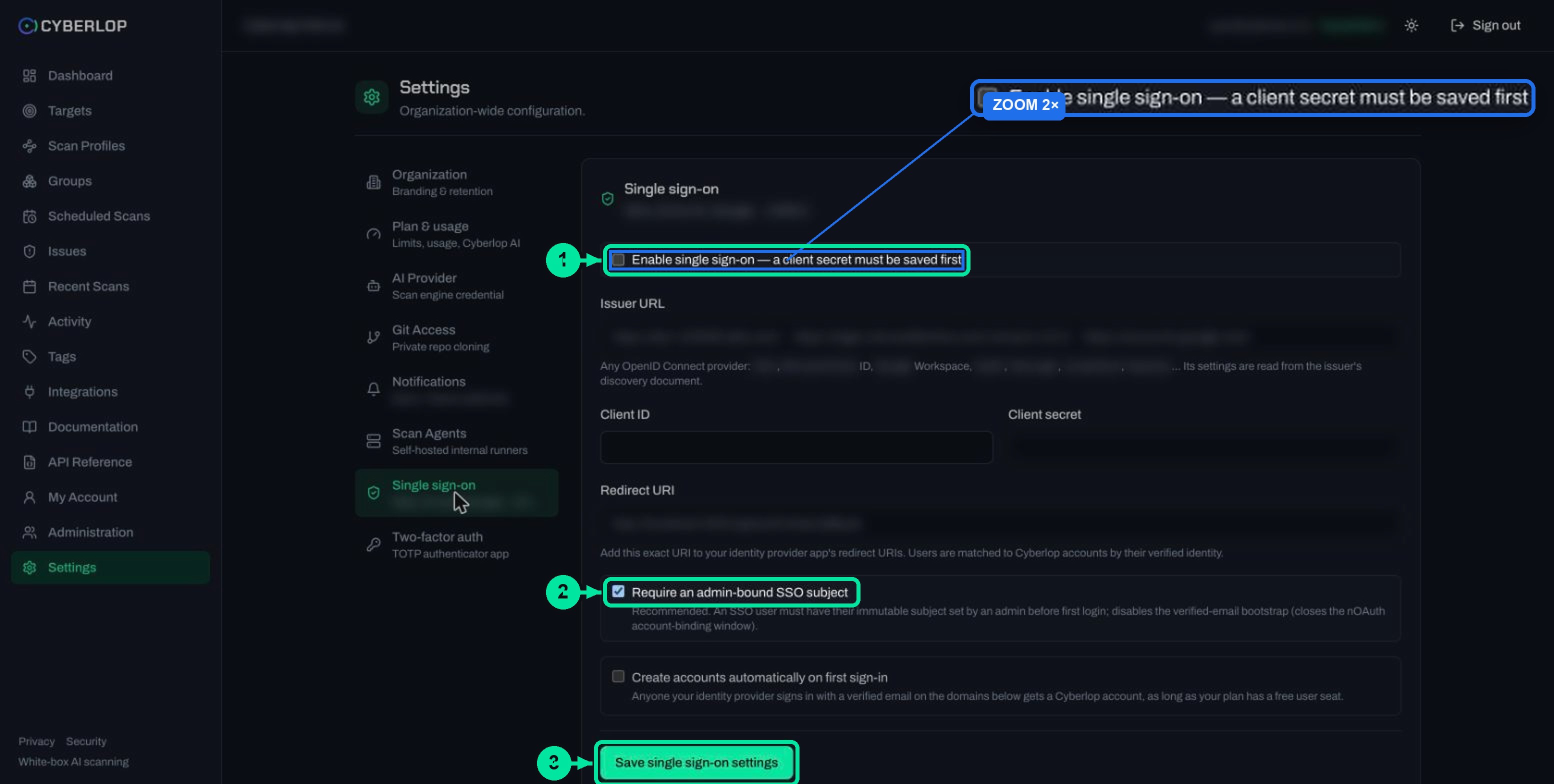
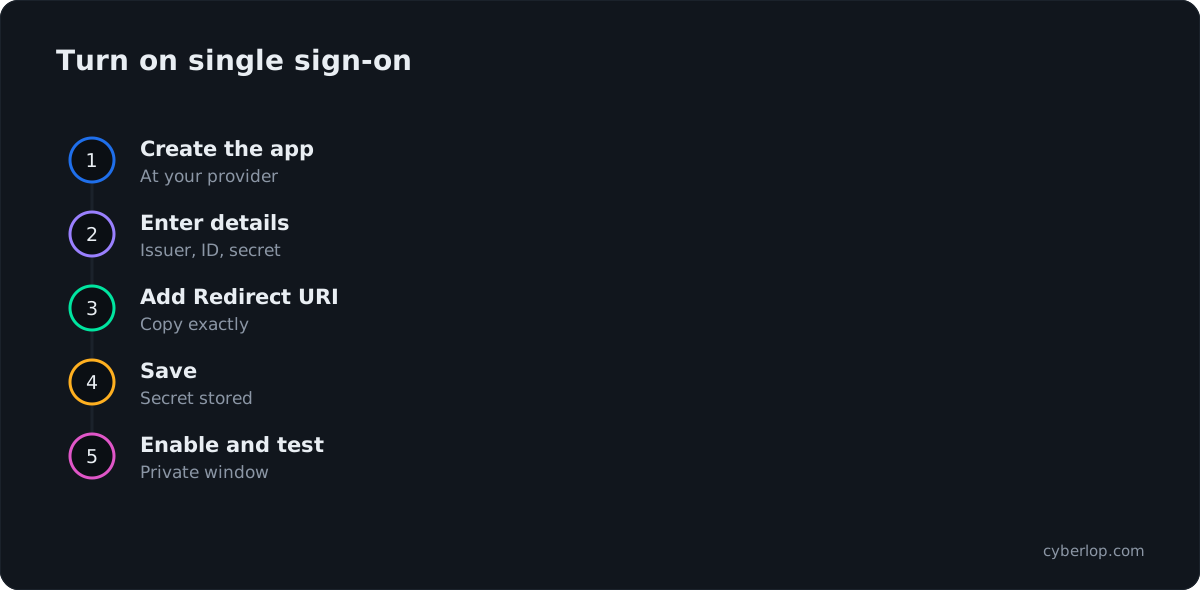
To set up single sign-on in Cyberlop, an administrator opens Settings → Single sign-on, enters the issuer URL, client ID and client secret, and adds the Redirect URI to the identity provider app. Keep the admin-bound subject option on, save, then tick Enable single sign-on.
- Create an OIDC app In your identity provider, create an OpenID Connect web application and note its client ID, client secret and issuer URL.
- Open the SSO tab In Cyberlop, go to Settings and choose Single sign-on.
- Enter the provider details Paste the Issuer URL, Client ID and Client secret.
- Register the Redirect URI Copy the pre-filled Redirect URI and add it, unchanged, to your identity provider app's redirect URIs.
- Choose binding options Keep Require an admin-bound SSO subject ticked. Tick Create accounts automatically on first sign-in only if you want it, and list the allowed domains.
- Save Click Save single sign-on settings so the client secret is stored.
- Enable Tick Enable single sign-on and save again.
- Test Sign in from a private window while keeping your administrator session open.
- SSO uses OpenID Connect and works with any OIDC identity provider.
- Save the client secret first; only then can you enable SSO.
- Add the pre-filled Redirect URI to the provider app exactly as shown.
- Keep Require an admin-bound SSO subject on: it is recommended and shuts the nOAuth window.
- With SSO, MFA is handled by your identity provider.
Single sign-on (SSO) lets your team sign in to Cyberlop with the account your identity provider already manages. An administrator opens Settings → Single sign-on, enters the issuer URL, client ID and client secret from an OpenID Connect (OIDC) app, copies the Redirect URI into that app, saves, and then ticks Enable single sign-on.
What is single sign-on in Cyberlop?
With single sign-on, people authenticate once at the identity provider your organisation already runs, and every connected tool trusts that result. Cyberlop connects over OpenID Connect, the identity layer built on OAuth. Any OIDC-compatible identity provider works, because Cyberlop reads the provider's settings from the issuer's discovery document.
Setup is one form on the Settings page. The payoff is operational: when someone joins or leaves, you change one account at the provider. Your password and MFA rules live there too, so nobody holds a separate Cyberlop password. For the wider idea, see single sign-on.
Who can set it up?
SSO applies to the whole organisation, so it sits in Settings and needs an administrator. The settings:update permission guards the change; API tokens and permissions explains permission keys. Your plan also lists Single sign-on as a feature under Settings → Plan & usage. If the tab is missing or the form is read-only for you, ask an administrator.
What do you need before you start?
You need two things: administrator access to Cyberlop and the ability to create an app in your identity provider. Open both side by side, because values travel in both directions.
- A new OIDC web application in your identity provider, with a client ID and a client secret.
- The issuer URL of that provider. It is an HTTPS address. Per the OpenID Connect Discovery specification, the provider publishes its settings at that address followed by
/.well-known/openid-configuration. - Your own sign-in kept open in another browser window until you have tested SSO. This is your way back in if a value is wrong.
Which fields does the form have?
This table lists every field on the form, in order.
| Field | What to enter | Notes |
|---|---|---|
| Enable single sign-on | Tick when ready | A client secret must be saved first, so save once before enabling. |
| Issuer URL | The issuer address of your identity provider | Any OpenID Connect provider works. Its settings are read from the issuer's discovery document. |
| Client ID | The client ID of the app you created | Copy it exactly, with no spaces. |
| Client secret | The client secret of that app | Stored encrypted and not shown again. |
| Redirect URI | Pre-filled by Cyberlop; copy it out | Ends with /callback. Add this exact URI to your identity provider app's redirect URIs. |
| Require an admin-bound SSO subject | Leave ticked | Recommended and on by default. See the account-binding section below. |
| Create accounts automatically on first sign-in | Tick only if you want self-service accounts | Off by default. An allowed-domains field appears when it is ticked. |
How do you enable single sign-on?
Create the app, fill the form, save, then enable and test. In that order, you never switch on a half-configured login.
Set up the app in your identity provider
- In your identity provider, create a new application of the OIDC web type.
- Note the client ID and client secret it gives you, and the issuer URL.
- Leave the redirect URI box open. You will paste Cyberlop's value there in a moment.
Fill in Cyberlop
- In Cyberlop, open Settings and choose the Single sign-on tab.
- Paste the Issuer URL, Client ID and Client secret.
- Copy the pre-filled Redirect URI and add that exact value to the redirect URIs of your identity provider app.
- Choose your account-binding options (explained below).
- Click Save single sign-on settings.
- Tick Enable single sign-on and click Save single sign-on settings again.
Why must the Redirect URI match exactly?
Once a person signs in, the provider returns their browser to Cyberlop carrying a one-time code, and it only does so for addresses you registered. Hence the help text: add this exact URI. A trailing slash, another host name, or http in place of https will make the provider refuse. See OAuth redirect URI for why providers are strict about it.
Why is the client secret asked for before enabling?
The enable box says a client secret must be saved first. The secret lets Cyberlop prove its identity to your provider, and without it every login would fail. Cyberlop also uses the authorization-code flow with PKCE, which RFC 7636 defines. PKCE stops an attacker who intercepts the code from exchanging it alone.
How are SSO users matched to Cyberlop accounts?
Cyberlop matches people to accounts by verified identity, not by a name typed on a page. Two options decide how that first match happens, and they pull in opposite directions.
What is an admin-bound SSO subject?
The subject is the identifier your identity provider issues for a person. The OpenID Connect Core specification calls it "locally unique and never reassigned" within the issuer. Unlike an email address, it survives a change of name or mailbox.
Require an admin-bound SSO subject is ticked by default and recommended. With it on, an administrator must record each person's immutable subject before that person's first login. The setting also turns off the verified-email bootstrap, so the nOAuth account-binding window stays shut.
What is the nOAuth account-binding window?
nOAuth is an account-takeover risk that appears when an app trusts the provider's email attribute to decide whose account to open. Some providers let users edit that attribute without proving they own the address. An attacker types in a victim's email and lands in the victim's account. Binding each account to an immutable subject that an administrator sets removes the guesswork. Read more under SSO misconfiguration and account takeover.
Should you let Cyberlop create accounts automatically?
Only if you want self-service accounts. Create accounts automatically on first sign-in is off by default. Tick it and an allowed-domains field appears. After that, anyone your provider signs in with a verified email on a listed domain gets a Cyberlop account, provided your plan has a free user seat.
| Choice | What happens | Good for |
|---|---|---|
| Admin-bound subject on, auto-create off | An administrator prepares each person and sets their subject. Nobody else can get in. | Most teams; the default and the safest start. |
| Admin-bound subject on, auto-create on | Prepared people bind by subject; anyone else on your listed domains can create their own account. | Larger teams that also want self-service accounts. |
| Admin-bound subject off | The verified-email bootstrap is allowed again. | Only if you accept that trade-off and trust your provider's email handling. |
Seats cap auto-created accounts. Limits depend on your plan and show in Settings → Plan & usage, so look there before you invite a large group.
How does SSO fit with MFA and passwords?
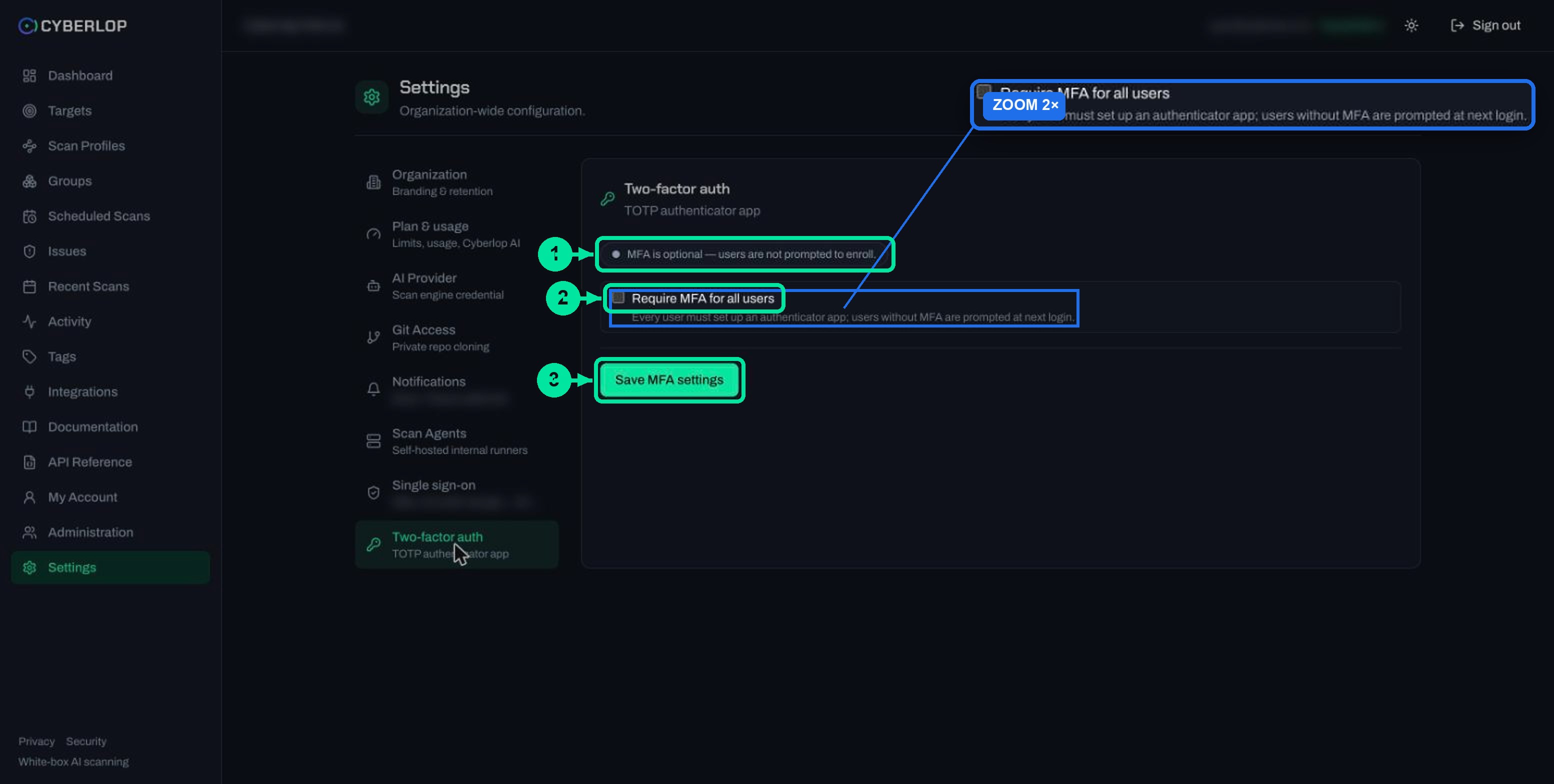
With SSO on, your identity provider takes over multi-factor authentication. The two-factor authentication guide covers the local TOTP setting, and the Security page confirms that SSO is supported and MFA moves to the provider. Set your MFA rules once there and every tool behind it inherits them.
Local accounts keep their own rules. Passwords need at least 12 characters with a mix of character classes, and repeated failed logins hit rate limits and an escalating lockout. Keep at least one administrator who can still sign in locally, in case your provider has an outage. Security teams call this a break-glass account.
The OWASP Authentication Cheat Sheet draws the same line. OIDC answers "who is this person?"; OAuth grants an app access to an API. SSO needs the first.
How do you test single sign-on?
Test in a private window with an ordinary user, not the administrator account you configured with. If that works, it will work for your team.
- Keep your configuring session open.
- Open Cyberlop in a private browser window.
- Start SSO sign-in and complete it at your identity provider.
- Confirm you arrive in Cyberlop with the right name and role.
- Sign out of the private window and confirm your configuring session still works.
What goes wrong with single sign-on? Troubleshooting
Most failures are a mismatch between two systems. Compare values character by character before you change anything else.
Common mistakes and fixes
| Symptom | Likely cause | What to do |
|---|---|---|
| You cannot tick Enable single sign-on | No client secret has been saved. | Enter the Client secret, click Save single sign-on settings, then enable. |
| The provider says the redirect is not allowed | The Redirect URI is missing or differs slightly. | Copy the Redirect URI again and paste it into the provider app unchanged. |
| Cyberlop cannot read the provider | The Issuer URL is wrong or not an OIDC issuer. | Use the issuer shown by your provider, in the form its discovery document expects. |
| A person is refused at first sign-in | Their subject has not been set, or auto-create is off. | Ask an administrator to prepare the account, or enable auto-create with the right domains. |
| Auto-create does nothing for a new user | The email domain is not listed, or there is no free seat. | Check the allowed domains and your seats in Plan & usage. |
If you lock yourself out
Keep a local administrator account as described above. If you have none and SSO fails, contact whoever administers your Cyberlop workspace. This guide does not cover the user administration screens, so ask them for the steps.
What should you do next?
Once people can sign in, give each of them the least access they need and finish the account setup.
- Next step: turn on two-factor authentication for any local accounts you keep.
- Review account and organisation settings.
- Apply least privilege to roles and API tokens.
Questions people ask
Cyberlop single sign-on: FAQs
Which identity providers does Cyberlop support?
Any provider that speaks OpenID Connect. Cyberlop reads the provider's settings from the issuer's discovery document, so you only need the issuer URL, client ID and client secret.
Why is the Enable single sign-on box not clickable?
A client secret must be saved first. Enter the secret, click Save single sign-on settings, then tick Enable single sign-on and save again.
What is the Redirect URI for?
It is the address your identity provider sends people back to after they sign in. Cyberlop pre-fills it. Add that exact value to the redirect URIs of your provider app.
What does Require an admin-bound SSO subject do?
It is recommended and on by default. An administrator records each person's immutable subject before their first login, and the verified-email bootstrap stays off, which keeps the nOAuth window shut.
Can accounts be created automatically?
Yes, if you tick Create accounts automatically on first sign-in. Anyone your provider signs in with a verified email on a listed domain gets an account, as long as your plan has a free user seat.
Does SSO change how MFA works?
Yes. With SSO enabled, your identity provider handles multi-factor authentication, so set the requirement there.
What if the identity provider is down?
Keep at least one local administrator who can still sign in with a password. Local passwords need 12 or more characters with mixed character classes.
Keep reading
Related articles
Account and organisation settings: notifications, retention, logo and plan
Set notification emails and personal tokens, then configure retention, schedule timezone and report logo, and read the Plan & usage page.
Cyberlop API tokens and permissions: how to issue and limit them
What a Cyberlop API token is, how permission keys work, which keys common jobs need, and how to rotate, revoke and audit tokens with least privilege.
Two-factor authentication: require MFA for everyone who signs in
Require MFA for all users with a TOTP authenticator app, understand SSO and recovery codes, and avoid the common setup mistakes.

Need help setting up single sign-on?
Cyberlop reports what it actually exploited, with the request, the response and the line of code. Ask us to run it on one of your applications, or read how we handle security and your data.
Or start with a $199 pilot on one application: thirty days, success criteria agreed before day one, credited against the annual if you convert.