
Home / Blog / Tutorials / Account and organisation settings
Tutorials
Account and organisation settings: notifications, retention, logo and plan
Set your own notifications and tokens on My Account, then configure retention, timezone and the report logo for the organisation and read Plan & usage.
Cyberlop Labs · Updated · 7 min read
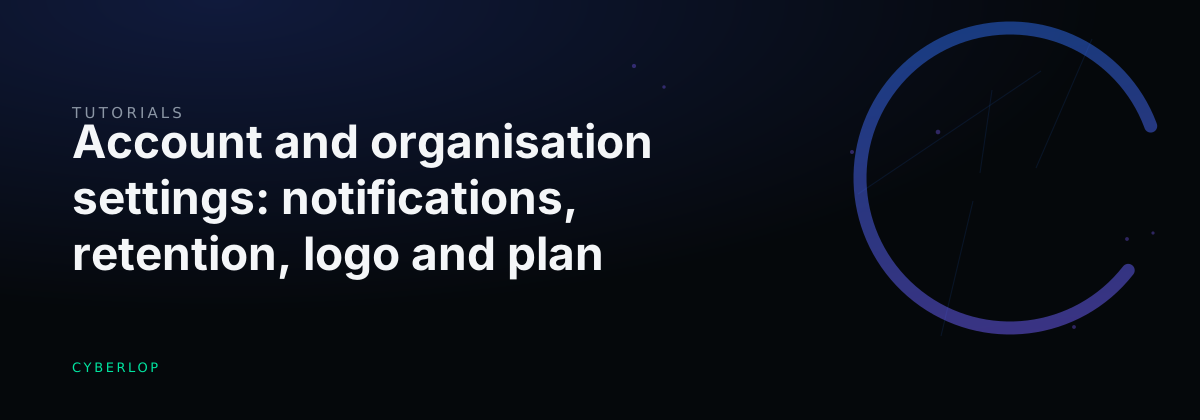
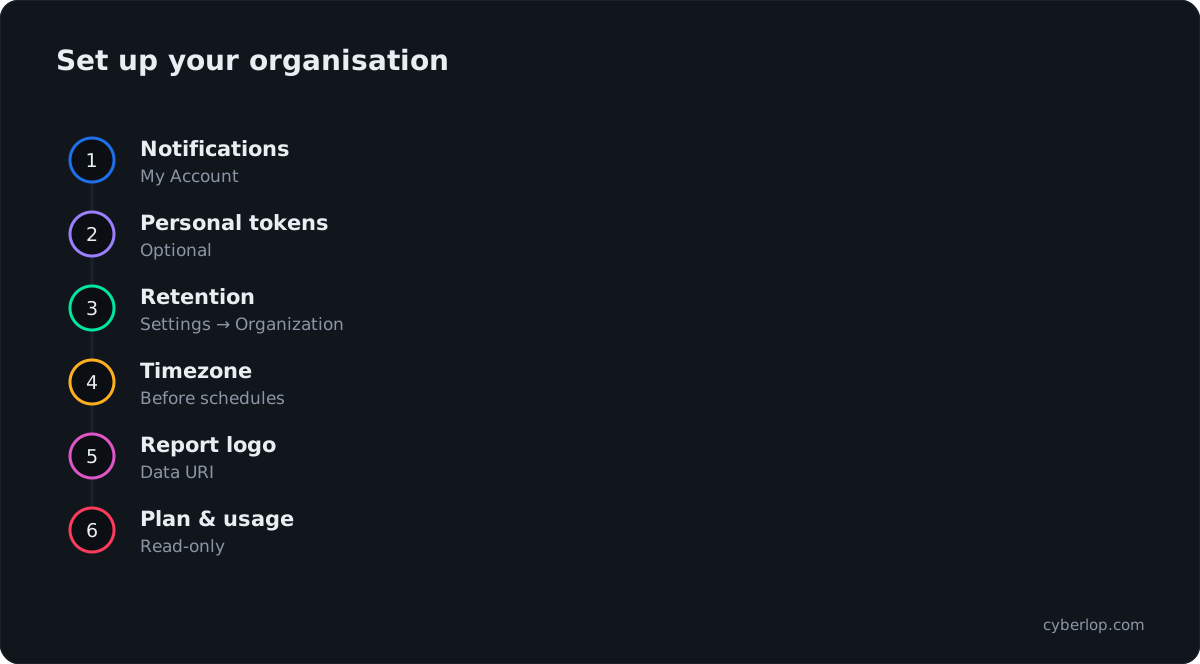
Account and organisation settings cover your personal options and the workspace-wide ones. On My Account, set email notifications and personal tokens. In Settings, use Organization for company name, retention, schedule timezone and report logo, and Plan & usage to read limits and the AI allowance.
- Open My Account Click My Account and set the Email notifications checkboxes.
- Save personal tokens Optionally save a personal Git token or AI credential; they are used first for your scans.
- Open Settings Click Settings and select the Organization tab.
- Set company name and retention Enter the Company name and the Retention (days) that match your policy.
- Choose the schedule timezone Pick Timezone for schedules, so recurring scans run at the expected hour.
- Add a report logo Paste a base64 image data URI into Report logo (optional).
- Save changes Click Save changes.
- Review Plan & usage Open Plan & usage and check your plan, limits and the Cyberlop AI line.
- My Account affects only you; Settings affects the whole organisation.
- Personal Git and AI tokens are used first for scans you launch.
- Set the schedule timezone before you create recurring scans.
- The report logo must be a base64 data URI, not a URL or an SVG.
- Plan & usage is read-only: it shows limits, the AI allowance and billing.
Account and organisation settings are the two places where you control how Cyberlop behaves for you and for your whole workspace. My Account holds your own email notifications and personal tokens. Settings holds organisation-wide options: Organization (company name, retention, timezone, report logo) and Plan & usage (limits and the AI allowance).
What is the difference between My Account and Settings?
My Account changes things that apply only to you. Settings changes things for everyone in the workspace, and an administrator normally handles it. Missing a tab? Ask your admin, because Settings tabs depend on both your role and what your plan includes.
| My Account | Settings | |
|---|---|---|
| Who it affects | You only | The whole organisation |
| Where to find it | Sidebar: My Account | Sidebar: Settings, with eight tabs |
| What it holds | Email notifications, a personal Git token, a personal AI provider credential | Organization, Plan & usage, AI Provider, Git Access, Notifications, Scan Agents, Single sign-on, Two-factor auth |
| Who normally changes it | Each person | An administrator |
This guide covers My Account, the Organization tab and the Plan & usage tab. The other Settings tabs have their own guides, linked in the last section.
How do you set your email notifications on My Account?
Open My Account and tick or untick the checkboxes in the Email notifications card. Cyberlop sends them to the address on your account, which the card shows under Sent to.
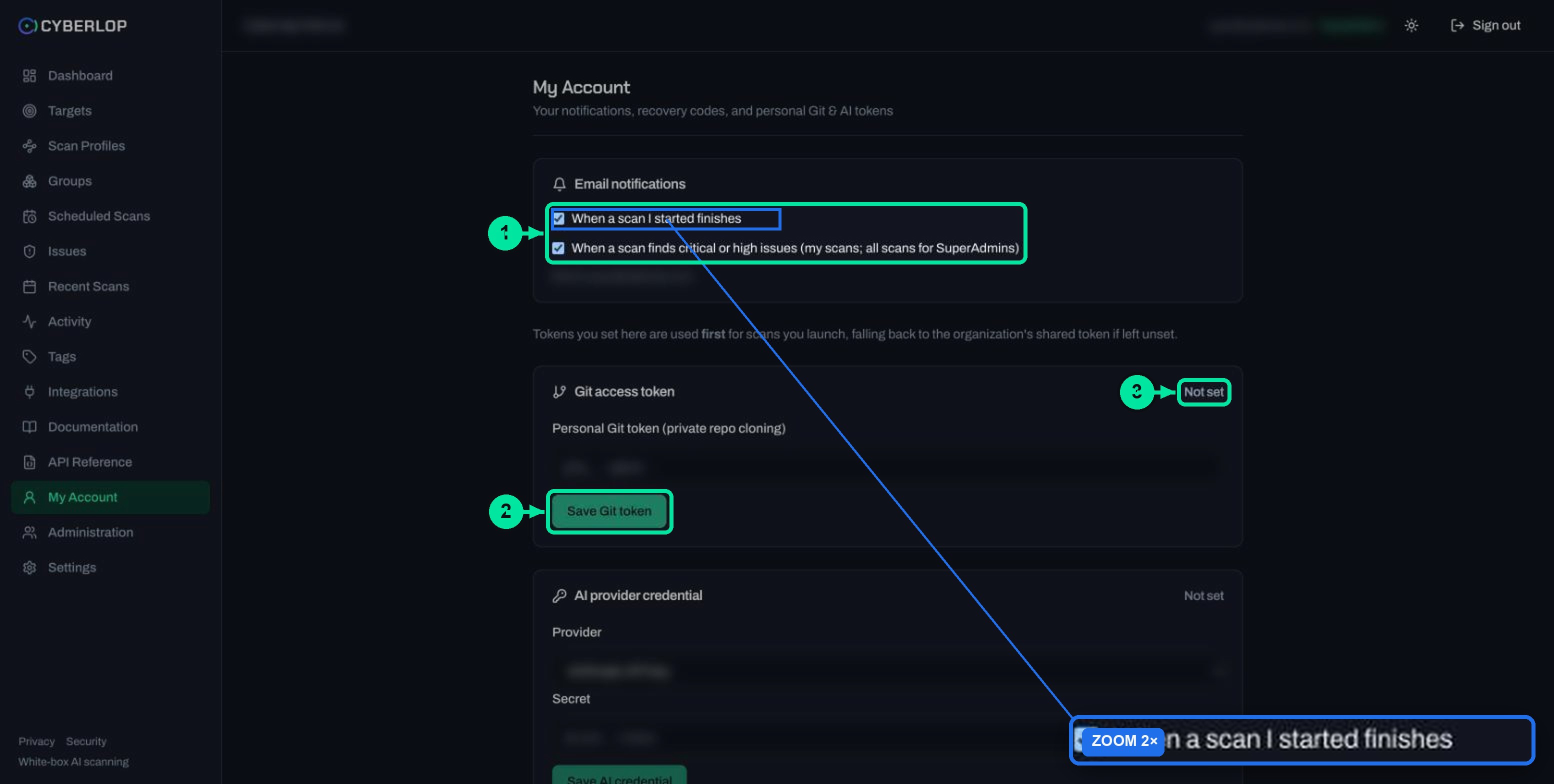
Choose which emails you get
- Click My Account in the sidebar.
- In Email notifications, decide on When a scan I started finishes.
- Decide on When a scan finds critical or high issues. For most people this covers scans they started. For SuperAdmins it covers all scans.
- Check the address under Sent to.
Personal emails versus the team chat message
These emails are personal. A shared message in your chat tool is a separate, organisation-level setting; see chat notifications.
What about recovery codes?
The My Account subtitle mentions recovery codes. They did not appear for an account without two-factor sign-in, so expect to see them only when MFA is in use. See two-factor authentication.
What personal tokens can you save on My Account?
You can save a personal Git token and a personal AI provider credential. For scans you launch, Cyberlop tries your personal token first. If you have not set one, it uses the organisation's shared token.
| Card | Field | What to enter | Notes |
|---|---|---|---|
| Git access token | Personal Git token (private repo cloning) | A read-only token from your code host | Click Save Git token. Status shows Not set until you save one. |
| AI provider credential | Provider | The type that matches your credential | Pick it from the select. |
| AI provider credential | Secret | The key or token | Click Save AI credential. |
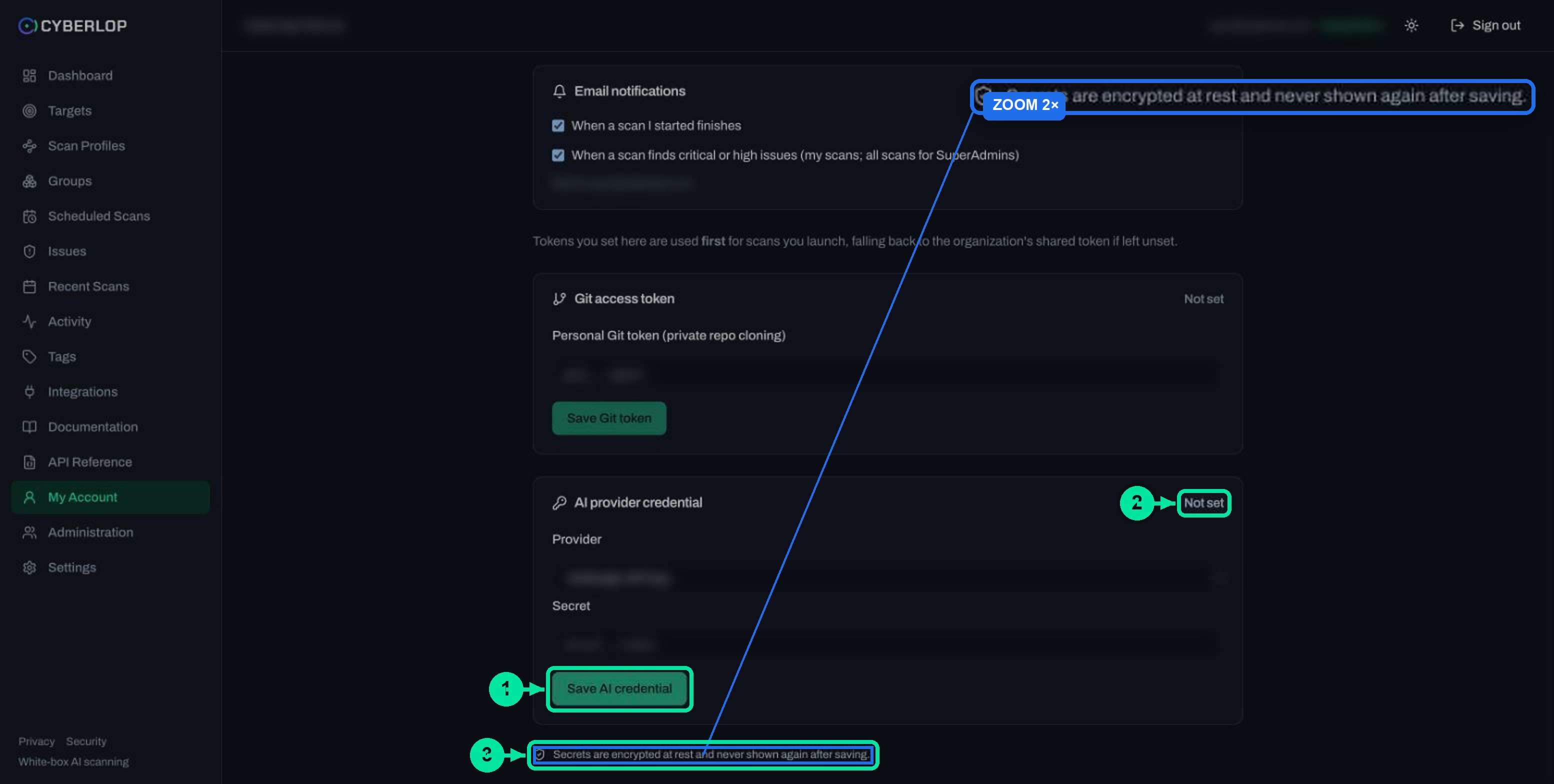
Cyberlop encrypts every secret at rest and never shows it again after you save, so keep the original in your own secrets store. The Git side is explained in Git access and the AI side in AI provider settings. Good habits for any stored token are in secrets management and least privilege.
How do you configure the Organization tab?
Open Settings, select Organization, edit the fields and click Save changes. The tab is titled Branding & retention and holds four fields.
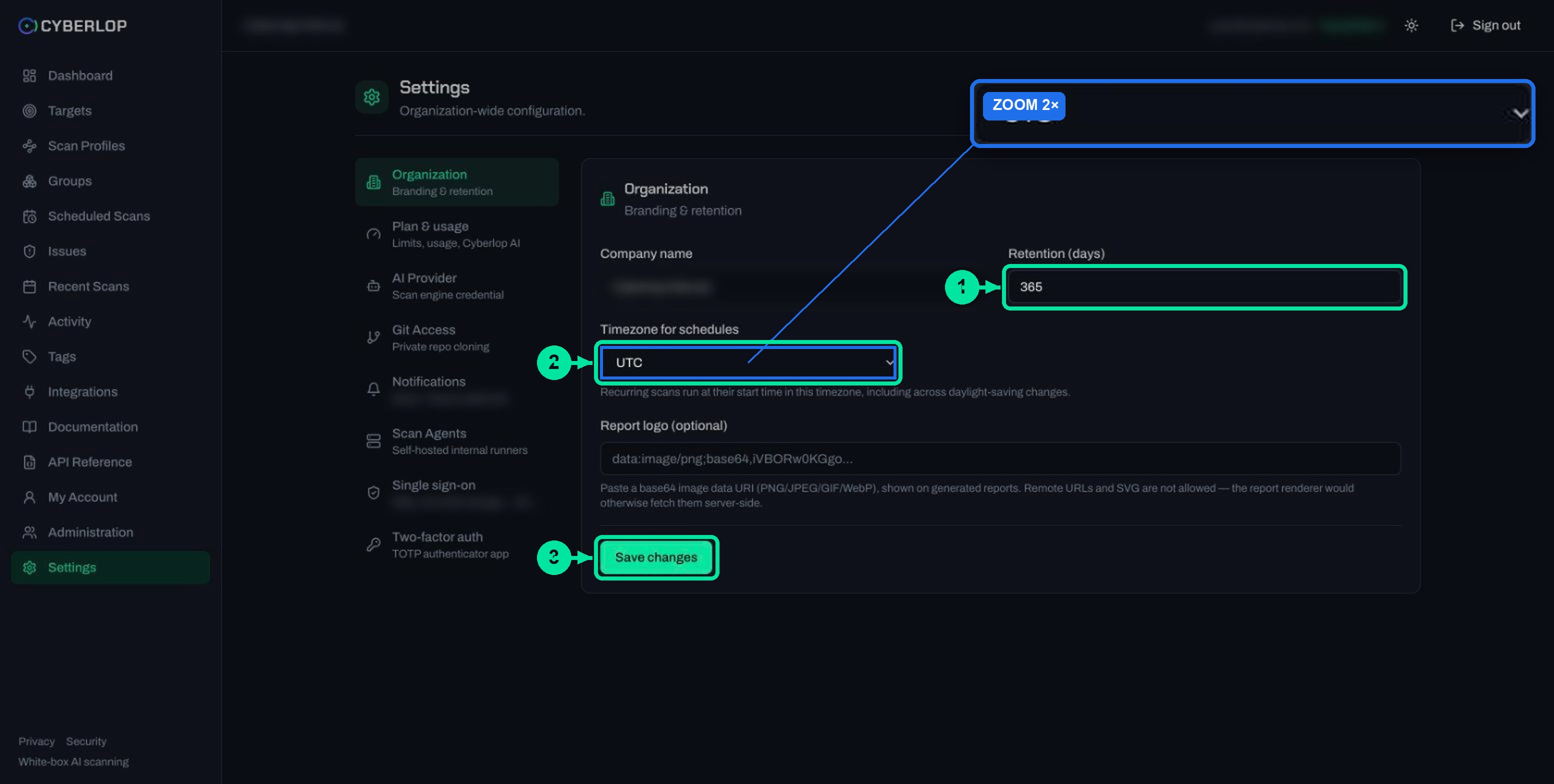
| Field | What to enter | Notes |
|---|---|---|
| Company name | Your organisation name | Shown for your workspace. The placeholder is "My Organization". |
| Retention (days) | A number of days | Controls how long your data is kept. The security page says retention is configurable in Settings and admins can delete scans, targets and data at any time. |
| Timezone for schedules | Pick one from the select | Defaults to UTC. Recurring scans run at their start time in this timezone, including across daylight-saving changes. |
| Report logo (optional) | A base64 image data URI | PNG, JPEG, GIF or WebP. Shown on generated reports. |
Set the timezone before you schedule scans
The timezone is the anchor for every recurring scan. A schedule set for 02:00 runs at 02:00 in the organisation timezone, not in each person's own zone. The list uses standard region names from the IANA Time Zone Database, which tracks daylight-saving rules. Set it first, before anyone creates a recurring scan, because a schedule built under the wrong timezone will quietly run at the wrong hour until someone notices. Then follow schedule scans.
Choose a retention period
Pick a period that matches your own policy for keeping security evidence. Short is fine. Findings hold requests, responses and screenshots. Keep them too long and you carry extra risk. Delete them too early and an auditor may find no proof. Read log retention for the general trade-off, and ask your admin which period your policy requires. The app does not say what it removes when the period ends. Ask your account manager before you rely on it.
How do you add a report logo?
Paste a base64 data URI of your image into Report logo (optional) and click Save changes. A data URI puts the image inline as text. RFC 2397 defines the form data:image/png;base64, followed by the encoded data.
- Prepare a PNG, JPEG, GIF or WebP image.
- Convert it to a base64 data URI with a tool you trust.
- Paste the whole value, starting
data:image/, into the field. - Click Save changes.
- Download a report and check the logo. See download PDF reports.
Why are remote URLs and SVG not allowed?
The help text explains that the report renderer would otherwise fetch them from the server side. A server that fetches a user-supplied URL is open to server-side request forgery. The OWASP SSRF Prevention Cheat Sheet tells developers not to accept complete URLs from users. An embedded image needs no fetch.
Logo tips
Use a small image. A very large pasted value is hard to edit, and when a logo refuses to save, an oversized value that nobody can sensibly review in a text box is the usual cause. If a value is rejected, check that it is a PNG, JPEG, GIF or WebP data URI and not an SVG.
What does the Plan & usage tab show?
Plan & usage shows your plan, your limits, your usage and the Cyberlop AI allowance. It is read-only, so you check it rather than edit it. Limits depend on your plan, so read the figures for your workspace on this tab.
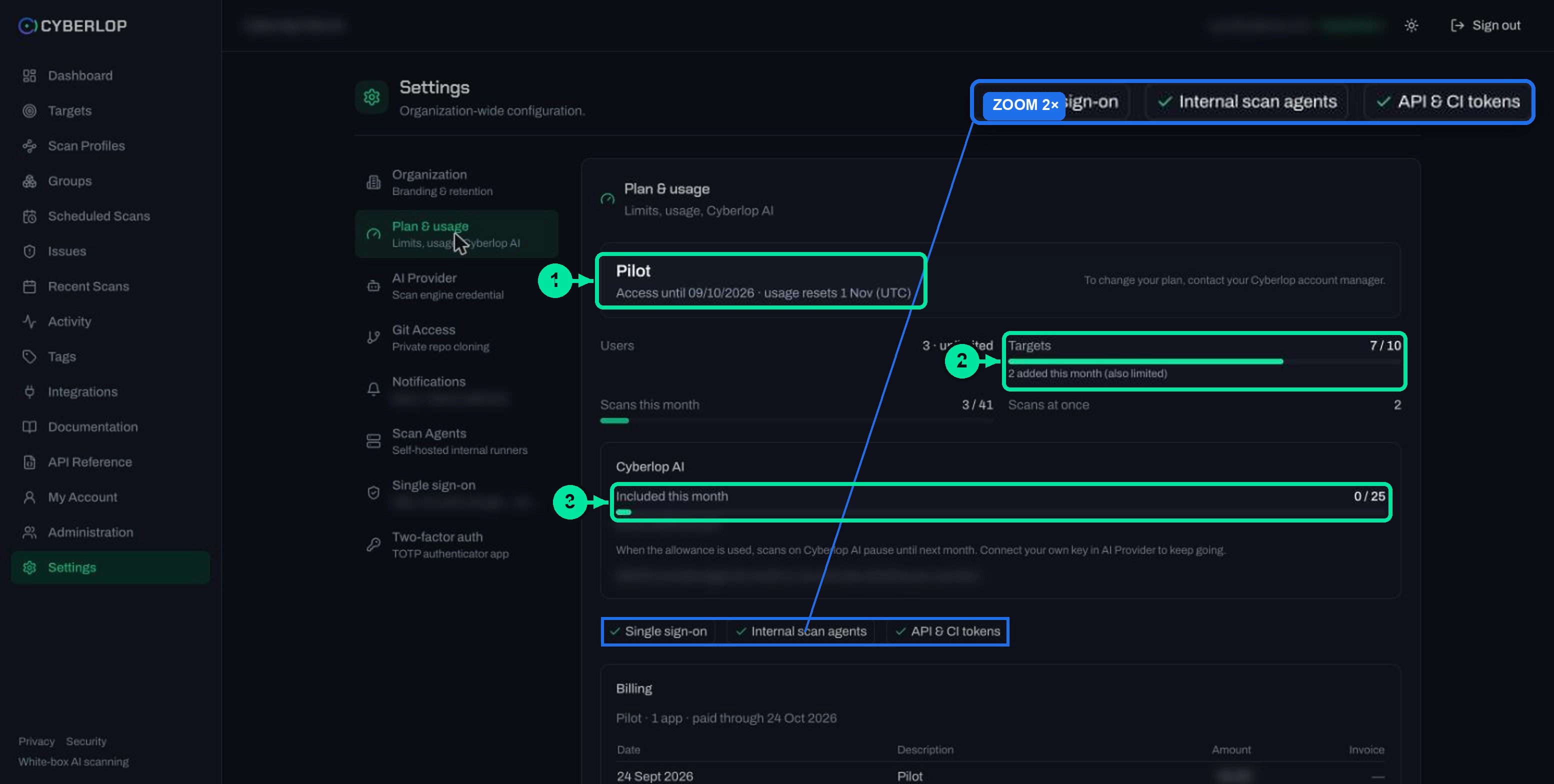
| Section | What it shows | What to do with it |
|---|---|---|
| Plan card | Your plan, the date access runs until and when usage resets | To change your plan, contact your Cyberlop account manager. |
| Limits | Users, Targets, Scans this month and Scans at once, with progress bars | Check before adding targets or scheduling many scans. |
| Cyberlop AI | The included monthly allowance and how much is used | When it is used, scans on Cyberlop AI pause until next month. Connect your own key in AI Provider to keep going. |
| Feature chips | Features included in your plan, such as single sign-on, internal scan agents and API & CI tokens | Tells you which settings tabs you can use. |
| Billing | Your plan, invoices and a table of Date, Description, Amount and Invoice | For billing questions, email hello@cyberlop.com. |
Read the page in four steps
- Open Settings → Plan & usage.
- Check the plan card for the access date and the usage reset date.
- Compare each progress bar with what you plan to do this month.
- Look at the Cyberlop AI line. If it is close to full, decide whether to connect your own key.
The billing area states that prices are in US dollars and that customers invoiced in India pay 18% GST on top. Figures and amounts are not repeated here because they differ by workspace.
Who can change account and organisation settings?
Everyone can change their own My Account page. Settings are organisation-wide, so they are normally changed by an administrator. The activity feed records changes to the AI provider and Git token, so you can show who changed what; see the activity feed. Roles and permissions are managed by admins in the Administration area, which this guide does not cover.
Give settings access to as few people as you can. That is the idea behind least privilege. For tokens used by pipelines, see API tokens and permissions.
Troubleshooting account and organisation settings
Common problems and fixes
| Problem | Likely cause | What to do |
|---|---|---|
| A Settings tab is missing | Settings are for administrators, or your plan lacks the feature | Ask your admin and check the feature chips in Plan & usage. |
| Scheduled scans run at the wrong hour | The organisation timezone is still UTC | Set Timezone for schedules and save. |
| The report logo does not appear | The value is a URL or an SVG, or is incomplete | Paste a full base64 data URI of a PNG, JPEG, GIF or WebP image. |
| Scans pause with Cyberlop AI | The included allowance is used | Check Plan & usage, then connect your own key. |
| A saved token cannot be seen | Secrets are never shown again | Paste a new value and save it. |
| No emails arrive | The checkboxes are off, or the address is wrong | Review Email notifications and the Sent to address. |
What should you do next?
Next step: this is the last guide in the series, so go back to getting started to see how the pieces fit together. Each of the other Settings tabs has its own guide: AI provider settings, Git access, chat notifications, self-hosted scan agents, single sign-on and two-factor authentication. Our security page explains how Cyberlop handles your data.
Questions people ask
Account and organisation settings: FAQs
Where do I change my notification emails?
On My Account, in the Email notifications card. Two checkboxes control whether you are emailed when a scan you started finishes and when a scan finds critical or high issues.
Does a personal token override the organisation token?
Yes, for scans you launch. Cyberlop tries the token saved on My Account first. If you have not saved one, it uses the organisation's shared token.
Can I paste a link to my logo for reports?
No. Remote URLs and SVG files are not allowed. Paste a base64 data URI of a PNG, JPEG, GIF or WebP image instead, so the report renderer does not have to fetch anything from the server side.
Which timezone do scheduled scans use?
The one chosen under Settings → Organization → Timezone for schedules. It defaults to UTC, and recurring scans run at their start time in that zone, including across daylight-saving changes.
How do I change my plan?
The Plan & usage tab says to contact your Cyberlop account manager. Billing questions go to hello@cyberlop.com. The tab itself only displays your plan, limits and usage.
Can I see my saved tokens again?
No. The app states that secrets are encrypted at rest and never shown again after saving. If you lose one, create a new token at its source and save it in place of the old one.
What happens when the included AI allowance is used?
Scans on Cyberlop AI pause until next month. Plan & usage suggests connecting your own key in AI Provider to keep going. See the AI provider settings guide.
Sources
Where the facts come from
Keep reading
Related articles
Cyberlop activity feed: what it records and how to use it for audits
Read the Cyberlop activity feed: sign-ins, scans, triage, roles and support sessions, who can see them, how to search and an audit checklist.
AI provider settings: included allowance, your own credential and models
Use the included AI allowance or save your own credential, verify it and choose a model for each tier. Includes the rate-limit note.
Cyberlop API tokens and permissions: how to issue and limit them
What a Cyberlop API token is, how permission keys work, which keys common jobs need, and how to rotate, revoke and audit tokens with least privilege.

Need help setting up your workspace?
Cyberlop reports what it actually exploited, with the request, the response and the line of code. Ask us to run it on one of your applications, or read how private scanning keeps your code in your network.
Or start with a $199 pilot on one application: thirty days, success criteria agreed before day one, credited against the annual if you convert.