
AI provider settings decide who supplies the AI for your scans. Scans use the Cyberlop AI allowance in your plan by default. To use your own account, open Settings → AI Provider, choose a provider type, paste your credential, click Save credential and Verify, then pick a model for each of three tiers.
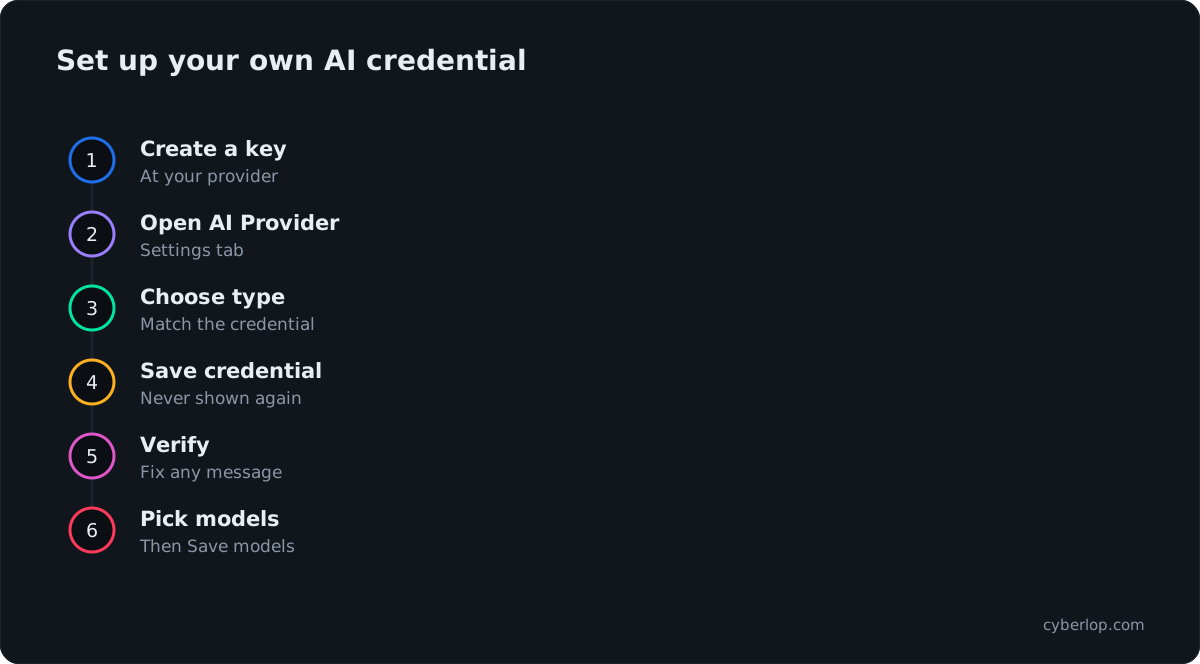
- Create a credential In your AI provider's console, create a key or token for this purpose. Prefer an API key.
- Open AI Provider Go to Settings and select the AI Provider tab.
- Choose the provider type Pick the Provider type that matches your credential.
- Paste and save Paste the credential and click Save credential.
- Verify Click Verify and resolve any message before scanning.
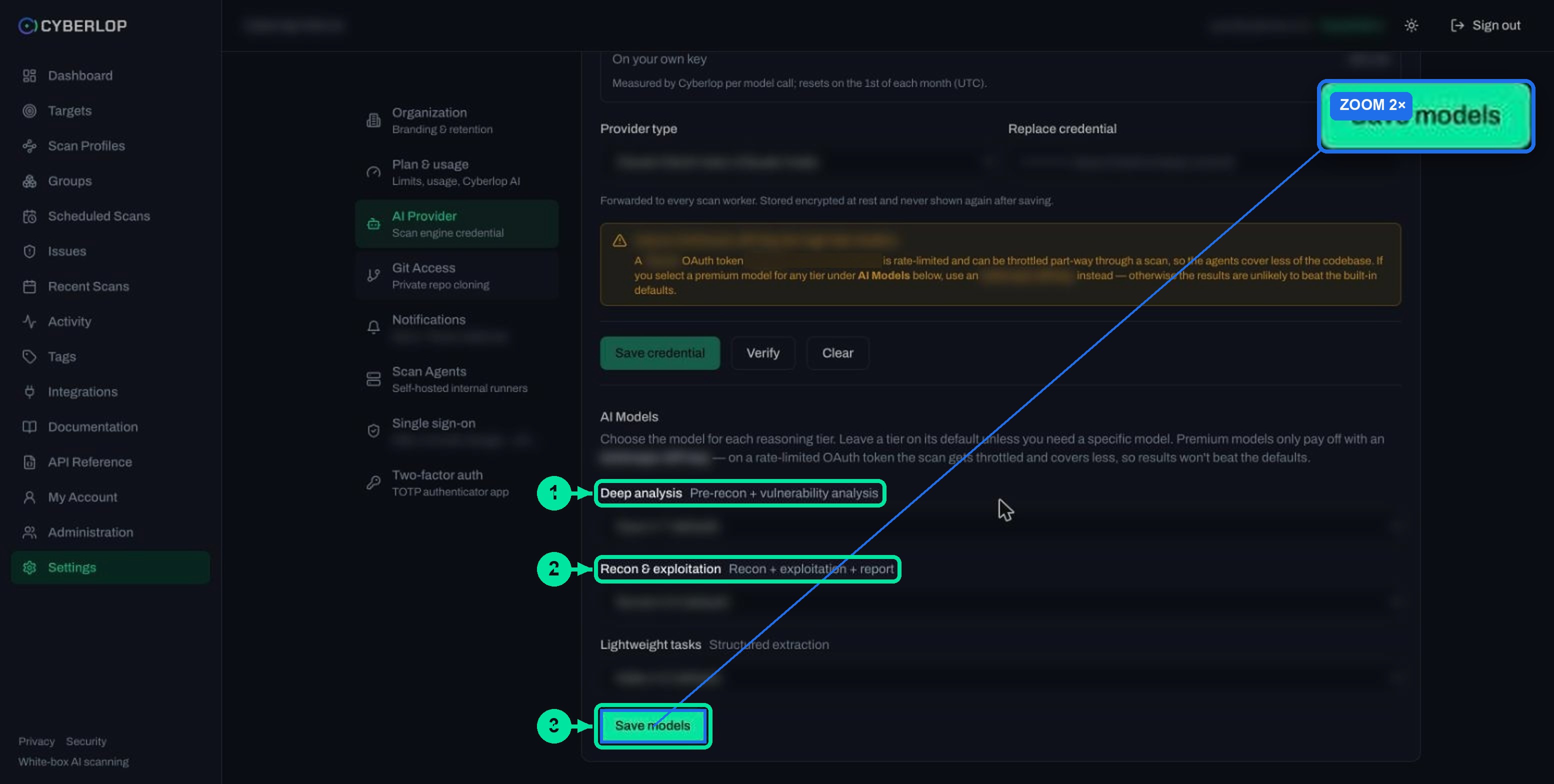
- Pick models Under AI Models choose a model for Deep analysis, Recon & exploitation and Lightweight tasks, or leave defaults, then click Save models.
- Check usage Review AI usage this month, and the Cyberlop AI line in Plan & usage.
- Scans use the included Cyberlop AI allowance until you save your own credential.
- Save, then Verify, a credential under Settings → AI Provider; Clear removes it.
- Prefer an API key: an OAuth subscription token is rate limited.
- Three tiers (Deep analysis, Recon & exploitation, Lightweight tasks) each take their own model.
- Rate limits make a scan slower, not failed.
AI provider settings control which AI service runs your Cyberlop scans. You can use the AI allowance included in your plan, called Cyberlop AI, or save your own provider credential under Settings → AI Provider so scans run on your account. Either way, you can also choose the model for each of three work tiers.
What are AI provider settings in Cyberlop?
AI provider settings tell Cyberlop where the AI work for a scan is done and with which model. Every scan is run by AI agents that read your code and test your running app, so each scan uses AI capacity. That capacity comes from one of two places.
- Cyberlop AI. The allowance included in your plan. You do nothing to switch it on.
- Your own credential. A key or token from your AI provider that an admin saves in Settings → AI Provider. Scans then use your account with that provider.
The screens involved are Settings → Plan & usage (to see the allowance), Settings → AI Provider (organisation-wide credential and models) and My Account (a personal credential). Settings pages are normally changed by an administrator, so ask yours if a tab is missing for you.
Should you use the included allowance or your own credential?
Use the included allowance to start quickly, and add your own credential when you want scans to continue past the allowance, or want billing and usage to sit with your own provider account. The two are not exclusive: you can start on Cyberlop AI and connect a credential later.
Compare the two options
| Question | Cyberlop AI (included) | Your own credential |
|---|---|---|
| Setup | None. It is part of your plan. | An admin pastes a credential in Settings → AI Provider, then clicks Save credential. |
| Limit | An allowance that depends on your plan. Check it in Settings → Plan & usage. | Set by your own provider account. |
| When it runs out | The app says scans on Cyberlop AI pause until next month, and to connect your own key to keep going. | Your provider's limits apply instead. |
| Models | Built-in defaults for each tier. | Defaults, or a model you choose for each tier. |
Plan limits are not repeated here because they differ by plan. Open Settings → Plan & usage to see the Cyberlop AI line for your own workspace.
How do you add your own AI credential?
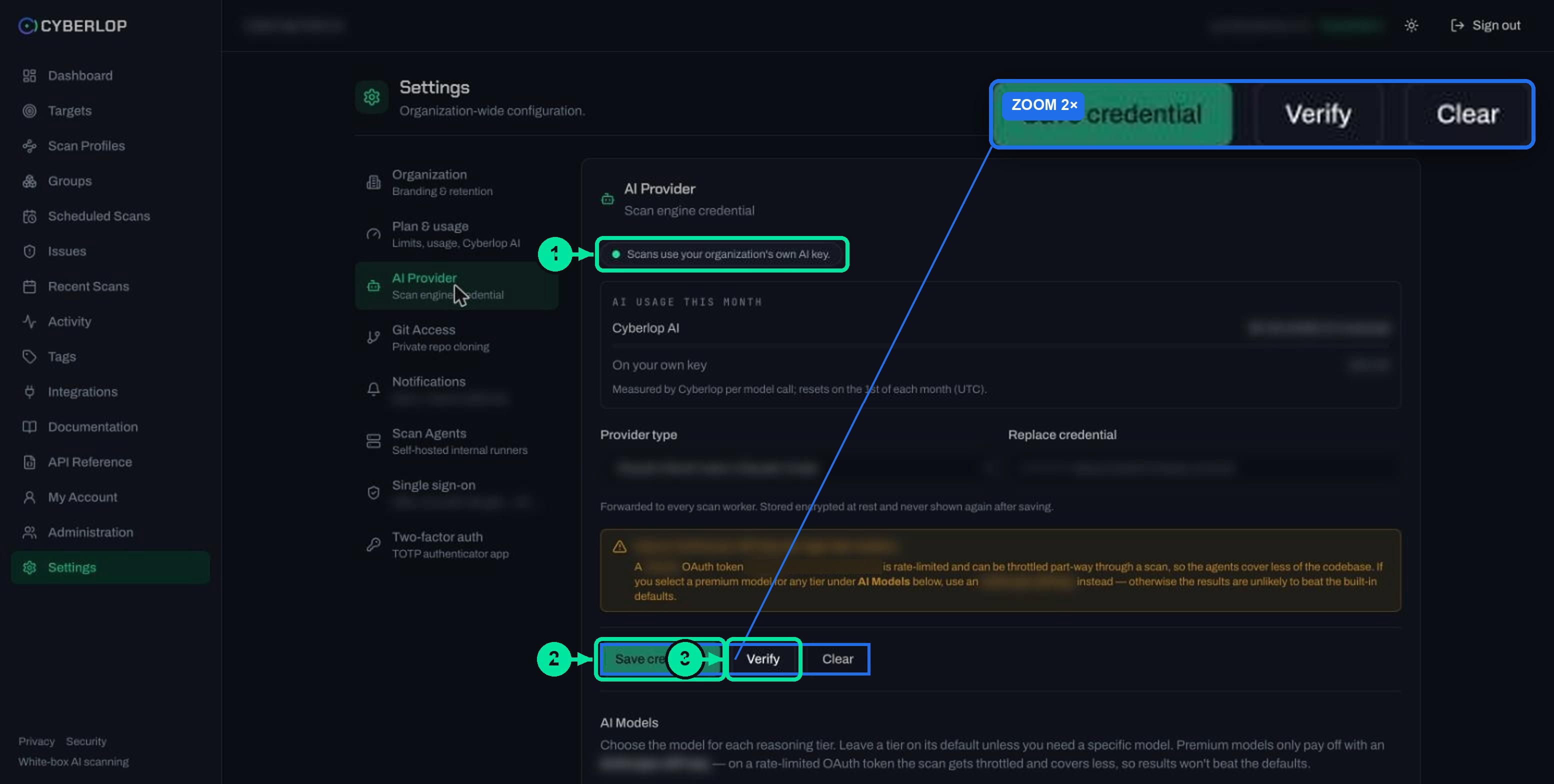
Open Settings → AI Provider, choose the provider type, paste the credential and click Save credential, then click Verify. The credential is encrypted at rest and never shown again after saving, so keep the original in your own secrets store.
Steps for an admin
- Create the credential in your AI provider's console. Prefer a key made for this one purpose, so you can revoke it without touching anything else.
- In Cyberlop, open Settings and select the AI Provider tab. The status pill and AI usage this month show what is in use now.
- Pick the Provider type that matches the credential you hold.
- Paste the credential into the secret field. Once one is saved, the field changes to Replace credential.
- Click Save credential.
- Click Verify to check that Cyberlop can use it. Fix any message that appears before you scan.
Which credential type should you choose?
Choose an API key where you can. The app warns that an OAuth subscription token is rate limited, so use an API key for premium models. A subscription token can work for light use, but it is the wrong choice for regular or large scans.
What do Verify and Clear do?
Verify tests the saved credential. Clear removes it, and scans go back to the included Cyberlop AI allowance. Replace a credential by pasting a new one and saving; you do not need to clear it first.
Can one person use a personal credential?
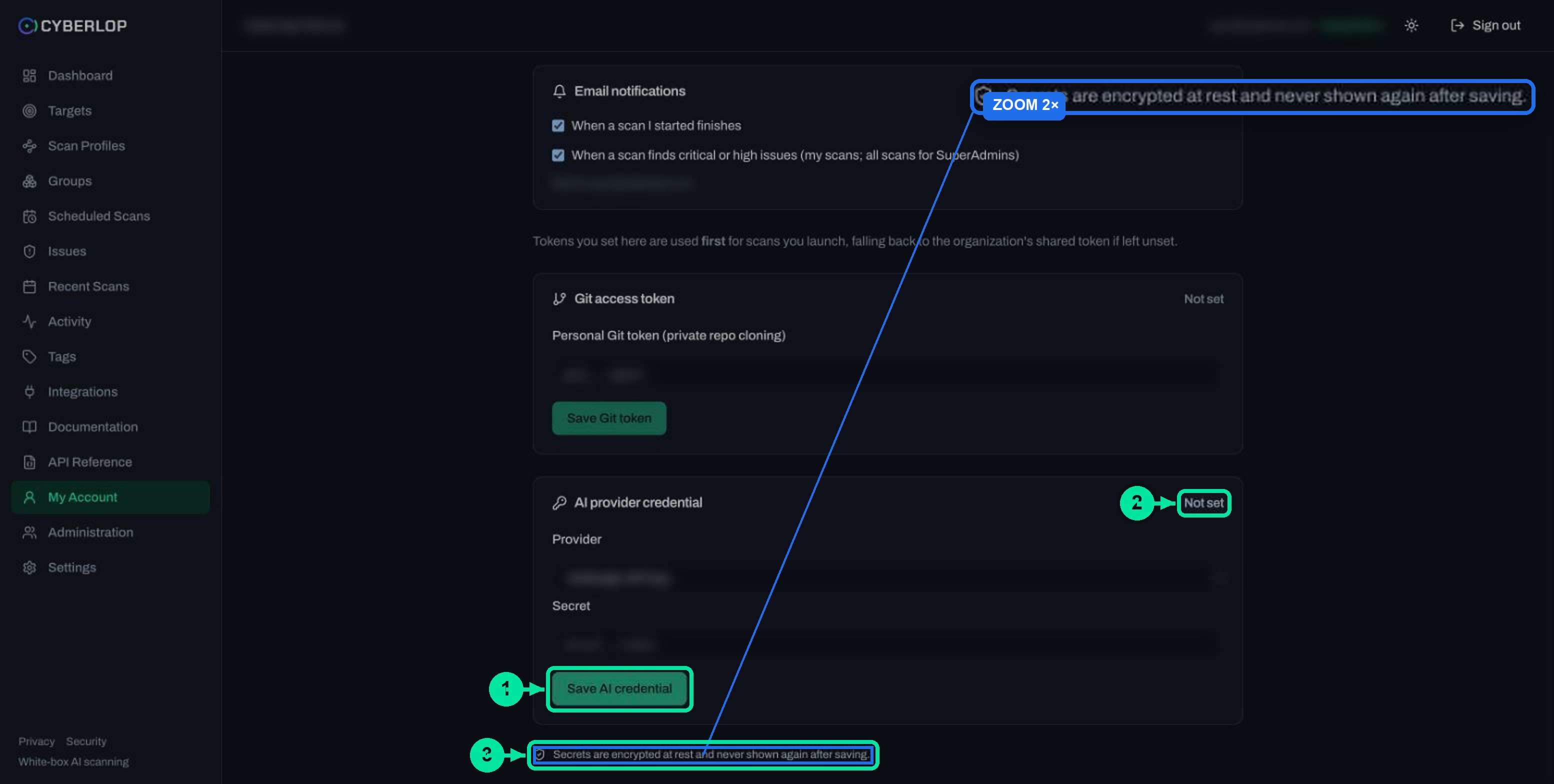
Yes. My Account has an AI provider credential card with a provider select, a secret field and Save AI credential. The card says a token saved there is used first for scans you launch. If you leave it unset, scans fall back to the organisation's shared setup. Use this when one engineer wants a scan on their own account. Secrets there are encrypted at rest and never shown again, just like the organisation credential.
Why does credential hygiene matter here?
An AI provider credential is a bearer secret, so whoever holds it can spend your account's capacity. RFC 6750 defines a bearer token as one where "any party in possession of the token" can use it as any other holder could. Handle it like a password to a paid service.
Leaks like this are common. GitGuardian's State of Secrets Sprawl 2025 reports 23,770,171 new hardcoded secrets added to public code-host repositories in 2024, a 25% increase on the previous year. A key pasted into a script or chat message is one of those secrets.
A short handling checklist
- Paste the credential only into Settings → AI Provider or My Account, never into tickets, chat or code.
- Give it a spending cap or alert in your provider console, if the provider offers one.
- Rotate it on a schedule and after any staff change. See key rotation.
- Click Clear if you suspect exposure, then revoke the credential at the provider.
- Review the Activity feed: it records AI-provider changes along with Git-token changes.
How do you choose a model for each tier?
The AI Models section, on the same tab, has one select per kind of work. Pick a model in each, then click Save models. Leave a tier on its default to keep the built-in choice. The credential you saved applies to all three tiers.
The three tiers
| Tier in the app | Work it does | Why you might change it |
|---|---|---|
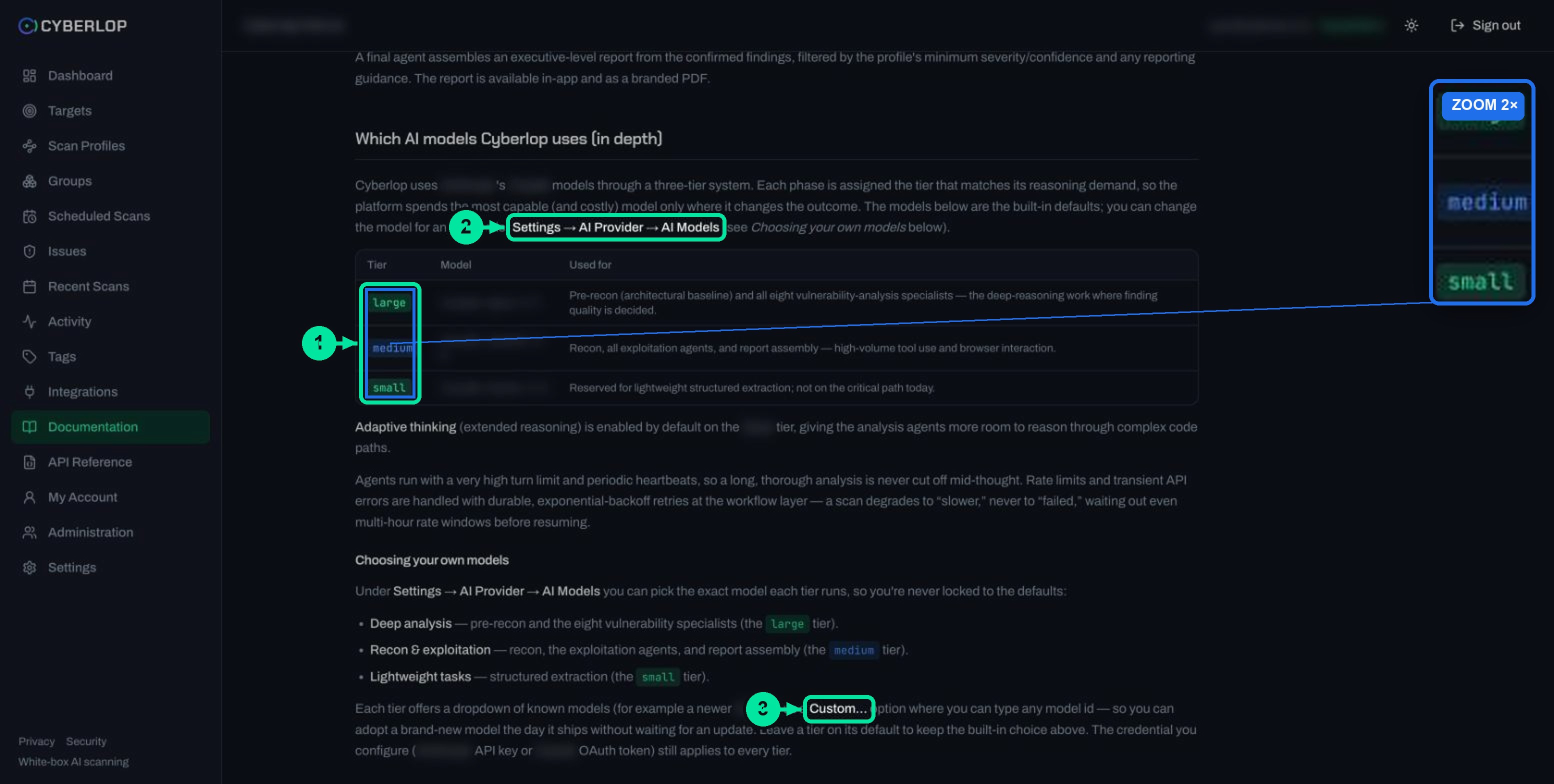
| Deep analysis | Source analysis before recon, and the eight vulnerability specialists. | This is where the quality of findings is decided, so it suits your most capable model. |
| Recon & exploitation | Recon, the exploitation agents and report assembly. | High-volume tool use and browser work. A fast, capable model suits it. |
| Lightweight tasks | Structured extraction. | Rarely worth changing. The in-app documentation describes it as not on the critical path today. |
What does the Custom option do?
Each select lists known models and a Custom… choice. Pick Custom… and type any model identifier. You can then try a new model as soon as your provider ships it, with no Cyberlop update needed. Copy the identifier exactly as your provider publishes it, and use a model your credential can access.
When should you change the defaults?
Most teams should not, at first. Run a scan on the defaults, note the findings and cost on the scan's Overview tab, and only then change one tier at a time. Changing one tier per run lets you tell which change caused a difference. For reading that tab, see the scan detail page guide.
What happens when you hit a rate limit?
A rate limit makes a scan slower, not failed. The in-app documentation says rate limits and temporary API errors are retried with backoff, so a scan waits and then resumes. The same page says a typical scan of a small app takes roughly an hour, so allow more time when limits bite.
Limits also protect your bill. The OWASP's guidance on unbounded consumption in LLM applications lists rate limiting and per-user quotas as a defence, so no single source can drive unlimited requests. A spending cap on your own provider account applies the same idea to your bill. Read more in API rate limiting and the OWASP LLM Top 10.
Which credential does a scan use?
For scans you launch, a credential saved on My Account is used first, then the organisation's AI Provider credential. If neither is set, scans use the included Cyberlop AI allowance. Scheduled and pipeline scans do not have a person at the keyboard, so make sure the organisation level is set up for them.
- Your personal AI credential, if you saved one.
- The organisation's credential from Settings → AI Provider.
- The included Cyberlop AI allowance.
The app text states the first two steps for tokens saved on My Account. The last step follows from the Plan & usage message, which says scans on Cyberlop AI pause once the allowance is used. If a scan behaves differently, ask your admin which credential is saved where.
Troubleshooting AI provider settings
Common problems and fixes
| Problem | Likely cause | What to do |
|---|---|---|
| Scans pause or wait | The included allowance is used up, or a rate limit applies. | Check Settings → Plan & usage. Connect your own key in AI Provider to keep going. |
| Scans are slow | An OAuth subscription token is rate limited. | Switch to an API key. |
| Verify shows a problem | The credential may be wrong, expired or the wrong provider type. | Re-check the Provider type, paste the credential again and click Save credential. |
| Custom model does not work | The identifier may be mistyped or not available to your credential. | Return the tier to its default and save, then retry. |
| The AI Provider tab is missing | Settings are for administrators. | Ask your admin, or save a personal credential on My Account. |
If a scan stopped partway, read failed or cancelled scans.
What should you do next?
Next step: set up single sign-on, so people reach the app through your identity provider. Notifications and the Plan & usage page live in account and organisation settings. Git tokens follow similar rules, covered in Git access. To limit the damage if a key leaks, read about least privilege and secrets management. Data handling is covered on the security page.
Questions people ask
Ai provider settings: FAQs
What happens when the included AI allowance is used up?
Plan & usage says scans on Cyberlop AI pause until next month, and that you can connect your own key in AI Provider to keep going. Check the Cyberlop AI line in Settings → Plan & usage for your own figures.
Do I have to bring my own AI key?
No. The included Cyberlop AI allowance works without any setup. A credential is for teams that want scans to continue past the allowance or want usage on their own provider account.
Is my AI credential visible after I save it?
No. The app states that secrets are encrypted at rest and never shown again after saving. If you lose the original, create a new one at your provider and use Replace credential.
Can I use a personal credential instead of the organisation one?
Yes. My Account has an AI provider credential card. A credential saved there is used first for scans you launch, before the organisation's setup.
Why should I use an API key rather than a subscription token?
The app warns that an OAuth subscription token is rate limited, and recommends an API key for premium models. Rate limits slow scans down but do not make them fail.
What does Custom… do in the model list?
It lets you type any model identifier for that tier, so you can adopt a new model as soon as your provider releases it. Use the identifier exactly as your provider publishes it.
How do I remove a credential?
Open Settings → AI Provider and click Clear. Scans return to the included allowance. Revoke the credential at your provider too if you think it was exposed.
Keep reading
Related articles
Account and organisation settings: notifications, retention, logo and plan
Set notification emails and personal tokens, then configure retention, schedule timezone and report logo, and read the Plan & usage page.
Cyberlop activity feed: what it records and how to use it for audits
Read the Cyberlop activity feed: sign-ins, scans, triage, roles and support sessions, who can see them, how to search and an audit checklist.
Failed or cancelled scans: what to check and how to re-run
What Failed and Cancelled mean in Cyberlop, how to use partial findings, a troubleshooting checklist and how to re-run a scan.

Need help connecting your AI provider?
Cyberlop reports what it actually exploited, with the request, the response and the line of code. Ask us to run it on one of your applications, or read how private scanning keeps your code in your network.
Or start with a $199 pilot on one application: thirty days, success criteria agreed before day one, credited against the annual if you convert.