
Home / Blog / Tutorials / Git access token
Tutorials
Git access in Cyberlop: set a read-only token and allowed hosts
Git access lets white-box scans clone your private repositories. This guide covers the organisation token, allowed hosts, personal tokens and how to keep them safe.
Cyberlop Labs · Updated · 7 min read
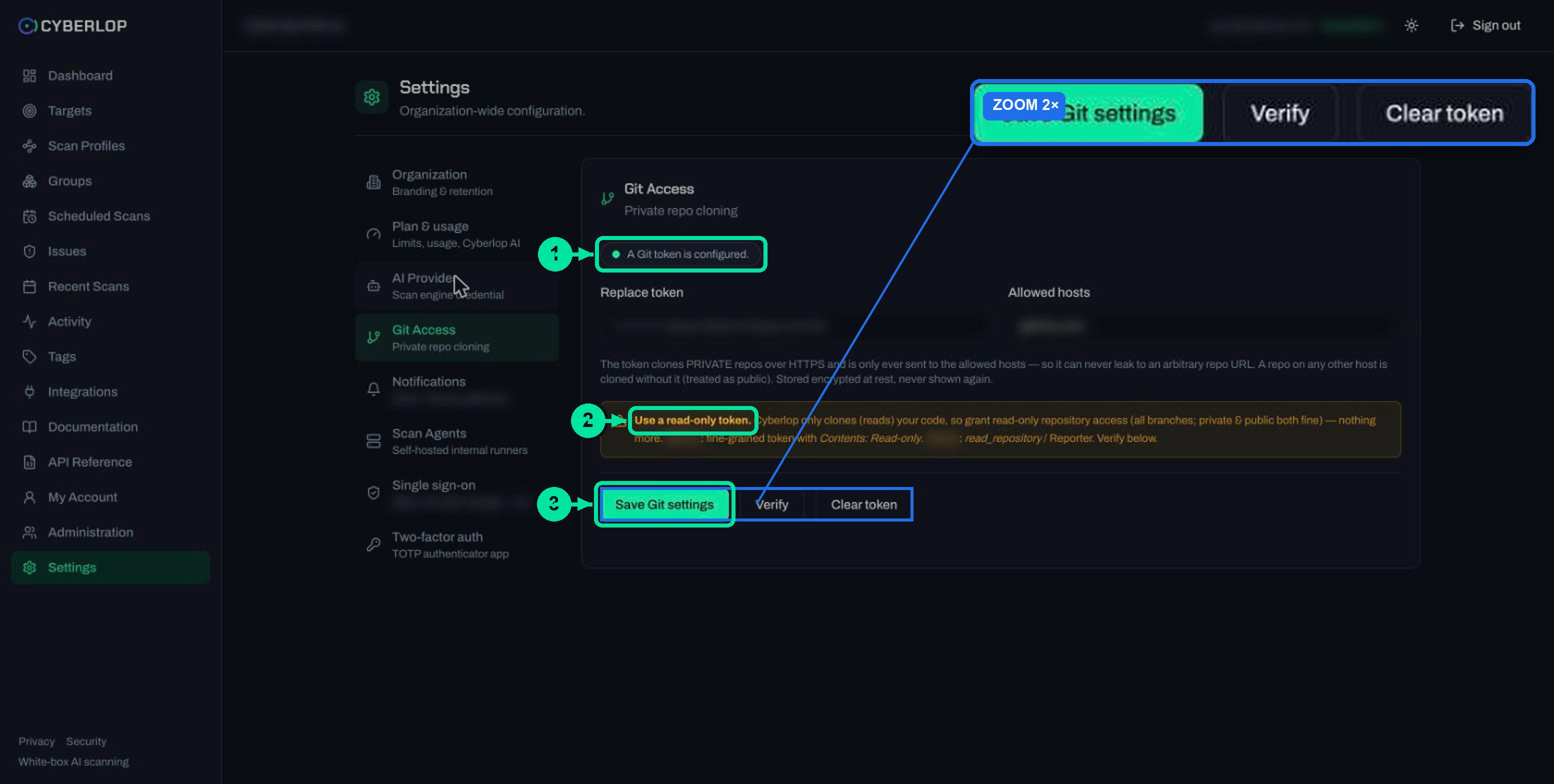
Git access in Cyberlop is the stored token that clones private repositories for white-box scans over HTTPS. An admin pastes a read-only organisation token and its allowed hosts into Settings → Git Access, then clicks Save and Verify. For scans you launch, a personal token from My Account wins; the organisation token is the fallback.
- Create a read-only token At your code host, create a token with read-only repository access for the repos Cyberlop should scan, with an expiry if available.
- Open Git Access In Cyberlop go to Settings and choose the Git Access tab.
- Paste the token Enter it in the Replace token field.
- List allowed hosts Type your code host domain in Allowed hosts, separated by commas if you use more than one.
- Save Click Save Git settings and confirm the status reads that a Git token is configured.
- Verify Click Verify to check the saved token.
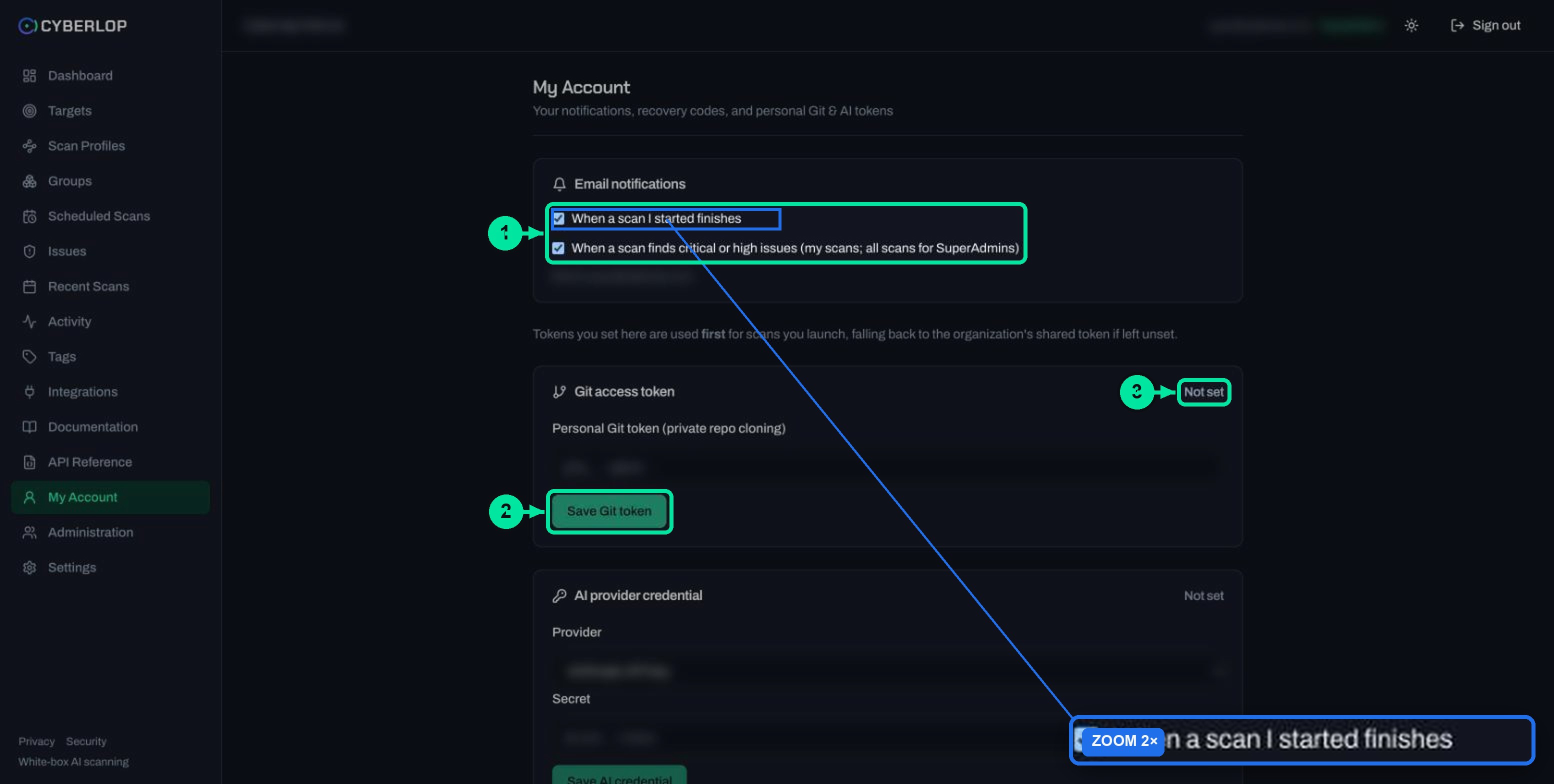
- Optional personal token If one engineer needs different access, save a personal token under My Account with Save Git token.
- Test with a scan Run a white-box scan on a private repository and confirm it clones.
- Use a read-only token. Cyberlop only clones, so it never needs write access.
- Cyberlop sends the organisation token only to your allowed hosts and clones other hosts without it.
- A personal token under My Account wins for scans you launch, then the organisation token applies.
- Cyberlop encrypts tokens at rest and never shows them again, so rotate by pasting a new one and remove one with Clear token.
- Repository URLs must use HTTPS. SSH is not supported.
Git access in Cyberlop is the token that lets a white-box scan clone your private repositories over HTTPS. An administrator pastes a read-only organisation token into Settings → Git Access and lists the hosts allowed to receive it. Any engineer can also save a personal token under My Account, and Cyberlop tries that one first.
What is Git access in Cyberlop?
Git access is a stored credential that Cyberlop uses to clone a private repository when a white-box scan starts. White-box scans read your source code while testing the running app, so a finding can point to the file and line. Public repositories need no token, because Cyberlop clones them at launch. Private ones do.
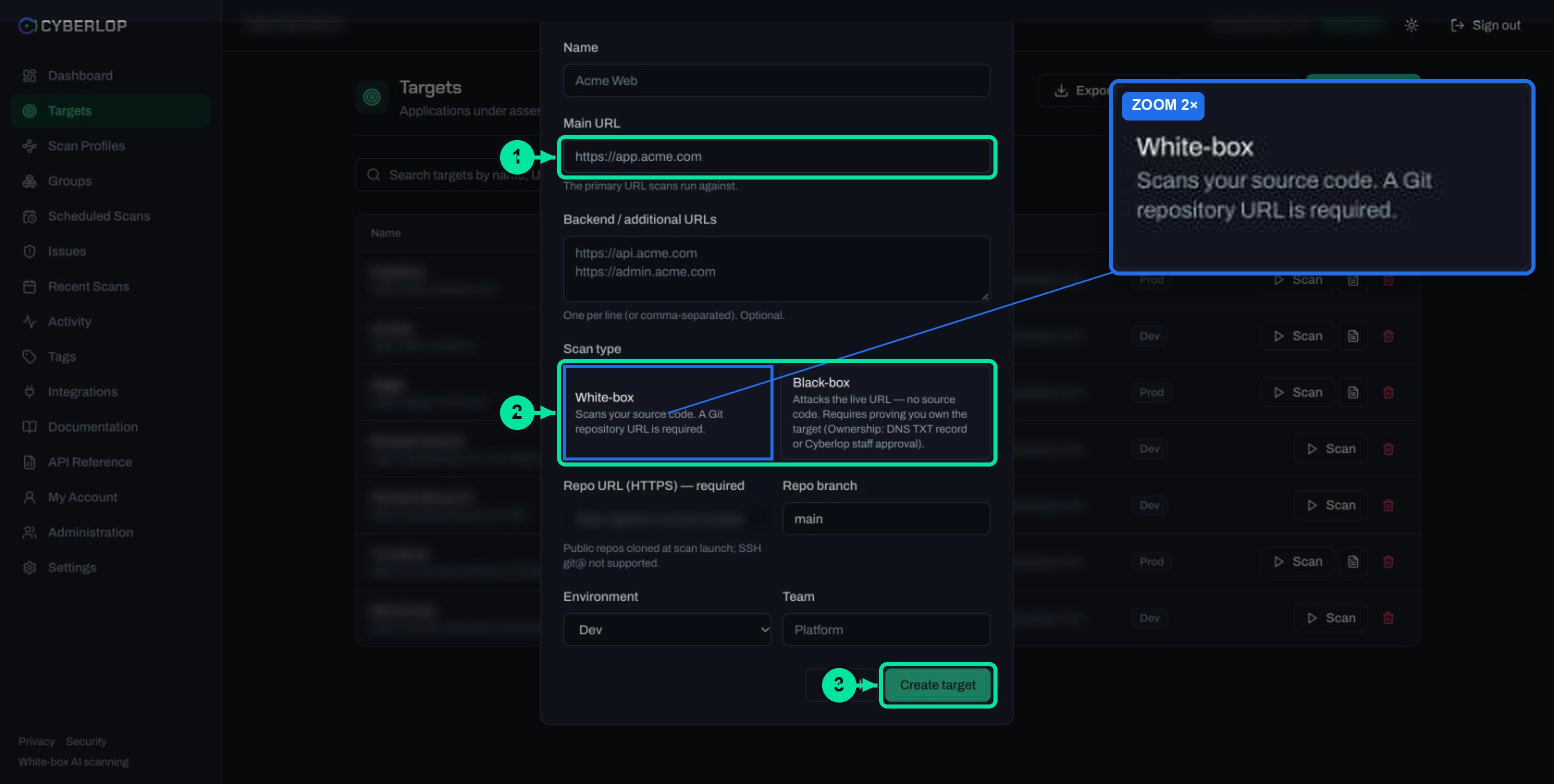
Two things always apply. The repository URL must be HTTPS, because SSH (git@) is not supported, and Cyberlop only clones, which means it only ever reads your code. For the repository side of this, see connect a repository.
Which tokens exist?
There are two. The organisation token is shared and sits under Settings. The personal token belongs to one user and sits under My Account. Neither is an API token. API tokens are the secrets your own tooling uses to call Cyberlop; API tokens and permissions covers them.
Why use a read-only Git token?
Cyberlop never writes to your repository, so give it a token that cannot, because a credential should carry only the power its job needs. That is least privilege. The NIST glossary defines it as restricting access to "the minimum necessary to accomplish assigned tasks".
The warning box on the Git Access page makes the same point. Grant read-only access to the repository, all branches included, and nothing beyond that. Most code hosts let you issue a fine-grained token with a read-only contents permission, or a role that can only read. Pick that option when you create the token.
What does leaking a Git token cost?
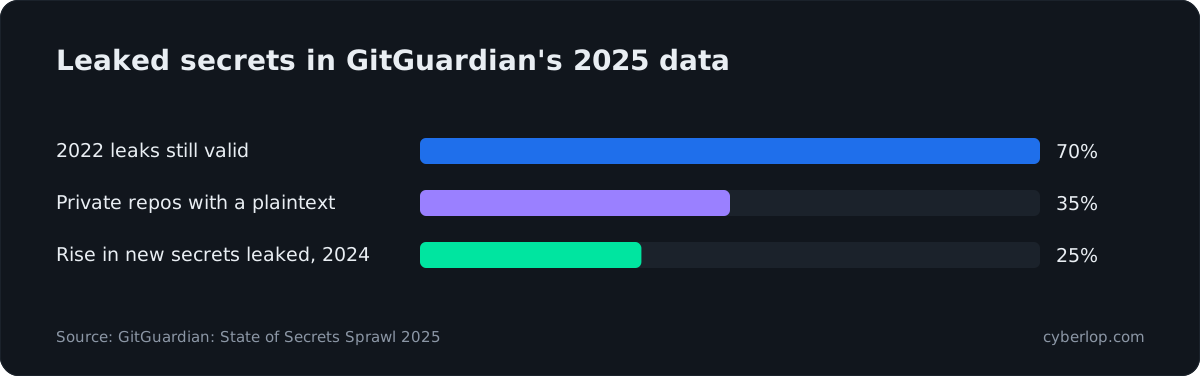
A leaked token with write access lets someone change your code. A read-only one still exposes your source, so the limits below matter. The numbers on leaked secrets show why.
GitGuardian's State of Secrets Sprawl 2025 found 23,770,171 new secrets in public commits in 2024, a 25% rise on the year before. The same report found that 70% of the secrets leaked in 2022 still worked. It also found that 35% of the private repositories it scanned held at least one plaintext secret. The Verizon 2026 Data Breach Investigations Report puts software vulnerabilities at the start of 31% of breaches. Credentials and flaws are both ways in, so keep tokens narrow and short-lived. See hardcoded secrets and secret scanning.
How do you set the organisation Git token?
Open Settings, choose the Git Access tab, paste a read-only token, list the allowed hosts and save. You need the settings:update permission to change organisation settings, so an administrator normally does this. The table lists each field.
Git Access fields
| Field or button | What to enter | Notes |
|---|---|---|
| Replace token | Paste the read-only token from your code host. | A password-type field. Leave it blank to keep the current token, as the placeholder says. |
| Allowed hosts | The domains of your code hosts, separated by commas. | The token is sent only to these hosts. A repo on any other host is cloned without it. |
| Save Git settings | Click once after filling the fields. | Cyberlop encrypts the token at rest and never shows it again. |
| Verify | Click after saving. | Checks the saved token before you rely on it for a scan. |
| Clear token | Click to remove the stored token. | Repos on allowed hosts then clone without a token, so private ones fail. |
Steps to set and check the token
- At your code host, create a read-only token for the repositories Cyberlop should scan. Give it an expiry if your host allows one.
- In Cyberlop, open Settings → Git Access. The status pill tells you if a token exists.
- Paste the token into Replace token.
- In Allowed hosts, type your code host domain. Add more, separated by commas, only if you really use more than one.
- Click Save Git settings. The pill should now say a Git token is configured.
- Click Verify to check the saved token.
- Start a white-box scan on a private repository and check the result for a clone problem.
After you save, Cyberlop encrypts the secret at rest and never displays it again. Its security page adds that git receives the token per invocation and never writes it to disk. The activity feed logs the change as Git Token · Organization with the action "set", which gives you an audit trail.
What are allowed hosts for?
Allowed hosts keep the token from going anywhere you did not intend. Per the help text on the page, the token goes only to the hosts you list, so nobody can collect it by pointing a target at a stray repository URL. Cyberlop clones a repo on any other host without the token and treats it as public.
Example: one host
You keep all private code on one code host, so enter only that domain. If a target's repo URL points elsewhere, Cyberlop sends no credentials. A private repo there fails to clone instead of receiving your token.
Example: two hosts
Some teams keep product code on one host and infrastructure code on another. List both domains with a comma between them. Check that your token can read on each host, or use a personal token for the exception.
Keep the list short. Each extra host is one more place the token can go, and the list works like any allowlist: permit what you need and refuse the rest.
How do personal and organisation tokens differ?
For scans you launch, Cyberlop tries your personal token first. If you have not set one, it falls back to the organisation token. My Account says the same: tokens set there are "used first for scans you launch".
Precedence at a glance
| Personal token (My Account) | Organisation token (Settings) | |
|---|---|---|
| Where | My Account → Git access token, saved with Save Git token. | Settings → Git Access, saved with Save Git settings. |
| Who it serves | Scans you launch. | Everyone in the organisation, as the shared fallback. |
| Allowed hosts field | Not shown on the page. | Yes, you list the hosts the token may be sent to. |
| Status shown | "Not set" until you save one. | "A Git token is configured." once saved. |
| Best for | One engineer who has access to a private repo others do not. | A dedicated read-only token for the organisation's private repos. |
When to use a personal token
Use one when a single engineer can read a private repo that the organisation token cannot. Save it under My Account → Git access token with Save Git token. It applies only to scans that person launches. Everyone else's scans still use the organisation token.
When to rely on the organisation token
Prefer it for anything shared. Scheduled scans and pipeline runs should not depend on one person's credential, and one dedicated, read-only organisation token is easier to review and rotate than a spread of personal ones.
How do you rotate or remove a Git token?
Create the new token at your code host and paste it into Replace token. Click Save Git settings, then Verify, and only then revoke the old token at the code host. OWASP's Secrets Management Cheat Sheet says to rotate secrets regularly so that "any stolen credentials will only work for a short time". See key rotation.
To remove access entirely, click Clear token. Private repos then fail to clone until you save a new token. Clearing is also your first move if you suspect a leak. Follow it by revoking the token at its source (token revocation).
Where does your code go during a scan?
In a cloud scan, Cyberlop keeps the clone only while the scan runs. It deletes the clone once the scan ends, whether it completed, failed or was cancelled. Each scan runs in its own isolated, ephemeral container, and the repo mounts read-only. Relevant code excerpts go to your chosen AI provider over HTTPS; read AI provider settings for that side.
If your code must stay inside your network, a self-hosted agent sends no source out at all. See self-hosted scan agents and private scanning. The security page explains how Cyberlop handles stored credentials.
Troubleshooting Git access problems
Most clone problems trace back to the host, the token, the precedence or the URL, so work through the table in that order and stop at the first row that matches.
Common symptoms
| Symptom | Likely cause | What to do |
|---|---|---|
| A private repo will not clone | The repo sits on a host missing from Allowed hosts, so Cyberlop treats it as public. | Add the host to Allowed hosts and click Save Git settings. |
| A private repo will not clone | No token exists, or someone cleared it. | Save a token, then click Verify. |
| The wrong repos are reachable | A personal token takes priority. | Check My Account and clear the personal token if the organisation token should apply. |
| The repo URL is rejected or ignored | It uses SSH (git@) rather than HTTPS. | Use the HTTPS clone URL. SSH is not supported. |
| The token works for cloning but you worry about its reach | It has write scope. | Replace it with a read-only token and revoke the old one at your code host. |
Common mistakes
- Pasting a token with write access because it was already to hand.
- Leaving a former colleague's personal token saved on a shared workflow.
- Adding a host to Allowed hosts but forgetting to click Save Git settings.
- Using an SSH URL when creating the target. You cannot edit a target afterwards, so delete and recreate it, as add a target describes.
A note on scope
Only give Cyberlop code you own or have authority to test. Scope the token to the repos you intend to scan and no others.
Next step
With code access sorted, decide how the AI side is paid for and which models run each stage. Continue with AI provider settings.
Questions people ask
Git access token: FAQs
What is Git access in Cyberlop?
It is the token Cyberlop uses to clone private repositories for white-box scans. You set an organisation token in Settings → Git Access, and each user may save a personal token under My Account.
Do I need a Git token for a public repository?
No. Cyberlop clones public repositories at scan launch without a token. You need a token only for private repositories, and the repository URL must be HTTPS.
Does Cyberlop support SSH repository URLs?
No. SSH (git@) URLs are not supported. Use the HTTPS clone URL of the repository when you add the target.
Why should the Git token be read-only?
Cyberlop only clones, so it only reads your code. A read-only token limits the damage if the token leaks, which is least privilege in practice.
What happens if my repository is on a host that is not in Allowed hosts?
Cyberlop does not send the token there. It clones the repo without it and treats it as public, so a private repository on that host fails to clone.
Which token is used first, personal or organisation?
For scans you launch, your personal token under My Account wins. If you have not set one, Cyberlop falls back to the organisation's shared token.
Can I see the token after saving it?
No. Cyberlop encrypts secrets at rest and never shows them again. To change one, paste a new token into Replace token and save. To remove it, click Clear token.
Where can I see who changed the Git token?
The activity feed records a Git Token · Organization entry with the action set. See the activity feed guide for how to read it.
Keep reading
Related articles
Cyberlop activity feed: what it records and how to use it for audits
Read the Cyberlop activity feed: sign-ins, scans, triage, roles and support sessions, who can see them, how to search and an audit checklist.
How to add a target in Cyberlop: the New target dialog, field by field
Add a target in Cyberlop: the New target dialog field by field, white-box vs black-box, repository URL, environment, and why targets cannot be edited.
AI provider settings: included allowance, your own credential and models
Use the included AI allowance or save your own credential, verify it and choose a model for each tier. Includes the rate-limit note.

Need help with private repo access?
Cyberlop can run inside your own network so your code does not leave it, and in white-box mode each finding points to the file and line. Ask us to run it on one of your applications.
Or start with a $199 pilot on one application: thirty days, success criteria agreed before day one, credited against the annual if you convert.