
Home / Blog / Tutorials / Scan detail page
Tutorials
The scan detail page: how to read a Cyberlop scan from Overview to Diff
The scan detail page holds everything about one scan: its status, cost, findings, discovered endpoints and changes. This guide explains each tab and field.
Cyberlop Labs · Updated · 9 min read
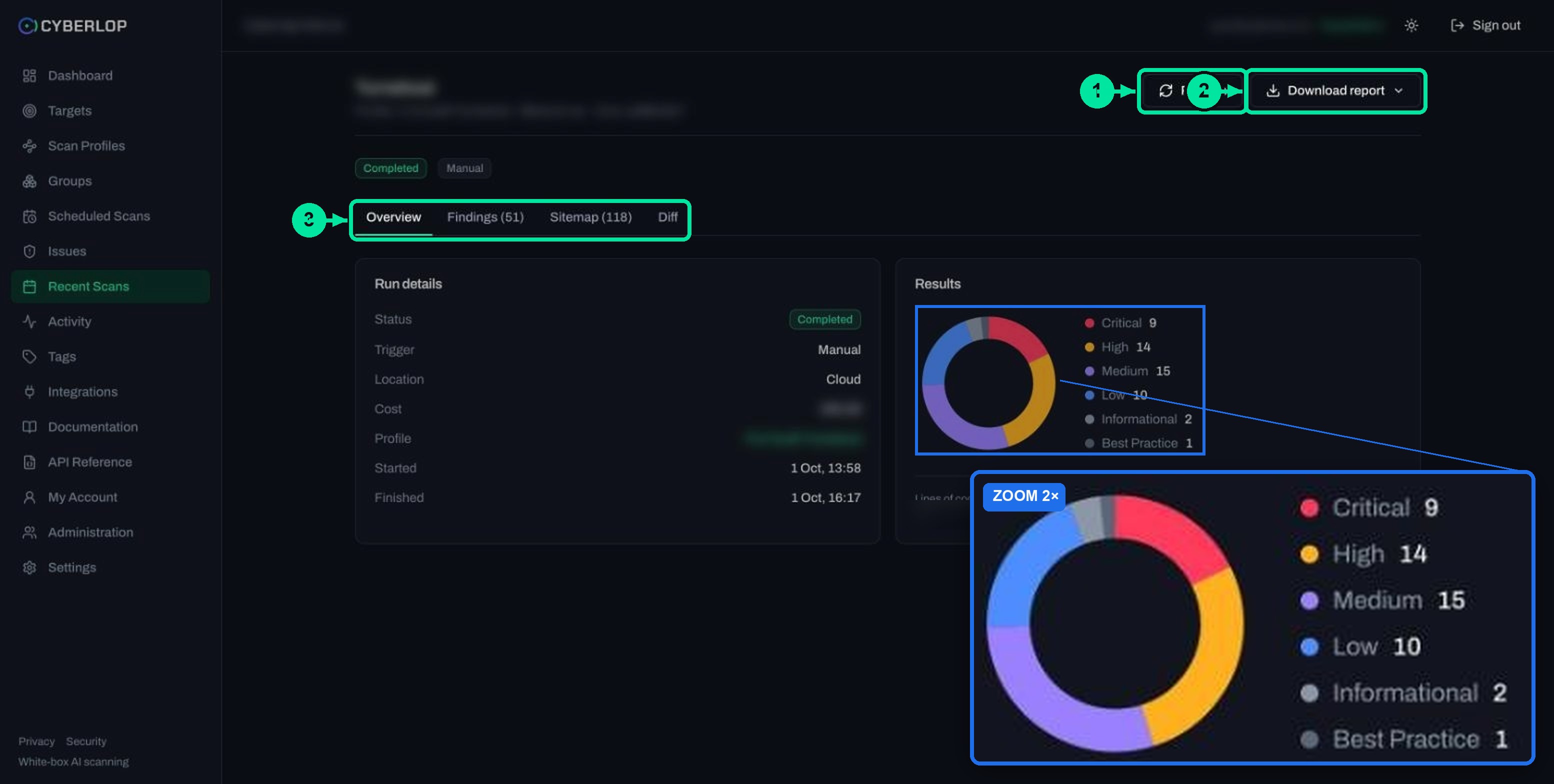
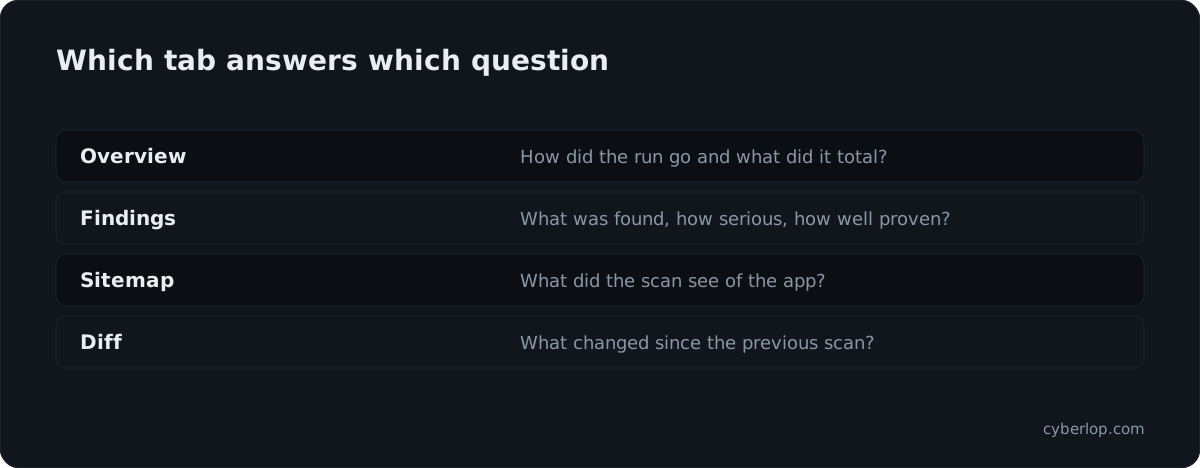
The Cyberlop scan detail page shows one scan in four tabs: Overview (status, cost, severity counts), Findings (issues with severity and confidence), Sitemap (discovered endpoints) and Diff (new, fixed and regressed since the last scan). Open it from Recent Scans, use Refresh for status, and Download report for the PDF.
- Open the scan In Recent Scans, click the scan row, but not its buttons.
- Check the status Read the Status and Trigger badges and any red Scan failed banner.
- Read Run details On Overview, check profile, location, start and finish times, and the commit for white-box scans.
- Read Results Note the severity counts, lines of code, tokens consumed and cost.
- Open Findings Read severity then confidence, and click Critical and High rows to open the issue dialog.
- Check Sitemap Filter the endpoints and confirm the scan reached the areas and roles you expected.
- Read Diff Check New and Regressed first when a previous completed scan exists.
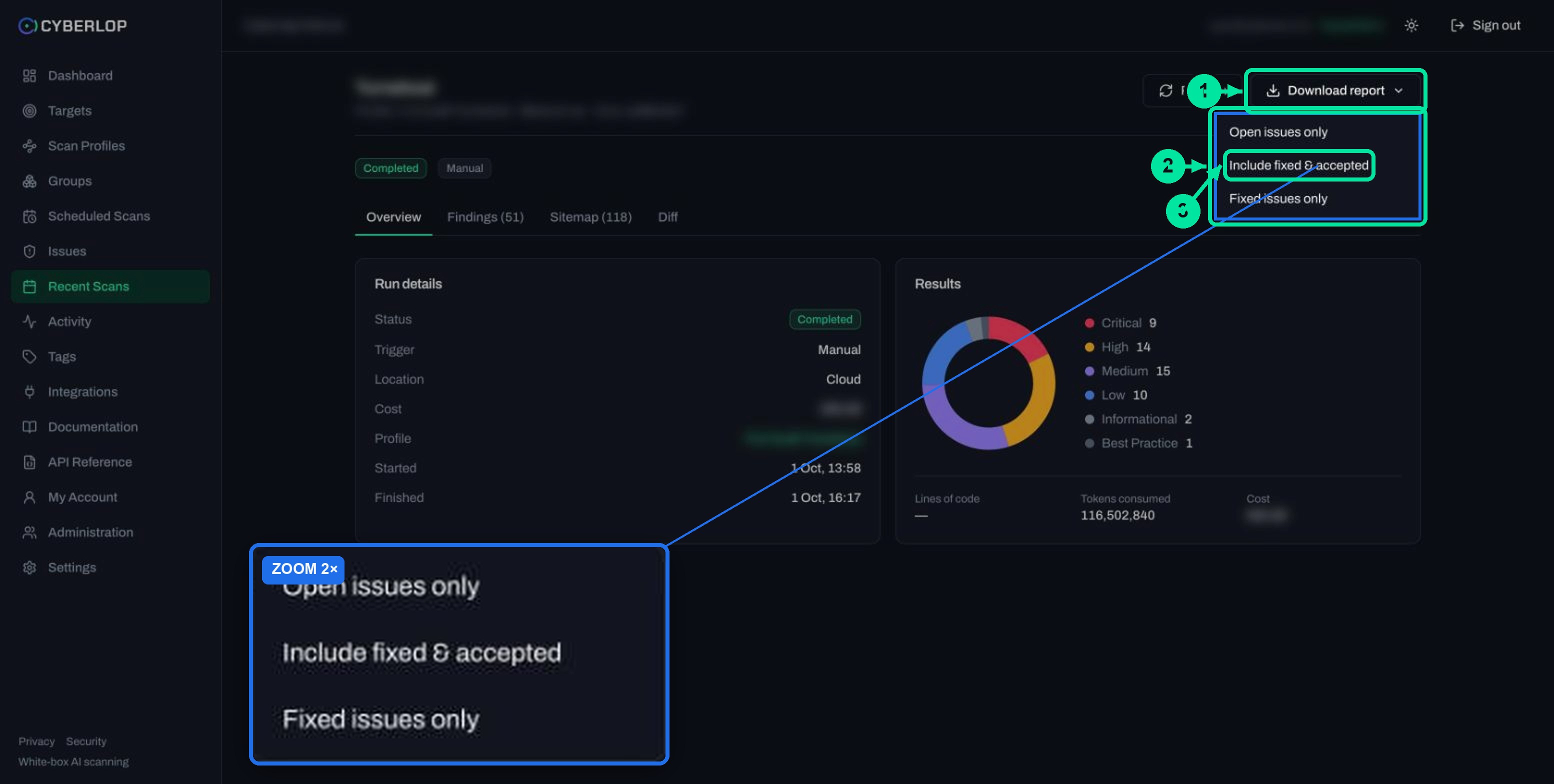
- Download the report Choose Open issues only, Include fixed & accepted, or Fixed issues only.
- Open a scan by clicking its row in Recent Scans, then read Overview, Findings, Sitemap and Diff in that order.
- Check Status first: a Failed or Cancelled scan can still hold partial findings and endpoints.
- Overview Results counts severity only; confidence is a separate column on Findings.
- The Sitemap tab shows what the scan could see, so check it before trusting a quiet result.
- Diff compares with the previous completed scan, and the first scan shows no comparison.
The scan detail page is the screen in Cyberlop that shows one finished or running scan: its status, cost, results, findings, discovered endpoints and changes since the last scan. Open it from Recent Scans by clicking a row, then read the four tabs in order: Overview, Findings, Sitemap and Diff. Use Download report for the PDF.
What is the scan detail page?
The scan detail page (/scans/<scan-id>) is the record of a single run of a scan profile. It answers five questions: did the scan finish, what did it cost, what did it find, what did it see of your app, and what changed since last time. Everything on it belongs to that one run, so its numbers never mix in findings from other scans.
Findings also roll up per target on the Issues page, which is covered in Issues list. Use the scan page when you want to judge one run; use Issues when you want to work through everything open on a target. New to the terms? Key terms defines scan, profile and finding.
How do you open it?
- Click Recent Scans in the sidebar. The table lists the latest runs across all targets with their Result: Completed, Failed or Cancelled.
- Click anywhere on the row except the buttons. The Scan, Report and trash buttons act on their own and do not open the page.
- Or click a scan row in the Recent scans card on the Dashboard. Those rows link to the scan too.
A scan you have just started from Run a scan opens the same way. Per the in-app documentation, a running scan shows the current phase, live cost, token and lines-of-code counters, and fills the Sitemap and Findings tabs as results arrive. We did not capture the live view, so treat what you see on screen as the reference.
What does the header of the scan detail page show?
The header names the target and gives a one-line subtitle, two status badges and two buttons. It tells you which run you are looking at before you read any numbers.
Header controls and badges
| Element | What it shows | Notes |
|---|---|---|
| Target name | The application the scan ran against. | Click through to the target from the Targets page if you need its settings. |
| Subtitle | Profile: <name> · Manual run · Scan <8-character id>. | For a white-box scan it also shows Commit <short SHA>, the code revision that was tested. |
| Status badge | Completed, Failed or Cancelled. | Same values as the Result column in Recent Scans. |
| Trigger badge | How the run started, for example Manual. | Scheduled and CI runs are also possible, see Schedule scans. |
| ⟳ Refresh | Reloads the scan status. | Use it on a scan that is still running. |
| ⤓ Download report ▾ | Opens a menu of three PDF modes: Open issues only, Include fixed & accepted, Fixed issues only. | Details in Download PDF reports. |
If the scan failed, a red banner sits under the header: Scan failed. The scan could not be completed. Please try again, or contact your administrator if the problem persists. A failed scan can still hold results, so keep reading the tabs. The recovery steps are in Failed or cancelled scans.
What does the Overview tab show?
The Overview tab is a two-card summary: Run details on how the scan ran and Results on what it found. Check it first: it tells you whether the other tabs give a complete picture or a partial one.
Run details card
| Field | What it means | What to check |
|---|---|---|
| Status | Completed, Failed or Cancelled. | Anything but Completed means the other tabs may be partial. |
| Trigger | How the run began. | Manual means someone pressed Scan. |
| Location | Where the scan ran. Captured scans show Cloud, the Cyberlop cloud default. | A scan pinned to a self-hosted agent is expected to show that agent here. |
| Cost | The cost of this run. | Limits depend on your plan and are shown in Settings → Plan & usage. |
| Profile | The profile that was run, as a link to it. | Open it to see the classes, roles and rules that produced these results. |
| Started / Finished | Date and time, for example 1 Oct, 13:58. | The gap is the run time. The documentation says a typical scan of a small app takes roughly an hour. |
| Commit | The full Git commit SHA that was tested. | White-box scans only. Black-box scans have no commit. |
Status values
Completed means the pipeline reached the end. Cancelled means the run was stopped before that. Failed means it could not finish. The documentation adds that rate limits make a scan slower, not failed, so a long run is not a sign of trouble on its own.
Why the Commit field matters
Scans clone the latest code from the target repository at launch. The Commit field records which revision that was, so a finding can be tied to the exact code that was read. When you later check a fix, compare commits first. See White-box vs black-box scans for what each scan type reads, and the difference between white-box and black-box testing.
Results card
The Results card shows a donut chart with the total in the centre and a legend with counts for the six severities: Critical, High, Medium, Low, Informational and Best Practice. Under it sit three figures:
- Lines of code: the amount of source analysed. It is a number for white-box scans and a dash (—) for black-box scans, which read no code.
- Tokens consumed: how much AI work the run used.
- Cost: the same cost as in Run details.
The donut counts severity only. Confidence is separate from severity: it says how well each finding was proven, and it is a separate column on the Findings tab. Severity and confidence explains how to use the two together.
What does the Findings tab show?
The Findings (n) tab lists every issue this scan reported, with the count in the tab name. Each row has a Severity badge, Title, Class, Confidence, Triage state and Location. It is the same table you meet on the Issues page, limited to this scan.
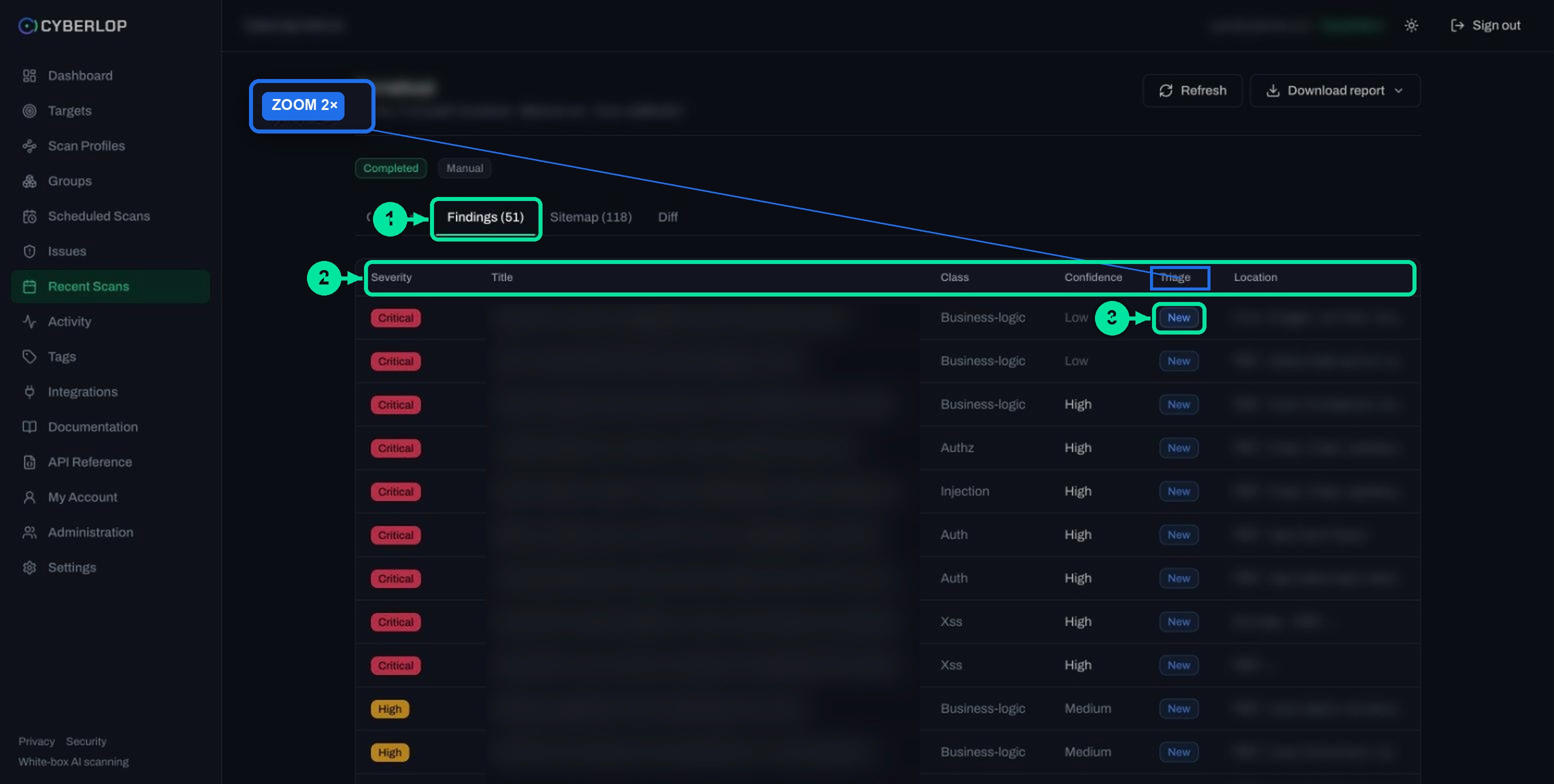
Reading the Location column
Location depends on the scan type. A black-box finding shows an HTTP method and path, such as POST /search. A white-box finding shows a source file and line range, and its detail dialog adds an Endpoint line such as DELETE /api/orders/{id}, so you get both the running route and the code behind it.
Opening a finding
Click a row to open the issue dialog over the page. The Summary tab holds severity, confidence, class, status (Confirmed or Likely), the finding ID such as INJ-VULN-02, location and description. The Evidence tab holds the authentication used, the payload, the HTTP request and response, reproduction steps as curl commands and a screenshot. Read a finding walks through both tabs, and Triage findings covers finding triage with Disposition, Assignee and Update status.
What the Status field tells you
The documentation grades findings as confirmed, likely or unconfirmed by how strongly they were proven in the exploitation phase. Start with Confirmed rows: they carry captured evidence of exploitation. If you turned the exploitation phase off, expect less proof. See Exploitation phase.
What does the Sitemap tab show?
The Sitemap (n) tab lists the endpoints the scan discovered, grouped by host. It shows what the scan could see of your app, which is the quickest check that it reached the parts you care about.
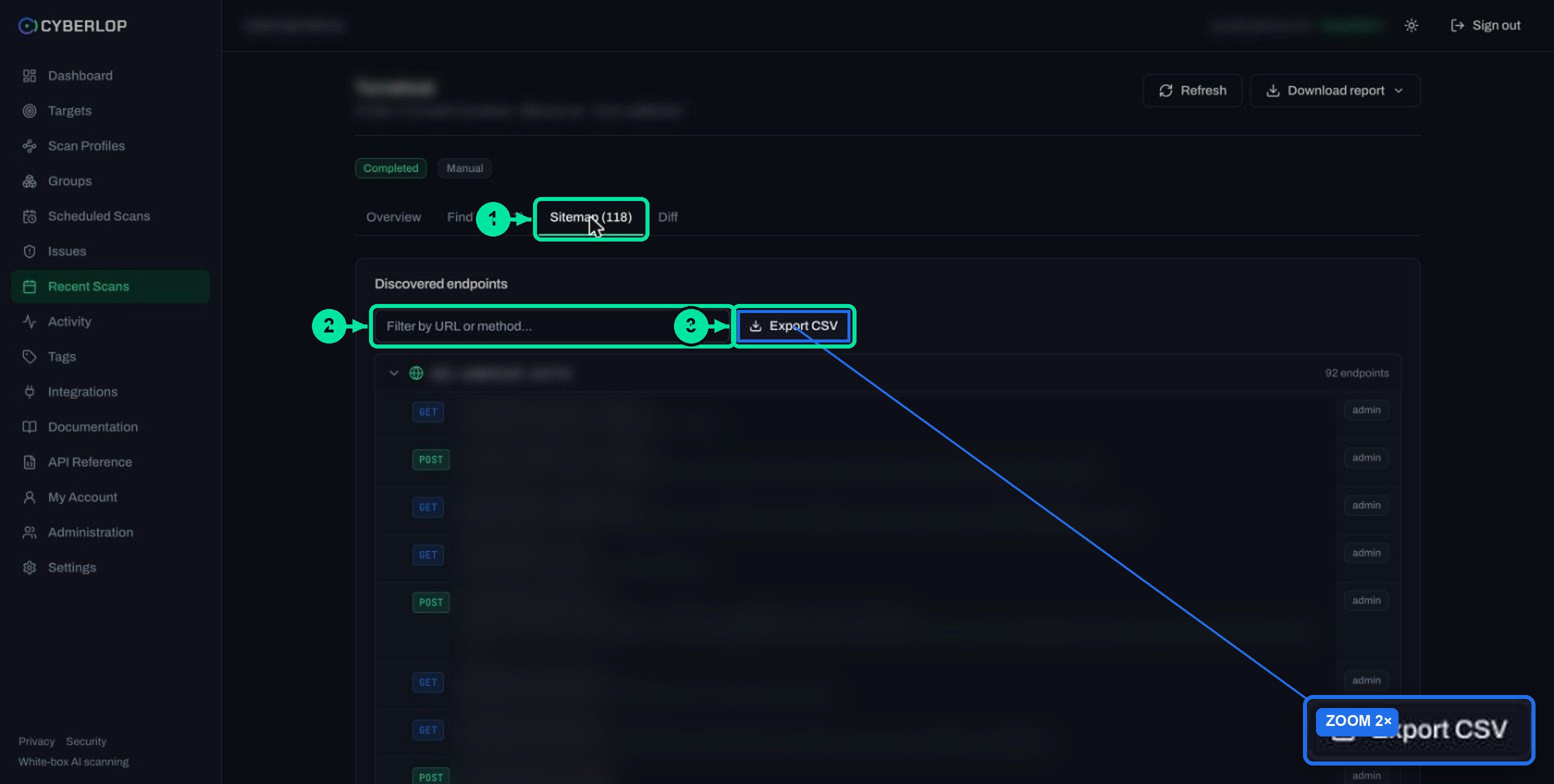
- Host groups are collapsible and each shows a count, for example 26 endpoints.
- Each row has a method badge (GET, POST and so on), the path, an optional params line, a one-line note written by the scan and a role chip such as admin.
- Notes record what the scan saw. A note like Correctly gated — HTTP 401 is good news. A note starting BROKEN ACCESS CONTROL points to a problem worth opening in Findings.
- Filter by URL or method… narrows the list, and ⤓ Export CSV downloads it.
Missing routes usually mean the scan had no way in: no login role, a Focus or Avoid rule, or an app area that needs a different account. The OWASP Web Security Testing Guide treats mapping execution paths through the application as part of information gathering, which is why coverage is worth checking before you trust a clean result. Access flaws are common enough to justify the care: the OWASP Top 10:2021 puts it at an average incidence rate of 3.81%, with 94% of the applications in its data checked for it. Scan sitemap goes deeper, and Authentication roles shows how to widen what the scan can reach. The attack surface is only as complete as the sitemap.
What does the Diff tab show?
The Diff tab compares this scan with the previous completed scan and sorts findings into three columns: New (red), Fixed (green) and Regressed (amber). Each column shows a count and findings as a severity badge and title, with a +N more line when the list is long.
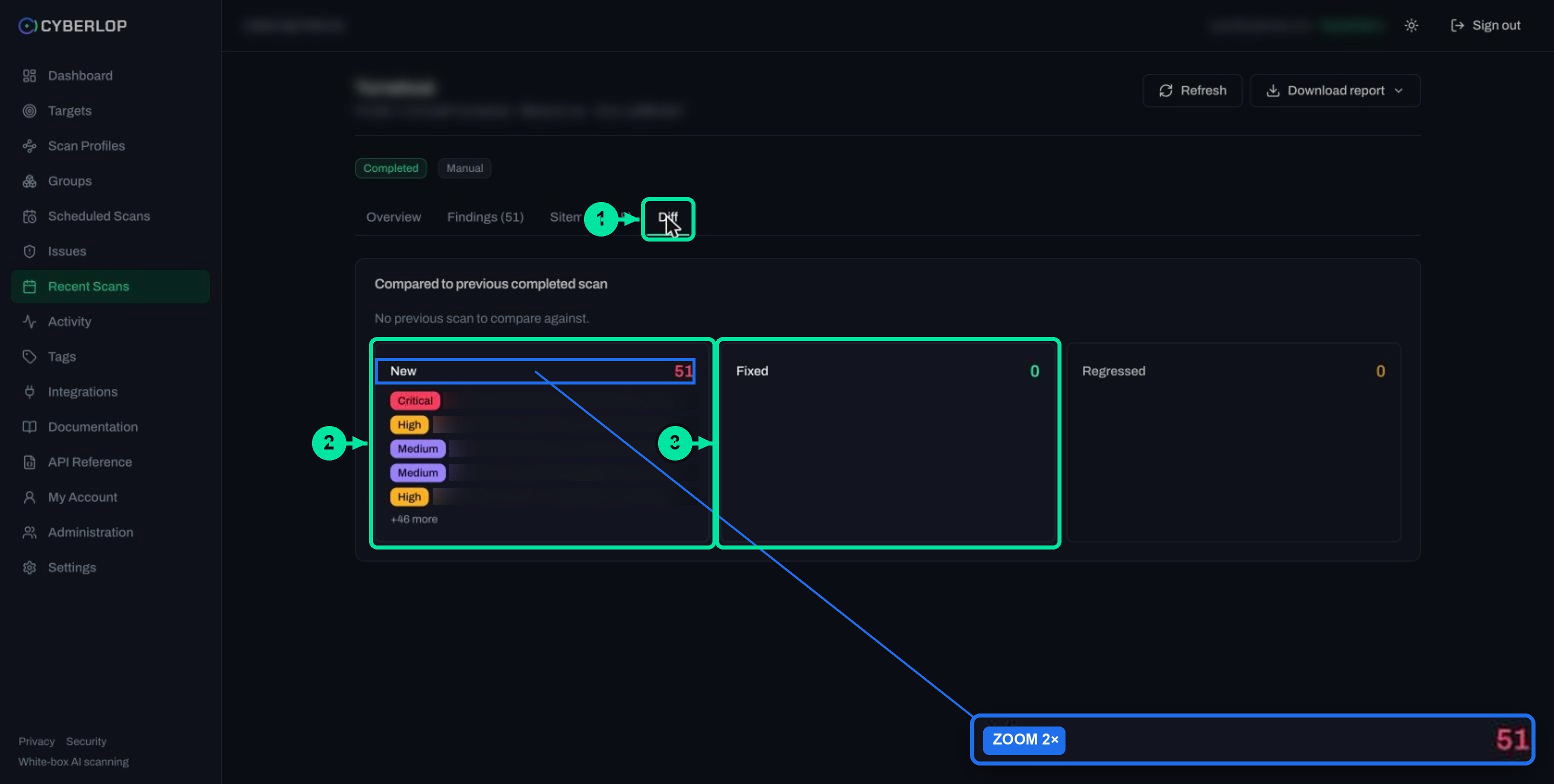
On the first scan the tab says No previous scan to compare against. That is normal. A finding is Fixed when a re-scan did not find it again, and Regressed when a fixed issue comes back. Compare scans and Fixed and regressed issues explain how to read the columns, and the regression term gives the plain-English meaning.
How do you read a scan page in five minutes?
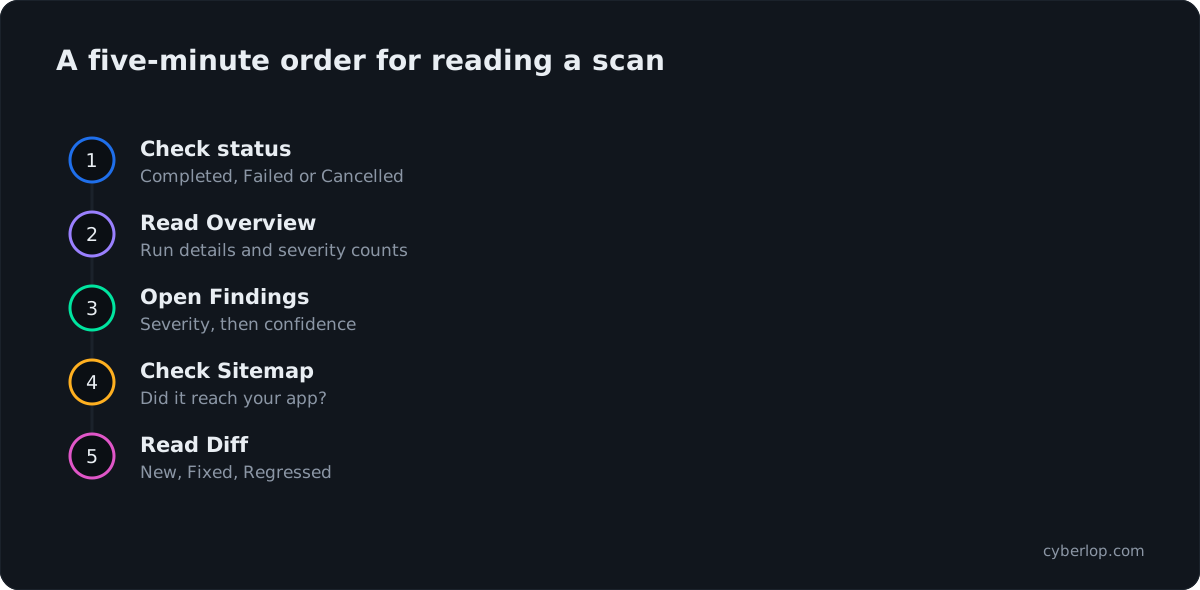
Read the tabs in a fixed order so a failed or partial run does not mislead you. These steps work for any scan, completed or not.
- Open the scan from Recent Scans and check the Status and trigger badges. Note any red Scan failed banner.
- On Overview, read Run details: profile, location, started and finished, and the commit for white-box scans.
- In Results, read the severity counts, then lines of code and tokens to see how much was analysed.
- Open Findings. Read by severity first, then confidence, and open the Critical and High rows first.
- Open Sitemap. Filter for the areas you expected and check that each login role you set up appears as a role chip.
- Open Diff if this is not the first scan, and check New and Regressed first.
- Click Download report and pick a mode when you need to share results outside the app.
Which permissions does the scan detail page need?
What you see depends on your role. The API reference lists the permission each route needs, and the page follows the same rules.
| What you do | Route behind it | Permission |
|---|---|---|
| Open a scan | GET /api/scans/:id | scan:read |
| See the Diff tab | GET /api/scans/:id/diff | scan:read |
| View an evidence screenshot | GET /api/scans/:id/screenshot | scan:read |
| Download the PDF report | GET /api/scans/:id/report.pdf | scan:read_report |
| Refresh status | POST /api/scans/:id/refresh | scan:run |
| Update a finding's status | PATCH /api/issues/:id | issue:triage |
If a button or tab is missing, ask an administrator to check your role. Roles are managed in Administration, an admin-only area.
Troubleshooting the scan detail page
| What you see | Likely reason | What to do |
|---|---|---|
| Failed banner but findings exist | A failed scan can still hold findings found before it stopped. | Review them, then re-run. See Failed or cancelled scans. |
| Lines of code shows a dash | The scan was black-box, which reads no source. | Add a repository for a white-box scan. See Connect a repository. |
| No Commit field | Black-box scans have no commit. | None needed. |
| Diff says no previous scan | This is the first completed scan. | Run again later to get a comparison. |
| Few endpoints in Sitemap | No login role, or Focus and Avoid rules narrowed the scan. | Check the profile's roles and rules. |
| Status looks stale | The page has not synced. | Click ⟳ Refresh. |
| Download report is missing or blocked | Your role may lack report permission. | Ask an admin for scan:read_report. |
Common mistakes
- Reading the donut as the whole story and skipping confidence.
- Trusting a clean Findings tab without checking the Sitemap.
- Comparing scans from different commits without noticing.
- Judging a Cancelled or Failed run as if it were complete.
What is the next step after the scan detail page?
Next step: if the run did not complete, read Failed or cancelled scans. If it did, open a finding with Read a finding, then use Scan sitemap and Compare scans. To prove a fix, re-run the scan and check the Fixed column on Diff, which is the practical form of fix verification. You can also see what a report looks like on Evidence.
Questions people ask
Scan detail page: FAQs
Where do I find the results of a scan?
Open Recent Scans in the sidebar and click the scan row. The Dashboard Recent scans card also links to each scan. The scan detail page then gives Overview, Findings, Sitemap and Diff tabs.
Why does a failed scan still show findings?
A failed scan can still hold the findings and endpoints found before it stopped. The Findings and Sitemap tabs show those partial results beneath the red Scan failed banner. Treat them as incomplete and re-run the scan.
What is the difference between the Findings tab and the Issues page?
The Findings tab lists the issues from this one scan. The Issues page lists findings across all scans, with search, four filters and triage chips. Issues persist per target, so the same issue can appear across scans.
What does Refresh do on a scan page?
The in-app API reference describes the refresh route as syncing scan status from the workflow. Click ⟳ Refresh on a running scan to update the page. It does not start a new scan.
Why does Lines of code show a dash?
Lines of code is a white-box figure. A black-box scan tests the live URL and reads no source code, so the field shows a dash and there is no Commit field either.
Can I export the sitemap or the findings?
Yes. The Sitemap tab has ⤓ Export CSV. For findings, use Export JSON or Export CSV on the Issues page, and Download report on the scan page for a PDF. See the export guide for details.
What do Fixed and Regressed mean on the Diff tab?
Fixed means a previously reported issue was not found again in this scan. Regressed means an issue that was fixed has come back. New means the finding was not in the previous completed scan.
Does deleting a scan delete its findings?
No. Deleting a scan run keeps the target's findings, per the API reference. Deleting a target is different: it cascades to its profiles, schedules, scans and findings.
Sources
Where the facts come from
Keep reading
Related articles
Cyberlop API reference: authentication, permissions and the OpenAPI spec
Use the Cyberlop API: 78 endpoints in 15 groups, session or Bearer token auth, permissions per route, worked calls and the OpenAPI download.
How to scan behind login in Cyberlop with authentication roles
Scan behind login in Cyberlop: add authentication roles, choose privilege levels, combine form, header and OAuth methods, and guide the scan with AI guidance.
How to compare scans in Cyberlop with the Diff tab
Read the Diff tab: new, fixed and regressed findings against the previous completed scan, and how to prove a fix after a re-scan.

Want scan results your team can act on?
Cyberlop finds vulnerabilities in web apps and their APIs with black-box, grey-box and white-box pentesting, and reports what it actually exploited, with the request, response and line of code. Ask us to run it on one of your applications.
Or start with a $199 pilot on one application: thirty days, success criteria agreed before day one, credited against the annual if you convert.