
Home / Blog / Tutorials / Failed scan troubleshooting
Tutorials
Failed or cancelled scans: what to check and how to re-run
A scan can end Failed or Cancelled and still leave useful results. This guide shows how to read the banner, use partial findings, find the likely cause and run the scan again.
Cyberlop Labs · Updated · 9 min read
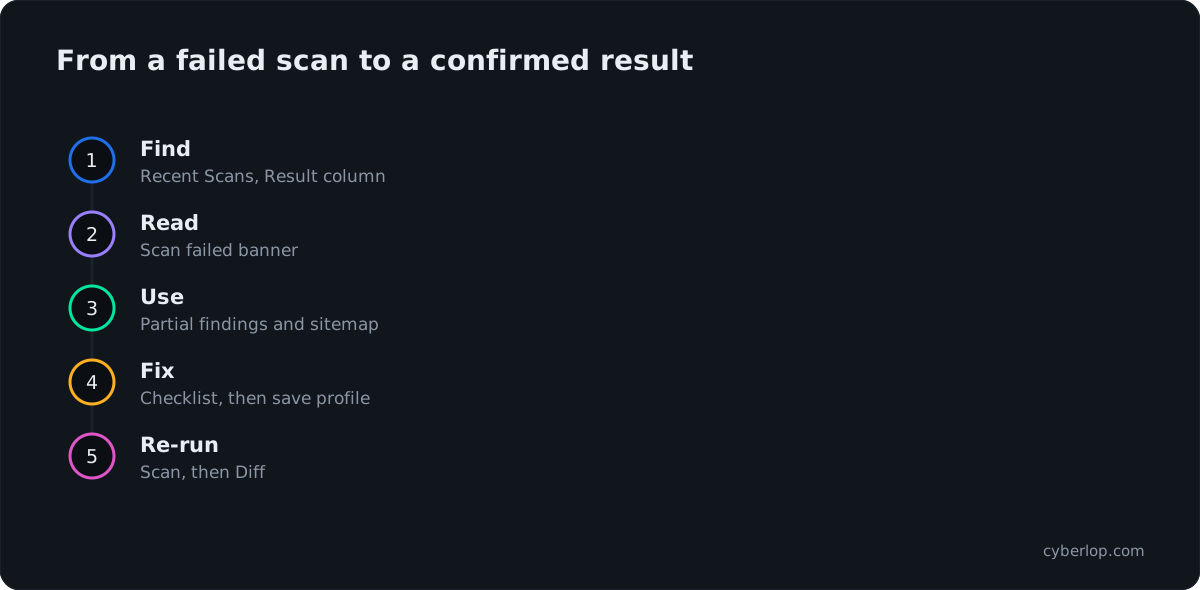
A failed or cancelled scan ended before it finished, but it can still hold findings. Open it from Recent Scans, read the Scan failed banner, check the Findings and Sitemap counts, work through the checklist of repository, ownership, scan location and AI credential, then click Scan to re-run it.
- Open Recent Scans Click Recent Scans in the sidebar and search by target or profile. Look for a red Failed or grey Cancelled badge.
- Open the scan Click the row, anywhere except the buttons, to open the scan page and read the Scan failed banner.
- Check partial results Read the Findings and Sitemap counts. Open findings, triage them and download a report if you need one.
- Read the run details On Overview, note the Location, Trigger, Profile, Started and Finished values, and the commit for white-box scans.
- Work the checklist Check the repository, Git token, ownership verification, scan agent status, AI credential and logins.
- Fix the profile If you changed the profile, click Preview YAML to validate and Save before running again.
- Run it again Click Scan on the Recent Scans row, the profile or the target. Then open the new scan and use Refresh if needed.
- Confirm on a completed scan When the new scan completes, use the Diff tab to compare it with the previous completed scan.
- Escalate if it repeats If it fails twice, send your administrator the target, profile, scan ID and start time.
- Results are Completed, Failed or Cancelled, shown as badges in Recent Scans.
- The Scan failed banner gives no cause, so use the checklist to narrow it down.
- A failed scan can still hold partial findings and sitemap entries: use them, but do not read them as a clean result.
- Fewer findings after a failed run does not mean fixes worked. Confirm on a completed scan and its Diff.
- Re-run with Scan after fixing the cause, and give your administrator the scan ID if it fails twice.
A failed or cancelled scan in Cyberlop is a scan run that ended before the Reporting phase finished, and you can still use what it found. Open it from Recent Scans, read the red Scan failed banner, check the Findings and Sitemap counts for partial results, fix the likely cause from the checklist below, then click Scan to run the same profile again.
What do Completed, Failed and Cancelled mean?
Every scan ends with one of three results: Completed, Failed or Cancelled. They show as green, red and grey badges in the Result column of Recent Scans, and as a status badge on the scan's own page.
| Result | Badge | What happened | What to do next |
|---|---|---|---|
| Completed | Green | The scan ran through the five phases and produced its report. | Read the findings. A Report PDF button appears on the row. |
| Failed | Red | The scan could not be completed. The scan page shows a red banner. | Check partial findings, work through the checklist, then re-run. |
| Cancelled | Grey | Someone stopped the scan before it finished. | Decide whether you need the rest. If so, run it again. |
A scan is one run of a scan profile. It moves through five phases: pre-recon, recon, vulnerability analysis, exploitation and reporting. You can switch exploitation off in the profile. A run that stops part-way through leaves whatever the earlier phases produced.
What is the difference between failed and cancelled?
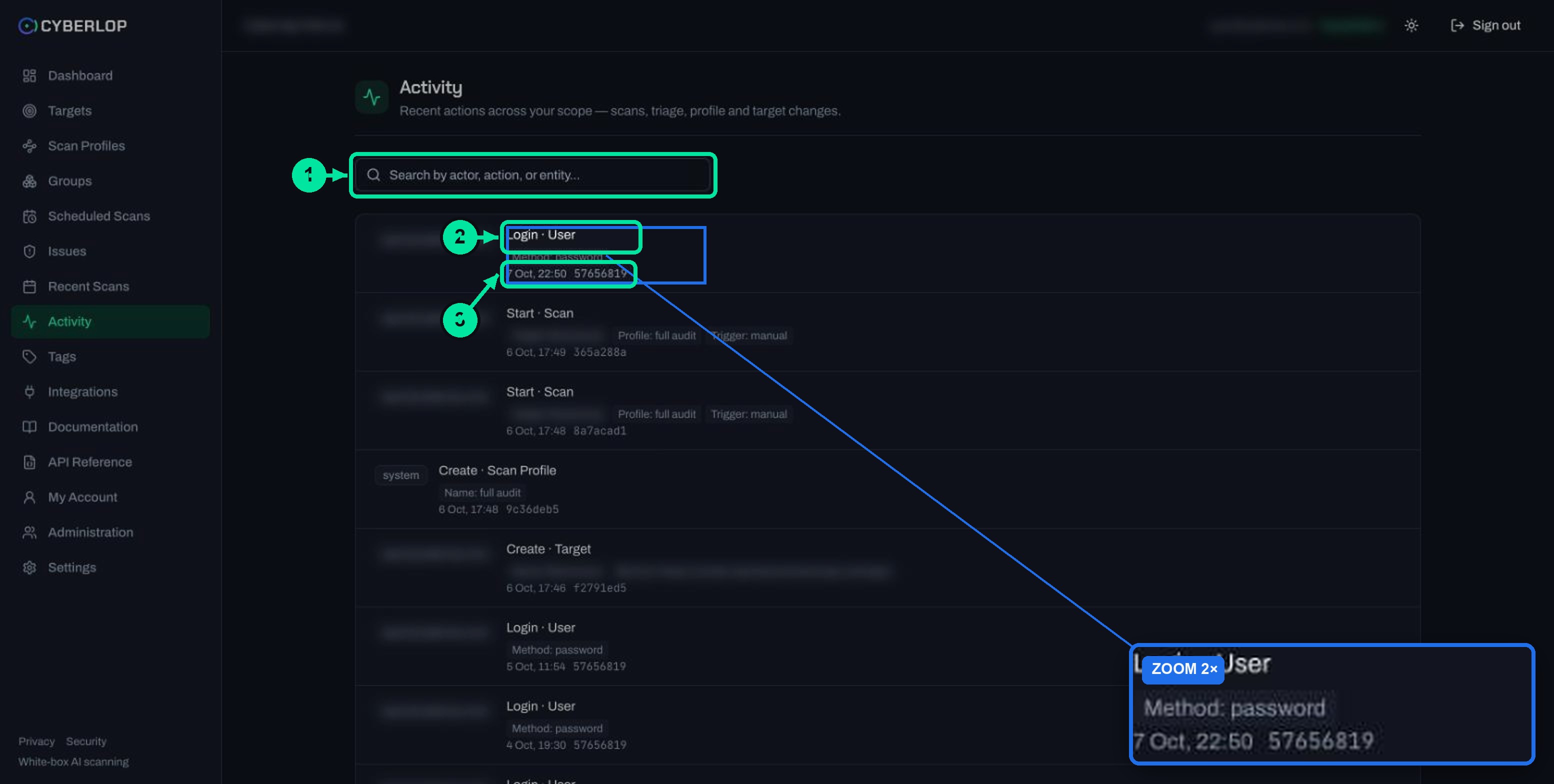
Failed means the platform could not finish the scan. Cancelled means a person chose to stop it. The Activity feed, an audit log, records a cancellation as Cancel · Scan with the person's email as the actor, so you can see who stopped a run and when.
How do you find a failed or cancelled scan?
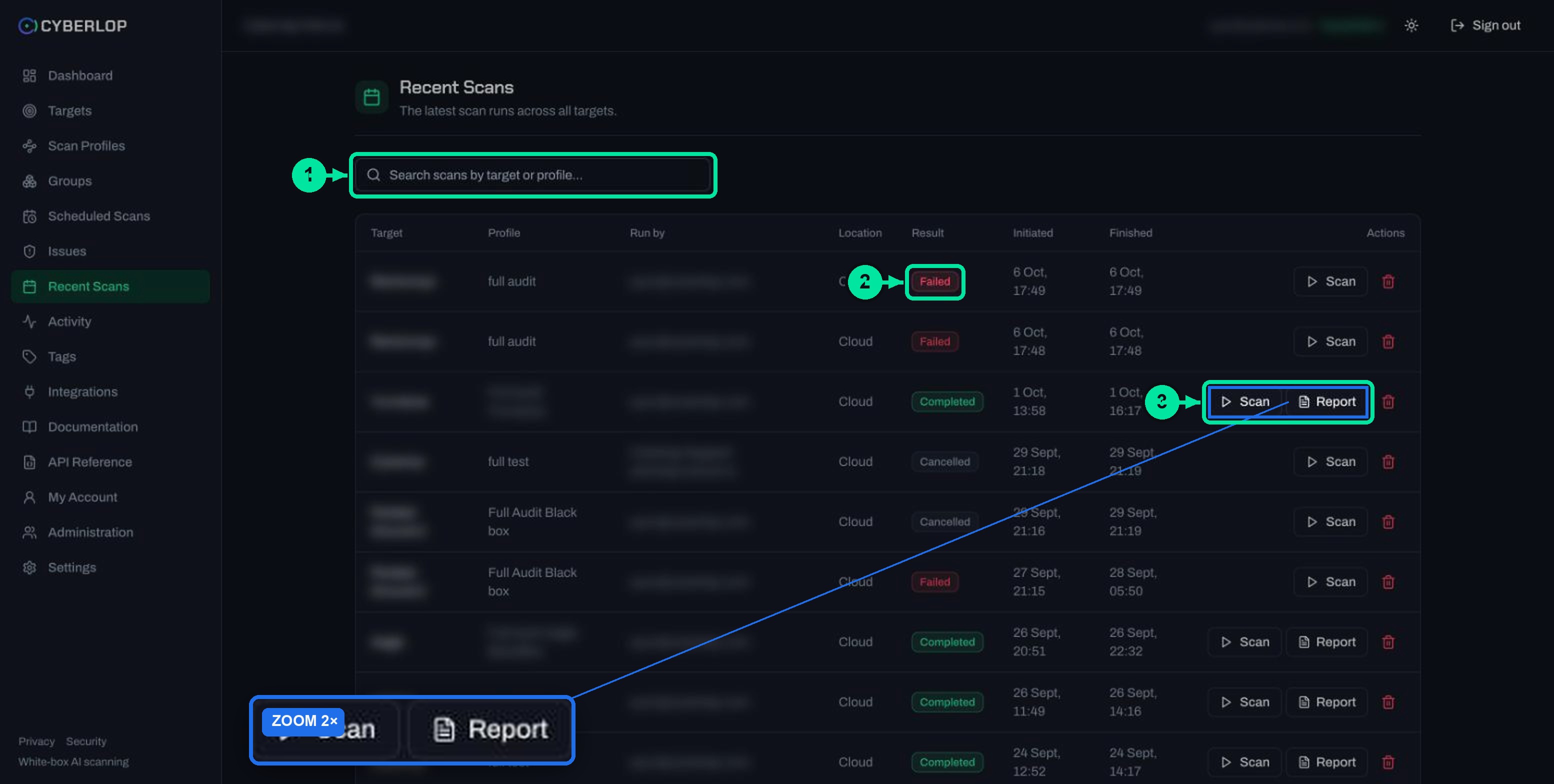
You can find a failed or cancelled scan in three places: Recent Scans, the Recent scans table on the Dashboard, or the Activity feed. Recent Scans is the best starting point because it shows the target, profile, who ran it, location, result and both times.
- Click Recent Scans in the sidebar.
- Type a target or profile name in Search scans by target or profile... if the list is long.
- Look at the Result column for a red Failed or grey Cancelled badge.
- Compare Initiated and Finished. Two identical times mean the scan ended within the same minute.
- Click anywhere on the row except the buttons to open the scan page.
The Dashboard shows the same result in its Recent scans table, with the cost column showing a dash when a scan has no cost. Its Running scans card counts scans still in progress, so a failed scan is not counted there.
What does the Scan failed banner say?
The banner reads Scan failed and then: "The scan could not be completed. Please try again, or contact your administrator if the problem persists." It appears at the top of the scan page for failed scans only. It does not name a cause, so the checklist further down is how you narrow one down.
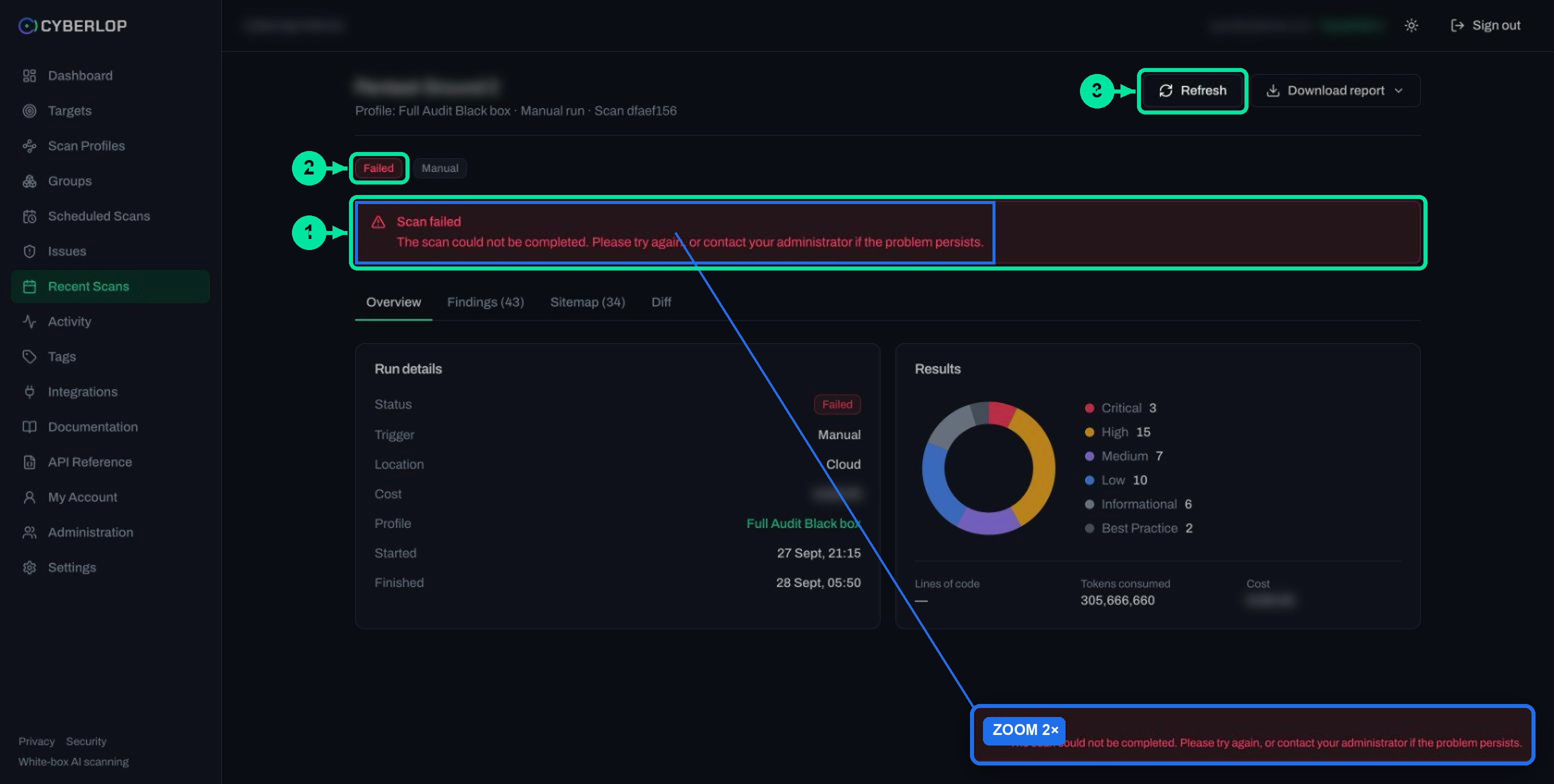
Below the banner the page still has its usual header, with Refresh and Download report, the status and trigger badges, and the four tabs: Overview, Findings, Sitemap and Diff. The scan detail page guide explains every field.
Overview fields worth reading first
On the Overview tab, the Run details card shows Status, Trigger, Location, Cost, Profile, Started, Finished and, for white-box scans, Commit.
- Location tells you whether the scan ran in the Cyberlop cloud or on one of your own scan agents.
- Trigger tells you whether it was a manual run, a schedule or your CI pipeline.
- Commit shows which code the scan read, so you can check it used the branch you meant.
- Profile links to the profile, which is where most fixes happen.
When should you click Refresh?
Click Refresh if a scan still looks like it is running after you expected it to stop, or if you are not sure the page is current. The API describes the matching endpoint as syncing the scan status from the workflow. A typical scan of a small app takes roughly an hour.
Can you use findings from a failed scan?
Yes. A failed scan can still hold the findings and discovered endpoints found before it stopped, and they show as counts on the tabs, for example Findings (43) and Sitemap (34). Treat them as real but incomplete.
- Open the Findings tab and click a row to open the issue dialog. The Evidence tab shows the request, response and reproduction steps for anything the scan proved.
- Triage the findings as normal (finding triage): set a Disposition and Assignee, then click Update status. See triage findings.
- Open the Sitemap tab to see which hosts and endpoints the scan reached. Missing areas show where test coverage stopped.
- Use Download report if you need a PDF. The menu offers Open issues only, Include fixed & accepted and Fixed issues only. The Report button on the Recent Scans row appears on completed scans only.
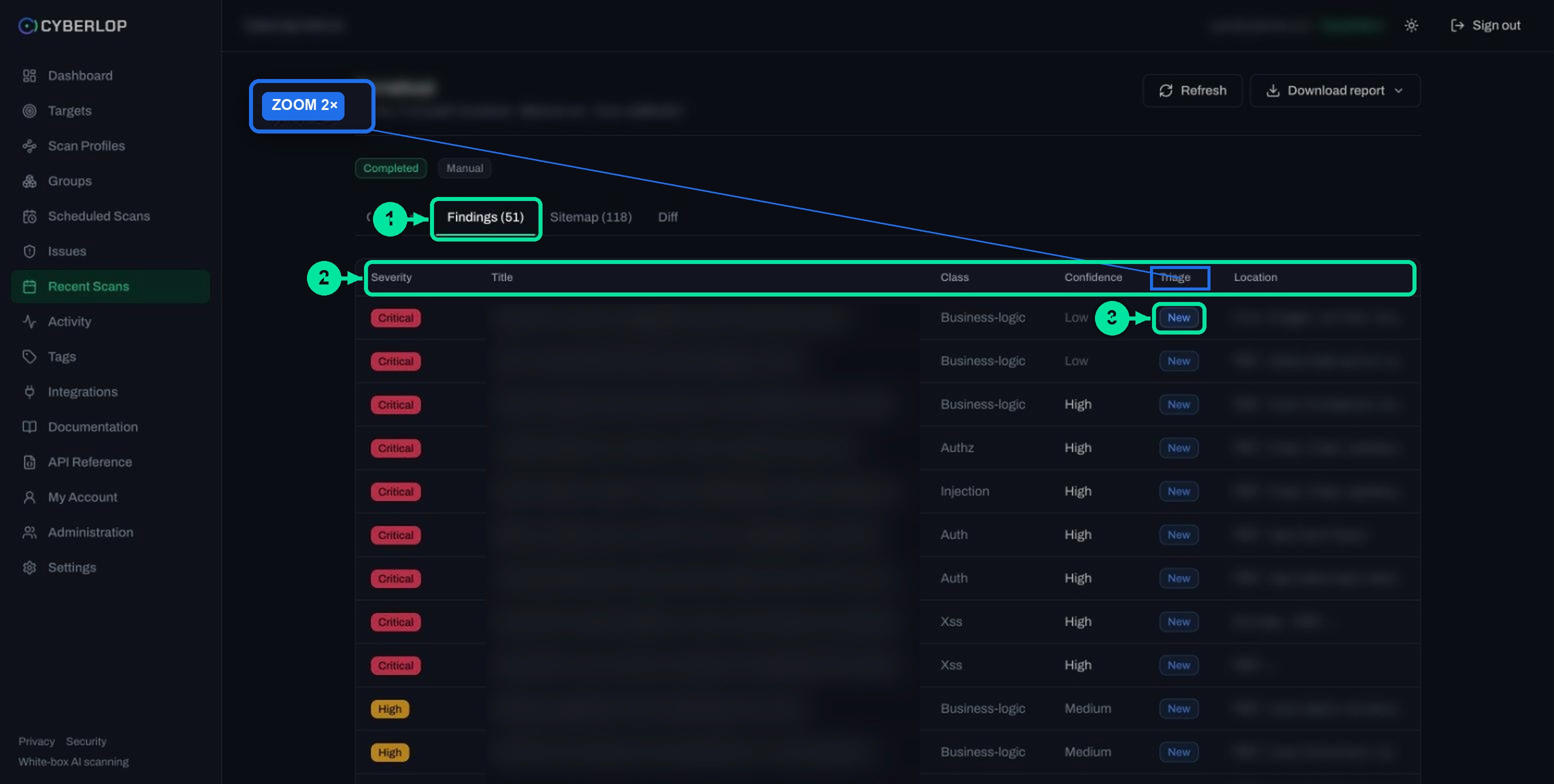
Do not read a failed scan as a clean bill of health
- Fewer findings than last time can mean the scan tested less, not that your fixes worked.
- Findings persist per target. The app marks a finding fixed only when a later scan fails to detect it again, so confirm fixes with a completed re-run, the idea behind a closed-loop retest. See fixed and regressed issues.
- The Diff tab compares against the previous completed scan, so a failed run is never the baseline for the next comparison. See compare scans.
Why did my scan fail? A troubleshooting checklist
The banner gives no cause, so work through the checks below from the cheapest to the slowest. Each one is something the app shows you or lets an admin verify. Only the platform administrator can read the raw workflow log.
Checks before anything else
| Check | What to look for | Where to look |
|---|---|---|
| Repository (white-box) | The Repo URL must be HTTPS. SSH git@ addresses are not supported. The target page must not say "No repository configured". | Target detail page, Target details card |
| Private repository access | A private repo needs a Git token for an allowed host. Use a read-only token and click Verify. | Settings → Git Access or My Account |
| Ownership (black-box) | The Ownership verification card must show Verified before black-box scans can run. | Target detail page |
| Scan location | If the profile points to a scan agent, the agent must be online. A pending or offline agent cannot take work. | Settings → Scan Agents, profile Scope section |
| AI credential | Verify your own credential, or check the Cyberlop AI allowance. | Settings → AI Provider, Plan & usage |
| Profile validity | Open the profile and click Preview YAML. It validates the form and shows errors. | Profile edit page |
Repository and Git token
White-box scans clone the latest code from the repository at launch. Public repositories clone as they are. Private ones need a personal token in My Account or an organisation token in Settings → Git Access, and the token is sent only to the allowed hosts listed there. A token for the wrong host, or one that has expired, is a common reason a launch fails. Follow connect a repository and Git access to check it.
Ownership of a black-box target
Black-box scans need proof that you own the target, by a DNS TXT record or approval from Cyberlop staff. If the card is not showing Verified, ask an admin to complete it. See verify target ownership. Scan only applications you own or have permission to test.
Scan agent status
A scan agent connects out to Cyberlop over HTTPS and only needs outbound port 443 to the app. An agent that stops sending heartbeats shows as offline. If you revoke an agent, its profiles go back to the Cyberlop cloud, which cannot reach a private network, so a scan of an internal app can then fail to reach its target. Read self-hosted scan agents.
Checks when the scan ran for a while first
- Is your own app up? A staging environment that has just redeployed, scaled to zero or moved behind a firewall can drop requests part-way through. Check it in a browser first, and prefer a proper test environment for scans.
- Is your app rate limiting the scanner? A server may answer with 429 Too Many Requests (RFC 6585) or 503 Service Unavailable (RFC 9110). Ask your team to allow the scan location, or choose a quieter environment. See API rate limiting.
- Do the logins still work? A rotated password, a replaced TOTP secret or an expired token means the scan cannot reach pages behind login, which defeats authenticated testing. Check the role chips on the Sitemap, then update the role in the profile. See authentication roles and form login.
- Did the scan stop at the exploitation phase? That phase uses a real browser against the live target. A profile with it switched off tests the code only. See the exploitation phase.
Do AI limits make a scan fail?
Not by design. Rate limits slow a scan down but do not fail it, because the agents wait and retry. When the included allowance runs out, scans on Cyberlop AI pause until next month, and connecting your own provider credential in Settings → AI Provider keeps them going. Your plan decides the limits, and they are shown in Settings → Plan & usage. One caution from the same page: a subscription-style OAuth token can hit throttling part-way through, so the agents cover less of the codebase. Use an API key for the best coverage. See AI provider settings.
How do you cancel a scan, and what happens to it?
A person whose role includes the scan:cancel permission can cancel a scan while it is running. The API exposes this as POST /api/scans/:id/cancel. The result badge then reads Cancelled and the Activity feed records Cancel · Scan. If you cannot find or use the control, ask an admin to cancel it for you or to adjust your role.
Cancel a scan when you started it against the wrong profile, the wrong environment or an app that is mid-release. Once cancelled, open the scan page and check the Findings and Sitemap counts, as you would for a failed scan, and treat any results as partial.
Should you delete a failed scan?
Only to tidy the list. Delete this scan removes the run and keeps the target's findings, but a support conversation goes faster with the scan still there. Deleting the target also removes its profiles, schedules, scans and findings.
How do you re-run a failed or cancelled scan?
To re-run a scan, fix the likely cause first, then click Scan on the scan's row in Recent Scans, or on the profile or target row. It runs the same profile again as a new scan with its own ID.
- Note the target, profile, Started time and the 8-character scan ID from the scan page subtitle.
- Work through the checklist and fix one thing at a time.
- If you changed the profile, Preview YAML and Save first. See edit a scan profile. You cannot edit a target: to change one, delete and recreate it.
- Click Scan. The scan starts at once and is durable, so you can leave the page.
- Open it from Recent Scans and watch the phase, cost and counters, then click Refresh if the page looks stale.
- When it completes, open Diff to see New, Fixed and Regressed findings against the previous completed scan.
A white-box re-run clones the repository again, so the Commit on the new scan may differ from the failed one.
Failed scans from schedules and CI
Scheduled and CI runs fail the same way and appear in the same list, with their trigger shown on the scan page. The CI snippets are non-blocking: the job polls for the result up to 120 times, every 30 seconds, prints the findings and never fails your build. A failed scan will therefore not turn your pipeline red, so look at Recent Scans, or turn on the When a scan I started finishes email in My Account. See CI/CD integration and schedule scans.
When should you contact your administrator?
Contact your administrator if the same scan fails twice after you have worked through the checklist. Send them the target name, profile name, scan ID, start time and what you already checked. They can look at settings you may not see, and the platform administrator can read the workflow log.
Next step: once a scan has completed, check what it reached in the scan sitemap, and see retesting for why running the exploit again proves a fix.
Questions people ask
Failed scan troubleshooting: FAQs
What does the Scan failed banner mean in Cyberlop?
The banner reads "The scan could not be completed. Please try again, or contact your administrator if the problem persists." It names no cause. Check the repository, Git token, ownership, scan location and AI credential, then run the scan again.
Do I still get findings from a failed scan?
Often yes. A failed scan can still hold the findings and sitemap entries found before it stopped, shown as counts on the Findings and Sitemap tabs. Treat them as partial and confirm fixes on a completed scan.
What is the difference between a failed and a cancelled scan?
Failed means the scan did not finish. Cancelled means a person stopped it. Both show in the Result column of Recent Scans, and the Activity feed records a cancellation as Cancel · Scan.
How do I re-run a failed scan?
Click Scan on its row in Recent Scans, or on the profile or target row. It runs the profile again as a new scan. Fix the likely cause first, and save any profile change before you run it.
Does a failed scan break my CI pipeline?
No. The CI snippets are non-blocking: they poll for the result, print the findings and never fail the build. Check Recent Scans for failed runs, or turn on the email for when a scan you started finishes.
Can I see why a scan failed?
The scan page shows the status, trigger, location, times and commit, but not a cause. Only the platform administrator can read the raw workflow log, so send them the scan ID, target, profile and start time.
Do rate limits or a used-up AI allowance make scans fail?
Rate limits slow a scan down but do not fail it. When the included allowance runs out, scans on Cyberlop AI pause until next month. Connect your own AI credential in Settings → AI Provider to continue.
Sources
Where the facts come from
Keep reading
Related articles
Cyberlop activity feed: what it records and how to use it for audits
Read the Cyberlop activity feed: sign-ins, scans, triage, roles and support sessions, who can see them, how to search and an audit checklist.
AI provider settings: included allowance, your own credential and models
Use the included AI allowance or save your own credential, verify it and choose a model for each tier. Includes the rate-limit note.
How to scan behind login in Cyberlop with authentication roles
Scan behind login in Cyberlop: add authentication roles, choose privilege levels, combine form, header and OAuth methods, and guide the scan with AI guidance.

Want scans that finish first time?
Cyberlop reads your code while testing the running app and reports only what it exploited, with the request, the response and the line of code. Ask us to run it on one of your applications.
Or start with a $199 pilot on one application: thirty days, success criteria agreed before day one, credited against the annual if you convert.