
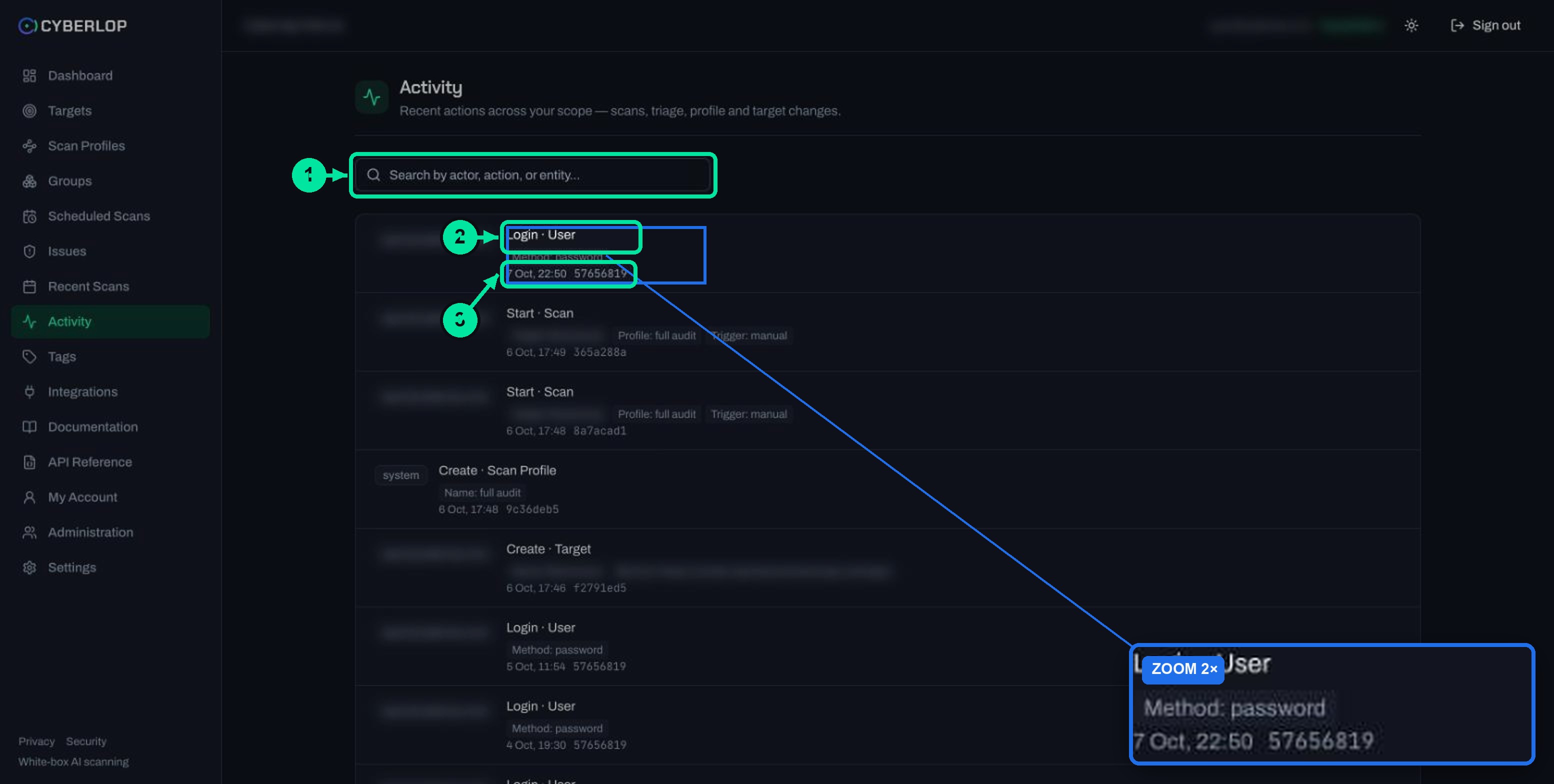
The Cyberlop activity feed is a read-only audit trail of actions in your workspace: sign-ins, scans, target and profile changes, triage, user and role changes, support sessions and credential changes. Open Activity, search by actor, action or entity, and read each entry's chips, time and short ID. What you see depends on your role.
- Open Activity Click Activity in the sidebar to see recent actions, newest first.
- Search the feed Type an actor, action or entity into the search box.
- Read each entry Read the actor, the Action · Entity title, the detail chips, the time and the short ID.
- Review access changes Search User and Role and confirm each invite, account and permission list has a reason.
- Review support sessions Check each Session Start for a reason and Until time, and a matching Session End.
- Review credential and triage changes Check Ai Provider, Git Token and Triage entries against your change records.
- Record your evidence Note the timestamp, actor and short ID of what you reviewed, with the review date.
- The feed lists each action as "Action · Entity" with detail chips, a timestamp and a short ID.
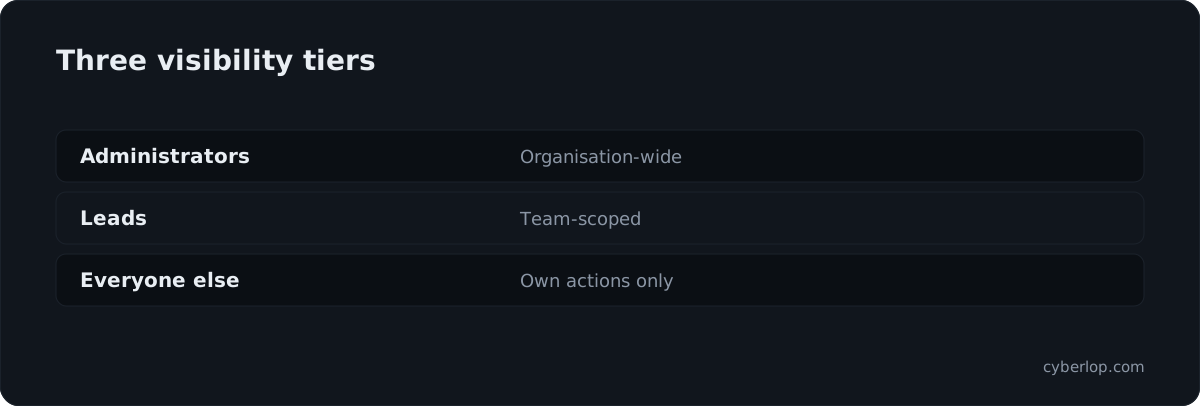
- Visibility is tiered: organisation-wide for administrators, team-scoped for leads, own actions only for everyone else.
- Search covers actor, action and entity; the captured page had no date filter or export button.
- Credential entries record that a token was set, never the value.
- For audits, review access changes, support sessions, credential changes, triage calls and deletions.
The Cyberlop activity feed records who did what in your workspace, from sign-ins and scan starts to triage decisions, role changes and support sessions. Open Activity in the sidebar, search by actor, action or entity, and read each entry as "Action · Entity" with its detail chips, time and short ID. This guide shows how to read it and how to use it for audits.
What is the activity feed?
The activity feed is the page at Activity that lists recent actions across your scope, newest first. Its subtitle reads "Recent actions across your scope — scans, triage, profile and target changes." It is the place to answer "who changed this, and when?" without asking around.
It is read-only. You cannot edit or delete an entry. Each entry is one event, written by a person, by a support engineer, or by the system itself.
Why does an audit trail matter?
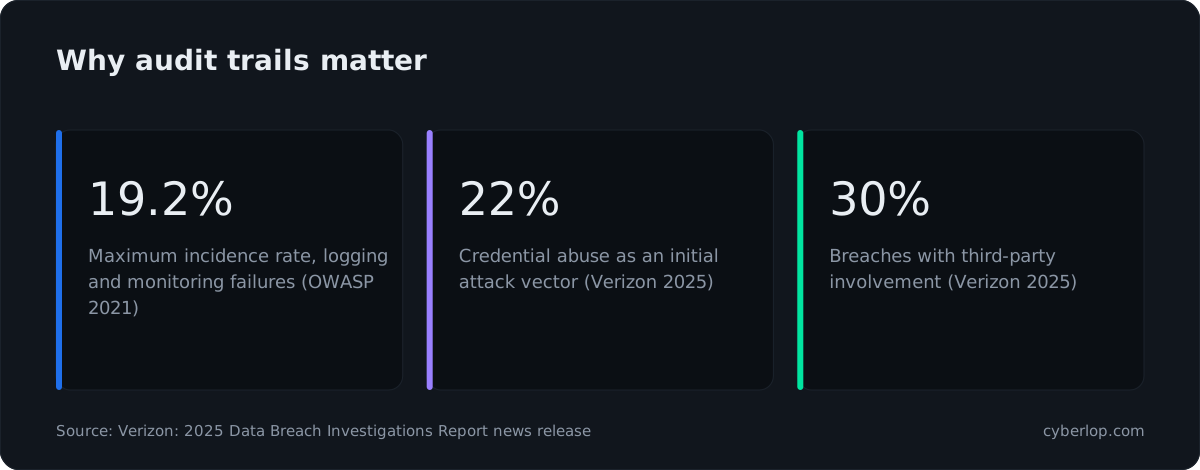
Logging gaps are a known weakness. OWASP lists Security Logging and Monitoring Failures as A09 in its Top 10 for 2021, and says auditable events "such as logins, failed logins, and high-value transactions" are often not logged. Across the data it analysed, the category showed a maximum incidence rate of 19.23% and an average of 6.51%, with 53,615 total occurrences (OWASP Top 10:2021, A09).
Stolen credentials make the record more valuable. Verizon's 2025 Data Breach Investigations Report, which analysed over 22,000 security incidents including 12,195 confirmed data breaches, lists credential abuse (22%) as a leading initial attack vector and says third-party involvement in breaches doubled to 30% (Verizon, 2025). A feed that shows logins, role changes and support access helps you spot both, including credential stuffing follow-ups and any insider threat signs. See audit log and logging and monitoring for the plain-English basics.
What does the activity feed record?
The feed records the actions below, as captured from the live app. Each row is an "Action · Entity" pair with the detail chips that explain it.
Events and their detail chips
| Entry (Action · Entity) | Detail chips | What it tells you |
|---|---|---|
| Login · User | Method: password | Who signed in to the workspace, and how. |
| Start · Scan | Commit (white-box only), Target, Profile, Trigger: manual | Who started a scan, on which target and profile. White-box scans also show the short commit. |
| Cancel · Scan | Entity ID | Someone stopped a scan before it finished. |
| Delete · Scan | Target ID, Trigger: manual | A scan was removed. The target's findings are kept. |
| Create · Scan Profile | Name (actor shown as "system") | A profile was created; the actor can be the system chip. |
| Create · Target | Name, MainUrl, RepoUrl (white-box) | A new application was added. |
| Delete · Target | Name, MainUrl | A target was deleted. This cascades to its profiles, schedules, scans and findings. |
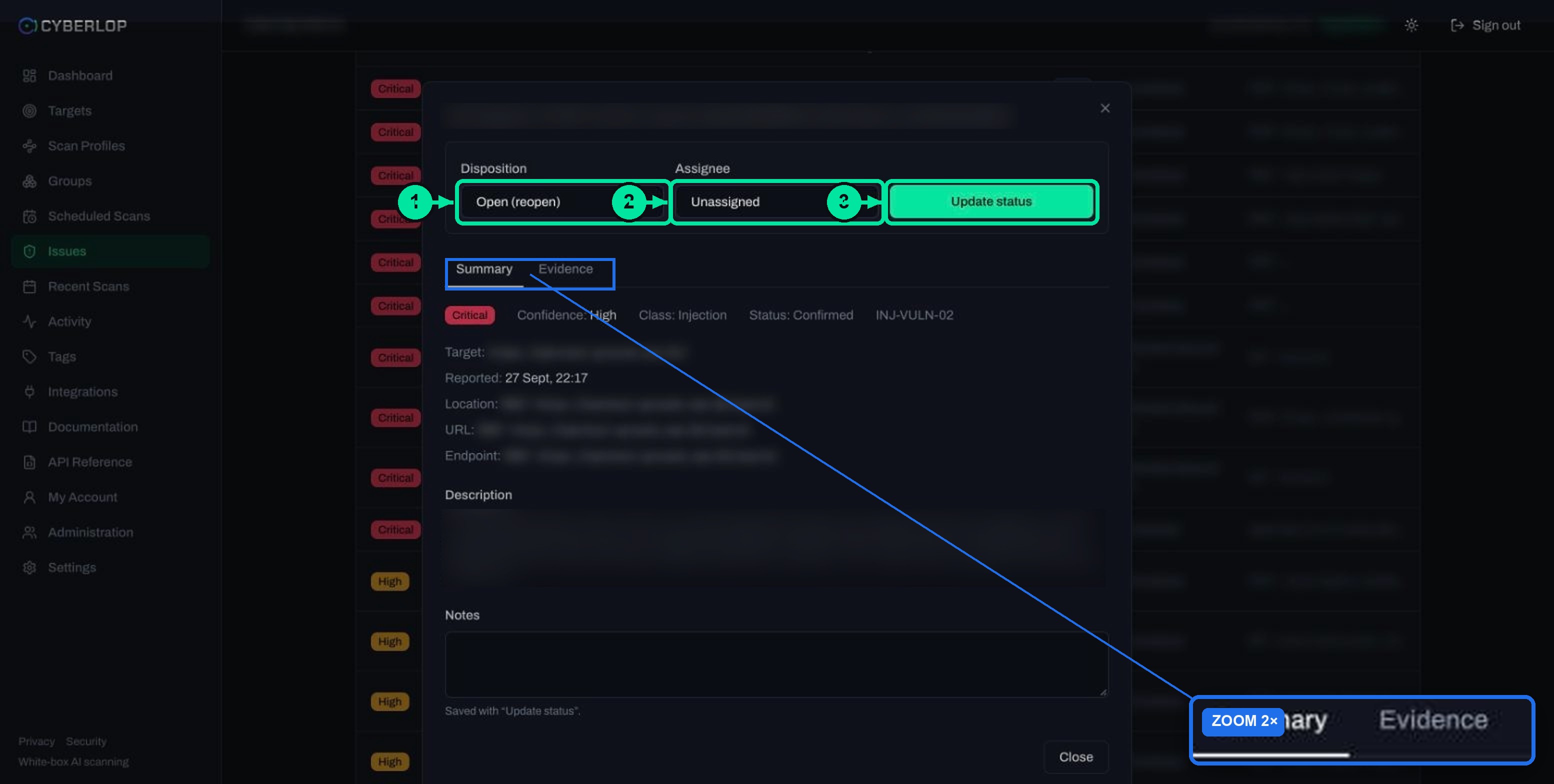
| Triage · Issue | Status (for example new → fixed), Finding, Assignee, Severity | A finding's disposition or assignee changed. |
| Invite · User | Emailed: true or false | A person was invited. |
| Create · User / Update · User | User, Roles (for example Developer), AuthSource: local; RolesAdded | An account was created or its roles changed. |
| Create · Role | Role name, Permissions list | A custom role was defined, with the permission keys it holds. |
| Session Start · Support Session | Until (time), Reason (a ticket number) | Cyberlop support was given time-boxed access, and why. |
| Session End · Support Session | EndedFrom: app | That support access ended. |
| Ai Provider · Organization | Action: set, ProviderType | The AI provider credential was set. |
| Git Token · Organization | Action: set | The organisation Git token was set. |
Secret values are never written to the feed. The credential entries record that a token was set, not what it was. Secrets in Cyberlop are encrypted and never shown again after saving (see Git access and AI provider settings).
What does one entry look like?
Every entry has the same four parts, which makes scanning fast.
- Actor at the left: a user's email, a support person shown as "name · email", or a system chip for automatic actions.
- Title: "Action · Entity", such as "Triage · Issue".
- Detail chips: key: value pairs, such as
Trigger: manualorSeverity: high. - Footer: the timestamp and the first eight characters of the entity ID.
The short ID is how you tie two entries to one object. A "Start · Scan" and a later "Cancel · Scan" for the same scan end in the same eight characters. The captured screens did not show which timezone the timestamps use, so check against a known event the first time. The organisation timezone in Settings → Organization is documented for schedules only.
Who can see the activity feed?
What you see depends on your role. According to Cyberlop's security page, the feed has three visibility tiers: organisation-wide for administrators, team-scoped for leads, and own-actions-only for everyone else. The API reference says the same: the activity feed is "visibility tiered by role".
| Tier | Who it is for | What you see |
|---|---|---|
| Organisation-wide | Administrators | Actions by everyone in the workspace. |
| Team-scoped | Leads | Actions within the teams you lead. |
| Own actions only | Everyone else | Only what you did yourself. |
The permission keys behind this appear in a custom role seen in the app: activity:read, activity:read_team, activity:read_all and audit:read. A role holds the keys that suit it, so a developer role does not need the organisation-wide view. Admins set this up in Administration, which this guide does not cover (see API tokens and permissions).
Check what your own view shows
If an event you expect is missing, you may simply be on a narrower tier. Ask an administrator to look at the same time window before assuming it was not recorded. This is the first thing to rule out when two people describe the same day differently. Narrow access follows least privilege, which the tiers support by design.
How do you search the activity feed?
Use the search box at the top of Activity. It is labelled "Search by actor, action, or entity..." and matches those three things. The captured page showed search only, with no separate date filter or export button.
- Click Activity in the sidebar.
- Type an actor's email, an action such as
Triage, or an entity such asRoleinto the search box. - Read the matching rows from newest to oldest.
- Note the timestamp and short ID of each row you need.
- Repeat with a second term to cross-check, for example the actor and then the target name.
Search examples that answer real questions
| Question | Search for | Look for |
|---|---|---|
| Who changed a finding's status? | Triage | Status: new → fixed, the Assignee and the Severity chips. |
| Who started or stopped scans on a target? | Scan or the target name | Start · Scan and Cancel · Scan rows, with Trigger: manual. |
| Who got new permissions this week? | Role or User | Update · User with RolesAdded, and Create · Role with its Permissions list. |
| Did Cyberlop support touch the workspace? | Support | Session Start and Session End, with Until and Reason. |
| Was a credential changed? | Organization | Ai Provider and Git Token entries with Action: set. |
| Who deleted a target? | Delete | Delete · Target with Name and MainUrl. |
How do you use the feed for an audit?
For an audit, use the feed as evidence of control: access is granted deliberately, changes are attributable and support access has a stated reason. OWASP's logging guidance lists the events worth recording, including authentication successes and failures and "use of higher-risk functionality including user administration" (OWASP Logging Cheat Sheet). It also describes four attributes each event should carry: when, where, who and what. Cyberlop entries carry a timestamp, an entity, an actor and an action with detail chips.
An audit-review checklist
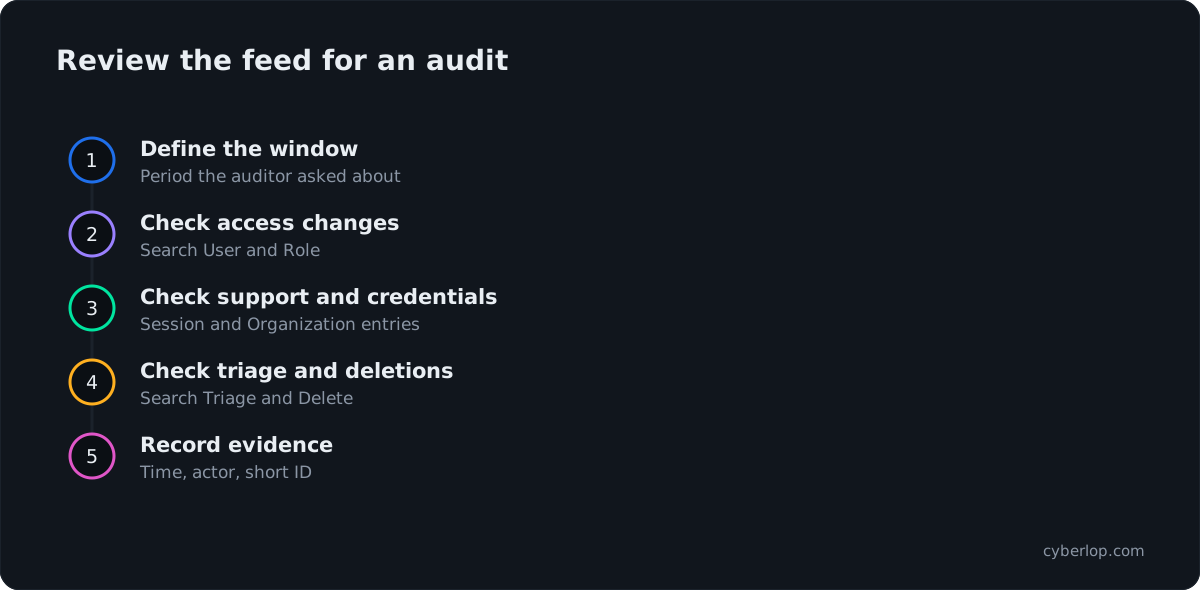
- Define the window. Pick the period the auditor asked about.
- Review access changes. Search
UserandRole. Confirm each Invite, Create and Update has a business reason and that custom roles hold only the permission keys they need (see RBAC). - Review support sessions. Every Session Start should show a ticket reason and an Until time, and a matching Session End.
- Review credential changes. Check the AI provider and Git token entries against a change request.
- Review triage decisions. Search
Triageand confirm that False Positive or Accepted Risk calls were made by the right people (see triage findings). - Review scan and target deletions. Deleting a target removes its findings, so each Delete · Target needs an owner.
- Record your evidence. Save the timestamp, actor and short ID of what you reviewed, then note the review date and the person who did it.
Evidence to keep
Keep a short log of what you checked rather than screenshots of the whole page. Screenshots can carry user emails and target names, so store them as carefully as you store the findings. A line such as "Role created, 14:05, short ID noted, approved in ticket" is enough for most reviews.
What the feed does not prove
The feed records actions taken in Cyberlop. It does not record what happened in your own systems, and the captured screens did not show whether it holds every possible event type. Treat it as one source beside your code host and identity provider logs, and see incident response for how logs feed a response. For wider guidance on log handling, NIST's Guide to Computer Security Log Management (SP 800-92) is the long-standing reference.
How long is activity kept, and can you export it?
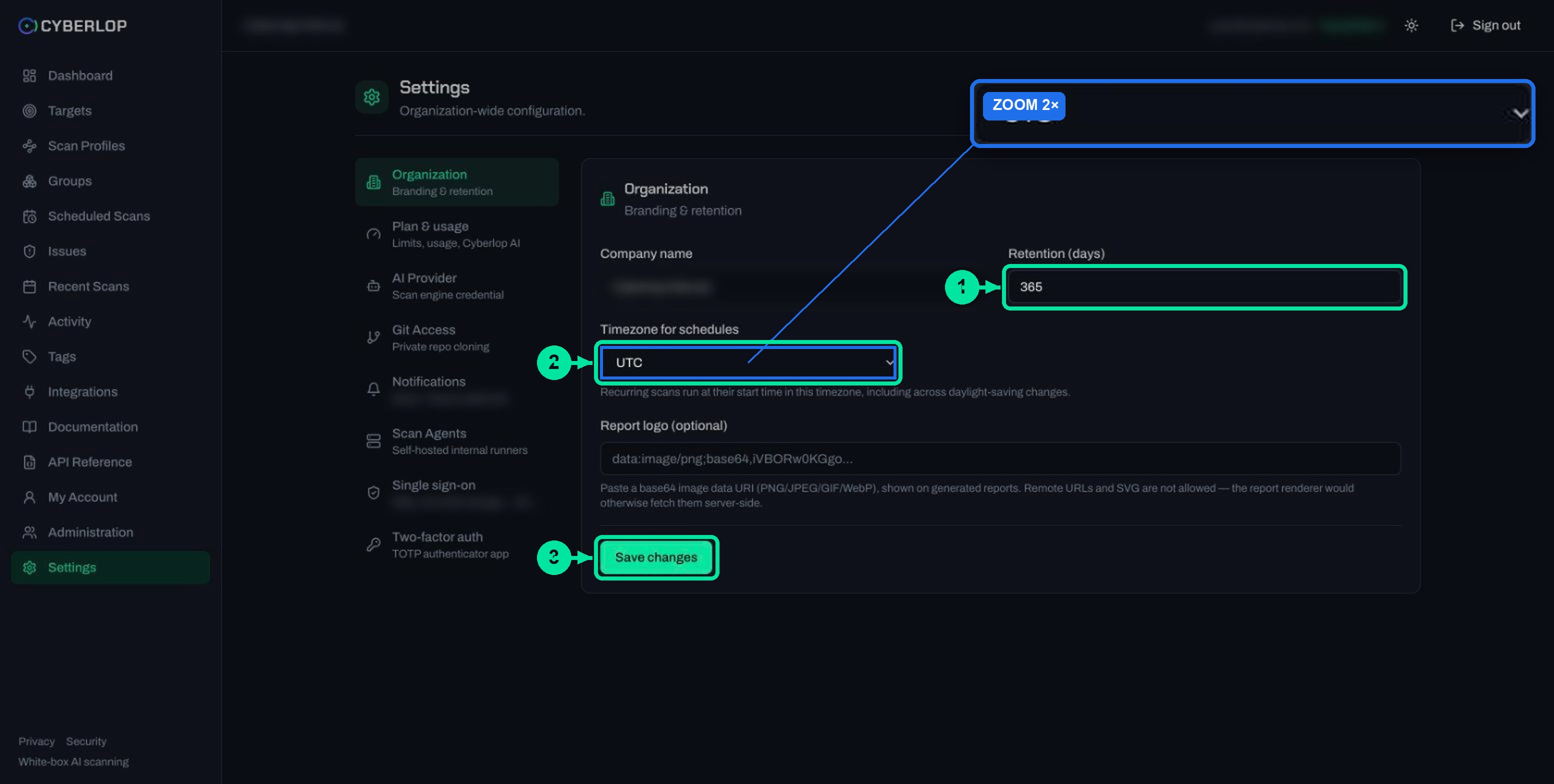
The retention period is set per organisation. Settings → Organization has a Retention (days) field, and Cyberlop's security page says retention is configurable and that admins can delete scans, targets and data at any time. The captured screens did not say whether retention applies to the activity feed itself, so confirm with your administrator before promising an auditor a specific history. See account and organisation settings and log retention.
The page has no export button in the captured screens. For a copy outside the app, the API reference lists GET /api/activity (activity feed, visibility tiered by role, permission activity:read) and GET /api/audit (audit event log, scoped to the caller, permission audit:read). Both need a session or a bearer token that holds the permission. Read the API reference guide for authentication. What the downloaded data contains was not captured, so test with a small window first.
Activity feed versus other records in Cyberlop
| Record | Where | Answers |
|---|---|---|
| Activity feed | Activity | Who did what, and when, in the workspace. |
| Scan history | Recent Scans | Each run, its result, who ran it and the time. |
| Finding status | Issues | The current triage state of each finding. |
| Scan comparison | Diff tab | What is new, fixed or regressed since the last completed scan. |
Use the feed for people and changes, and the other pages for results. See the issues list and fixed and regressed issues.
Troubleshooting and common mistakes
Most "missing entry" problems come from scope, wording or timing.
| Symptom | Likely cause | What to do |
|---|---|---|
| You cannot see a colleague's actions | Your role is on the own-actions or team tier | Ask an administrator for the wider view, or have them check. |
| Search finds nothing | The term does not match actor, action or entity | Try the email, a verb like Start or an entity like Scan. |
| A user appears with a "system" chip | The action was automatic, not manual | Read the detail chips; for example a profile created by the system. |
| Times look off by hours | The timestamp timezone is not stated on the page | Compare with a known event, then note the offset in your audit evidence. |
| An old event is gone | Retention or a deletion | Check Retention (days) and ask an administrator. |
| An entry shows no secret value | By design | Credential entries record that a value was set, never the value. |
Two habits prevent most trouble. First, search by the short ID once you have it, since it ties several rows to one object. Second, review the feed on a schedule, not only when something goes wrong. Watch for privilege creep as roles grow. Pair it with access reviews and separation of duties where your team is large enough.
Next step
With people and changes covered, move on to automation. Continue with CI/CD integration to start scans from your pipeline, and see how Cyberlop handles your data on the security page. Self-hosted scans are covered in self-hosted scan agents, and you can read how reporting works on the evidence page.
Questions people ask
Activity feed audit log: FAQs
What is the activity feed in Cyberlop?
It is a read-only, audit-style list of recent actions in your workspace, newest first. Entries cover sign-ins, scans, targets, profiles, triage, users, roles, support sessions and credential changes.
Where do I find the activity feed?
Click Activity in the sidebar. Use the search box, labelled "Search by actor, action, or entity...", to narrow the list.
Why can I only see my own actions?
Visibility is tiered by role: organisation-wide for administrators, team-scoped for leads and own actions only for everyone else. Ask an administrator if you need a wider view.
Does the feed show passwords or tokens?
No. Credential entries such as Git Token · Organization record Action: set, not the value. Stored secrets are encrypted and never shown again.
Can I export the activity feed?
The captured page showed no export button. The API reference lists GET /api/activity and GET /api/audit, which need the activity:read and audit:read permissions.
What does the system chip mean?
It marks an action done automatically rather than by a person, for example a scan profile created by the system. The detail chips still say what was created.
How do I know when Cyberlop support accessed my workspace?
Search for Support. A Session Start · Support Session entry shows an Until time and a Reason such as a ticket number, and a Session End entry closes it.
How long is activity kept?
Retention is set under Settings → Organization in the Retention (days) field. Whether it applies to the feed was not shown, so confirm with your administrator.
Keep reading
Related articles
Account and organisation settings: notifications, retention, logo and plan
Set notification emails and personal tokens, then configure retention, schedule timezone and report logo, and read the Plan & usage page.
AI provider settings: included allowance, your own credential and models
Use the included AI allowance or save your own credential, verify it and choose a model for each tier. Includes the rate-limit note.
Cyberlop API reference: authentication, permissions and the OpenAPI spec
Use the Cyberlop API: 78 endpoints in 15 groups, session or Bearer token auth, permissions per route, worked calls and the OpenAPI download.

Know who changed what
Cyberlop reports what it actually exploited, and keeps an activity feed so your team can see who ran, triaged and changed things. Read how we handle your data, or ask us to run it on one of your applications.
Or start with a $199 pilot on one application: thirty days, success criteria agreed before day one, credited against the annual if you convert.