
Home / Blog / Tutorials / Self-hosted scan agent
Tutorials
Cyberlop self-hosted scan agents: scan private apps from inside your network
A self-hosted scan agent lets Cyberlop test apps its cloud cannot reach, without opening a single inbound port. This guide covers adding, running, using and revoking one.
Cyberlop Labs · Updated · 9 min read
A Cyberlop self-hosted scan agent is a container you run inside your network to scan apps the cloud cannot reach. Add it under Settings → Scan Agents, run the one-time command, wait for online, then set it as the Scan location on a profile. It connects outwards over HTTPS only.
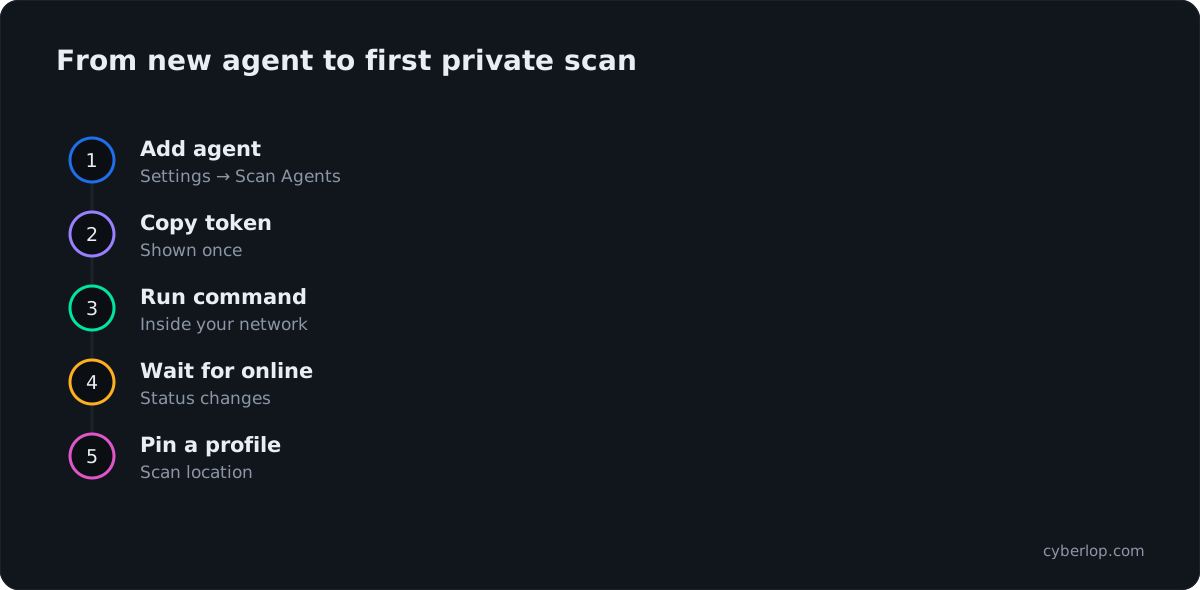
- Open Scan Agents Go to Settings and choose the Scan Agents tab.
- Name the agent Type a clear name in New agent name, such as staging-dc-agent.
- Add the agent Click Add agent. It is created in a pending state.
- Copy the token and command Copy the one-time enrollment token and the container command now; they are not shown again.
- Run the command Run it on a machine inside the target's network that has a container runtime and outbound HTTPS.
- Wait for online The agent trades the token for a durable key and its status changes to online.
- Pin a profile Edit or create a scan profile and set Scan location to the agent.
- Run the scan Start the scan and check the Location column in Recent Scans.
- An agent is a container on your network that runs the same five-phase scan and reports back over outbound HTTPS only.
- No inbound ports or firewall changes are needed; Cyberlop never connects inward.
- The enrollment token is shown once, so copy it and run the command immediately.
- Agents are pending, online or offline, and an offline agent must be online before a scan can run.
- Pin a profile through Scan location; revoking the agent sends its profiles back to the Cyberlop cloud.
A Cyberlop self-hosted scan agent is a container you run inside your own network. It lets Cyberlop scan an app that its cloud cannot reach, such as an internal pre-production site, and it only ever connects outwards over HTTPS. To set one up, open Settings → Scan Agents, click Add agent, run the command it shows once, then pick the agent as the Scan location on a scan profile.
What is a self-hosted scan agent?
A scan agent is a lightweight runner that does the scanning work on your side of the firewall. By default a scan runs in the Cyberlop cloud: the platform clones the target's repository and reaches its live URL from Cyberlop's own infrastructure. Private targets break that model: an app behind a VPN, a repository on an internal code host, a staging site with no public address. The agent fixes this by moving the work inside.
The agent runs the exact same five-phase pipeline as a cloud scan: pre-recon, recon, vulnerability analysis, exploitation and reporting. It streams the live log, cost and findings back to Cyberlop as it goes, so the scan looks identical in the app. The difference is where it executes. This is the private scanning described on the private scanning page.
Why scan internal apps at all?
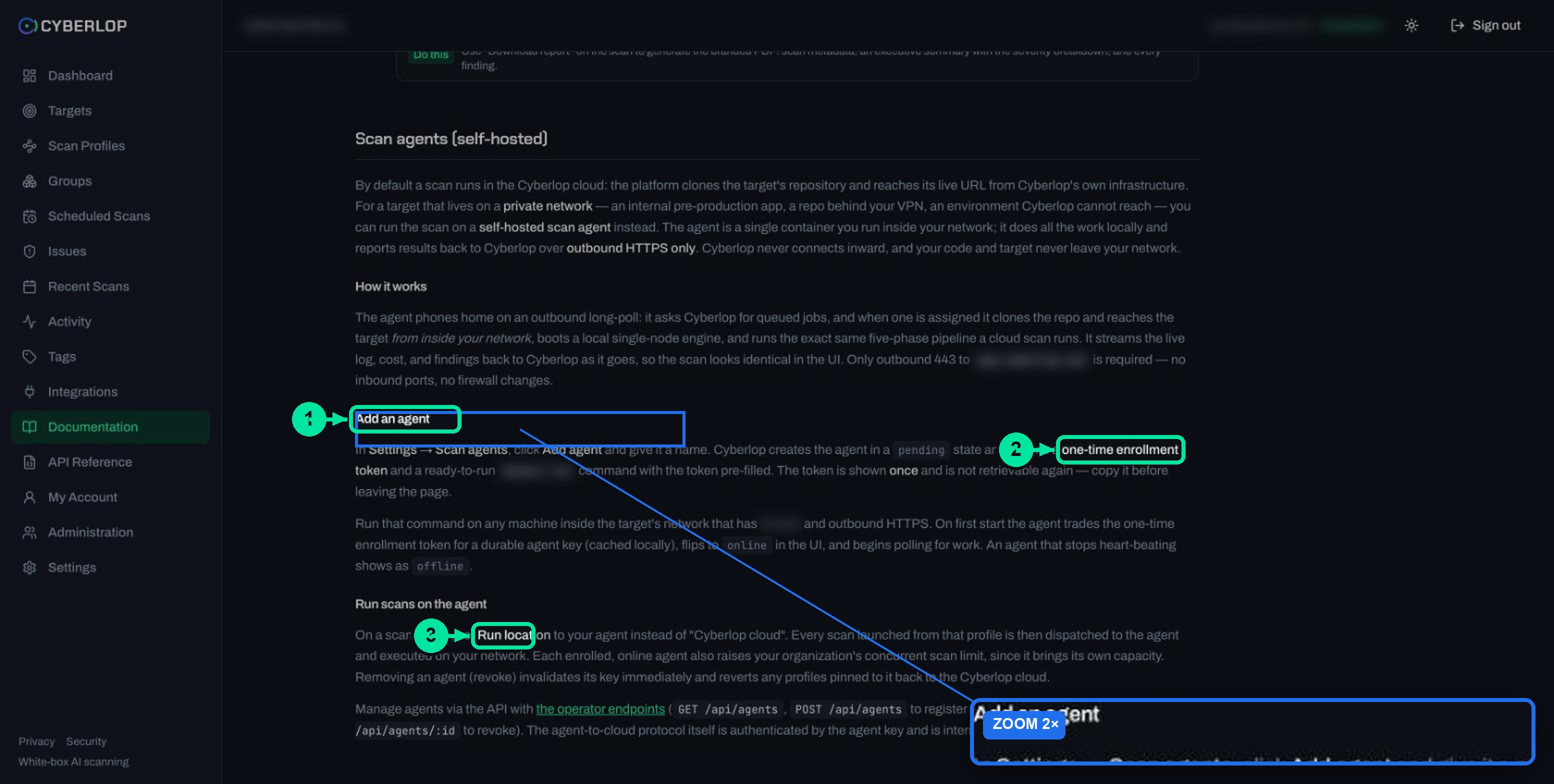
Internal does not mean safe. The Verizon 2026 Data Breach Investigations Report says 31% of breaches now start with software vulnerabilities, beating stolen passwords as the top way attackers get in. Pre-production apps often share code and credentials with production. The IBM Cost of a Data Breach Report 2026 puts the global average cost of a breach at $4.99M, a 12% increase and a record high.
Only scan apps you own or are authorised to test. An agent makes private systems reachable to a scan, so confirm the scope with whoever owns that network before you start.
When should you use an agent instead of the cloud?
Use an agent when the cloud cannot reach the target or when your policy says code must stay inside your network. Otherwise the default Cyberlop cloud location is simpler, because there is nothing to install. The table compares the two.
Cloud scan or agent scan?
| Question | Cyberlop cloud (default) | Self-hosted scan agent |
|---|---|---|
| Where does the scan run? | On Cyberlop infrastructure. | In a container on a machine inside your network. |
| What can it reach? | Targets with a URL the cloud can open. | Targets reachable from your network, including internal ones. |
| Where is the repository cloned? | By Cyberlop, for the duration of the scan, then wiped when the scan ends. | By the agent, on your network. The security page lists zero source egress. |
| Who connects to whom? | Cyberlop reaches your target. | The agent connects out to Cyberlop. Cyberlop never connects inward. |
| Scan location setting | Cyberlop cloud (default) | The agent name, chosen in the scan profile. |
A white-box scan needs the repository and a black-box scan needs the live URL. Both can run on an agent. If you are unsure which scan type fits, read white-box vs black-box scans first.
How does the agent connect to Cyberlop?
The agent calls out to Cyberlop on a long-poll. It asks Cyberlop for queued jobs, and when one is assigned it clones the repository and reaches the target from inside your network. RFC 6202 describes long polling as the server delaying its reply to a request until it has something to send. Because the agent opens every connection, nothing on your side has to listen.
- No inbound ports. Only outbound port 443 to
app.cyberlop.comis required, and no firewall changes. - Local engine. The agent boots a local single-node engine and runs the same pipeline there.
- Results flow out. Live log, cost and findings are streamed back over the same outbound HTTPS connection.
What happens to your source code?
The documentation says your code and target never leave your network, and the security page lists a self-hosted agent as zero source egress. The same page also says that relevant code excerpts are sent to the AI provider your organisation chose, over HTTPS. Read both together and check the AI provider choice with your security team; see AI provider settings. The design matches zero trust thinking: network position earns no trust, and no inbound path exists to defend.
How do you add a scan agent?
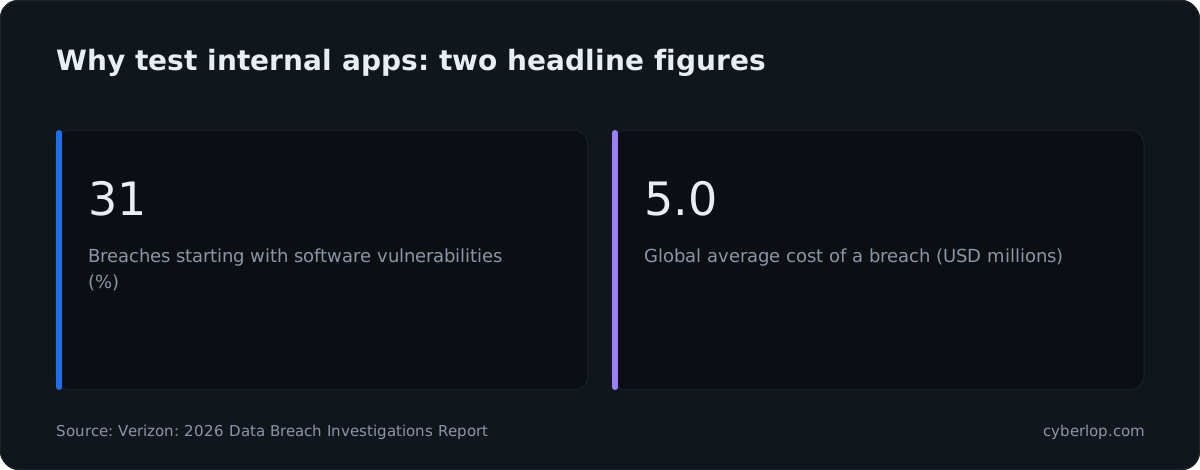
You add an agent in Settings → Scan Agents by naming it and clicking Add agent. Cyberlop creates it in a pending state and shows a one-time enrollment token and a ready-to-run container command with the token filled in. Your role needs the settings:update permission, which the API reference lists for registering an agent.
Steps to add and start an agent
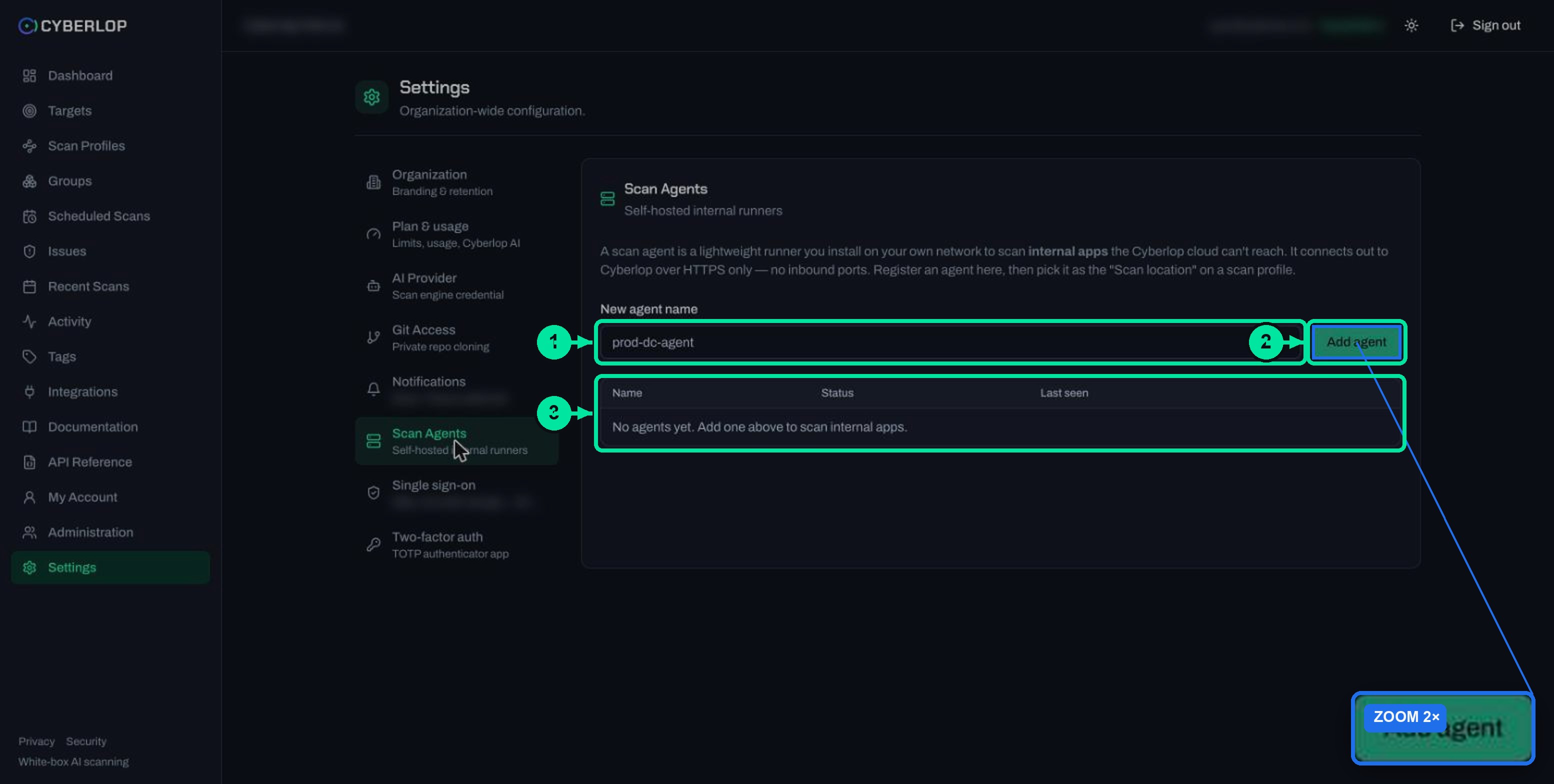
- Open Settings and choose the Scan Agents tab.
- In New agent name, type a clear name such as
staging-dc-agent. The field's placeholder isprod-dc-agent. - Click Add agent. The agent appears in the table with the status pending.
- Copy the enrollment token and the container command straight away. The token is shown once and cannot be retrieved again.
- On a machine inside the target's network, run the command. The machine needs a container runtime and outbound HTTPS.
- Wait for the status to change to online. On first start the agent trades the one-time token for a durable agent key, which it caches locally.
What the Scan Agents table shows
Before you add anything, the page reads No agents yet. Add one above to scan internal apps. Once you have an agent, the table lists its name, status and last-seen time, plus row actions.
| Column | What it shows | Notes |
|---|---|---|
| Name | The name you typed. | Name it by location. |
| Status | pending, online or offline. | See the status table below. |
| Last seen | When the agent last reported in. | A stale value is your first clue when a scan will not start. |
| Row actions | Including revoke. | Removes the agent; see the revoking section. |
This guide does not reproduce the token or the command, because the app shows them only after you click Add agent. Run the command the app gives you, not one copied from elsewhere.
What do the agent statuses mean?
An agent is pending until it first connects, online while it keeps reporting, and offline when it stops. These are the three states in the table and they decide whether a scan can run.
| Status | Meaning | What to do |
|---|---|---|
| pending | Created in Cyberlop, but the command has not been run, or has not connected yet. | Run the command on a machine inside your network and check outbound HTTPS. |
| online | Enrolled and polling for work. | Ready. Scans pinned to it will be dispatched to it. |
| offline | The agent stopped heart-beating. | Start the container again. An offline agent must be online before a scan can run. |
An enrolled, online agent also raises your organisation's concurrent scan limit, because it brings its own capacity. Limits depend on your plan. Settings → Plan & usage lists Internal scan agents as a plan feature.
How do you run a scan on an agent?
Set the Scan location on a scan profile to your agent. Every scan launched from that profile is then dispatched to the agent and runs on your network. The field is in the Scope section of the profile form, and its default is Cyberlop cloud (default).
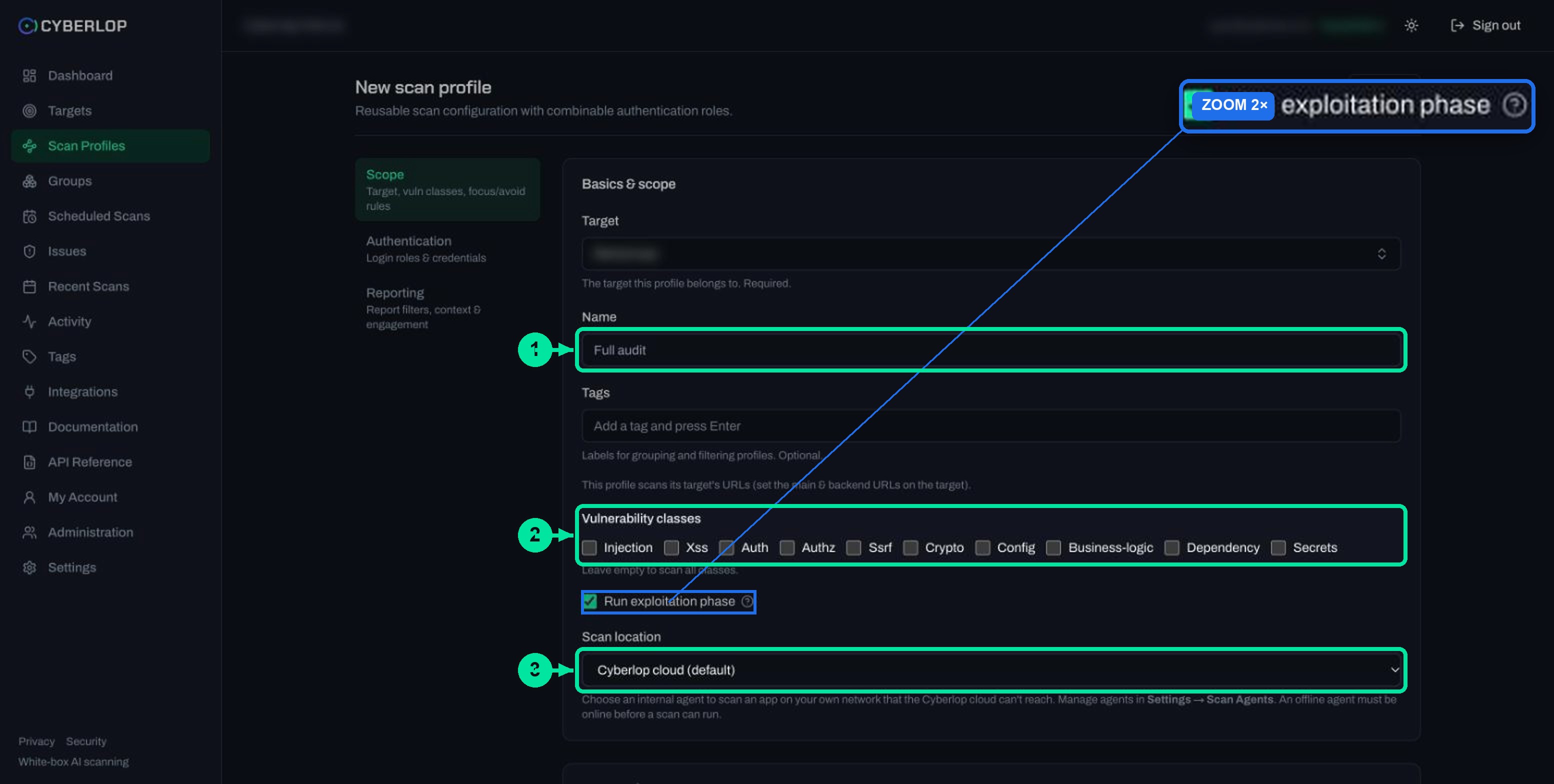
Steps to pin a profile to an agent
- Open Scan Profiles and click to create a profile, or edit an existing one. The full flow is in create a scan profile.
- Choose the target. For a private app this is a target whose URL, and repository if any, is reachable from the agent's network. See add a target.
- In the Scope section, open Scan location and pick your agent. The list shows the default plus every registered internal agent.
- Save the profile, then start a scan as usual. See run a scan.
- Open Recent Scans. The Location column shows where the scan ran; for cloud scans it reads Cloud, and it shows the internal agent when one is used.
The field's help text says the same: pick an internal agent for apps on your own network, and manage agents in Settings → Scan Agents. If the profile uses a private repository, the Git token still has to work from the agent's side; see Git access and connect a repository.
How do you revoke a scan agent?
Revoke an agent from its row in the Scan Agents table, or with the DELETE /api/agents/:id call. Revoking invalidates the agent's key immediately and sends any profiles pinned to it back to the Cyberlop cloud. Revoke an agent when you retire the machine, when the key might have leaked, or when the agent was created by mistake.
Because profiles revert to the cloud, check them afterwards. A profile that targets an internal address will fail from the cloud, so repoint it to another agent or pause its schedule. Treat the enrollment token and the agent key like any other credential, in line with secrets management and token revocation. The OWASP Secrets Management Cheat Sheet recommends rotating secrets on a schedule, so a stolen one dies quickly. For an agent, rotating means revoking it and adding a fresh one.
Managing agents through the API
Three operator endpoints cover the life of an agent. The agent-to-cloud protocol itself is authenticated by the agent key and is internal, so you never call it directly.
| Call | What it does | Permission |
|---|---|---|
GET /api/agents | Lists internal scan agents with live online or offline status. | profile:read |
POST /api/agents | Registers an agent and returns a one-time enrollment token. | settings:update |
DELETE /api/agents/:id | Revokes an agent; profiles using it revert to the Cyberlop cloud. | settings:update |
The API reference guide explains authentication, and API tokens and permissions shows how to keep a token to the keys it needs. Add and revoke actions can be reviewed in the activity feed.
How do you keep an agent safe?
Run the agent like any other privileged service: on its own machine, with the smallest network reach it needs. It can read your repository and reach your target, so a careless setup widens your exposure rather than narrowing it.
- Isolate the host. Use a dedicated machine or virtual machine in a segment that can reach the app under test, not the whole network. See network policy and virtual private cloud.
- Limit outbound traffic. Allow port 443 to the Cyberlop app host and the hosts the scan needs, and block the rest. That is the idea behind egress filtering.
- Use the narrowest repository token. A read-only token for one repository beats a broad one. Read least privilege.
- Keep the token out of tickets and chat. Paste it only into the host that runs the command.
Common mistakes with scan agents
Most problems come down to the agent being offline, the token being lost, or a profile still pointing at the cloud. If a scan misbehaves after it has started, read failed or cancelled scans.
Troubleshooting checklist
| Symptom | Likely cause | What to do |
|---|---|---|
| The agent stays pending | The command was not run, or the machine cannot make outbound HTTPS calls. | Run the command from the Add agent step and check that outbound port 443 is open. |
| The agent shows offline | The container stopped, or the machine lost its connection. | Start the container again and watch Last seen. |
| The scan will not start | The profile is pinned to an offline agent. | Bring the agent online first, then start the scan. |
| You lost the token | It is shown once and cannot be retrieved. | Add a new agent and run the new command. Revoke the unused one. |
| A scan cannot reach the target | The agent machine has no route to it. | Test from that machine, and move the agent into the right network zone. |
| The scan ran in the cloud | The profile still has Cyberlop cloud (default), or its agent was revoked. | Set Scan location to the agent and save. |
| No Scan Agents option | Your plan or role does not include it. | Check Settings → Plan & usage, then ask an administrator. |
What should you do next?
Next step: connect the repository tokens your agent will use with Git access. Then tune the scan itself with create a scan profile and watch the first run in the scan detail page. Related terms: white-box testing, DAST and dev and staging exposure. For the wider picture, read continuous penetration testing.
Questions people ask
Self-hosted scan agent: FAQs
What is a Cyberlop self-hosted scan agent?
It is a single container you run inside your network. It does the scanning locally and reports back to Cyberlop over outbound HTTPS only, which puts private apps within reach of a scan.
Do I need to open any inbound ports?
No. Only outbound port 443 to the Cyberlop app host is required, with no inbound ports and no firewall changes. The agent starts every connection, and Cyberlop never connects inward.
Where do I add an agent?
Open Settings, choose the Scan Agents tab, type a name in New agent name and click Add agent. You then see a one-time enrollment token and a ready-to-run container command.
What if I lose the enrollment token?
It is shown once and cannot be retrieved. Add a new agent, run its new command, and revoke the agent you no longer need.
What happens to my profiles when I revoke an agent?
Revoking invalidates the agent's key immediately, and any profile pinned to it goes back to the Cyberlop cloud. A profile aimed at an internal address will then fail, so repoint it to another agent.
Does an agent change how a scan works?
No. It runs the same five-phase pipeline as a cloud scan and streams the live log, cost and findings back, so the scan looks the same in the app. Only the place where it runs changes.
Does an agent send my code to Cyberlop?
The documentation says your code and target never leave your network, and the security page lists zero source egress for an agent. The security page also says relevant code excerpts go to the AI provider your organisation chose, so review that setting.
Can I scan any system with an agent?
No. Scan only apps you own or are authorised to test. An agent makes private systems reachable to a scan, so agree the scope with the owner of that network first.
Keep reading
Related articles
Cyberlop activity feed: what it records and how to use it for audits
Read the Cyberlop activity feed: sign-ins, scans, triage, roles and support sessions, who can see them, how to search and an audit checklist.
How to add a target in Cyberlop: the New target dialog, field by field
Add a target in Cyberlop: the New target dialog field by field, white-box vs black-box, repository URL, environment, and why targets cannot be edited.
AI provider settings: included allowance, your own credential and models
Use the included AI allowance or save your own credential, verify it and choose a model for each tier. Includes the rate-limit note.

Need help scanning a private app?
Cyberlop can run inside your own network so your code does not leave it, with every finding backed by the request, the response and the line of code. Ask us to run it on one of your applications.
Or start with a $199 pilot on one application: thirty days, success criteria agreed before day one, credited against the annual if you convert.