
Home / Blog / Tutorials / Add a target in cyberlop
Tutorials
How to add a target in Cyberlop: the New target dialog, field by field
A target is the application you want assessed. Here is every field of the New target dialog and the choices that cannot be changed afterwards.
Cyberlop Labs · Updated · 9 min read
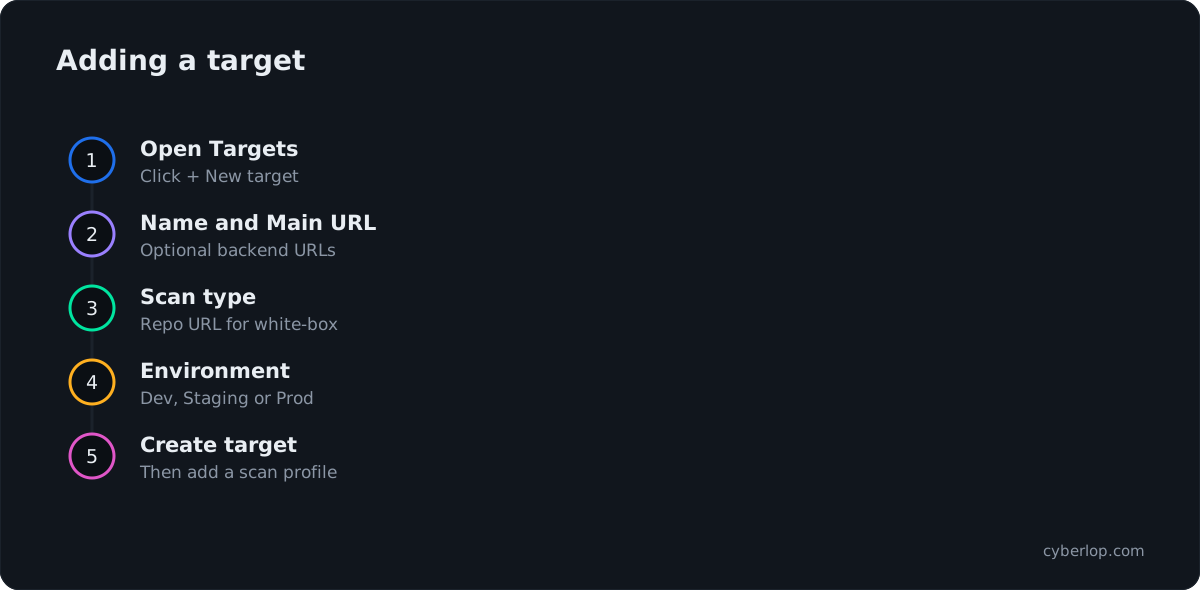
To add a target in Cyberlop, open Targets, click + New target, enter a Name and Main URL, choose White-box or Black-box, add an HTTPS repository URL for white-box, set the Environment and click Create target. You cannot edit a target afterwards, so check every field before you save.
- Open Targets Select Targets in the sidebar and click + New target.
- Enter the Name and Main URL Type a recognisable name and the primary URL that scans run against.
- Add backend URLs if needed Optionally list API or admin hosts you are authorised to test, one per line.
- Choose the scan type Select White-box to scan source code and the running app, or Black-box to test the live URL only.
- Enter the repository for white-box Type the HTTPS repository URL and the branch. SSH links are not supported.
- Set Environment and Team Choose Dev, Staging or Prod and optionally a team name.
- Create the target Click Create target and check the target detail page.
- Verify ownership for black-box For a black-box target, complete verification by DNS TXT record or staff approval until the card shows Verified.
- Create a scan profile Click + New profile on the target page to define what to test.
- Add a target from Targets with + New target: one dialog, no wizard.
- White-box needs an HTTPS repository URL and branch; black-box needs only a URL and verified ownership.
- Targets are immutable: to change one, delete it and create it again.
- Deleting a target also removes its profiles, schedules, scans and findings.
- Start with a Dev or Staging copy, then create a scan profile.
To add a target in Cyberlop, open Targets, click + New target, enter a Name and Main URL, choose White-box or Black-box, set the Environment and click Create target. A target is the application you want assessed. The dialog is short, but you cannot change several of its choices later, so read this guide first.
What is a target in Cyberlop?
A target is the application under assessment: a name, a Main URL, optional backend URLs, a repository URL and branch for white-box scans, an environment and a team. Every scan profile, scan and finding hangs off a target, so it is the first object you create. Key terms collects the vocabulary.
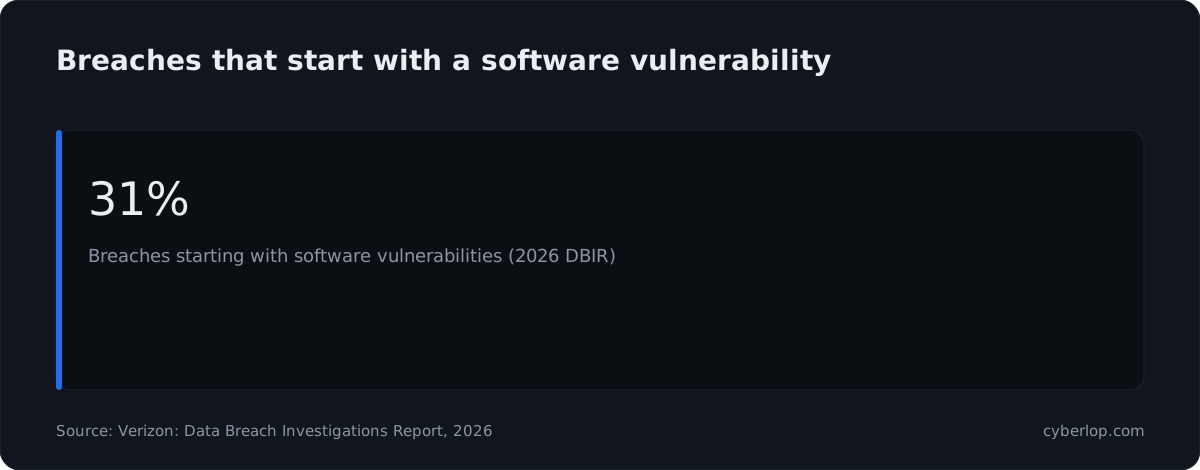
It pays to register the right app carefully, because software flaws are a common way into organisations. Verizon's 2026 Data Breach Investigations Report found that 31% of breaches began with software vulnerabilities, a bigger share than stolen passwords.
Add only systems you own or have permission to test. NIST SP 800-115, a guide to technical security testing, puts planning first, and that planning includes agreeing the scope and the rules of engagement before you register anything.
What do you need before you add a target?
You need permission to create targets, a name for the app, its URL and a decision on scan type. For white-box you also need an HTTPS repository link and the branch that matches what is deployed at that URL.
Pre-flight checklist
- Permission. If + New target is missing, your role lacks the permission to create targets. An administrator manages roles in Administration, which this guide does not cover.
- Authorisation. Confirm you own the app or hold written approval to test it.
- A safe first environment. Pick a Dev or Staging copy for a first scan, ideally one without real customer data.
- The scan type. White-box if you can share the code, black-box if you can share only a URL.
- A Git token if the repository is private. See Connect a repository.
- Room on your plan. How many targets you can hold depends on your plan and is shown in Settings → Plan & usage.
Why a staging copy makes a good first target
A test environment kept apart from real users gives the scan room to work. Dev and staging exposure is the opposite risk, so keep non-production copies private. For the safety questions that matter on a live system, read Exploitation phase before pointing a scan at production.
How do you add a target, step by step?
Adding a target is a single-step dialog with no wizard. Work down the fields in order and finish with Create target.
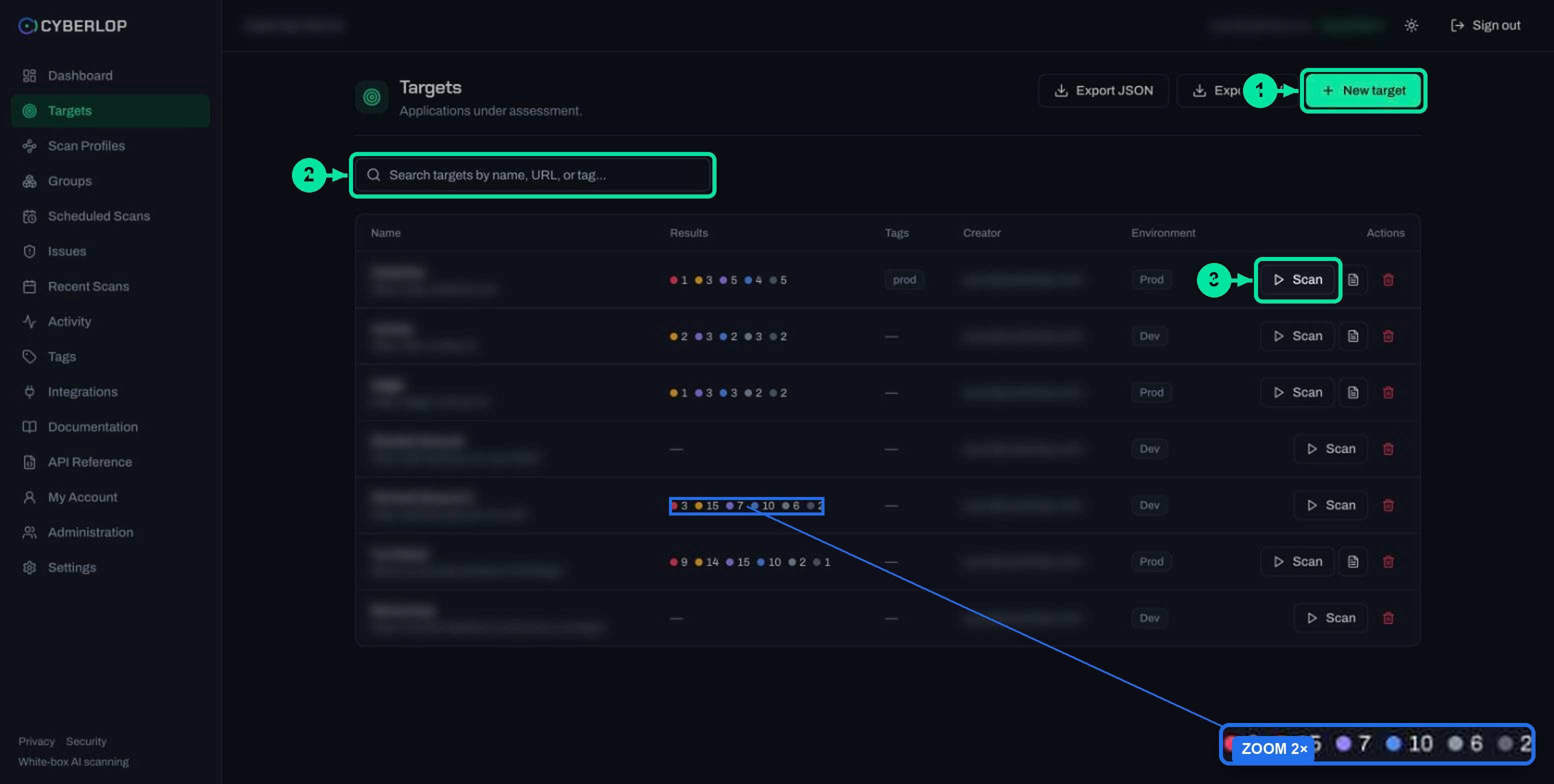
- Open Targets in the sidebar. The page lists your applications, with search, Export JSON and Export CSV, and + New target at the top right.
- Click + New target. The dialog title is "New target" and its subtitle says "Register an application to scan."
- Type a Name and the Main URL.
- Optionally list Backend / additional URLs, one per line or separated by commas.
- Choose a Scan type card: White-box or Black-box.
- For white-box, enter Repo URL (HTTPS) and check Repo branch.
- Set the Environment and, if you wish, a Team.
- Click Create target, or Cancel (or the close button) to leave without saving.
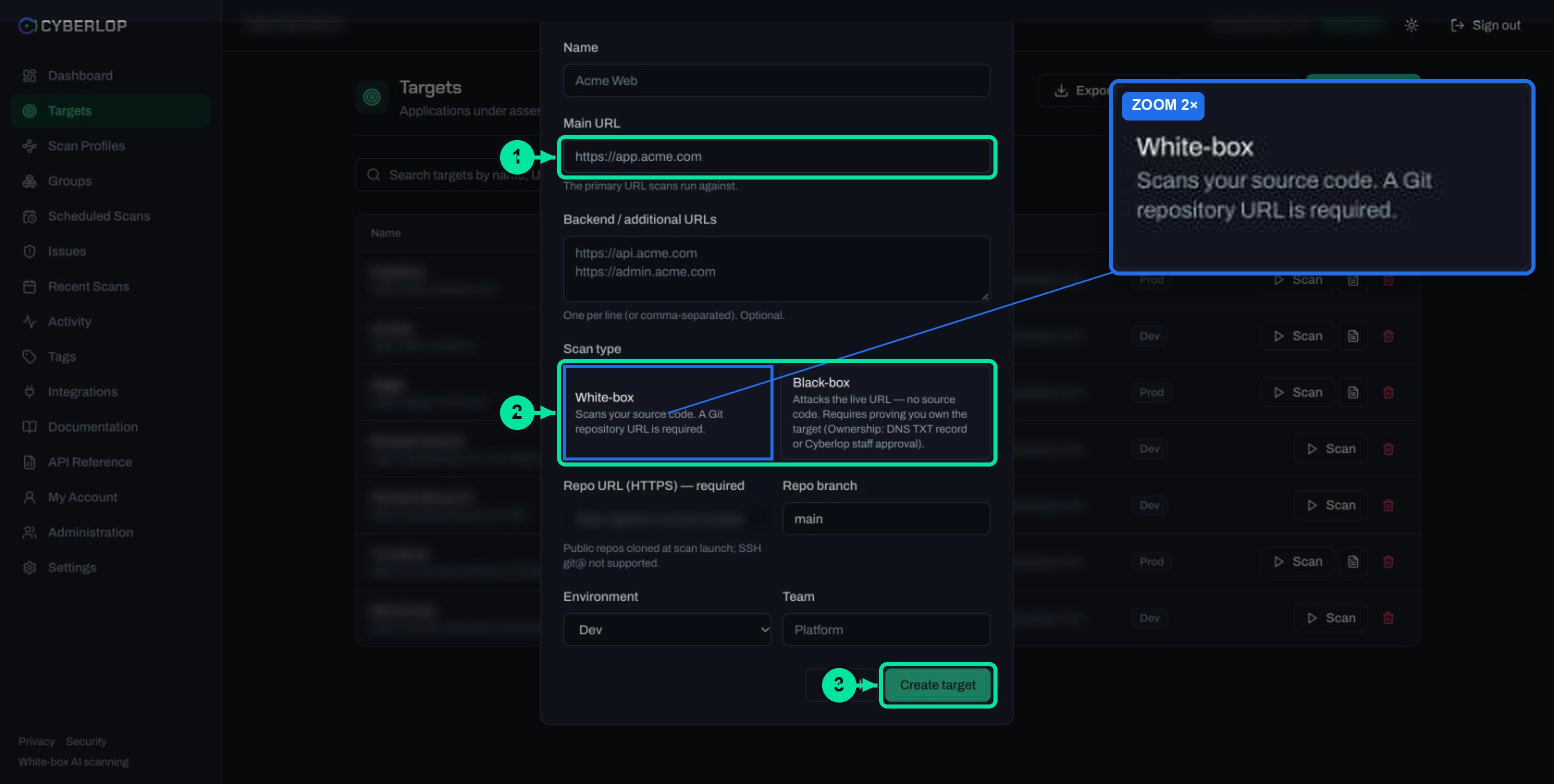
New target field reference
This table lists every field in the dialog, in the order it appears.
| Field | What to enter | Notes |
|---|---|---|
| Name | A recognisable name, such as "Orders staging" | Shown in the Targets list, in scans and in reports. Placeholder: "Acme Web". |
| Main URL | The app address, for example https://staging.example.com | The primary URL scans run against. |
| Backend / additional URLs | API or admin hosts, one per line or comma-separated | Optional. |
| Scan type | White-box or Black-box | Two cards. Black-box greys out the repository fields. |
| Repo URL (HTTPS) | Your repository over HTTPS | Required for white-box. SSH git@ links are not supported. Public repositories are cloned at scan launch. |
| Repo branch | The branch to read | Defaults to main. |
| Environment | Dev, Staging or Prod | Defaults to Dev. Shown as a badge in the Targets list. |
| Team | A team name, such as "Platform" | Optional. |
Name and Main URL
Use a name your team will recognise in lists, scans and reports. For the Main URL, use the address the app itself answers on, for example https://staging.example.com, not a marketing page. The dialog describes it as the primary URL that scans run against.
Backend and additional URLs
If the app talks to separate API or admin hosts, list them here. The placeholder shows an api. host and an admin. host on separate lines. This widens the attack surface the target covers, so add only hosts you have permission to test.
White-box or black-box: which scan type should you choose?
Choose white-box when you can provide the source repository, because Cyberlop then reads the code while it tests the running app. Choose black-box when you can provide only a URL. You cannot edit a target after creation, so decide before you click Create target.
| White-box | Black-box | |
|---|---|---|
| What it needs | Main URL, an HTTPS repository URL and a branch | Main URL only |
| What it does | Reads your source code and tests the running app | Tests the live URL only, with no source code |
| Before the first scan | A Git token if the repository is private | Ownership of the target must be verified (DNS TXT record or Cyberlop staff approval) |
| Where a finding points | A file and line in your code, plus the endpoint | An endpoint on the live app |
| Target page shows | Repository, branch and "Scans clone the latest from this repository at launch." | Repository as "—" and an Ownership verification card |
Cyberlop also reaches pages behind a sign-in, which gives a grey-box style view. That is not a third card in this dialog: you add login details later, as authentication roles on the scan profile. White-box vs black-box scans compares the types in more depth, and Authentication roles shows how logins work. The background terms are white-box, black-box and grey-box testing.
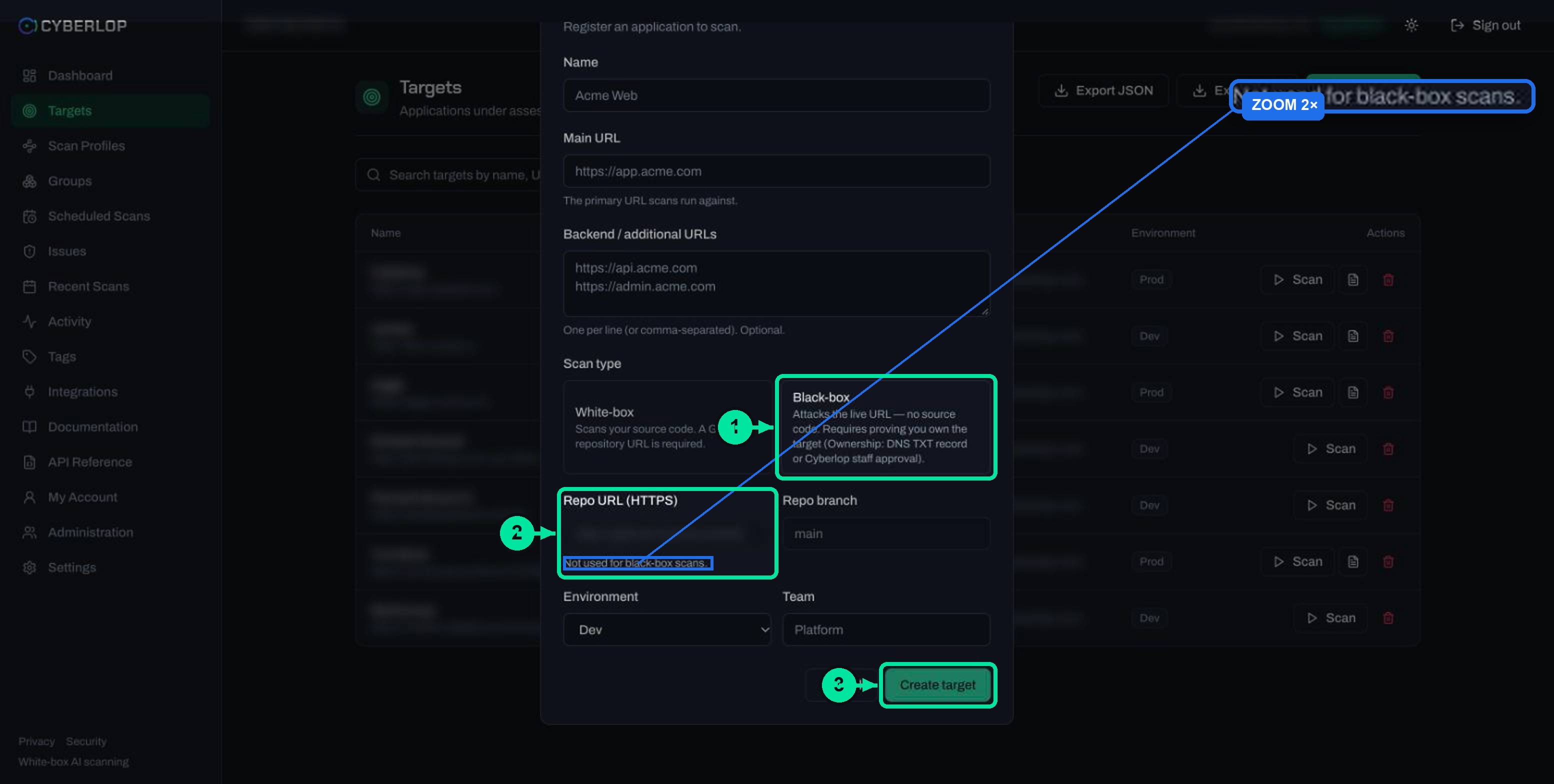
How do you set up a white-box target?
A white-box target needs an HTTPS repository URL and a branch. A scan clones public repositories when it launches. Private repositories need a Git token for an allowed host, and SSH git@ links are not supported.
- Select the White-box card. The Repo URL (HTTPS) field carries a required mark.
- Paste the HTTPS link to the repository, for example
https://your-code-host/your-team/your-app. - Leave Repo branch as
main, or type the branch that is deployed at the Main URL. - If the repository is private, save a token first, as described in Connect a repository and Git access.
Match the branch to the deployed app
The scan clones the latest from the branch at launch and also tests the running app at the Main URL. If the branch and the deployment differ, a finding may describe code that is not running. Pointing both at the same release keeps the file and line in a finding relevant.
Where the source code goes
In a cloud scan, the repository exists only while the scan runs, and Cyberlop wipes it when the scan reaches a final state. A self-hosted agent keeps source on your own network. See Self-hosted scan agents and private scanning.
How do you set up a black-box target?
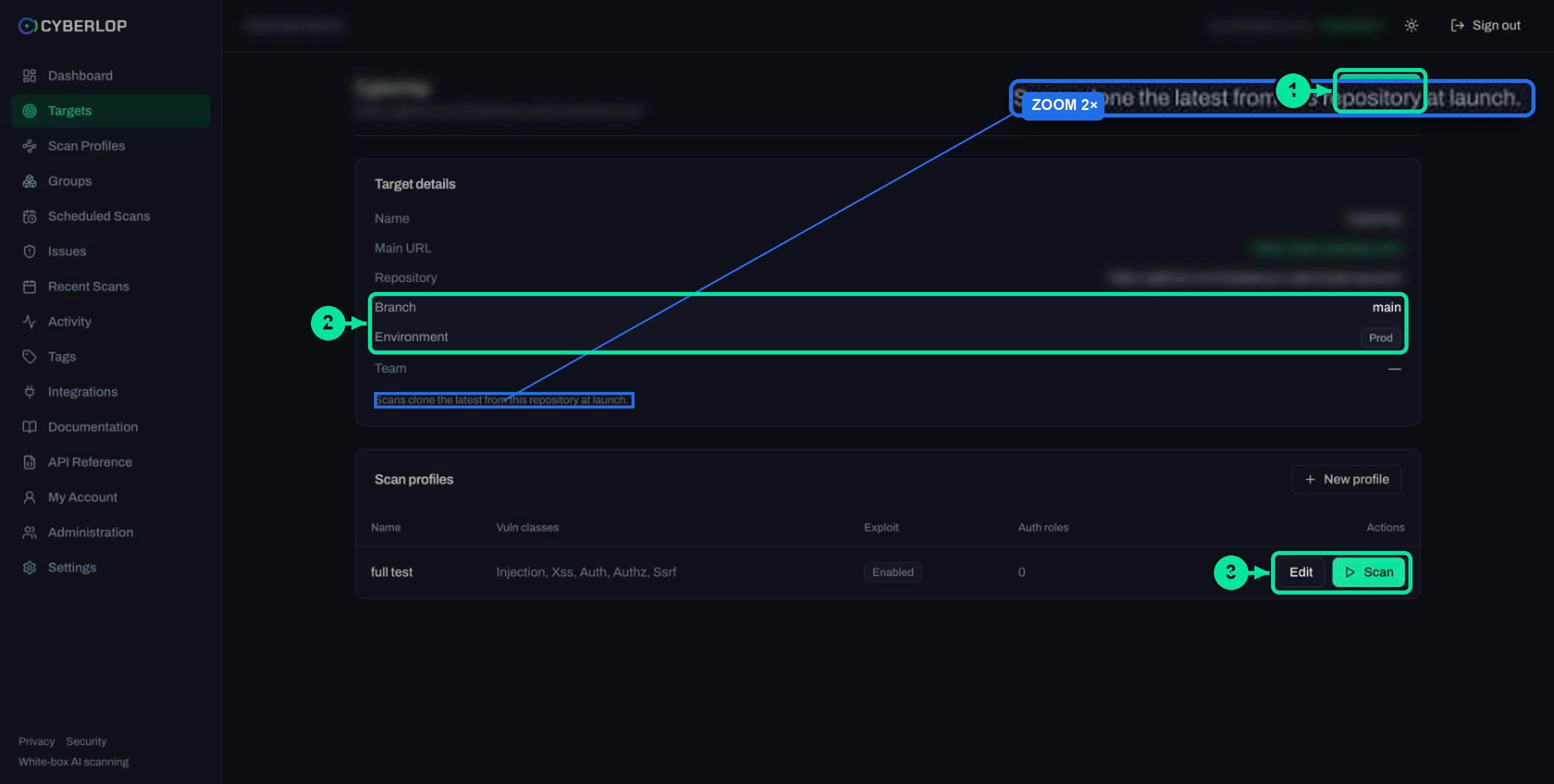
For a black-box target, choose the Black-box card, enter the Name and Main URL, and leave the repository fields alone. They grey out, and the help text reads "Not used for black-box scans." You must then prove ownership before a scan can run.
- Select Black-box. The repository and branch fields grey out.
- Choose the Environment and Team, then click Create target.
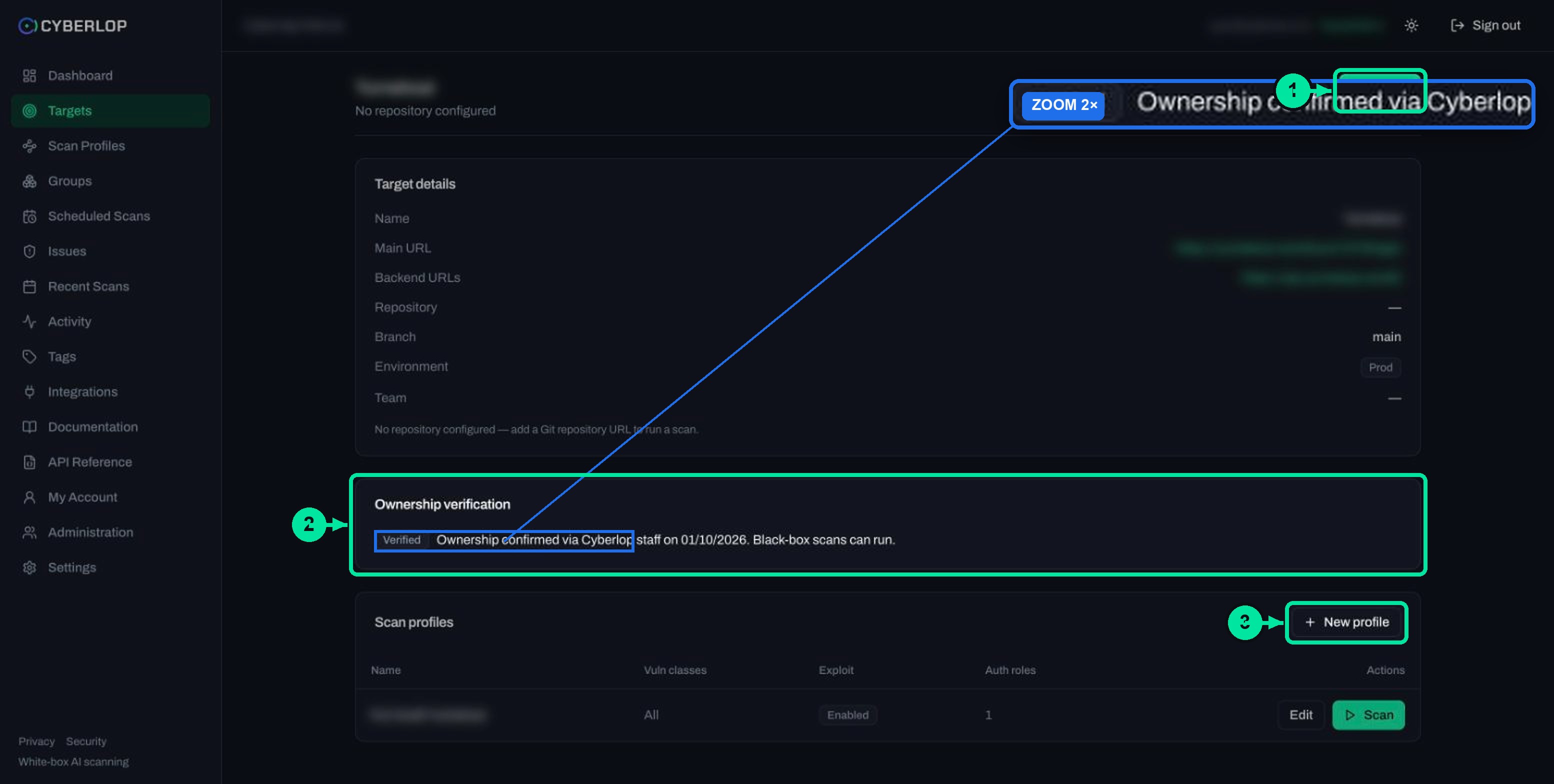
- Open the new target. Its Ownership verification card shows the state.
- Prove ownership by one of two routes: a DNS TXT record on your domain, or approval by Cyberlop staff.
- When the badge reads Verified, the card says "Black-box scans can run."
A DNS TXT record is a DNS entry that holds free text, which is how RFC 1035 describes the TXT type. The exact record to publish is shown in the app, so this guide does not reproduce it. Full detail is in Verify target ownership.
Which environment and team should you pick?
Pick the environment the URL really is: Dev, Staging or Prod. Dev is the default, and the choice appears as a badge in the Targets list so people can tell copies apart at a glance. Team is a free-text label, optional, with the placeholder "Platform".
Naming that keeps the list readable
- Put the app and the environment in the name, such as "Orders staging" and "Orders prod".
- If the same app exists in two environments, register two targets, one per URL.
- Use the same Team spelling every time, so people can find each other's targets.
Production targets deserve extra care. The profile's exploitation setting decides whether the scan actively proves issues against the live app, so settle that with the owners of the system first.
What happens after you create a target?
Cyberlop saves the target and it appears in the Targets list. Open it to see the target detail page: a single scrolling page with a Target details card, an Ownership verification card for black-box targets, and a Scan profiles card with + New profile.
Check the target
| Check | Where to look | Good result |
|---|---|---|
| It appears in the list | Targets, with search | Name and URL under the name, correct Environment badge |
| Details are correct | Target detail page, Target details card | Name, Main URL, Backend URLs, Repository, Branch, Environment, Team all match |
| Repository is linked (white-box) | Page subtitle and note under the card | Repository URL shown; note says scans clone the latest at launch |
| Ownership state (black-box) | Ownership verification card | Verified, with "Black-box scans can run." |
| Ready for a profile | Scan profiles card | The + New profile button is available |
The ▷ Scan button needs a scan profile, so your next step is to create one: Create a scan profile. When you later run it, Run a scan explains what happens.
Can you edit or delete a target?
You cannot edit a target. Targets are immutable: to change any setting, delete the target and create it again. The delete icon in the Targets list carries that warning in its tooltip.
What deleting removes
Deleting a target also deletes its scan profiles, schedules, scans and findings. Before you delete, download the latest PDF report with the document icon and use Export JSON or Export CSV if you want a copy of the results. Manage targets walks through the list, exports and the delete flow, and Export findings covers the files.
Catch mistakes before you click
Read the Main URL, repository URL and Environment aloud before Create target. A typo in the Main URL is an easy slip, and the only fix is to delete the target and start again.
Troubleshooting: common add-a-target problems
Most problems come from a missing permission, a repository that cannot be read, or an unverified black-box target.
| Situation | What you see | What to do |
|---|---|---|
| Target has no repository | "No repository configured — add a Git repository URL to run a scan." | For a white-box scan, delete the target and create it again with a repository URL. For black-box, complete ownership verification. |
| Private repository | The repo cannot be read without a token | Add a Git token for an allowed host. See Git access. |
| SSH link pasted | SSH git@ links are not supported | Use the HTTPS form of the repository link. |
| Wrong URL, branch or environment saved | The target page shows what you entered | Targets are immutable: delete and recreate, after reading the cascade warning. |
| Black-box scan will not run | The Ownership verification card is not Verified | Follow Verify target ownership. |
| + New target is missing | Your role lacks the permission | Ask an administrator to adjust your role. |
The field-level validation messages of the New target dialog were not captured for this guide. If the dialog will not submit, check that you have filled in Name, Main URL and, for white-box, the repository URL.
What are the common mistakes when adding a target?
- Choosing white-box without a repository to hand. Pick black-box if you only have a URL, and plan for ownership verification.
- Using an SSH link. Only HTTPS repository URLs work.
- Pointing at production first. Start with Dev or Staging.
- Registering one app twice by accident. Check the Targets list search first.
- Forgetting the plan limit. Check Settings → Plan & usage before you add a batch.
Next step: connect a repository if you chose white-box, or create a scan profile to define what to test. New to the platform? Getting started shows the whole path, and how it works explains the pipeline.
Questions people ask
Add a target in cyberlop: FAQs
How do I add a target in Cyberlop?
Open Targets, click + New target, enter the Name and Main URL, choose White-box or Black-box, set the Environment and click Create target. White-box also needs an HTTPS repository URL and branch.
Can I edit a target after creating it?
No. Targets are immutable. Delete the target and create it again with the right details. Deleting also removes its profiles, schedules, scans and findings, so export what you need first.
What is the difference between white-box and black-box when adding a target?
A white-box target has a repository, so Cyberlop reads your code while it tests the running app. A black-box target has only a URL and needs its ownership verified before scans can run.
Can I use an SSH repository link?
No. SSH git@ links are not supported. Use the HTTPS repository URL. A scan clones public repositories at launch; private ones need a Git token for an allowed host.
What do I put in Backend / additional URLs?
List other hosts that belong to the app, such as an API or admin host, one per line or separated by commas. The field is optional. Add only hosts you have permission to test.
Which environment should I choose for my first target?
Choose the environment the URL really is. For a first scan, a Dev or Staging copy is a safer start than Prod. Dev is the default selection.
Why is my black-box target not scanning?
Black-box scans run only once you have verified ownership, by a DNS TXT record or staff approval. Open the target and check the Ownership verification card for the Verified badge.
Is there a limit on how many targets I can add?
Limits depend on your plan. Settings → Plan & usage shows what applies to your organisation.
Keep reading
Related articles
How to scan behind login in Cyberlop with authentication roles
Scan behind login in Cyberlop: add authentication roles, choose privilege levels, combine form, header and OAuth methods, and guide the scan with AI guidance.
Connect a repository to Cyberlop for white-box scans
Add the HTTPS repo URL and branch, choose a personal or organisation Git token, set allowed hosts and fix common clone problems.
How to create a scan profile in Cyberlop: Scope, Authentication, Reporting
Create a scan profile in Cyberlop: Scope, Authentication and Reporting fields, exploitation on or off, Preview YAML and Save, with a troubleshooting table.

Need help adding your first target?
Cyberlop finds vulnerabilities in web apps and their APIs with black-box, grey-box and white-box pentesting, and reports only what it exploited. Ask us to run it on one of your applications.
Or start with a $199 pilot on one application: thirty days, success criteria agreed before day one, credited against the annual if you convert.