
Home / Blog / Tutorials / Connect a repository to cyberlop
Tutorials
Connect a repository to Cyberlop for white-box scans
A white-box target needs an HTTPS repository URL and a branch; private code also needs a read-only Git token. Here is each field and button, in order.
Cyberlop Labs · Updated · 9 min read
To connect a repository to Cyberlop, click + New target, choose White-box, enter an HTTPS Repo URL and the branch, and click Create target. Public repositories clone with no token. Private ones need a read-only Git token, saved in My Account or Settings, Git Access, for an allowed host.
- Open the New target dialog Go to Targets and click + New target.
- Enter name and URL Type the Name and the Main URL, and add backend URLs if needed.
- Choose White-box Select the White-box scan type card so the repository fields are enabled.
- Enter the repository URL Type the HTTPS address in Repo URL (HTTPS). SSH git@ addresses are not supported.
- Set the branch Leave Repo branch as main or enter the branch to scan.
- Create the target Choose an Environment, then click Create target and check Repository and Branch on the target page.
- Add a read-only Git token for private repositories Save a personal token in My Account, or an organisation token in Settings, Git Access.
- List allowed hosts and verify Enter the code host domain in Allowed hosts, click Save Git settings, then click Verify.
- White-box targets need an HTTPS repository URL and a branch (default main); SSH git@ is not supported.
- Public repositories clone without a token; private ones need a read-only token.
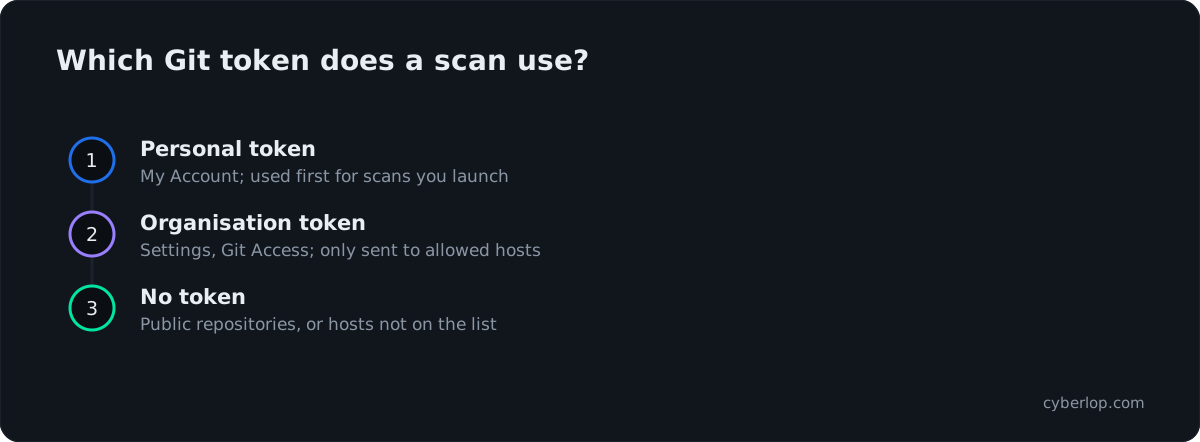
- A personal token is used first, then the organisation token as fallback.
- The token is sent only to hosts in Allowed hosts.
- Targets are immutable: to change the repo or branch, delete and recreate.
Connecting a repository in Cyberlop means giving a white-box target an HTTPS Git URL and a branch, so each scan can clone your latest code and read it while testing the running app. Enter both in the + New target dialog; public repositories need nothing more, and private ones need a read-only Git token for an allowed host.
What does connecting a repository do?
It lets a scan read your source as well as probe your live URL. Because Cyberlop tests with the code in view, a white-box target must carry a repository URL and a branch. At launch, the scan clones the latest code from that branch. A finding can then name the file and line, and the scan overview shows the commit it ran against.
A target without a repository is a black-box target: it tests only the URL. If you are unsure which you need, read white-box vs black-box scans first. This guide covers the white-box path only.
Connect only code you own or have permission to test. The token you give Cyberlop should be able to read the repository and nothing else.
What do you need before you connect?
You need three things: the repository address over HTTPS, the branch to scan, and, for a private repository, a Git token. Check the list below before opening the dialog, because you cannot edit a target afterwards.
Table 1. What to have ready
| Item | What to have | Notes |
|---|---|---|
| Repository URL | An address starting with https://, such as https://your-code-host.example/your-team/your-app | SSH addresses such as git@your-code-host.example:team/app.git are not supported. |
| Branch | The branch you want scanned, such as main | The field defaults to main. Use the branch that matches the running staging app. |
| Git token (private repositories only) | A read-only token for the code host | Public repositories are cloned without one. See the token sections below. |
| Permission | The ability to create targets (target:create) and, for the organisation token, to change settings | If a button is missing or disabled, ask your administrator. |
Is your repository public or private?
A scan clones public repositories at launch with no token. Private repositories need a Git token for a host on your allowed list. Cyberlop uses the personal token you saved first, then falls back to the organisation token.
How do you add the repository URL and branch to a target?
You add them when you create the target, in a single dialog. Work through these steps.
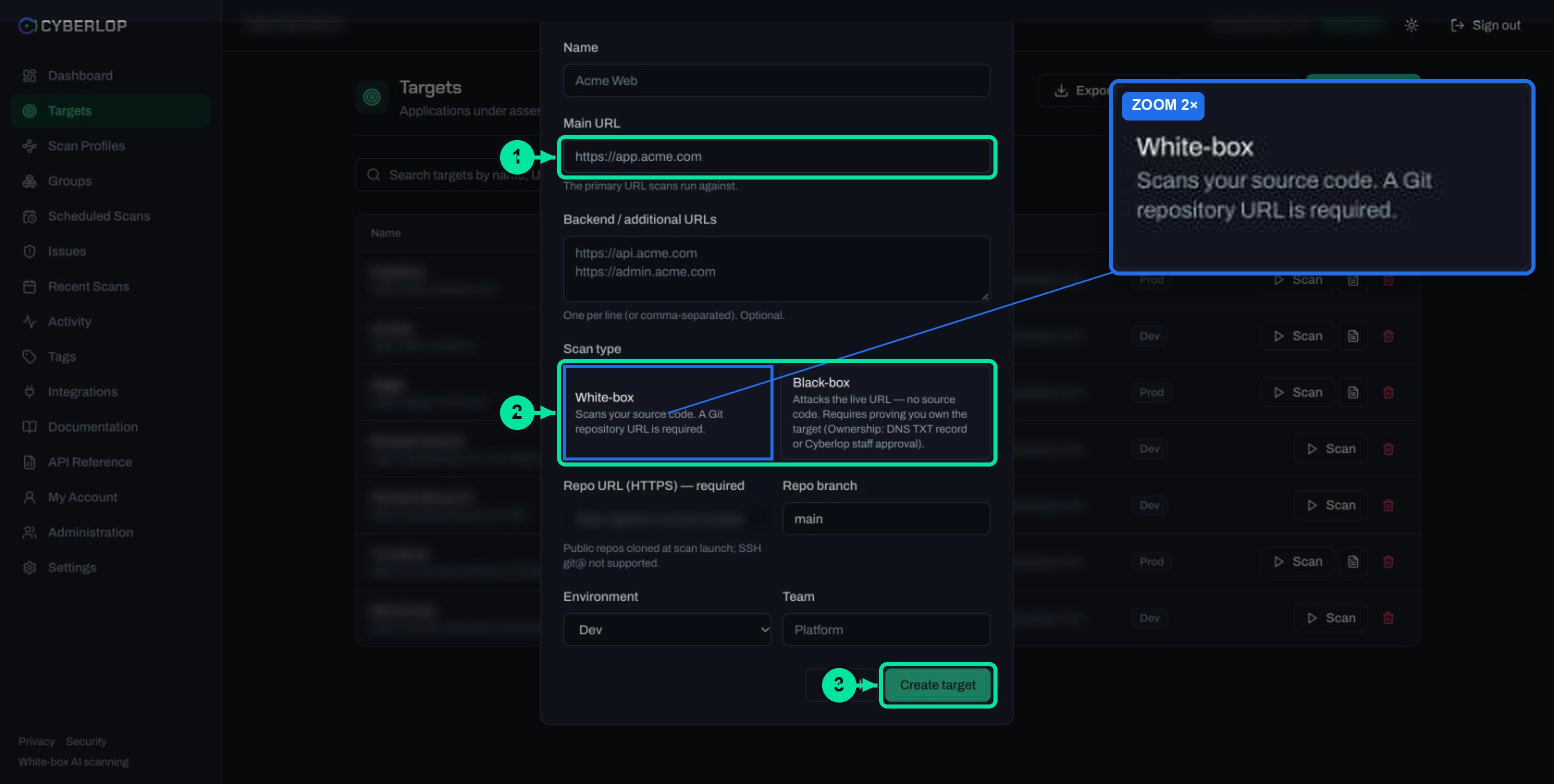
- Open Targets in the sidebar and click + New target.
- Enter a Name and the Main URL, the primary address scans run against. Add Backend / additional URLs if the app has separate API or admin hosts (optional, one per line).
- Under Scan type, choose the White-box card. Its description says it scans your source code and needs a Git repository URL.
- Type the Repo URL (HTTPS). The placeholder shows the shape: your code host, then your team, then the app name.
- Leave Repo branch as
mainor type the branch you want. - Pick an Environment (Dev, Staging or Prod) and, if you like, a Team.
- Click Create target.
Table 2. The repository fields in the New target dialog
| Field | What to enter | Notes |
|---|---|---|
| Scan type | White-box | Choosing Black-box greys out the repository fields and shows "Not used for black-box scans." |
| Repo URL (HTTPS) | The full HTTPS address of the repository | Required for white-box. Public repositories are cloned at scan launch; SSH git@ is not supported. |
| Repo branch | A branch name | Defaults to main. |
| Environment | Dev, Staging or Prod | Defaults to Dev. Staging is the safest first choice. |
How do you confirm the repository saved?
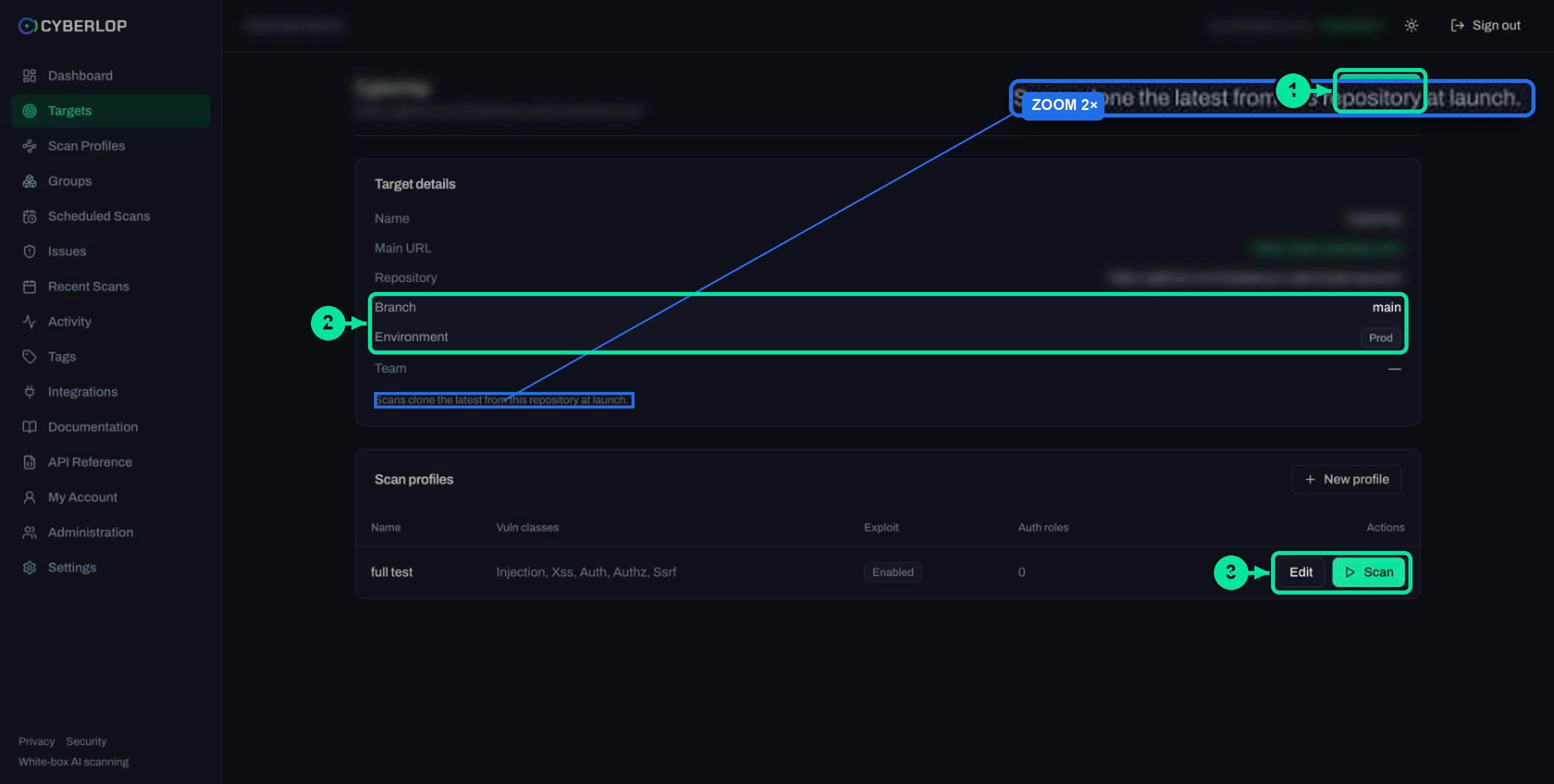
Open the target from the Targets list. The Target details card shows Repository and Branch, with the note "Scans clone the latest from this repository at launch." The repository URL also appears under the target name.
Targets are immutable
You cannot edit a target. To change the repository URL or branch, delete the target and create it again. Deleting a target also deletes its scan profiles, schedules, scans and findings, so export what you need first. Manage targets explains the cascade, and add a target covers the other fields.
A target with no repository
A target created without one shows "No repository configured — add a Git repository URL to run a scan." in its details. That is the black-box state. If you meant white-box, recreate the target with the repository filled in.
How do you connect a private repository with a Git token?
Save a Git token in My Account for yourself or in Settings → Git Access for the organisation, and list the code host under allowed hosts. Cyberlop uses the token only to clone, so make it read-only. Public repositories skip this section.
Should you use a personal token or an organisation token?
Use the organisation token when several people launch scans of private repositories. Use a personal token when you want your own scans to run with your own access. The page copy says Cyberlop tries the token in My Account first for scans you launch, and falls back to the organisation token if you leave yours unset.
Table 3. Personal and organisation Git tokens
| Personal token | Organisation token | |
|---|---|---|
| Where | My Account, card Git access token | Settings → Git Access |
| Field | Personal Git token (private repo cloning) | Replace token and Allowed hosts |
| Save button | Save Git token | Save Git settings |
| Other buttons | None shown | Verify and Clear token |
| Used when | First, for scans you launch | As the fallback for everyone |
| Who sets it | You | Someone with access to Settings, usually an administrator |
How do you save a personal token?
- Create a read-only token on your code host (see the next section for what read-only means).
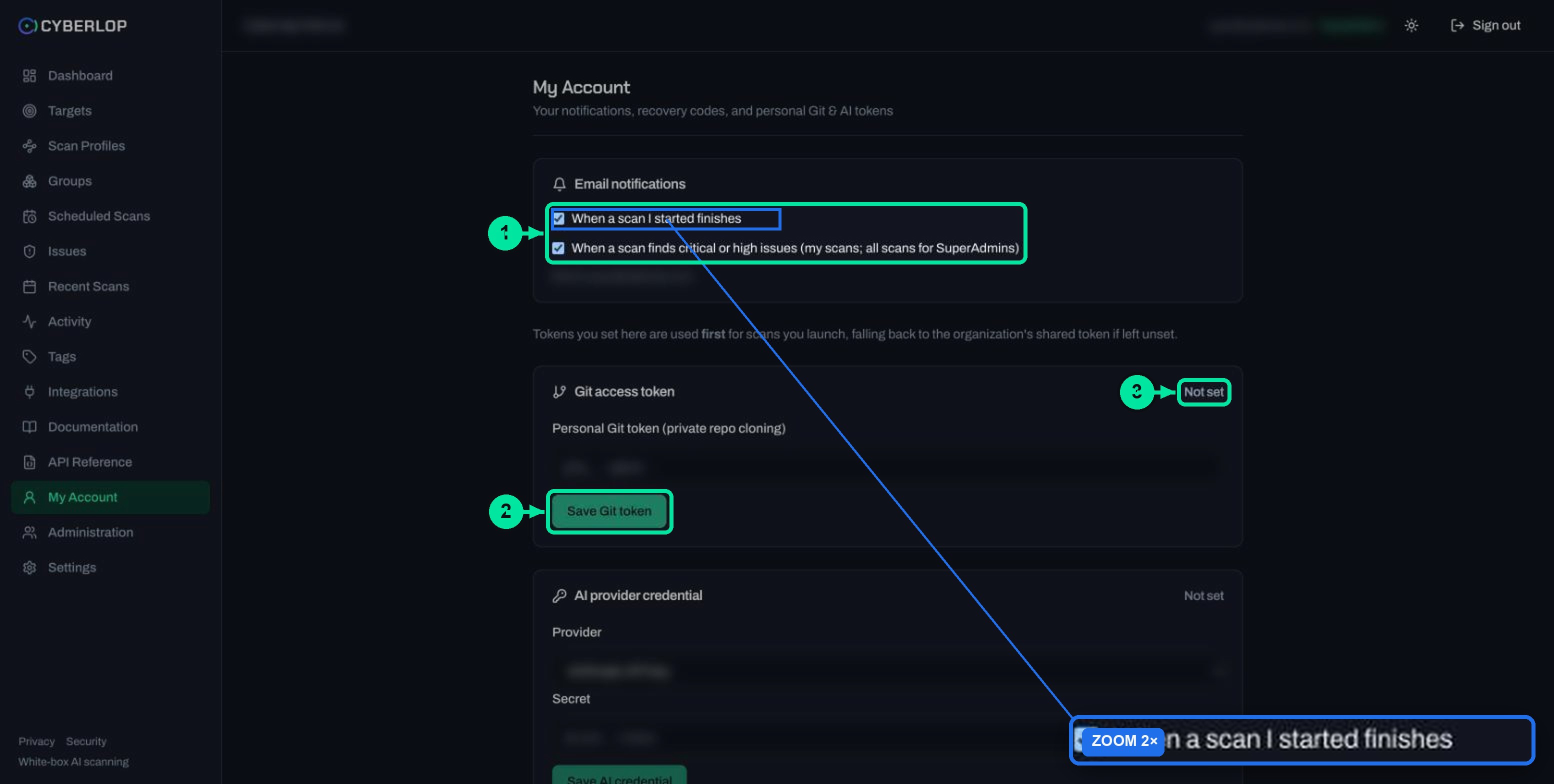
- In Cyberlop, open My Account in the sidebar.
- In the Git access token card, paste the token into Personal Git token (private repo cloning). The status on the right changes from "Not set".
- Click Save Git token.
Cyberlop encrypts secrets at rest and never shows them again after you save, so keep your own copy in your password manager. For a longer walk-through of the organisation side, see Git access.
How do you set the organisation token and allowed hosts?
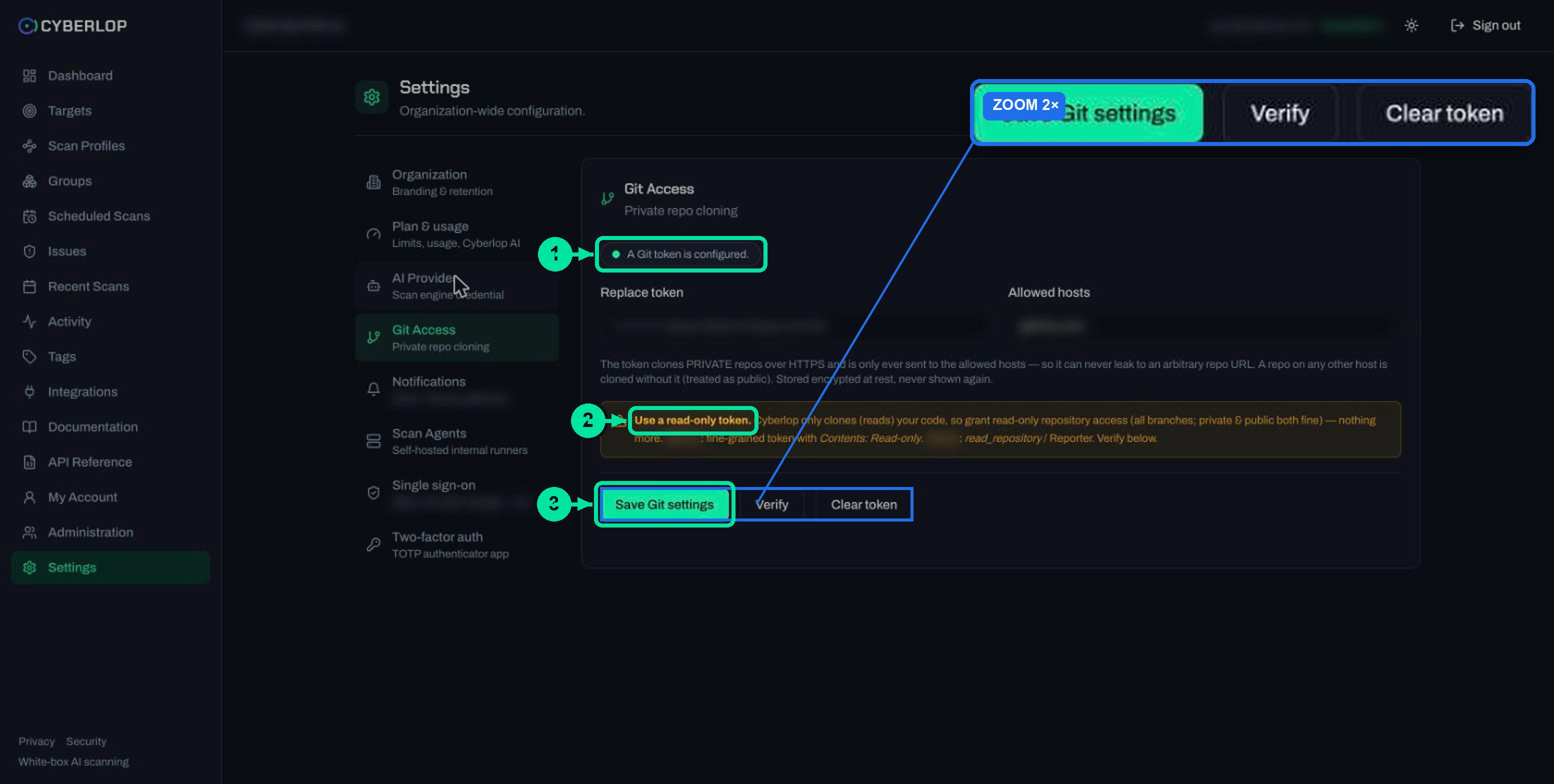
Open Settings → Git Access, paste the token, list the code host domains, then save and verify. Once you store a token, the status pill reads "A Git token is configured." If you cannot see Settings, ask your administrator.
- Open Settings in the sidebar and choose the Git Access tab.
- Paste the token into Replace token. Leave it blank to keep the stored one.
- In Allowed hosts, enter the domain of each code host that holds your repositories, separated by commas.
- Click Save Git settings.
- Click Verify to check the token works.
- To remove the token later, click Clear token.
Why do allowed hosts matter?
The token is only ever sent to the hosts you list, so it cannot leak to an arbitrary repository URL. Cyberlop clones a repository on any other host without the token, as if it were public. If a private repository on a new host will not clone, the first thing to check is that its domain is in Allowed hosts.
What does a read-only token mean?
Cyberlop only clones your code, so grant read access to the repository and nothing more. The in-app warning gives two examples: on one code host, a fine-grained token with Contents: Read-only; on another, the read_repository scope or the Reporter role. The warning adds that private and public repositories are both fine and that the token should cover all branches.
This is the least privilege principle in practice. The OWASP Secrets Management Cheat Sheet asks for least privilege on secrets access and for regular rotation, so a stolen credential has a short useful life. Set a reminder to replace the token on that rhythm, and see key rotation for the habit.
Table 4. A safe token, checked
| Check | Do this | Why |
|---|---|---|
| Access level | Read-only on repository contents | The scan only needs to clone. |
| Reach | Limit it to the repositories you scan, if your code host allows | A smaller blast radius if the token leaks. |
| Owner | Prefer a service account over a person who may leave | The scan keeps working when staff change. |
| Expiry | Give it an end date and note when to rotate | Old tokens are a quiet risk. |
| Storage | Paste it only into the Cyberlop field, never into the repository URL | URLs end up in logs; the field is encrypted. |
How is your code handled during a scan?
In a cloud scan, Cyberlop clones the code into an isolated workspace for each scan and wipes it from disk when the scan finishes. Nothing carries over between scans. Cyberlop describes each scan as running in its own isolated, ephemeral container, with repositories mounted read-only.
What happens to the token?
Cyberlop hands Git tokens to Git one call at a time and never writes them to disk. It encrypts stored credentials with AES-256-GCM. The activity feed records a change to the organisation token as a Git Token event with Action: set, which helps when you audit who changed access.
What is sent to the AI provider?
The Security page states that relevant code excerpts are sent to the organisation's chosen AI provider over HTTPS. If your code must not leave your network at all, run the scan on a self-hosted agent: it clones the repository from inside your network and keeps source there. Read self-hosted scan agents and private scanning.
The 2026 Verizon Data Breach Investigations Report found that 31% of breaches began with software vulnerabilities, a bigger share than stolen passwords. Reading the code while testing the app is one way to find those before someone else does.
What do you see after the first white-box scan?
The scan overview shows the commit the scan ran against and the lines of code read, and findings show a file and line range as their location. Run the scan from ▷ Scan on the target or a profile row; the run a scan guide covers the phases.
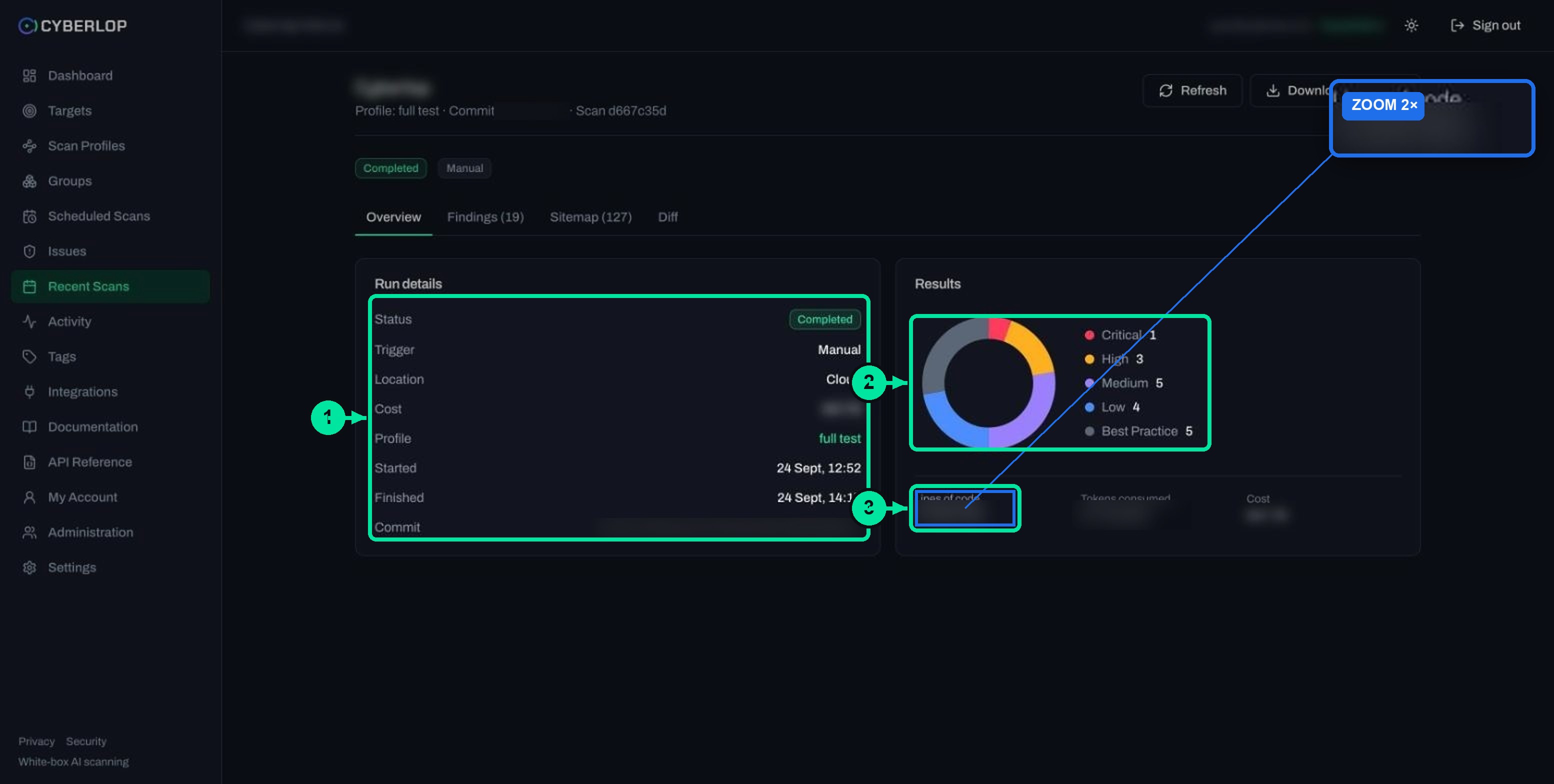
- The scan subtitle reads "Profile: … · Commit …" for white-box runs.
- Run details lists Commit with the full SHA, and Results shows Lines of code.
- The Findings tab shows a source file and line range, plus an Endpoint: line.
The repository also powers one profile feature. After you save a scan profile, ✦ Auto Generate from Repo in the Reporting section can fill the application context from it; see application context. If you trigger scans from a pipeline, the CI call can pass a commitSha; see CI/CD integration.
What if the repository will not connect?
Most problems come from the URL shape, the host list or the token. The app documentation does not list a specific clone error message, so use this checklist and ask your administrator if the scan still fails.
Table 5. Common mistakes
| Symptom | Likely cause | Fix |
|---|---|---|
You pasted a git@ address | SSH is not supported | Use the HTTPS address of the same repository. |
| The target shows "No repository configured" | Created as black-box, or the field was left empty | Delete and recreate the target as white-box with a Repo URL. |
| A private repository does not clone | No token, an expired token, or the host is not in Allowed hosts | Save a token, click Verify, and list the host. |
| Your scans use the wrong access | A personal token is set and takes priority | Update or leave it unset so the organisation token applies. |
| The scan reads the wrong code | The branch is not the one you meant | Recreate the target with the right Repo branch. |
| The scan failed | Many causes, not only the repository | Open it and follow failed or cancelled scans; partial findings may exist. |
Mistakes that cost time
Do not put the token inside the repository URL. Do not grant write access "just in case". And do not scan a repository you do not own or have permission to test. Keep hardcoded secrets out of the code the scan reads, and manage them with secrets management.
What is the next step?
Next step: create a scan profile for your new target, then run your first scan. If you also need a black-box target, see verify target ownership. New to the terms? Start with key terms or getting started.
Questions people ask
Connect a repository to cyberlop: FAQs
How do I connect a repository to Cyberlop?
Create a target with + New target, choose White-box, enter the HTTPS repository URL and the branch, then click Create target. For private repositories, also save a read-only Git token.
Does Cyberlop support SSH repository URLs?
No. Only HTTPS repository URLs work. SSH addresses that start with git@ are not supported, so use the HTTPS address of the same repository.
Do I need a token for a public repository?
No. A scan clones public repositories at launch without a token. Only private repositories on an allowed host need a token.
What is the difference between a personal and an organisation Git token?
Save a personal token in My Account; Cyberlop uses it first for scans you launch. Save the organisation token in Settings → Git Access; it is the fallback for everyone.
What permissions should the Git token have?
Read-only access to repository contents. Cyberlop only clones your code, so write access is never needed. Prefer a token limited to the repositories you scan, and rotate it regularly.
Can I change the repository or branch after creating a target?
No. Targets are immutable. Delete the target and create it again with the new repository URL or branch. Deleting also removes its profiles, schedules, scans and findings.
Is my code stored after the scan?
In a cloud scan, Cyberlop clones the code into an isolated workspace for each scan and wipes it when the scan finishes. Nothing carries over between scans. A self-hosted scan agent keeps source on your own network.
Why does my private repository not clone?
Check that you saved and verified a read-only token, and that the repository host is in Allowed hosts. Cyberlop clones a repository on any other host without the token, as if it were public.
Sources
Where the facts come from
Keep reading
Related articles
Cyberlop activity feed: what it records and how to use it for audits
Read the Cyberlop activity feed: sign-ins, scans, triage, roles and support sessions, who can see them, how to search and an audit checklist.
How to add a target in Cyberlop: the New target dialog, field by field
Add a target in Cyberlop: the New target dialog field by field, white-box vs black-box, repository URL, environment, and why targets cannot be edited.
Application context in Cyberlop: fill the ten fields and use Auto Generate from Repo
Fill in the ten application context fields of a Cyberlop scan profile, use Auto Generate from Repo, and write context that improves findings.

Want us to read your repository?
Cyberlop reads your code while testing the running app, so a finding can point to the file and line. Private scanning keeps your code inside your network. Ask us to run it on one of your applications.
Or start with a $199 pilot on one application: thirty days, success criteria agreed before day one, credited against the annual if you convert.