
Home / Blog / Tutorials / How to connect a cloud key vault to Cyberlop
Tutorials
How to connect a cloud key vault to Cyberlop
Cyberlop can read scan credentials from your own vault through a service principal. Here is the form, field by field, with Verify, Save and safe set-up.
Cyberlop Labs · Updated · 7 min read
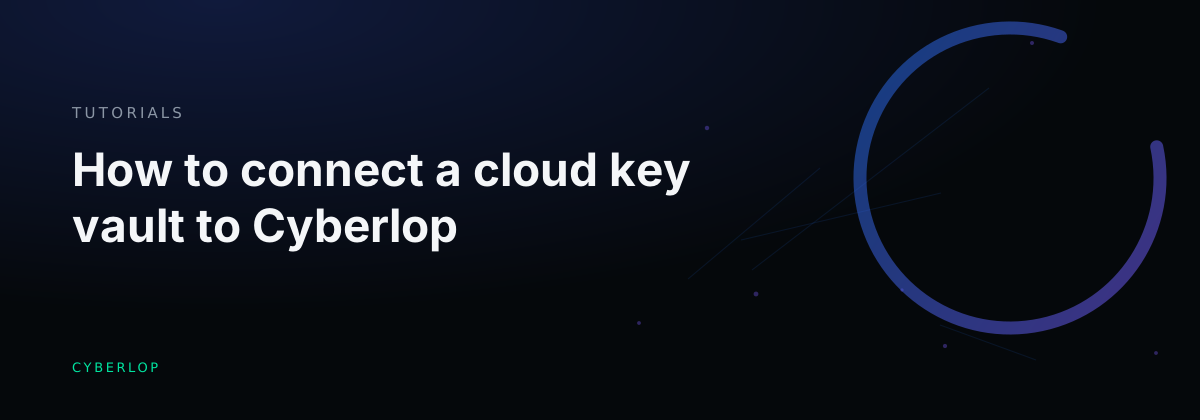
To connect a cloud key vault to Cyberlop, open Integrations, choose the key vault tab, enter a Name, Tenant ID, Client ID and Client secret for a read-only service principal, click Verify, then Save. The client secret is encrypted at rest and never shown again.
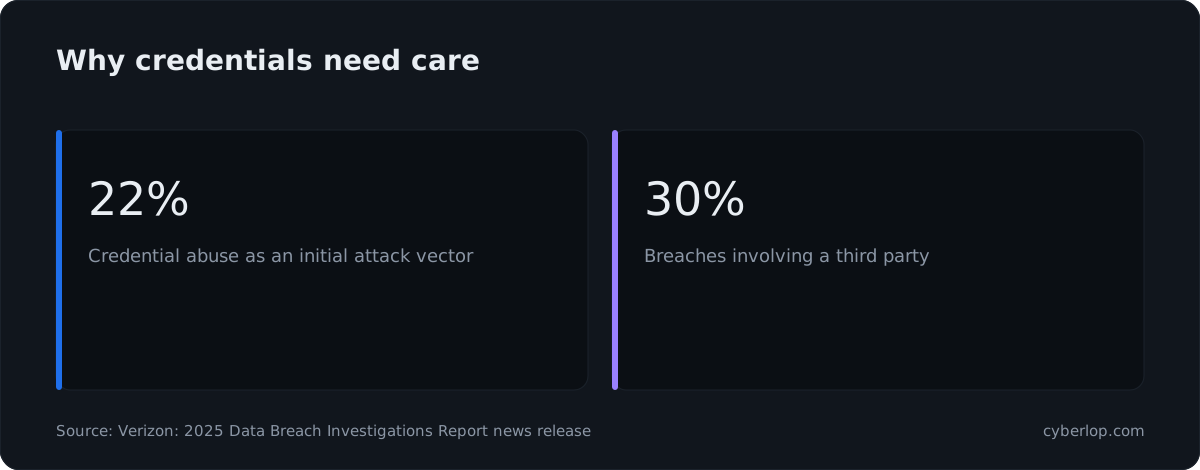
- Open Integrations Click Integrations in the sidebar.
- Choose the key vault tab Open the third tab, named for your cloud's key vault.
- Name the connection Enter a Name your team will recognise, such as Prod vault SP.
- Enter the identifiers Paste the Tenant ID and the Client ID of the service principal.
- Enter the client secret Paste the Client secret into the masked field.
- Verify Click Verify and wait for the result.
- Save If verification passes, click Save.
- The key vault tab on Integrations takes a service principal: Name, Tenant ID, Client ID and Client secret.
- Click Verify before Save so wrong IDs or an expired secret show up now, not mid-scan.
- The client secret is encrypted at rest and never shown again, so keep the original in your own vault.
- Give the principal read access only, to the vault used for scans, in line with least privilege.
- Saving needs the settings:update permission; rotate the client secret on a schedule.
The cloud key vault integration lets Cyberlop pull scan credentials from your own vault, so nobody has to paste them into a scan profile. You hand it a service principal (an identity for software, not a person) through a short form on the Integrations page, then click Verify and Save. Below you get each field, both buttons and a safe way to set it up.
What is the cloud key vault integration?
The key vault integration is the third tab on the Integrations page. The page describes it in one line: "Service principal Cyberlop uses to read scan credentials from a vault. The client secret is encrypted at rest and never shown again."
A key vault is a managed store for secrets such as passwords, tokens and keys. A service account (called a service principal in some clouds) is the identity software uses to prove who it is to that store. Cyberlop stores one such identity for your organisation. When a scan runs, it uses that identity to fetch secrets from the vault, so they never sit in a profile. This is one way to practise secrets management.
Why keep scan credentials in a vault?
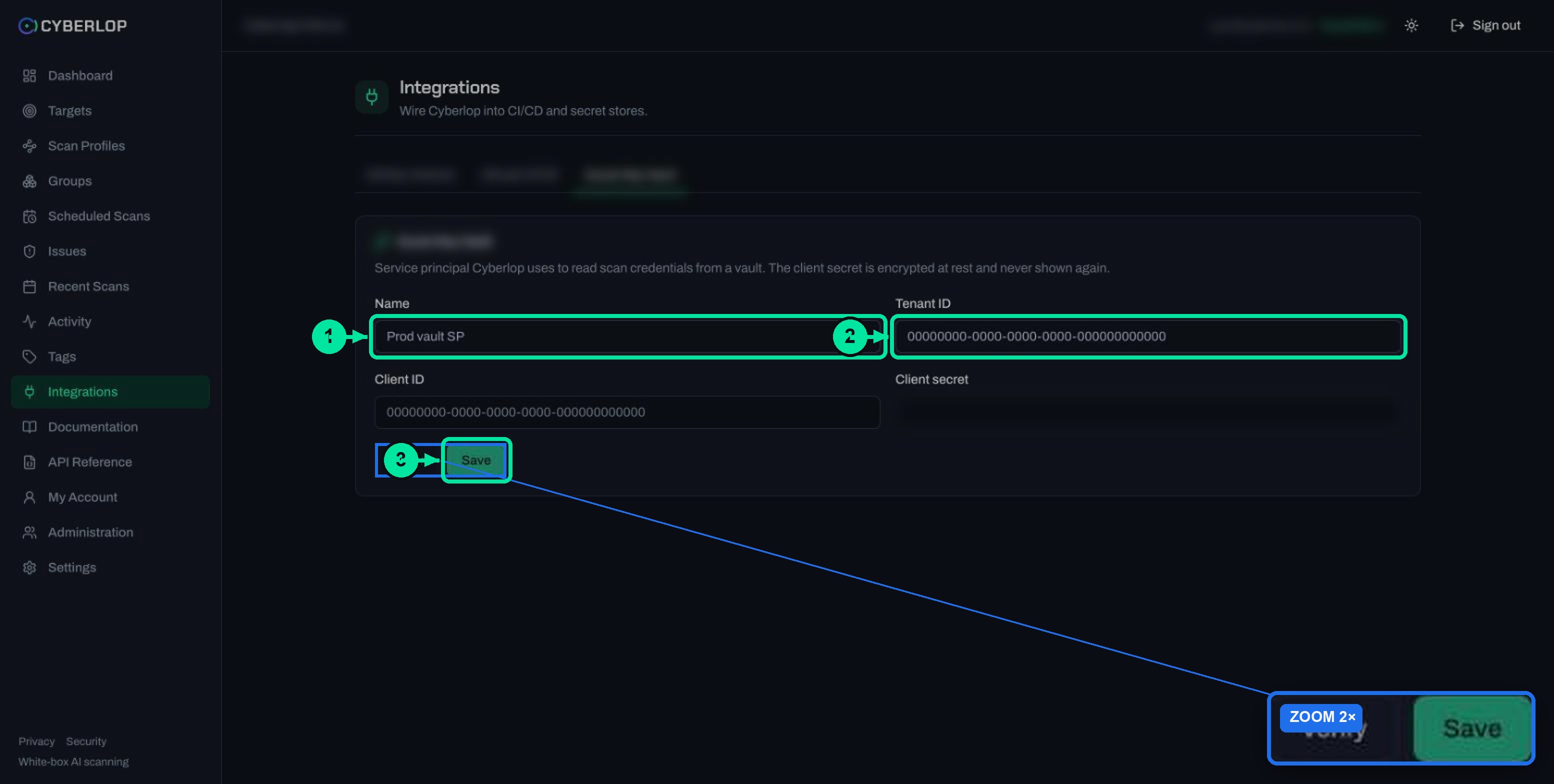
Stolen credentials are the easiest way in. Verizon's 2025 Data Breach Investigations Report found that credential abuse (22%) and exploitation of vulnerabilities (20%) remain the leading initial attack vectors, and that breaches involving third parties doubled to 30%. A scan login copied into many profiles gives an intruder more places to find it.
The OWASP Secrets Management Cheat Sheet advises you to "centralize the storage, provisioning, auditing, rotation and management of secrets". With a vault, you rotate a password, check who read it and cut off access in one place. See also hardcoded secrets and key rotation.
What do you need before you start?
Before you open the form, check three things. You need a vault in your own cloud account. You need a service principal that can read from it. And your Cyberlop account needs the right permission. Cyberlop creates none of these for you.
Prerequisites checklist
- A key vault in your cloud account that holds the scan credentials you want Cyberlop to use.
- A service principal in your cloud identity service, with a Tenant ID, a Client ID and a client secret.
- Read access for that principal on the vault, and nothing wider.
- The
settings:updatepermission in Cyberlop. Ask an admin if the form is not available to you.
Who can save the form?
The organisation-wide Verify route, POST /api/settings/verify-keyvault, requires settings:update, and saving the vault is part of PUT /api/settings, which needs the same key. A second route, POST /api/keyvault/verify, checks a connection and named secrets and needs profile:manage_credentials. Permission keys follow the area:action pattern; see API tokens and permissions.
What should the principal be allowed to read?
Give it read access only, and only to the vault, or the secrets, used for scans. The principle is least privilege: if the principal were ever exposed, it should open as little as possible. Do not reuse a principal that your applications use in production.
How do you connect a cloud key vault to Cyberlop?
You open Integrations, choose the key vault tab, fill in four fields and click Verify, then Save. Nothing is stored until you save.
- Click Integrations in the sidebar.
- Open the third tab, the one named for your cloud's key vault.
- Enter a Name your team will recognise. The placeholder is "Prod vault SP".
- Paste the Tenant ID and the Client ID of the service principal.
- Paste the Client secret. The field is masked.
- Click Verify and wait for the result.
- If verification passes, click Save.
Field reference
The table lists every field on the form, as captured.
| Field | What to enter | Notes |
|---|---|---|
| Name | A label for this connection, for example "Prod vault SP". | Free text. Use a name that tells your team which vault and environment it serves. |
| Tenant ID | The directory or tenant identifier of your cloud account. | The placeholder shows a UUID, 00000000-0000-0000-0000-000000000000. |
| Client ID | The application or client identifier of the service principal. | Also a UUID. It identifies the principal; it is not the secret. |
| Client secret | The secret that belongs to the service principal. | Masked. Encrypted at rest and never shown again. |
| Verify | Button. Tests the service principal. | Run it before you save. |
| Save | Button. Stores the connection. | Settings are saved with the organisation settings. |
What does the form look like after you save?
The page states that the client secret "is encrypted at rest and never shown again". Cyberlop follows the same pattern for other stored secrets: you will not be able to read the secret back. If you need to change it, create a new secret for the principal in your cloud and enter it again. The captured pages do not show a separate edit view for this form, so check the tab in your own workspace.
What does Verify do?
Verify checks that the service principal works before you rely on it. The API reference describes the route as "Verify the key vault service principal", so a wrong Tenant ID, Client ID or client secret should show up here rather than in the middle of a scan.
The exact wording of the success and failure messages was not captured, so this guide does not quote them. If a check fails, work through these causes in order.
| Symptom | Likely cause | What to do |
|---|---|---|
| Verify fails straight away | A typo in the Tenant ID or Client ID, or a stray space from copying. | Paste both values again from your cloud console. |
| Verify fails after the IDs look right | The client secret is wrong, expired or revoked. | Create a new client secret in your cloud, enter it and verify again. |
| Verify passes but a secret is not found | The principal cannot read that vault or secret. | Check the principal read access on the vault, not Cyberlop settings. |
| The form is read-only or Save is refused | Your account lacks settings:update. | Ask an admin for the permission, or ask them to enter it. |
Common mistakes
- Granting the principal write or admin rights "to make it work". Read-only is enough for reading credentials.
- Letting the client secret expire without a reminder. Put the expiry date in your team's calendar.
- Sharing one principal between Cyberlop and your own apps. A separate principal makes revocation safe.
- Testing scan credentials that belong to an app you are not allowed to scan. Only use credentials for applications you own or are authorised to test.
How do you keep the vault connection secure?
Treat the service principal like any other credential: keep its access narrow, set a rotation date and keep a record of changes. Cyberlop encrypts the stored client secret. Everything else depends on your vault settings.
The Security page says stored credentials, including vault secrets, are encrypted with AES-256-GCM (AES-GCM), with the storage volume encrypted at rest. See encryption at rest for what that does and does not protect.
When should you rotate the client secret?
Rotate it on a schedule you set, and straight away if someone who knew it leaves or if you suspect exposure. The OWASP cheat sheet advises you to "regularly rotate secrets" so that a stolen credential stops working soon. In practice:
- Create a second client secret for the principal in your cloud.
- Open the key vault tab, enter the new client secret and click Verify.
- Click Save.
- Delete the old client secret in your cloud.
Why a client secret rather than a password?
A service principal authenticates the way software does. It presents its own credentials and gets access to the resources it controls. The OAuth 2.0 specification calls this the client credentials grant and says it "MUST only be used by confidential clients", meaning software able to keep its secret safe. Cyberlop stores the secret encrypted for that reason. For the same grant on scan profiles, see OAuth and OAuth client credentials.
Where is the change recorded?
The Activity feed records AI-provider and Git-token changes among other actions. The captured pages do not list vault changes there, so keep your own record and use your cloud's access log on the vault. Read activity feed for what the feed covers, and the audit log term for why it matters.
Vault, profile fields or CI secrets: which should you use?
Use the vault where you already keep secrets centrally. Use profile fields for a quick start. Use your CI tool's secret store for the two CI values only.
| Where the secret lives | Best for | Watch out for |
|---|---|---|
| Cloud key vault (this guide) | Teams that already manage secrets centrally and want rotation and access logs in one place. | You must set up and maintain the service principal. |
| Scan profile fields | Quick set-up. Form, header and OAuth secrets are stored encrypted and not shown again. | Each profile holds its own copy, so a rotation means editing each one. See edit a scan profile. |
| CI secret store | CYBERLOP_URL and CYBERLOP_API_TOKEN for your pipeline. | These are for the pipeline; they are not scan logins. See CI/CD integration. |
What comes next?
Once the connection is saved, decide which logins your scans need. Authentication roles explains privilege levels, and creating a scan profile shows where they go. Next step: set up chat notifications so your team hears when a scan ends.
What if it does not work?
Most failures come from the service principal, not from Cyberlop. Check the IDs, the client secret's expiry and the principal's read access on the vault, then verify again. If the form will not accept changes, check your settings:update permission. For anything else, contact your Cyberlop administrator.
Questions people ask
Cloud key vault integration: FAQs
What is the cloud key vault integration in Cyberlop?
It is a service-principal form on the Integrations page. Cyberlop uses the identity to read scan credentials from a vault in your cloud account, so they need not be pasted into scan profiles.
Which fields does the key vault form have?
Four: Name, Tenant ID, Client ID and Client secret. Two buttons sit under them: Verify and Save.
Do I need to click Verify before Save?
Yes, as good practice. Verify tests the service principal so that wrong IDs or an expired secret show up now, not during a scan.
Can I read the client secret back after saving?
No. The page says the client secret is encrypted at rest and never shown again. To change it, enter a new one and verify it.
Which permission do I need?
The organisation-wide verify route needs settings:update, and the route that checks named secrets needs profile:manage_credentials. Ask an admin if you lack them.
How often should I rotate the client secret?
Set a schedule that matches your own policy and rotate at once if you suspect exposure. Create the new secret, verify it in Cyberlop, save, then delete the old one.
Should the service principal have write access to the vault?
No. Give it read access to the vault or secrets used for scans, and nothing wider, in line with least privilege.
Does a vault replace the CI secrets?
No. CYBERLOP_URL and CYBERLOP_API_TOKEN still go in your CI tool's secret store. The vault holds scan credentials, not pipeline values.
Keep reading
Related articles
Cyberlop API tokens and permissions: how to issue and limit them
What a Cyberlop API token is, how permission keys work, which keys common jobs need, and how to rotate, revoke and audit tokens with least privilege.
OAuth client credentials in Cyberlop: scan APIs with a minted token
Add OAuth 2.0 client credentials to a Cyberlop scan profile: token URL, client ID and secret, scope, header prefix, Complete authentication, rotation and fixes.
Cyberlop activity feed: what it records and how to use it for audits
Read the Cyberlop activity feed: sign-ins, scans, triage, roles and support sessions, who can see them, how to search and an audit checklist.

Need help connecting your vault?
Cyberlop can run on a schedule or in CI/CD, and it can run inside your own network so your code does not leave it. Ask us to run it on one of your applications.
Or start with a $199 pilot on one application: thirty days, success criteria agreed before day one, credited against the annual if you convert.