
Home / Blog / Tutorials / Add security scanning to ci/cd pipeline
Tutorials
How to add security scanning to your CI/CD pipeline
Cyberlop gives you ready-to-copy pipeline YAML on the Integrations page. This guide covers the setup, the two secrets, the endpoints and how to troubleshoot.
Cyberlop Labs · Updated · 9 min read
To add security scanning to a CI/CD pipeline with Cyberlop, open Integrations, pick a scan profile, click Copy, commit the YAML and add the secrets CYBERLOP_URL and CYBERLOP_API_TOKEN. Each merge then starts a scan and prints findings in the build log, and the job never fails the build.
- Open Integrations Click Integrations in the sidebar and open the tab for your code host.
- Pick a scan profile Search for and select the profile the pipeline should run. Its id is written into the snippet.
- Copy the YAML Click Copy to copy the generated workflow or pipeline file.
- Commit the file Save it in your repository: the workflow tab names cyberlop-scan.yml, the pipeline tab names a CI file in the root.
- Get an API token Ask an admin to issue a personal API token from Administration → Users, and copy it once.
- Add the two secrets Store CYBERLOP_URL and CYBERLOP_API_TOKEN as repository secrets or masked CI/CD variables.
- Run it Push to your main branch or start the workflow by hand, then watch the build log.
- Read the results Open Recent Scans and Issues in Cyberlop for the evidence and triage.
- Integrations generates the pipeline YAML for you; select a scan profile and click Copy.
- Add two secrets: CYBERLOP_URL (the app base URL) and CYBERLOP_API_TOKEN (your personal API token, issued by an admin).
- The job triggers a scan, polls every 30 seconds up to 120 times, then prints findings, and it never fails the build.
- The scan runs with the token owner's permissions and group scope, so use a minimal-role pipeline user.
- Point the profile at staging and read the evidence in Recent Scans and Issues.
To add security scanning to a CI/CD pipeline with Cyberlop, open Integrations, pick a scan profile, click Copy, save the YAML in your repository, and add two secrets: CYBERLOP_URL and CYBERLOP_API_TOKEN. After that, every merge to your main branch starts a scan, waits for it, and prints the findings in the build log without ever failing the build.
A CI/CD integration is a pipeline job that starts a Cyberlop scan through its API whenever your code changes, then reads the result back. The snippet is generated for you, so you copy rather than write it.
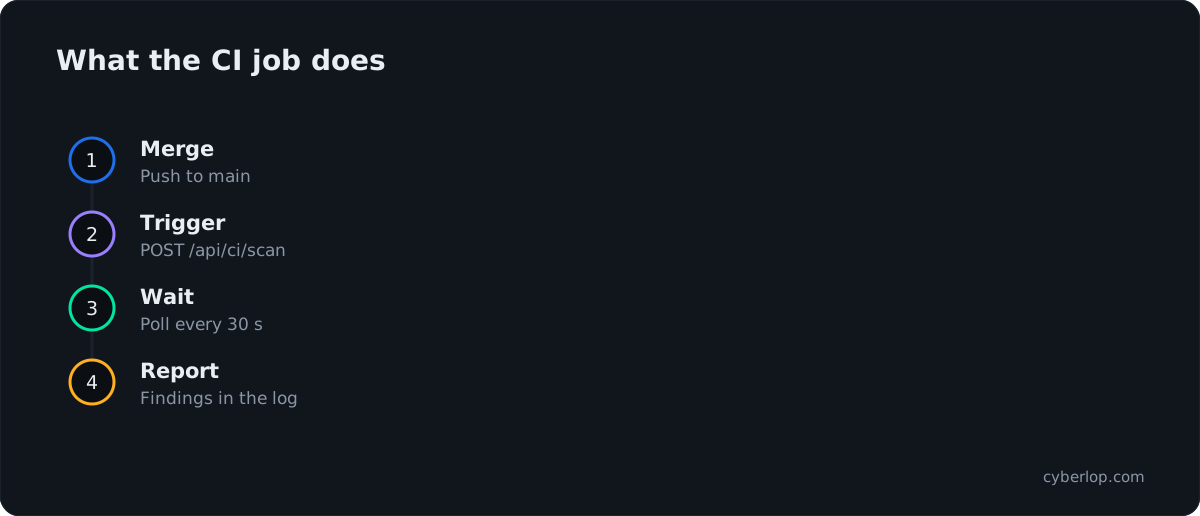
What does the Cyberlop CI/CD integration do?
It runs one scan profile from your pipeline and reports the outcome in the build log. The Integrations page sums it up in one line: it triggers a scan for a profile on merge, reports findings to the build log, and never fails the build.
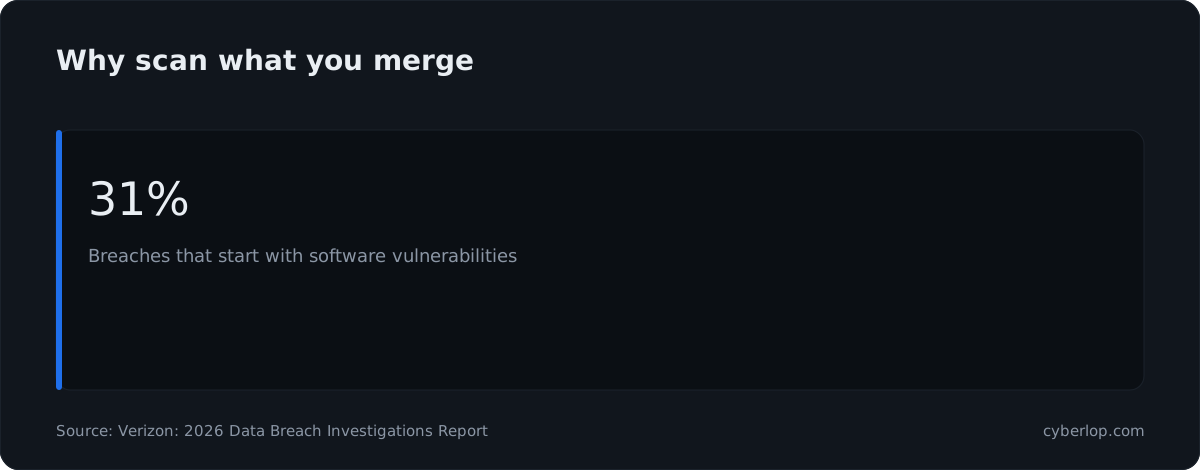
Running on every merge matters because vulnerabilities are now a leading way in. The Verizon 2026 Data Breach Investigations Report puts software vulnerabilities at the start of 31% of breaches, now ahead of stolen passwords as the most common way in. Testing the code you just merged is a small, repeatable answer to that. It is the same idea the NIST Secure Software Development Framework (SP 800-218) argues: secure practices have to be built into whichever development lifecycle model you already run, not bolted on at the end. See CI/CD, shift left and DevSecOps for the plain-English terms.
What happens in the three steps?
The generated job has three steps, shown below. Both code-host tabs follow the same pattern.
| Stage | Request | What the job does |
|---|---|---|
| 1. Trigger | POST /api/ci/scan | Sends your scan profile id and the commit SHA with a Bearer token. The response carries the scanId. |
| 2. Wait | GET /api/ci/result/{scanId} | Polls every 30 seconds, up to 120 times, until the response says done is true. |
| 3. Report | Prints from the result | Writes "Cyberlop scan complete" with the finding count, one line per finding as severity, title and location, and a build notice. |
Polling 120 times at 30 seconds gives the job a window of about an hour. A typical scan of a small app takes roughly an hour, so a larger app may take longer than the window. The scan itself is tracked in Recent Scans, so you can always read the result there. Learn more in run a scan.
What do you need before you start?
You need a scan profile, a personal API token and your Cyberlop base URL. Gather these four things first.
| You need | Where you get it | Notes |
|---|---|---|
| A scan profile | Scan Profiles, or + New profile on a target | The profile decides what is tested. The snippet writes its id for you. |
| A personal API token | An admin issues it from Administration → Users | The raw secret is shown once. Copy it straight into your CI secret store. |
| Your Cyberlop base URL | The address you open the app at | Goes in the CYBERLOP_URL secret. |
| Access to pipeline settings | Your code host | You add two secrets or masked variables there. |
Which profile should the pipeline run?
Choose a profile aimed at a staging or test copy of your application, never at a system you do not own or are not authorised to test. A profile belongs to a target, and a target is either white-box (it has a repository) or black-box (URL only, ownership verified). Read white-box vs black-box scans and create a scan profile first if you have none.
White-box profile
It reads your repository over HTTPS and tests the running app, so a finding can point to the file and line. Private repositories need a Git token; see connect a repository and Git access.
Black-box profile
It tests the live URL only and needs the target's ownership to be verified first. See verify target ownership.
How do you add the scan to your pipeline?
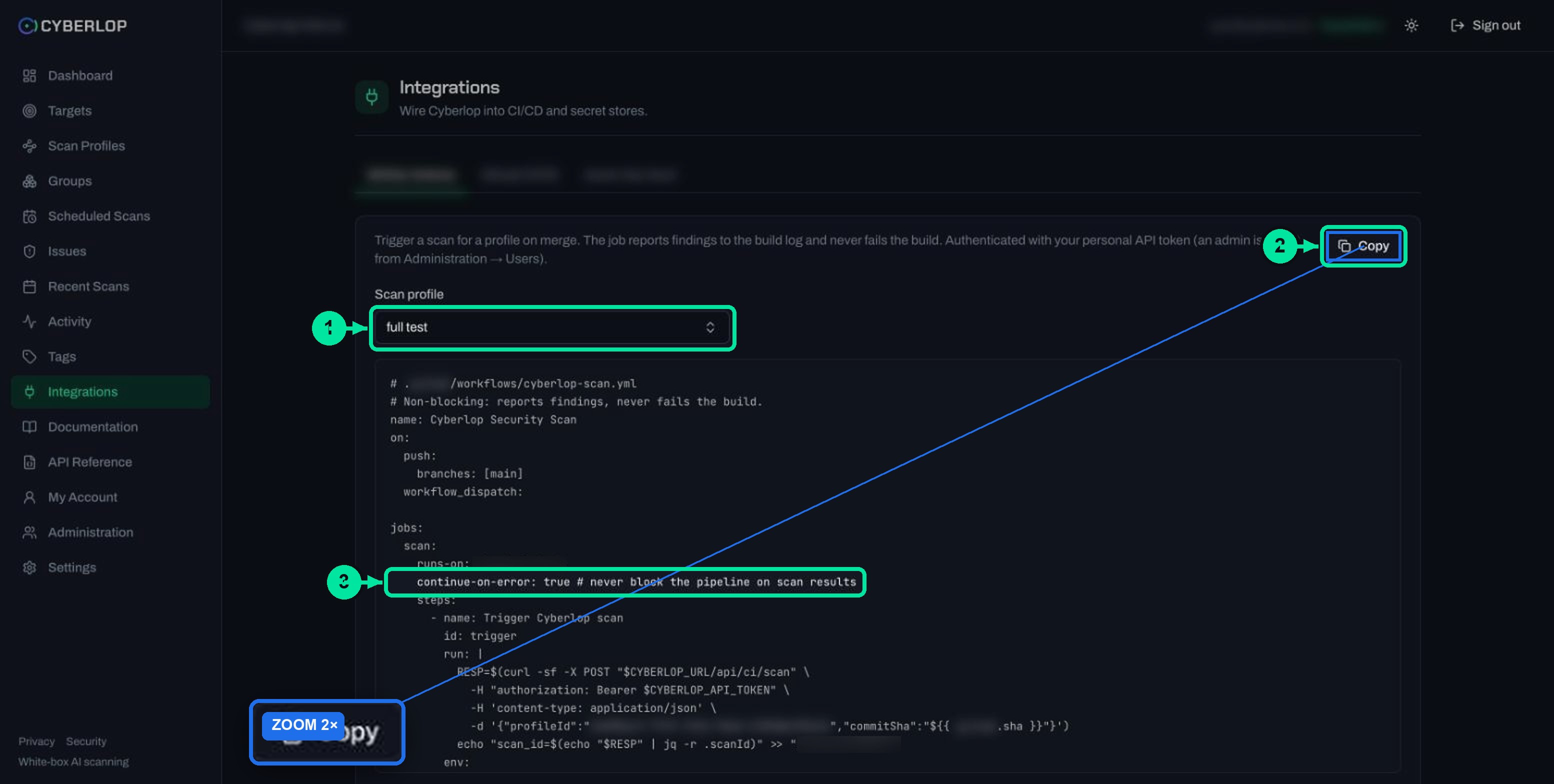
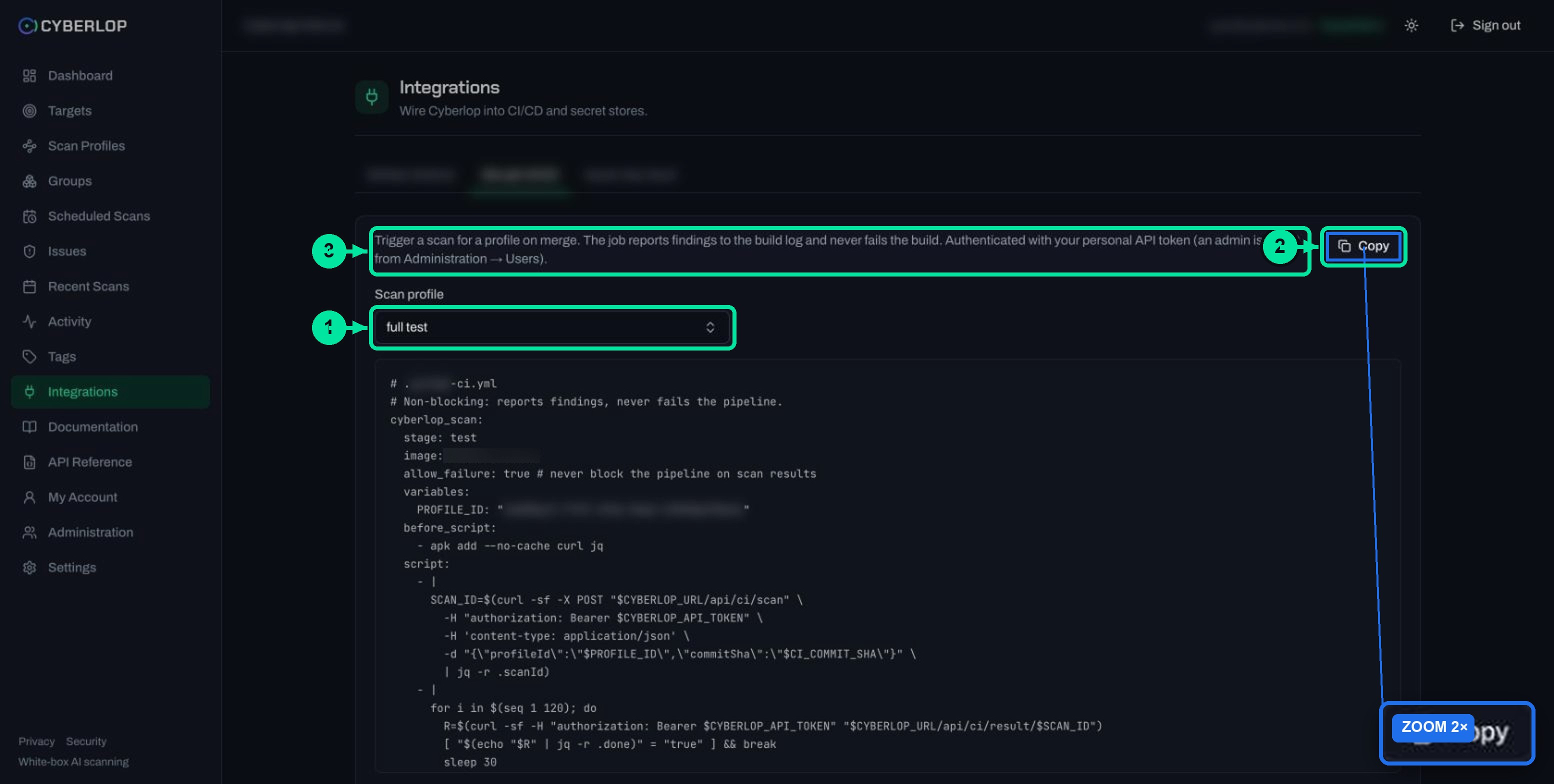
Choose the tab for your code host, select a profile, copy the YAML, commit it, then add the two secrets.
- Click Integrations in the sidebar. The page reads "Wire Cyberlop into CI/CD and secret stores."
- Open the tab that matches your code host. The first tab is a workflow for one code host; the second is a pipeline file for another. The third tab is a cloud key vault, which is a different task: see cloud key vault integration.
- In Scan profile, search for and select the profile to run. Its id is written into the snippet.
- Click Copy.
- Save the YAML in your repository. The workflow tab names the file
cyberlop-scan.ymlin your code host's workflows folder; the pipeline tab names a CI file in the repository root. - In your repository settings, add the secrets
CYBERLOP_URLandCYBERLOP_API_TOKEN(details below). - Push to your main branch, or start the workflow by hand, and watch the build log.
How do the two code-host tabs differ?
They do the same job in two pipeline formats. The differences are where the job runs and how it is started.
| Detail | First tab (workflow) | Second tab (pipeline file) |
|---|---|---|
| What it is | A workflow file, cyberlop-scan.yml | A pipeline file in the repository root |
| Runs on | A Linux runner | A small Linux image in the test stage; installs curl and jq first |
| Starts | On a push to main, or by hand (workflow_dispatch) | As your pipeline rules decide; the profile id sits in a PROFILE_ID variable |
| Never blocks | continue-on-error: true | allow_failure: true |
| Secrets live in | Repository secrets | Masked variables under Settings → CI/CD → Variables in your code host |
What goes in the two secrets?
The footer of the page says: add two secrets to your repository. Never paste either value into the YAML itself. Store both as masked secrets, a practice that sits in secrets management.
CYBERLOP_URL
This is the base URL of the Cyberlop app, the address you open in your browser. The job adds /api/ci/scan and /api/ci/result/... to it.
CYBERLOP_API_TOKEN
This is your personal API token. An admin issues it from Administration → Users; the raw secret is shown once, so copy it straight into the secret store. The job sends it as a bearer token in the authorization header.
Which API calls does the pipeline make?
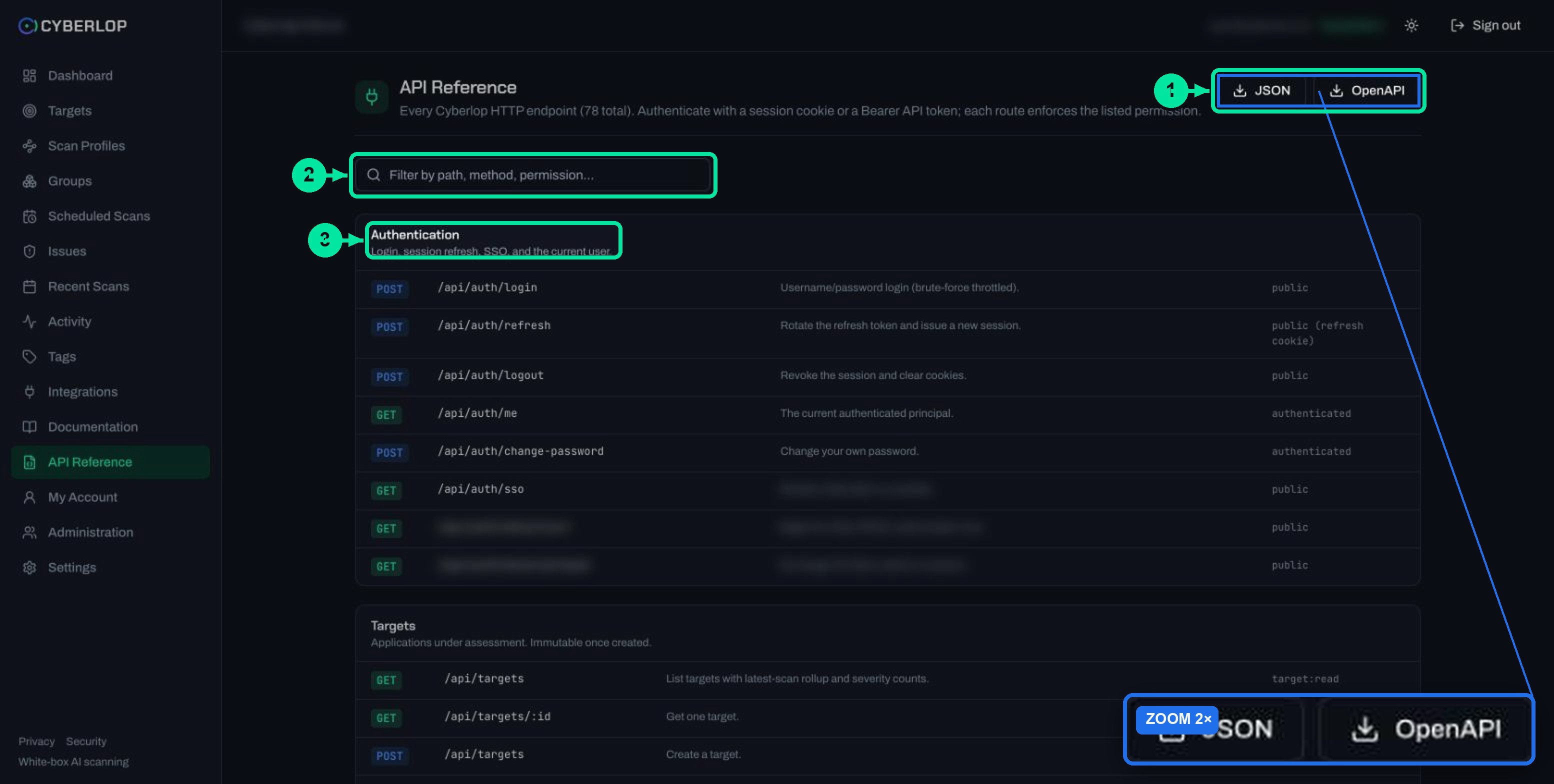
The pipeline makes two calls: one to start a scan and one to read its result. Both use the bearer token, and each endpoint checks a permission.
| Endpoint | Purpose | Permission |
|---|---|---|
POST /api/ci/scan | Start a scan for a profile, optionally with a commit SHA; returns the scanId | ci:trigger |
GET /api/ci/result/{scanId} | Read status, done, totals and findings | scan:read |
The trigger accepts a profile id, and the API Reference also lists a profile name as an option, plus an optional commit SHA. The generated snippet sends the id and the SHA. The result is described as CI-friendly: status, whether it is done, totals, severity counts and findings, each with severity, title and location.
What does the request look like?
The sketch below only illustrates the two calls with neutral names. Use the snippet from Integrations in real pipelines, because it includes the polling loop and the report step.
# Illustrative only
SCAN_ID=$(curl -s -X POST "$CYBERLOP_URL/api/ci/scan" \
  -H "authorization: Bearer $CYBERLOP_API_TOKEN" \
  -H "content-type: application/json" \
  -d '{"profileId":"<profile-id>","commitSha":"<commit-sha>"}' | jq -r .scanId)

curl -s "$CYBERLOP_URL/api/ci/result/$SCAN_ID" \
  -H "authorization: Bearer $CYBERLOP_API_TOKEN" | jq '{done, totalIssues}'
Keep the base URL on https. RFC 6750 treats whoever holds a bearer token as able to use it, and says requests that carry one must travel over TLS.
Why does the scan never fail the build?
The generated job is non-blocking by design. The YAML comment says "Non-blocking: reports findings, never fails the build", and the job is marked to continue on error, so a failed or slow scan cannot stop a release.
That suits a first rollout. Your team sees findings in the build log next to the commit, and nobody is blocked while you learn what the results look like. Each finding appears as a line such as [severity] title — location, and the job ends with a notice that Cyberlop found a number of issues.
Can you make a scan block a release?
The generated snippet does not do it. If you later want a security gate, that is a change you make in your own pipeline, for example by reading the totals the result endpoint returns. Decide the rule with your team first, since a gate on every severity will stop builds for findings that are not urgent. See gating a build and severity and confidence.
Which token and permissions should the pipeline use?
Use a token whose owner can do only what the pipeline needs. The scan runs with the token owner's permissions and group scope, so a powerful owner means a powerful pipeline.
The trigger needs ci:trigger and the result needs scan:read. Create a role with just those permissions, give it to a dedicated user, and ask an admin to issue that user's token. This follows least privilege; the details are in API tokens and permissions.
The OWASP Top 10 CI/CD Security Risks lists insufficient credential hygiene as CICD-SEC-6 and recommends a separate credential set for each context, and secrets scoped so each pipeline and step reaches only the ones it requires.
| Practice | Why it helps |
|---|---|
| Dedicated pipeline user with a minimal role | A leaked token can start and read scans, nothing more. |
| Masked secret, never in YAML | The value stays out of the repository and the build log. |
| Separate token per repository or team | You can revoke one without breaking the rest. |
| Staging profile only | Scanning stays inside systems you own and may test. |
Rotate the token when people or repositories change
An admin can regenerate or revoke a user's token. Update the pipeline secret straight after, or the next run will not authenticate. See API key rotation.
Limit which profiles it can reach
Group scope applies to the token, so a pipeline for one team can be kept to that team's profiles. Read groups and tags.
Where do you read the results?
You can read them in the build log first, then in the app. The build log shows a short summary. The app holds the evidence.
- Recent Scans lists the run with its result badge (Completed, Failed or Cancelled) and a link to the scan detail. See the scan detail page.
- Issues holds the findings for triage. See the Issues list and triage findings.
- For a white-box scan, the scan overview shows the commit, so you can match findings to a build.
- After a fix merges, the next run shows whether the issue is fixed or has returned. See fixed and regressed issues.
Email alerts when a scan finishes or finds critical or high issues are set in My Account; a chat message is possible too, see chat notifications.
How often should it run?
The generated workflow runs on a push to the main branch and on demand, which fits a "scan what we merge" habit. For a regular sweep that does not depend on commits, add a scheduled scan as well. Plan limits, such as scans at once, are shown in Settings → Plan & usage, so check them before wiring many busy repositories to one organization.
If the app is only reachable inside your network, set the profile's scan location to a self-hosted agent: self-hosted scan agents. See also continuous pentesting and the integrations overview.
Troubleshooting: why does the CI scan not work?
Most failures come from the token, the secrets or the profile. The causes below are the likely ones; the exact error text is not part of what we documented, so read your build log.
| Symptom | Likely cause | What to check |
|---|---|---|
| Trigger step fails straight away | Missing or wrong secret, or an expired or revoked token | Names are exactly CYBERLOP_URL and CYBERLOP_API_TOKEN; ask an admin to regenerate the token |
| Trigger is refused | The token owner lacks ci:trigger, or the profile is outside the owner's group scope | Owner's role and groups under Administration |
| Job stays green but no findings are printed | The scan found nothing, or the polling window ended first | Open Recent Scans for the real result |
| No scan appears in the app | Wrong base URL | The URL is the app address, without a path |
| Scan shows Failed | The scan itself failed, not the pipeline | See failed or cancelled scans |
| Profile id is stale | The profile was deleted or recreated | Copy the snippet again from Integrations |
What mistakes repeat?
Pasting the token into the YAML
Anything in the file is visible to everyone with repository access. Keep it in the secret store.
Pointing the profile at production
Start with staging. Exploitation proves findings with a real browser, so decide deliberately before aiming it at a live system; see the exploitation phase.
Next step
Once the pipeline runs, read the API reference to see every endpoint a script can call, and API tokens and permissions to tighten the token.
Questions people ask
Add security scanning to ci/cd pipeline: FAQs
How do I add security scanning to my CI/CD pipeline with Cyberlop?
Open Integrations, choose the tab for your code host, select a scan profile and click Copy. Save the YAML in your repository and add the CYBERLOP_URL and CYBERLOP_API_TOKEN secrets. The next push to your main branch starts a scan.
Will a Cyberlop scan fail my build?
No. The generated job is non-blocking: it reports findings to the build log and never fails the build. The workflow is set to continue on error and the pipeline job allows failure.
What secrets does the CI integration need?
Two: CYBERLOP_URL, the base URL of the Cyberlop app, and CYBERLOP_API_TOKEN, your personal API token. Store them as repository secrets or masked CI/CD variables, never in the YAML.
Who issues the API token?
An admin issues it from Administration → Users. The raw secret is shown once, so copy it straight into your secret store. The scan runs with that user's permissions and group scope.
How long does the pipeline wait for a scan?
The job polls the result endpoint every 30 seconds, up to 120 times, which is about an hour. A typical scan of a small app takes roughly an hour, so check Recent Scans if a larger app runs past the window.
Which permissions does the token owner need?
The trigger endpoint needs ci:trigger and the result endpoint needs scan:read. Give a dedicated pipeline user a role with only those, following least privilege.
Can I run the scan on a schedule instead of on every merge?
Yes. Scheduled scans run a profile on a frequency you choose, from once to yearly. You can use both: a CI scan on merge and a schedule for a regular sweep.
Can I use the CI integration with a self-hosted agent?
Yes, through the profile. Set the profile's scan location to your agent and every scan from that profile, including those started by CI, runs on your network.
Sources
Where the facts come from
Keep reading
Related articles
Cyberlop API reference: authentication, permissions and the OpenAPI spec
Use the Cyberlop API: 78 endpoints in 15 groups, session or Bearer token auth, permissions per route, worked calls and the OpenAPI download.
Cyberlop API tokens and permissions: how to issue and limit them
What a Cyberlop API token is, how permission keys work, which keys common jobs need, and how to rotate, revoke and audit tokens with least privilege.
Cyberlop chat notifications: set up a webhook for finished scans
Connect an incoming webhook in Settings → Notifications, test it, learn what each message contains and how to protect and rotate the URL.

Need help wiring in CI?
Cyberlop reports what it actually exploited, with the request, the response and the line of code, and it can run on a schedule or in CI/CD. Ask us to run it on one of your applications.
Or start with a $199 pilot on one application: thirty days, success criteria agreed before day one, credited against the annual if you convert.