
Home / Blog / Tutorials / Oauth client credentials
Tutorials
OAuth client credentials in Cyberlop: scan APIs with a minted token
OAuth 2.0 client credentials lets a scan mint its own access token from your token endpoint. This guide covers setup, safe clients, testing and fixes.
Cyberlop Labs · Updated · 9 min read
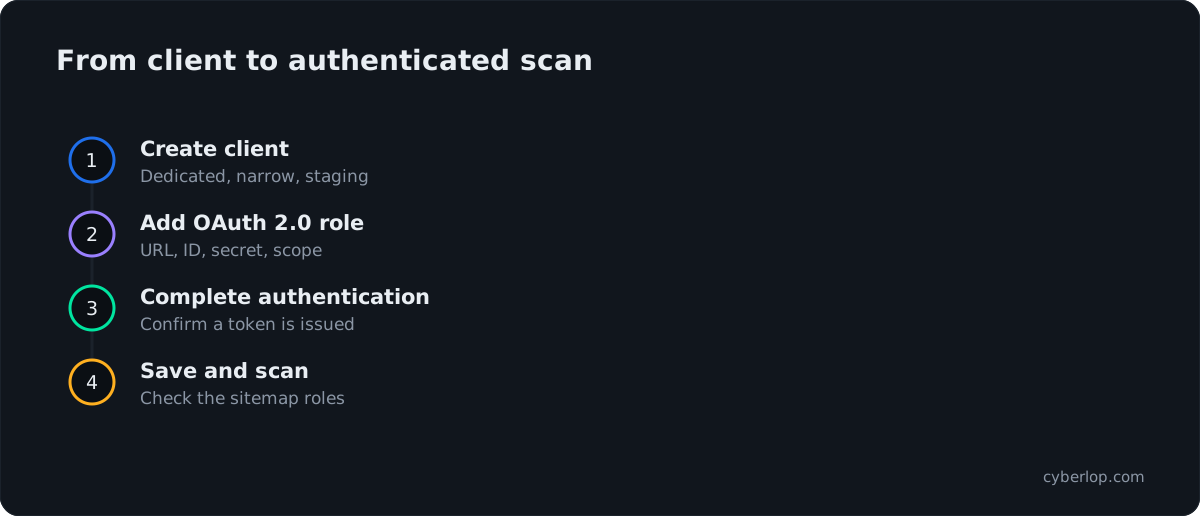
To scan with OAuth client credentials in Cyberlop, add a role to a scan profile, tick OAuth 2.0, enter the Token URL, Client ID, Client secret and optional Scope, keep or change the Authorization header and Bearer prefix, click Complete authentication to confirm a token is issued, then Preview YAML and Save.
- Create a scanning client In your identity provider, create a dedicated client that may use the client credentials grant, with a narrow scope, on staging.
- Open the profile Go to Scan Profiles and click + New profile, or edit an existing profile with the pencil icon.
- Add a role Open the Authentication section, click + Add role, and enter a Name and the Privilege level that matches the client.
- Choose OAuth 2.0 Tick OAuth 2.0 under Authentication methods.
- Enter the client details Fill in Token URL, Client ID, Client secret and, if needed, Scope.
- Check the header Keep the default Header name Authorization and Header prefix Bearer, or change them to match your API.
- Complete authentication Click Complete authentication and confirm that a token is issued. Fix the fields if it is not.
- Add AI guidance Optionally add one step per line, such as re-minting the token if a request is rejected.
- Preview and save Click Preview YAML to validate the form, then Save.
- Run and verify Run a scan, then open the Sitemap tab and check that protected endpoints show the role.
- OAuth 2.0 client credentials lets Cyberlop mint a fresh token from your token endpoint at scan time and send it as a header.
- Create a dedicated, least-privilege client for scanning, and point it at staging before production.
- Complete authentication tests the exchange before you save, so a wrong URL, secret or scope shows up early.
- Header name and prefix default to Authorization and Bearer; change them only if your API expects something else.
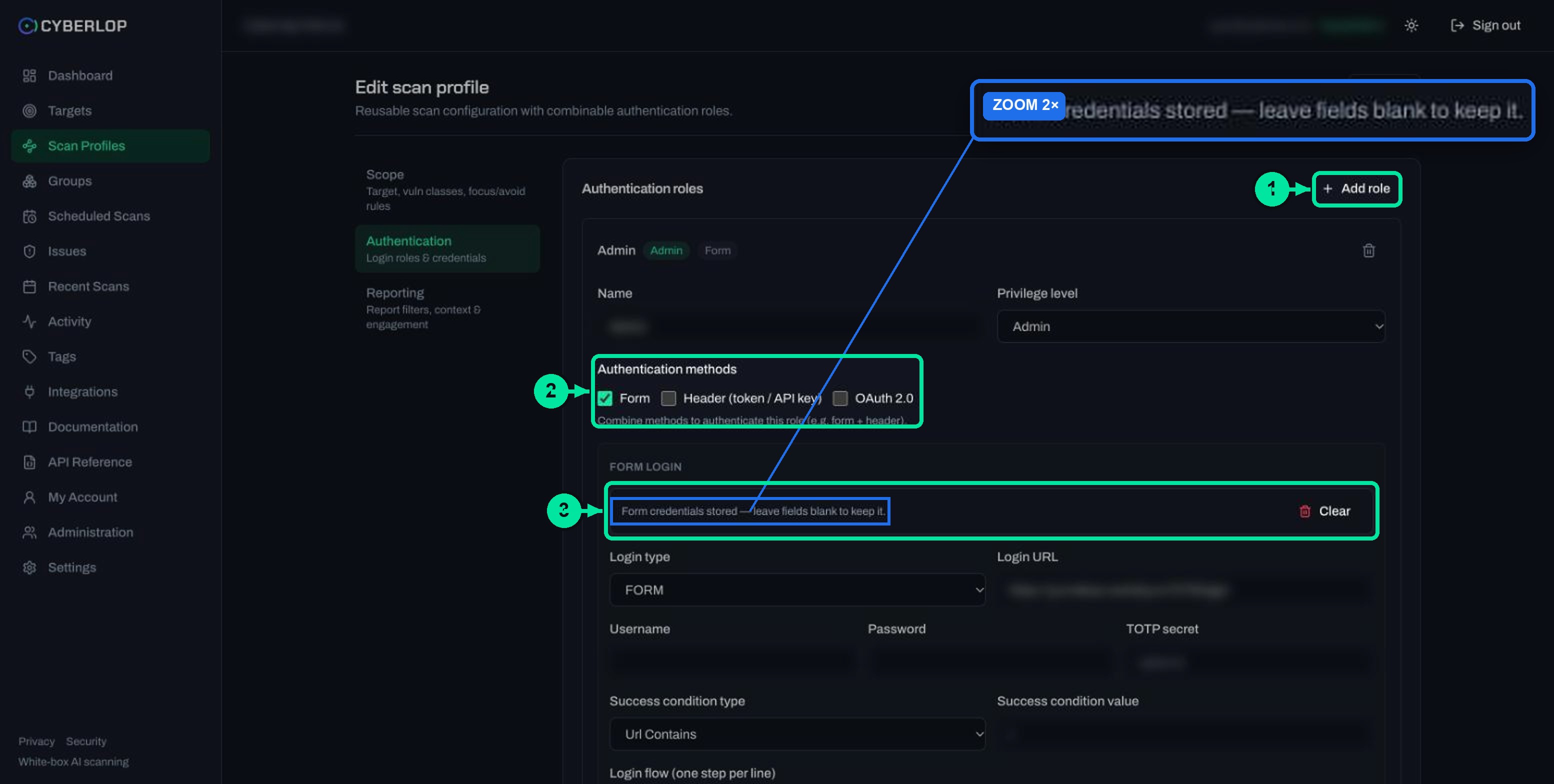
- Stored secrets are never shown again: leave the secret blank when editing to keep it, and enter a new one to rotate it.
OAuth client credentials authentication in Cyberlop lets a scan fetch its own access token from your token endpoint and send it as a header, so it can test the parts of your app and API that sit behind OAuth 2.0. To set it up, open a scan profile, go to Authentication, add a role, tick OAuth 2.0, fill in the Token URL, Client ID and Client secret, then click Complete authentication and Save.
What is OAuth client credentials authentication in Cyberlop?
OAuth 2.0 client credentials is one of three methods an authentication role can use in Cyberlop. The in-app form describes it in one line: Cyberlop mints a token via client credentials and injects it as a header at scan time. You do not paste a token; you give the scan the credentials of a machine client and it asks for a token itself.
The grant comes from RFC 6749, the OAuth 2.0 Authorization Framework, section 4.4. Here the client acts for itself, not for a person, and gets a token for resources it controls. Nobody types a password and there is no redirect or consent screen, which is why the grant fits APIs, services and back-end jobs. Cyberlop uses it to get a short-lived access token for a role, using the OAuth flow your identity provider already runs.
A role is a named identity with one privilege level (Unauthenticated, User, Elevated or Admin). If roles are new to you, read Authentication roles first. Methods can be combined on one role, for example form plus header.
When should you choose OAuth 2.0 over a header or form login?
Choose OAuth 2.0 when your API hands out tokens that expire and a machine client fetches them from a token endpoint. Choose a header for a fixed key that never changes, and form login when a person types a password into a page.
Method comparison
| Method | Best for | What you provide | Token lifetime |
|---|---|---|---|
| Form login | Web apps with a sign-in page | Login URL, username, password, optional TOTP secret, success condition, login flow. See Form login | Session from the page |
| Header (token / API key) | Fixed keys and pre-issued tokens | Header name and value pairs. See Header token authentication | Whatever you pasted |
| OAuth 2.0 | Services that issue tokens by client credentials | Token URL, Client ID, Client secret, scope, header name and prefix | Minted at scan time |
The practical gain is freshness. A scan of a small app typically takes roughly an hour, according to the in-app documentation. A pasted token with a short life can expire part-way through; a minted token cannot be stale when the scan starts.
What do you need from your identity provider first?
You need a dedicated client that is allowed to use the client credentials grant, its ID and secret, the token endpoint address, and a narrow scope. Create it before you open Cyberlop, and aim it at staging, not production.
Checklist: a safe scanning client
- Dedicated. One client used only for scanning, so you can revoke it without breaking anything else.
- Least privilege. RFC 9700, the OAuth 2.0 security best current practice, recommends keeping the privileges of an access token to the minimum the client needs. Apply the same least privilege thinking to the client.
- Matching privilege level. Give the client the access that the Cyberlop role claims. An Admin role on a client that cannot reach admin routes will only produce 401 and 403 responses.
- Short-lived tokens. A token that expires quickly is worth little to anyone who captures it.
- Non-production. Use a staging app and a staging client. See Exploitation phase for what the proving step does to a live target.
The client is a service account in all but name, so treat it like one: owned by a team, listed in your access reviews, and removed when no longer needed.
How do you set up OAuth 2.0 client credentials in a scan profile?
Add an authentication role to a scan profile, tick OAuth 2.0, fill in six fields, test the exchange and save. The steps below follow the form exactly as it appears in the app.
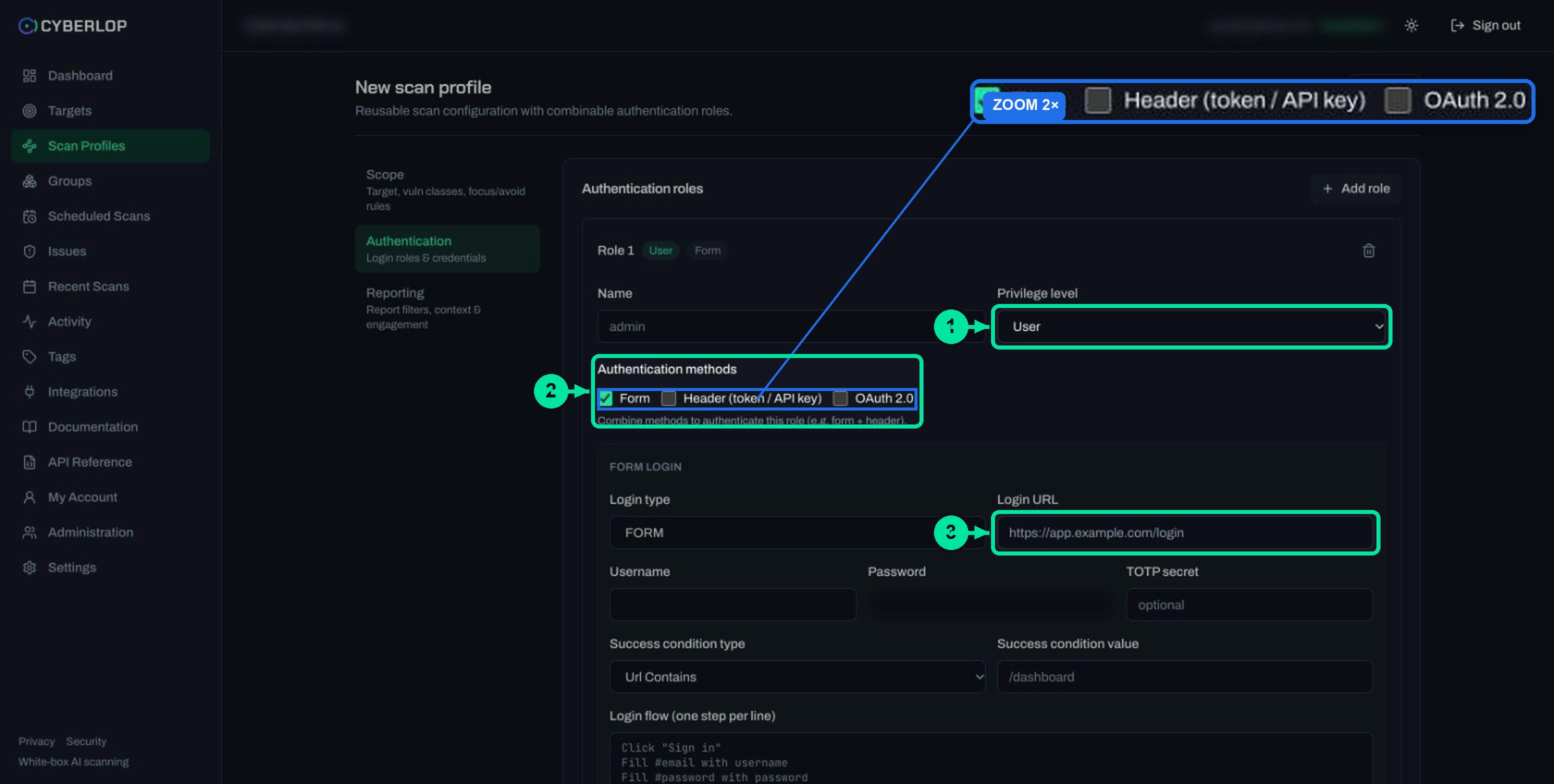
- Go to Scan Profiles and click + New profile, or open the pencil icon on an existing profile. Pick the target and give the profile a Name. See Create a scan profile.
- Switch to the Authentication section and click + Add role.
- Enter a Name and choose the Privilege level that matches your client.
- Under Authentication methods, tick OAuth 2.0. Untick Form if the role should not use it (it is on by default).
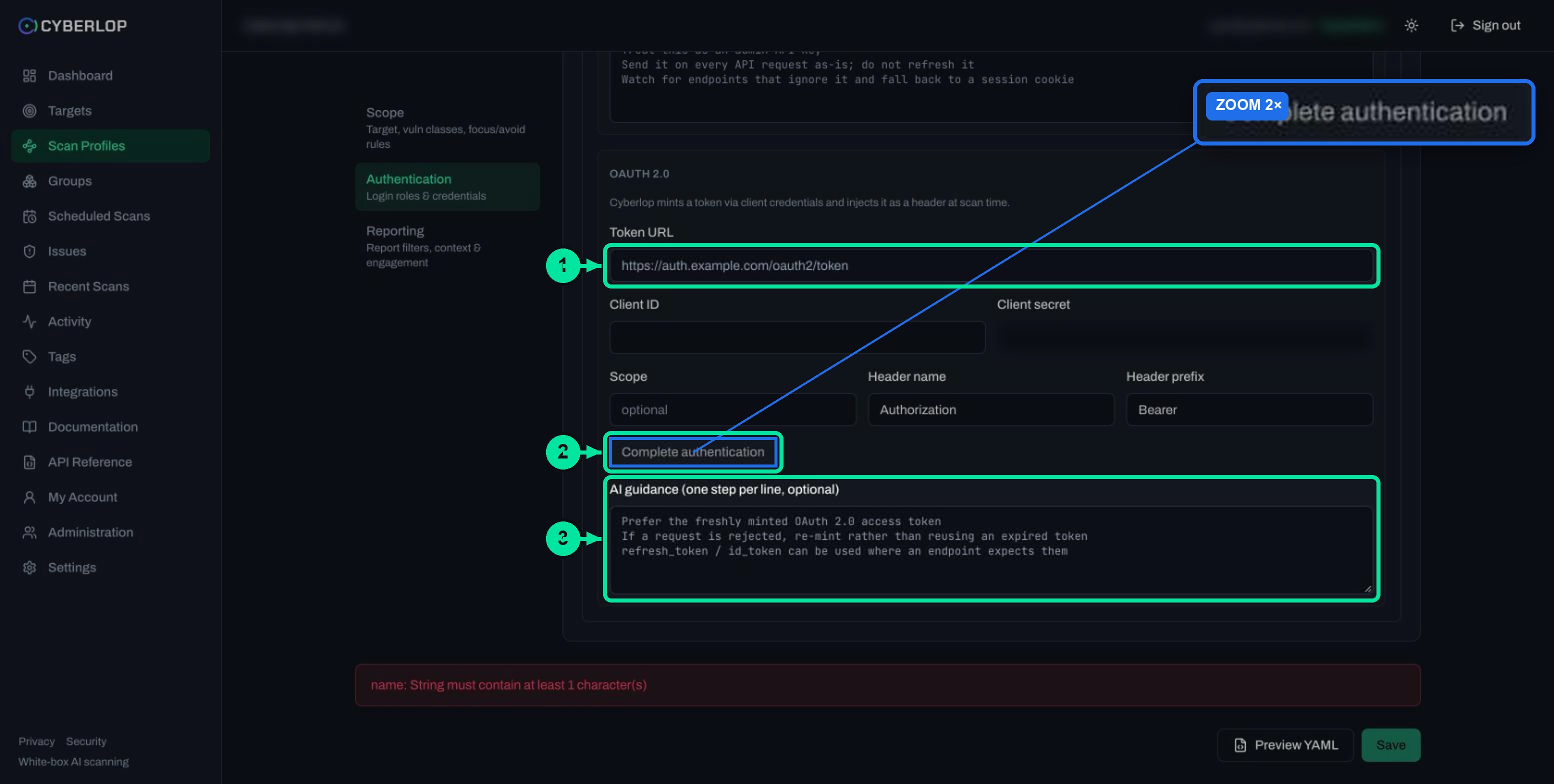
- Fill in Token URL, Client ID and Client secret. Add a Scope if your provider needs one.
- Check Header name and Header prefix. Defaults are
AuthorizationandBearer. - Click Complete authentication and wait for confirmation that a token was issued.
- Optionally add AI guidance, then click Preview YAML and Save.
OAuth 2.0 field reference
| Field | What to enter | Notes |
|---|---|---|
| Token URL | The address of your token endpoint, for example https://auth.example.com/oauth2/token | Must be reachable from where the scan runs. RFC 6749 requires TLS on the token endpoint. |
| Client ID | The identifier of the scanning client | Not secret, but keep it with the client. |
| Client secret | The client's secret | Password field. Stored encrypted and never shown again. |
| Scope | Space-separated scope values your provider expects | Optional. Leave blank if your provider issues a default scope. |
| Header name | The header your API reads the token from | Default Authorization. |
| Header prefix | Text placed before the token | Default Bearer , with a trailing space. |
| AI guidance | One step per line | Optional. Tells the scan how to treat the token. |
Header name and prefix
The default pair means the scan sends Authorization: Bearer <token>, which is the standard form for a bearer token. Change them only if your API reads the token from a different header, or expects a different scheme word. A wrong prefix is the most common reason a token is issued but every request is rejected.
Scope
RFC 6749 defines scope as a list of space-delimited, case-sensitive strings, and notes that the authorisation server may ignore part of what you request. Copy the values exactly, and check which scopes the issued token actually carries.
What does Complete authentication do?
Complete authentication runs the client credentials exchange from the form and confirms that a token is issued. The button's tooltip says exactly that: complete the OAuth2 client-credentials exchange and confirm a token is issued. It stays disabled until the required fields are filled.
Use it before you save. It tells you now, not an hour into a scan, that the Token URL, Client ID, Client secret and scope work together. If your account cannot run the test, ask an administrator whether your role holds the permission to manage profile credentials; the permissions guide explains how permission keys work.
What a good result and a bad result tell you
| Outcome | What it means | What to do |
|---|---|---|
| Token issued | Your token endpoint accepted the client and returned an access token | Preview YAML, Save and run a scan |
| No token issued | The endpoint, client, secret or scope was refused or unreachable | Re-check each field against your provider, then try again |
| Token issued, scan gets 401 or 403 | The token is valid but the header, prefix or scope is wrong for your API | Check Header name, Header prefix and the scope the token carries |
A successful test proves the token can be minted. It does not prove the token can reach the routes you care about. For that, run a scan and read the scan sitemap, where each endpoint row carries a role chip and a note such as a gated 401.
What should the AI guidance say for an OAuth 2.0 role?
AI guidance is optional free text, one step per line, that tells the scan how to treat the credential. Keep it short and factual. The form's placeholder shows three lines:
Prefer the freshly minted OAuth 2.0 access tokenIf a request is rejected, re-mint rather than reusing an expired tokenrefresh_token / id_token can be used where an endpoint expects them
The third line needs care. RFC 6749 section 4.4.3 says a refresh token should not be included in a client credentials response, so many providers will not issue one. Add that line only if your provider genuinely returns those tokens. Add facts such as "this client can read orders but not billing" so the scan understands the role. Detail about your application belongs in Application context.
How do you keep the client secret safe and rotate it?
Treat the client secret as a long-lived credential and replace it on a schedule. Cyberlop stores secrets encrypted and never shows them again, and the form says to leave a field blank to keep the stored value.
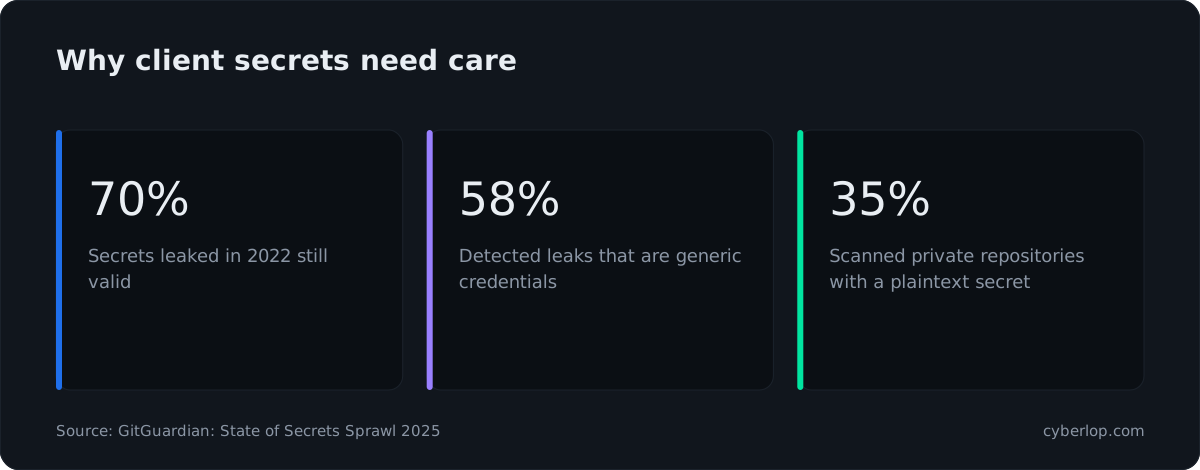
Leaked secrets rarely get cleaned up. GitGuardian's State of Secrets Sprawl 2025 report counted 23,770,171 new hardcoded secrets added to public repositories in 2024. Of the secrets leaked in 2022, 70% still worked when the report was written, and generic credentials made up 58% of detected leaks. Private code is no safe harbour either: 35% of the private repositories its customers scanned held at least one plaintext secret.
The OWASP Non-Human Identities Top 10 2025 lists Long-Lived Secrets (NHI7) and Overprivileged NHI (NHI5) as separate risks. A secret that never expires gives a thief access until someone notices, and a client with broad rights widens what that thief can reach. Your scanning client is a non-human identity, so keep it narrow and easy to replace. See secrets management and key rotation.
Rotation steps
- Create a new secret for the same client in your identity provider. Keep the old one active for now.
- Open the profile with the pencil icon and go to Authentication.
- Type the new value into Client secret. Leaving it blank would keep the old one.
- Click Complete authentication to confirm a token is issued.
- Click Preview YAML, then Save. See Edit a scan profile.
- Run a short scan to confirm, then revoke the old secret.
When someone leaves the team that owns the client, or a secret is pasted somewhere it should not be, rotate at once. RFC 9700 also recommends sender-constraining access tokens, for example with mutual TLS or DPoP, so a stolen token is useless without the client's key. That is a decision for your identity provider, not a field in this form.
Troubleshooting: why is OAuth 2.0 authentication not working?
Four causes account for most failures: a wrong address, a scope your provider does not recognise, a prefix mismatch, or a token endpoint the scan cannot reach.
Symptom, cause and fix
| Symptom | Likely cause | Fix |
|---|---|---|
| Complete authentication is greyed out | Required fields are empty | Fill Token URL, Client ID and Client secret |
| No token is issued | Wrong Token URL, wrong secret, or the client may not use client credentials | Copy the endpoint from your provider; confirm the grant is enabled for the client |
| No token, and the URL is correct | Scope not allowed for this client | Remove the scope or use one the client holds |
| Endpoint unreachable | Token URL sits on a private network | Allow access from the scan location, or choose an internal agent. See Self-hosted scan agents |
| Token issued, everything returns 401 | Wrong header name or prefix | Match what your API expects, including the space after Bearer |
| Token issued, admin routes return 403 | Client lacks the privilege the role claims | Align the client's permissions and the role's privilege level |
| Preview YAML shows an error | Form validation, for example an empty name | Fix the field named in the red banner |
Common mistakes
Using a production client
A scan sends a lot of requests. Start on staging with a client that cannot see real customer data, and move to production only after reading Exploitation phase and agreeing the rules of engagement.
Giving the client too much
A client with every permission lets the scan touch everything. Give it what the role needs, and add a second, weaker client only when you want to see what a lower-privilege caller can reach. See authenticated testing.
Forgetting the expiry
A minted token has a lifetime set by your provider. Add the re-mint line to AI guidance, and ask your provider for a token lifetime longer than the roughly one hour a small scan takes.
How do you check the scan used the token?
Open the finished scan and look at the Sitemap tab. Endpoints that need a token should show your role as a chip. If protected paths are missing, revisit the header and scope. See Run a scan for the five phases.
What is the next step after adding OAuth 2.0?
Next, set the report filters for the profile. Continue with Reporting rules to choose minimum severity and confidence, report guidance and rules of engagement. If a role needs a different method, see Header token authentication.
Questions people ask
Oauth client credentials: FAQs
What is OAuth client credentials?
It is the OAuth 2.0 grant in which a client requests an access token using only its own credentials, for resources under its control (RFC 6749, section 4.4). No person types a password. Cyberlop uses it to mint a token at scan time and send it as a header.
What header does Cyberlop send the token in?
By default the Header name is Authorization and the Header prefix is Bearer with a trailing space. Change both if your API reads the token elsewhere.
What does Complete authentication do?
It runs the client-credentials exchange and confirms that a token is issued. It is disabled until the fields are filled. Use it before saving so errors show immediately.
Do I need to enter a scope?
Only if your identity provider requires one. The field is optional. Use the exact space-separated values your provider documents, because scope values are case-sensitive in RFC 6749.
Can a role use OAuth 2.0 and another method together?
Yes. The form says to combine methods to authenticate a role, for example form plus header. Tick each method and fill its block. Keep guidance for each method separate.
Is the client secret stored safely, and can I see it again?
Secrets are stored encrypted and are never shown again. When you edit a profile, leave the field blank to keep the stored value, or type a new secret to replace it.
How do I rotate the client secret?
Create a new secret at your provider, enter it in Client secret, click Complete authentication, then Preview YAML and Save. Run a scan, then revoke the old secret.
Should I scan production with a client credentials token?
Start with staging and a narrow client. The exploitation phase actively tests the live target, so agree rules of engagement and read the exploitation guide before any production scan. Only scan apps you own or are authorised to test.
Keep reading
Related articles
Cyberlop API tokens and permissions: how to issue and limit them
What a Cyberlop API token is, how permission keys work, which keys common jobs need, and how to rotate, revoke and audit tokens with least privilege.
Application context in Cyberlop: fill the ten fields and use Auto Generate from Repo
Fill in the ten application context fields of a Cyberlop scan profile, use Auto Generate from Repo, and write context that improves findings.
How to scan behind login in Cyberlop with authentication roles
Scan behind login in Cyberlop: add authentication roles, choose privilege levels, combine form, header and OAuth methods, and guide the scan with AI guidance.

Need help setting up scan credentials?
Cyberlop finds vulnerabilities in web apps and their APIs with black-box, grey-box and white-box pentesting, and reports only what it exploited. Ask us to run it on one of your applications.
Or start with a $199 pilot on one application: thirty days, success criteria agreed before day one, credited against the annual if you convert.