
Home / Blog / Tutorials / How to edit a scan profile
Tutorials
How to edit a scan profile
Change what a scan tests, which logins it uses and what the report shows, without recreating the profile. This guide covers every field you can edit, stored secrets and Preview YAML.
Cyberlop Labs · Updated · 9 min read

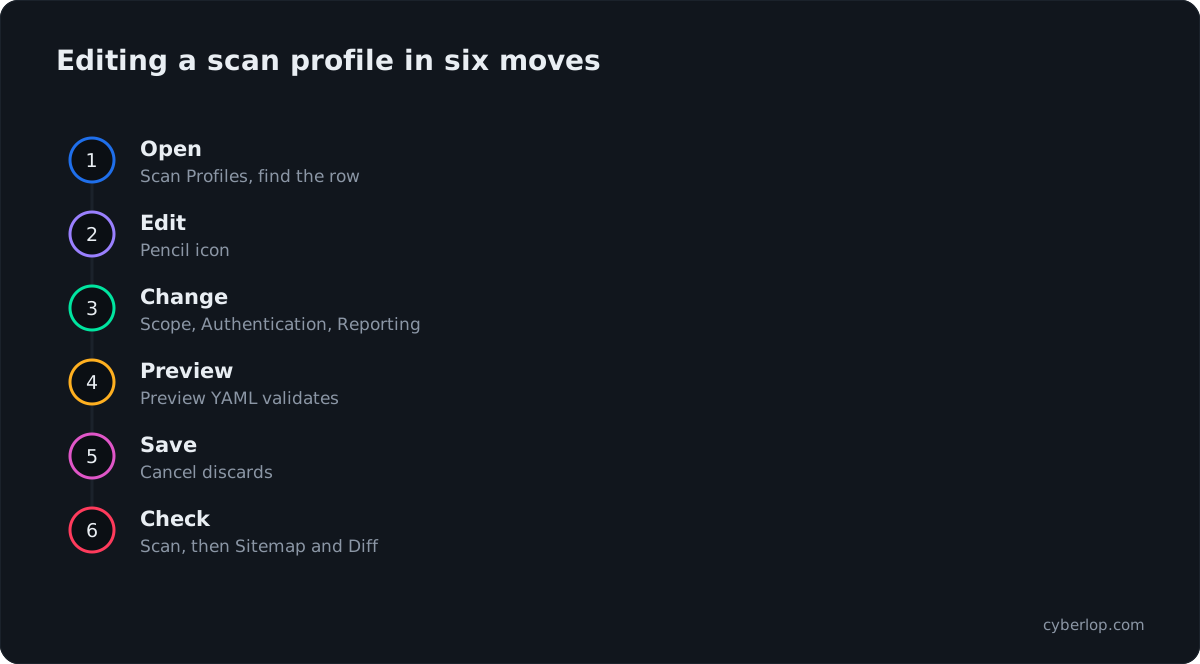
To edit a scan profile in Cyberlop, open Scan Profiles, click the pencil icon, change the Scope, Authentication or Reporting fields, click Preview YAML to validate, then Save. The target is fixed after creation. Stored secrets are never shown: leave them blank to keep them, or click Clear.
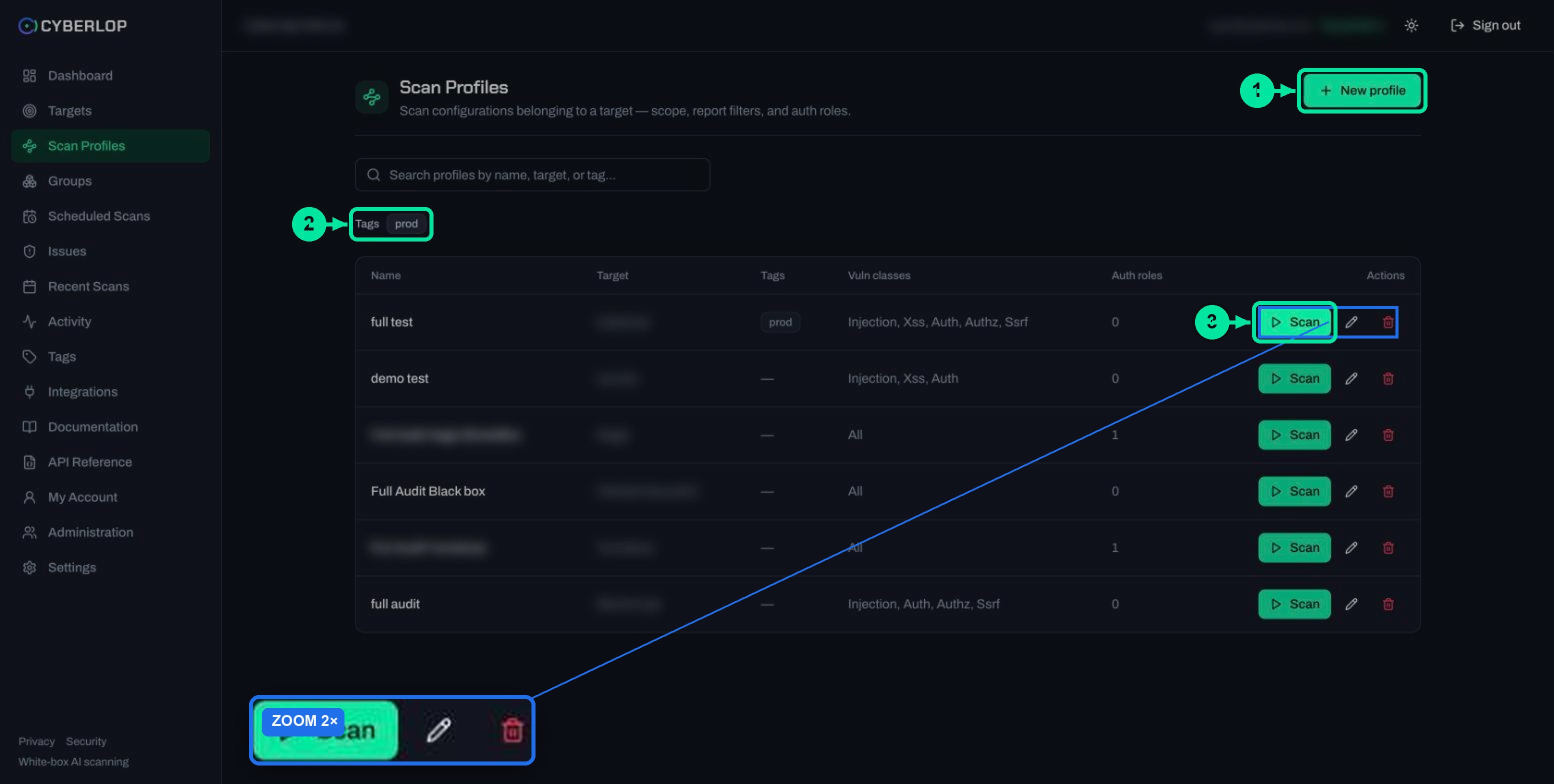
- Open Scan Profiles Click Scan Profiles in the sidebar and find the profile with the search box or a tag chip.
- Open the edit form Click the pencil icon on the row, or click Edit in the target's Scan profiles card.
- Change the scope In Scope, change the name, tags, vulnerability classes, Run exploitation phase, scan location and focus or avoid rules. The target is read-only.
- Update authentication In Authentication, edit role fields. Leave secret fields blank to keep them, type a new value to replace one, or click Clear to remove stored form credentials.
- Update reporting In Reporting, set minimum severity and confidence, report guidance, rules of engagement and application context.
- Preview YAML Click Preview YAML to see the generated configuration and fix any validation message.
- Save Click Save. Cancel discards the changes.
- Run and check Click Scan on the profile, then check the scan's Sitemap and Diff tabs.
- Edit a profile from the pencil icon on Scan Profiles or from Edit on the target page.
- The target cannot be changed; create a new profile for a different target.
- Saved secrets are never shown again: blank means keep, a new value replaces, Clear removes.
- Preview YAML validates the form before you click Save.
- Run a scan after saving, then check the sitemap and Diff to confirm the change worked.
To edit a scan profile, open Scan Profiles, click the pencil icon on the profile's row, change the fields you need in the Scope, Authentication and Reporting sections, click Preview YAML to validate, then click Save. You can change everything except the target, which is fixed after creation. Saved secrets are never shown again, so leave a secret field blank to keep the stored value, or use Clear to remove it.
What can you change when you edit a scan profile?
A scan profile is a reusable scan configuration that belongs to one target. It holds the scope, the login roles and the reporting rules. Editing it uses the same three-section form as creating a profile, with the saved values filled in. The page title is Edit scan profile and the subtitle reads "Reusable scan configuration with combinable authentication roles."
Almost every field stays editable. Only the target is locked: the field is greyed out and the help text says, "A profile's target is fixed after creation."
Table 1. What the edit form lets you change
| Section | What you can change | What is locked or hidden |
|---|---|---|
| Scope | Name, tags, vulnerability classes, Run exploitation phase, scan location, focus rules and avoid rules | Target (read-only) |
| Authentication | Roles, privilege levels, methods, login URL, success condition, login flow, header rows, OAuth 2.0 settings, AI guidance | Saved secrets are never shown: usernames, passwords and TOTP secrets come back blank |
| Reporting | Minimum severity, minimum confidence, report guidance, rules of engagement, application context fields | Nothing is locked; Auto Generate from Repo is available once the profile is saved |
Why can you not change the target?
The profile's target is chosen once, when the profile is created. Targets are immutable too: to change a target's URL or repository, you delete it and create it again, as the delete icon on the targets list warns. If a profile needs to point at a different target, create a new profile on that target instead. The manage targets guide explains the delete cascade before you remove anything.
How do you edit a scan profile step by step?
You can reach the edit form from two places. Both open the same page at /profiles/<profile-id>.
- Click Scan Profiles in the sidebar. Use the search box ("Search profiles by name, target, or tag...") or a tag chip to find the profile.
- Click the pencil icon on the row. Or open the target and click Edit in its Scan profiles card.
- Use the section switcher on the left to move between Scope, Authentication and Reporting.
- Change only what you need. Leave secret fields blank unless you are replacing them.
- Click Preview YAML to see the generated configuration and check it validates.
- Click Save. Click Cancel (top right) to leave without saving.
- Run the profile with ▷ Scan to see the change in action.
Who is allowed to edit?
Access follows your role. The activity feed shows permission keys on a custom role, including profile:read, profile:update and profile:manage_credentials. If the pencil is missing, or you cannot change credentials, ask an admin to review your role. The permissions guide lists how the keys are named.
How do you change the scope of a profile?
Open the Scope section to change what is tested and where. Scope edits are the safest kind: they narrow or widen the test and never touch a secret.
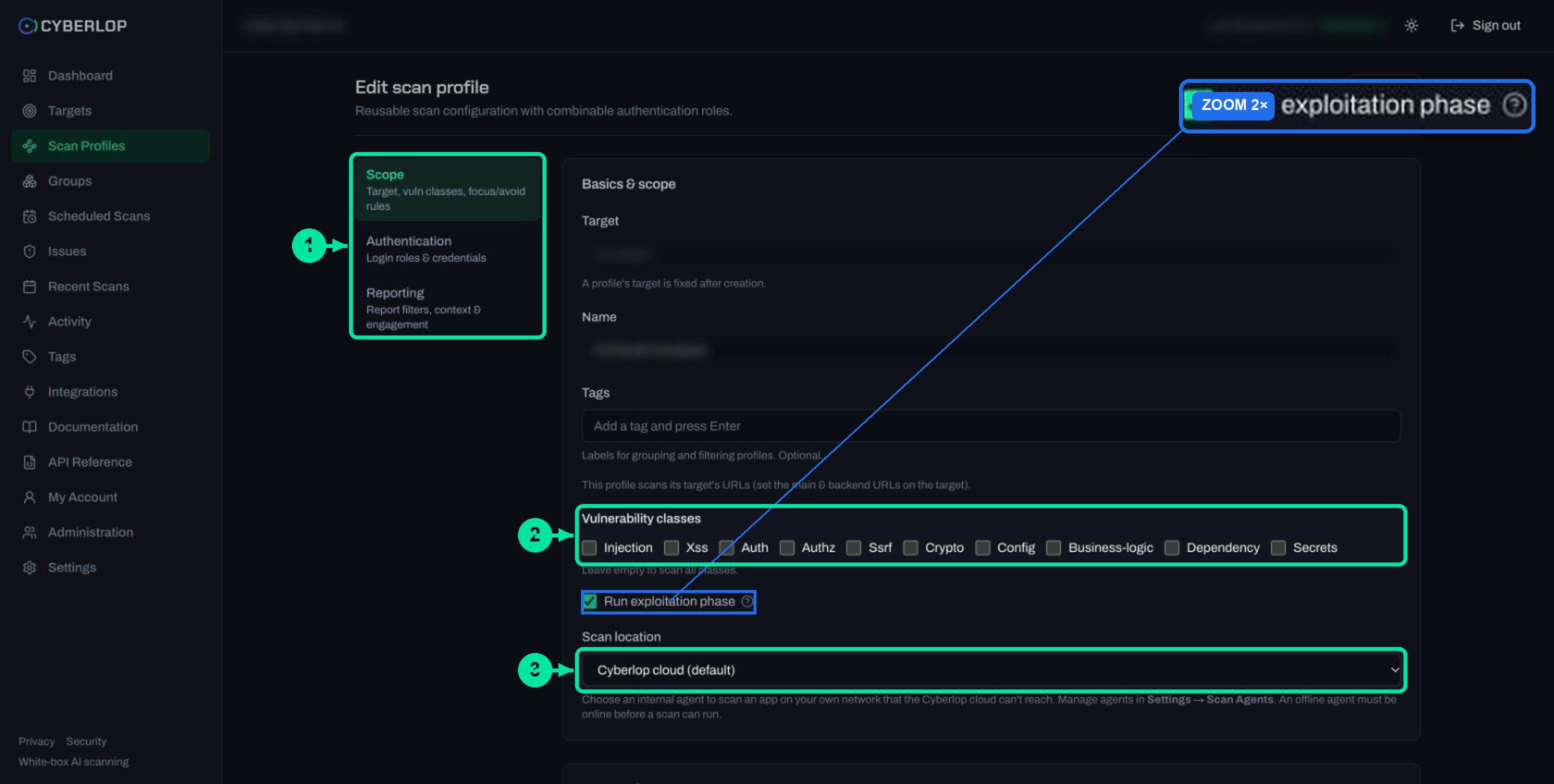
Table 2. Scope fields on the edit form
| Field | What to enter | Notes |
|---|---|---|
| Name | A clear label, such as the app and the purpose | Required. An empty name fails validation |
| Tags | Type a tag and press Enter | Used to group and filter profiles on the Scan Profiles page |
| Vulnerability classes | Tick the classes to cover | Leave all empty to scan all classes; the list then shows "All". See choose vulnerability classes |
| Run exploitation phase | Tick to test the live target | On by default. Unticked means source-code analysis only. See the exploitation phase guide |
| Scan location | Cyberlop cloud (default) or a registered agent | Agents are managed in Settings → Scan Agents |
| Focus rules and Avoid rules | Description, type and value per row | Types: Url Path, Subdomain, Domain, Method, Header, Parameter, Code Path. See focus and avoid rules |
Common scope edits
Narrowing to the classes you care about this sprint
If a release only touched checkout code, tick the relevant classes, for example Authz and Business-logic, so the next run stays focused. Untick them all later to return to a full run. Rules of thumb are in the classes guide.
Moving a profile to an internal agent
Change Scan location from "Cyberlop cloud (default)" to your agent when the app lives on a private network. The help text warns that an offline agent must be online before a scan can run. If an agent is later revoked, its profiles return to the Cyberlop cloud. Setup is in the self-hosted agents guide.
Turning exploitation off for a sensitive environment
Unticking Run exploitation phase gives a static, source-only run with no live testing. Use it where live requests are not acceptable yet, and put a note in rules of engagement. Run live tests on a test environment where you can.
How do stored secrets work when you edit a profile?
Once saved, a secret is encrypted and never displayed again. The forms repeat the point: "Leave blank to keep current." On the edit page, a role with saved form credentials shows a notice: "Form credentials stored — leave fields blank to keep it." Next to it is a Clear button.
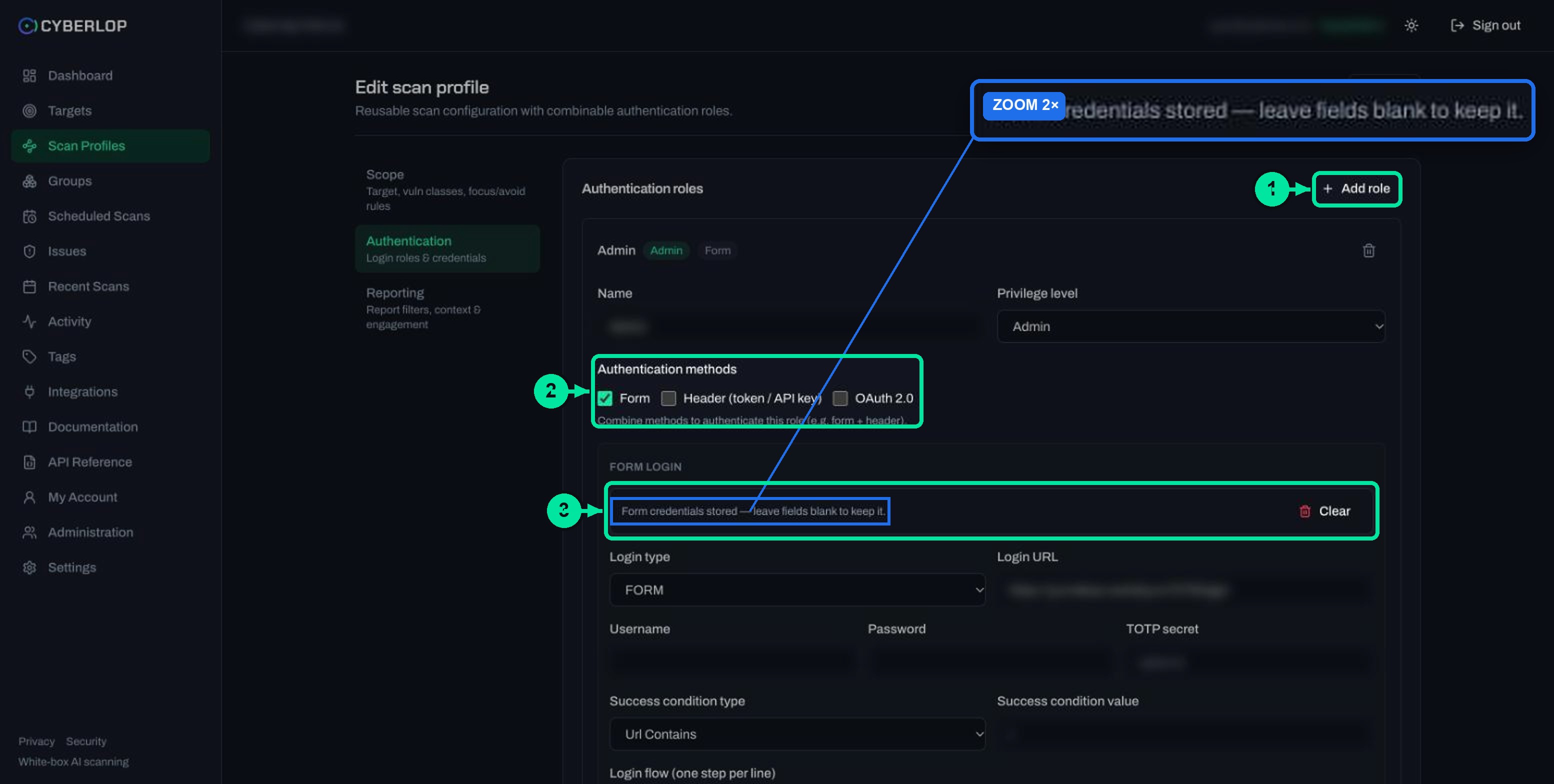
The Username and Password fields are empty on purpose, and so is the TOTP secret field (the shared key behind the time-based codes defined in RFC 6238). Empty does not mean lost. It means "unchanged".
Table 3. Blank, replace, clear or remove
| What you do | What happens | When to use it |
|---|---|---|
| Leave the secret fields blank and click Save | The stored value is kept | Changing a login flow, success condition or any non-secret field |
| Type a new value in a secret field and click Save | The new value replaces the stored one | The password, key or client secret was rotated |
| Click Clear | The stored form credentials are removed | The account is retired, or you want to start the role again |
| Click the trash icon on a role card | The whole role is removed from the profile | The scan should no longer run behind that login |
Which fields are secrets?
Passwords, TOTP secrets, header values and OAuth client secrets are all credentials. The edit screen shows the stored-credentials notice for form login. This guide does not confirm how a saved header value or client secret is displayed, so retype the value whenever you change it, then check the result with a scan. Never paste secrets into the free-text boxes (AI guidance, report guidance, rules of engagement or application context), because those are notes, not a vault.
Why rotate credentials in a profile?
Stolen credentials remain a leading way in. The Verizon 2025 Data Breach Investigations Report found credential abuse was the initial access vector in 22% of breaches, just ahead of vulnerability exploitation at 20%. It also reports that leaked secrets found in a code repository took a median of 94 days to remediate. That is a long window for a thief. The OWASP Secrets Management Cheat Sheet gives the fix: rotate secrets regularly, so a stolen one stops working soon.
So treat the profile as a place to swap a credential, not to keep it for ever. Follow API key rotation practice, keep the test account to least privilege, and see token revocation for retiring the old one.
How do you edit authentication roles?
Open Authentication. Each role is a card showing its name, a privilege badge (for example "Admin") and a method badge (for example "Form"). A role is a named identity the scan uses for authenticated testing. The authentication roles guide explains the concept.
The edits you will make most often
Form login changed
If your login page changed, update Login URL, Success condition type and value, and the Login flow (one step per line). Leave username and password blank to keep them. Field details are in the form login guide.
Token rotated
Replace the header value on the role and save. Include any prefix such as Bearer in the value. See the header token guide.
Client secret rotated
Enter the new client secret, then click Complete authentication. The button is described as completing the client-credentials exchange and confirming a token is issued, so it is a quick test before you save. It stays disabled until the required fields are filled. See OAuth 2.0 client credentials.
Methods combined or removed
The methods are checkboxes: Form, Header (token / API key) and OAuth 2.0. The help text says "Combine methods to authenticate this role (e.g. form + header)." Tick or untick to match how the app signs people in.
How do you edit reporting rules and application context?
Open Reporting to change what appears in the report and how much the scan knows about your app.
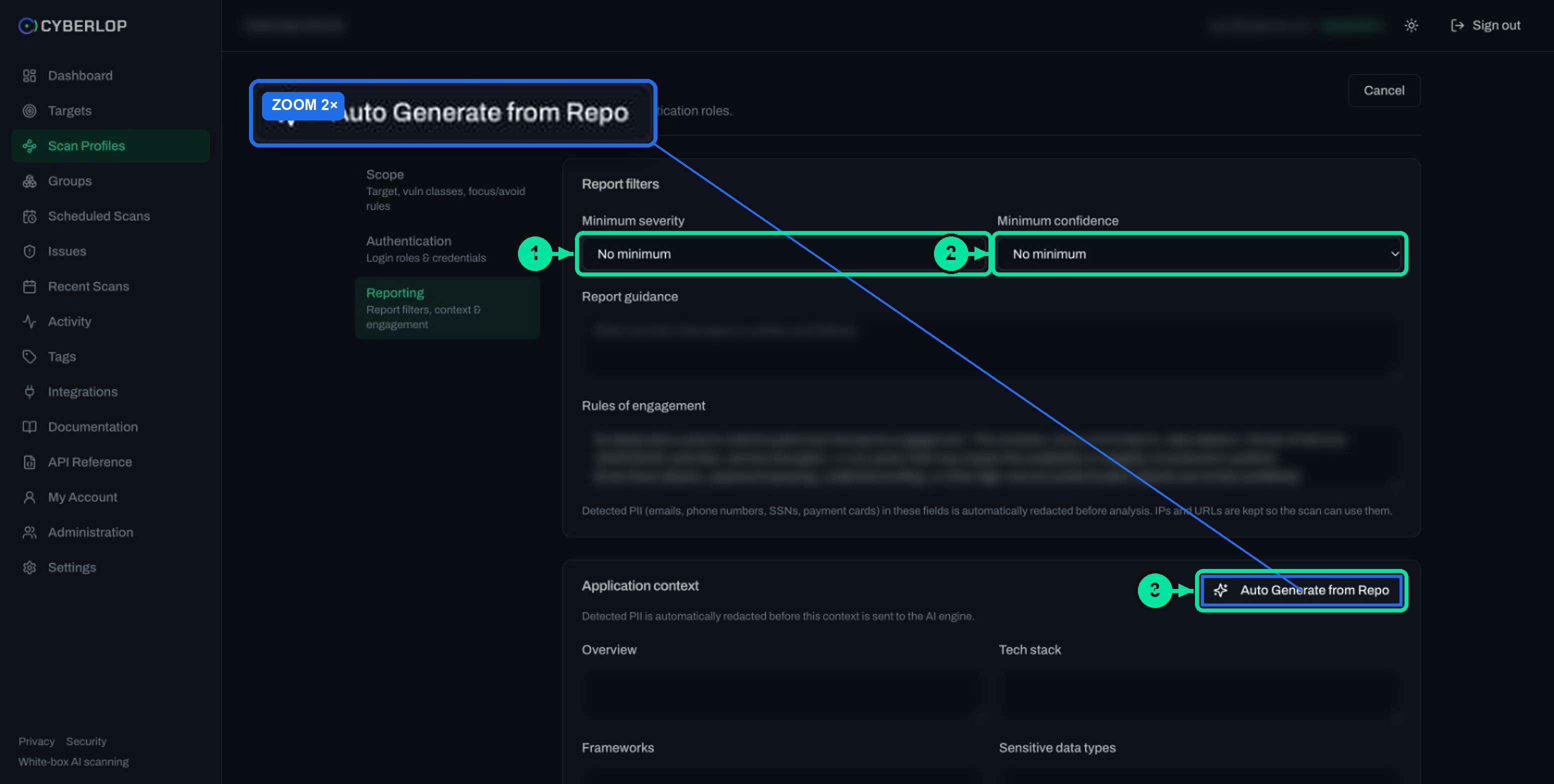
- Minimum severity and Minimum confidence filter the final report. Both default to "No minimum". See reporting rules.
- Report guidance steers how the report is written and filtered.
- Rules of engagement holds free-form limits, such as avoiding destructive payloads in production. See rules of engagement.
- Application context has ten fields, from Overview to API spec reference. After the first save, ✦ Auto Generate from Repo becomes available and can fill them from the repository.
Detected PII (emails, phone numbers, SSNs, payment cards) in these text fields is redacted before analysis. IP addresses and URLs are kept so the scan can use them. More in the application context guide.
What does Preview YAML do?
Preview YAML shows the configuration generated from the form and validates it. Use it as a dry run before Save. If a required field is missing, a red banner explains. With an empty name it reads: "name: String must contain at least 1 character(s)". Fix the field named in the message and preview again.
The preview will not reveal stored secrets, because the app never shows them.
What should you check after saving?
Run the profile and read the result. Saving checks the form; only a scan shows that the app accepted a new login.
- Click ▷ Scan on the profile row. The scan starts at once and is durable, so you can leave the page. See run a scan.
- Open the scan from Recent Scans. On Overview, the Profile link returns you to the edit page.
- Check the Sitemap tab. Role chips on protected endpoints show the role reached them.
- Check the Diff tab after a scope change to see what is New, Fixed or Regressed against the previous scan.
The CI snippet on the Integrations page names a profile by its id, and schedules pick a profile from a list. After a large edit, review schedules and your CI job so they still run what you intend.
What goes wrong when you edit a profile?
Table 4. Symptoms, causes and fixes
| Symptom | Likely cause | What to try |
|---|---|---|
| Preview YAML shows a red error | A required field is empty, such as the name | Fill the field in the message and preview again |
| Username and password look empty | Stored secrets are never shown | Leave them blank to keep them; type new values only to replace |
| Scan no longer gets behind the login | A changed login page, an expired password or a wrong success condition | Check the form login fields and the credential, then re-scan |
| The target needs to change | The target is fixed after creation | Create a new profile on the right target |
| Auto Generate from Repo is disabled | The profile has not been saved | Save the profile first; the button tooltip says the same |
| Scan will not start on an agent | The agent is offline | Bring the agent online, or switch Scan location back to the cloud |
Common mistakes
Retyping the whole role to change one field
You do not need to. Edit the one field and leave the secrets blank.
Clicking Clear by accident
Clear removes stored credentials. Have the password to hand before you use it.
Navigating away before saving
Changes apply only after Save. Cancel discards them.
What should you do next?
Run the edited profile by following Run a scan. If you changed how the scan reads your code, white-box testing explains what that mode adds, and the security page describes how Cyberlop handles credentials.
Questions people ask
Edit a scan profile: FAQs
Can I change the target of an existing scan profile?
No. The target field is read-only on the edit page and the help text says, "A profile's target is fixed after creation." Create a new profile on the target you want instead.
Why are the username and password blank when I edit?
Stored secrets are never shown again, so those fields come back empty. The page shows "Form credentials stored — leave fields blank to keep it." Leave them blank and the stored values stay.
How do I update a password, token or client secret?
Open the role on the Authentication section, type the new value in the secret field and click Save. For OAuth 2.0, click Complete authentication first to confirm a token is issued.
What does the Clear button do?
Clear sits next to the "Form credentials stored" notice. Use it when you want the stored form credentials removed. Have the new credential ready before you use it.
What does Preview YAML do?
It shows the configuration generated from the form and validates it before you save. With an empty name it shows "name: String must contain at least 1 character(s)". Fix the field and preview again.
Do I need to run a scan after editing?
Saving only validates and stores the form. Run the profile with Scan to prove the new login or scope works, then check the Sitemap and Diff tabs.
Why can I not see the edit pencil?
Your role may lack the profile permissions. Keys seen on a custom role include profile:update and profile:manage_credentials. Ask an admin to review your role.
Sources
Where the facts come from
Keep reading
Related articles
Cyberlop API tokens and permissions: how to issue and limit them
What a Cyberlop API token is, how permission keys work, which keys common jobs need, and how to rotate, revoke and audit tokens with least privilege.
Application context in Cyberlop: fill the ten fields and use Auto Generate from Repo
Fill in the ten application context fields of a Cyberlop scan profile, use Auto Generate from Repo, and write context that improves findings.
How to scan behind login in Cyberlop with authentication roles
Scan behind login in Cyberlop: add authentication roles, choose privilege levels, combine form, header and OAuth methods, and guide the scan with AI guidance.

Want a profile set up for you?
Cyberlop reads your code while testing the running app and reports only what it exploited, with the request, the response and the line of code. Ask us to run it on one of your applications.
Or start with a $199 pilot on one application: thirty days, success criteria agreed before day one, credited against the annual if you convert.