
Home / Blog / Tutorials / Scan behind login with authentication roles
Tutorials
How to scan behind login in Cyberlop with authentication roles
Add one or more authentication roles to a scan profile so Cyberlop can test what signed-in accounts can reach. Here is how roles, privilege levels and methods fit together.
Cyberlop Labs · Updated · 9 min read
To scan behind login in Cyberlop, open a scan profile's Authentication section, click + Add role, name it, set a privilege level (Unauthenticated, User, Elevated or Admin) and tick Form, Header or OAuth 2.0. Add at least two accounts so the scan can check cross-account access, then add AI guidance if needed.
- Open the profile Go to Scan Profiles and click + New profile, or open a saved profile with the pencil icon, and complete the Scope section.
- Open Authentication Click Authentication in the section switcher on the left of the profile form.
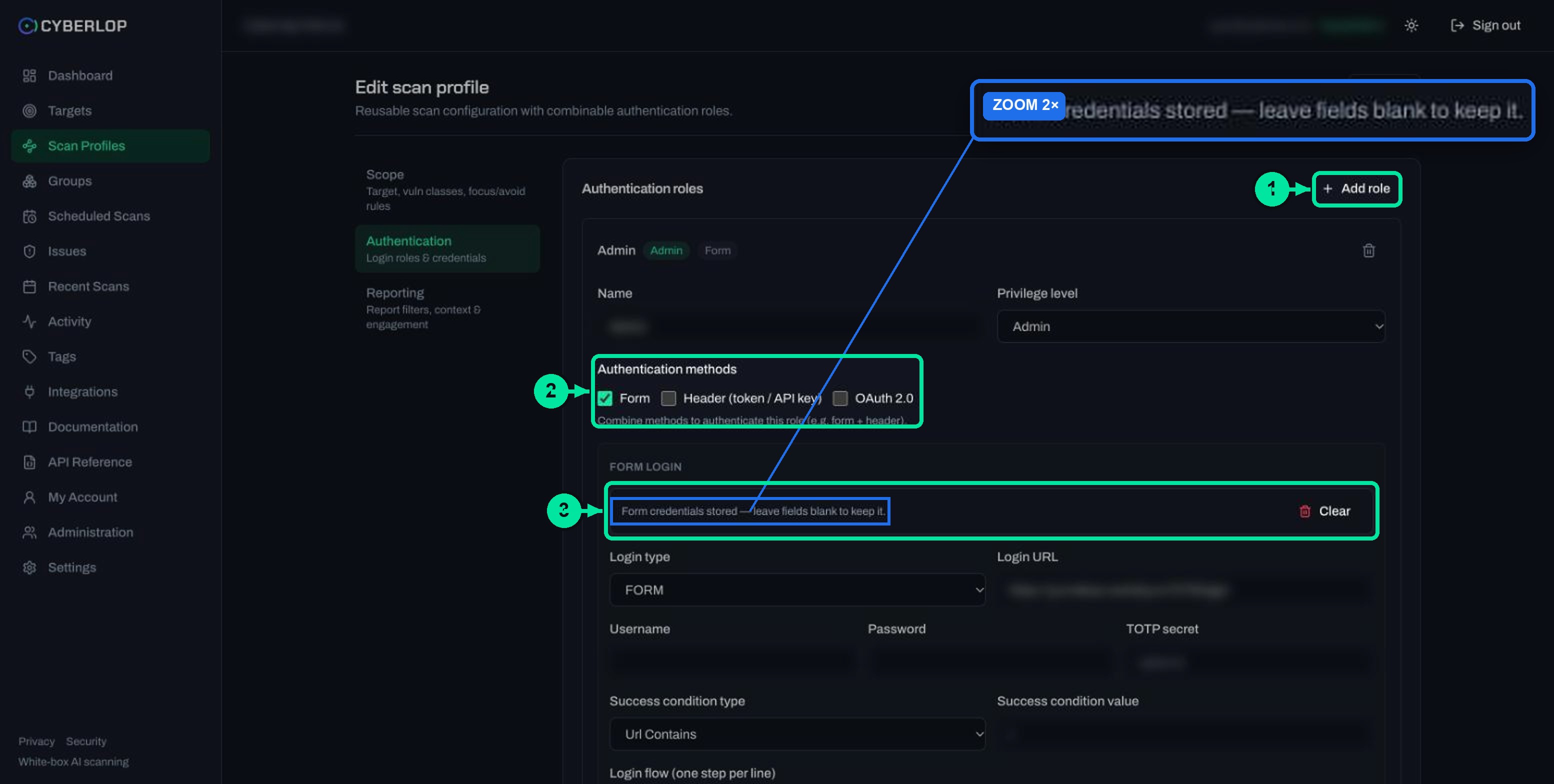
- Add a role Click + Add role. A role card titled Role 1 appears.
- Name the role Type a readable name such as customer-a or admin.
- Choose the privilege level Select Unauthenticated, User, Elevated or Admin to match the account. User is the default.
- Tick the methods Tick Form, Header (token / API key) and OAuth 2.0 as your app needs, then fill in each block that opens.
- Add AI guidance Optionally write one instruction per line telling the scan how to use the credential.
- Add more roles Repeat for a second account and for each extra privilege level, then click Preview YAML and Save.
- Run and check Click Scan on the profile row, then read the sitemap role chips and the Authentication line on each finding's Evidence tab.
- An authentication role is a named login identity with a privilege level and one or more methods: Form, Header (token / API key) or OAuth 2.0.
- With no roles, a profile scans unauthenticated only; add roles to reach what signed-in accounts can see.
- Use at least two accounts: two peers to check cross-account reads, and accounts at different levels to check privilege boundaries.
- AI guidance is optional free text, one step per line, that tells the scan how to use a credential.
- Check results in the sitemap role chips and the Authentication line on each finding's Evidence tab.
To scan behind login in Cyberlop, open the Authentication section of a scan profile, click + Add role, name the role, set its privilege level and tick one or more login methods. An authentication role is a named login identity that the scanner uses to reach the parts of your app that only signed-in accounts can see.
Why scan behind login at all?
Most of what matters sits behind a login: orders, invoices, admin screens. A scan with no credentials only sees public pages. Cyberlop's own empty state says it plainly: "No auth roles. Add a role to scan behind login, or leave empty for unauthenticated scanning."
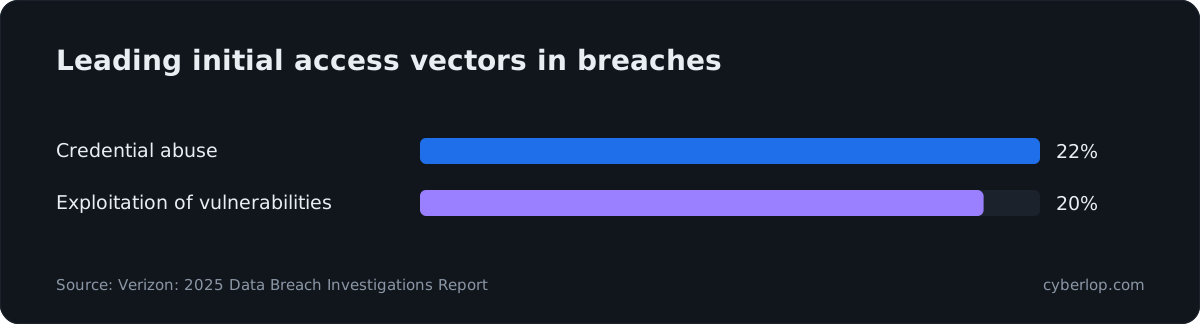
Attackers go after accounts, not just public pages. In the Verizon 2025 Data Breach Investigations Report, credential abuse (22%) and exploitation of vulnerabilities (20%) were the two leading initial access vectors, across more than 22,000 incidents including 12,195 confirmed breaches. Once someone holds a valid account, the weaknesses that count are the ones a signed-in account can reach.
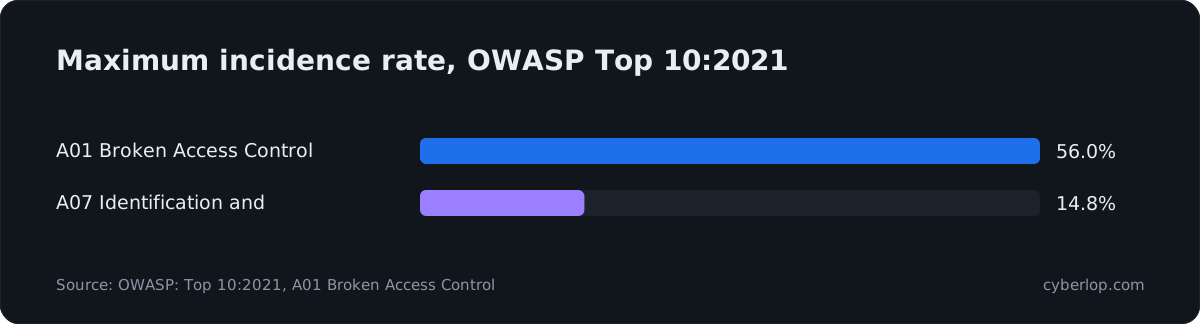
The weakness families that live behind login are also the most common. The OWASP Top 10:2021 puts broken access control first: 94% of tested applications showed some form of it, with 318,487 occurrences and a maximum incidence rate of 55.97%. Identification and authentication failures, covered by the same list at A07, recorded 132,195 occurrences.
Only scan applications you own or are authorised to test, and only with accounts that were created for testing.
What is an authentication role in Cyberlop?
A role is one card in the profile's Authentication section. It has a name, a privilege level and one or more authentication methods. Roles belong to a scan profile, so each profile carries its own set. The Scan Profiles list shows the count in its Auth roles column, and so does the Scan profiles card on a target page.
The in-app documentation gives the pattern: add a normal user and, for IDOR and privilege testing, a second user. Each role can combine form login, header or API key, and OAuth 2.0, and can take free-text AI guidance. A role is also how the scan tells you which account did what: the sitemap shows a role chip on each endpoint, and a finding's Evidence tab states which authentication the proving request used.
This is authenticated testing. The post why your scanner has one login explains why a single account is rarely enough.
How do you add an authentication role?
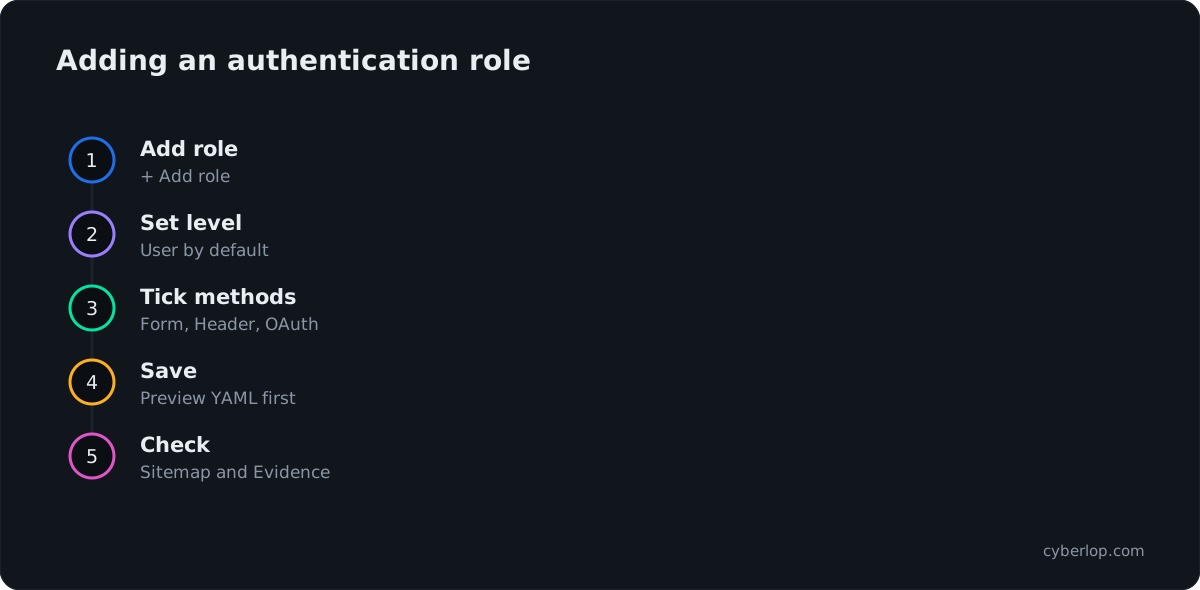
Add a role from the profile form in six steps. The same steps apply when you edit an existing profile, apart from the fixed target.
- Go to Scan Profiles and click + New profile, or open a saved profile with the pencil icon. Fill in the target and name on Scope first.
- Click Authentication in the section switcher on the left.
- Click + Add role. A role card appears, titled "Role 1".
- Type a Name, such as
customer-aorsupport-agent. - Choose the Privilege level.
- Tick the Authentication methods, fill in the block that opens for each, then click Preview YAML and Save.
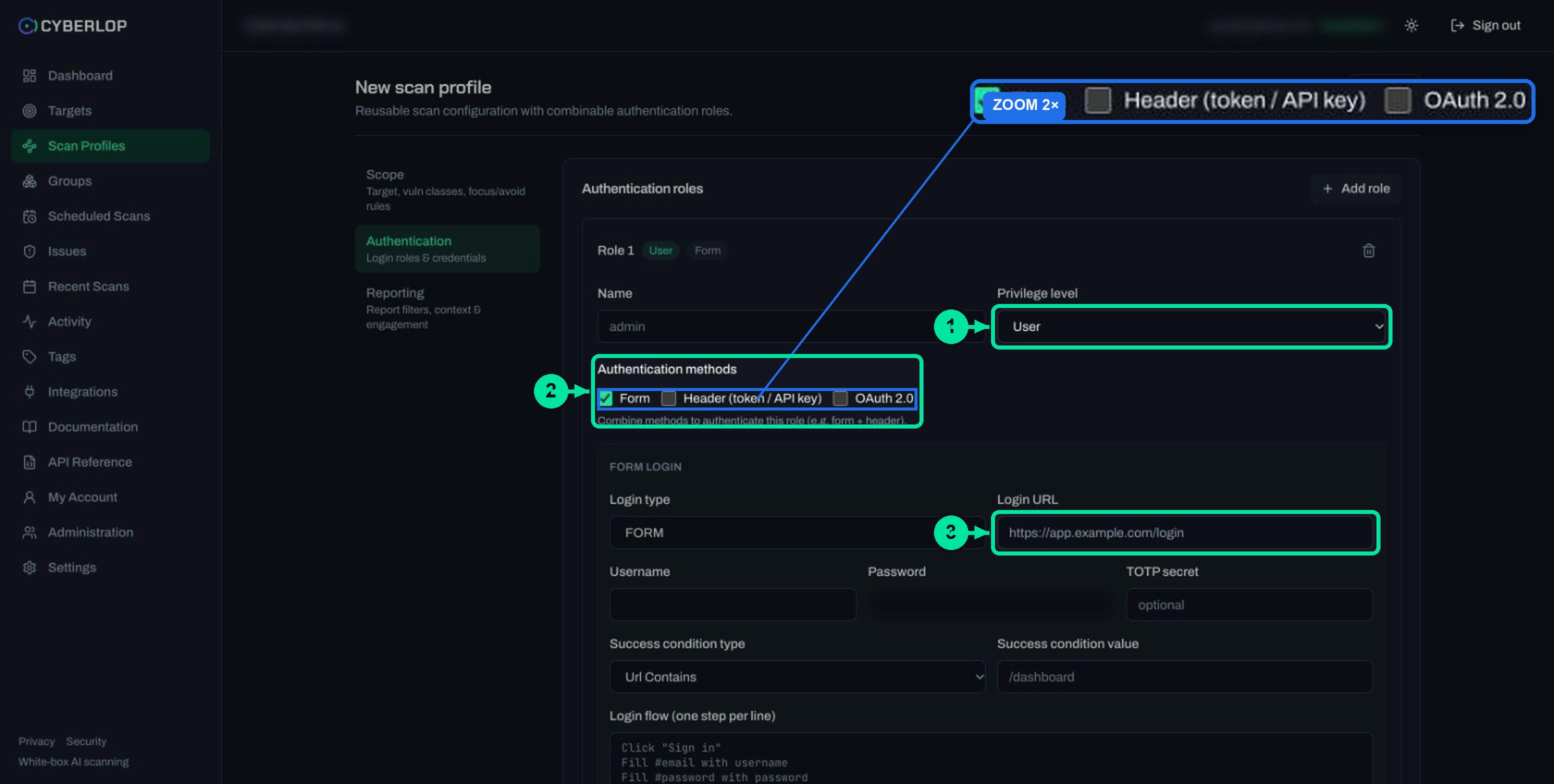
The role card, field by field
| Field | What to enter | Notes |
|---|---|---|
| Name | A short label for the account, for example admin or customer-a. | The placeholder is "admin". Names appear on the role card, in the sitemap role chip and in the YAML preview, so make them readable. |
| Privilege level | Unauthenticated, User, Elevated or Admin. | Defaults to User. Choose the level that matches the account you are supplying. |
| Authentication methods | Form, Header (token / API key), OAuth 2.0. | Form is ticked by default. You can tick more than one: the help text says "Combine methods to authenticate this role (e.g. form + header)." |
| AI guidance | Free text, one step per line, optional. | Shown with the Header and OAuth 2.0 blocks. It tells the scan how to use that credential. |
Which privilege level should you choose?
Pick the level that matches the real account you are giving the scan. The select offers four values, and the level is shown as a badge on the role card next to the method badge, for example "User" and "Form".
| Privilege level | Use it for | Example account |
|---|---|---|
| Unauthenticated | A role that represents someone with no signed-in session. | A visitor browsing public pages |
| User | An ordinary customer or member. This is the default. | A customer on a paid plan in your staging app |
| Elevated | An account with more than a normal user but less than a full administrator. | A support agent or a team manager |
| Admin | A full administrator. | The account that manages users and settings |
The app does not say how each level changes the scan, so treat the level as an honest label for the account, not a switch. What does the work is the set of accounts you add and the access each one really has.
How many roles do you need?
Start with two ordinary accounts, then add one for each privilege step you offer. Two accounts at the same level let the scan check whether one account can read the other's data. An account at a lower level plus one at a higher level lets it check whether the lower one can reach the higher one's functions.
A starter set of roles
| Role to add | Privilege level | What it lets the scan check |
|---|---|---|
customer-a | User | A normal signed-in journey: orders, profile, settings. |
customer-b | User | Whether customer-a can read or change this account’s records by swapping an ID, the pattern behind IDOR and BOLA. |
support-agent | Elevated | Whether a normal user can call the agent’s functions (vertical privilege escalation). |
admin | Admin | The admin surface, so the sitemap shows what only an administrator should reach. |
The OWASP API Security Top 10 (2023) rates broken object level authorization as easy to exploit and widespread. Its prevention advice includes writing tests for the authorisation mechanism. Its sibling, broken function level authorization, is also rated easy to exploit and common. It appears when an ordinary account can reach a function meant for someone else. The first needs two peer accounts to test. The second needs accounts at different levels.
Keep test accounts safe
- Create them in a staging copy of the app, with made-up data.
- Give each the least access its level needs, in line with least privilege.
- Rotate them when someone leaves the project.
Which authentication method fits your app?
Choose the method your app actually uses to recognise an account. A role can tick more than one, because some apps need a form login plus an API key, or a token minted on the fly.
| Method | Choose it when | What you fill in | Guide |
|---|---|---|---|
| Form | People sign in through a page with fields and a button. | Login type, login URL, username, password, optional TOTP secret, success condition, login flow. | Form login authentication |
| Header (token / API key) | An API accepts a static token or key in a request header. | One or more header name and value rows, such as Authorization and Bearer .... | Header and token authentication |
| OAuth 2.0 | Your service issues tokens from a client-credentials exchange. | Token URL, Client ID, Client secret, scope, header name and prefix. Then Complete authentication. | OAuth client credentials |
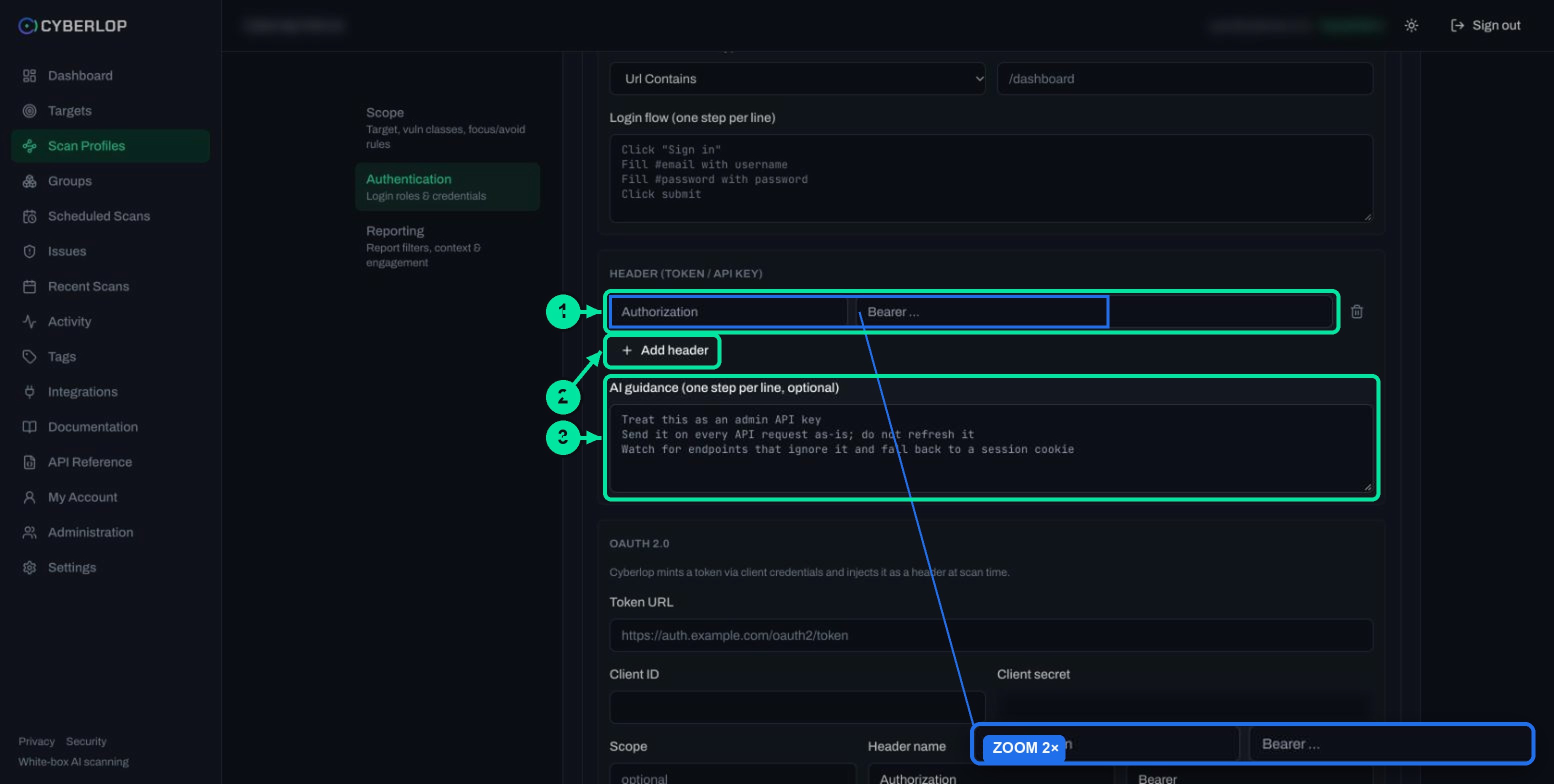
Form login in brief
The Form block asks for a Login type (FORM, SSO, API or BASIC), the Login URL, a username and password, an optional TOTP secret, a success condition and a login flow written one step per line. The placeholder flow reads "Click "Sign in"", "Fill #email with username" and so on. A TOTP secret lets the scan get past a second factor on an account made for testing.
Header and OAuth in brief
The Header block takes name and value rows. The OAuth 2.0 block mints a token through a client-credentials exchange and injects it as a header at scan time, "Authorization" with the prefix "Bearer " by default. Complete authentication runs the exchange to confirm a token is issued, and stays disabled until the fields are filled. See bearer tokens and OAuth.
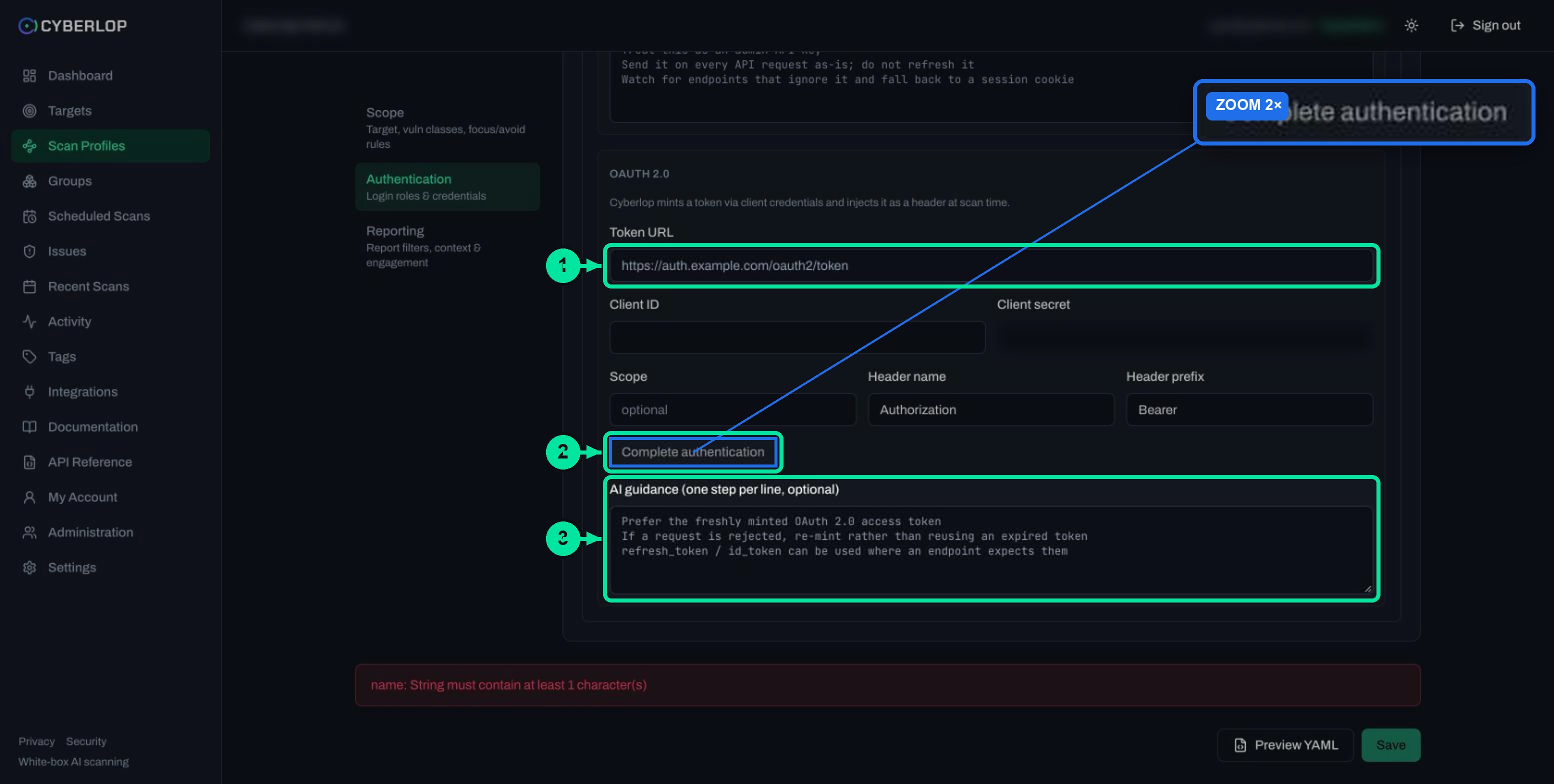
What is AI guidance and how do you write it?
AI guidance is an optional text box, one step per line, that tells the scan how to use a credential. The Header and OAuth 2.0 blocks both have one. Use it for the facts only you know about how the credential behaves.
The placeholders show the style. For a header role: "Treat this as an admin API key", "Send it on every API request as-is; do not refresh it" and "Watch for endpoints that ignore it and fall back to a session cookie". For OAuth: "Prefer the freshly minted OAuth 2.0 access token" and "If a request is rejected, re-mint rather than reusing an expired token".
What good guidance looks like
Write one instruction per line
Keep each line short and in plain words, as the placeholders do.
Say how the credential behaves
- How long it lasts, where it goes, and what to do on a rejection.
- No secrets: they go in the credential fields.
Guidance about your app as a whole, such as tenancy model and business-critical flows, belongs in application context. Where a rule keeps the scan away from certain paths, use focus and avoid rules.
How do you check that a role worked?
Run the scan, then look for the role in three places: the sitemap, the Evidence tab and the profile list. None of them needs a special report.
- Start the scan with ▷ Scan on the profile row. See run a scan.
- Open the scan, then the Sitemap tab. Each endpoint row shows a role chip on the right, such as "admin", and a note written by the scan.
- Open a finding and read the Authentication line on the Evidence tab. A finding proven with no credential says "No auth header was attached to the proving request."
- Back on Scan Profiles, confirm the Auth roles count matches the roles you meant to add.
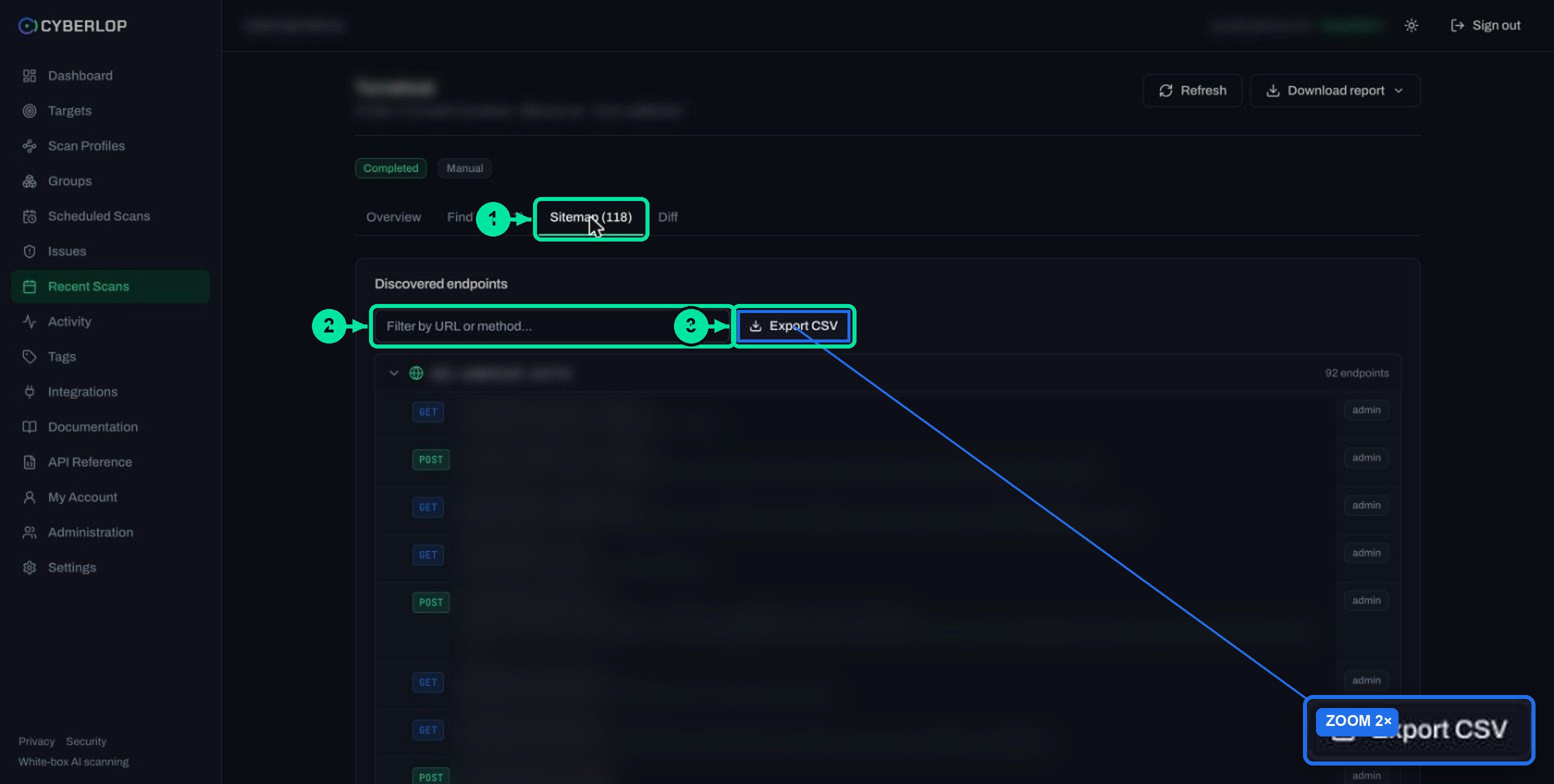
Read the scan sitemap guide for how to use it as a coverage check, and read a finding for the Evidence tab.
How do you edit or rotate a role?
Open the profile with the pencil icon and change the role card. Stored secrets are never shown again. On a saved role the Form block displays "Form credentials stored — leave fields blank to keep it." with a Clear button.
- Leave the username and password blank to keep the stored values.
- Type new values to replace them.
- Click Clear to remove the stored credentials.
- Click the trash icon on the role card to delete the role, then Save.
The target is fixed after a profile is created, so a role cannot be moved to another target. See edit a scan profile for the full rules.
Troubleshooting authentication roles
Most problems come from a role that is added but not complete, or a credential that no longer matches the app.
| Symptom | Likely cause | What to do |
|---|---|---|
| The Auth roles count is 0 | No role was saved on the profile. | Open the profile, add the role on Authentication and click Save. |
| Preview YAML shows a validation message | A required field is empty. An empty name shows "name: String must contain at least 1 character(s)". | Fill the named field and preview again. |
| Complete authentication is greyed out | The OAuth fields are not all filled in. | Enter Token URL, Client ID and Client secret, then try again. |
| Findings say no auth header was attached | The proving request used no credential. | Check the role and the method you ticked, and write AI guidance saying where the credential goes. |
| The role chip you expect is missing in the sitemap | The login did not succeed, or the role was not on the scanned profile. | Check the success condition and the login flow. Test the same login in a browser. |
| Logins fail only in production | A second factor, lockout or rate limit is in the way. | Use a staging copy, add the TOTP secret, and see the account rules on your security page. |
If a scan fails outright, follow failed or cancelled scans.
Common mistakes to avoid
- One role only. One account cannot show whether it reaches another account's data.
- A real customer account. Use made-up data in a test copy.
- A very powerful role for everything. An admin-only profile hides what an ordinary account can wrongly reach.
- Stale credentials. Passwords and tokens expire. Rotate and re-save them.
What to do next
Choose the method for your first role and set it up. For an app with a sign-in page, the next step is form login authentication. If you are still deciding which test type to use, read white-box vs black-box scans, and key terms for the vocabulary. Background on how the platform works is on how it works, and what a proven finding looks like is on evidence.
Questions people ask
Scan behind login with authentication roles: FAQs
How do I scan behind login in Cyberlop?
Open a scan profile, go to Authentication, click + Add role, name it, set a privilege level and tick a method. Fill in the credential fields, click Preview YAML and Save, then run the scan.
What happens if I add no authentication roles?
The profile scans unauthenticated only. The empty state reads "No auth roles. Add a role to scan behind login, or leave empty for unauthenticated scanning."
How many roles should I add?
At least two ordinary accounts, plus one account per extra privilege level your app has. Two peers let the scan check cross-account access; different levels let it check privilege boundaries.
Can one role use more than one authentication method?
Yes. The help text says "Combine methods to authenticate this role (e.g. form + header)." Tick each method and fill in its block.
What are the privilege levels?
Unauthenticated, User, Elevated and Admin. User is the default. Pick the level that matches the real account you supply.
What is AI guidance?
Optional free text, one step per line, shown with the Header and OAuth 2.0 blocks. It tells the scan how to use that credential, for example not to refresh a static API key.
Are my credentials shown again after saving?
No. Stored secrets are never shown again. On edit, blank fields keep the stored value and Clear removes it. Secrets are encrypted at rest.
Which accounts should I use for testing?
Dedicated test accounts with made-up data, ideally in a staging copy of your app, with the least access each level needs. Only test applications you own or are authorised to test.
Sources
Where the facts come from
- Verizon: 2025 Data Breach Investigations Report
- OWASP: Top 10:2021, A01 Broken Access Control
- OWASP: Top 10:2021, A07 Identification and Authentication Failures
- OWASP: API Security Top 10 2023, API1 Broken Object Level Authorization
- OWASP: API Security Top 10 2023, API5 Broken Function Level Authorization
Keep reading
Related articles
Application context in Cyberlop: fill the ten fields and use Auto Generate from Repo
Fill in the ten application context fields of a Cyberlop scan profile, use Auto Generate from Repo, and write context that improves findings.
How to create a scan profile in Cyberlop: Scope, Authentication, Reporting
Create a scan profile in Cyberlop: Scope, Authentication and Reporting fields, exploitation on or off, Preview YAML and Save, with a troubleshooting table.
How to edit a scan profile
Edit a Cyberlop scan profile: what you can change, why the target is fixed, how blank secret fields keep stored values, Clear, and Preview YAML.

Need help setting up your first role?
Cyberlop finds vulnerabilities in web apps and their APIs with black-box, grey-box and white-box pentesting, and checks cross-account access. It reports only what it exploited. Ask us to run it on one of your applications.
Or start with a $199 pilot on one application: thirty days, success criteria agreed before day one, credited against the annual if you convert.