
Home / Blog / Tutorials / Chat notifications webhook
Tutorials
Cyberlop chat notifications: set up a webhook for finished scans
Send a short message to your team's chat channel every time a scan finishes. This guide covers setup, the test message, what is posted and how to keep the webhook safe.
Cyberlop Labs · Updated · 8 min read
To get Cyberlop scan alerts in chat, create an incoming webhook in your chat tool and paste its HTTPS URL into Settings → Notifications. Click Save webhook, then Send test message. When a scan finishes, Cyberlop posts the target name, finding counts and a link, never the findings themselves.
- Pick a channel Choose a channel read by the people who act on scan results.
- Create the webhook In your chat tool, add an incoming webhook for that channel and copy the HTTPS URL.
- Open Settings → Notifications Check that the status reads that notifications are off.
- Paste the URL Enter it in Webhook URL.
- Save Click Save webhook.
- Send a test Click Send test message and look for it in the channel.
- Run a scan Let one finish and read the real message.
- Plan rotation Replace the webhook on a schedule and delete the old one.
- Chat notifications use one incoming-webhook URL, saved in Settings → Notifications.
- A finished scan posts the target name, finding counts and a link; findings are never sent.
- Click Send test message after saving to confirm the channel receives it.
- The URL is hidden, stored encrypted and never shown again, so treat it as a secret and rotate it.
- Email notifications on My Account are separate and personal; use both if you wish.
Chat notifications in Cyberlop are a single incoming-webhook URL, saved once in Settings → Notifications. When a scan finishes, Cyberlop posts the target name, the finding counts and a link to the scan to that channel. It never posts the findings themselves. Paste the URL, click Save webhook, then click Send test message to confirm it works.
What are Cyberlop chat notifications?
With a chat notification, a finished scan shows up in a channel your team already reads. Nobody has to keep refreshing Recent Scans. It is set up for the whole organisation, not per person. One webhook serves every scan the organisation runs, and only your organisation's scans are sent to it.
The feature runs on an incoming webhook. Most chat tools offer one: the tool gives you a private HTTPS address, and any message sent to that address appears in the channel you chose. If the term is new, the Knowledge Hub entry on a webhook explains the idea in plain English.
What does the message contain?
The help text on the Notifications screen lists three things that go out when a scan finishes:
- the target name,
- the finding counts,
- a link to the scan in Cyberlop.
The screen is explicit that the findings themselves are never sent. Payloads, requests, responses and reproduction steps stay inside Cyberlop, behind your sign-in. The link opens the scan in Cyberlop, where the detail lives.
What is not posted?
The app does not show a per-event switch, a severity filter or a choice of channel on this screen. The captured screen has one field and two buttons. If you need a quieter feed, narrow it in the chat tool, for example by pointing the webhook at a channel built for it. The app does not say whether a failed or cancelled scan also posts, so test that before you rely on it.
How do you set up a chat webhook?
You create the webhook in your chat tool, paste it into Cyberlop and test it. The whole job takes a few minutes, and it needs someone who can change organisation settings. The API reference shows that saving settings requires the settings:update permission, so an administrator is usually the right person.
Steps to connect a channel
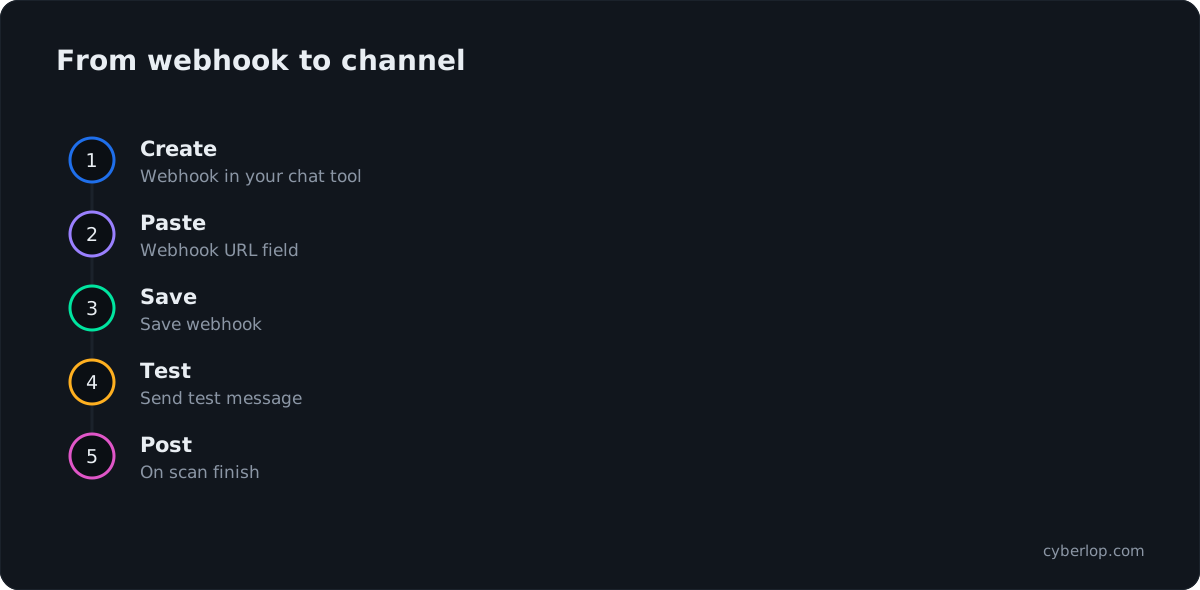
- Pick the channel. Choose a channel that the people who act on scan results already read, such as a security or engineering channel. Avoid a channel with hundreds of members if the scans cover sensitive targets, because target names are visible to everyone there.
- Create an incoming webhook in your chat tool. Use its integrations or apps area, choose incoming webhooks, select the channel and copy the HTTPS URL it gives you.
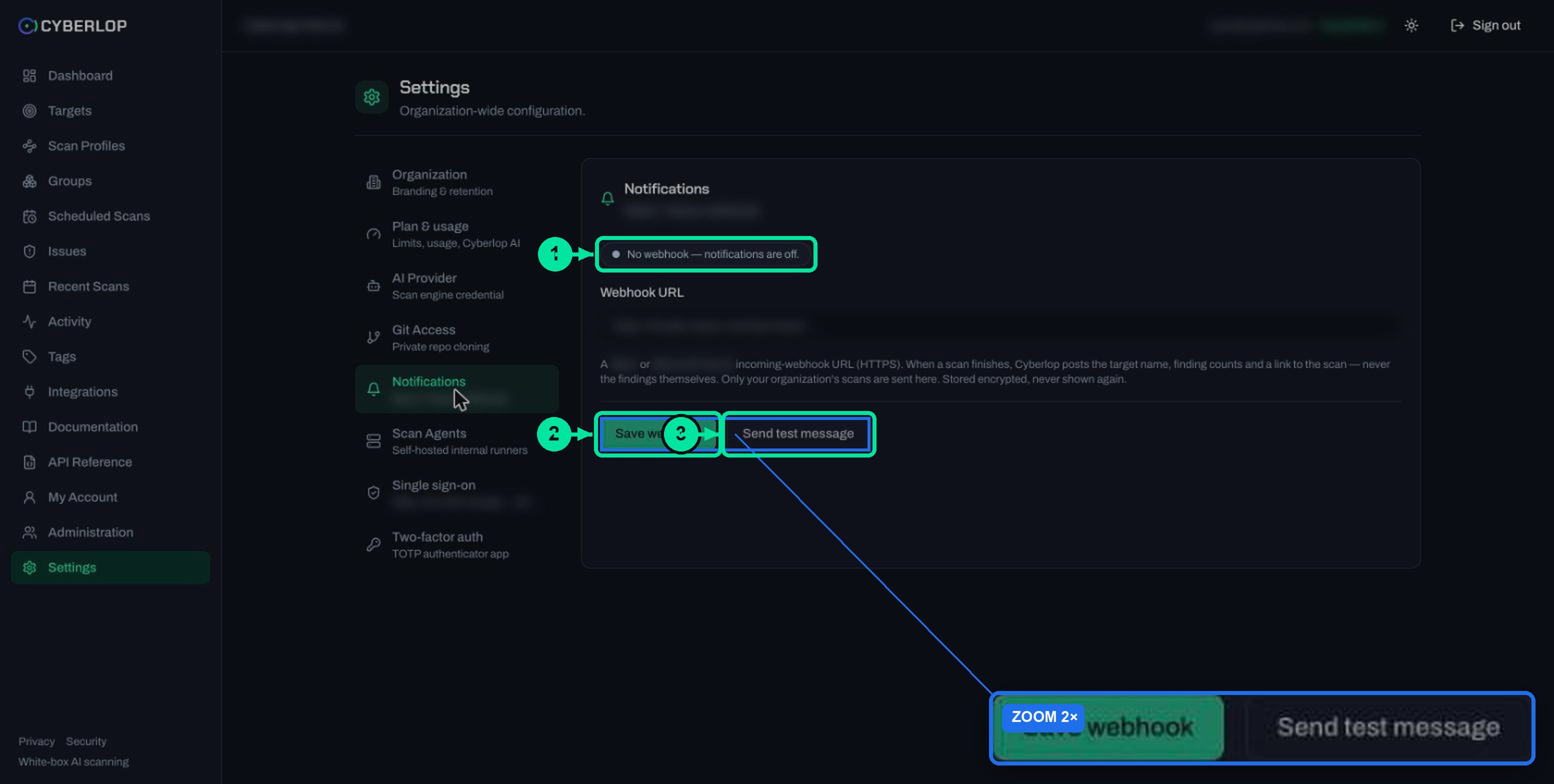
- Open Settings → Notifications. The status pill reads "No webhook — notifications are off." until a webhook is saved.
- Paste the URL into Webhook URL. The field hides what you type, like a password field.
- Click Save webhook. Cyberlop stores the URL encrypted and never shows it again.
- Click Send test message. The button stays disabled until a webhook is set. Check the channel for the test post.
- Run a short scan to see the real message. Start one from Scan Profiles or a target page, as described in run a scan, and wait for it to finish.
Fields on the Notifications screen
The table lists every control on the screen and what it does.
| Field | What to enter | Notes |
|---|---|---|
| Status pill | Nothing; it is read-only. | Shows "No webhook — notifications are off." when none is saved. |
| Webhook URL | The incoming-webhook URL from your chat tool. | Must be HTTPS. Hidden as you type. Stored encrypted and never shown again. |
| Save webhook | Click once after pasting. | Stores the URL for the organisation. |
| Send test message | Click after saving. | Disabled until a webhook is set. Posts a test to the channel. |
How do you test the connection?
Use Send test message. It sends a test message to the saved webhook. The same check is available to scripts as POST /api/settings/verify-webhook, which sends a test message to the URL in the request body or to the stored one. Like saving, it needs the settings:update permission.
A passing test proves the address works. It does not prove the right people watch the channel, so ask a teammate who does not manage the integration to confirm they saw it.
If the test message does not arrive
Work through these in order. Most failures are a copy error or a deleted webhook, not a Cyberlop fault.
- Re-copy the URL from your chat tool and paste it again. A trailing space or a cut-off address is the usual cause.
- Confirm the address starts with
https://. The screen asks for an HTTPS URL, and the HTTPS scheme exists so that requests are confidential and the server is authenticated, as RFC 9110 describes. - Open the webhook in your chat tool and check that it is still active and points at a channel that exists.
- Check whether your network team limits outbound posts from the chat workspace, or limits who may add integrations.
If the test works but a finished scan posts nothing
Confirm that the scan belongs to the organisation whose settings you changed, and that it has actually reached the end. A scan that is still running has not finished yet. For the phases, see the scan detail page. If a scan ended in an error, failed or cancelled scans explains how to read it.
How do chat notifications differ from email notifications?
They are separate and you can use both. Chat is an organisation setting for a shared channel. Email is a personal setting on My Account, where two checkboxes control what is sent to your own address.
| Question | Chat webhook | Email notifications |
|---|---|---|
| Where is it set? | Settings → Notifications | My Account |
| Who does it belong to? | The whole organisation | You, as one person |
| What triggers it? | A scan finishes | "When a scan I started finishes" and "When a scan finds critical or high issues" |
| What is sent? | Target name, finding counts and a link | Sent to your account email |
| Whose scans? | Only your organisation’s scans | Your scans; all scans for SuperAdmins on the critical or high option |
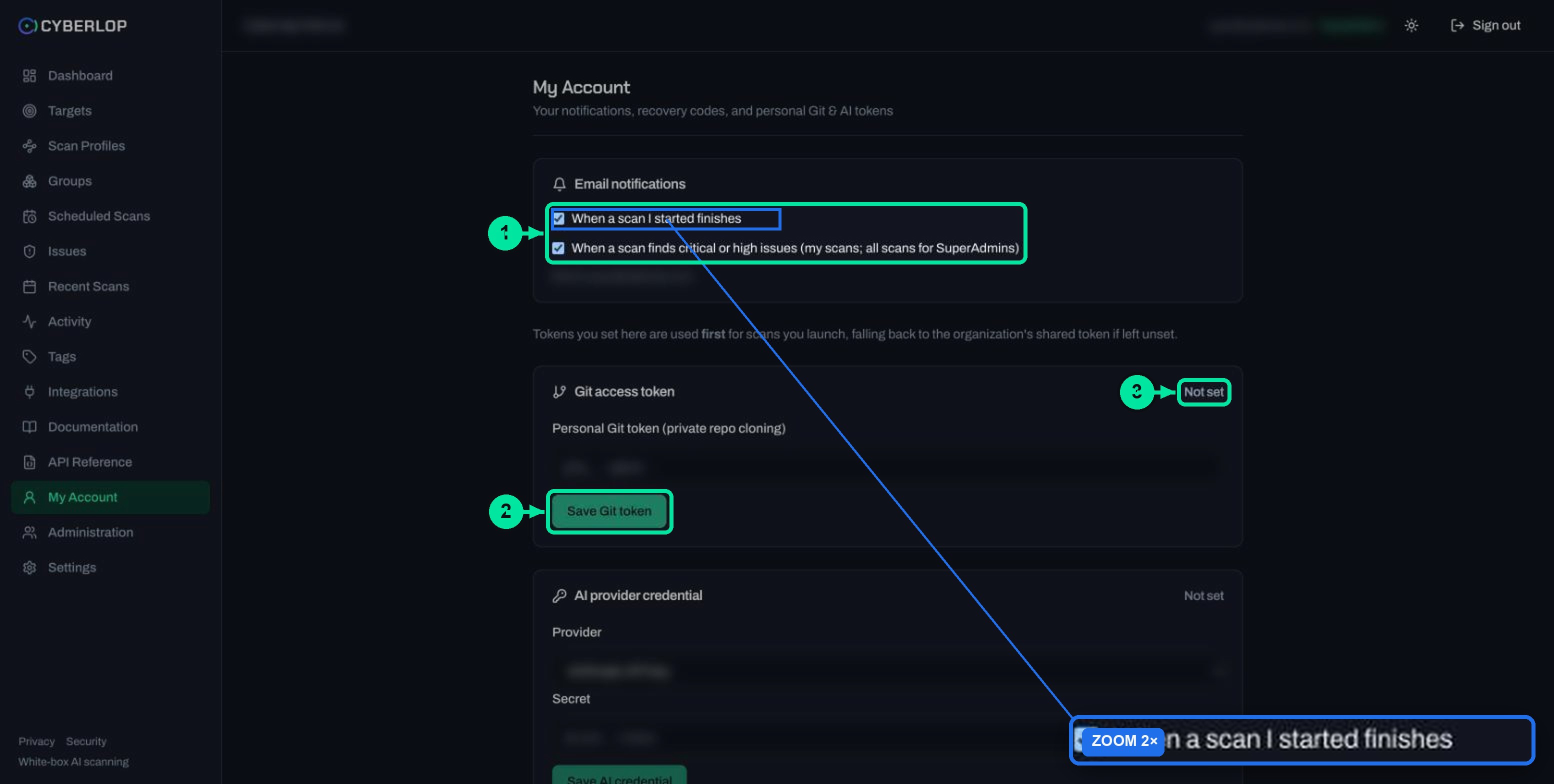
One split that works: the shared channel says a scan is done, and email tells whoever launched it that something critical or high turned up. See account and organisation settings for the full page.
How do you keep a webhook URL safe?
Treat the URL as a secret. Whoever has the address can post into that channel. A leaked one lets a stranger put believable messages in front of your team. Cyberlop hides the field, encrypts the stored value and does not show it again after saving. The rest of the care is yours.
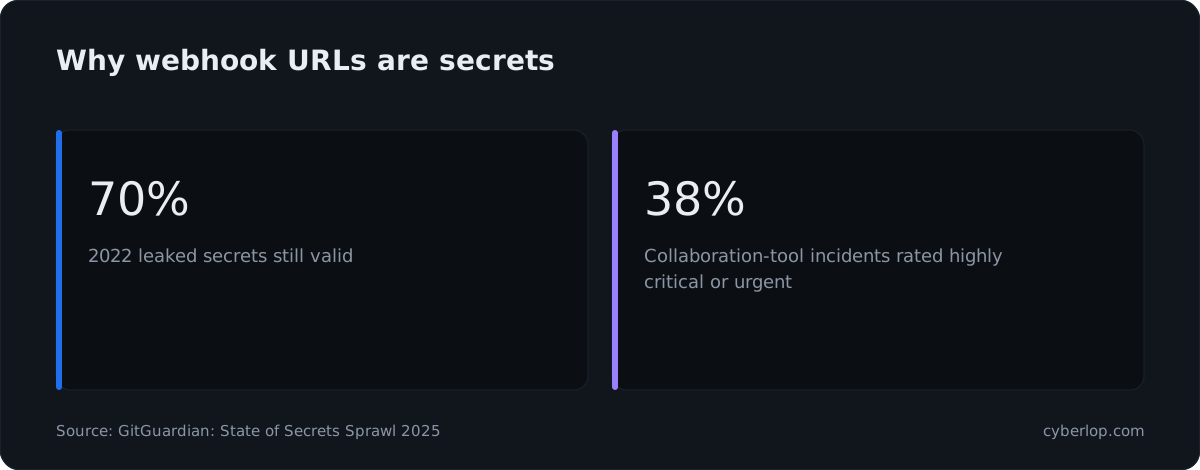
Leaked credentials are common and slow to die, which is why this deserves five minutes. GitGuardian's State of Secrets Sprawl 2025 counted 23,770,171 new secrets in public code-host commits in 2024, a 25% rise, and found that 70% of secrets leaked in 2022 were still valid. The same report says 38% of incidents in collaboration tools are classed as highly critical or urgent, a higher share than in code repositories. Chat is exactly where urgent things, and secrets, get pasted.
Habits that keep the URL out of trouble
Store it like any other secret
Keep the original in your team's password manager or vault rather than in a ticket, a wiki page or a chat message. The OWASP Secrets Management Cheat Sheet advises rotating secrets regularly, so that "any stolen credentials will only work for a short time". See also secrets management and hardcoded secrets.
Replace it on a schedule and after any exposure
Create a new webhook in your chat tool, paste it into Webhook URL, click Save webhook and send a test message. Then delete the old webhook in the chat tool so the old address stops working. The same habit is called key rotation elsewhere.
Limit who can change it
Changing the webhook needs settings:update. Keep that permission with the few people who administer the workspace, following least privilege. The API tokens and permissions guide shows how permission keys work.
What about turning notifications off?
The captured screen offers Save webhook and Send test message and no separate remove button. To stop posts now, delete the webhook in your chat tool. In most tools that makes the address reject messages. Then ask your administrator about clearing the saved value. The status pill reports "No webhook — notifications are off." when none is stored.
What should the channel do with the message?
A notification is only useful if someone acts on it. The message gives you a target, counts and a link, so agree a small routine before the first post arrives.
| Step | Who | What to do |
|---|---|---|
| Open the link | Whoever is on triage duty | Read the scan on its detail page, starting with the Findings tab. |
| Check the counts | Same person | Compare with the previous scan. The Diff tab shows what is new, fixed or regressed. |
| Assign the work | Engineering lead | Set a disposition and assignee on each issue, as in triage findings. |
| Close the loop | Whoever fixed it | Re-run the scan and confirm the issue now shows as Fixed. |
Pair the channel with scheduled scans or the CI/CD job and the notification becomes a steady heartbeat: each run ends with a short post. The message carries counts only and arrives once per scan, so it adds little to alert fatigue. For the reading order inside the app, see the issues list.
What are the common mistakes?
- Pasting a link to a page instead of a webhook. The URL must be the incoming-webhook address from the chat tool, not a channel link.
- Using a public channel for sensitive targets. The message names the target, so choose a channel with the right audience.
- Expecting finding details in chat. They are not sent by design. Follow the link.
- Skipping the test. It takes one click and catches most typing errors.
- Leaving an old webhook alive after replacing it. Delete it in the chat tool.
- Scanning things you do not own. Notifications do not change the rule: only scan applications you own or are authorised to test.
Next step
With notifications on, the next piece of automation is a scan that runs inside your own network. Continue with self-hosted scan agents. You can also read how the audit trail records changes in the activity feed, or see the API reference for the settings endpoints.
Questions people ask
Chat notifications webhook: FAQs
What does Cyberlop post to my chat channel?
When a scan finishes, it posts the target name, the finding counts and a link to the scan. It never posts the findings themselves.
Which chat tools work?
Any chat tool that offers an incoming-webhook URL over HTTPS. The Settings → Notifications screen asks for exactly that: an incoming-webhook URL.
Can I choose which scans or severities are posted?
Not on the captured Notifications screen, which has one URL field and two buttons. Only your organisation's scans are sent. For a narrower feed, filter in the chat tool or use a dedicated channel.
Is the webhook URL visible after I save it?
No. It is stored encrypted and never shown again,. To change it, paste a new one and click Save webhook.
How do I check the webhook works?
Click Send test message on Settings → Notifications. It stays disabled until a webhook is set. Scripts can call POST /api/settings/verify-webhook, which needs the settings:update permission.
Who can set up chat notifications?
Someone with permission to update organisation settings. The API shows settings:update for saving settings and for the webhook test, so an administrator normally does this.
Do email notifications still work if I add a webhook?
Yes. Email is a personal choice on My Account, with two checkboxes. The chat webhook is an organisation setting. They run side by side.
What if the webhook URL leaks?
Delete that webhook in your chat tool, create a new one, paste it into Webhook URL, save and send a test message. Then check the channel for posts you did not expect.
Sources
Where the facts come from
Keep reading
Related articles
Account and organisation settings: notifications, retention, logo and plan
Set notification emails and personal tokens, then configure retention, schedule timezone and report logo, and read the Plan & usage page.
Cyberlop activity feed: what it records and how to use it for audits
Read the Cyberlop activity feed: sign-ins, scans, triage, roles and support sessions, who can see them, how to search and an audit checklist.
Cyberlop API reference: authentication, permissions and the OpenAPI spec
Use the Cyberlop API: 78 endpoints in 15 groups, session or Bearer token auth, permissions per route, worked calls and the OpenAPI download.

Want scan results in your channel?
Cyberlop can run on a schedule or in CI/CD, and each finding carries the request, the response and the line of code. Ask us to run it on one of your applications.
Or start with a $199 pilot on one application: thirty days, success criteria agreed before day one, credited against the annual if you convert.