
Home / Blog / Tutorials / Create a scan profile
Tutorials
How to create a scan profile in Cyberlop: Scope, Authentication, Reporting
A scan profile is the reusable configuration behind every scan. This guide walks the New scan profile page field by field, from target to Save.
Cyberlop Labs · Updated · 10 min read
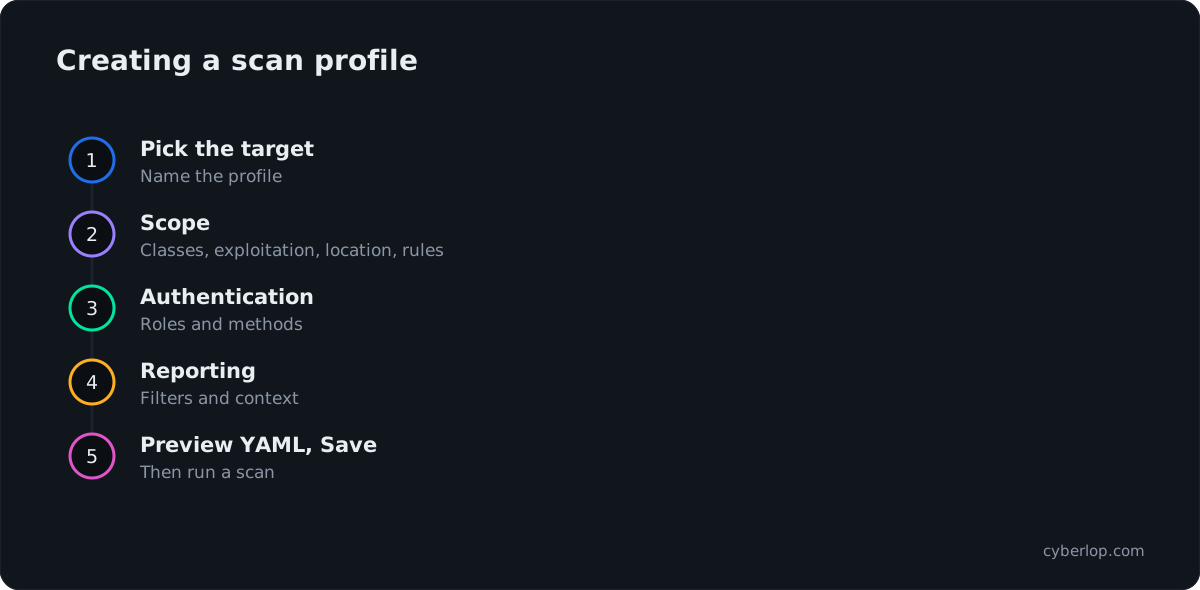
To create a scan profile in Cyberlop, open Scan Profiles, click + New profile, choose the target, name the profile, then complete Scope, Authentication and Reporting. Click Preview YAML to validate the configuration and Save. The target cannot be changed afterwards, so choose it carefully.
- Open the form Go to Scan Profiles and click + New profile, or use + New profile on a target's Scan profiles card.
- Pick the target and name In Scope, choose the Target and type a Name. The target is fixed after creation.
- Narrow the classes Tick the vulnerability classes to test, or leave all unticked to scan all classes.
- Set exploitation and location Keep Run exploitation phase ticked to prove findings live, and choose the Scan location.
- Add focus and avoid rules Optionally add rules by Url Path, Subdomain, Domain, Method, Header, Parameter or Code Path.
- Add authentication roles In Authentication click + Add role, set a privilege level and choose Form, Header or OAuth 2.0.
- Set reporting rules In Reporting set minimum severity and confidence and add report guidance and rules of engagement.
- Add application context Fill the context fields you know. After the first save, Auto Generate from Repo can fill them from the repository.
- Preview YAML Click Preview YAML to see the configuration and fix any validation error.
- Save Click Save, then use the Scan action on the profile row to run it.
- A scan profile is a reusable scan configuration that belongs to one target, and every scan is a run of a profile.
- The New scan profile page has three sections, Scope, Authentication and Reporting, with one Preview YAML and Save footer.
- Leave all vulnerability classes unticked to scan all of them; narrow the list for focused runs.
- Authentication roles are optional; with none, the scan is unauthenticated.
- A profile's target is fixed after creation, and Auto Generate from Repo works only after the first save.
To create a scan profile in Cyberlop, go to Scan Profiles, click + New profile, choose the target and name the profile. Then complete three sections: Scope, Authentication and Reporting. Click Preview YAML to validate, then Save. A scan profile is a reusable scan configuration that belongs to one target.
What is a scan profile in Cyberlop?
A scan profile is a reusable scan configuration that belongs to one target. It records what to test (scope), how to sign in (authentication roles) and how to write up the results (reporting rules). Every scan is one run of a profile, so you cannot start a scan without one. The wider vocabulary sits in Key terms.
One target can carry several profiles, such as a quick check on the classes you changed this sprint or a full audit before a release, and each profile keeps its own scope, roles and reporting rules.
A profile records the scope and the rules of engagement up front. NIST SP 800-115 is the standard reference for planning and running technical security tests. A profile is where Cyberlop records those planning decisions.
What do you need before you create a scan profile?
You need an existing target, permission to create profiles, and, if you want to test behind a sign-in, credentials for a test account. Create the target first with Add a target.
Pre-flight checklist
- A target. The profile picker lists your targets by name and URL. If it is empty, add one first.
- Authorisation. Only configure scans for apps you own or are authorised to test.
- A test account, if needed. Use a dedicated account on a Dev or Staging copy, not a real customer login.
- A decision on exploitation. Leaving it on proves findings against the live app; read Exploitation phase first if the target is production.
Where to start from
There are two entry points. From the sidebar, go to Scan Profiles → + New profile and choose the target yourself. Or open a target and click + New profile on its Scan profiles card, which adds the target to the address and preselects it.
How do you create a scan profile, step by step?
The New scan profile page is one full page, not a dialog. A switcher on the left holds three sections, and one footer holds Preview YAML and Save. Cancel sits at the top right.
- Open Scan Profiles and click + New profile, or start from a target's Scan profiles card.
- In Scope, pick the Target and type a Name.
- Add Tags if you want them, then tick any Vulnerability classes to narrow the scan.
- Keep or untick Run exploitation phase and choose the Scan location.
- Optionally add Focus rules and Avoid rules.
- In Authentication, click + Add role for each login the scan should use. Leave it empty for an unauthenticated scan.
- In Reporting, set the minimum severity and confidence, then add report guidance and rules of engagement. Fill in any application context fields you already know.
- Click Preview YAML to see the generated configuration and any validation error.
- Click Save.
What goes in the Scope section?
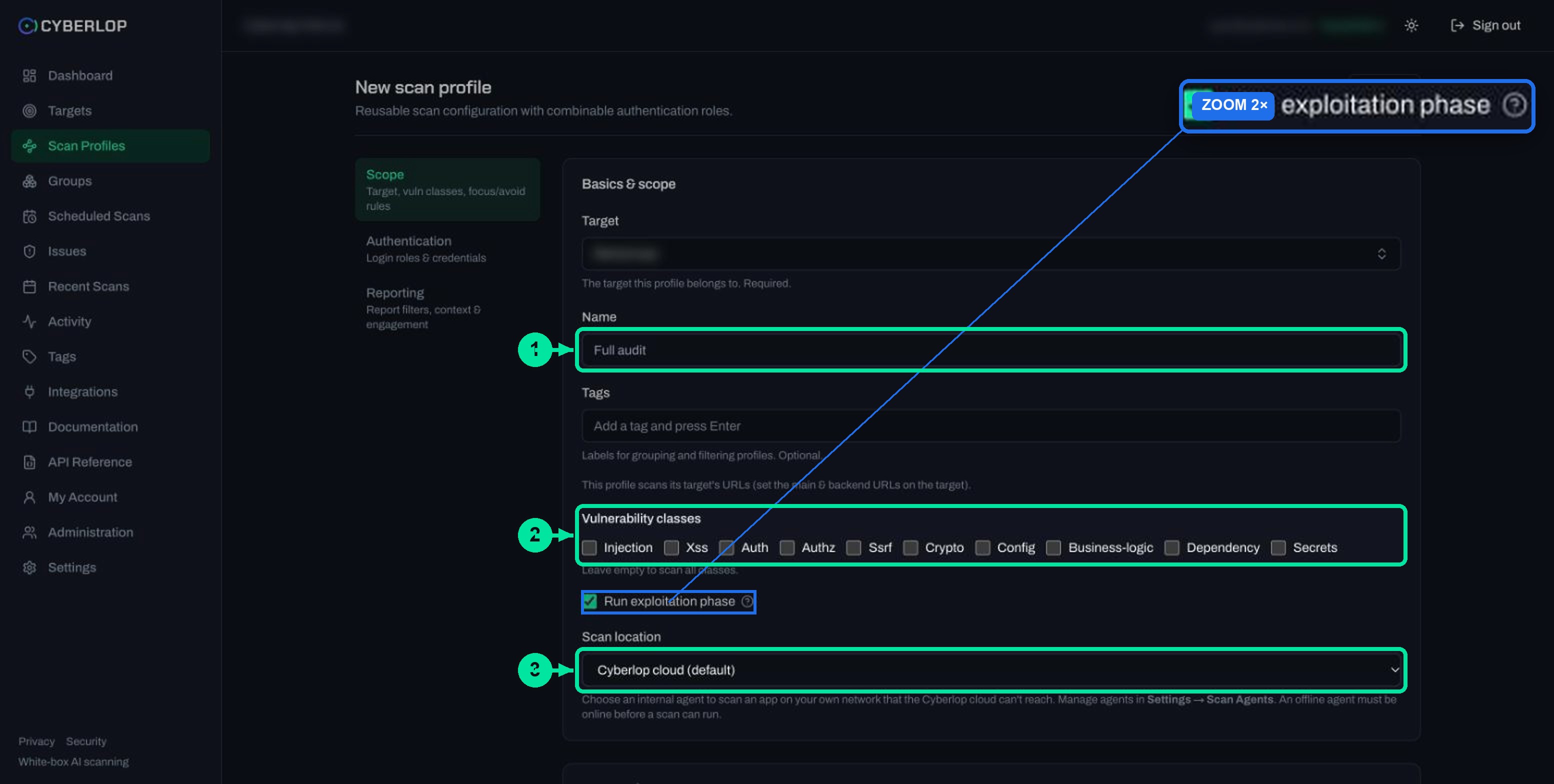
In Scope you choose the target and the vulnerability classes, decide whether the exploitation phase runs, set where the scan runs and add focus and avoid rules. Main and backend URLs belong to the target, not the profile.
Scope field reference
| Field | What to enter | Notes |
|---|---|---|
| Target | Pick from the searchable list (search box: Search targets...) | Required. The page says: “A profile's target is fixed after creation.” |
| Name | A clear label, for example Full audit | Placeholder is “Full audit”. Validation fails if it is empty. |
| Tags | Labels such as a team or release name; type and press Enter | Optional. Used to group and filter profiles. |
| Vulnerability classes | Tick the classes to test: Injection, Xss, Auth, Authz, Ssrf, Crypto, Config, Business-logic, Dependency, Secrets | Leave empty to scan all classes. The profiles list then shows All. |
| Run exploitation phase | Ticked by default | On means live testing that proves issues. Off means source-code analysis only. |
| Scan location | Cyberlop cloud (default), or a registered internal agent | An offline agent must be online before a scan can run. |
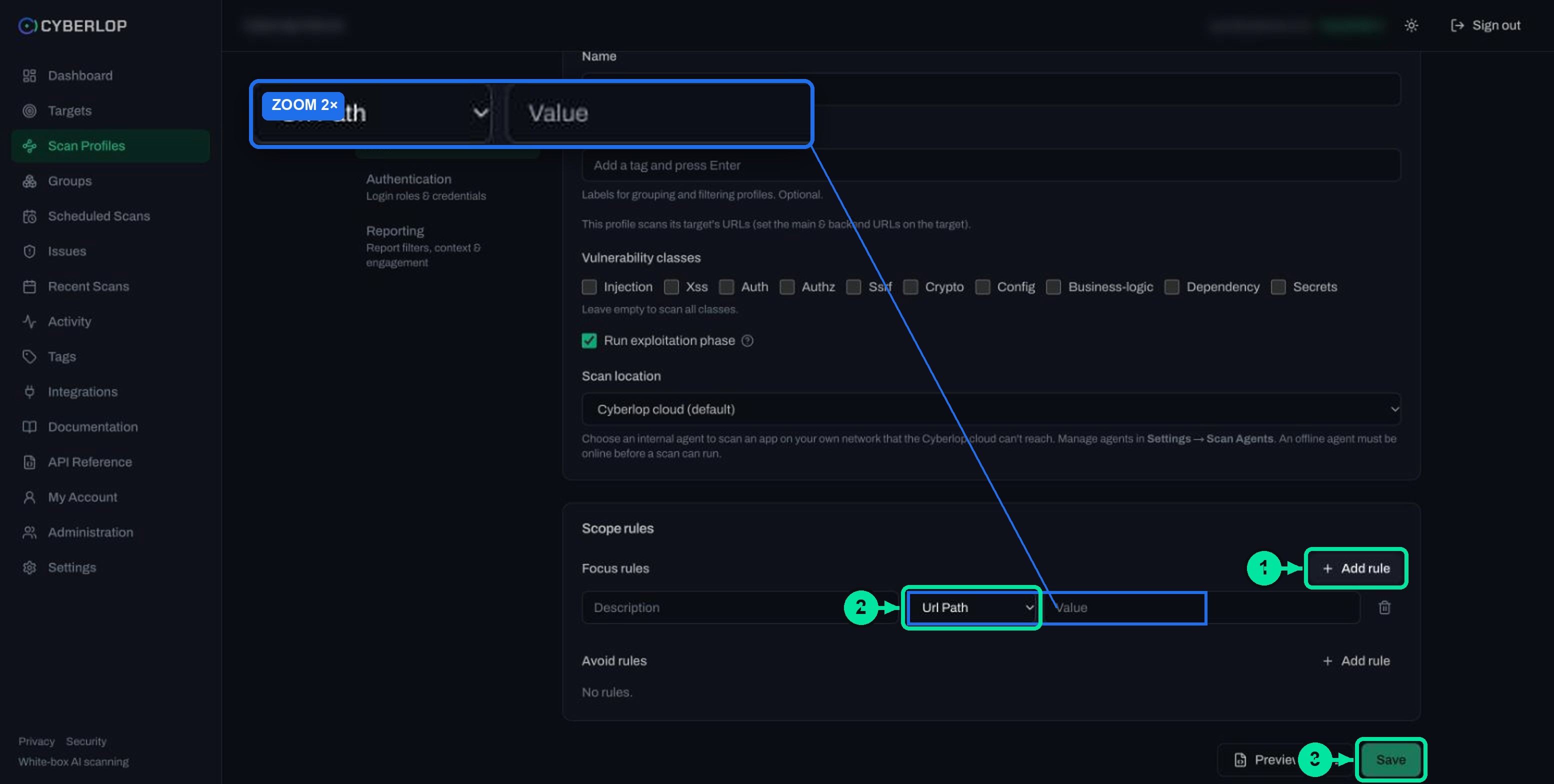
| Focus rules / Avoid rules | Description, Type and Value per rule | Types: Url Path, Subdomain, Domain, Method, Header, Parameter, Code Path. |
Vulnerability classes: all or narrow?
With no class ticked, the profile covers all ten. That is the right default for a first scan. Narrow the list when you want a faster, focused run, for example only Authz and Business-logic after a change to checkout. Choose vulnerability classes explains each class.
Exploitation on or off
The field's tooltip calls this a DAST scan. The agents test the live target and prove vulnerabilities with real HTTP requests, a browser and captured evidence. Unticked, you get SAST only: static analysis of source code and no live testing. See DAST and SAST for the terms, and Exploitation phase for safety on production.
Scan location
Pick an internal agent when the app sits on a network the Cyberlop cloud cannot reach, such as a staging environment behind your firewall. Agents are managed in Settings → Scan Agents; see Self-hosted scan agents.
Focus and avoid rules
Each rule row has a Description, a Type, a Value and a bin icon. Focus rules steer the scan towards an area, such as a path prefix. Avoid rules keep it away from something, such as a logout route or a header. The empty state reads "No rules." Details and pitfalls are in Focus and avoid rules.
How do you set up authentication in a scan profile?
Authentication is where you add the login roles the scan can use. A role has a name, a privilege level and one or more methods. With no roles, the page says "No auth roles. Add a role to scan behind login, or leave empty for unauthenticated scanning."
The parts of your app that matter most usually sit behind a sign-in, so a scan without a role never reaches them. A second, lower-privileged account also lets it check what one signed-in account can reach that it should not. The background term is authenticated testing. Use test accounts with the least access that still reaches the screens you care about (least privilege).
Role fields
| Field | What to enter | Notes |
|---|---|---|
| Name | A label such as admin | Placeholder is “admin”. |
| Privilege level | Unauthenticated, User, Elevated or Admin | Defaults to User. |
| Authentication methods | Form, Header (token / API key) or OAuth 2.0 | Combine methods, for example form plus header. |
| AI guidance | Plain-language steps, one per line | Optional on the Header and OAuth 2.0 blocks. |
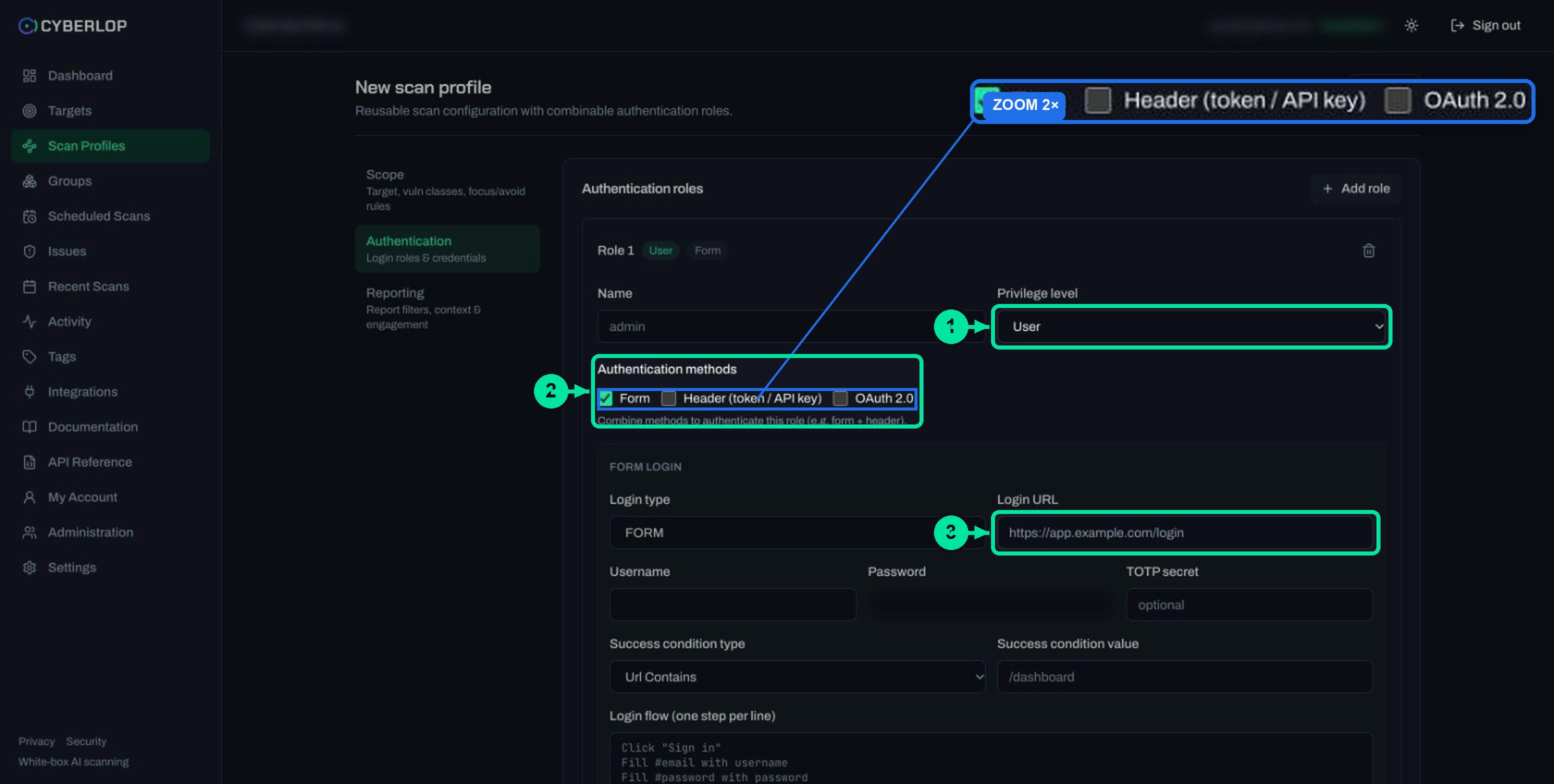
Form login
The form block asks for a Login type (FORM, SSO, API or BASIC), Login URL, Username, Password and an optional TOTP secret. Then set a Success condition (Url Contains, Url Equals Exactly, Element Present or Text Contains) with a value such as /dashboard. The Login flow box takes one step per line, for example Fill #email with username. The TOTP secret is for accounts that use a time-based code, as defined in RFC 6238, which recommends a default time step of 30 seconds. See Form login authentication.
Header: token or API key
Click + Add header and enter a name such as Authorization and a value such as Bearer .... Use it for an API key or bearer token. Add AI guidance if the token should be sent as-is. See Header and token authentication.
OAuth 2.0 client credentials
Cyberlop mints a token through the client credentials flow and injects it as a header at scan time. Enter Token URL, Client ID, Client secret, Scope (optional), Header name (default Authorization) and Header prefix (default Bearer ). Then click Complete authentication to confirm a token is issued; it stays disabled until the fields are filled. The grant itself is defined in RFC 6749, section 4.4. See OAuth client credentials and the background on OAuth.
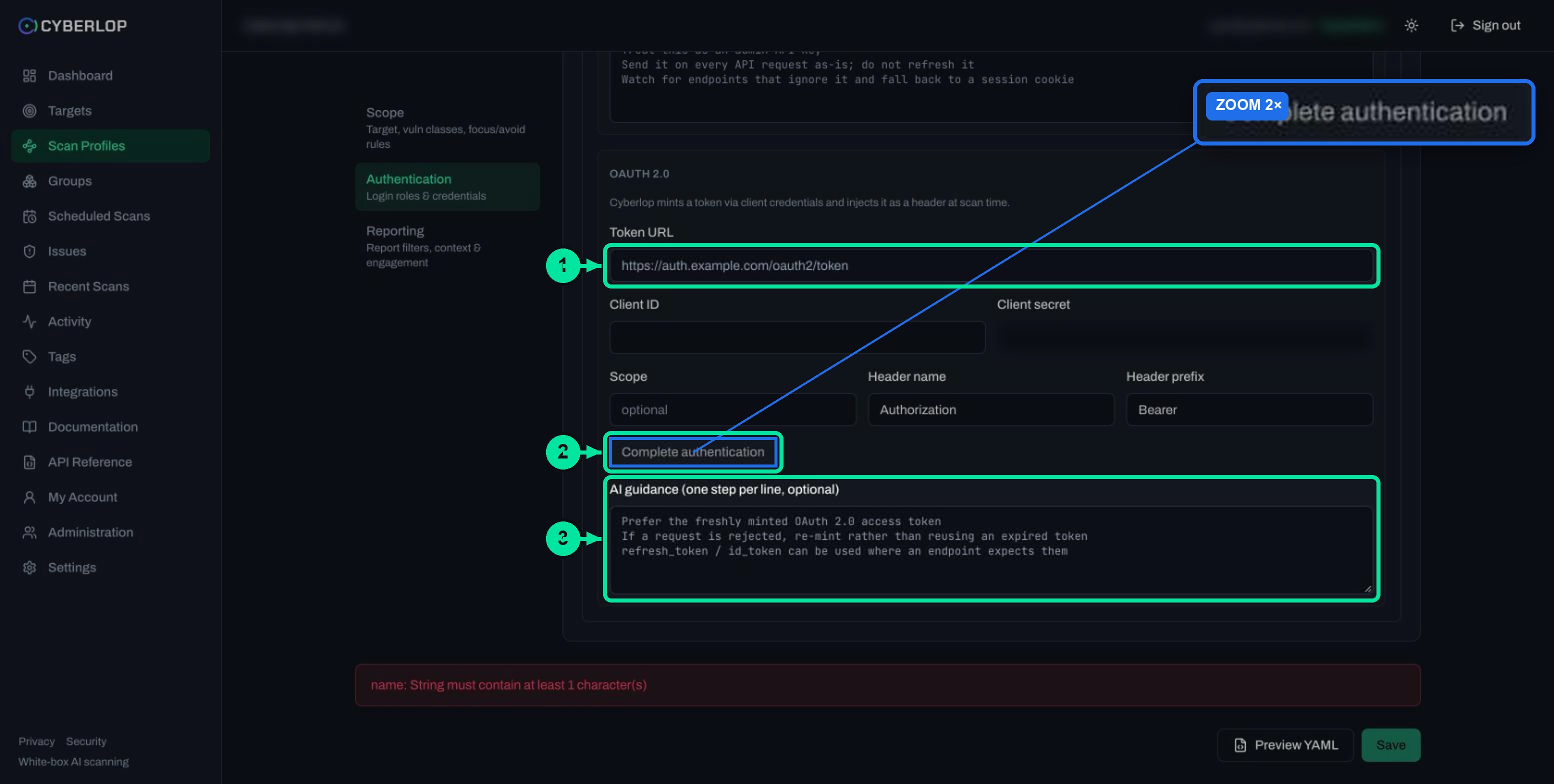
Stored secrets are encrypted at rest and never shown again.
What goes in the Reporting section?
Reporting sets the minimum severity and confidence that reach the report, adds guidance and rules of engagement, and holds the application context.
Reporting field reference
| Field | What to enter | Notes |
|---|---|---|
| Minimum severity | No minimum, Critical, High, Medium, Low, Informational or Best Practice | Findings below it are filtered from the report. |
| Minimum confidence | No minimum, High, Medium or Low | Keep it separate in your head from severity: one is impact, the other is how well it was proven. |
| Report guidance | Free text that steers how the final report is written and filtered | Optional. |
| Rules of engagement | Free-form rules, for example avoid destructive payloads in prod | Optional. |
| Application context | Overview, Tech stack, Frameworks, Sensitive data types, Trust boundaries, Tenancy model, Business-critical flows, Third-party integrations, Known endpoints, API spec reference | Optional text fields. |
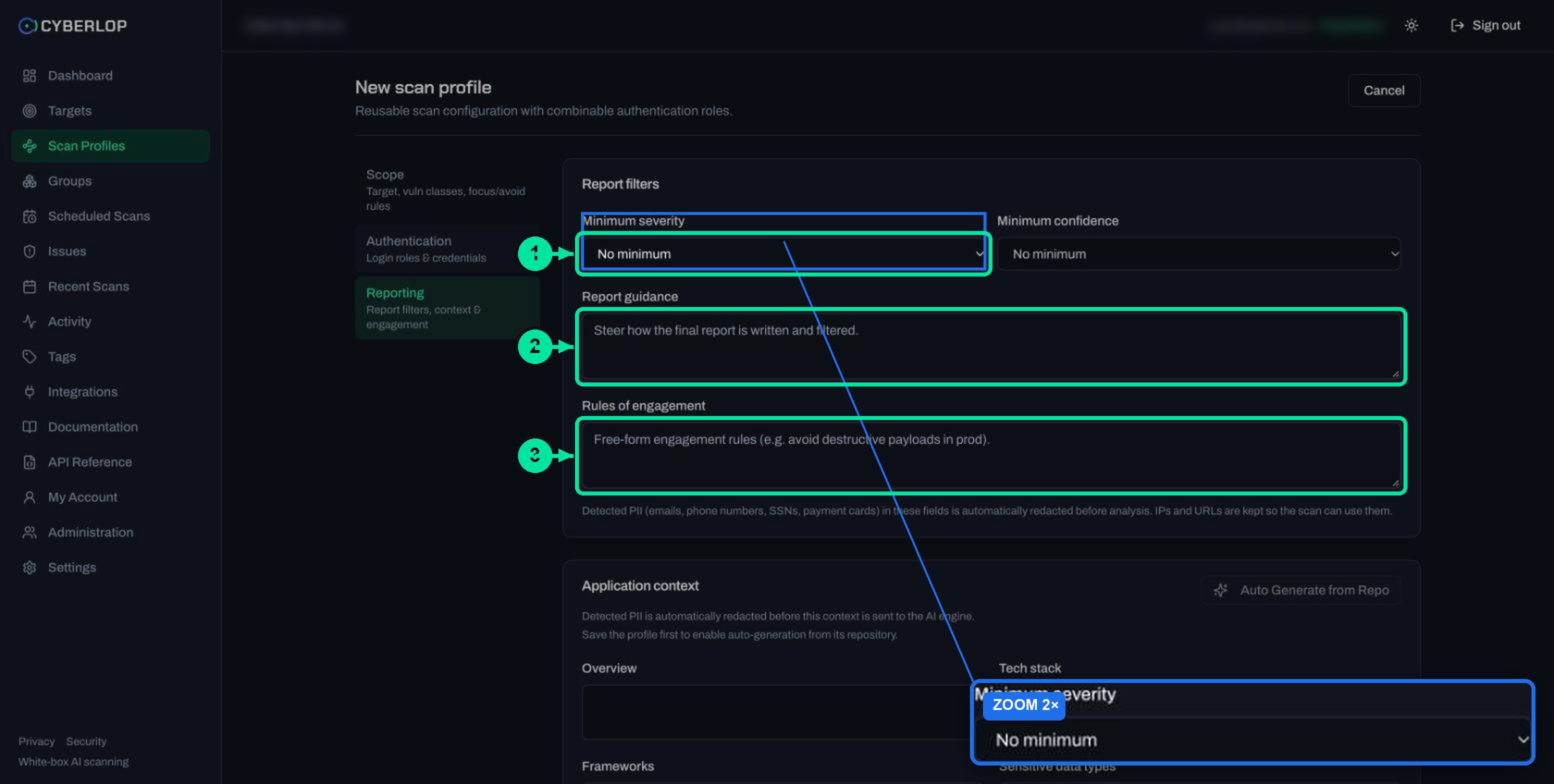
Severity and confidence filters
Unsure? Leave both on "No minimum" for the first scan and tighten later. Filtering on confidence can hide a real issue; see severity vs confidence and Reporting rules.
Application context and Auto Generate from Repo
The context fields tell the scan about your stack, data, tenancy model and business-critical flows. On a new profile the Auto Generate from Repo button is disabled with the tooltip "Save the profile first, then generate from its repo". Save once, edit the profile, then use it to fill the fields from the repository. See Application context.
Detected personal data in these free-text fields is redacted before analysis, but do not paste real customer data.
How do you validate and save a scan profile?
Click Preview YAML to see the generated configuration and to validate the form, then click Save. Validation errors appear in a red banner. With an empty name the banner reads "name: String must contain at least 1 character(s)".
- Click Preview YAML and read the configuration it shows.
- Fix anything the banner reports, usually a missing name or an incomplete role.
- Click Save. The profile appears in Scan Profiles and on its target's Scan profiles card.
- Click ▷ Scan on its row when you are ready; see Run a scan.
The list has Name, Target, Tags, Vuln classes, Auth roles and Actions (Scan, edit, delete) columns. Search it by name, target or tag. Later changes, including secrets that stay blank to keep their stored value, are covered in Edit a scan profile.
Which profile settings suit which goal?
Start broad, then make narrower profiles for repeat work.
| Goal | Classes | Exploitation | Authentication | Reporting |
|---|---|---|---|---|
| First full audit of a staging copy | None ticked (all) | On | One User role if you have a test account | No minimum |
| Check a change to checkout or billing | Authz, Business-logic | On | User role, plus a second account if available | No minimum |
| Code-only review, nothing live | None ticked (all) | Off | None needed | No minimum |
| Regular check on a quiet area | Injection, Xss, Auth | On | Header or OAuth 2.0 role | Minimum confidence set once you trust the output |
Name each profile after its purpose and use tags for team or release, because several small profiles are easier to read and to schedule than one profile that tries to do everything.
What are the common mistakes and how do you fix them?
Most problems trace back to the target, the credentials or filters set too tight. The table maps each symptom to a fix.
| Symptom | Likely cause | Fix |
|---|---|---|
| The target you want is not in the picker | It has not been added yet | Add it first; see the Add a target guide. |
| Preview YAML shows a name error | The Name field is empty | Enter a name and preview again. |
| Auto Generate from Repo is greyed out | The profile has not been saved | Save, then edit the profile. |
| You need a different target | A profile's target is fixed after creation | Create a new profile on the right target. |
| The scan cannot start on an agent | The chosen agent is offline | Bring the agent online or switch Scan location to Cyberlop cloud. |
| Report looks empty | Minimum severity or confidence set too high | Lower the minimums in Reporting and re-run. |
| Authentication does not work | Wrong login URL, success condition or token | Re-enter the secrets, and for OAuth 2.0 use Complete authentication. |
A profile that looks right but finds little
Ask three questions. Did you tick only a few classes? Does an avoid rule exclude the area you care about? Did the scan have a role to sign in with? Without a role it reaches only what is public.
Credentials you cannot see
Stored secrets are never shown again. Enter the new value if a login stops working; a blank field keeps the old one.
What should you do next?
Next step: decide which classes to cover in Choose vulnerability classes. You can then run a scan, or return to Getting started for the full path from target to first finding.
Work only on apps you own or are authorised to test. See Security for how credentials are protected.
Questions people ask
Create a scan profile: FAQs
How do I create a scan profile in Cyberlop?
Open Scan Profiles, click + New profile, pick the target and name the profile, then complete Scope, Authentication and Reporting. Click Preview YAML to validate and Save to finish.
Can I change a profile's target after saving it?
No. A profile's target is fixed after creation. Create a new profile on the right target instead.
What happens if I tick no vulnerability classes?
The profile scans all classes, and the profiles list shows All. Tick classes only when you want a narrower, faster run.
Do I need to add an authentication role?
No. With no roles the scan is unauthenticated. Add a role to scan behind a login, using form login, a header token or API key, or OAuth 2.0 client credentials.
Why is Auto Generate from Repo disabled?
It is disabled on a new profile. Save the profile first, then edit it and use the button to fill the application context from the repository.
Is personal data in the free-text fields safe?
The scan detects PII, such as emails, phone numbers, SSNs and payment cards, in rules of engagement, report guidance and application context, and redacts it before analysis. IPs and URLs are kept. Still, avoid pasting real customer data.
Can one target have more than one profile?
Yes. A target can carry several profiles, for example a full audit and a focused check, each with its own scope, roles and reporting rules.
How many profiles can I create?
Limits depend on your plan and are shown in Settings → Plan & usage.
Keep reading
Related articles
How to add a target in Cyberlop: the New target dialog, field by field
Add a target in Cyberlop: the New target dialog field by field, white-box vs black-box, repository URL, environment, and why targets cannot be edited.
Application context in Cyberlop: fill the ten fields and use Auto Generate from Repo
Fill in the ten application context fields of a Cyberlop scan profile, use Auto Generate from Repo, and write context that improves findings.
Choose vulnerability classes in a Cyberlop scan profile
The ten vulnerability classes in a scan profile, what each covers, when to narrow or leave them all on, and how to filter results by class.

Want a profile set up with you?
Cyberlop finds vulnerabilities in web apps and their APIs with black-box, grey-box and white-box pentesting, and reports only what it exploited. Ask us to run it on one of your applications.
Or start with a $199 pilot on one application: thirty days, success criteria agreed before day one, credited against the annual if you convert.