
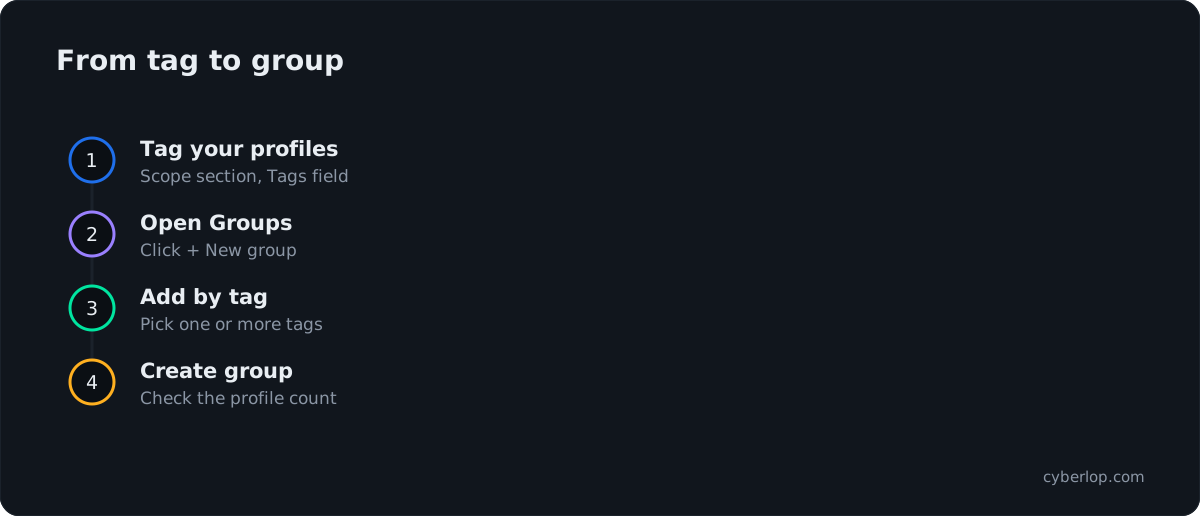
To group scan profiles by tag in Cyberlop, add tags in the profile form or on the Tags page, then open Groups, click + New group, pick tags under Add by tag and click Create group. Groups are used for access scoping, so they also limit what people and API tokens can reach.
- Open the Tags page Click Tags in the sidebar.
- Add a tag Type a name in Name and click + Add tag.
- Tag a profile In a profile's Scope section, type the tag in Tags and press Enter, then click Save.
- Open Groups Click Groups in the sidebar, then + New group.
- Name the group Enter a Name and an optional Description.
- Add members by tag Under Add by tag, pick the tags whose profiles should join.
- Add profiles by hand Under Select profiles, search and tick any extra profiles.
- Create the group Check the 'N profile(s) explicitly selected' counter and click Create group.
- A tag is a label on a scan profile; a group is a named set of profiles.
- Add members to a group by tag, by ticking profiles, or both.
- Groups are used for access scoping, and API tokens carry their owner's group scope.
- Tags and groups have their own permission keys, such as tag:create and group:update.
- If the dialog says No tags available., add the tag on the Tags page or tick profiles by hand.
In Cyberlop, a tag is a label you put on a scan profile, and a group is a named set of profiles chosen by tag, by hand or both. You add tags in the profile form or on the Tags page, then open Groups and click + New group. This guide shows each step, how groups limit what people and API tokens can reach, and what to do when a tag is missing.
What are tags and groups in Cyberlop?
Tags and groups are the two ways Cyberlop lets you organise scan profiles once you have more than a handful. A tag labels, and a group collects.
A tag is a short label such as production or payments. The profile form describes tags as "Labels for grouping and filtering profiles." A group is a set of profiles. According to the in-app terminology, groups are used for access scoping, so they decide which profiles a person or an API token can see and run, not only how a list looks.
Tags versus groups at a glance
| Question | Tag | Group |
|---|---|---|
| What is it? | A label on a scan profile | A named set of scan profiles |
| Where do you create it? | Tags page, or the Tags field in a profile | Groups page, + New group |
| How are members chosen? | You add the tag to a profile | By tag, by ticking profiles, or both |
| What is it for? | Filtering and searching | Organising and access scoping |
| Who can manage it? | Holders of tag:* permissions | Holders of group:* permissions |
Why does organising profiles matter?
Access control failures top the OWASP list. In the OWASP Top 10:2021, broken access control moved up from fifth place to first. OWASP tested 94% of applications for some form of it and counted over 318k occurrences, the most of any category in its dataset (OWASP Top 10:2021, A01). Your scanner's own access should follow the same discipline: least privilege, meaning only the profiles a person needs.
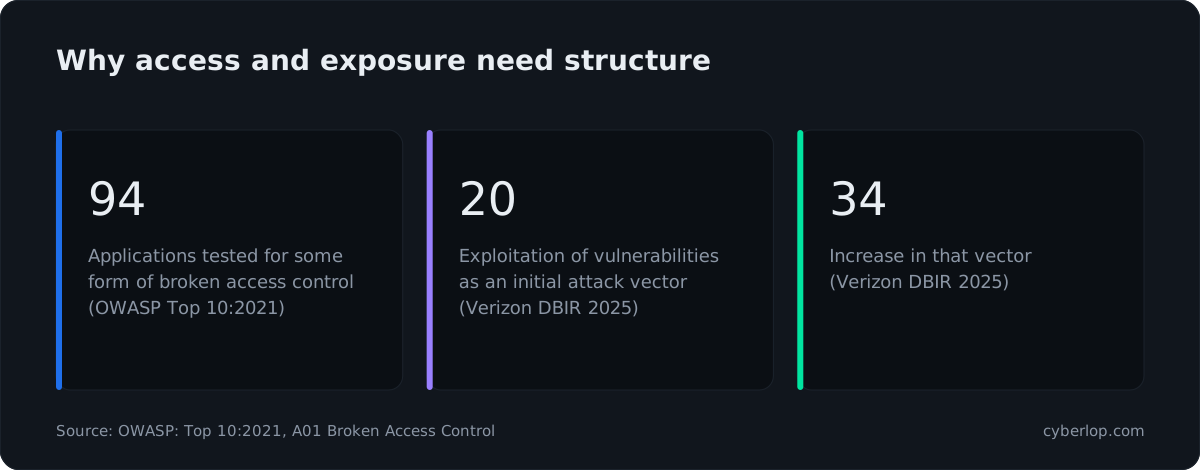
Exploitation of vulnerabilities is also a leading way in. Verizon's 2025 Data Breach Investigations Report puts it at 20% of breaches, with a 34% increase for that vector, from over 22,000 incidents analysed (Verizon, 2025). Scanning many apps on a steady rhythm needs structure, and tags and groups supply it.
How do you create and apply a tag?
You can create a tag in two places: on the Tags page, or straight from a profile. Both end with the same label on a profile, and you can filter by it in the Scan Profiles list.
Create a tag on the Tags page
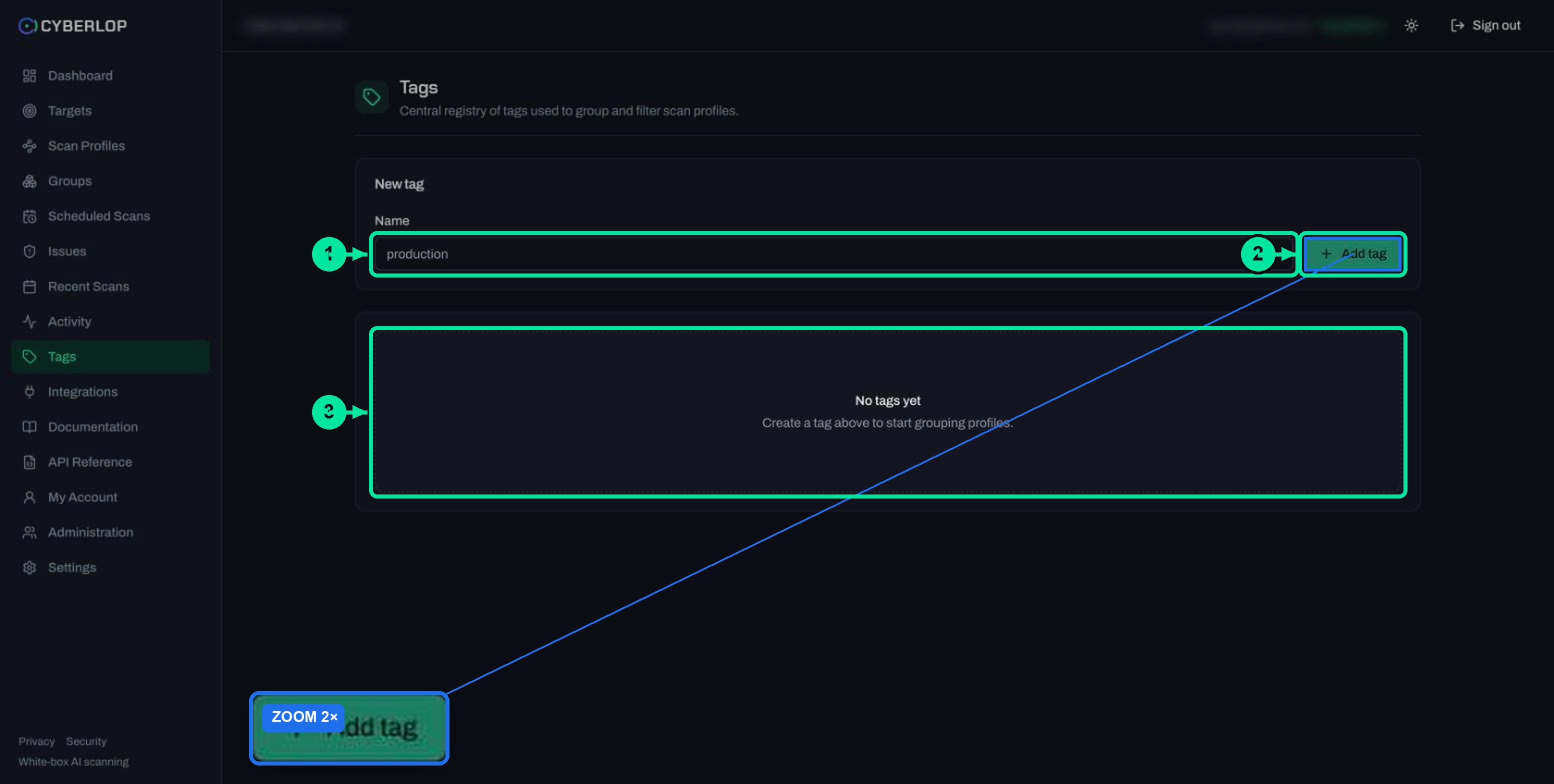
- Click Tags in the sidebar. With no tags yet, the page shows "No tags yet" and "Create a tag above to start grouping profiles."
- In the New tag card, type a name in Name (the placeholder is "production").
- Click + Add tag. The tag now appears in the central registry.
The API describes tag creation as idempotent, so adding the same name twice does not create a duplicate. It needs the tag:create permission.
Apply a tag in the scan profile form
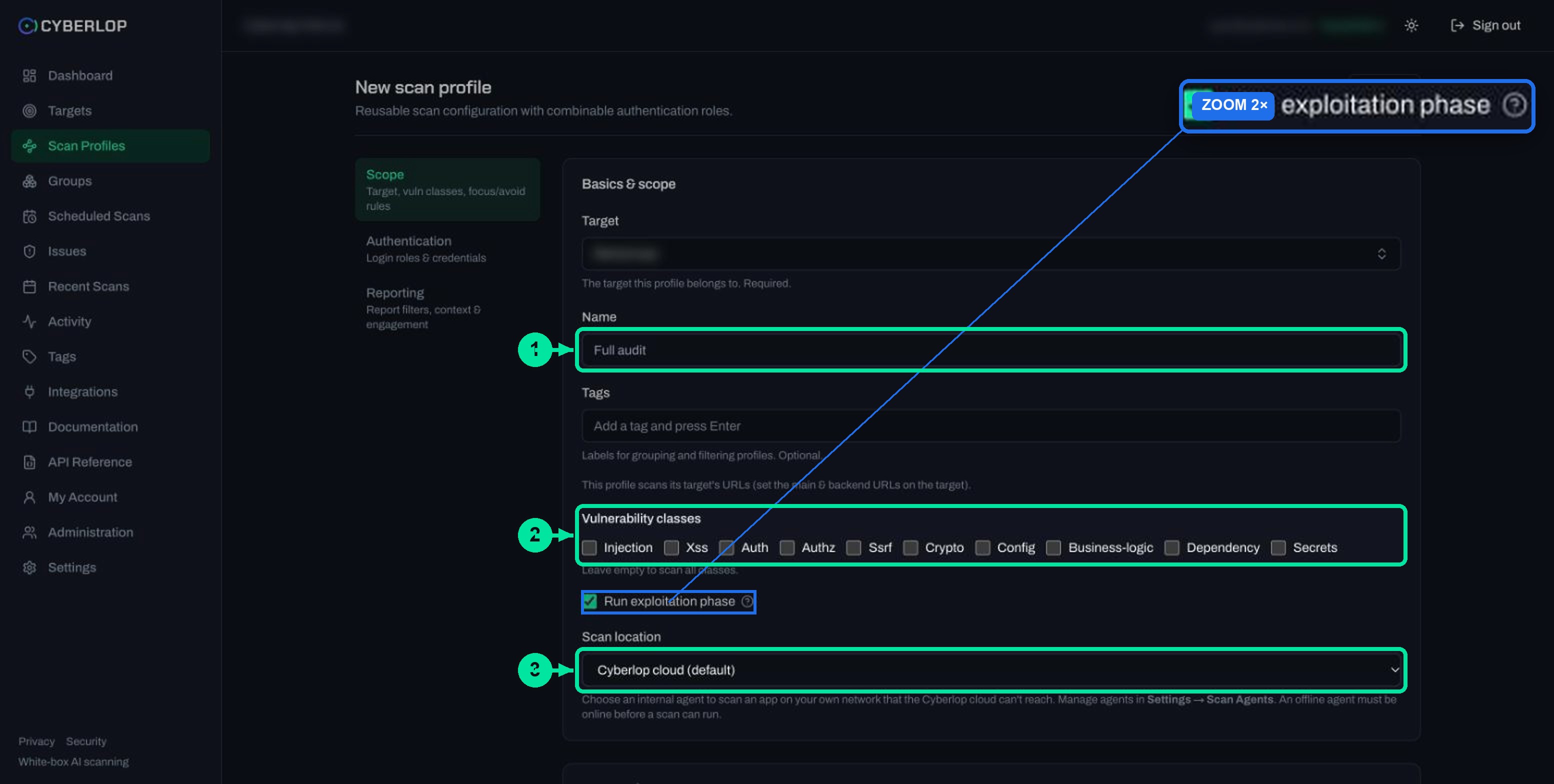
- Open Scan Profiles and click + New profile, or open an existing profile with the pencil icon.
- In the Scope section, find Tags. The placeholder reads "Add a tag and press Enter".
- Type the tag and press Enter. Add as many as you need. Tags are optional.
- Click Save.
The full profile walk-through is in create a scan profile, and changing tags later follows the rules in edit a scan profile.
A short naming scheme that scales
Pick tag names before the list grows. Short, lower-case names that say one thing each work best. Mix a few kinds rather than inventing a word per profile.
| Kind of tag | Example | Use it to |
|---|---|---|
| Environment | production, staging | Separate live checks from pre-release ones |
| Product area | payments, admin-api | Group profiles by the part of the app they cover |
| Cadence | nightly, pre-release | Pick the profiles a schedule or pipeline should run |
| Ownership | team-checkout | Show one team only its own work |
How do you filter and search by tag?
Open Scan Profiles. Under the search box a Tags row shows one chip per tag. Click a chip to filter the table to profiles that carry it.
The search box also matches tags: its placeholder is "Search profiles by name, target, or tag...". The Targets list has a Tags column and the same style of search ("Search targets by name, URL, or tag..."), so a tag helps you find a target too.
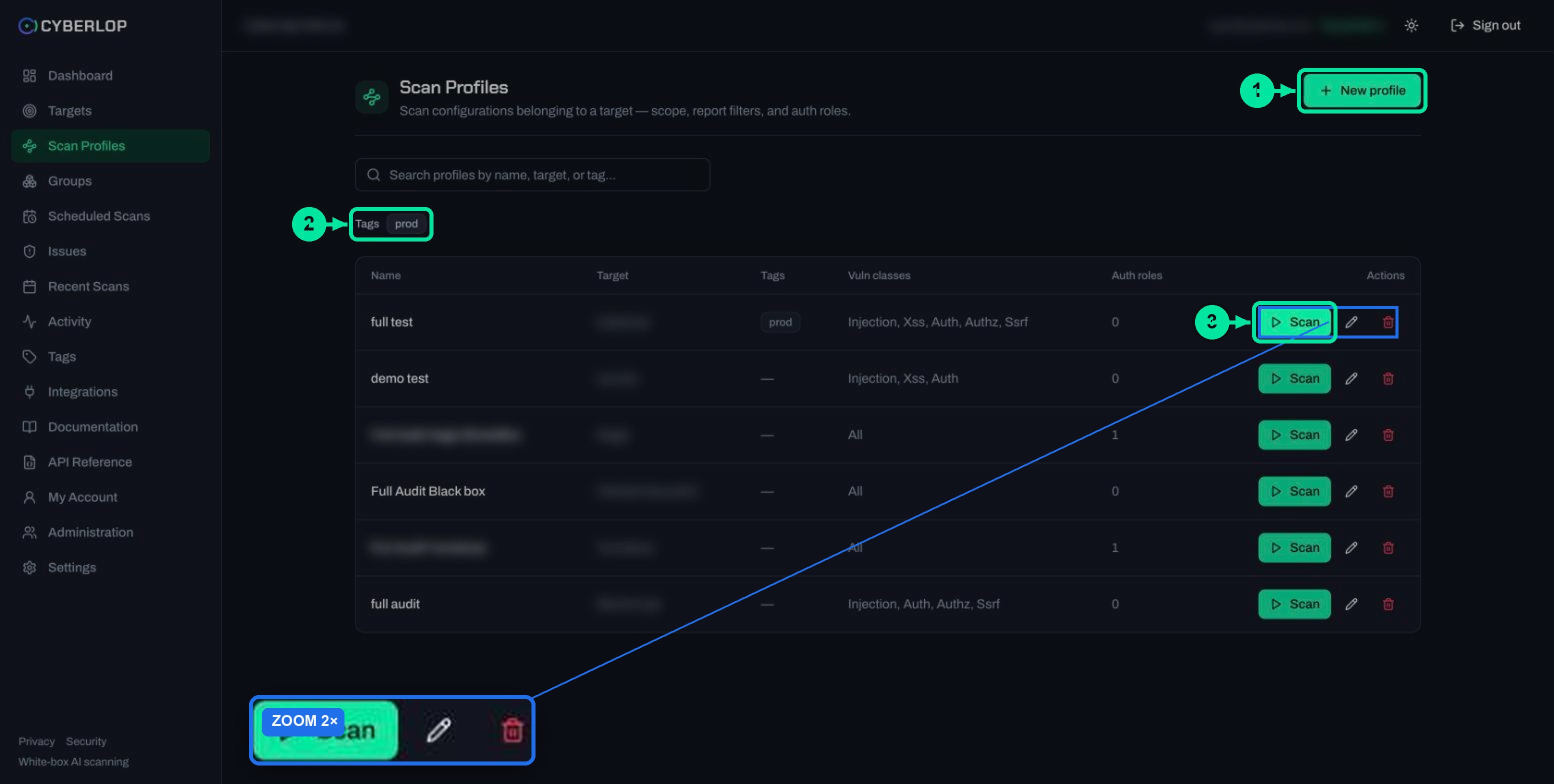
Read tags through the API
Two read routes help scripts. GET /api/tags lists tags with usage counts, and GET /api/profiles can be filtered by tag. GET /api/profiles/tags returns the distinct tag set across profiles. See the API reference guide for authentication.
How do you create a group of scan profiles?
Open Groups in the sidebar and click + New group. Name it, then add members by tag, by ticking profiles, or both. With no groups yet, the page shows "No groups yet" and "Create a group to organize scan profiles."
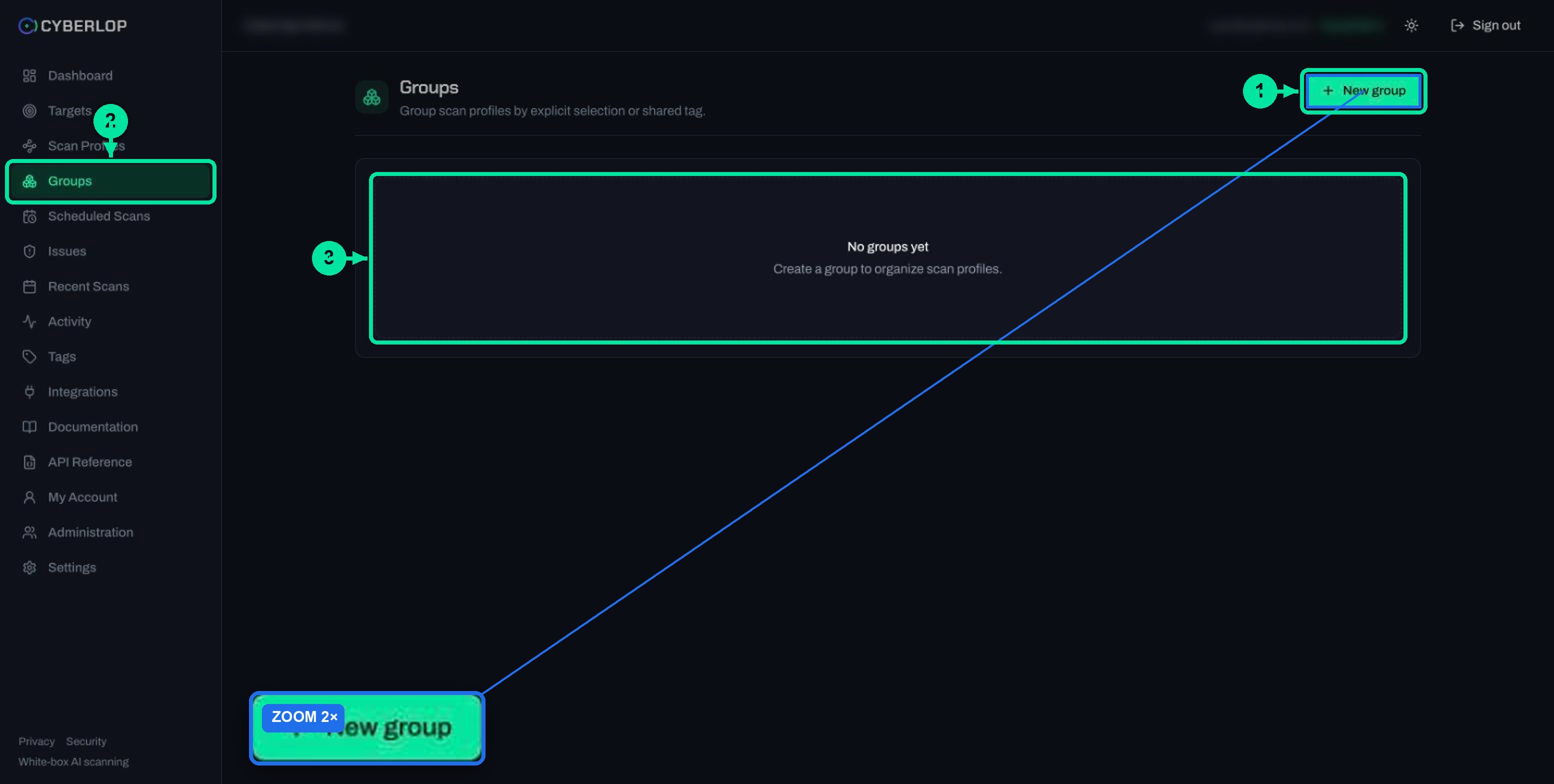
Steps to create a group
- Click Groups, then + New group. A dialog opens.
- Enter a Name. The placeholder is "Payments services".
- Optionally add a Description ("Optional description of this group.").
- Under Add by tag, pick one or more tags. The dialog says "All profiles carrying any selected tag are added to the group."
- Under Select profiles, use "Search profiles..." and tick any profiles you want by hand. Each row shows its tag chips.
- Check the counter, which reads "N profile(s) explicitly selected."
- Click Create group, or Cancel to leave without saving.
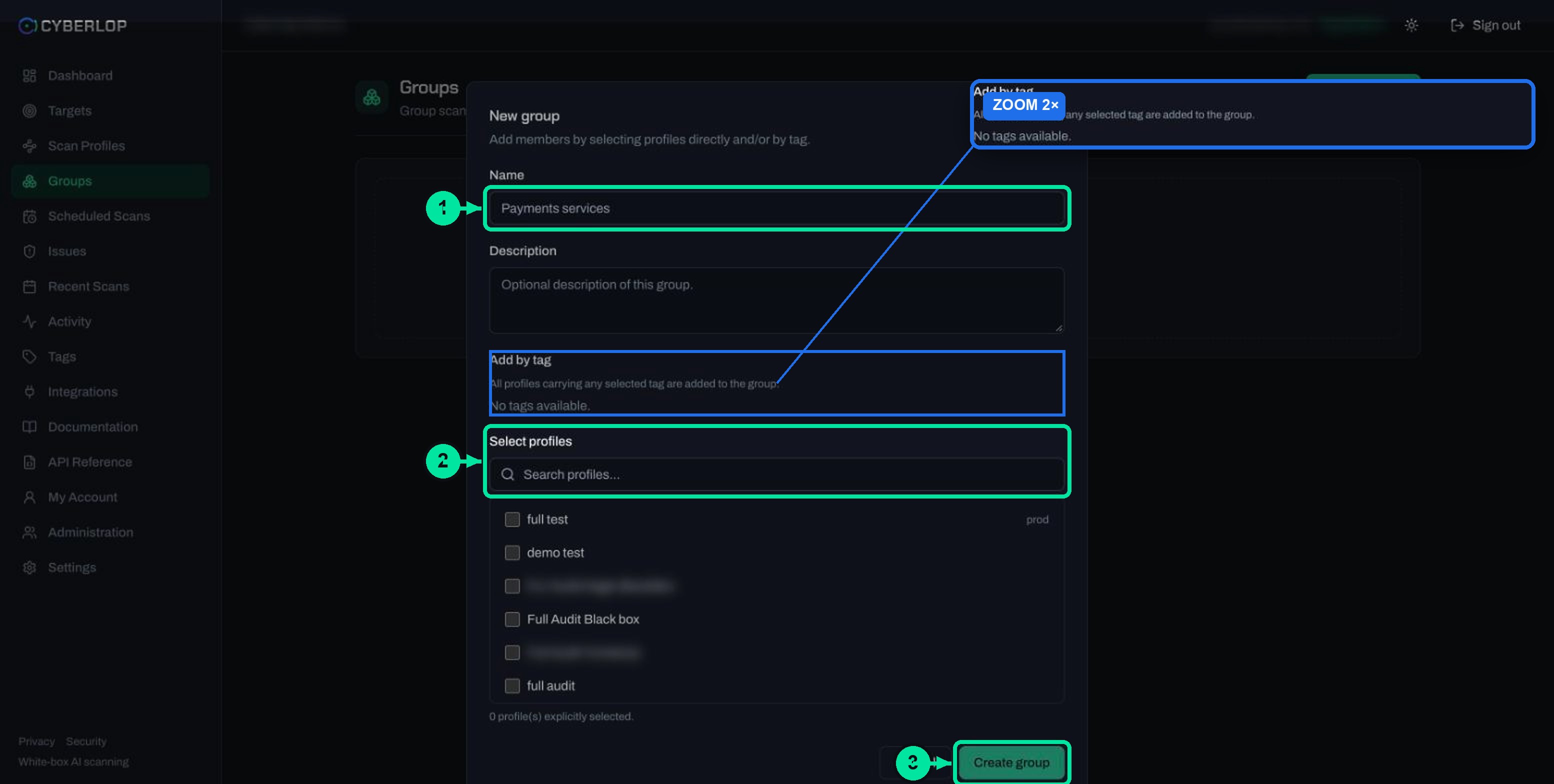
New group dialog, field by field
| Field | What to enter | Notes |
|---|---|---|
| Name | A short name such as "Payments services" | Describe the set of apps, not one profile. |
| Description | One line on why the group exists | Optional. |
| Add by tag | One or more tags | Any selected tag matches. Shows "No tags available." if none can be listed. |
| Select profiles | Profiles to add by name | Searchable. Counted as explicitly selected. |
Tag-based or hand-picked: which should you choose?
Use tags when membership should follow the label. The API describes group creation as "explicit and/or tag-based membership", and the dialog adds every profile carrying a selected tag. Tick profiles by hand for a fixed, small set, such as the three profiles an external reviewer may touch. Combining both works well: a tag for the bulk, plus a few named exceptions.
Updating or deleting a group
The API has update and delete routes for groups, guarded by group:update and group:delete. Listing groups returns each group with its member profiles and needs group:read. The screens for editing and deleting a group were not captured, so check the Groups page for the controls your role allows.
How do groups control access?
Groups also scope access. The in-app terminology defines a group as a set of profiles, picked explicitly and/or by tag, and the in-app documentation says an API token "carries its owner's permissions and group scope".
That has a practical effect. A scan started from a pipeline runs with the permissions and group scope of the person who owns the API token. If that person is limited to one group, the token is limited with them. This is the same idea as need to know and role-based access control: permissions say what someone can do, and group scope says which profiles it applies to.
Permission keys for tags and groups
| Permission | Allows | API route |
|---|---|---|
tag:read | List tags with usage counts | GET /api/tags |
tag:create | Create a tag | POST /api/tags |
tag:delete | Delete a tag | DELETE /api/tags/:id |
group:read | List and read groups | GET /api/groups, GET /api/groups/:id |
group:create | Create a group | POST /api/groups |
group:update | Edit a group | PUT /api/groups/:id |
group:delete | Delete a group | DELETE /api/groups/:id |
The OWASP Authorization Cheat Sheet defines least privilege as "assigning users only the minimum privileges necessary to complete their job" (OWASP Authorization Cheat Sheet). Apply that to scanning: give a contractor a group holding their own profiles and nothing more.
Who attaches a group to a person?
Users, roles, teams and API tokens are managed in Administration, which is for admins only. The captured material does not show how a group is attached to a user there, so ask your admin and read API tokens and permissions. The New target form also has a free-text Team field (placeholder "Platform"), which is a label on the target and separate from groups.
How should you use tags and groups day to day?
Use tags as vocabulary and groups as boundaries. Most teams settle on one of three patterns.
Three patterns that work
- One group per product line. Tag profiles with the product area, then create a group per tag. Profiles that carry the tag are included.
- One group per outside party. A partner, auditor or agency client gets only the profiles in their group. Agencies running Cyberlop for several clients can use one group per client.
- One tag per cadence. Tag profiles
nightlyorpre-releaseand pick them when you set up scheduled scans or a CI pipeline.
Check what changed
The Activity feed records target and profile creation and deletion, triage, user and role creation and more. Use it to see who changed what (see activity feed). A clear trail supports an access review and any audit log question.
Troubleshooting tags and groups
Most problems come down to a tag that is not where you expect it.
| Symptom | Likely cause | What to try |
|---|---|---|
| "No tags available." in the New group dialog | The tag list the dialog reads is empty | Add the tag on the Tags page and reopen the dialog, or tick the profiles by hand. |
| The Tags page says "No tags yet" but a profile has a tag | Profile tags and the central registry appeared to be separate when this guide was written | Add the same name on the Tags page. |
| A profile is missing from a group | It carries none of the selected tags and was not ticked | Add the tag in the profile, or tick it in the group. |
| A pipeline cannot reach a profile | The token owner's group scope may exclude it | Ask an admin to check the owner's group scope. |
| A button is missing | Your role lacks the tag:* or group:* permission | Ask an admin for the permission. |
Common mistakes
- Inventing a new tag per profile, which leaves chips that group nothing.
- Spelling variants such as
prodandproduction, which split one set in two. - Using a group as a label. Use a tag for labels and a group for boundaries.
- Putting sensitive detail in tag names. Keep them plain.
Only scan applications you own or are authorised to test, whichever group they sit in.
What is the next step?
With tags and groups in place, review who changed what in the activity feed. You can also tighten token access in API tokens and permissions, or revisit how targets are organised. For the wider picture, see how Cyberlop handles security.
Questions people ask
Group scan profiles by tag: FAQs
What is a tag in Cyberlop?
A tag is a label you add to a scan profile, such as production. Tags are for grouping and filtering profiles. They live in a central registry on the Tags page and can also be typed in the profile form.
What is a group in Cyberlop?
A group is a named set of scan profiles. You add members by tag, by ticking profiles, or both. Groups are used for access scoping, so they limit which profiles a person or API token can reach.
How do I add profiles to a group by tag?
Open Groups, click + New group and pick tags under Add by tag. All profiles carrying any selected tag are added. Click Create group to save.
Can a profile be in more than one group?
The captured screens do not say either way. Groups are built by tag and by selection, so a profile that carries several tags can match several groups. Check the behaviour with your admin before relying on it.
Why does the New group dialog say 'No tags available.'?
The tag list that the dialog reads was empty when we captured it, even though a profile carried a tag. Add the tag on the Tags page, or select the profiles by hand.
How do groups affect API tokens and CI scans?
An API token carries its owner's permissions and group scope, and a pipeline scan runs with them. A token owned by someone limited to one group is limited the same way. See CI/CD integration.
Which permissions do I need to manage tags and groups?
Tags use tag:read, tag:create and tag:delete. Groups use group:read, group:create, group:update and group:delete. An admin grants them through roles.
Do tags change how a scan runs?
No. The profile form describes tags as labels for grouping and filtering profiles. Scope, authentication and reporting rules are set in the other parts of the profile.
Sources
Where the facts come from
Keep reading
Related articles
Cyberlop activity feed: what it records and how to use it for audits
Read the Cyberlop activity feed: sign-ins, scans, triage, roles and support sessions, who can see them, how to search and an audit checklist.
Cyberlop API reference: authentication, permissions and the OpenAPI spec
Use the Cyberlop API: 78 endpoints in 15 groups, session or Bearer token auth, permissions per route, worked calls and the OpenAPI download.
Cyberlop API tokens and permissions: how to issue and limit them
What a Cyberlop API token is, how permission keys work, which keys common jobs need, and how to rotate, revoke and audit tokens with least privilege.

Need help scoping access?
Cyberlop can run on a schedule or in CI/CD, and agencies can run it under their own brand. Tell us how your teams and clients are split and we will help you organise profiles. Ask us to run it on one of your applications.
Or start with a $199 pilot on one application: thirty days, success criteria agreed before day one, credited against the annual if you convert.