
Home / Blog / Tutorials / Manage targets in cyberlop
Tutorials
How to manage targets in Cyberlop: list, export, change and delete
Targets cannot be edited, and deleting one removes its scans and findings. Here is how to read the list, export it, change a target safely and clean up.
Cyberlop Labs · Updated · 9 min read
To manage targets in Cyberlop, use the Targets page to search, scan, download the latest PDF report, export JSON or CSV, or delete. Targets are immutable, so to change one you export first, delete it and create it again. Deleting also removes its profiles, schedules, scans and findings.
- Open the Targets page Select Targets in the sidebar and search by name, URL or tag.
- Read the results and environment Check the severity dots, the Environment badge and the Creator column.
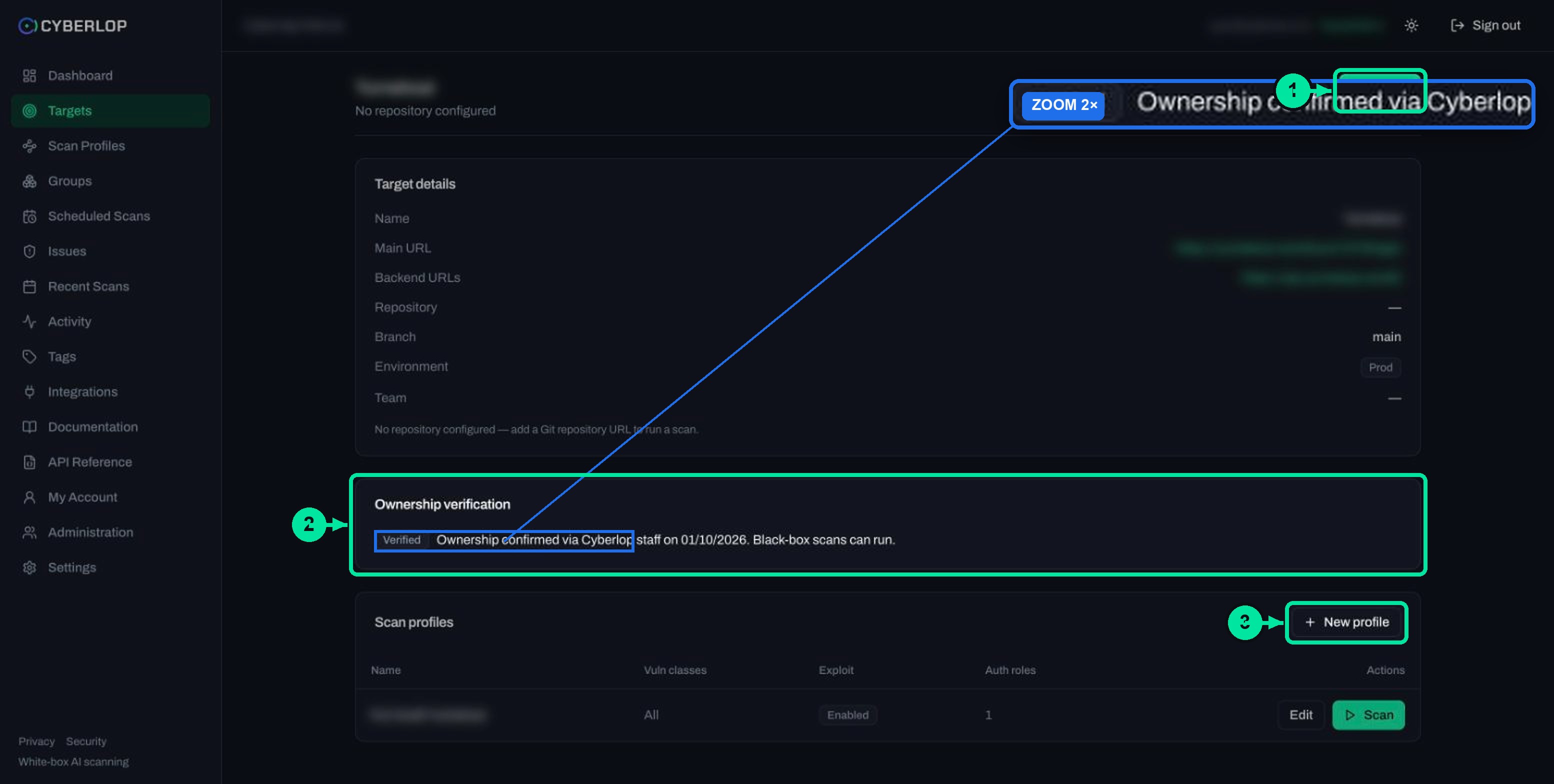
- Open the target detail page Click a row to see Target details, Ownership verification (black-box) and Scan profiles.
- Scan or download the latest report Click Scan, or the document icon for the latest PDF report.
- Export the list Click Export JSON or Export CSV before making changes.
- Change a target by recreating it Note profile settings, delete the target with the trash icon, then click + New target with the corrected details.
- Rebuild profiles and verify Recreate profiles and schedules, verify ownership for black-box, and run a first scan.
- Audit the change Open Activity to see the Create and Delete Target entries.
- The Targets page lets you search, scan, download the latest report, export JSON or CSV and delete.
- Targets are immutable: there is no edit, so delete and recreate to change anything.
- Deleting a target also removes its profiles, schedules, scans and findings; deleting a single scan keeps the findings.
- Export and note your profile settings before you delete; stored credentials are never shown again.
- The Activity feed records who created and deleted each target.
To manage targets in Cyberlop, open Targets: the list shows every application with its latest findings, and each row lets you scan it, download its latest PDF report or delete it. A target is the application under assessment. You cannot edit one, because targets are immutable. To change a URL, repository, branch or environment, delete the target and create it again.
What can you do from the Targets page?
The Targets page is the working list of applications under assessment, your registered attack surface. From here you can search the list, scan a target, download its report, export the list or delete a target, and the severity dots give you each target's results at a glance. Opening a row takes you to the target detail page.
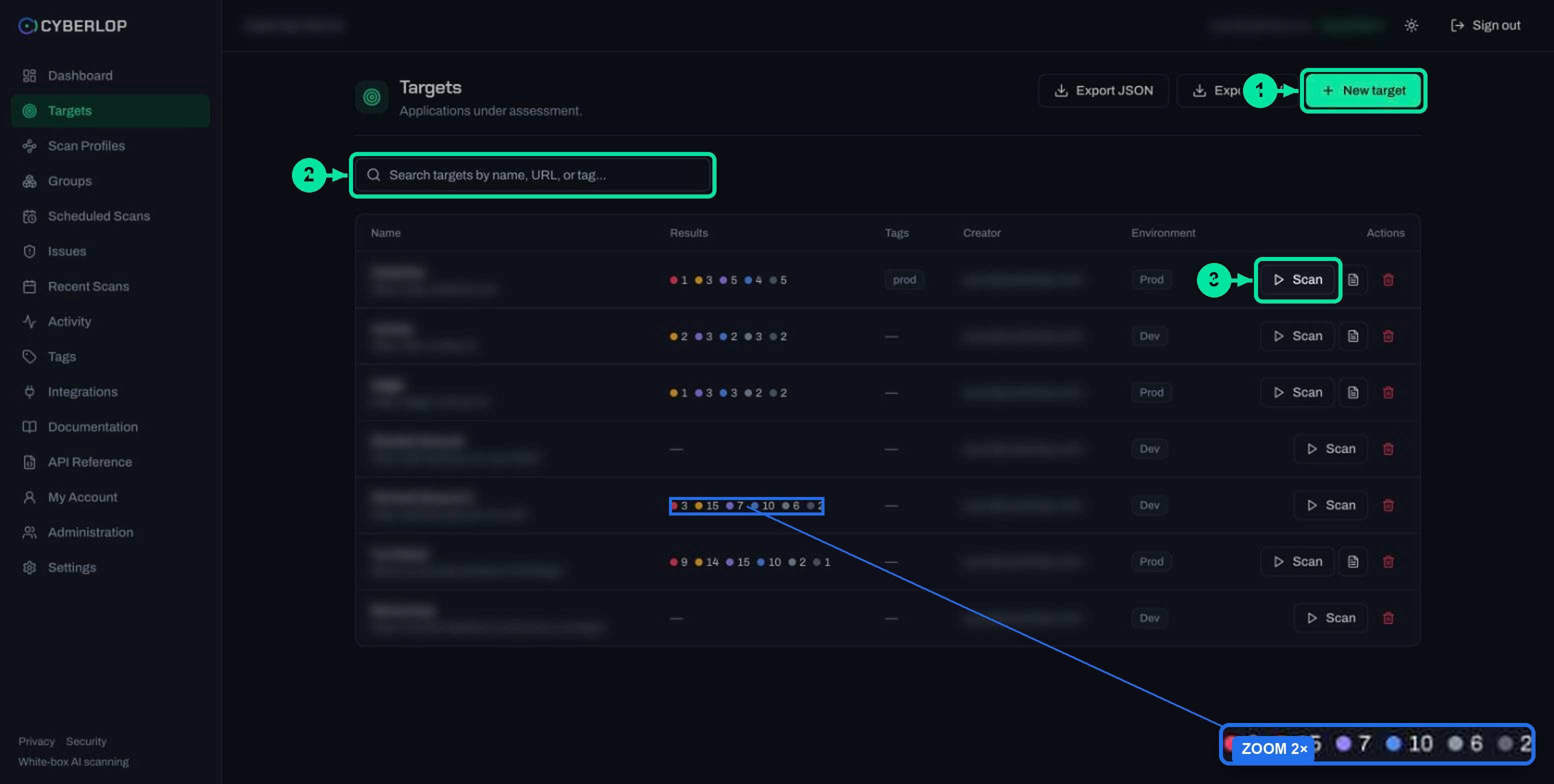
Across the top are three controls: Export JSON, Export CSV and + New target. The search box beneath them reads "Search targets by name, URL, or tag...", so any of those three finds a target. For adding targets, see Add a target.
What does each column in the Targets list mean?
| Column | What it shows | What to do with it |
|---|---|---|
| Name | The target name, with its URL underneath. | Use it to tell two similarly named apps apart. Click the row to open the detail page. |
| Results | Coloured dots with counts: critical, high, medium, low, informational and best practice. A dash means the target has never been scanned. | Scan any target that shows a dash. Start remediation with the red and orange dots. |
| Tags | Tag chips such as prod, or a dash. | Search by tag to pull up a whole group. See Groups and tags. |
| Creator | The email of the person who created the target. | Ask this person why a target exists before you delete it. |
| Environment | A badge: Dev, Staging or Prod. | Check it before you scan or delete anything. |
| Actions | ▷ Scan, a document icon and a red trash icon. | Scan, download the latest report, or delete. Described below. |
The document icon appears only on a target that has a completed scan. Its tooltip reads "Download the latest report (PDF)". The trash icon's tooltip is "Delete target (targets are immutable — delete and recreate to change settings)".
Why keep your list of targets tidy?
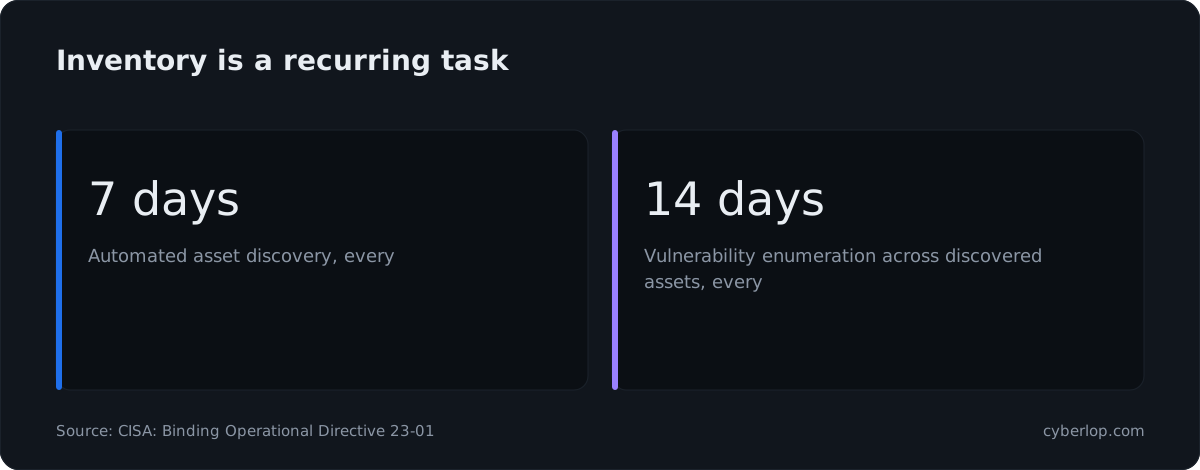
An accurate target list is an asset inventory for the applications you test, and you can only test what you have registered. Public guidance treats inventory as routine work, not a one-off. The US CISA Binding Operational Directive 23-01 requires federal agencies to run automated asset discovery every 7 days and to begin enumerating vulnerabilities across the assets they find every 14 days.
You do not need a federal cadence, but the idea carries over. Retire targets that no longer exist. Register new apps when they ship. Set a clear environment on each one, so nobody mistakes a Dev copy for production. A stale list wastes scan effort and buries the apps that matter. To keep scanning regular, use scheduled scans.
How do you read a target detail page?
The target detail page is one scrolling page of cards, with no inner tabs. It shows how the target is configured, whether black-box scans are allowed, and which scan profiles belong to it. Click a row on the Targets list to open it.
What does the Target details card show?
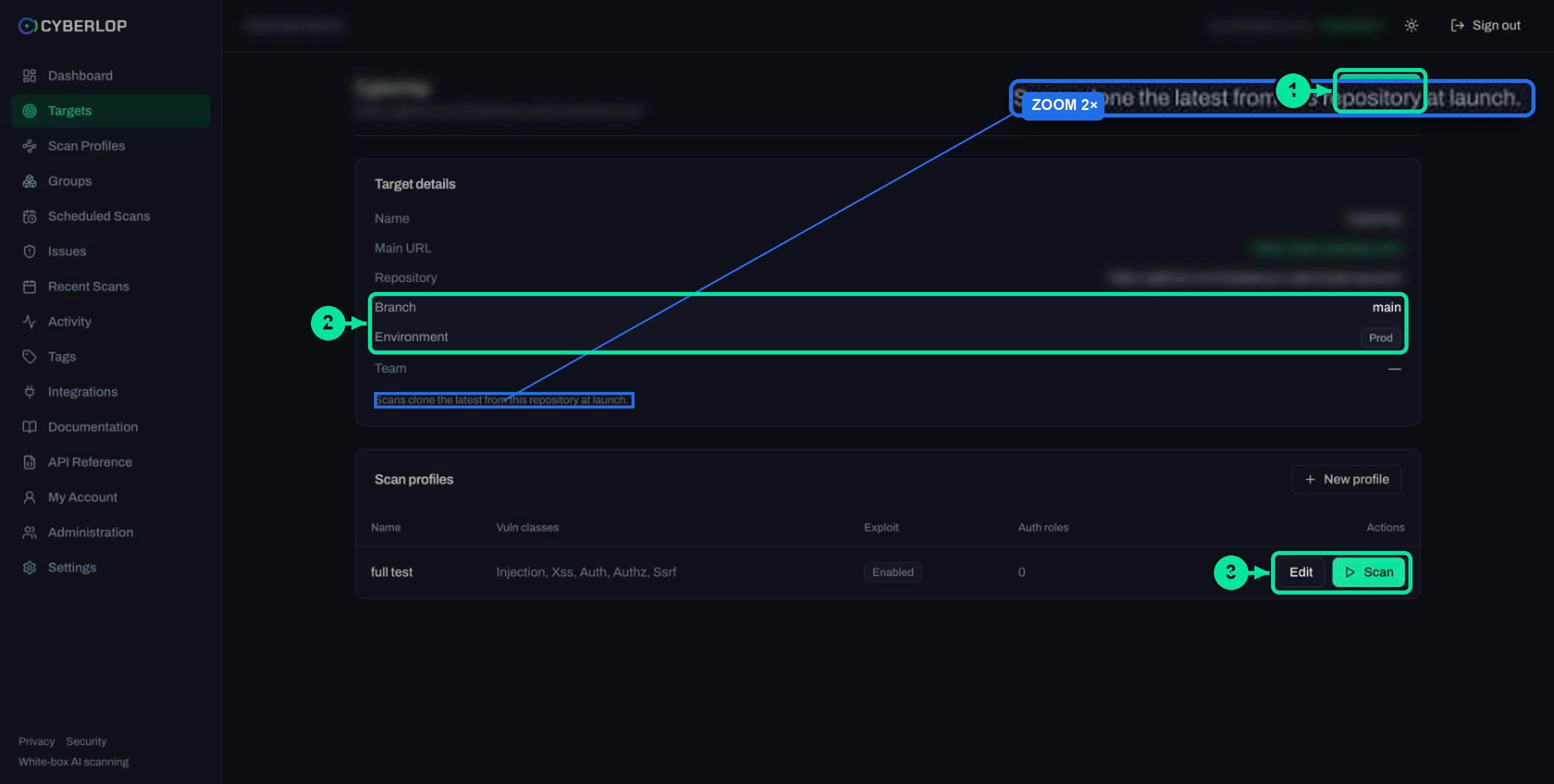
The card lists Name, Main URL, Backend URLs, Repository, Branch, Environment and Team. A note under it tells you what the target can do. A white-box target says "Scans clone the latest from this repository at launch." A target without a repository says "No repository configured — add a Git repository URL to run a scan."
The header carries the target name, the repository URL as a subtitle (or "No repository configured") and a ▷ Scan button.
What does the Ownership verification card show?
This card appears on black-box targets only. A confirmed target shows a Verified badge and the text "Ownership confirmed via Cyberlop staff on <date>. Black-box scans can run." A white-box target with a repository has no such card. The full process is in Verify target ownership.
What does the Scan profiles card show?
Each row shows the profile Name, its Vuln classes, whether Exploit is Enabled and how many Auth roles it holds. Row actions are Edit and ▷ Scan, and + New profile starts a profile with this target already chosen. See Create a scan profile.
How do you scan a target or download its latest report?
Click ▷ Scan on a target row or on the detail page, or use ▷ Scan on one of the target's profile rows. Click the document icon to download the latest PDF report. Both actions are one click from the Targets list.
- Open Targets.
- Find the target by name, URL or tag.
- Click ▷ Scan to run a scan, or the document icon for the latest report as a PDF.
- Follow the run from Recent Scans. See Run a scan.
The scan starts straight away and keeps going if you leave the page. A black-box target must show Verified before its scans can run.
How do you export your list of targets?
Click Export JSON or Export CSV at the top of the Targets page. Use JSON for scripts and CSV for spreadsheets. Do this before any delete, so you keep a record of names, URLs and environments.
This guide could not confirm which columns the export holds. Open your first export and check it before you treat it as a backup. Findings have their own exports on the Issues page, covered in Export findings as JSON or CSV.
Why can't you edit a target?
Targets are immutable: Cyberlop does not let you change a target once it is created. The API reference describes targets as "Immutable once created", and the trash tooltip says to delete and recreate to change settings. Name, Main URL, Backend URLs, Repository, Branch, Environment and Team all fall under this rule.
The rule protects your history. Every profile, scan and finding hangs off a target, so if a target could change, an old finding might point at a different application or repository than the one that produced it. Because it cannot, each finding keeps referring to the same app and the same code.
What the immutability rule does not cover
Scan profiles are editable, with one exception: a profile's target is fixed after creation. Profile settings such as vulnerability classes, authentication roles and reporting rules can be changed. See Edit a scan profile.
How do you change a target?
Delete the target and create it again with the correct details. Deleting also removes the target's profiles, schedules, scans and findings, so export what you need and note your settings before you start.
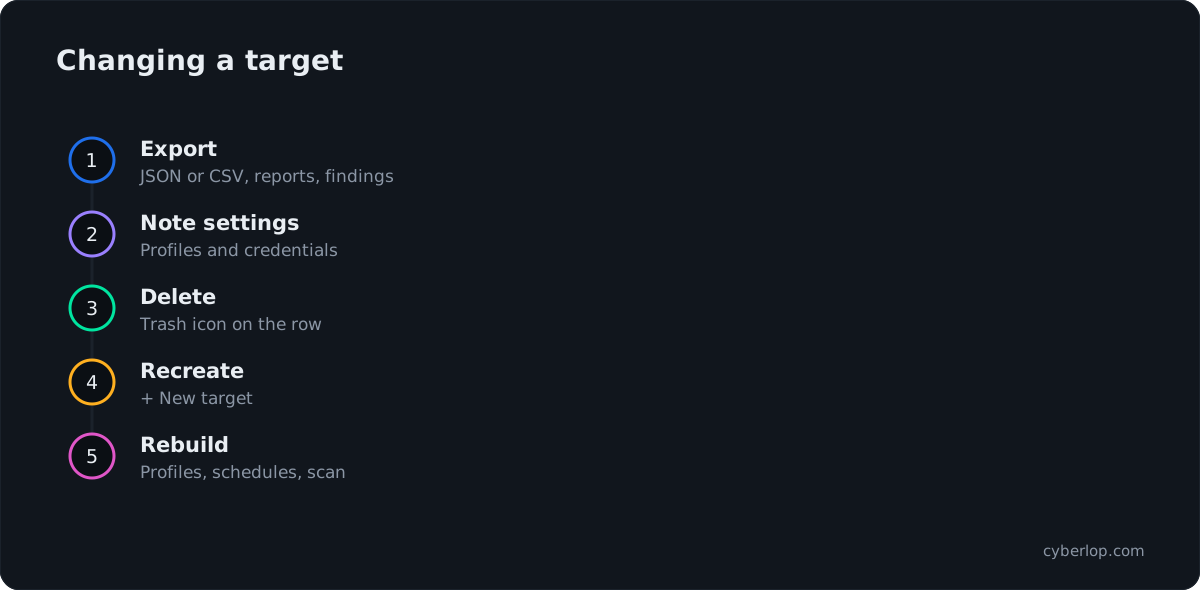
- Open Targets and click Export JSON or Export CSV.
- Download any PDF reports you want to keep with the document icon, and export findings from Issues.
- Open the target and write down its details and each profile's settings. Stored credentials are never shown again, so have them ready from your own secret store.
- Click the trash icon on the target row and confirm.
- Click + New target and enter the corrected details. See Add a target.
- Re-create the scan profiles, schedules and tags you need on the new target.
- Run a first scan and check the result.
A black-box target needs its ownership verified again, so allow time for that. A profile cannot move to another target, because its target is fixed.
Which changes need a delete and recreate?
| You want to change | Can you edit it? | What to do |
|---|---|---|
| Name, Main URL or Backend URLs | No | Delete and recreate the target. |
| Repository or Branch | No | Delete and recreate. Use the HTTPS repository URL. |
| Environment (Dev, Staging, Prod) or Team | No | Delete and recreate. |
| Scan type (white-box to black-box, or the reverse) | No | Delete and recreate, then verify ownership for black-box. |
| Vulnerability classes, roles, reporting rules | Yes, on the scan profile | Edit the profile. |
| A target that is no longer needed | Not applicable | Delete it from the Targets list. |
What happens when you delete a target?
Deleting a target cascades: it removes the target's scan profiles, schedules, scans and findings. The API reference describes DELETE /api/targets/:id as deleting a target that "cascades to profiles, schedules, scans, findings". The app describes no undo, so treat deletion as permanent.
What is removed and what is kept?
| Action | What goes | What stays |
|---|---|---|
| Delete a target | Its scan profiles, schedules, scans and findings. | Other targets, tags and groups. The deletion is recorded in the Activity feed. |
| Delete a scan (Recent Scans, trash icon) | That scan run. | The target and its findings. Findings persist per target across scans. |
| Delete a scan profile | The profile and its schedules. | The target and its scans. |
Before you click the trash icon
The confirmation dialog shown after you click the trash icon was not captured, so this guide does not describe its wording. Read it carefully when you see it.
Who can delete a target?
Permissions involved
The API reference lists the permission target:delete for deleting a target, target:create for creating one and target:read for listing. If the trash icon does not work for you, your role may lack the permission. An administrator manages roles in Administration, which this guide does not cover. Keep delete rights to least privilege: see API tokens and permissions.
How do you audit target changes?
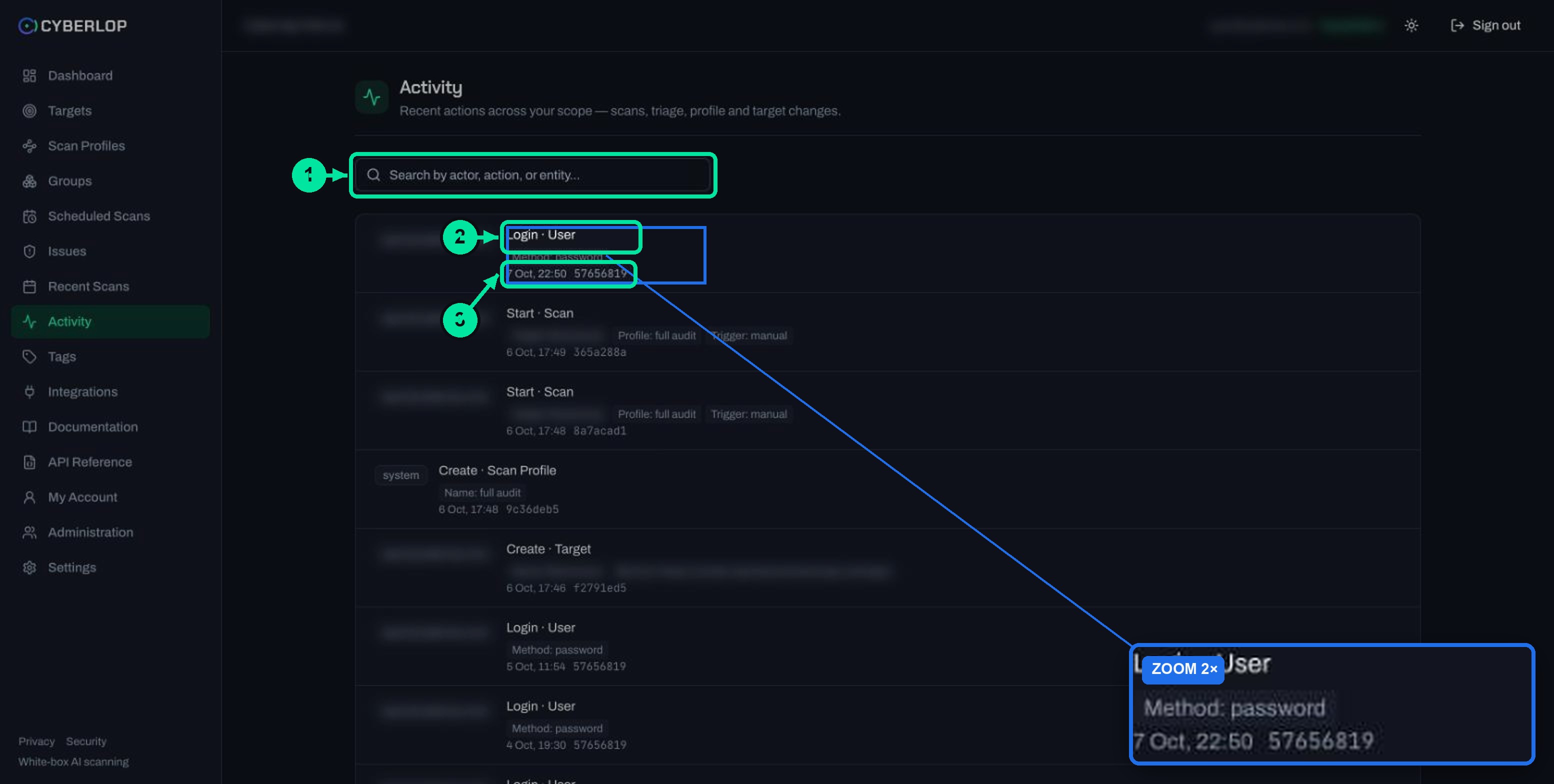
Open Activity. The audit-style feed records Create · Target with Name, MainUrl and, for white-box, RepoUrl, and Delete · Target with Name and MainUrl. Each entry shows the actor, a timestamp and a short ID. Search by actor, action or entity.
It answers "who removed this target, and when?" Details are in Activity feed. Scan data also follows the retention period in Settings → Organization, so find out how long your organisation keeps it before you rely on old results.
How should you organise targets for a team?
Name targets consistently, fill in the Environment field, add the optional Team field and use tags. Keep one target per application and environment, and let the search box do the rest.
A naming convention that scales
- Name: application plus environment, for example "Orders web (Staging)". The URL shows under the name, but the name is what people scan.
- Environment: Dev, Staging or Prod. Prefer a test environment without real customer data for first scans.
- Team: the owning team in plain words, such as "Platform".
- Tags: profile tags such as
prodappear as chips in the list and in search.
Plan limits
How many targets you can hold depends on your plan and is shown in Settings → Plan & usage. Deleting retired targets frees that room.
Troubleshooting: target management problems
| Problem | Likely cause | Fix |
|---|---|---|
| No + New target or trash icon | Your role lacks target:create or target:delete. | Ask an administrator to adjust your role. |
| No document icon on a row | The target has no completed scan. | Run a scan and wait for it to complete. See Run a scan. |
| "No repository configured — add a Git repository URL to run a scan." | The target was created without a repository. | Delete and recreate it with an HTTPS repository URL, or use black-box and verify ownership. |
| A black-box scan will not run | The Ownership verification card is not Verified. | Follow Verify target ownership. |
| A scan clones the wrong code | The Branch field holds the wrong branch. | Delete and recreate the target with the right branch. |
| The same app appears twice | It was added twice by mistake. | Search the list, compare Creator and Environment, then delete the extra one after checking its scans. |
| Findings vanished | The target was deleted, which also deletes its findings. | Recreate and rescan. Keep exports before any delete. |
What are the common mistakes when managing targets?
- Deleting without exporting. The findings go with the target.
- Looking for an Edit button. There is none. Delete and recreate.
- Deleting the wrong environment. Check the badge and URL, not just the name.
- Testing something you do not own. Register and scan only applications you own or are authorised to test.
- Forgetting follow-up work. A recreated target has no profiles, schedules or verified ownership yet.
Next step: create a scan profile for the target. New here? Getting started walks the full path, and Key terms explains the vocabulary. See also how it works.
Questions people ask
Manage targets in cyberlop: FAQs
Can I edit a target in Cyberlop?
No. Targets are immutable. To change the name, URL, repository, branch, environment or team, delete the target and create it again. Scan profiles, by contrast, can be edited.
What happens to my findings if I delete a target?
They are deleted with it. Deleting a target cascades to its scan profiles, schedules, scans and findings. Export the findings and download any reports first.
Does deleting a scan delete the findings?
No. Deleting a scan removes that run but keeps the target's findings, because findings persist per target across scans.
How do I export my targets?
Click Export JSON or Export CSV at the top of the Targets page. Check the first export to confirm it holds the columns you need.
How do I download the latest report for a target?
Click the document icon on the target row. It appears only when the target has a completed scan, and it downloads the latest report as a PDF.
Who can delete targets?
Users whose role holds the target:delete permission. An administrator manages roles in Administration. If you cannot see the trash icon or it does not work, ask an administrator.
Can I move a scan profile to a different target?
No. A profile's target is fixed after creation. Create a new profile on the other target instead.
How can I see who deleted a target?
Open Activity. It records Delete · Target with the name and main URL, the actor and the time.
Sources
Where the facts come from
Keep reading
Related articles
Cyberlop activity feed: what it records and how to use it for audits
Read the Cyberlop activity feed: sign-ins, scans, triage, roles and support sessions, who can see them, how to search and an audit checklist.
How to add a target in Cyberlop: the New target dialog, field by field
Add a target in Cyberlop: the New target dialog field by field, white-box vs black-box, repository URL, environment, and why targets cannot be edited.
Cyberlop API tokens and permissions: how to issue and limit them
What a Cyberlop API token is, how permission keys work, which keys common jobs need, and how to rotate, revoke and audit tokens with least privilege.

Want help tidying your targets?
Cyberlop finds vulnerabilities in web apps and their APIs with black-box, grey-box and white-box pentesting, and reports only what it exploited. Ask us to run it on one of your applications.
Or start with a $199 pilot on one application: thirty days, success criteria agreed before day one, credited against the annual if you convert.