
Home / Blog / Tutorials / How to schedule security scans in Cyberlop
Tutorials
How to schedule security scans in Cyberlop
A schedule runs a scan profile once or on a repeating cadence, so testing happens without anyone pressing Scan. Here is each field, how the timezone works and how to choose a frequency.
Cyberlop Labs · Updated · 9 min read
To schedule security scans in Cyberlop, open Scheduled Scans, click + New schedule, pick a scan profile, choose Once, Daily, Weekly, Monthly, Quarterly or Yearly, set the start date and time, and click Create schedule. Runs follow the organisation's schedule timezone, and the Enabled box switches the schedule on or off.
- Check the prerequisites Have a saved scan profile, the schedule:create permission and a schedule timezone set in Settings → Organization.
- Open Scheduled Scans Click Scheduled Scans in the sidebar.
- Start a new schedule Click + New schedule to open the dialog.
- Pick the scan profile Search for and select the profile to run.
- Choose a frequency Select Once, Daily, Weekly, Monthly, Quarterly or Yearly. Weekly is the default.
- Set the start date and time The recurring cadence is anchored to this date and time, read in the organisation timezone.
- Create the schedule Leave Enabled ticked, or untick it, then click Create schedule.
- Read the runs Open Recent Scans and the scan's Diff tab after each run to see what is new, fixed or regressed.
- A schedule holds only timing; the scan profile still defines what is tested.
- Frequency can be Once, Daily, Weekly (the default), Monthly, Quarterly or Yearly, anchored to the start date and time.
- Recurring runs use the timezone in Settings → Organization, including across daylight-saving changes.
- Untick Enabled to keep a schedule without running it; deleting a profile or target deletes its schedules.
- Read each scheduled run on the Diff tab, and give the results an owner.
To schedule scans in Cyberlop, open Scheduled Scans in the sidebar, click + New schedule, pick a scan profile, choose a frequency, set the start date and time, and click Create schedule. A schedule is a saved instruction that runs one scan profile once or on a repeating cadence, so security testing happens without anyone remembering to press Scan.
What is a scheduled scan?
A scheduled scan is a scan profile that Cyberlop runs for you at a set date and time, either once or on a recurring cadence. The schedule holds only the timing. Everything about what is tested, such as the target, vulnerability classes, login roles and reporting rules, stays in the scan profile.
Because the schedule points at a profile, the profile stays the one place where the scan is defined, and the schedule only decides when it runs. The result is an ordinary scan in Recent Scans.
Scheduling is one half of continuous pentesting. The other half is running scans from your build pipeline, covered in the CI/CD integration guide. A schedule is the better fit when nothing in your code changes but the world does: new vulnerabilities are published, dependencies age and configuration drifts.
Why schedule security scans instead of running them by hand?
You schedule scans because a single test only describes the day it ran. Code ships, settings change and new weaknesses become known. A recurring scan turns a snapshot into a trend you can compare, and feeds your vulnerability management routine.
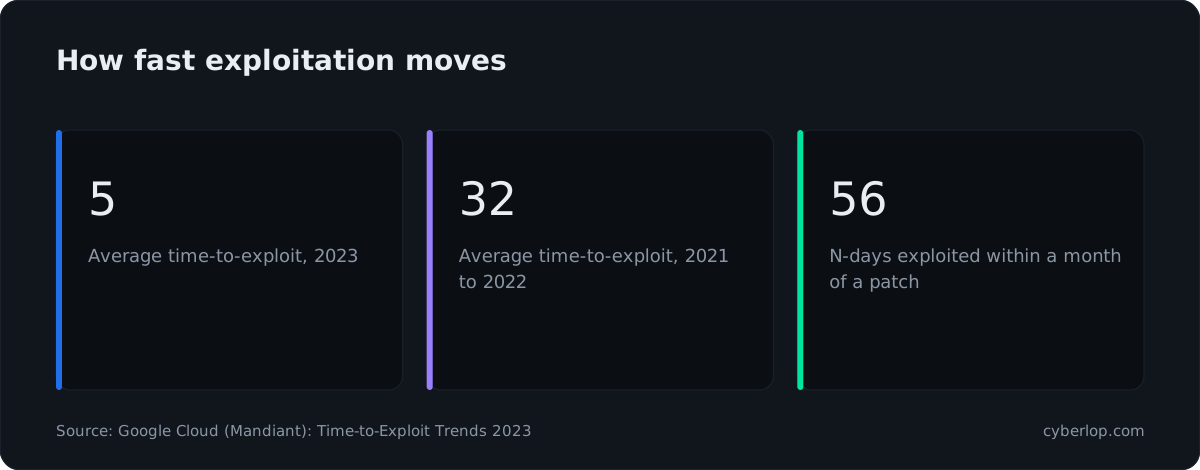
The timing pressure is real. Mandiant's analysis of vulnerabilities exploited in the wild found an average time-to-exploit of five days in 2023, down from 32 days in 2021 to 2022. For vulnerabilities that were exploited after a patch existed, 56% were exploited within a month. A yearly test cannot keep up with that. The 2025 Verizon DBIR reports that exploitation of vulnerabilities rose 34% year on year as a route into breaches, and was a factor in 20% of them.
NIST describes the aim in SP 800-137: continuous monitoring should give visibility into assets, awareness of threats and vulnerabilities, and visibility into whether deployed controls work. A schedule is the simplest way to give your application's attack surface that regular look.
Two more reasons are specific to the product:
- The Diff tab compares each completed scan with the previous one, so a regular rhythm gives you clean New, Fixed and Regressed lists. See compare scans.
- A fix is only trusted once a later scan stops finding the issue (the idea behind a closed-loop retest), and a regression is only caught if a later scan runs. See fixed and regressed issues.
What do you need before you create a schedule?
You need a saved scan profile, permission to create schedules and a timezone you are happy with. Check these three things first.
Which prerequisites does a schedule rely on?
| Prerequisite | Why it matters | Where to set it |
|---|---|---|
| A scan profile | A schedule runs a profile; it cannot exist without one. | Scan Profiles → + New profile. See create a scan profile. |
| A target that can be scanned | White-box targets need a repository; black-box targets need verified ownership. | Add a target and verify ownership. |
| Credentials that will still work (authenticated scans) | A stored password or token may expire before the run. | The profile's Authentication section. See authentication roles. |
The permission schedule:create | Creating a schedule is its own permission, with schedule:read and schedule:update beside it. | Ask an admin. See API tokens and permissions. |
| The schedule timezone | Every recurring run starts in this timezone. | Settings → Organization. |
Only schedule scans for applications you own or are authorised to test. A schedule repeats the profile, mistakes in scope included.
How do you create a scheduled scan?
You create it from the Scheduled Scans page in six steps. On a new workspace the page shows No scheduled scans and the line "Create a schedule to run a scan profile on a recurring cadence."
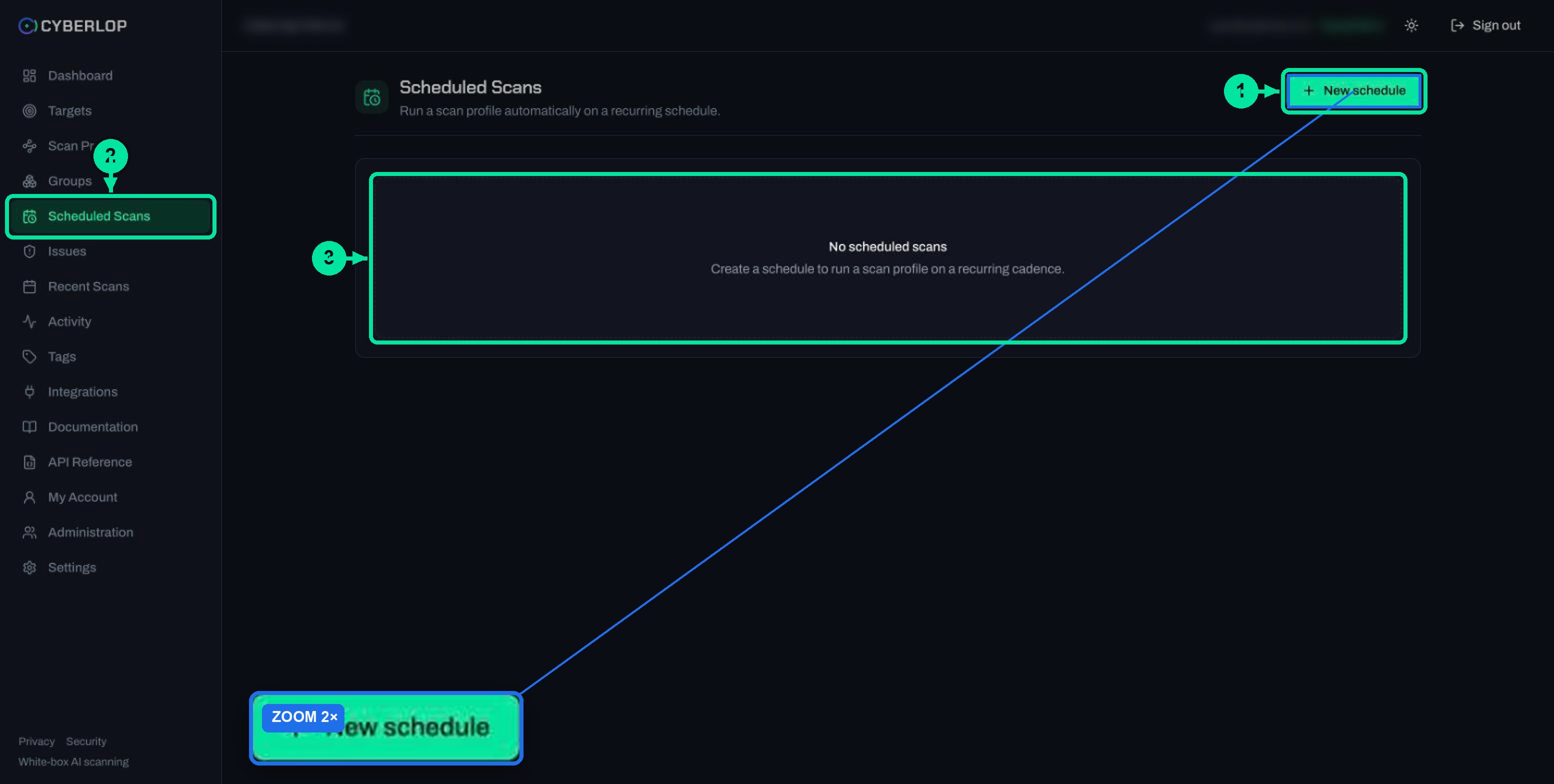
- Click Scheduled Scans in the sidebar.
- Click + New schedule. The dialog opens with the line "Run a scan profile once or on a recurring cadence."
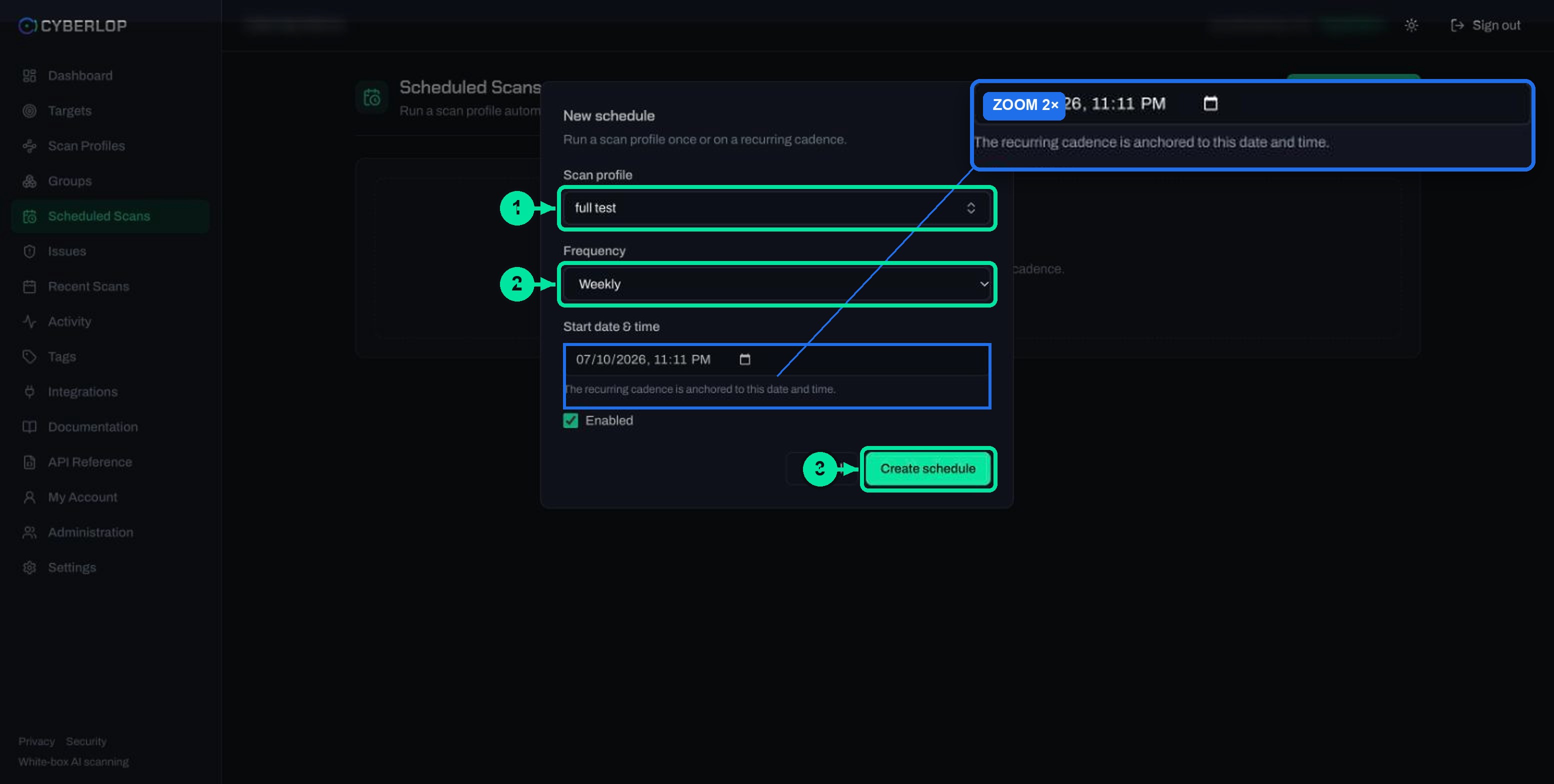
- In Scan profile, search for and pick the profile to run.
- Choose a Frequency. The default is Weekly.
- Set Start date & time.
- Leave Enabled ticked, or untick it, then click Create schedule. Cancel closes the dialog without saving.
What does each field in the New schedule dialog do?
| Field | What to enter | Notes |
|---|---|---|
| Scan profile | The profile to run. | A searchable picker. Each profile belongs to one target, so choosing the profile also chooses the target. |
| Frequency | Once, Daily, Weekly, Monthly, Quarterly or Yearly. | Default is Weekly. |
| Start date & time | The first run. | "The recurring cadence is anchored to this date and time." |
| Enabled | A checkbox. | On by default. It is the on/off switch for the schedule. |
The API equivalent is POST /api/schedules, which needs schedule:create. See the API reference.
Which frequency should you choose?
Match the frequency to how fast your application changes and how fast you can act on results. The table below is guidance, not a product rule.
| Frequency | A sensible use | Think about |
|---|---|---|
| Once | A scan out of hours before a release or a customer review. | It will not repeat, so set a reminder to read the result. |
| Daily | A fast-moving staging app with a narrow, tightly scoped profile. | Scans can take around an hour on a small app, and a daily rhythm uses your plan allowance quickly. |
| Weekly | The default for most active applications. | Enough runs for a useful Diff tab without a flood of results. |
| Monthly | Stable applications, or a deeper full-class profile. | Fixes can wait a month to be confirmed, so retest important ones by hand. |
| Quarterly | Evidence for a recurring review cycle. | Too slow to catch new weaknesses, so pair it with CI scans. |
| Yearly | An annual check-in on a low-change system. | Treat it as a minimum, not a programme. |
How do you fit frequency to your team?
Match frequency to your fix cycle
If your team ships fixes in two-week sprints, a weekly scan confirms each fix within a sprint.
Use more than one schedule per target
Give one target a narrow weekly profile and a full-class monthly one; each profile gets its own schedule. See choose vulnerability classes.
How does the timezone anchor work?
Every recurring schedule runs at its start time in the organisation's schedule timezone, set in Settings → Organization. The app states it this way: "Recurring scans run at their start time in this timezone, including across daylight-saving changes." The default is UTC, and the list offers 419 IANA timezones.
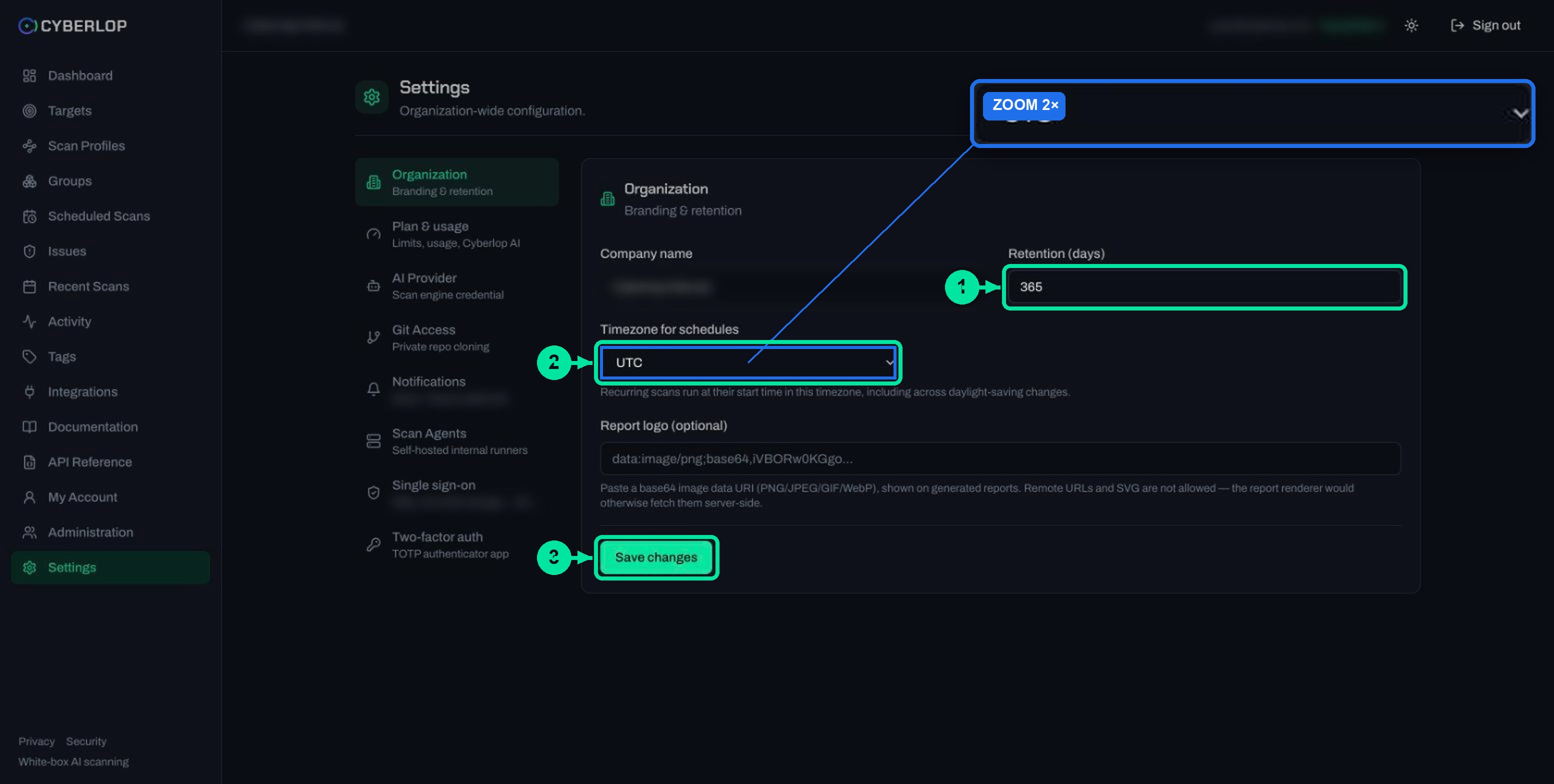
In practice, this means you can think in local time. If the timezone is Asia/Kolkata and you start a weekly schedule on a Monday at 02:00, later runs are meant to stay at 02:00 local time, not drift when clocks elsewhere change. The names come from the IANA Time Zone Database, which holds the rules software uses to calculate local time with the correct UTC offset.
What should you check about the timezone?
Read Timezone for schedules before you create the first schedule, and pick the zone where the people who read the results work. The start time you type is read in that zone, not in your laptop's.
One setting for the whole organisation
The timezone belongs to the organisation, not to a schedule. Every schedule uses the same one. After any change, check the next run time against your expectation.
Choose an early day of the month
The captured screens do not describe what a monthly, quarterly or yearly cadence does when the anchor day is the 29th, 30th or 31st. Anchor those schedules on a day between the 1st and the 28th and the question never arises.
What happens when a scheduled scan runs?
At the start time, Cyberlop launches the profile as a normal scan and it goes through the same five phases: source analysis, recon, vulnerability analysis, exploitation (if the profile has it on) and reporting.
Here is what to expect once it has started:
- The run appears in Recent Scans with a Completed, Failed or Cancelled badge, and the Dashboard counts it under running scans while it works.
- On the scan detail page, the Trigger field in Run details names the schedule instead of showing Manual. See the scan detail page guide.
- New findings land in Issues, and the Diff tab compares the run with the previous completed scan of the target.
- If you have connected a chat webhook, a finished scan posts the target name, finding counts and a link, never the findings themselves. See chat notifications.
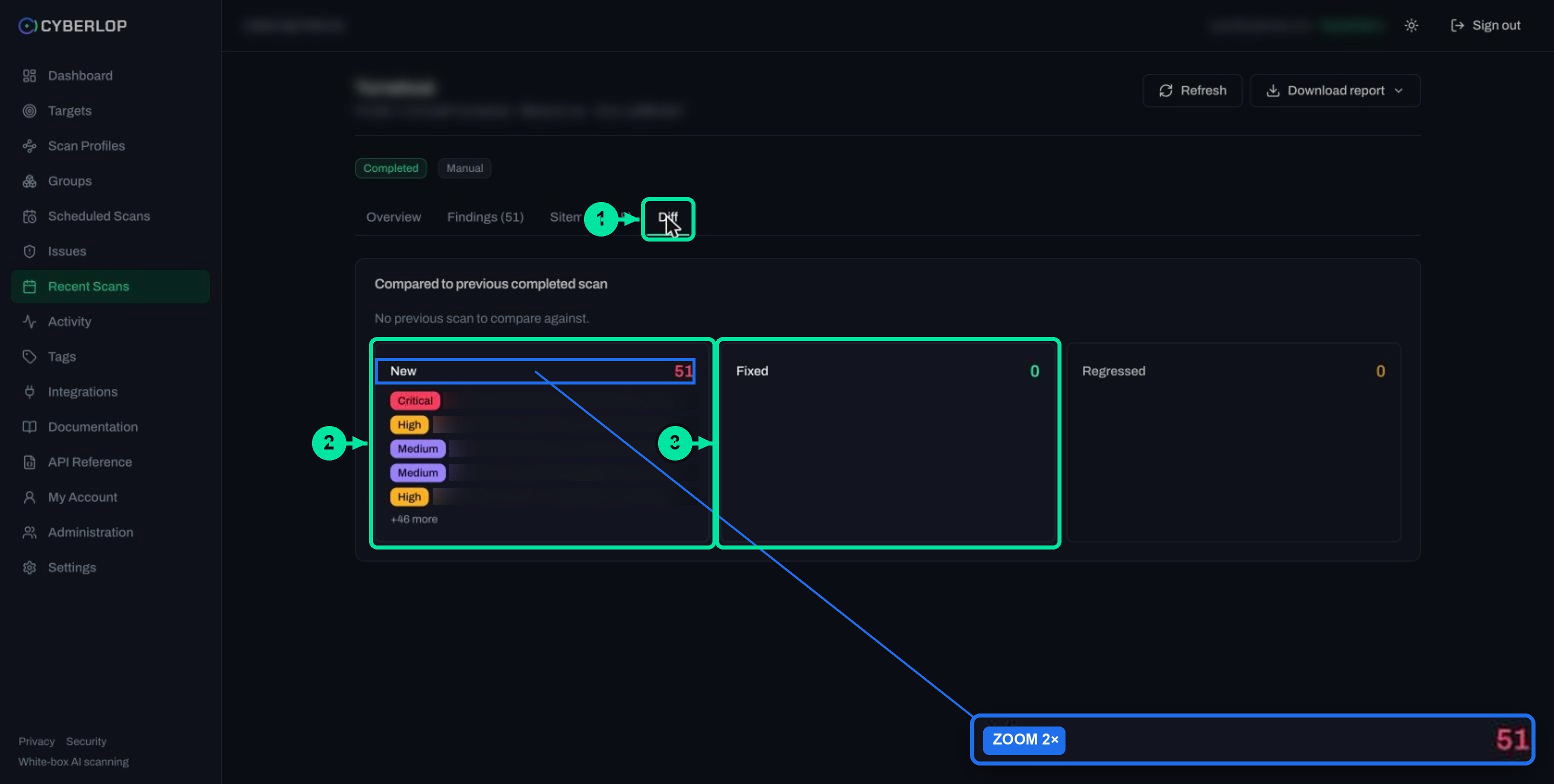
A target with no earlier scan shows "No previous scan to compare against." on the Diff tab, so the comparison starts to help from the second completed scan.
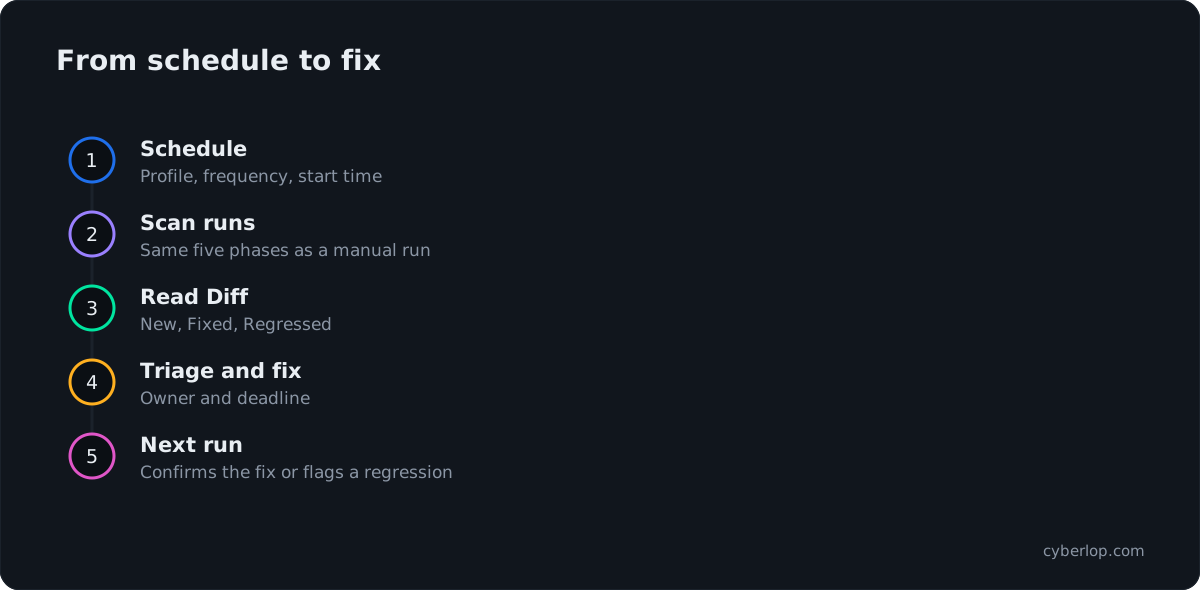
How do you read results from a schedule?
Start from the Diff tab, not the full list. New and Regressed are the items that changed since last time. A regression from a schedule is often the earliest sign that a recent release undid an earlier fix. Triage each one as described in triage findings, then use the issues list to see everything open across targets.
Give the result a standing owner. A schedule that nobody reads only produces vulnerability aging.
How do you plan schedules around plan limits and cost?
Plan your cadence against two limits your plan sets: how many scans run at once and how much Cyberlop AI allowance you have. Both depend on the plan and are shown in Settings → Plan & usage. This guide does not quote figures because they differ per plan.
- Scans at once. If you schedule many profiles for the same start time, they compete for the same capacity. Stagger start times by a sensible gap. An online self-hosted scan agent adds capacity of its own.
- The AI allowance. The app says that when the included allowance is used, scans on Cyberlop AI pause until next month, and that you can connect your own key in AI Provider to keep going. A daily schedule uses the allowance faster than a weekly one. See AI provider settings.
If the application is only reachable inside your network, set the profile's scan location to a self-hosted agent first. The schedule then fires the same profile and the scan runs on your network.
How do you pause, change or delete a schedule?
Use the Enabled setting to switch a schedule on or off, and the schedule update and delete permissions to change it later. The API groups these actions under Schedules: GET /api/schedules lists them, PUT /api/schedules/:id updates one and DELETE /api/schedules/:id removes one. They need schedule:read, schedule:update and schedule:delete.
If a control is missing for you, check your role's permissions first.
What happens to a schedule when its profile or target is deleted?
It goes too. The API reference states that deleting a profile cascades to its schedules, and that deleting a target cascades to its profiles, schedules, scans and findings. Because targets are immutable, changing one means deleting and recreating it, and you will need to create the schedules again.
Common mistakes when scheduling scans
What goes wrong most often?
| Symptom | Likely cause | What to do |
|---|---|---|
| Nothing ran at the expected hour | The start time was read in the organisation timezone, or Enabled was unticked. | Check Settings → Organization and the schedule's Enabled setting. |
| The scheduled scan failed | Expired credentials, an unreachable URL or a repository that needs a token. | Follow failed or cancelled scans. Partial findings may still be there. |
| Few findings behind login | A stored login or token went stale between runs. | Rotate it in the profile. See header token authentication. |
| Scans paused part-way through the month | The included AI allowance ran out. | Check Plan & usage or connect your own key. |
| The schedule vanished | Its profile or target was deleted. | Recreate the target, profile and schedule. |
Scheduling a production app with exploitation on
A repeating scan will repeat its exploitation attempts too. Read the exploitation phase before pointing a schedule at production, and prefer staging.
Forgetting that results need an owner
Decide who triages, who fixes and who reviews the Diff tab, and agree a remediation SLA.
Before you click Create schedule
- The profile's scope is correct and you are authorised to test the target.
- Stored logins and tokens are current.
- The schedule timezone suits the people reading results.
- Start times are staggered from other schedules.
- Someone owns the Diff tab each cycle.
Next, learn how to find and filter what the scans produce in the issues list. If you want scans to follow code changes instead of the calendar, see CI/CD integration, and for the wider picture read continuous penetration testing.
Questions people ask
Schedule security scans: FAQs
How do I schedule a scan in Cyberlop?
Open Scheduled Scans, click + New schedule, pick a scan profile, choose a frequency and a start date and time, then click Create schedule.
What frequencies can a scan schedule use?
Once, Daily, Weekly, Monthly, Quarterly or Yearly. The default in the dialog is Weekly.
Which timezone do scheduled scans use?
The timezone set in Settings → Organization under Timezone for schedules. The default is UTC. The app says recurring scans run at their start time in that timezone, including across daylight-saving changes.
Can I pause a schedule without deleting it?
Yes, that is what the Enabled checkbox is for. It is ticked by default when you create a schedule. Changing an existing schedule needs the schedule:update permission.
What is the difference between a scheduled scan and a CI scan?
A schedule runs a profile on the calendar, whether or not your code changed. A CI scan is started by your pipeline through POST /api/ci/scan, usually per commit. You can run both.
What happens to a schedule if I delete its profile or target?
It is deleted as well. The API reference says deleting a profile cascades to its schedules, and deleting a target cascades to its profiles, schedules, scans and findings.
How often should I scan my web application?
There is no single answer. Weekly suits most active applications, and the right pace is the one your team can triage. Exploitation timelines are short: Mandiant measured an average of five days in 2023, so a yearly scan alone leaves long gaps.
Do scheduled scans use my plan allowance?
They are ordinary scans, so they count against the limits of your plan. Limits depend on the plan and are shown in Settings → Plan & usage.
Keep reading
Related articles
How to add a target in Cyberlop: the New target dialog, field by field
Add a target in Cyberlop: the New target dialog field by field, white-box vs black-box, repository URL, environment, and why targets cannot be edited.
AI provider settings: included allowance, your own credential and models
Use the included AI allowance or save your own credential, verify it and choose a model for each tier. Includes the rate-limit note.
Cyberlop API reference: authentication, permissions and the OpenAPI spec
Use the Cyberlop API: 78 endpoints in 15 groups, session or Bearer token auth, permissions per route, worked calls and the OpenAPI download.

Want scans on a steady rhythm?
Cyberlop finds vulnerabilities in web apps and their APIs, can run on a schedule or in CI/CD, and reports what it actually exploited. Ask us to run it on one of your applications.
Or start with a $199 pilot on one application: thirty days, success criteria agreed before day one, credited against the annual if you convert.