

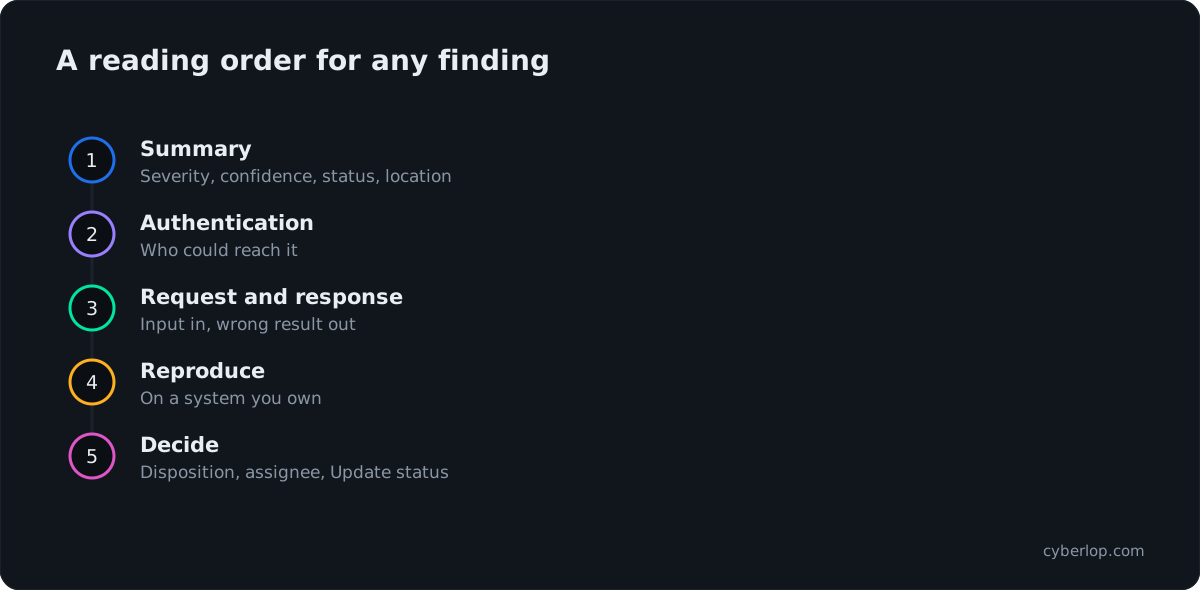
To read a finding in Cyberlop, click it on Issues or a scan’s Findings tab. Summary gives severity, confidence, class, status and location. Evidence gives the payload, HTTP request and response, curl reproduction steps and a screenshot. Check authentication first, then follow the steps on a system you own.
- Open the finding Click a row on Issues or on a scan’s Findings tab.
- Read the Summary tab Check severity, confidence, class, status, ID and location.
- Open the Evidence tab Start with the Authentication line to see what access the proof used.
- Read payload, request and response Confirm the input, the delivery and the unexpected result.
- Follow the reproduction steps Run each curl step in order, on a system you own and are authorised to test.
- Check the screenshot Confirm what a person would see on the live target.
- Decide and record Set Disposition and Assignee, add Notes, then click Update status.
- Open any finding from Issues or a scan’s Findings tab; it uses the same two-tab dialog.
- Summary says what and where; Evidence shows the proof.
- Read severity, confidence and status together, not severity alone.
- Check the Authentication line first: it tells you who could reach the flaw.
- Run reproduction steps only on systems you own, and click Update status to save triage.
To read a finding in Cyberlop, click a row on the Issues page or on a scan’s Findings tab. The dialog that opens has two tabs: Summary says what the problem is, where it is and how serious it looks, and Evidence shows how the scan proved it, with the payload, the HTTP request and response, curl reproduction steps and a screenshot.
What is a finding, and how do you open one?
A finding is one vulnerability that a scan reported against a target, kept as an issue that persists across scans. Each finding opens in the same dialog wherever you click it, and the page URL does not change.
Where can you open a finding from?
- Issues in the sidebar lists findings from all scans. Use the search box, the four filters and the triage chips, as described in the Issues list guide.
- A scan’s Findings tab lists only that run’s findings, in a table of Severity, Title, Class, Confidence, Triage and Location.
- The scan Diff tab lists New and Regressed findings; open them from the scan’s Findings tab or from Issues.
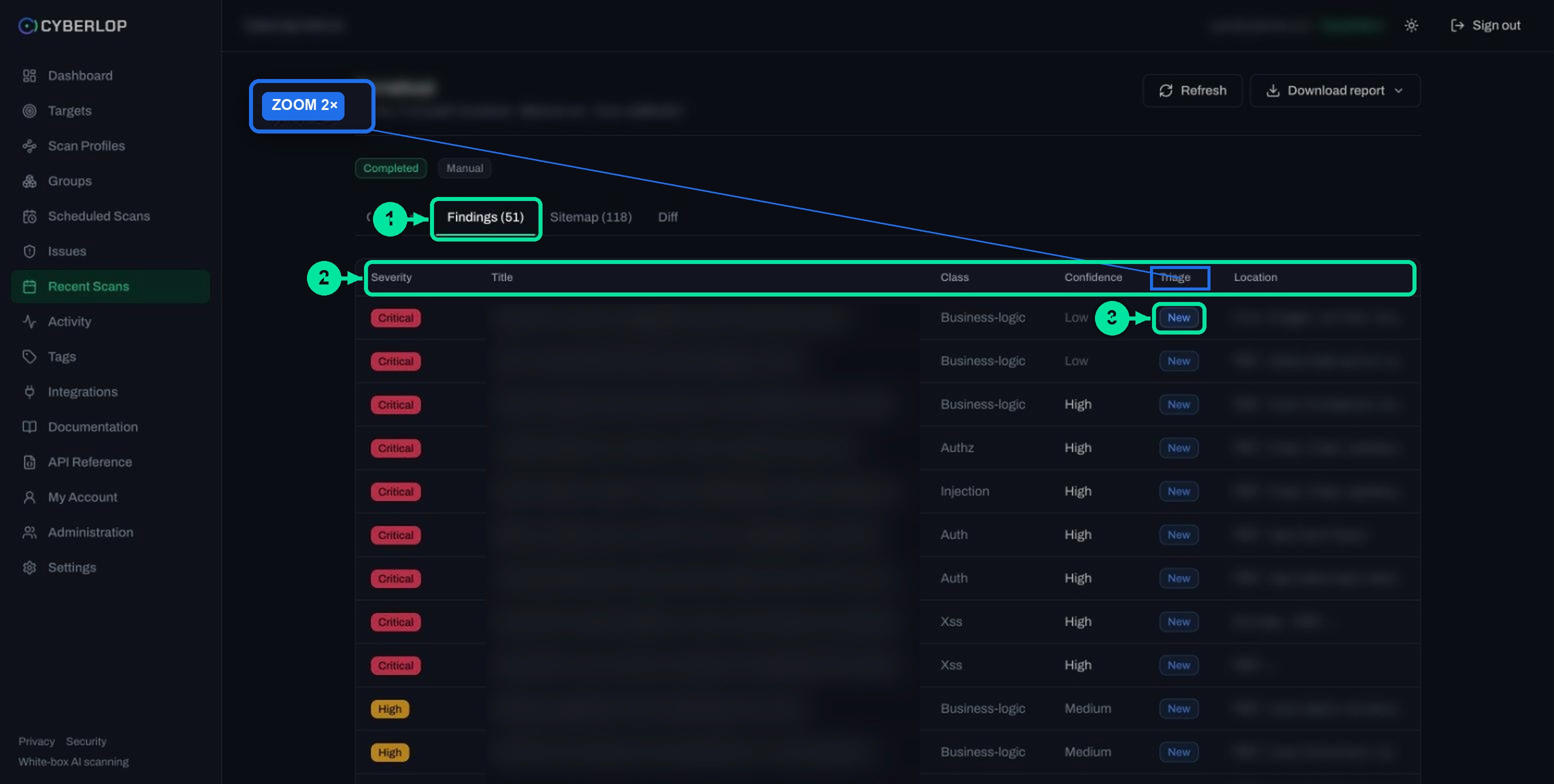
How do you open the finding dialog?
- Open Issues, or open a scan from Recent Scans and click its Findings tab.
- Click anywhere on the row of the finding you want. Start with the highest severity and confidence, as the severity and confidence guide explains.
- Read the Summary tab first, then switch to Evidence.
- Click Close or the ✕ when you are done. Your changes are only saved when you click Update status.
The top of the dialog also holds the triage controls: Disposition, Assignee and Update status. Reading comes first and triage second; the triage guide covers the second half.
What does the Summary tab tell you?
The Summary tab answers three questions: what is wrong, how sure the scan is, and where to look in your system. Read it top to bottom before you open any evidence.
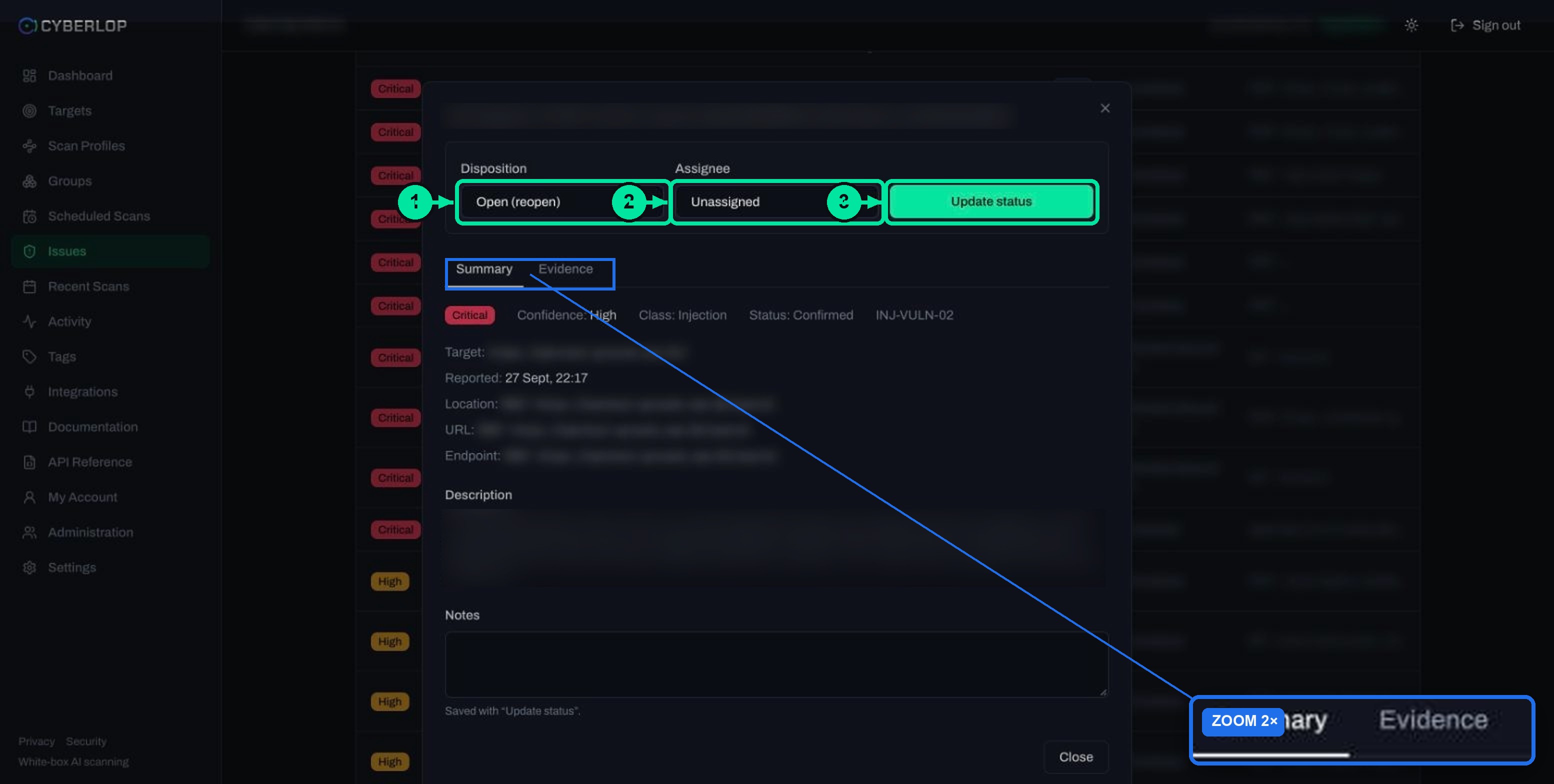
Summary field reference
| Field | What it shows | How to use it |
|---|---|---|
| Severity badge | Critical, High, Medium, Low, Informational or Best Practice. | Sets the order you work in. It is separate from confidence. |
| Confidence | High, Medium or Low. | How sure the scan is that the problem is real. Low confidence deserves a human check first. |
| Class | One of the ten vulnerability classes, such as Injection, Authz or Business-logic. | Tells you which kind of fix and which team owns it. |
| Status | Confirmed or Likely in the captured app; the in-app docs also describe Unconfirmed. | How strongly the finding was proven. Confirmed findings carry exploitation evidence. |
| Finding ID | A class prefix and number, for example INJ-VULN-02. | Quote it in tickets and chat so everyone means the same finding. |
| Target and Reported | The application and the time the finding was reported. | Check you are looking at the right environment and run. |
| Location, URL and Endpoint | A method and path such as POST /search; for white-box scans, a source file and line range plus an Endpoint line. | Tells a developer where to start reading code. |
| Description | A plain-text explanation of the flaw and what the scan did with it. | The fastest way to understand the root cause. |
| Notes | A free-text box saved with Update status. | Record decisions and links for the next reader. |
Severity, confidence and status are three different things
Severity is the impact if the problem is real. Confidence is how sure the scan is. Status is how far the finding was proven. A High-severity finding with Low confidence is a prompt to check, not a reason to wake the team. The severity versus confidence page explains why they are kept apart.
Location: an endpoint or a file and line
For a black-box finding, Location is an HTTP method and path, for example POST /search. For a white-box scan, which reads your repository as well as testing the running app, Location is a source file and line range, and the dialog adds an Endpoint line for the route involved. That pairing lets a developer go from the request that failed to the code that caused it. See white-box versus black-box scans for what each type needs.
What is on the Evidence tab?
The Evidence tab is the proof. It shows, in order, the authentication used, the payload, the raw request and response, reproduction steps and a screenshot taken by the scan’s browser. The in-app documentation says confirmed issues include real exploitation evidence such as an HTTP request and response or a screenshot, so expect the fullest evidence on Confirmed findings.
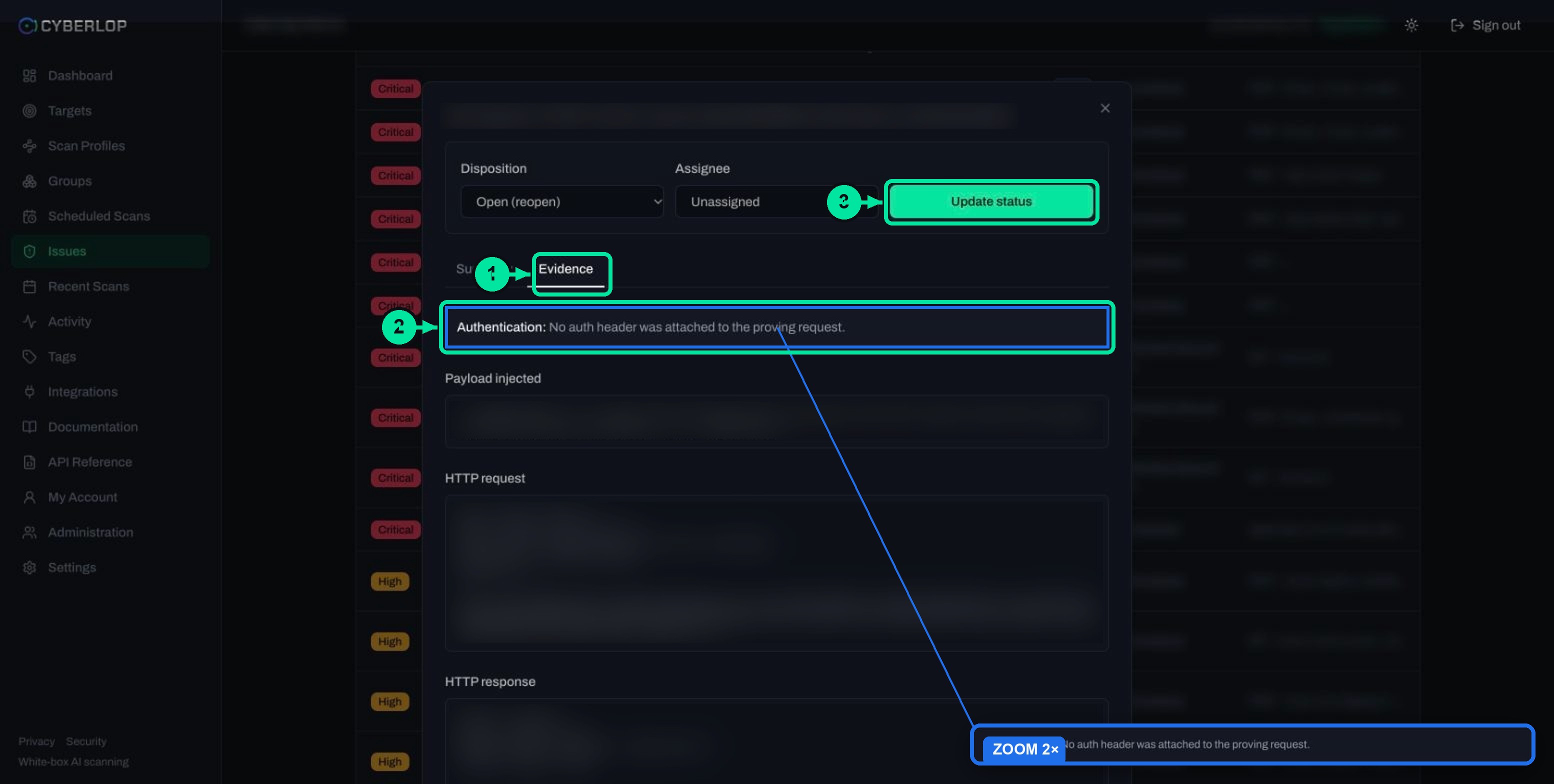
Evidence field reference
| Section | What it shows | What to check |
|---|---|---|
| Authentication | Which auth role or header the proving request used, or that none was attached. | Does the finding need a login? An unauthenticated proof is usually more urgent than one needing admin rights. |
| Payload injected | The exact input the scan sent, in a code block. | Is this the user-controlled field you expected? Is the payload harmless to run? |
| HTTP request | The raw request: method and path, headers, body. | The method, path and parameter should match the Location and Endpoint. |
| HTTP response | The raw response: status line, headers, a body excerpt. | Look for the sign of success, such as an error text, reflected data or a status that should not appear. |
| Reproduction steps | A numbered list; each step is a ready-to-run curl command with the expected result. | Your engineer can follow it in order to see the same behaviour. |
| Screenshot | An image captured by the scan’s browser during exploitation. | Shows what a person would see, which helps product owners and auditors. |
The Authentication line
This line says which role or header the proving request used. Compare it with the roles you set up in the authentication roles guide. A finding proved with no auth header means anyone who can reach the URL could repeat it.
Payload, request and response
Read the three blocks together. The payload is the input, the request shows how it was delivered, and the response shows what the application did. A good finding makes the cause visible in that chain: input in, wrong behaviour out. This is what separates a proof of exploit from a scanner’s guess.
Reproduction steps
Each numbered step is a curl command followed by the result you should expect. Good sets start with a baseline request, then trigger the problem, then confirm it step by step. The reproduction steps entry explains why this order makes a bug easy to verify and easy to write a regression test for.
Screenshot
The screenshot is the picture an auditor or product owner can read without a terminal. It is captured by the scan’s browser during exploitation, so it shows the behaviour on the live target, not a mock-up.
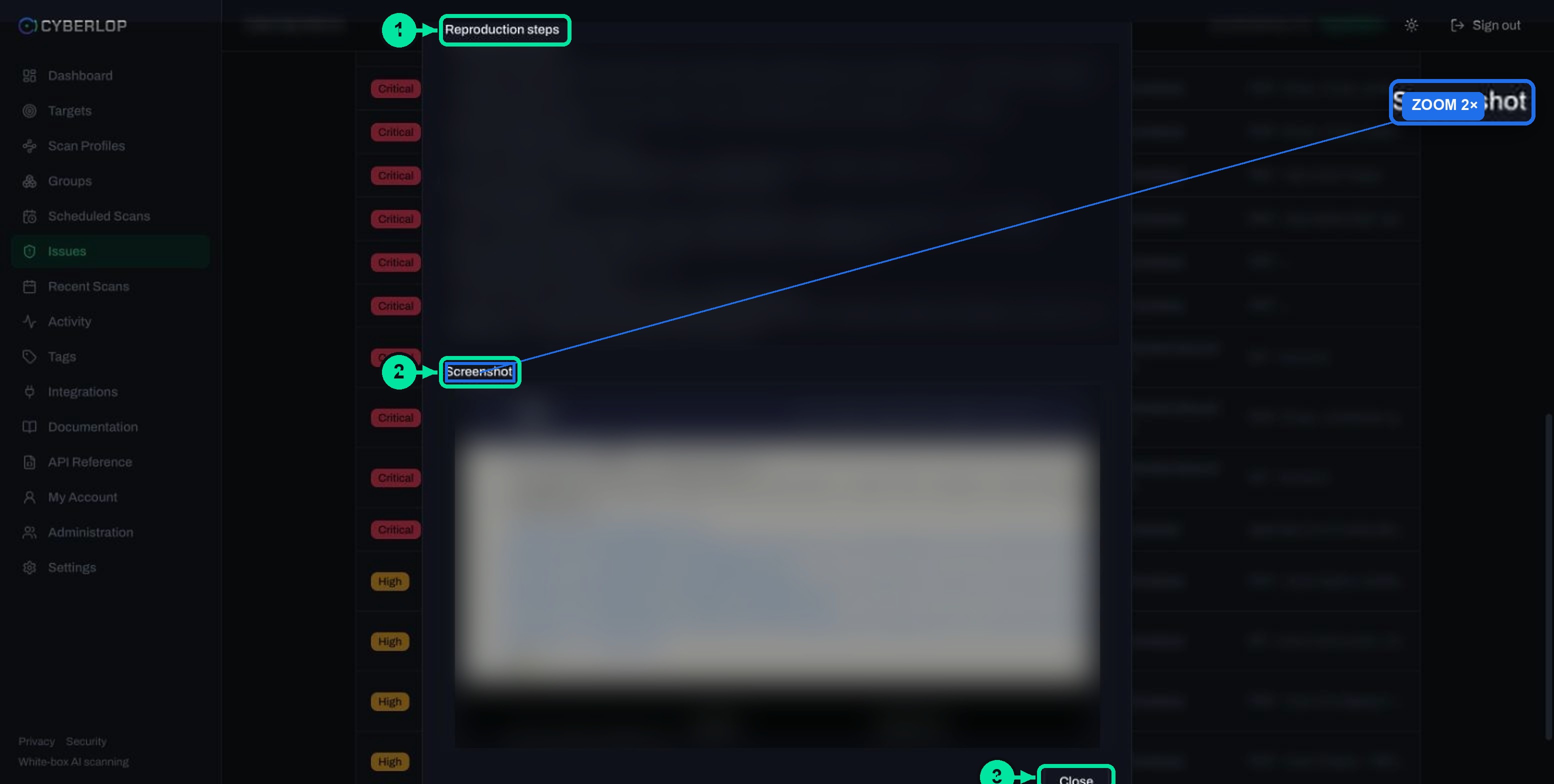
How do you read a finding from start to finish?
Use the same order every time: Summary, Authentication, request and response, reproduction steps, screenshot. Here it is on a neutral example, a Critical finding in the Injection class, INJ-VULN-02, at POST /search on a staging app.
Worked example: an injection in a search form
- Summary. Critical severity, High confidence, class Injection, status Confirmed. The description says a form field is placed straight into a database query. Read it as: untrusted text reaches the query as code.
- Authentication. “No auth header was attached to the proving request.” The flaw is reachable without an account.
- Payload injected. A crafted string that changes the query. It is the single input to focus on.
- HTTP request and response. The request carries the payload in the form body. The response is a normal page that now contains data that should never appear in it.
- Reproduction steps. The set runs in order: a baseline request returns a normal page, a stray quote makes the server return an error, a crafted query returns database data, then it widens to listing tables and finally to reading user records.
- Screenshot. The page as a person sees it, with the leaked data on screen.
Read this way, the finding explains itself. The fix is also clear: pass the field to the database as a parameter, not as text. The SQL injection entry gives the pattern, and the CWE entry for SQL Injection (CWE-89) defines the weakness as feeding outside input into an SQL command without neutralising what could change the command’s meaning.
Why does reading the evidence matter?
Vulnerabilities are a leading way into real incidents, and weaknesses in access control and injection are among the most commonly found. Evidence lets you separate the real from the doubtful before anyone spends a sprint on it.
- The Verizon 2026 Data Breach Investigations Report page states that 31% of breaches now start with software vulnerabilities, ahead of stolen passwords as the top way attackers get in.
- The 2025 report release described exploitation of vulnerabilities as an initial access vector with a 34% increase.
- OWASP’s Top 10:2021 entry for Broken Access Control reports that 94% of applications were tested for it, with an average incidence rate of 3.81% and over 318k occurrences in the data set.
- OWASP’s Injection entry reports 94% of applications tested, an average incidence rate of 3%, a maximum of 19% and about 274k occurrences.
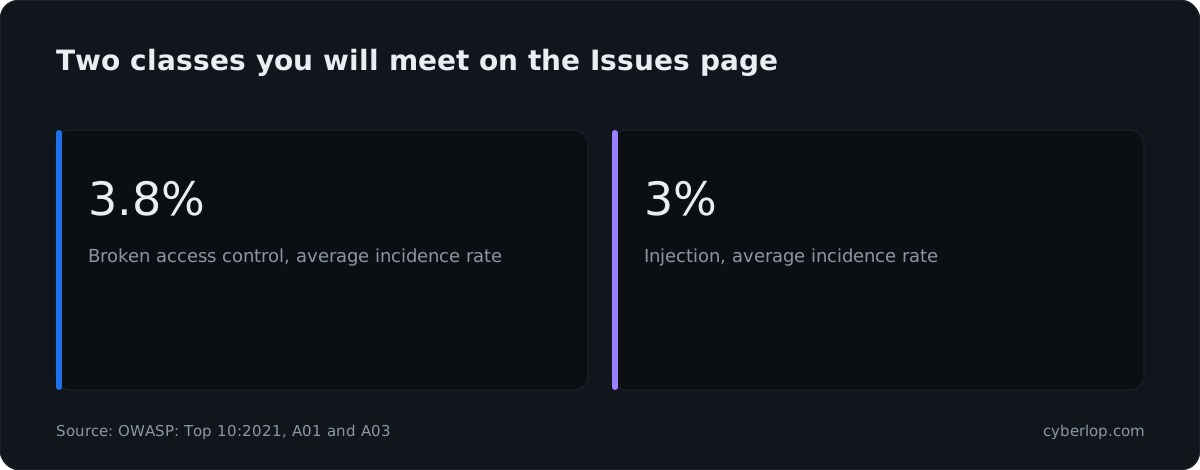
The category pages are useful background: injection and broken access control are the classes you will meet most when you open the Class column on Issues.
How do you check a finding safely?
Re-run a reproduction step only against a system you own or are authorised to test, and prefer staging. The sample steps above read user records, so treat any copied evidence as sensitive data.
Before you run a reproduction step
- The host in the command is your own application, ideally staging.
- You have permission to test it, and your team knows you are about to.
- You have read the whole step, not only the first line, and understand what it changes or reads.
- Placeholders and redacted values are replaced with your own test values, never with production secrets.
- Screenshots and responses are shared only with the people who need them, because they can contain real data.
What do you do after reading a finding?
Decide whether it is real, who owns it and how urgent it is, then record that with Disposition, Assignee and Notes, and click Update status.
Reading-to-action table
| What you see | What it usually means | Next action |
|---|---|---|
| Confirmed, High confidence, working reproduction | The scan proved the flaw on the live target. | Assign an owner, set the Disposition if needed, and plan the fix. |
| Likely, or Low confidence, thin evidence | The scan has a strong lead but did not fully prove it. | Have an engineer read the Location and check it by hand before deciding. |
| Evidence shows a harmless result you expected | The behaviour is by design, or the context made it safe. | Mark False Positive and say why in Notes. See the false positive entry. |
| Real flaw that you will not fix now | A conscious business decision. | Mark Accepted Risk with the reason and the owner in Notes. |
| Fix shipped | The code has changed. | Run the scan again and check the Triage column; see fixed and regressed issues. |
How do you share a finding with your team?
Copy the finding ID and title into your tracker, paste the reproduction steps into the ticket, and attach the screenshot. For a document for a manager or auditor, use Download report on the scan (PDF reports), or take raw fields with Export JSON or Export CSV on Issues (exports guide).
What are the common mistakes when reading findings?
| Mistake | Why it hurts | Do this instead |
|---|---|---|
| Reading only the title and severity | You miss that confidence is Low or the proof is thin. | Always read Confidence and Status next to severity. |
| Skipping the Authentication line | You cannot tell whether an anonymous visitor or an admin reached the flaw. | Read it before the payload. |
| Running steps against production | Some steps read or change real data. | Reproduce on staging, with permission. |
| Closing the dialog without Update status | Notes, disposition and assignee are not saved. | Click Update status before Close. |
| Treating no evidence as no finding | Some findings are leads rather than proof. | Check the Status and verify by hand. |
| Marking Fixed without a re-scan | The next scan may show it as a regression. | Re-run the profile and read the Diff tab. |
Troubleshooting
- The Evidence tab looks thinner than the one in this guide. What is shown depends on how far the finding was proven; check the Status on the Summary tab.
- The dialog will not let you assign someone. The Assignee list holds your workspace members; ask an admin if the person is missing.
- The reproduction step fails on your side. Check the host, the environment and whether the code has changed since the scan.
What is the next step?
Next, learn how to assign and close findings in triage findings. For background on how the product proves issues, see the evidence page, the blog post on reading a finding and the plain-English evidence of exploitation entry.
Questions people ask
Read a finding: FAQs
How do I read a finding in Cyberlop?
Click a row on Issues or a scan’s Findings tab. Read the Summary tab for severity, confidence, class, status and location, then open Evidence for the payload, request, response, reproduction steps and screenshot.
What is the difference between the Summary and Evidence tabs?
Summary describes the finding: what it is, how serious and how sure the scan is, and where it is. Evidence is the proof: what the scan sent, what came back and how to repeat it.
What does Status: Confirmed mean?
Status shows how strongly a finding was proven. The in-app documentation grades findings as confirmed, likely or unconfirmed, and says confirmed issues include real exploitation evidence. Treat Confirmed as proven and Likely as a strong lead to check.
Is it safe to run the curl commands in the reproduction steps?
Only run them against a system you own or are authorised to test, preferably staging, and read each step first. Some steps read data, so never point them at production without approval.
Why is there a finding but no screenshot?
A screenshot is captured by the scan’s browser during exploitation, so it depends on how far the finding was proven and whether a picture was useful. Check the Status on the Summary tab and read the request and response instead.
What is the difference between Location, URL and Endpoint?
For black-box findings they show the method and path, such as POST /search. For white-box findings Location is the source file and line range, and Endpoint names the route involved.
Can I change a finding from the same dialog?
Yes. Set Disposition (Open (reopen), Fixed, False Positive or Accepted Risk), choose an Assignee, add Notes and click Update status.
Where do I get a PDF or a spreadsheet of findings?
Use Download report on a scan for the PDF in one of three modes, or Export JSON and Export CSV on Issues.
Keep reading
Related articles
How to scan behind login in Cyberlop with authentication roles
Scan behind login in Cyberlop: add authentication roles, choose privilege levels, combine form, header and OAuth methods, and guide the scan with AI guidance.
How to download PDF reports in Cyberlop: three modes, three places
Download a branded PDF from the scan page, Recent Scans or Targets. Choose Open issues only, Include fixed & accepted, or Fixed issues only.
How to export vulnerability findings to CSV or JSON
Where the Export JSON and Export CSV buttons are, which to choose, how to use the files in spreadsheets and trackers, and how to open them safely.

Want evidence like this on your app?
Cyberlop finds vulnerabilities in web apps and their APIs with black-box, grey-box and white-box pentesting. Each finding carries the request, the response, a screenshot where a person can see it, and the line of code. Ask us to run it on one of your applications.
Or start with a $199 pilot on one application: thirty days, success criteria agreed before day one, credited against the annual if you convert.