
Home / Blog / Tutorials / Filter vulnerability findings
Tutorials
How to search and filter vulnerability findings on the Issues page
The Issues page lists every finding from your scans in one table. Search it, filter it by severity, confidence, class and target, and use triage chips to see only the work left to do.
Cyberlop Labs · Updated · 9 min read

To filter vulnerability findings in Cyberlop, open Issues, type in the search box, then narrow the list with the Severity, Confidence, Class and Target filters. Use the triage chips, switched to Hiding or Showing only, to remove closed work. Click a row to read its evidence and set a disposition.
- Open Issues Click Issues in the sidebar to open the list of all findings across scans.
- Search Type a word from a title or a location in the box that reads Search findings by title or location.
- Set Severity and Confidence Open the Severity and Confidence filters and pick the levels you want to see.
- Set Class and Target Pick a class such as Authz or Config, and a target to review one application.
- Set the triage chips Click the first chip to switch between Hiding and Showing only, then select the statuses.
- Open a finding Click a row to open the dialog and read the Summary and Evidence tabs.
- Update the status Choose a Disposition and Assignee, add Notes and click Update status.
- The Issues page lists all findings across scans, sorted by severity with Critical first.
- Search reads titles and locations; four filters cover severity, confidence, class and target.
- The triage chips hide or show New, Regression, Fixed, False Positive and Accepted Risk.
- Location shows a method and path for black-box findings and a file and line for white-box findings.
- Click a row to open the finding, read the evidence and set a disposition with Update status.
The Issues page in Cyberlop is one list of every finding from every scan. Search it by title or location, narrow it with the Severity, Confidence, Class and Target filters, and use the triage chips to hide or show New, Regression, Fixed, False Positive and Accepted Risk. Click a row to open the finding and read its evidence.
What is the Issues page?
The Issues page (Issues in the sidebar, at /issues) is a single table of all findings across your scans. Its subtitle reads “All findings across scans”. Each finding is a vulnerability the scan found in one of your targets, and findings persist per target from one scan to the next. That is why the page works as a running backlog rather than a report for one run.
The scan detail page also has a Findings tab, but it shows only that scan. Use Issues when you want the whole picture: the worst problems across all targets, everything assigned to one class of bug, or all open items on a single app.
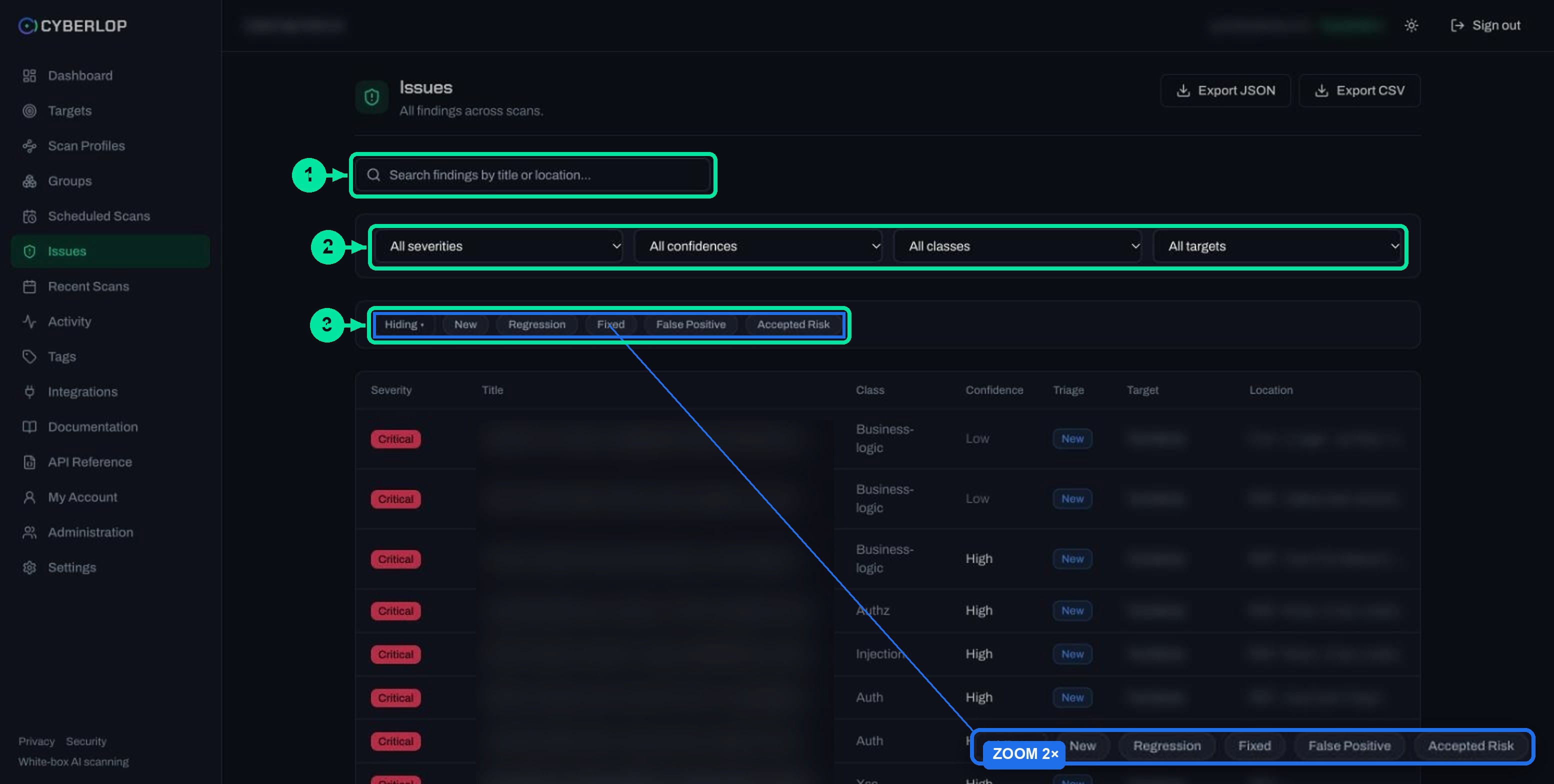
The list is sorted by severity, Critical first. Across the top sit Export JSON and Export CSV (see export findings as JSON or CSV), a search box, four filters and a row of triage chips.
Why does a filtered findings list matter?
A long list is only useful if the right items rise to the top. Attackers do not wait for a quarterly review: Verizon’s 2025 Data Breach Investigations Report says exploitation of vulnerabilities (20%) continues to be a leading initial attack vector, and that this vector saw a 34% increase. Filters exist so the serious, proven items are the first thing you see.
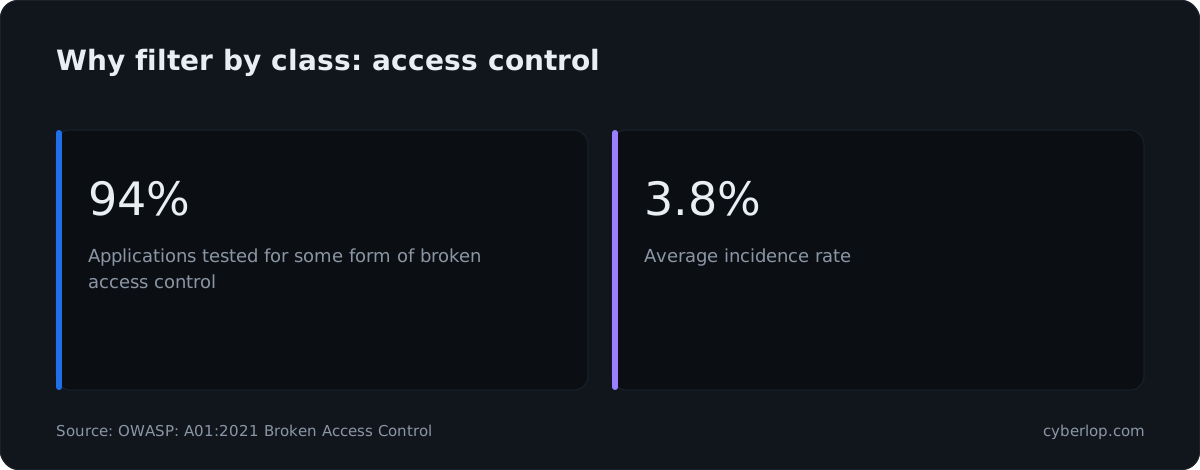
Access-control bugs are a good example of why class filtering helps. The OWASP Top 10 for 2021 moved A01 Broken Access Control to the top of its ranking, and reports that 94% of applications were tested for some form of it, with over 318k occurrences in the contributed data. Filtering the Issues page to the Authz class gives you that slice of your own app in one click. Read more on broken access control.
CISA keeps a Known Exploited Vulnerabilities catalogue, which it describes as the authoritative source of vulnerabilities exploited in the wild and which it says organisations should use as an input to their vulnerability management prioritisation framework. At the time of writing it listed 1,734 entries. The same idea applies on a smaller scale to your own list: separate what is proven from what is only suspected. Compare KEV catalogue and risk-based prioritisation.
How do you search and filter findings?
Search first when you know a word, then filter when you want a category. You can combine them: filters narrow the same list the search box reads.
- Click Issues in the sidebar.
- Type in the search box, which reads “Search findings by title or location...”. Try a word from a title, such as
Injection, or part of a location, such as/api/ordersor a file name. - Open the Severity filter and pick one level, for example Critical.
- Open Confidence and, if you want only well-supported findings, pick High.
- Open Class to look at one kind of bug, or Target to look at one application.
- Set the triage chips (next section) to hide work that is already finished.
- Click a row to open the finding.
What does each filter offer?
Table 1. The four filters on the Issues page
| Filter | Options | Use it to |
|---|---|---|
| Severity | All severities, Critical, High, Medium, Low, Informational, Best Practice | Start the day with Critical and High; see severity and confidence |
| Confidence | All confidences, High, Medium, Low | Separate well-proven findings from ones that need a second look |
| Class | All classes, Injection, Xss, Auth, Authz, Ssrf, Crypto, Config, Business-logic, Dependency, Secrets | Give one team one kind of bug; the ten classes are explained in choose vulnerability classes |
| Target | All targets, then each target name | Review one application at a time, for example before a release |
Filters are one choice each, so to see Critical and High together, run two passes or use the severity sort already applied to the list.
Useful filter combinations
- Release gate: Target set to the app you are shipping, Severity set to Critical, then High.
- Auth review: Class set to Authz or Auth, Confidence set to High.
- Hygiene sweep: Class set to Config to batch headers and banner fixes in one change.
- Dependency day: Class set to Dependency, then Secrets.
How do the triage chips work?
The triage chip row controls which statuses appear. It starts with a mode switch that reads Hiding ▾ or Showing only ▾, followed by five chips: New, Regression, Fixed, False Positive and Accepted Risk. Click the first chip to toggle the mode. In Hiding mode, the selected chips are removed from the list. In Showing only mode, only the selected chips are kept.
Table 2. Triage chips and what they mean
| Chip | Meaning | Typical use |
|---|---|---|
| New | The finding has not been triaged yet | Your inbox: show only this to find work nobody has looked at |
| Regression | A finding that was fixed has come back in a later scan | Show only this after a release; see fixed and regressed issues |
| Fixed | A re-scan no longer found the issue, or it was set to Fixed | Hide it to keep the working list short; show only it to check what closed |
| False Positive | Someone judged the finding not to be a real vulnerability | Hide it day to day; review it now and then to keep triage honest |
| Accepted Risk | The team has chosen to live with it | Hide it, but revisit it when the app or your risk changes; see risk acceptance |
A common working view is Hiding with Fixed, False Positive and Accepted Risk selected. That leaves New and Regression items, which is the open work. Check which chips are highlighted when you first open the page, because the chips show what is currently hidden or shown.
What do the table columns show?
Each row is one finding, and the seven columns are the quickest way to decide what to open. Read left to right: how bad, what, what kind, how sure, what state, where, and in which app.
Table 3. The seven columns of the Issues table
| Column | What it shows | Reading tip |
|---|---|---|
| Severity | A coloured badge: Critical red, High amber, Medium violet, Low blue, Informational grey, Best Practice dark grey | Severity says how serious the flaw is if real |
| Title | A one-line title, cut short with an ellipsis when it is long | Open the row for the full text |
| Class | Injection, Xss, Auth, Authz, Ssrf, Crypto, Config, Business-logic, Dependency or Secrets | Use it to route the finding to the right owner |
| Confidence | High, Medium or Low; Low is dimmed | Confidence says how well the finding is supported, separate from severity |
| Triage | A status badge such as New or Fixed | Matches the chips above the table |
| Target | The name of the application | Useful when you scan several apps |
| Location | Monospace text: an HTTP method and path for a black-box finding, or a source file and line range for a white-box one | Tells you where to look first |
How do you read the Location column?
The Location column tells you what kind of scan produced the finding. A value like POST /search means the issue was proven against the running app at that endpoint. A value like src/routes/orders.ts:349 means a white-box scan tied the issue to a file and line range in your repository. Both are valid, and a white-box finding may carry both a route and a code location in its detail view. For the difference between scan types, read white-box and black-box scans.
Why severity and confidence sit in separate columns
A finding can be severe but not fully proven, or minor and certain. Cyberlop keeps the two apart so you can decide for yourself. A Critical finding with Low confidence is a prompt to check the evidence, not to drop everything. The usual scale used elsewhere in the industry is the CVSS v3.1 qualitative rating: Low 0.1 to 3.9, Medium 4.0 to 6.9, High 7.0 to 8.9 and Critical 9.0 to 10.0. Cyberlop also shows Informational and Best Practice levels for items that are not exploitable flaws. See CVSS and severity versus confidence.
How do you open and act on a finding?
Click any row. The finding opens in a dialog over the list, and the address stays at /issues, so closing it returns you to the same filters. At the top are Disposition, Assignee and Update status. The Summary tab shows severity, confidence, class, status, the finding ID (a class prefix and number such as INJ-VULN-02), target, location and description. The Evidence tab shows the request, response, reproduction steps and screenshot.
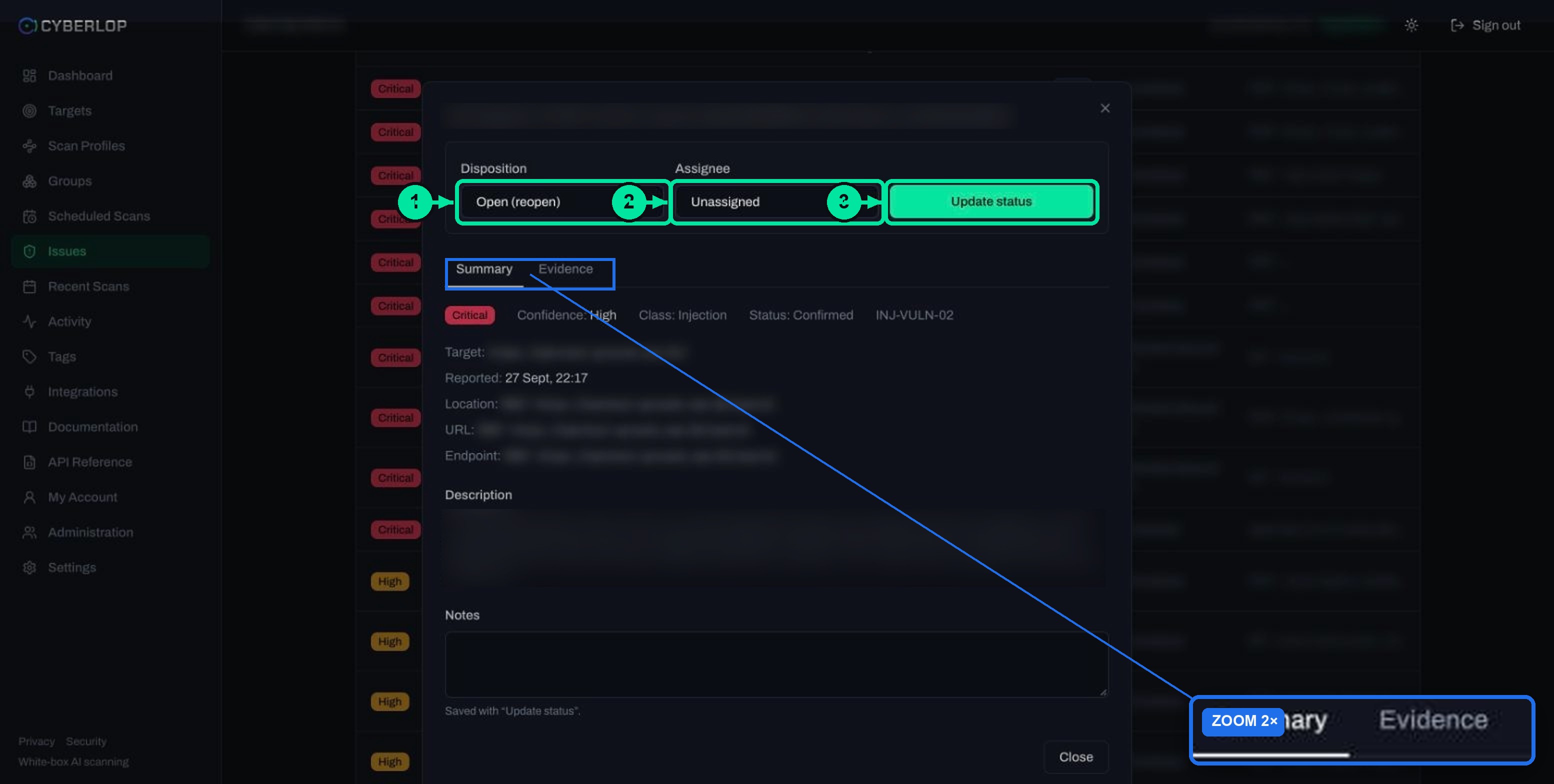
- Click the row of the finding.
- Read the Summary: the Status field says how well it was proven, for example Confirmed.
- Click Evidence and check the payload, request and response.
- Choose a Disposition: Open (reopen), Fixed, False Positive or Accepted Risk.
- Pick an Assignee, or leave it as Unassigned.
- Add Notes and click Update status. Notes are saved with it.
The full walk-through is in how to read a finding and triage findings. After you save, the Triage column and the chips update to match.
How do you build a weekly triage routine from the list?
A routine beats a one-off clean-up. A short, fixed loop works best once the filters are familiar.
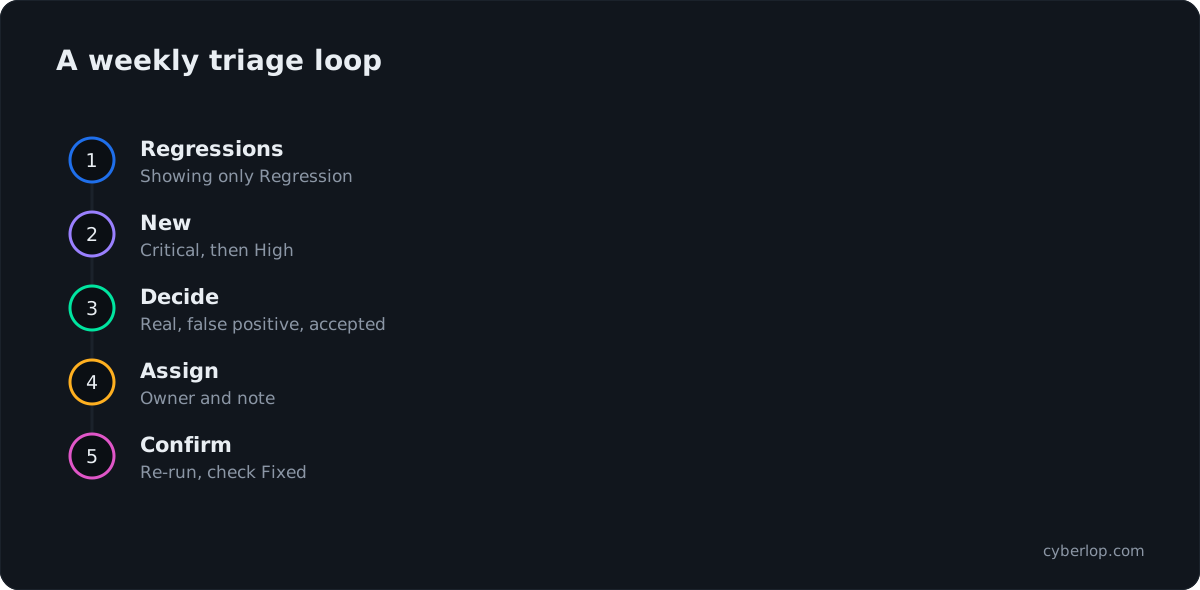
- Set the chips to Showing only and select Regression. Anything here was fixed once and came back, so look first.
- Switch to Showing only with New selected, then filter Severity to Critical, then High.
- For each, open the Evidence tab and decide: real, false positive or accepted.
- Assign real ones to an owner and add a note with the expected fix.
- After the fix ships, re-run the scan and look at the Fixed chip to confirm it closed. See compare scans.
This follows the usual vulnerability management cycle and keeps the vulnerability backlog honest. For reports to share outside the app, see download PDF reports.
Troubleshooting: why is the list empty or too long?
Table 4. Common problems and fixes
| Symptom | Likely cause | What to do |
|---|---|---|
| A finding you expect is missing | A chip is hiding its status, or a filter is still set | Switch the chip mode, deselect chips, and reset each filter to its “All…” option |
| The list is empty | Filters and chips combined match nothing, or no scan has finished | Clear the search box first, then each filter; check Recent Scans for a result |
| Search finds nothing for a word you know | Search reads titles and locations, not the description | Try a word from the title or a part of the path or file name |
| Too many Low and Informational rows | Reporting rules allow low severity | Tighten the minimum severity or confidence in reporting rules |
| A fixed finding reappears | It came back in a later scan and became a Regression | Open it, read the evidence and reopen it with Open (reopen) if needed |
Common mistakes to avoid
- Dismissing Low confidence findings unread. Low confidence is a prompt to open the Evidence tab, not to skip it.
- Marking False Positive without reading the request and response.
- Using Accepted Risk as a way to clear the list. Add a note saying why and who agreed.
- Reading only this page. The Issues page lists findings; the sitemap and Diff tabs show coverage and change.
Next, learn to read a finding in detail. If you want to see how a finding is proven, look at the evidence Cyberlop attaches.
Questions people ask
Filter vulnerability findings: FAQs
How do I filter findings by severity in Cyberlop?
Open Issues and use the Severity dropdown. Choose Critical, High, Medium, Low, Informational or Best Practice. The list stays sorted with the worst first, and you can combine the filter with search and the other three filters.
What is the difference between severity and confidence?
Severity is how serious the flaw is if it is real. Confidence is how well the finding is supported. They are separate columns so you can weigh a serious but uncertain finding differently from a minor, certain one.
How do I hide fixed and false-positive findings?
Use the triage chips. Keep the first chip on Hiding, then select Fixed, False Positive and Accepted Risk. The list then shows only New and Regression items.
What does Regression mean?
A Regression is a finding that was marked Fixed and then appeared again in a later scan. Show only that chip after each release to catch fixes that did not hold.
Does search look inside the description?
The search box is labelled for titles and locations. If a word does not match, try a part of the title, the endpoint path or the file name instead.
Why do some locations show a file and line?
A white-box finding is tied to a source file and line range. A black-box finding shows the HTTP method and path that was tested.
Can I export what I see?
The Issues page has Export JSON and Export CSV buttons. The guide on exporting findings covers using them in a spreadsheet or tracker.
Keep reading
Related articles
Choose vulnerability classes in a Cyberlop scan profile
The ten vulnerability classes in a scan profile, what each covers, when to narrow or leave them all on, and how to filter results by class.
How to compare scans in Cyberlop with the Diff tab
Read the Diff tab: new, fixed and regressed findings against the previous completed scan, and how to prove a fix after a re-scan.
How to download PDF reports in Cyberlop: three modes, three places
Download a branded PDF from the scan page, Recent Scans or Targets. Choose Open issues only, Include fixed & accepted, or Fixed issues only.

Want a findings list you can trust?
Cyberlop reports what it actually exploited, with the request, the response and the line of code, and keeps severity and confidence apart. Ask us to run it on one of your applications.
Or start with a $199 pilot on one application: thirty days, success criteria agreed before day one, credited against the annual if you convert.