
Home / Blog / Tutorials / Verify a vulnerability fix
Tutorials
How to verify a vulnerability fix with fixed and regressed issues
Cyberlop keeps one history for each finding, so a re-scan can mark it Fixed or flag it as a Regression. This guide shows how to use that to prove a fix held.
Cyberlop Labs · Updated · 8 min read

To verify a vulnerability fix in Cyberlop, deploy the change, re-run the same scan profile, and wait for a Completed result. The finding is Fixed if the scan no longer detects it, and Regression if a Fixed finding returns. Check the Diff tab and Issues triage column.
- Note the finding On Issues, open the finding and record its ID, title and Location.
- Fix and deploy Deploy the change to the running app, and merge it to the target's branch for a white-box target.
- Re-run the same profile Click Scan on the profile row, or Scan beside the earlier run in Recent Scans.
- Wait for Completed Open the scan from Recent Scans and wait for a Completed result.
- Open the Diff tab Check that the finding sits in the Fixed column, and not in Regressed.
- Confirm on Issues Search for the finding, check that Triage reads Fixed and add a note with Update status.
- A re-scan that no longer detects a reported issue marks it Fixed; one that reappears is flagged Regression.
- Issues persist per target, so each finding keeps one history across every scan.
- Verify with the same scan profile and a Completed scan, then read the Diff tab's Fixed and Regressed columns.
- A manual Fixed is only a note of intent: the next scan still decides whether the issue is gone.
- Use the dashboard Remediation card, Issues triage chips and the Fixed issues only PDF to report progress.
Cyberlop marks a finding Fixed when a later scan of the same target no longer detects it, and flags it Regression if it comes back. To verify a vulnerability fix, ship the change, run the same scan profile again, then check the Diff tab and the Triage column on Issues. A Fixed or Regressed state is a result of a re-scan, so it is evidence rather than a claim.
What are fixed and regressed issues in Cyberlop?
A fixed issue is a finding that an earlier scan reported and a later scan did not detect again. A regressed issue is a fixed finding that reappeared. Both are triage states on a finding, shown beside New, False Positive and Accepted Risk.
They work because findings are not tied to one scan. Issues persist per target, so the same weakness keeps one history across every scan you run. A regression is therefore a returning problem with a past, not a fresh finding with no context.
Most teams stop at "the ticket is closed". Closed only says someone believes the code changed; Fixed says the scan looked again and found nothing. That is the idea behind fix verification, and it is why the retest is the step that finishes vulnerability management.
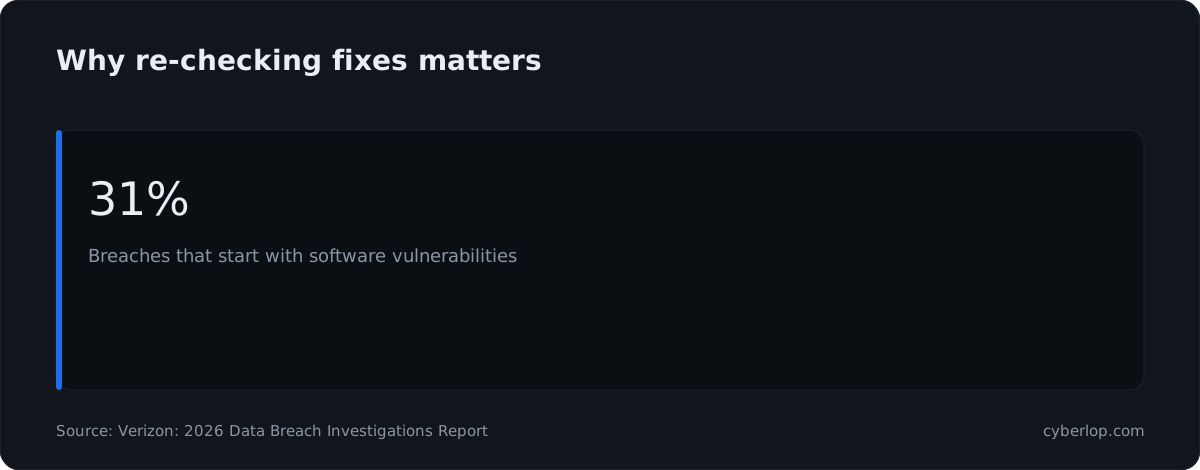
Speed matters. The Verizon Data Breach Investigations Report says 31% of breaches now start with software vulnerabilities, beating stolen passwords as the top way attackers get in (Verizon DBIR, 2026). A flaw you think you closed, but never re-checked, is still a way in.
What are the triage states and what do they mean?
Cyberlop shows five triage states on the Triage column of Issues and of a scan's Findings tab. Two are set by scans and three are set by people.
| State | Set by | What it means |
|---|---|---|
| New | A scan | The finding has not been triaged yet. |
| Fixed | A scan, or a person | A re-scan did not detect it again, or someone chose Fixed in the Disposition list. |
| Regression | A scan | A finding that was Fixed has been detected again. |
| False Positive | A person | You judged that the finding is not real. |
| Accepted Risk | A person | You decided to live with it for now. |
The dialog's Disposition list offers Open (reopen), Fixed, False Positive and Accepted Risk. Regression is not in that list: only a scan can raise it. See key terms for the rest of the vocabulary.
Who decides a finding is fixed: you or the scan?
Both can, and they should agree. The product documentation states that a re-scan that no longer finds a previously reported issue marks it fixed, and that a finding is only auto-marked fixed when the scan genuinely did not re-detect it. You can also set Fixed by hand with Update status, which is useful for a change you want to track before the next scan.
A manual Fixed is a note of intent
If you mark Fixed yourself, the next scan still has the last word. Documentation says dispositions are respected across future scans and that a fixed issue that reappears becomes a regression rather than a fresh finding.
A scan-set Fixed is a result
When the scan sets Fixed, treat it as test evidence. It is only as strong as the scan behind it, so use the same profile and a Completed scan.
How do you verify a fix by re-running the scan?
Re-run the same scan profile against the same target after you deploy the fix, wait for a Completed result, then read the Diff. Follow these steps in order.
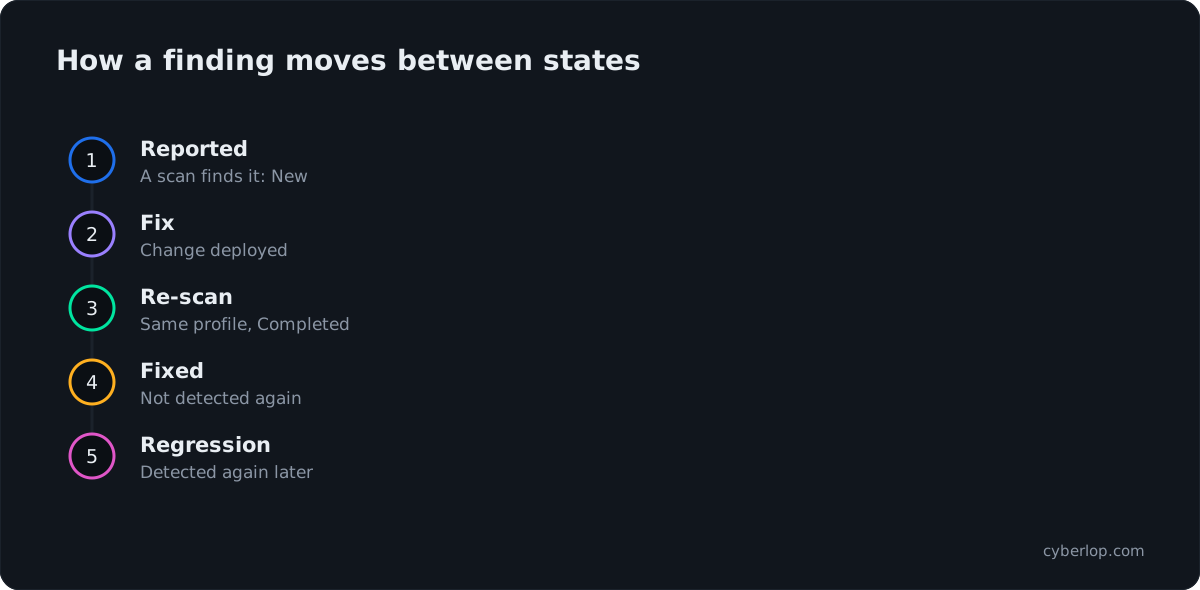
- Note the finding. On Issues, open the finding and record its ID (for example INJ-VULN-02), its title and its Location. A black-box finding shows a method and path; a white-box finding shows a source file and line range.
- Fix and deploy. The scan tests the running app at its URL, so the change must be live there. For a white-box target the scan also reads the repository branch you set on the target, so the fix must be on that branch.
- Re-run the same profile. Click ▷ Scan on the profile row, or Scan beside the old run in Recent Scans, which re-runs the same profile.
- Wait for Completed. Open the scan from Recent Scans. A typical scan of a small app takes roughly an hour. Do not read results from a Failed or Cancelled run as a verdict (see the troubleshooting section below).
- Open the Diff tab. Your finding should sit in the Fixed column. If it sits in Regressed or does not move, the fix did not hold.
- Confirm on Issues. Search for the title, check that Triage reads Fixed, and add a note such as the ticket reference with Update status.
The scan did not detect your finding again, which is exactly what you want. For the wider idea, see closed-loop retest and how it works.
How do you read the Diff tab?
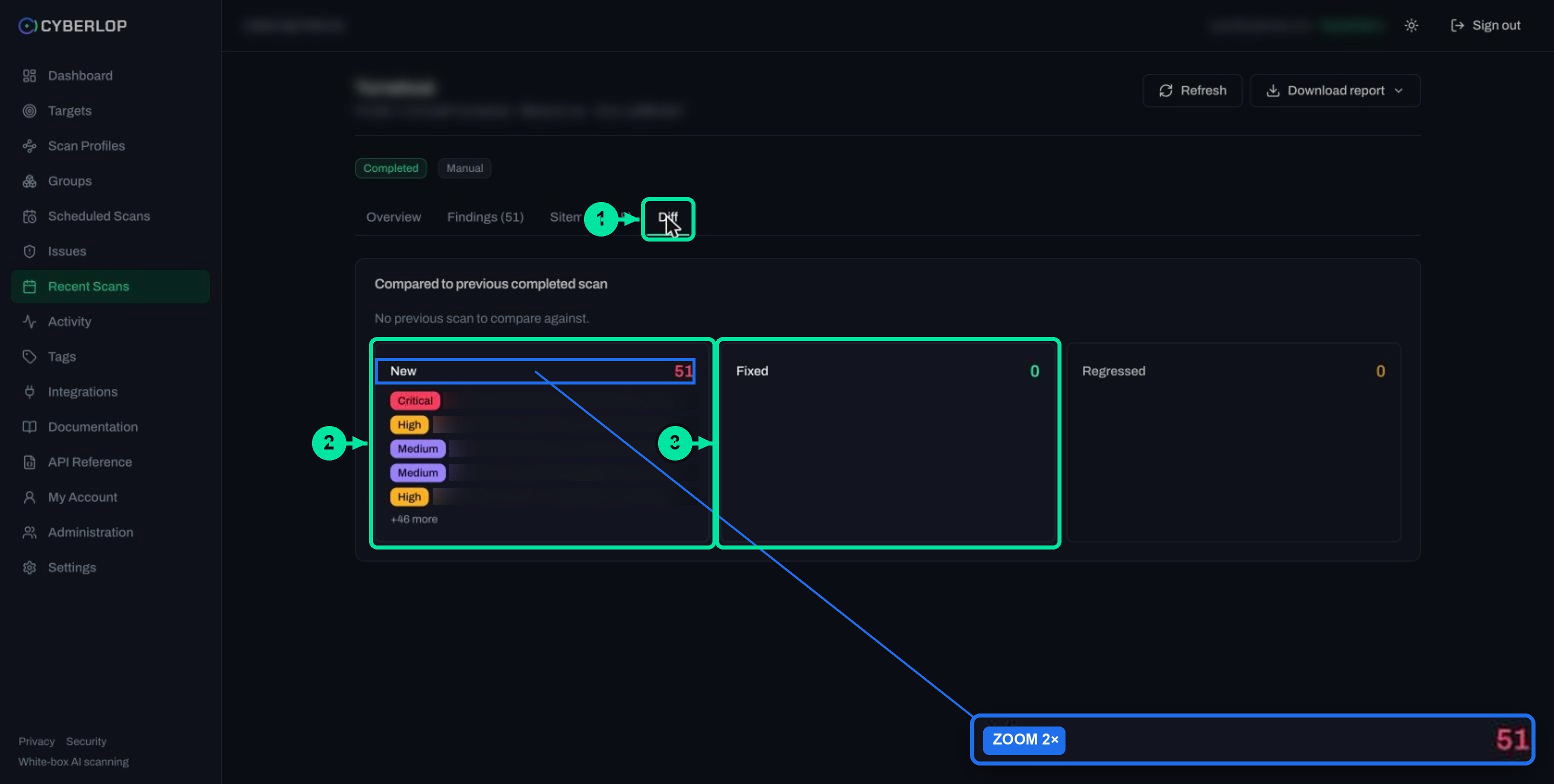
The Diff tab compares a scan with the previous completed scan and sorts findings into three columns: New (red), Fixed (green) and Regressed (amber). Each column lists findings as a severity badge and a title, and shows "+46 more"-style text when the list is long. Full detail lives in compare scans.
| Column | Read it as | What to do next |
|---|---|---|
| New | Found now, not in the previous completed scan | Triage it. Check whether a recent change introduced it. |
| Fixed | Reported before, not detected this time | Confirm on Issues that Triage reads Fixed, then close the ticket. |
| Regressed | Was Fixed, detected again | Reopen the work and look for a reverted change or a second code path. |
On the first scan of a profile the tab reads "No previous scan to compare against." That is normal: there is nothing to diff yet, so verification starts with your second completed scan.
Can you get the Diff from the API?
Yes. GET /api/scans/:id/diff returns findings against the target's history as new, fixed and regressed, and needs the scan:read permission. Issues can be listed with a triageStatus filter through GET /api/issues, which needs issue:read. The API reference guide lists every group.
What should you do when an issue regresses?
Treat a Regression as a stronger signal than a New finding, because the same weakness came back after a fix.
- The fix was never deployed. Someone merged the branch but never updated the running app, or patched a different environment.
- A later change undid it. A merge, rollback or copy of old code restored the vulnerable path.
- The fix covered one code path only. The same flaw exists in a second endpoint or file, so the fix was narrower than the weakness.
- The fix hides the symptom. Someone added a client-side check or a hand-picked filter, but the server still accepts the request.
Open the regressed finding and read the Evidence tab: the payload, request, response and reproduction steps show what worked this time. Put the finding back on someone's list by setting Assignee and adding a note about the earlier fix, then click Update status. The read a finding guide explains each evidence block.
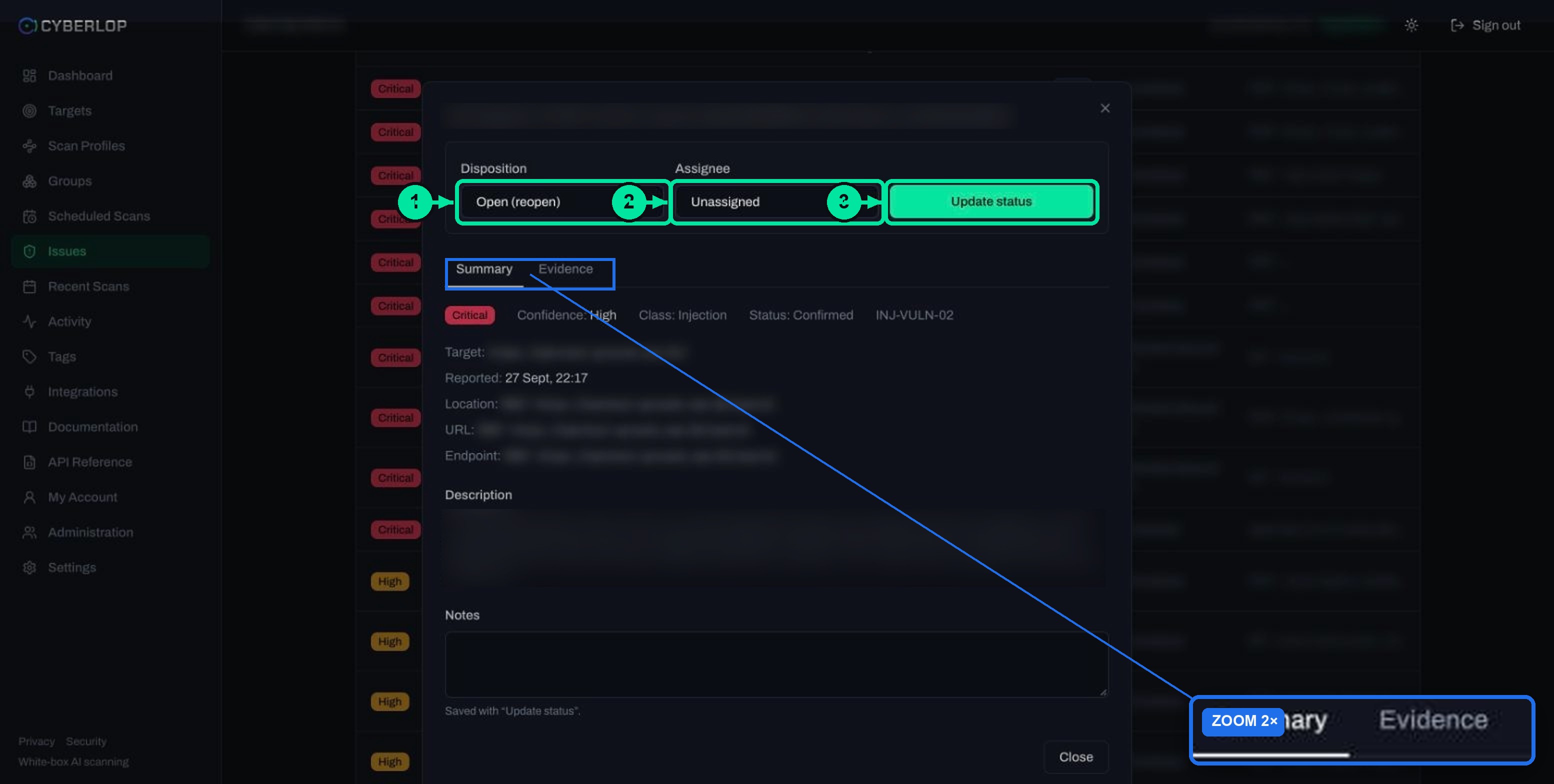
The security regression test habit helps here: once you have closed a flaw, keep scanning that area so a reintroduction shows up in the next run. Scheduled scans and CI/CD runs do this without anyone remembering.
How do you track fixes across the whole team?
Use the dashboard for the headline and Issues for the detail. The dashboard has a Fixed issues stat card and a Remediation card showing Open, Fixed, Regressed and False positives counts, plus a fix rate percentage. Read it weekly to see whether fixes outpace new findings.
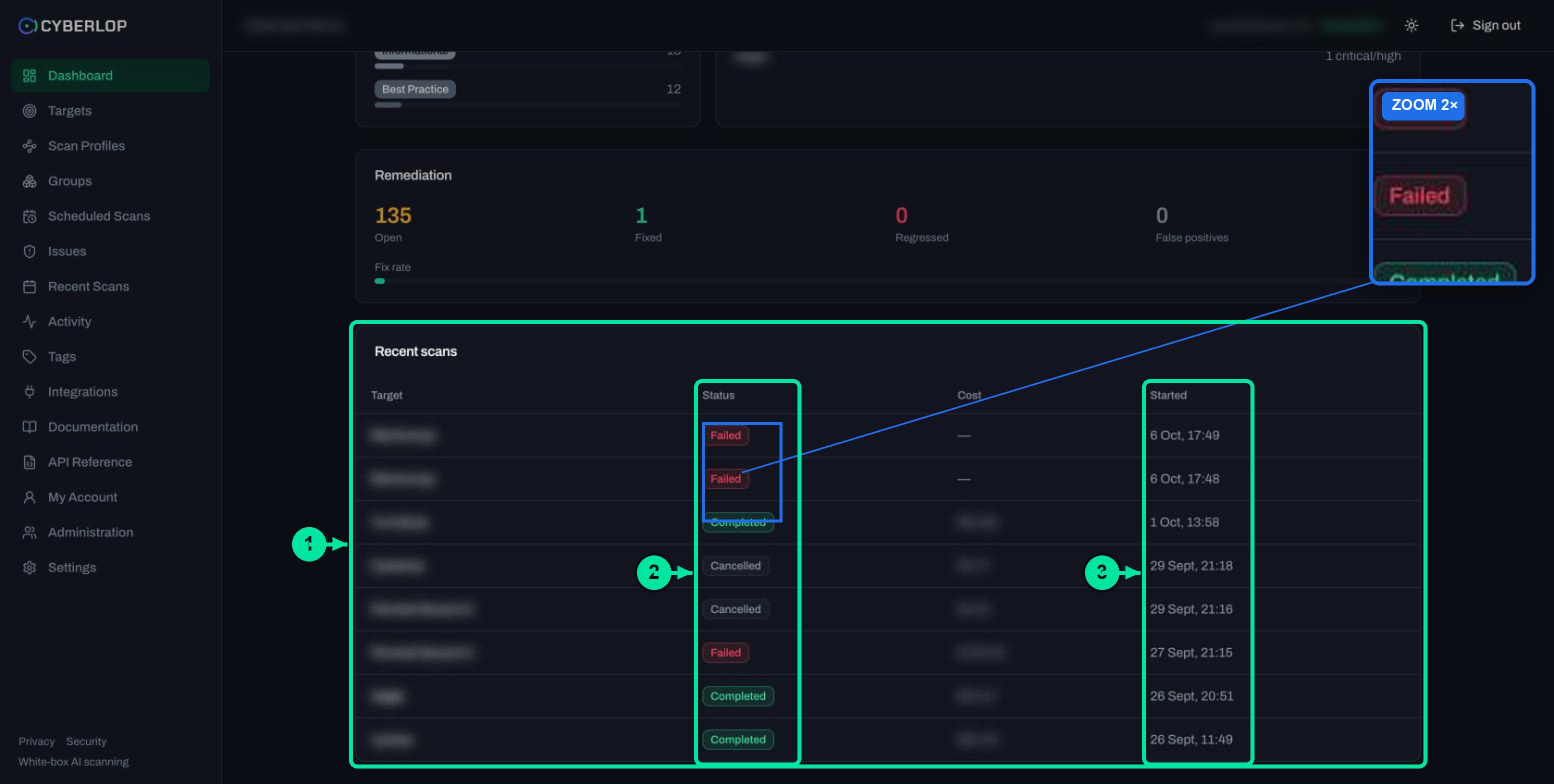
Filter Issues by triage state
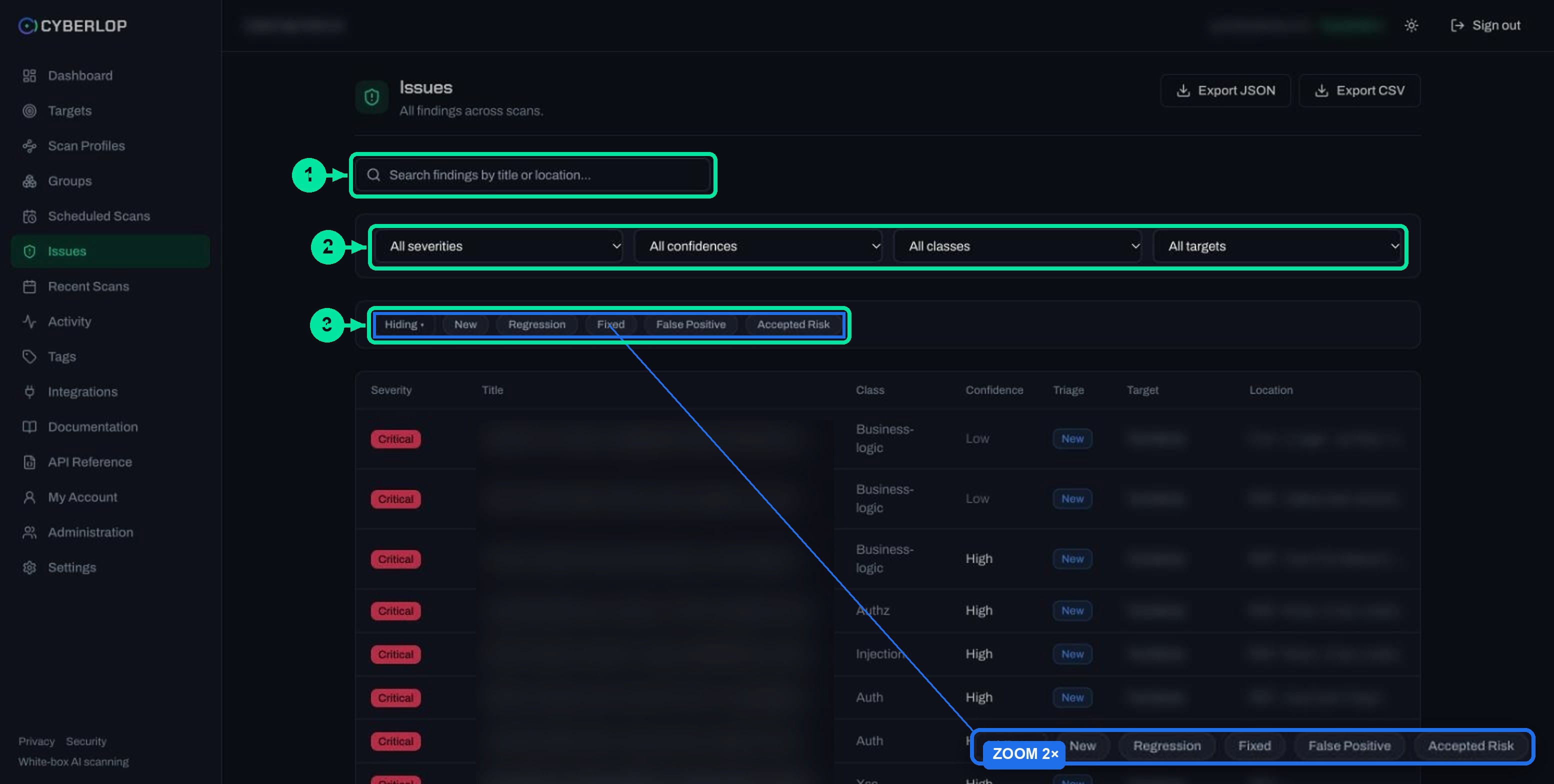
The chip row on Issues starts with a mode switch that toggles between Hiding ▾ and Showing only ▾, followed by chips for New, Regression, Fixed, False Positive and Accepted Risk. The two modes give you different questions to ask.
| Goal | Mode | Chips to select |
|---|---|---|
| See only returning problems | Showing only | Regression |
| See what is waiting for a fix | Hiding | Fixed, False Positive, Accepted Risk |
| Check what a release closed | Showing only | Fixed |
Combine chips with the severity, confidence, class and target filters. The issues list guide covers the full toolbar. For a deeper look at people and process, read triage findings and the finding triage term.
Report and export what was fixed
On a scan page, Download report ▾ offers three PDF modes: Open issues only, Include fixed & accepted and Fixed issues only. Use Fixed issues only as a closure note and Open issues only as the work list.
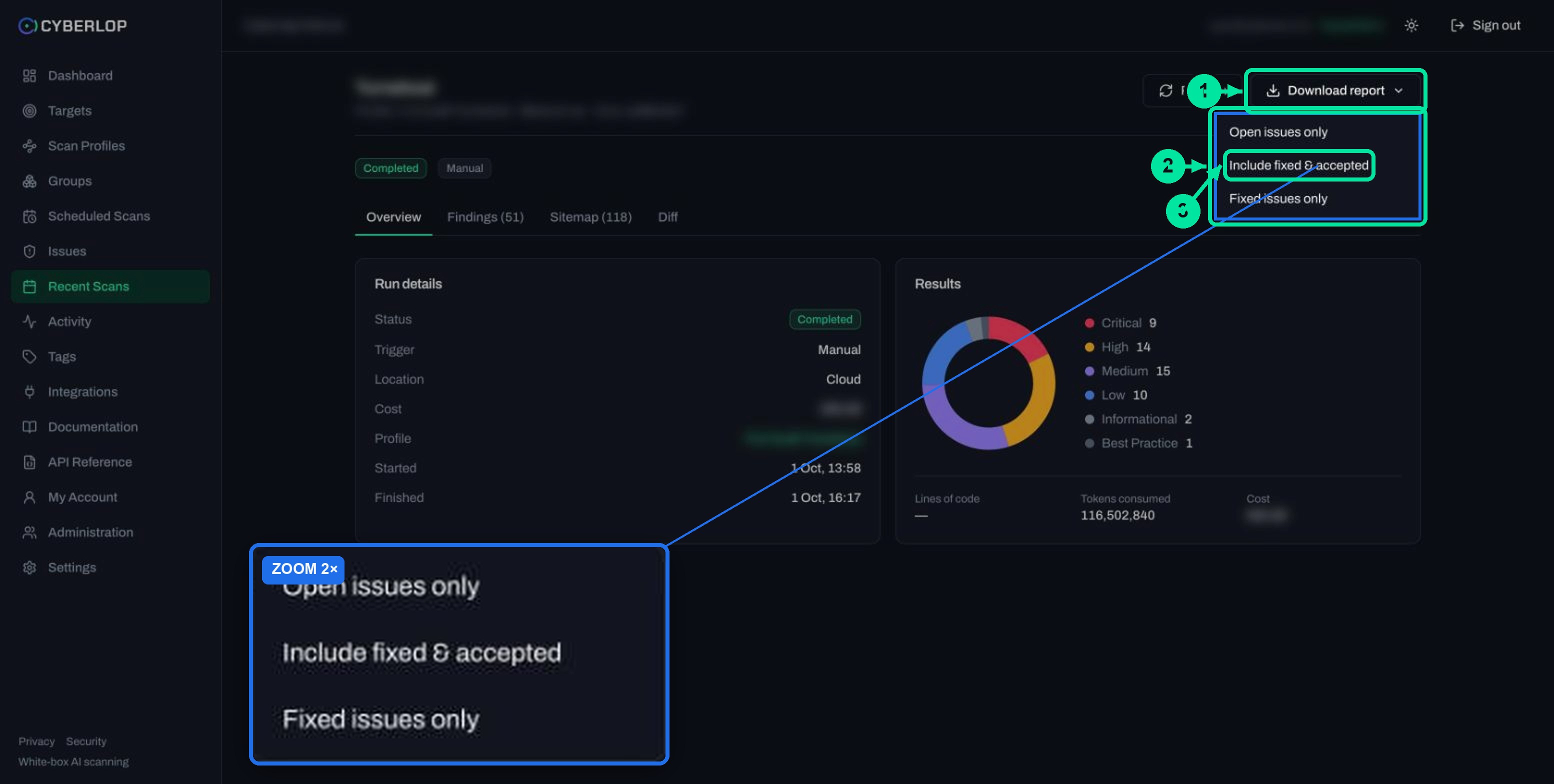
For a spreadsheet or a tracker, use Export JSON or Export CSV on Issues. See download PDF reports and export findings. Each manual change also appears in Activity as a Triage · Issue entry with a chip such as "Status: new → fixed", the finding title and the assignee, which gives you a trail for audit questions. See activity feed.
Troubleshooting: why was my fix not marked Fixed?
Most surprises come from comparing two scans that did not test the same thing. Check this list before you doubt the result.
| Symptom | Likely cause | What to check |
|---|---|---|
| Still New or open after the re-scan | The flaw is still detectable, or the fix is not live | Read the Evidence tab of the new finding and run its reproduction steps against the deployed app. |
| Diff shows "No previous scan to compare against." | This was the first scan of the profile | Run the profile a second time after the fix. |
| Finding is missing but not Fixed | The scan did not run to a clean end, or the profile changed | Check the result badge in Recent Scans. See failed or cancelled scans. |
| A Fixed finding comes back as Regression | Fix reverted, partial or on the wrong branch | Compare the commit on the scan Overview (white-box) with your merge history. |
| A similar finding appears as New | A different location or endpoint, so a distinct issue | Compare Location and Endpoint on both. |
Keep the profile steady
A scan cannot re-detect what it is told not to test. If you narrow vulnerability classes, switch the exploitation phase off or add an avoid rule between runs, a finding can vanish for reasons unrelated to your fix. Change the profile only on purpose, using edit a scan profile, and re-verify after.
Why do similar findings merge?
Because several specialists examine the same code, Cyberlop collapses findings that describe the same weakness into one representative, keeping the version with the most evidence. This is finding deduplication. It keeps the Diff readable, so one fix is one line in the Fixed column.
Next step
Fixed and Regressed tell you what changed, not how urgent it is. Read severity and confidence to learn how to order the remaining work, and see how to read a finding for what good evidence looks like.
Questions people ask
Verify a vulnerability fix: FAQs
How does Cyberlop decide an issue is fixed?
A re-scan of the same target that no longer detects a previously reported issue marks it Fixed. Documentation states a finding is only auto-marked fixed when the scan genuinely did not re-detect it.
What is a regression in Cyberlop?
A regression is a finding that was Fixed and has been detected again. It appears as Regression in the Triage column and in the amber Regressed column of the Diff tab.
Can I mark an issue as fixed myself?
Yes. Open the finding, choose Fixed in the Disposition list and click Update status. The next scan still checks it: if the issue reappears, it becomes a regression rather than a fresh finding.
How long does it take to verify a fix?
It takes one re-scan. Documentation says a typical scan of a small app takes roughly an hour, so allow for that plus deployment time. Larger apps may take longer.
Why does the Diff tab say 'No previous scan to compare against.'?
The scan is the first one for that profile. The Diff tab compares against the previous completed scan, so run the profile a second time after the fix.
Does a Failed or Cancelled scan count as proof of a fix?
No. Treat only a Completed scan as evidence. A failed scan can still hold the findings found before it stopped, so a missing finding may simply mean the scan never got that far.
Where can I see how many issues were fixed?
The dashboard shows a Fixed issues stat card and a Remediation card with Open, Fixed, Regressed and False positives counts and a fix rate. Scan reports can also be downloaded in a Fixed issues only mode.
Sources
Where the facts come from
Keep reading
Related articles
Cyberlop activity feed: what it records and how to use it for audits
Read the Cyberlop activity feed: sign-ins, scans, triage, roles and support sessions, who can see them, how to search and an audit checklist.
Cyberlop API reference: authentication, permissions and the OpenAPI spec
Use the Cyberlop API: 78 endpoints in 15 groups, session or Bearer token auth, permissions per route, worked calls and the OpenAPI download.
How to add security scanning to your CI/CD pipeline
Copy the generated pipeline YAML, set CYBERLOP_URL and CYBERLOP_API_TOKEN, and get findings in your build log on every merge without blocking builds.

Want fixes proven, not assumed?
Cyberlop proves a fix by re-running the exact exploit against the new code, and it reports only what it actually exploited, with the request, the response and the line of code. Ask us to run it on one of your applications.
Or start with a $199 pilot on one application: thirty days, success criteria agreed before day one, credited against the annual if you convert.