
Home / Blog / Tutorials / Export vulnerability findings to csv
Tutorials
How to export vulnerability findings to CSV or JSON
You can export findings and targets as JSON or CSV, and a scan's sitemap as CSV. This guide shows where each button sits and what to do with the files.
Cyberlop Labs · Updated · 9 min read

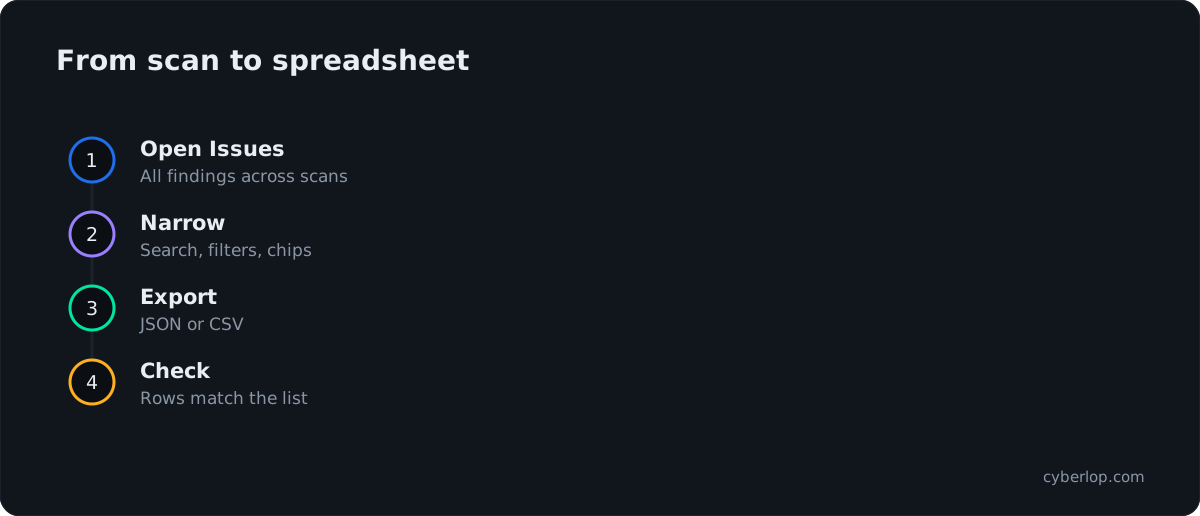
To export vulnerability findings to CSV or JSON in Cyberlop, open Issues, set any filters, then click Export CSV or Export JSON. Targets has the same two buttons, and a scan's Sitemap tab has Export CSV. Use CSV for spreadsheets and JSON for scripts and importers.
- Open Issues Click Issues in the sidebar to see all findings across scans.
- Narrow the list Use search, the four filters and the triage chips to select the findings you need.
- Choose a format Click Export JSON for programs or Export CSV for spreadsheets.
- Check the file Open it and compare the row count with the list.
- Read the header Note the real column or field names before mapping them to a tracker.
- Import or share Load the file into a spreadsheet or tracker, keeping it limited to people who need it.
- Update status in Cyberlop Record triage decisions with Update status so the history stays in one place.
- Issues exports findings as JSON or CSV; Targets exports the application list; the Sitemap tab exports endpoints as CSV.
- Choose CSV for people and JSON for programs and importers.
- Compare the row count in the file with the list before you share it.
- Exporting findings needs the issue:export permission.
- Treat the file as sensitive, and open CSVs carefully because cells starting with =, +, - or @ can run as formulas.
To export findings from Cyberlop as JSON or CSV, open Issues and click Export JSON or Export CSV. The same two buttons sit on the Targets list, and the Sitemap tab of a scan has Export CSV for discovered endpoints. Use JSON when another system will read the data, and CSV when a person will sort it in a spreadsheet.
What can you export from Cyberlop?
An export is a file download of the data you see in a list. Cyberlop offers three: findings from Issues, applications from Targets, and discovered endpoints from a scan's Sitemap tab. Each lets you move results into the tools your team already uses, such as a spreadsheet or an issue tracker.
| Export | Where to find it | Formats | Best for |
|---|---|---|---|
| Findings | Issues, top right | JSON or CSV | Triage sheets, ticket import, audit evidence, dashboards |
| Targets | Targets, beside + New target | JSON or CSV | An inventory of applications, owners and environments |
| Endpoints | Scan detail, Sitemap tab | CSV | Checking coverage and reviewing the attack surface a scan discovered |
A findings export is the raw data. If you want a document to hand to a manager or customer, use the branded PDF instead: see download PDF reports.
How do you export findings as JSON or CSV?
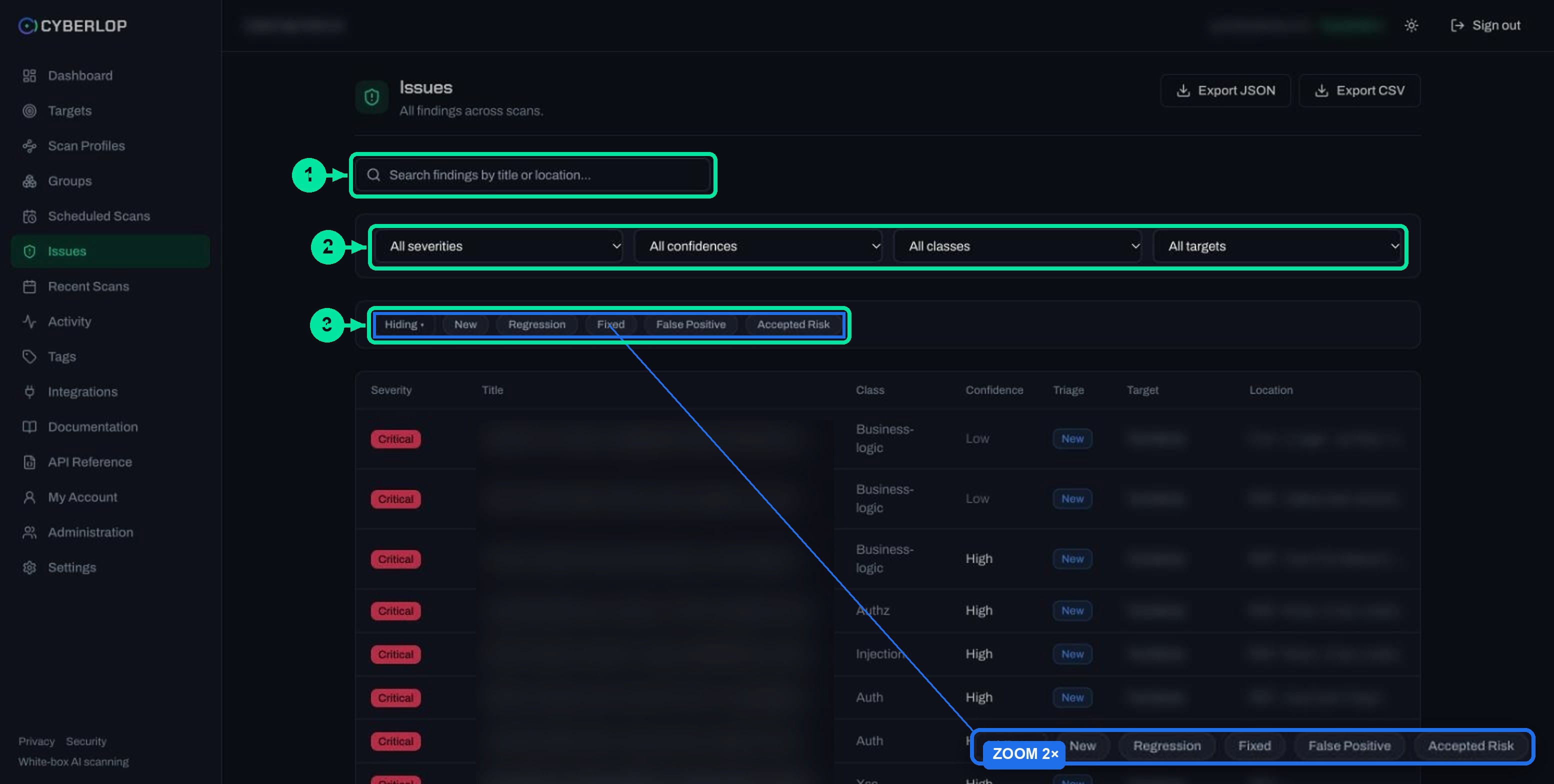
Narrow the Issues list to the findings you need, then click Export JSON or Export CSV. The browser downloads the file.
- Click Issues in the sidebar. The page title reads "All findings across scans".
- Use the search box ("Search findings by title or location...") to find a specific weakness or file.
- Set the four filters if you want a slice: severity, confidence, class and target.
- Set the triage chips. The first chip switches between Hiding and Showing only; the chips are New, Regression, Fixed, False Positive and Accepted Risk.
- Click Export JSON or Export CSV.
- Open the file and compare its row count with the list before you share it.
The list is sorted by severity, Critical first, and its columns are Severity, Title, Class, Confidence, Triage, Target and Location. For what each filter and chip does, read the Issues list guide.
Do the filters change what you export?
The API Reference describes the findings export as "Export issues as JSON or CSV with filters". The captured screens do not show whether the buttons pass your on-screen filters to the file. Test it: set a filter, export, and count the rows against the list.
Check the row count every time
A two-minute check beats a wrong number in a report. If the file holds more rows than the list, the filters were not applied. Export everything and filter inside the spreadsheet instead.
Who can export?
Exporting findings needs the issue:export permission. If the buttons are missing or refused, ask an administrator to check your role. See API tokens and permissions for how permission keys work.
How do you export targets and sitemap endpoints?
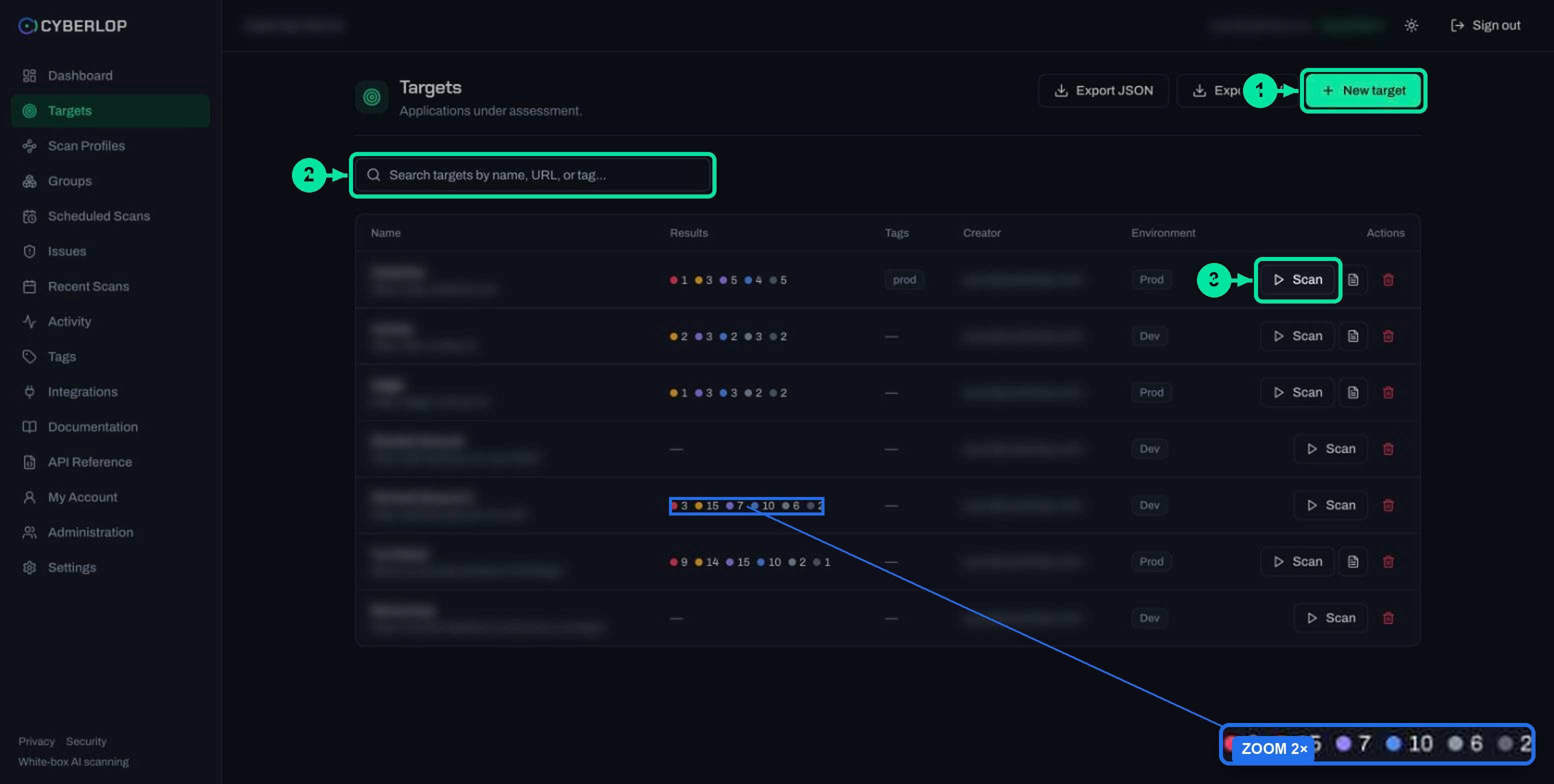
Targets and sitemaps use the same pattern: open the list, then click the export button. The target export suits an asset register; the sitemap export suits coverage reviews.
Export the targets list
- Click Targets in the sidebar.
- Optionally search by name, URL or tag.
- Click Export JSON or Export CSV.
The list itself shows name, URL, results, tags, creator and environment. Use the export to feed your vulnerability management routine, and to answer "which applications do we test, and who owns them?" See manage targets for the list in full.
Export a scan's sitemap
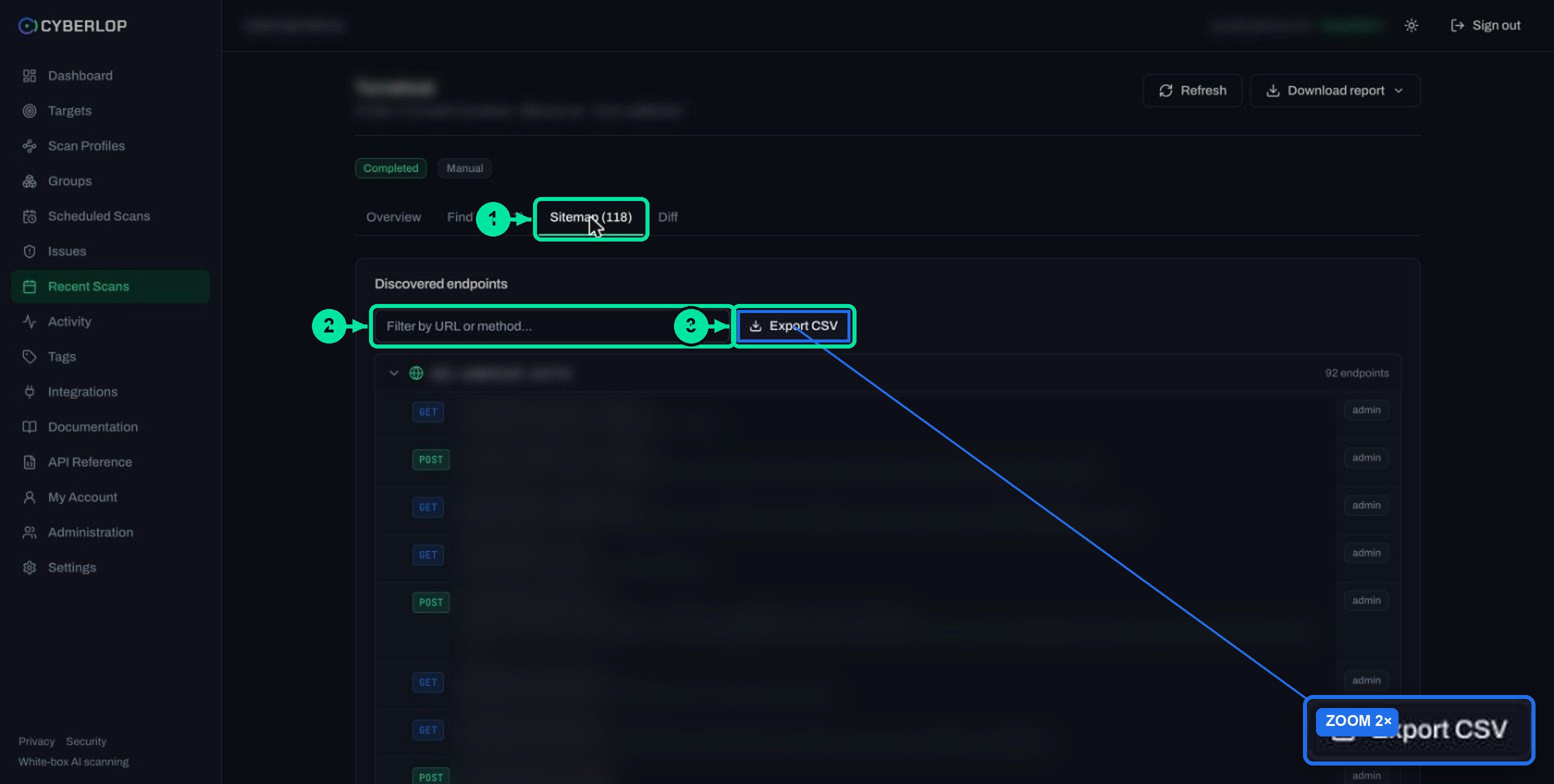
- Open a scan from Recent Scans.
- Click the Sitemap tab ("Discovered endpoints").
- Type in Filter by URL or method... if you only want some endpoints.
- Click Export CSV.
Endpoints are grouped by host. Each row has a method, a path, any parameters, a short note from the scan and a role chip. Hand the file to whoever owns the application and ask them to mark routes they did not expect to exist. The scan sitemap guide explains how to read these rows.
JSON or CSV: which should you choose?
Choose CSV for people and JSON for programs. CSV opens in any spreadsheet; JSON keeps nested data, such as a list of reproduction steps, in one record.
| Question | CSV | JSON |
|---|---|---|
| Who reads it? | A person in a spreadsheet | A script, importer or dashboard |
| Structure | Flat rows and columns | Objects and lists; can nest |
| Sorting and filtering | Immediate | Needs a tool or a few lines of code |
| Long text such as evidence | Can get awkward in a cell | Stays intact |
| Standard | RFC 4180 describes the common format | RFC 8259 defines the format |
Two standards explain most import failures. RFC 4180 says a field that holds a line break, a double quote or a comma should be wrapped in double quotes, and any double quote inside it is doubled. RFC 8259 says JSON text exchanged between systems outside a closed ecosystem must be encoded as UTF-8. If an import fails, those are the first two things to check.
We have not documented the exact column or field names in the files, so inspect the header row (CSV) or the first object (JSON) once, and map those names in your importer. Do not guess them from the on-screen table.
How do you use an export in a spreadsheet or tracker?
Treat the export as a snapshot: filter it, add an owner and a due date, then feed it to the place where work is tracked. Do the real status changes back in Cyberlop so the history stays in one place.
A spreadsheet triage workflow
- Export CSV from Issues and open it in your spreadsheet tool.
- Freeze the header row and filter by severity, then by confidence. Read severity and confidence first so you rank on both.
- Add columns for owner, due date and ticket link, so each security finding has someone responsible.
- Share the sheet with the team that will fix the findings.
- Record each decision in Cyberlop with Update status, as described in triage findings. Good finding triage marks each false positive there, not in the sheet.
Getting findings into an issue tracker
Most trackers accept a CSV import and let you map columns to fields. Import only the findings your team will act on, usually Critical and High at Medium confidence or above, and put the finding's ID and its Location in the ticket so the engineer can find the evidence. The ID has a class prefix and a number, for example INJ-VULN-02.
Keep the link both ways. Put the ticket link in the spreadsheet, and when the fix ships, re-run the scan and let the Triage column show Fixed. This is the fix verification loop described in fixed and regressed issues.
What to put in the ticket
Include the title, severity, confidence, class, target and Location. Link back to the finding rather than pasting the full request and response into a place with wider access.
What to leave out
Leave out evidence you do not need to share. Payloads, requests and responses can contain sensitive data, so give them only to the people fixing the issue.
Reporting on progress
A dated export is useful evidence in an audit, next to the audit log kept in the Activity feed. Save one per release or per month and you can show how many findings were open then, and how many moved to Fixed since. To track mean time to remediate, compare two exports on finding ID. For a live view, the Dashboard Remediation card already shows Open, Fixed, Regressed and False positives. See the dashboard overview.
| Goal | Export to use | What to do with it |
|---|---|---|
| Weekly triage meeting | Issues CSV | Filter to New, sort by severity, assign owners |
| Ticket creation | Issues CSV or JSON | Import High and Critical findings with ID and Location |
| Release evidence | Issues JSON, dated | Store with the release record; compare with the previous one |
| Application inventory | Targets CSV | Check owners, environments and tags are right |
| Coverage review | Sitemap CSV | Ask owners to flag unexpected routes |
Is it safe to open a findings CSV in a spreadsheet?
Mostly yes, but handle it with care. Findings contain text that came from the application under test, such as payloads and titles, and a spreadsheet may treat a cell starting with a formula character as a formula.
OWASP describes this as CSV Injection, also called formula injection: it happens when websites "embed untrusted input inside CSV files". The characters that matter are equals (=), plus (+), minus (-) and at (@), plus tab, carriage return and line feed. Read the knowledge-hub entry on CSV injection for the plain-English version.
Safe habits for exported files
- Open the file in a protected or read-only view if your spreadsheet tool offers one.
- Do not enable macros, external links or "update links" prompts for a findings file.
- If a cell starts with one of the characters above, read it as text and do not click through a warning.
- For automated imports, prefer JSON and parse it as data.
OWASP's most reliable fix for Excel is a tab character at the start of any cell that begins with =, +, - or @, placed inside the quoted field. The tab stays in the data and can trip a later programmatic import, so apply it only if you re-export the data yourself.
Treat the export as sensitive
An export holds vulnerabilities that have not been fixed. Store it where only the right people can read it, do not email it to a wide list, and delete old copies. The same applies to the PDF.
Can you automate exports with the API?
Yes. The API Reference lists two export endpoints, and both return a file.
| Endpoint | What it returns | Permission |
|---|---|---|
GET /api/export/issues | Issues as JSON or CSV, with filters | issue:export |
GET /api/export/targets | Targets as JSON or CSV (?format=json|csv) | target:read |
Authenticate with a session cookie or a Bearer API token. Tokens are issued by an administrator and carry the owner's permissions, so ask for one whose role has only the permissions the job needs. See the API reference guide and API tokens and permissions. To run scans from a pipeline too, read CI/CD integration.
The page also has JSON and OpenAPI download buttons that give the specification. That is a description of the API, not your findings. Do not confuse the two.
Troubleshooting: why is the export empty or wrong?
| Symptom | Likely cause | What to do |
|---|---|---|
| No Export buttons, or a refusal | Your role lacks issue:export | Ask an administrator to review your role |
| File has fewer rows than expected | Triage chips hiding statuses, or a filter is set | Clear the chips and filters, export again, then check the count |
| File has more rows than the list | Filters were not applied to the file | Filter inside the spreadsheet |
| Strange characters | Wrong encoding when opened | Import as UTF-8 through the spreadsheet import wizard |
| Columns split across lines | Long text with commas or line breaks | Use the import wizard with double quotes as the text qualifier, or use JSON |
| No Sitemap export | Scan found no endpoints or has not finished | Open a Completed scan. See failed or cancelled scans |
| Importer rejects field names | Names guessed from the screen | Read the real header row and map those names |
If a scan failed, it can still hold the findings found before it stopped, and those appear in the lists and exports. Read failed or cancelled scans before you trust a count.
Next step
Exports are easier to hand out when profiles are organised by team or environment. Read groups and tags to organise profiles by team or environment, so each team's slice is easy to find. See how to read a finding for what each field in the evidence means, and our evidence page for how proof is recorded.
Questions people ask
Export vulnerability findings to csv: FAQs
How do I export findings from Cyberlop?
Open Issues and click Export JSON or Export CSV. Set the search, filters and triage chips first if you want a slice, then compare the row count in the file with the list.
Can I export findings from one scan only?
The Issues export covers findings across scans. A scan's Findings tab lists that scan's findings, but the export buttons we documented are on Issues, Targets and the Sitemap tab. To isolate one scan, filter the file by target or Location, or use the PDF report from that scan.
What is the difference between the PDF report and a JSON or CSV export?
The PDF is a branded document for people to read, in three modes: Open issues only, Include fixed & accepted, and Fixed issues only. The exports are raw data for spreadsheets, trackers and scripts.
Which permission do I need to export findings?
Exporting findings needs the issue:export permission, and exporting targets needs target:read. Permission keys follow the area:action pattern. An administrator can adjust your role.
Can I export the sitemap?
Yes, as CSV. Open a scan, click the Sitemap tab and click Export CSV. Use the filter box first if you only want certain URLs or methods.
Is a CSV export safe to open in a spreadsheet?
Usually, but cells that start with =, +, - or @ can be read as formulas. OWASP calls this CSV injection. Open the file in a protected view, avoid enabling links or macros, and use JSON for automated imports.
Can I export findings automatically?
Yes. GET /api/export/issues returns issues as JSON or CSV and needs issue:export. Authenticate with a session cookie or a Bearer API token issued by an administrator.
Sources
Where the facts come from
Keep reading
Related articles
Cyberlop API reference: authentication, permissions and the OpenAPI spec
Use the Cyberlop API: 78 endpoints in 15 groups, session or Bearer token auth, permissions per route, worked calls and the OpenAPI download.
Cyberlop API tokens and permissions: how to issue and limit them
What a Cyberlop API token is, how permission keys work, which keys common jobs need, and how to rotate, revoke and audit tokens with least privilege.
How to add security scanning to your CI/CD pipeline
Copy the generated pipeline YAML, set CYBERLOP_URL and CYBERLOP_API_TOKEN, and get findings in your build log on every merge without blocking builds.

Need findings in your tracker?
Cyberlop reports what it actually exploited, with the request, the response and the line of code, and you can download it as data. Ask us to run it on one of your applications.
Or start with a $199 pilot on one application: thirty days, success criteria agreed before day one, credited against the annual if you convert.