
Home / Blog / Tutorials / Triage findings
Tutorials
How to triage findings in Cyberlop: disposition, assignee and notes
Triage is where a reported finding gets a decision and an owner. This guide shows each control in the issue dialog and a simple workflow for your team.
Cyberlop Labs · Updated · 9 min read

To triage a finding in Cyberlop, open it from the Issues page, choose a Disposition (Open, Fixed, False Positive or Accepted Risk), pick an Assignee, add Notes and click Update status. The badge on the list changes, the action is logged, and later scans respect your decision.
- Open Issues Click Issues in the sidebar and filter to New and Regression findings.
- Open a finding Click a row to open the issue dialog.
- Read the evidence Check the Summary and Evidence tabs, including the reproduction steps.
- Choose a disposition Pick Open (reopen), Fixed, False Positive or Accepted Risk.
- Assign an owner Pick an Assignee, or leave Unassigned while you decide.
- Write notes Record why you chose the disposition and any ticket reference.
- Click Update status Save the disposition, assignee and notes together.
- Re-scan after the fix Run the same scan profile and check the Diff tab.
- Triage means a decision plus an owner: set Disposition and Assignee, add Notes, click Update status.
- The four dispositions are Open (reopen), Fixed, False Positive and Accepted Risk; New and Regression are set by Cyberlop.
- Notes are saved only with Update status, so write them before you click.
- Work New and Regression first, using the Showing only chip, and re-scan after each fix.
- Each triage change is logged in the activity feed, and a returning fixed issue becomes a Regression.
Triaging a finding in Cyberlop means recording a decision on it: choose a Disposition (Open, Fixed, False Positive or Accepted Risk), pick an Assignee, add Notes, then click Update status. Finding triage is the step between "a scan reported this" and "someone is fixing it", and this guide shows each control and a team workflow that keeps it fast.
What is triage in Cyberlop?
Triage means deciding what happens to each finding (fix it, dismiss it as wrong, or accept the risk) and who owns it. In Cyberlop you do it in the issue dialog, and the result shows in the Triage column of the issues list.
Findings are kept per target across scans, so a decision you make today is remembered. The product documentation says dispositions are respected across future scans: a fixed issue that reappears becomes a regression rather than a fresh finding. Your team therefore does not have to re-judge the same item after every run.
Triage works on the security findings that a scan reported with evidence. Read the evidence first (see read a finding), then record your decision.
The five triage states
The list shows five statuses. Four of them you can set yourself, and two are set by Cyberlop when a scan re-runs.
| Status | Who sets it | What it means |
|---|---|---|
| New | Cyberlop | Reported by a scan and not yet triaged. It is shown as a blue badge on the list. |
| Regression | Cyberlop | A finding that was fixed has been found again by a later scan. |
| Fixed | You, or a re-scan | The vulnerability has been dealt with. A re-scan that no longer finds the issue also marks it Fixed. |
| False Positive | You | The finding is wrong: the behaviour is not a vulnerability in your app. |
| Accepted Risk | You | The finding is real, but your team has decided to live with it. |
The Disposition drop-down offers four values: Open (reopen), Fixed, False Positive and Accepted Risk. Open (reopen) is the way back: use it when a decision turns out to be wrong.
How do you triage a finding in Cyberlop?
Open the finding from Issues (or the Findings tab of a scan), set the disposition and assignee at the top of the dialog, add notes, and click Update status. Nothing is saved until you click that button.
- Click Issues in the sidebar. Narrow the list with the search box, filters and chips.
- Click a row. The issue opens as a dialog over the list and the page address does not change.
- Read the Summary tab, then check the Evidence tab for the payload, the request, the response and the reproduction steps.
- Choose a Disposition in the bar at the top.
- Choose an Assignee, or leave it as Unassigned.
- Type your reasoning in Notes on the Summary tab.
- Click Update status. The Triage badge on the list changes.
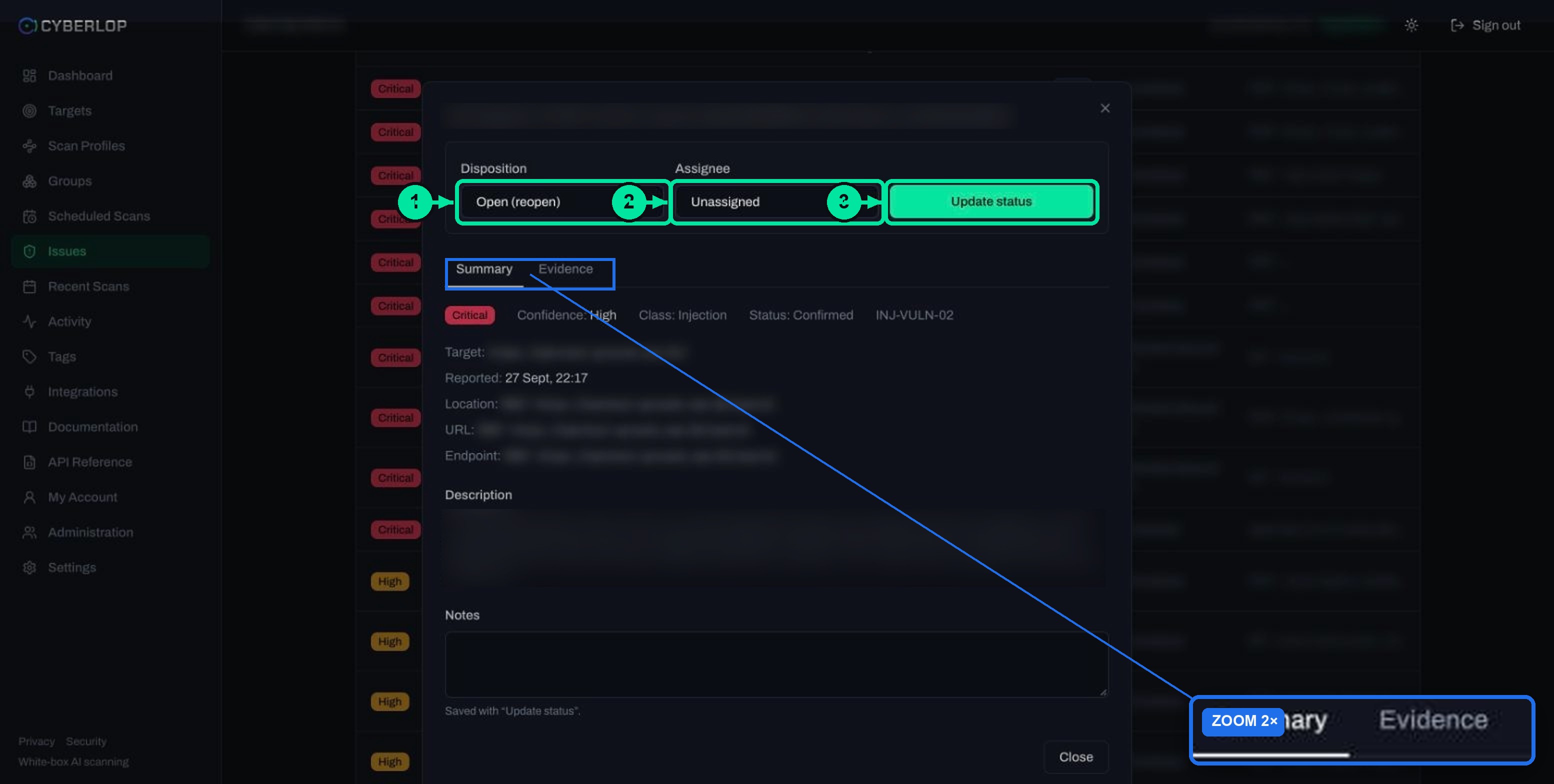
The controls, field by field
| Field | What to enter | Notes |
|---|---|---|
| Disposition | Open (reopen), Fixed, False Positive or Accepted Risk. | This sets the Triage badge on the list. |
| Assignee | Unassigned, or a workspace member shown as "Name (email)". | The list offers the members who may be assigned that issue. |
| Notes | Free text: why you chose this disposition, a ticket reference, a next step. | Saved with Update status, not on its own. |
| Update status | Click once when the three fields above are right. | Records the change in the activity feed. |
Disposition
Pick the value that matches what actually happened. Fixed means the code or configuration has changed. False Positive means the finding does not hold. Accepted Risk means it holds and you are choosing to keep it. Keeping these three apart matters later, because each answers a different question in a review.
Assignee
Give every finding you intend to fix a named owner. The assignee drop-down lists people in your workspace, so a finding for the payments service can go to the person who owns that service. Leave a finding Unassigned only while you are still deciding.
Notes
Write the note for the person who reads it in six months. For a False Positive, say why the behaviour is safe. For an Accepted Risk, say who agreed and what would make you revisit it. Notes are saved only when you click Update status, so type them before you click, not after.
Which disposition should you choose?
Choose Fixed when the vulnerability has been removed, False Positive when the finding is wrong, and Accepted Risk when it is real but you will not fix it now. If you are unsure, leave the status alone and assign the finding to someone who can check.
| Situation | Disposition | What to write in Notes |
|---|---|---|
| You changed the code and shipped it | Fixed | What changed and where, for example a pull request reference. |
| The reproduction steps do not work against your app, or the behaviour is intended and safe | False Positive | The reason it is safe and who confirmed it. |
| The finding is real but low value, or the fix is out of scope for now | Accepted Risk | Who accepted it, why, and when to look again. |
| You marked it Fixed or False Positive and were wrong | Open (reopen) | What you learned. |
Be careful with False Positive
Cyberlop reports what it exploited, but a finding with Low confidence or a status of Likely is still a judgement call. Run the curl commands from the Evidence tab against your staging app before you dismiss it. Severity and confidence are separate, so a Critical finding with Low confidence still needs a human to check it (see severity and confidence). The false positive entry explains the term.
Be honest with Accepted Risk
Accepted Risk is a business decision, not a way to empty the list. A recorded risk acceptance should name an owner and a reason. The cleaner your notes, the easier it is to show an auditor or a customer why a known issue was left in place.
What is a good triage workflow for a team?
A good workflow is short: filter to what is new, decide each finding once, assign an owner, and let the re-scan confirm the result. Agree the rules before the first scan lands, so two people do not triage the same finding differently.
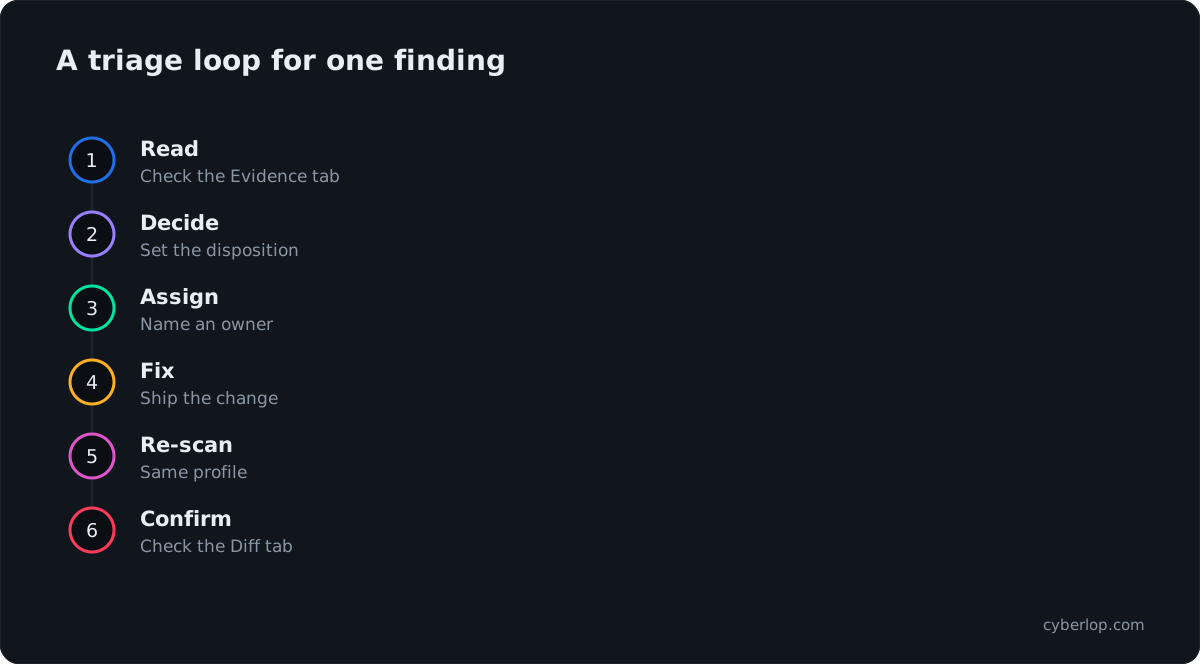
A weekly routine
- Start with what is new. On Issues, click the first triage chip so it reads Showing only, then select New and Regression. Add the Severity filter for Critical and High.
- Read the evidence. Open each row and confirm the finding from the Evidence tab.
- Decide once. Set a disposition and an assignee, write a note, click Update status.
- Fix and re-scan. After the fix ships, run the same scan profile again. See run a scan.
- Check the result. Open the Diff tab to see what is now Fixed and what regressed (compare scans).
- Review the accepted ones. Set the chips to show only Accepted Risk and look at those findings now and then, to see whether the reason still holds.
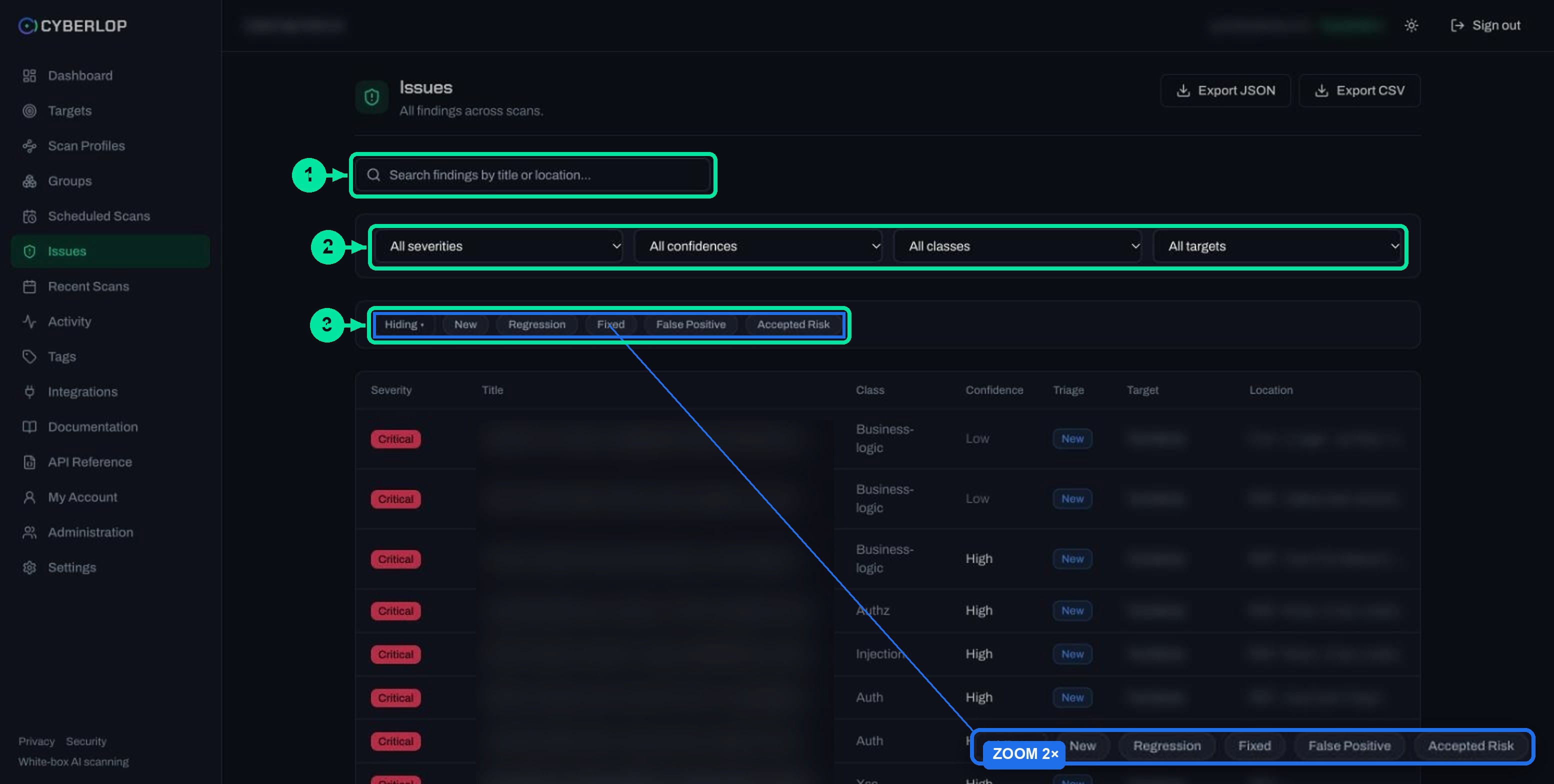
The Hiding mode is useful for a daily view. Select Fixed, False Positive and Accepted Risk and they drop out of the list, leaving open work only.
Who does what
Triage is a permission in Cyberlop. The API reference shows that changing an issue needs issue:triage, while reading needs issue:read. A team can therefore give everyone read access and trust a smaller group to decide. This follows least privilege. See API tokens and permissions for how permission keys work.
| Role in the team | What they do | Permission to look for |
|---|---|---|
| Security or engineering lead | Sets the rules, decides False Positive and Accepted Risk. | issue:triage |
| Developer who owns the code | Fixes the finding, adds a note, marks it Fixed after the change ships. | issue:read, and issue:triage if allowed to update |
| Reviewer or auditor | Reads findings, notes and the activity feed. | issue:read, activity:read |
Which permissions each of your roles holds is set by an administrator. If the Update status button is not available to you, ask your administrator rather than working around it.
A note on separation of duties
Where your policy needs it, keep the person who accepts a risk different from the person who owns the code. The notes and the activity feed give a second person what they need to check. The separation of duties entry covers the idea.
Turning findings into tickets
The API lists an issue-tracker reference among the fields that PATCH /api/issues/:id accepts, alongside status, assignee and notes. If you track work elsewhere, put the ticket number in Notes so anyone reading the finding can find it. The security ticket entry describes a good ticket.
What happens to a finding after you triage it?
The Triage badge changes, the action is logged, and later scans respect your decision. A fixed finding that is found again comes back as a Regression instead of a brand-new issue.
On the list, the dashboard and reports
Your dispositions feed the Remediation card on the dashboard, which counts Open, Fixed, Regressed and False positives and shows a fix rate (see dashboard overview). The PDF report has three modes: Open issues only, Include fixed & accepted and Fixed issues only, so accurate triage decides what each report contains (download PDF reports).
In the activity feed
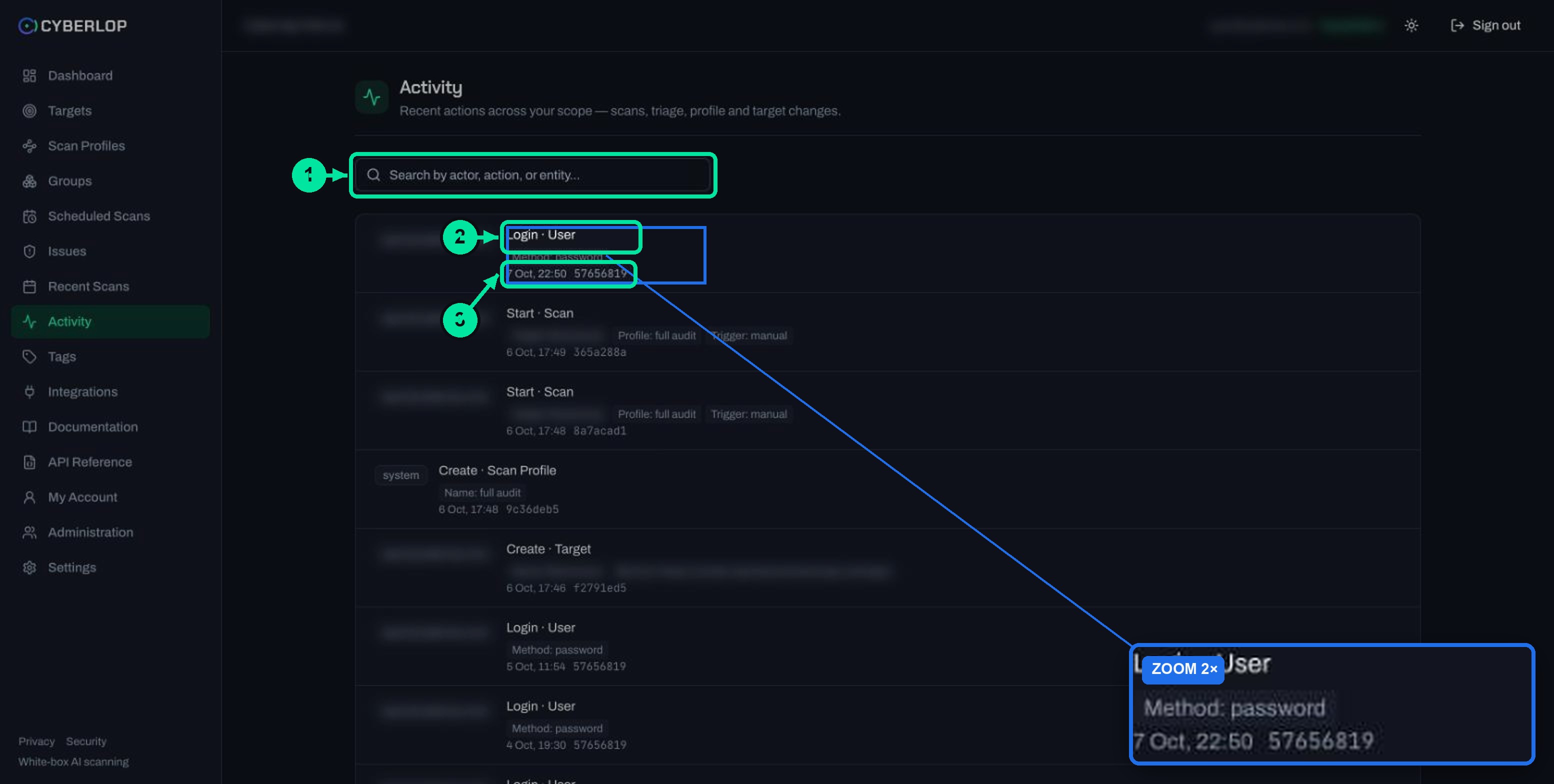
Each triage change appears in the feed as Triage · Issue with chips such as Status (for example new → fixed), the finding title, the assignee and the severity. Search by actor, action or entity to answer "who closed this, and when?". More in the activity feed guide. An audit log like this gives you a record of who decided what, and when.
On the next scan
A re-scan that no longer finds an issue marks it Fixed, and if the issue returns it becomes a Regression. Marking something Fixed yourself is a claim; the re-scan is the check. For the full lifecycle read fixed and regressed issues, and see fix verification.
Why does triage speed matter?
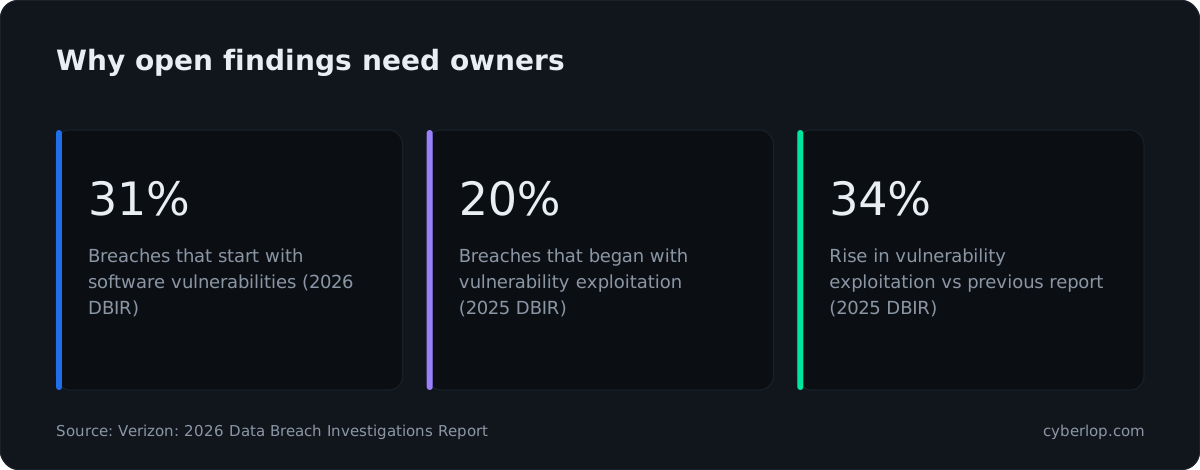
Attackers go after unpatched software. In Verizon's 2026 Data Breach Investigations Report, 31% of breaches started with software vulnerabilities, ahead of stolen passwords as the top way in. The 2025 report put exploitation of vulnerabilities at 20% of breaches, and Infosecurity Magazine reported a further 34% rise.
The same coverage of the 2025 report says organisations fully remediated only 54% of the 17 edge-device vulnerabilities it tracked, and that the average time to patch was 209 days. An untriaged findings list adds to that delay. Naming an owner and setting a status costs almost nothing and shortens it. Shorter queues also lower mean time to remediate and keep your vulnerability backlog honest.
Common mistakes and troubleshooting
Why did my note or change not save?
Notes and the other fields are saved only with Update status. If you close the dialog first, the change is lost. Click the button, then check the Triage badge.
Why is a finding missing after I triaged it?
The triage chips may be hiding it. If the first chip reads Hiding with Fixed selected, fixed findings are removed from view. Clear the chips, set the filters to All and empty the search box.
Mistakes to avoid
| Mistake | Why it hurts | Do this instead |
|---|---|---|
| Marking Fixed before the change ships | The list says you are safe when you are not. | Mark it after release, then re-scan. |
| Using False Positive to clear noise | A real issue disappears from view. | Reproduce it first and write the reason. |
| Accepting risk with no note | Nobody can tell why, or who agreed. | Record the owner and a review date. |
| Leaving findings Unassigned | Nobody owns the fix. | Assign every finding you plan to fix. |
| Typing notes and closing the dialog | Notes are lost. | Click Update status first. |
Next step: read fixed and regressed issues to see how your decisions behave across re-scans. For the evidence side see how Cyberlop shows proof.
Questions people ask
Triage findings: FAQs
How do I triage a finding in Cyberlop?
Click a row on the Issues page, choose a Disposition and an Assignee, add Notes and click Update status.
What is the difference between False Positive and Accepted Risk?
False Positive says the finding is wrong. Accepted Risk says it is real and your team has chosen not to fix it now. Keep the reason in Notes either way.
How do I reopen a finding I closed by mistake?
Open the finding, set Disposition to Open (reopen) and click Update status.
Who can be assigned a finding?
The Assignee drop-down lists Unassigned and workspace members shown as Name (email). The API has an eligible-assignees call that returns the users who may be assigned a given issue.
Why was my note not saved?
Notes are saved with Update status. Click that button before you close the dialog.
What happens if I mark a finding Fixed and it comes back?
A later scan that finds it again records it as a Regression instead of a new finding. See fixed and regressed issues.
Can I triage through the API?
Yes. PATCH /api/issues/:id updates status, assignee, an issue-tracker reference and notes, and needs the issue:triage permission. See the API reference guide.
Where can I see who changed a finding's status?
The activity feed records a Triage · Issue entry with the status change, finding title, assignee and severity. See the activity feed guide.
Keep reading
Related articles
Cyberlop activity feed: what it records and how to use it for audits
Read the Cyberlop activity feed: sign-ins, scans, triage, roles and support sessions, who can see them, how to search and an audit checklist.
Cyberlop API tokens and permissions: how to issue and limit them
What a Cyberlop API token is, how permission keys work, which keys common jobs need, and how to rotate, revoke and audit tokens with least privilege.
How to compare scans in Cyberlop with the Diff tab
Read the Diff tab: new, fixed and regressed findings against the previous completed scan, and how to prove a fix after a re-scan.

Want findings you can triage with confidence?
Cyberlop reports what it actually exploited: each finding carries the request, the response, a screenshot where a person can see it, and the line of code. Ask us to run it on one of your applications.
Or start with a $199 pilot on one application: thirty days, success criteria agreed before day one, credited against the annual if you convert.