
Home / Blog / Tutorials / Download pdf report
Tutorials
How to download PDF reports in Cyberlop: three modes, three places
A PDF report turns one scan into a document you can send, file or attach to a ticket. This guide shows the three report modes and every place to download one.
Cyberlop Labs · Updated · 9 min read
To download a PDF report in Cyberlop, open a completed scan, click Download report and choose Open issues only, Include fixed & accepted or Fixed issues only. You can also use Report on Recent Scans or the document icon on Targets. The PDF holds scan details, an executive summary and the findings.
- Open Recent Scans Click Recent Scans in the sidebar.
- Open a completed scan Click a row whose result badge says Completed.
- Check the Overview Confirm the profile, times and commit are the scan you want.
- Click Download report Use the menu in the page header next to Refresh.
- Choose a mode Pick Open issues only, Include fixed & accepted or Fixed issues only.
- Open the PDF Check the summary and a few findings.
- Share it Send it to the reader who matches the mode.
- Download report on the scan page is the only place with all three modes: Open issues only, Include fixed & accepted, Fixed issues only.
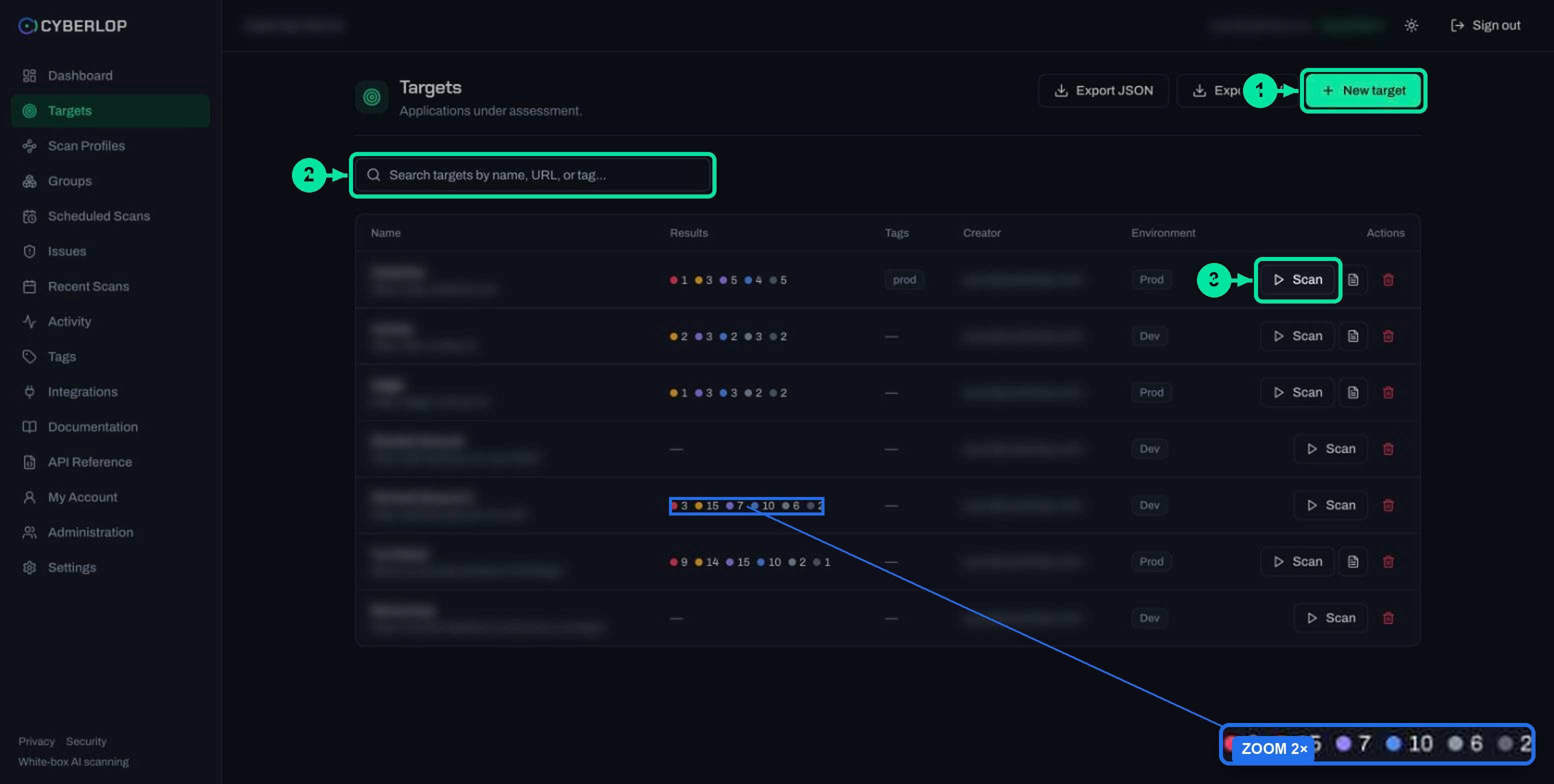
- Report on Recent Scans and the document icon on Targets give one-click PDFs for completed scans.
- Minimum severity, minimum confidence and report guidance on the profile decide which findings the report can contain.
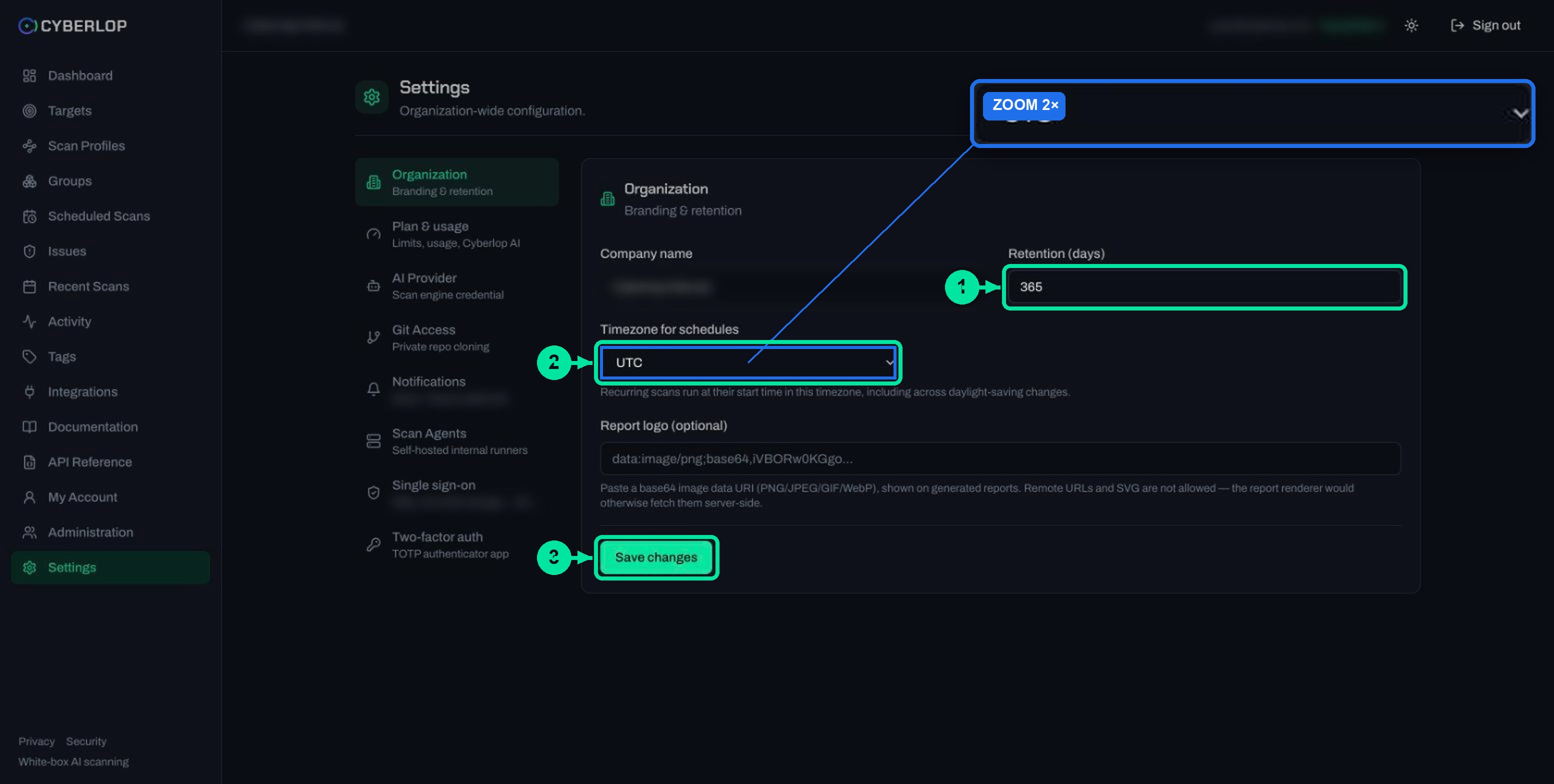
- Add your logo under Settings → Organization as a base64 PNG, JPEG, GIF or WebP data URI; SVG and remote URLs are not allowed.
- Triage first, pick the mode for the reader, and fetch it by API with scan:read_report if you want it automated.
To download a PDF report in Cyberlop, open a completed scan, click Download report and choose one of three modes: Open issues only, Include fixed & accepted or Fixed issues only. You can also click Report on a row in Recent Scans, or the document icon on the Targets list for the latest report on a target.
What is the Cyberlop PDF report?
The PDF report is a branded, shareable document built from the findings of one scan, each one a security finding. A pentest report like this is the version of the results you can send to people who will never open the app: a customer, an auditor, a manager or a developer on another team.
The in-app documentation says the final phase of every scan, Reporting, has an agent assemble an executive-level report from the confirmed findings. It is filtered by the profile's minimum severity and minimum confidence, and shaped by any report guidance you wrote. The documentation describes the PDF as containing scan metadata, an executive summary with the severity breakdown, and every finding. Treat that as the outline. The exact page layout is not described in the app, so download one and read it before you rely on it.
Why a PDF when the app already shows the findings?
The app is the working copy. The PDF is the record. Findings keep changing as people triage them and as later scans mark issues fixed, whereas a downloaded file is a snapshot from the moment you click. That makes it useful for sign-off, for a ticket attachment and for an audit folder.
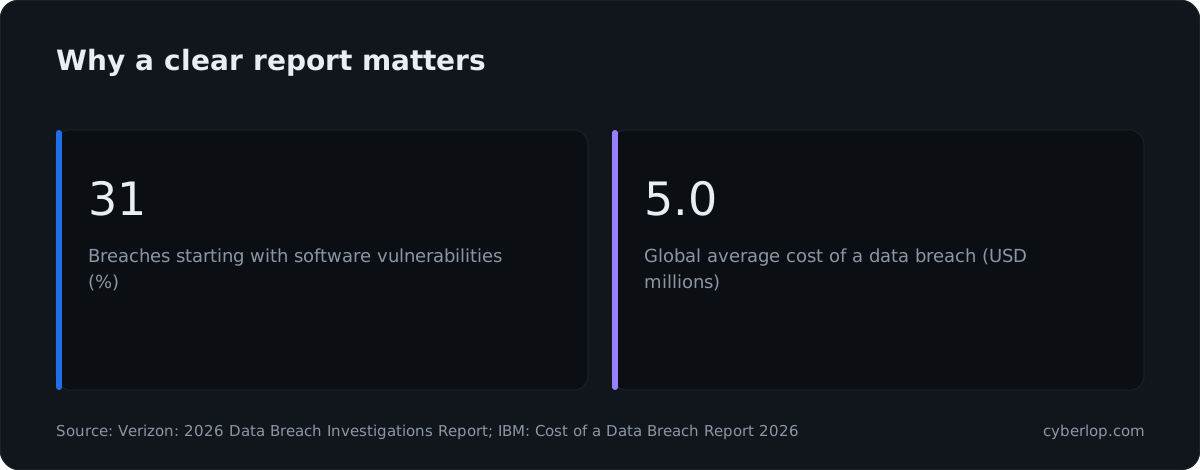
Vulnerabilities are now the top way in. The Verizon 2026 Data Breach Investigations Report says 31% of breaches now start with software vulnerabilities, ahead of stolen passwords. The IBM Cost of a Data Breach Report 2026 puts the global average cost of a breach at 4.99 million US dollars, a record high. A report that gets a fix funded is a cheap response to numbers like these.
How do you download a PDF report for a scan?
Open the scan from Recent Scans, click Download report in the page header, and pick a mode. The PDF is generated from that scan's findings. This is the route to use when you want control over what the report includes.
- Click Recent Scans in the sidebar.
- Click a scan with a Completed result badge. Clicking anywhere on the row except the buttons opens the scan detail page.
- Check the Overview tab to confirm this is the scan you want: profile, trigger, start and finish times and, for white-box scans, the commit.
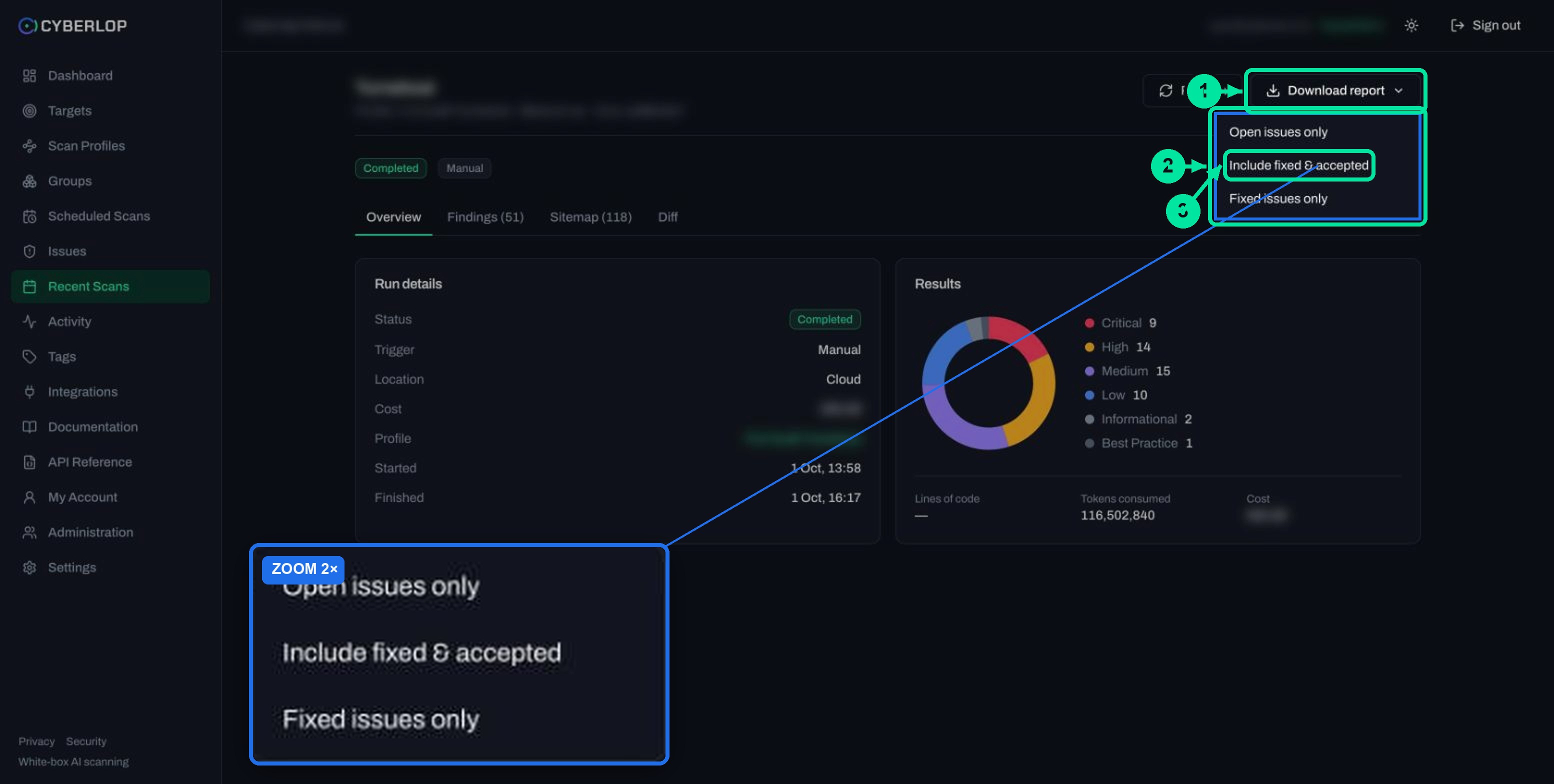
- Click Download report at the top right, next to Refresh.
- Choose Open issues only, Include fixed & accepted or Fixed issues only.
- Open the downloaded PDF and check the summary and a few findings before you send it on.
Which of the three report modes should you choose?
Choose the mode by who will read the report and what you want them to do. The three names describe the status of the findings included. The mode is also passed as mode=open, mode=all or mode=fixed-only by the API.
| Menu option | API value | Use it when |
|---|---|---|
| Open issues only | open | You want a work list: what still needs a fix. Send it to the team that owns the code. |
| Include fixed & accepted | all | You want the full picture of a scan, including what has been fixed and what your team chose to accept. Useful for managers and auditors. |
| Fixed issues only | fixed-only | You want to show progress: what was found and has since been closed. Useful as a record after a fix sprint. |
The decisions behind fixed and accepted come from triage and from later scans. If nobody has triaged the findings, the open-only report will simply list what the scan reported. A few minutes of triage before you download makes the report far more useful.
A quick way to decide
- Sending to developers: Open issues only.
- Sending to an auditor, customer or board: Include fixed & accepted.
- Closing out a remediation cycle: Fixed issues only, after a re-scan.
Where else can you download a report?
There are three places in the web app, plus the API. They all lead to a PDF, but they differ in how much choice you get.
| Where | Control | What you get | Notes |
|---|---|---|---|
| Scan detail page | Download report menu | A PDF for that scan in the mode you pick | The only place in the app where the three modes are offered. |
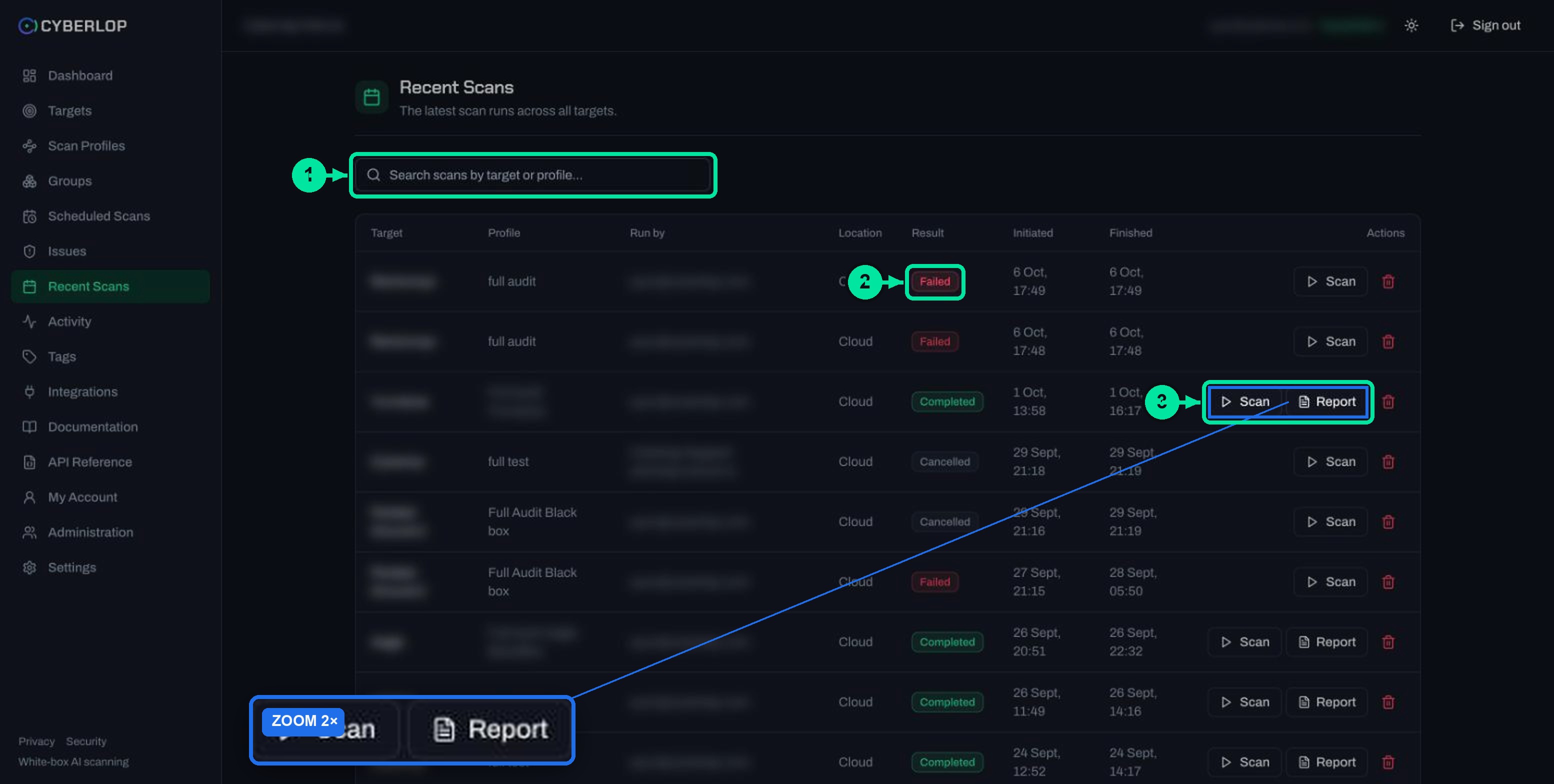
| Recent Scans | Report button on a row | The PDF for that scan | Shown on completed scans only. Its tooltip reads "Download the report (PDF)". |
| Targets list | Document icon on a row | The latest report for that target | Shown only on targets with a completed scan. Tooltip: "Download the latest report (PDF)". |
| API | GET /api/scans/:id/report.pdf | The PDF, with mode set to open, all or fixed-only | Needs the scan:read_report permission. |
Download from Recent Scans
Use the Report button when you know which run you want and do not need to change the mode. It sits beside Scan and the delete button in the Actions column. Failed and cancelled rows do not show it.
Download the latest report from the Targets list
Use the document icon when someone asks "send me the current report for that app". You do not need to hunt for the right scan. If a target has never been scanned, or has no completed scan, the icon does not appear. The Results column shows a dash for a target that has never been scanned.
What decides what is in the report?
Three things shape a report: the profile's reporting rules, the mode you choose, and the organisation's branding. The first is set before the scan runs, so it is worth checking when you create the profile.
| Setting | Where it lives | Effect on the PDF |
|---|---|---|
| Minimum severity | Scan profile, Reporting section | Findings below the chosen severity are filtered out of the report. The default is No minimum. |
| Minimum confidence | Scan profile, Reporting section | Findings below the chosen confidence are filtered out. The default is No minimum. |
| Report guidance | Scan profile, Reporting section | Free text that steers how the final report is written and filtered. |
| Download mode | Download report menu | Which statuses of finding appear: open, all, or fixed only. |
| Report logo | Settings → Organization | Your logo is shown on generated reports. |
The filters are explained in the reporting rules guide. They are set per profile, so a profile for a production app can report only High and above while a staging profile reports everything. Because the report is assembled from confirmed findings, a quiet report is not the same as a clean app: check the filters first if a report looks short.
Take care with the text boxes. Detected personal data in report guidance and rules of engagement, such as emails, phone numbers and payment card numbers, is redacted automatically before analysis, but do not paste secrets into them. Describe what you want, not credentials.
How do you add your logo to the PDF?
Paste your logo into Report logo (optional) on Settings → Organization and click Save changes. The field takes a base64 image data URI in PNG, JPEG, GIF or WebP format. Remote URLs and SVG files are not allowed, because the report renderer would otherwise have to fetch them from a server.
- Prepare a small PNG or JPEG of your logo.
- Convert it to a data URI, which starts with
data:image/png;base64,followed by the encoded image. - Open Settings and the Organization tab.
- Paste the value into Report logo (optional).
- Click Save changes, then download a fresh report to check how it looks.
The account and organisation settings guide covers the rest of the page. Agencies that want reports under their own name can use this setting for their client work; see Cyberlop for agencies.
How do you read and use the report?
Read it top down: the summary tells you how bad things are, the findings tell you what to fix. Then give each reader the part they need.
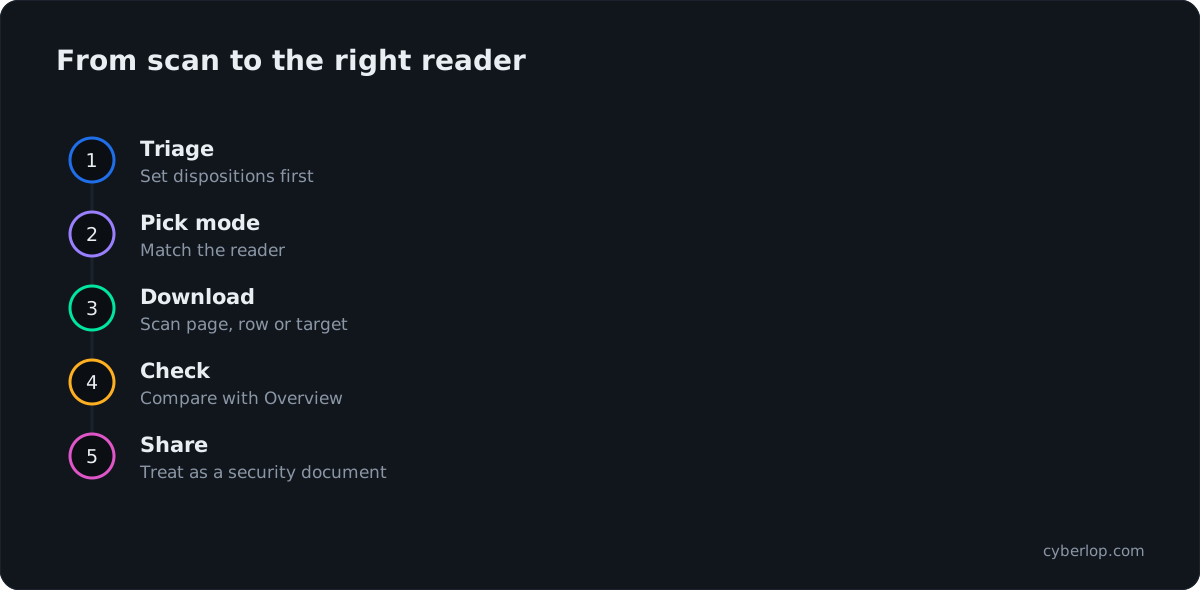
What to check before you send it
- Scan and date. Confirm the metadata matches the scan you meant, especially for targets with many runs.
- Severity breakdown. Compare the summary, including severity and confidence, with the Results donut on the scan's Overview tab. The two should tell the same story once the report filters are taken into account.
- Triage state. Make sure findings you have already decided on sit in the right mode.
- Evidence. Open one or two findings in the app to see the request, the response and the reproduction steps; see read a finding.
- Audience. If the file is meant as evidence, do not edit it by hand. Download a different mode instead.
For developers
Use Open issues only as a checklist, then work from the issue dialog for the payload and request. After a fix, re-run the scan and look at the Diff tab; a closed-loop retest proves a fix by the exploit failing, not by a ticket being closed. See fixed and regressed issues.
For managers and customers
Use Include fixed & accepted. The executive summary and severity breakdown give the headline, and the accepted items show what you chose not to fix. Add a short cover note saying who owns the open items.
For auditors
Keep the PDF with the date of the scan and the matching export. A report is evidence of testing, not a certificate; the compliance report your framework needs may require more than this file. NIST SP 800-115 is a long-standing reference for analysing findings and planning mitigation, and the OWASP Web Security Testing Guide covers how testers report. Do not assume the PDF alone meets a specific standard.
PDF, JSON or CSV?
The PDF is for reading. For sorting, filtering and tracker imports, use the exports from Issues and Targets.
| Need | Best format | Where |
|---|---|---|
| A document to send or file | Download report, Report, or the document icon | |
| A spreadsheet to sort and filter | CSV | Export CSV on Issues or Targets |
| Data for another system | JSON | Export JSON on Issues or Targets |
| Endpoint coverage | CSV | Export CSV on the Sitemap tab |
The export guide (see also findings export) is the next step. The contents of the exports were not captured when this guide was written, so check a sample file before building anything on it.
How do you fetch reports with the API?
Send a GET request to /api/scans/:id/report.pdf, with mode set to open, all or fixed-only. The endpoint needs the scan:read_report permission and accepts either a session cookie or a bearer API token, as the API reference describes.
Use a personal token with only the permissions you need; API tokens and permissions explains least privilege. Keep the token in your secret store, never in a script. This is handy for a pipeline that archives the PDF after each scan run from a scheduled or CI job. Check that the scan has completed before you request the file.
curl -H "Authorization: Bearer $CYBERLOP_API_TOKEN" \
  -o report.pdf \
  "$CYBERLOP_URL/api/scans/SCAN_ID/report.pdf?mode=open"
Troubleshooting: why can't I download a report?
Most missing downloads come from scan status or permissions. Work down the list in order.
| Symptom | Likely cause | What to do |
|---|---|---|
| No Report button on a row | The scan is Failed or Cancelled; the button appears on completed scans only. | Open the scan and check the findings, or run it again. See failed or cancelled scans. |
| No document icon on a target | The target has no completed scan. | Run a scan with Scan and wait for Completed. |
| Report looks short | The profile's minimum severity or confidence filters out findings, or you chose a narrow mode. | Check the Reporting section of the profile and try Include fixed & accepted. |
| Download refused over the API | The token or role lacks scan:read_report. | Ask an admin to grant it. |
| Logo missing or wrong | The value is not a valid base64 data URI, or it is a URL or SVG. | Re-paste a PNG, JPEG, GIF or WebP data URI in Settings → Organization. |
If a scan is still running, wait: the documentation says a typical scan of a small app takes roughly an hour, and the report comes from the last phase. If a problem persists, contact your administrator, as the app's own message suggests.
Common mistakes
- Sending the open-only report to an auditor, who then sees nothing about what was fixed.
- Downloading before triage, so the report mixes real issues with ones already dismissed.
- Forwarding the file to people outside the team without checking it. A report may carry detail from your app, so share it as you would any security document (see security).
- Treating a report as proof of a fix. Re-scan, then look at the Diff.
Questions people ask
Download pdf report: FAQs
How do I download a PDF report in Cyberlop?
Open a completed scan, click Download report and choose a mode. Or click Report on the scan's row in Recent Scans.
What are the three report modes?
Open issues only, Include fixed & accepted and Fixed issues only. The API calls them open, all and fixed-only.
Why is there no Report button on my scan?
The Report button appears on completed scans only. Failed and cancelled scans do not show it. A target also needs a completed scan before its document icon appears.
What does the PDF contain?
The in-app documentation describes scan metadata, an executive summary with the severity breakdown, and the findings. The layout itself is not described in the app, so download a sample to see it.
Can I put my company logo on the report?
Yes. Paste a base64 data URI (PNG, JPEG, GIF or WebP) into Report logo (optional) under Settings → Organization and click Save changes. SVG and remote URLs are rejected.
Can I download reports automatically?
Yes. Request GET /api/scans/:id/report.pdf with a mode. It needs the scan:read_report permission and a session or bearer API token.
Does the report replace the Issues export?
No. The PDF is for reading and sharing. Use Export JSON or Export CSV on Issues or Targets when you need data to sort or import.
Does a report prove a fix?
No. A report is a snapshot. To prove a fix, re-run the scan and check the Diff tab, then download a fresh report.
Keep reading
Related articles
Account and organisation settings: notifications, retention, logo and plan
Set notification emails and personal tokens, then configure retention, schedule timezone and report logo, and read the Plan & usage page.
Cyberlop API reference: authentication, permissions and the OpenAPI spec
Use the Cyberlop API: 78 endpoints in 15 groups, session or Bearer token auth, permissions per route, worked calls and the OpenAPI download.
Cyberlop API tokens and permissions: how to issue and limit them
What a Cyberlop API token is, how permission keys work, which keys common jobs need, and how to rotate, revoke and audit tokens with least privilege.

Want reports your team can act on?
Cyberlop reports what it actually exploited: each finding carries the request, the response, a screenshot where a person can see it, and the line of code. Ask us to run it on one of your applications.
Or start with a $199 pilot on one application: thirty days, success criteria agreed before day one, credited against the annual if you convert.