
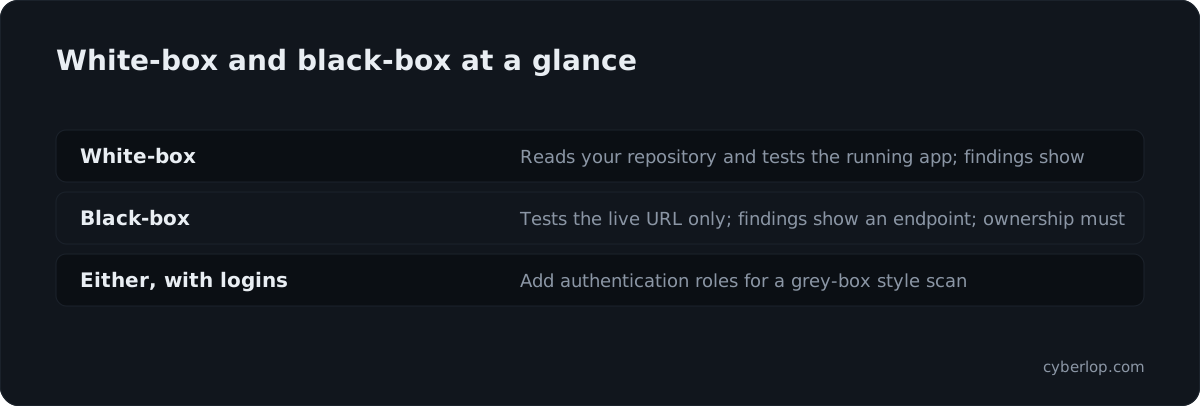
In Cyberlop, a white-box scan reads your source code from a Git repository and tests the running app. A black-box scan tests only the live URL and needs ownership verified. Choose white-box when you have a repository and black-box when you do not. Add authentication roles to either for a grey-box style scan.
- Choose the scan type Use white-box when you can share the repository over HTTPS, and black-box when there is no code to share.
- Add the target Click + New target, enter the Name and Main URL, pick the Scan type, add the repository details for white-box, then click Create target.
- Verify ownership for black-box Complete the DNS TXT or staff-approval route and wait for the Verified badge on the target page.
- Create a scan profile Go to Scan Profiles, click + New profile, pick the target, name the profile and choose vulnerability classes.
- Add authentication roles For a grey-box style scan, open Authentication, click + Add role, set a privilege level and tick Form, Header or OAuth 2.0.
- Decide on the exploitation phase Keep Run exploitation phase ticked to prove issues against the live target, or untick it for static code analysis only.
- Preview and save Click Preview YAML to validate the profile, then click Save.
- Run the scan Click Scan on the profile row. The scan starts at once and you can leave the page.
- Review the findings Open the scan from Recent Scans, check the Findings tab and set a disposition on each issue.
- White-box scans read your repository and the running app; black-box scans test the live URL only.
- The scan type is set on the target and cannot be edited, so choose before you click Create target.
- Black-box targets need ownership verified by DNS TXT record or staff approval before a scan can run.
- Add authentication roles to a scan profile to get a grey-box style scan on either type.
- White-box findings point to a file and line; black-box findings point to an endpoint.
A white-box scan in Cyberlop reads your application's source code from a Git repository and tests the running app at its URL. A black-box scan tests the live URL only, with no code, and needs proof that you own the target. You pick the type once, when you add the target. To get a grey-box style scan, you add login details to the scan profile.
Below you will see how white-box vs black-box scans differ in Cyberlop, which one to pick, what each needs, what each finds and how to add logins. No target yet? Start with Getting started.
What is the difference between white-box and black-box scans in Cyberlop?
The difference is what the scan can see. White-box testing works with the source code as well as the running app. Black-box testing works only from the outside, the way a visitor reaches your site. The Knowledge Hub defines both: white-box testing and black-box testing.
What a white-box scan does
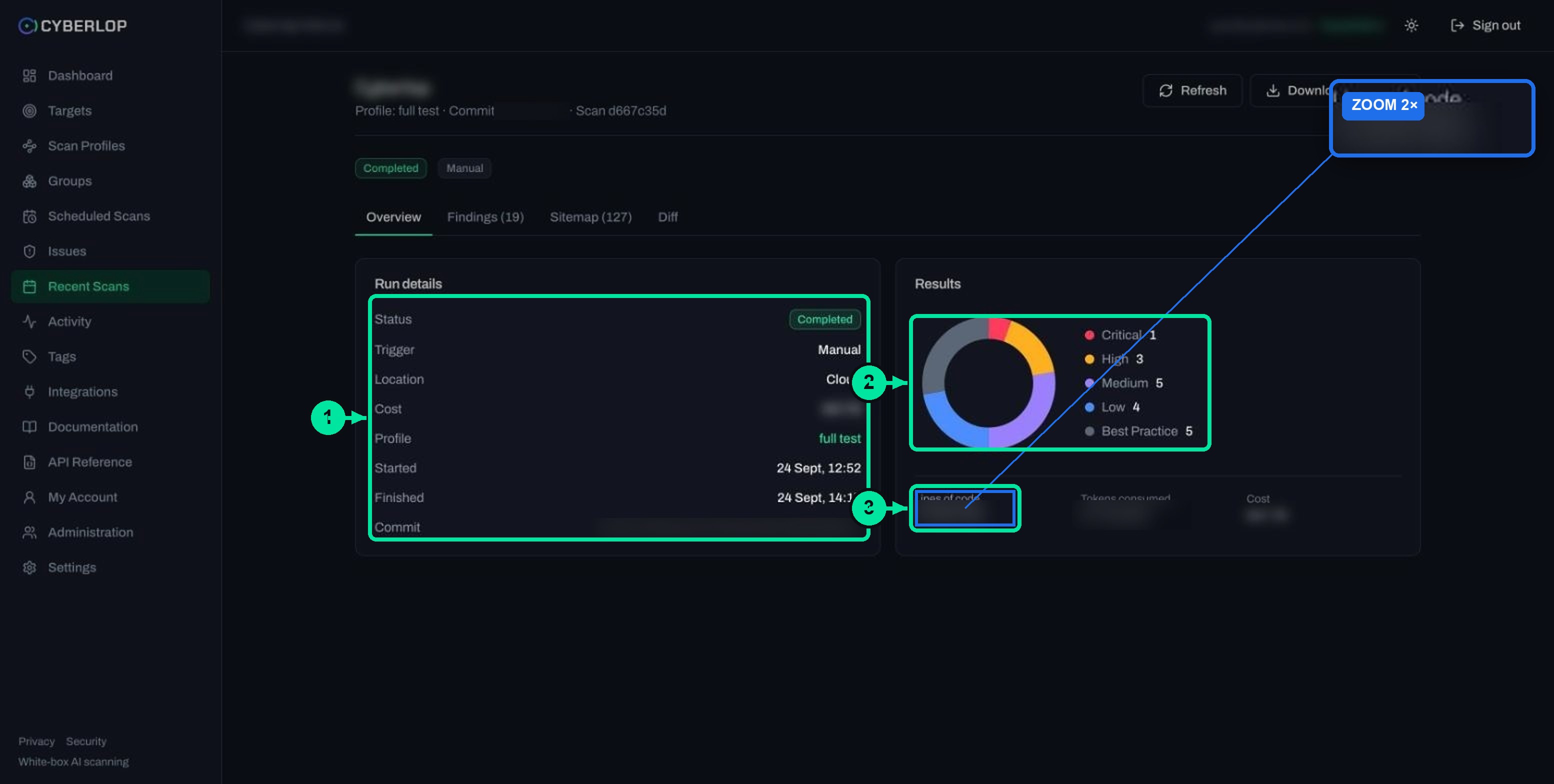
A white-box scan clones the latest code from your repository when it launches, then tests the running app. Because it knows the code, a finding can point to a source file and line range, and the scan overview shows the commit and the lines of code analysed.
White-box is the type to use when the code is available, because it combines static analysis of the code with live testing of the app.
What a black-box scan does
A black-box scan tests the live URL only. There is no repository, so findings show an endpoint such as POST /search instead of a file and line, and the lines-of-code figure on the overview shows a dash. Black-box targets must have their ownership verified before a scan can run.
What a grey-box style scan is
The New target dialog shows two cards, White-box and Black-box. Grey-box testing is the middle path: the tester knows something about the inside, such as a set of credentials. The US government glossary describes it as a test method with "some knowledge of the internal structure and implementation detail" (NIST CSRC glossary, quoting CNSSI 4009-2022). In Cyberlop you reach it by adding authentication roles to a scan profile, so the scan can test the pages behind login.
White-box and black-box side by side
| Question | White-box | Black-box |
|---|---|---|
| What does the scan use? | Source code from your repository, plus the running app | The live URL only |
| What must you provide? | Name, Main URL and a Repo URL (HTTPS) | Name and Main URL; the repository fields are disabled |
| Ownership verification? | No Ownership verification card appeared on a white-box target page | Yes: a DNS TXT record or approval by Cyberlop staff |
| Where is a finding located? | Source file and line range, plus the endpoint | The endpoint, such as a method and path |
| What does the overview show? | Commit and lines of code | Lines of code shown as a dash |
| Can you add logins? | Yes | Yes |
Which scan type should you choose?
Choose white-box whenever you can give Cyberlop the repository, because the scan can then use the code as well as the running app. Choose black-box when there is no code to share, or when you want to test the app as an outsider reaches it. The scan type belongs to the target, so decide before you add it.
Choose white-box when
- you own the repository and can reach it over HTTPS;
- you want findings your developers can open at a file and line;
- you are testing your own staging or development build before release.
Choose black-box when
- the code is not yours to share, or its repository has no HTTPS address;
- you want a view of the app from outside, as a visitor sees it;
- you can prove you own the target.
If your repository is private
A private repository needs a Git token. It can be a personal token (see Connect a repository) or one set for the organisation under Settings, as covered in Git access. SSH addresses such as git@… are not supported.
If the app is on a private network
If Cyberlop's cloud cannot reach the URL or the repository, run the scan on a self-hosted scan agent instead. See Self-hosted scan agents and private scanning.
What does each scan type need?
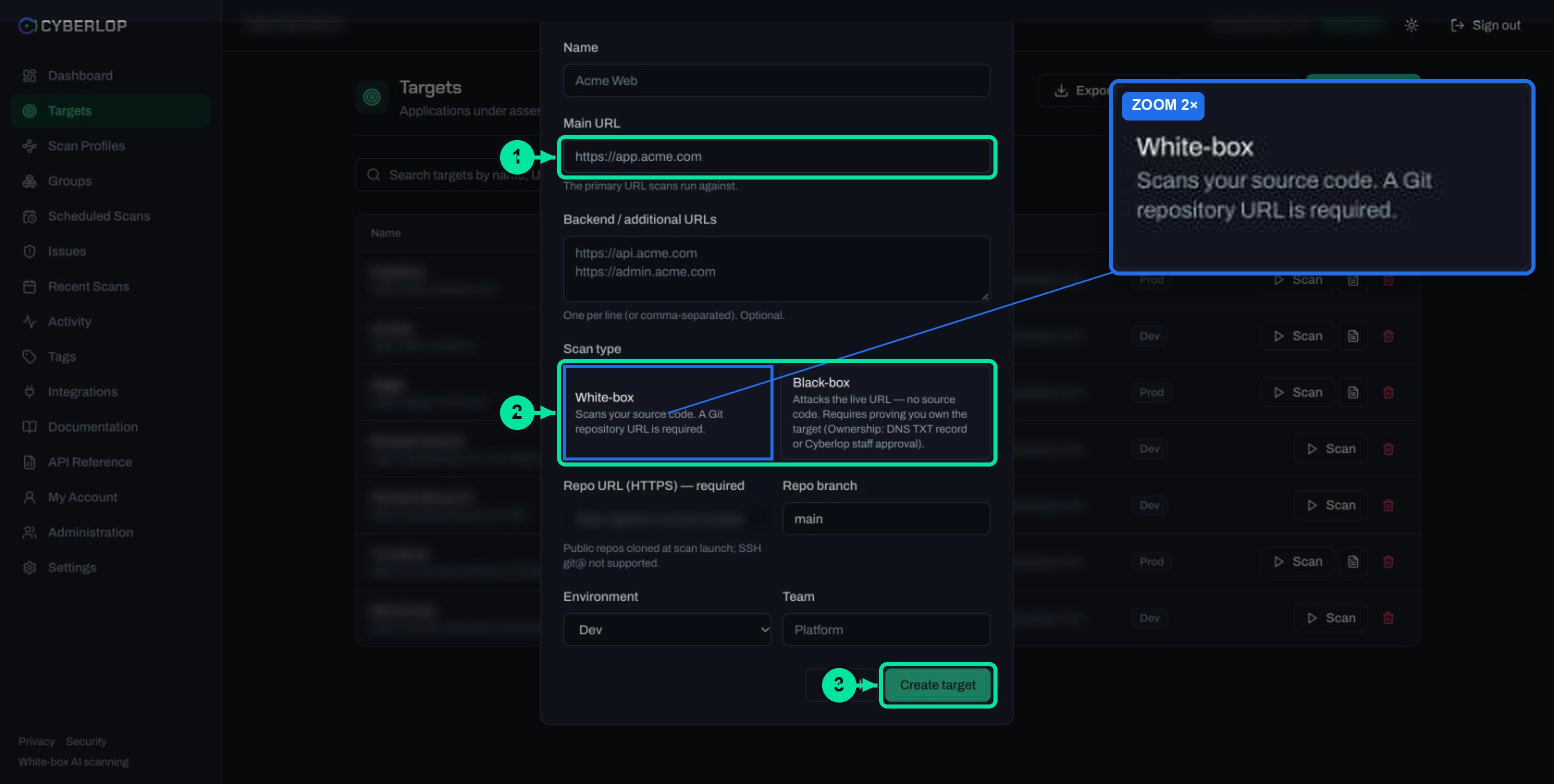
Both types need a target. They differ in two fields and one check. The table follows the order of the New target dialog; the full walkthrough is in Add a target.
Field reference for the New target dialog
| Field | What to enter | Notes |
|---|---|---|
| Name | A label such as "Acme Web" | Any name your team will recognise. |
| Main URL | The primary URL scans run against | Use a URL you own or are authorised to test. |
| Backend / additional URLs | Extra URLs, one per line | Optional. |
| Scan type | White-box or Black-box | The choice you make here is the one this page explains. |
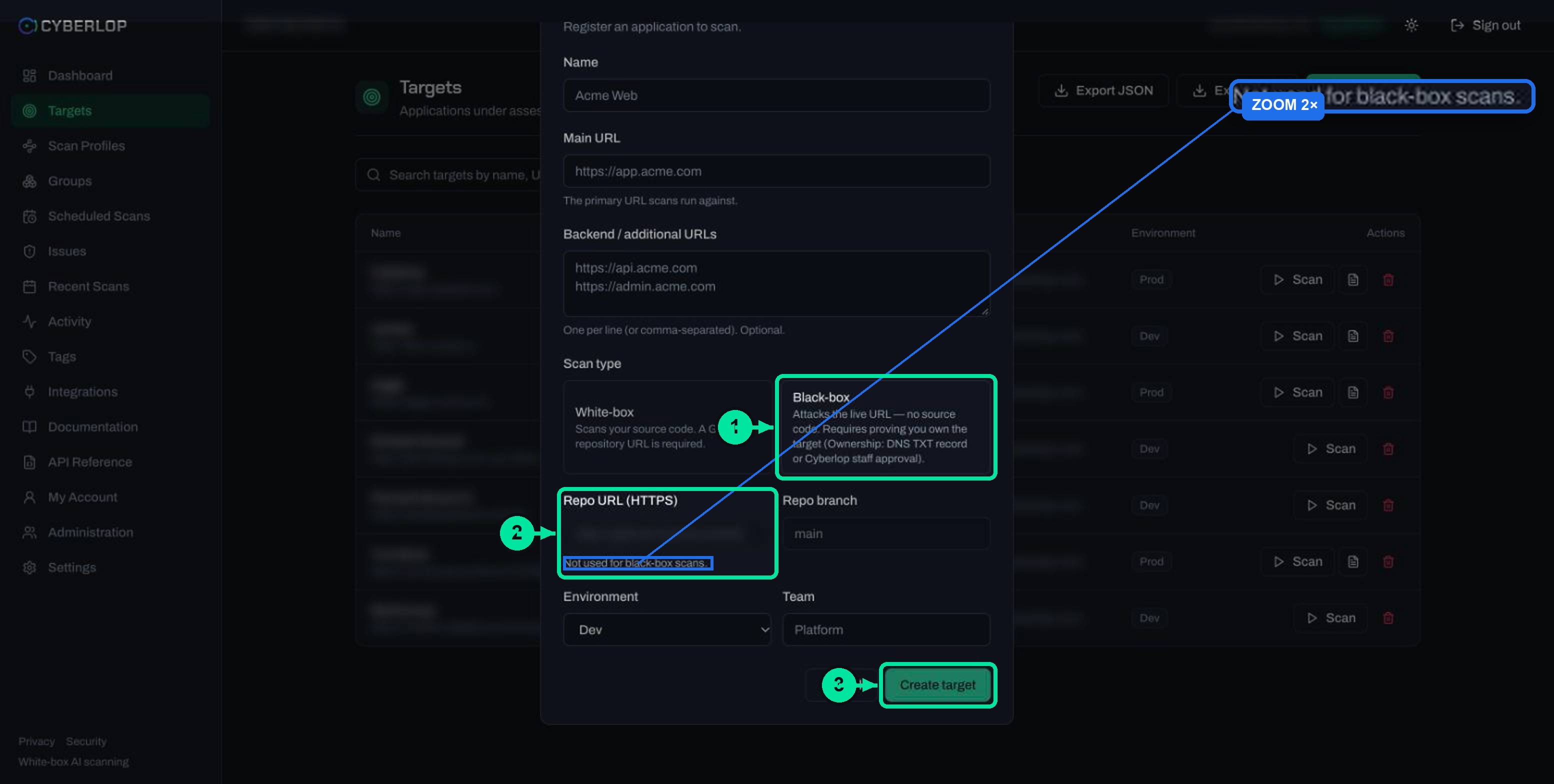
| Repo URL (HTTPS) | The repository address | Required for white-box. Public repositories are cloned at scan launch. Disabled for black-box. |
| Repo branch | The branch to scan | Defaults to main. |
| Environment | Dev, Staging or Prod | Defaults to Dev. |
| Team | A team name such as "Platform" | Optional. |
The extra step for black-box: ownership
After you create a black-box target, its page shows an Ownership verification card. You confirm ownership with a DNS TXT record or with approval from Cyberlop staff. Once it is done, the card shows "Verified" and "Black-box scans can run." The steps are in Verify target ownership. Scan only applications you own or have permission to test.
What does each scan type find?
Both types look for the same ten vulnerability classes: Injection, Xss, Auth, Authz, Ssrf, Crypto, Config, Business-logic, Dependency and Secrets. If you tick none, the profile scans all of them. What changes is the evidence and the place a finding points to. The vulnerability classes guide covers each class.
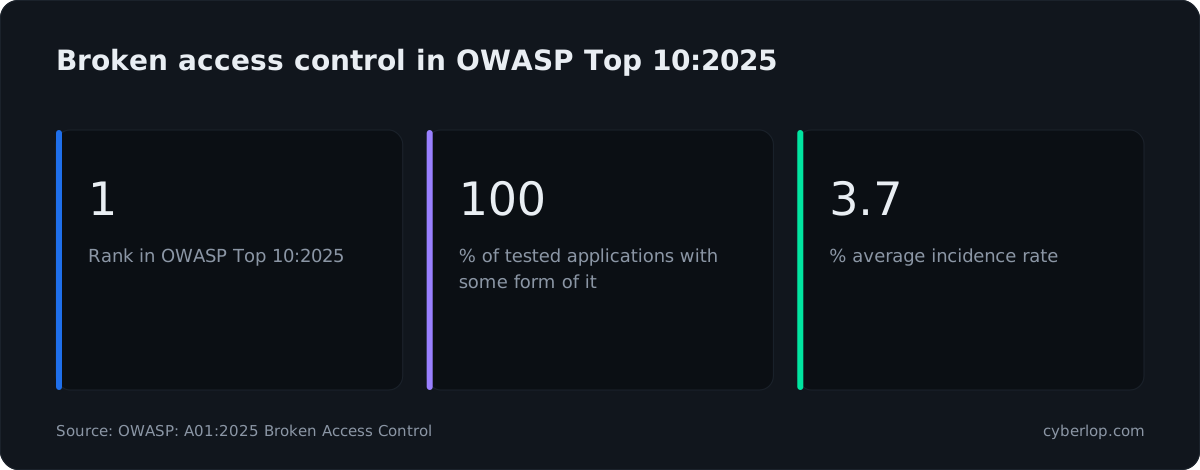
Access control is the class most worth the extra effort. OWASP Top 10:2025 ranks Broken Access Control first. It reports that 100% of the applications tested had some form of it, with an average incidence rate of 3.74%. Flaws such as IDOR often need a signed-in account to find, which is why logins matter.
Exploitation matters too. The Verizon 2026 Data Breach Investigations Report found that 31% of breaches began with software vulnerabilities, a bigger share than stolen passwords. When the Run exploitation phase option is on, agents test and prove issues against the live target. When it is off, you get static source-code analysis only. See Exploitation phase before you run it against production.
How findings differ by type
| Where you look | White-box result | Black-box result |
|---|---|---|
| Findings tab, Location column | A source file and line range, with an Endpoint line | An endpoint, such as POST /search |
| Scan subtitle | Profile, commit and scan ID | Profile, trigger and scan ID |
| Overview, Lines of code | A count | A dash |
| Evidence tab | Request, response, reproduction steps, screenshot | Request, response, reproduction steps, screenshot |
To read these screens, see Read a finding and Scan detail page.
How do you add logins for a grey-box style scan?
You add one or more authentication roles to the scan profile. A role is a set of login details with a privilege level, so the scan can reach pages that a signed-out visitor cannot. With no role, the scan runs unauthenticated, and the app says: "No auth roles. Add a role to scan behind login, or leave empty for unauthenticated scanning."
- Open Scan Profiles and click + New profile, or open your target and use + New profile to preselect it.
- On the Scope section, pick the target, name the profile and choose your vulnerability classes.
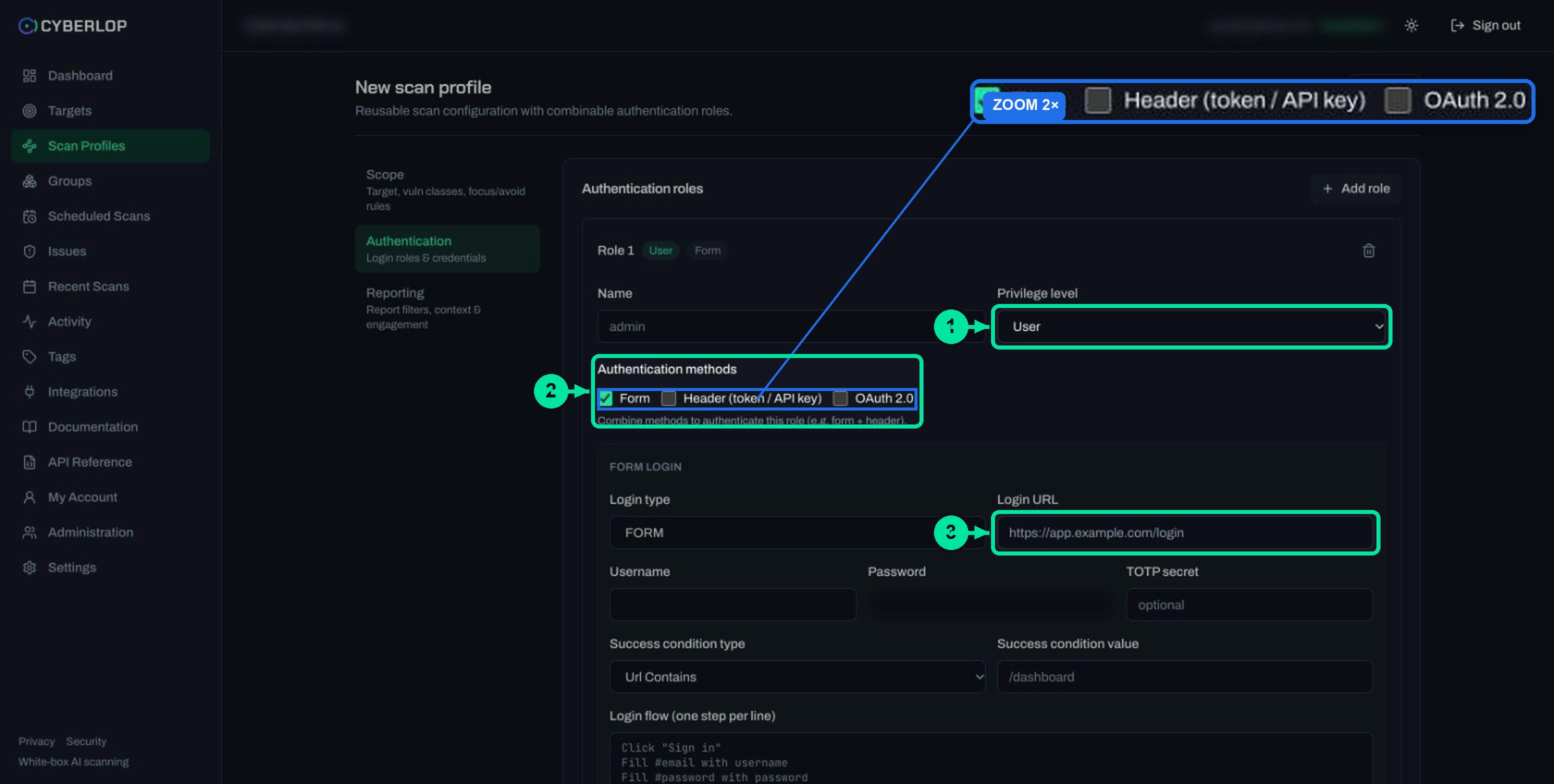
- Open the Authentication section and click + Add role.
- Give the role a Name and a Privilege level: Unauthenticated, User, Elevated or Admin.
- Tick one or more methods: Form, Header (token / API key) or OAuth 2.0.
- Fill in the fields for each method (see the table below). Add AI guidance if the login needs hints.
- Add a second role with a different privilege level if you want to check what one signed-in account can reach that it should not.
- Click Preview YAML to validate, then Save.
Which login method should you use?
Use the method your app uses for its own sign-in. You can combine methods on one role, for example form plus header.
| Method | Fields | Best for | Guide |
|---|---|---|---|
| Form | Login type, Login URL, Username, Password, optional TOTP secret, Success condition, Login flow | Apps with a sign-in page | Form login |
| Header (token / API key) | One or more header name and value rows | APIs that take a key or bearer token | Header and token |
| OAuth 2.0 | Token URL, Client ID, Client secret, Scope, Header name, Header prefix | Services that issue tokens by client credentials | OAuth client credentials |
Form login tips
The Success condition tells the scan that sign-in worked. For example, set the type to Url Contains and the value to /dashboard. The Login flow takes one step per line, such as clicking "Sign in" and filling the username and password fields. If the account uses time-based codes, add the optional TOTP secret.
Header and OAuth tips
For a bearer token, use the header name Authorization and the value Bearer …. For OAuth, click Complete authentication to check that the app returns a token before you save.
Use test accounts, not real ones
Create dedicated accounts in a Dev or Staging environment and give them only the access you need, in line with least privilege. Cyberlop encrypts stored secrets and never shows them again once you save. When you edit the profile later, leave the fields blank to keep the stored value, or use Clear. See Authentication roles and Edit a scan profile.
How do you set up and run the scan you chose?
The route is the same for both types after the target exists: save a profile, press Scan, then read the results.
- Choose the scan type using the table above.
- Add the target with + New target and click Create target.
- For black-box, complete ownership verification and wait for the Verified badge.
- Create a scan profile and, if you want a grey-box style scan, add authentication roles.
- Decide whether to keep Run exploitation phase ticked.
- Click ▷ Scan. The scan starts at once and you can leave the page.
- Follow it from Recent Scans. The app's own documentation says a typical scan of a small app takes roughly an hour.
- Open the Findings tab and triage what you find.
The running steps are in Run a scan.
Can you change the scan type later?
Not by editing. You cannot edit a target, so the scan type, URL and repository stay fixed once it exists. To change them, delete the target and create it again. Deleting a target also deletes its profiles, schedules, scans and findings, so export what you need first. See Manage targets.
Common mistakes when choosing a scan type
| Mistake | What you see | Fix |
|---|---|---|
| Choosing white-box without a repository | "No repository configured — add a Git repository URL to run a scan." | Add the repository, or recreate the target as black-box. |
| Using an SSH repository address | "SSH git@ not supported" appears in the Repo URL help text | Use the HTTPS address. |
| Using a private repository with no token | Private repositories need a Git token, personal or organisation | Add a Git token for an allowed host. |
| Running a black-box scan before verification | The Ownership verification card is not yet Verified | Finish the DNS TXT or staff-approval route first. |
| Scanning with no roles and expecting logged-in pages | Only the signed-out surface is tested | Add an authentication role. |
| Using a real administrator account | A scan with more access than it needs | Use a test account with the lowest privilege that fits. |
Next step: add your first application in Add a target. Cyberlop reports what it actually exploited, as set out on the evidence page, and the How it works page shows the full path from scan to proof.
Questions people ask
White-box vs black-box scans: FAQs
What is the difference between white-box and black-box scans in Cyberlop?
A white-box scan reads your source code from a Git repository and tests the running app. A black-box scan tests the live URL only and needs ownership verified. White-box findings point to a file and line; black-box findings point to an endpoint.
Is grey-box a separate scan type in Cyberlop?
No. The New target dialog offers White-box and Black-box. A grey-box style scan means adding authentication roles to the scan profile, so the scan tests with some inside knowledge, namely working logins.
Do I need a repository for a black-box scan?
No. When you choose Black-box, the repository fields grey out and read "Not used for black-box scans". You do need to prove you own the target, by DNS TXT record or by staff approval.
Can I add logins to a black-box scan?
Yes. Authentication roles belong to the scan profile, not to the scan type. Add a role with a privilege level and a Form, Header or OAuth 2.0 method, and the scan can test behind the login.
Can I change a target's scan type after creating it?
No. Targets are immutable. Delete the target and create it again with the other scan type. Deleting also removes its profiles, schedules, scans and findings, so export what you need first.
Which scan type is better?
Neither is better in every case. White-box gives the scan your code as well as the app, so findings can point to a line. Black-box shows what an outsider can reach. Pick the one that matches what you can share and what you want to learn.
How long does a scan take?
The app's documentation says a typical scan of a small app takes roughly an hour. Rate limits make a scan slower, not failed. You can leave the page while it runs and follow it from Recent Scans.
Is it safe to run a scan against production?
Treat production with care. The exploitation phase makes real requests to prove issues, so read the exploitation phase guide first, add rules of engagement in the profile, and prefer a Dev or Staging copy with test accounts.
Sources
Where the facts come from
Keep reading
Related articles
How to add a target in Cyberlop: the New target dialog, field by field
Add a target in Cyberlop: the New target dialog field by field, white-box vs black-box, repository URL, environment, and why targets cannot be edited.
How to scan behind login in Cyberlop with authentication roles
Scan behind login in Cyberlop: add authentication roles, choose privilege levels, combine form, header and OAuth methods, and guide the scan with AI guidance.
Choose vulnerability classes in a Cyberlop scan profile
The ten vulnerability classes in a scan profile, what each covers, when to narrow or leave them all on, and how to filter results by class.

Which scan fits your app?
Not sure whether to start with white-box or black-box? Cyberlop supports white-box, grey-box and black-box testing, and it reports what it actually exploited, with the request, response and line of code. Ask us to run it on one of your applications.
Or start with a $199 pilot on one application: thirty days, success criteria agreed before day one, credited against the annual if you convert.