
Home / Blog / Tutorials / Severity vs confidence
Tutorials
Severity vs confidence in Cyberlop: how to read and prioritise findings
Every finding has a severity and a confidence. Here is what each one means, how they differ from the Confirmed, Likely and Unconfirmed status, and how to use all three.
Cyberlop Labs · Updated · 9 min read
Severity vs confidence in Cyberlop: severity is how serious a finding is if real (Critical, High, Medium, Low, Informational, Best Practice); confidence is how sure the scan is that it is real (High, Medium, Low). Status shows how well it was proven. Fix proven, serious findings first, then check the doubtful ones.
- Open Issues Click Issues in the sidebar to see all findings, sorted with Critical first.
- Filter by severity Set the Severity drop-down to Critical, then High.
- Add confidence Use the Confidence drop-down: High for proven items, Low for items that need checking.
- Open a row Click a finding and read Severity, Confidence, Class and Status on the Summary tab.
- Check the evidence Open the Evidence tab and read the payload, request, response and reproduction steps.
- Decide Set Disposition and Assignee, add Notes and click Update status.
- Tune reports In a scan profile, set Minimum severity and Minimum confidence under Reporting.
- Severity measures impact, confidence measures proof, and Cyberlop shows them in separate columns.
- There are six severities and three confidences; each finding also has a status of Confirmed, Likely or Unconfirmed.
- Read both columns: a High finding with full evidence can beat a Critical one that is unproven.
- Low confidence means not proven, not false; check it before choosing False Positive.
- Set Minimum severity and Minimum confidence in a scan profile to filter what the report contains.
Severity is how bad a finding would be if it is real. Confidence is how sure Cyberlop is that it is real. In Cyberlop, every finding carries both: one of six severities (Critical, High, Medium, Low, Informational, Best Practice) and one of three confidences (High, Medium, Low), plus a status of Confirmed, Likely or Unconfirmed that says how well it was proven. Read them together, then decide what to fix first.
What is the difference between severity and confidence?
Severity measures impact. Confidence measures proof. They answer two different questions, which is why Cyberlop shows them in separate columns instead of folding them into one score. The severity vs confidence term page gives the short definition; this guide shows how to use both in the app.
| Severity | Confidence | |
|---|---|---|
| Question it answers | How serious is this if it is real? | How sure are we that it is real? |
| Values in Cyberlop | Critical, High, Medium, Low, Informational, Best Practice | High, Medium, Low |
| Where you see it | Coloured badge on every row, the Dashboard bars, the report | Confidence column, Summary tab, report filter |
| What it changes | The order of the list and what you fix first | How much checking a finding needs before you act |
| Who sets it | Cyberlop, when it writes the finding | Cyberlop, from how well the finding was proven |
A finding can be serious and doubtful, or minor and certain. Treating the two as one number hides both cases. A Critical finding with Low confidence is a lead worth checking today. A Low finding with High confidence is a safe item to schedule.
Why not use one score?
A single score forces a trade-off that only your team can make. The standard scoring system, CVSS, is explicit about this: its user guide says Base scores measure severity and "should not be used alone to assess risk". Cyberlop follows the same idea. Severity is one input, proof is another, and your own context (which app, which data) is the third. See also CVSS and risk-based prioritisation.
The captured app does not show how Cyberlop derives a severity, so this guide does not claim a mapping to CVSS ranges. For reference only, CVSS v4.0 rates scores 9.0 to 10.0 as Critical, 7.0 to 8.9 as High, 4.0 to 6.9 as Medium and 0.1 to 3.9 as Low, per the FIRST specification.
What are the six severity levels in Cyberlop?
Cyberlop uses six severity levels, from Critical down to Best Practice. They appear as coloured badges in the Issues list, the scan Findings tab, the Dashboard and the report. The Issues list sorts Critical first.
| Severity | Badge colour on Issues | How to read it | Typical first move |
|---|---|---|---|
| Critical | Red | The most serious findings; examples in the app include an exposed debugger and SQL injection | Open the Evidence tab today and assign an owner |
| High | Amber | Serious weaknesses, such as a missing Content-Security-Policy or a reachable admin login | Plan the fix in the current sprint |
| Medium | Violet | Real weaknesses with narrower impact, such as a missing HSTS header | Schedule it with normal work |
| Low | Blue | Small hardening gaps, such as a missing Referrer-Policy | Batch with other low items |
| Informational | Grey | Facts worth knowing, such as a server banner that names a version | Read once; act only if it matters to you |
| Best Practice | Dark grey | Good-hygiene advice, such as extra browser security headers | Treat as a backlog item |
The "typical first move" column is a suggested starting point, not a rule from the app. Your own service levels come first; the remediation SLA page explains how teams set them.
When agents disagree on severity
Cyberlop's documentation says that if its agents grade the same issue differently, the merged issue takes the highest severity of the group. That leans towards caution: you may see a finding graded higher than one agent's first view, but never lower than any of them.
What are the three confidence levels, and what do Confirmed, Likely and Unconfirmed mean?
Confidence has three levels, High, Medium and Low. Separately, each finding has a status that says how strongly it was proven. Per the in-app documentation, findings are graded confirmed, likely or unconfirmed based on how strongly they were proven.
| Status | What it tells you | What to do |
|---|---|---|
| Confirmed | An exploitation agent demonstrated it against the running app, so the Evidence tab holds a real request and response | Treat as real. Reproduce with the curl steps if you want to see it yourself |
| Likely | Proven less strongly than Confirmed; seen on white-box findings in the capture | Read the Description and location, then check the code or the endpoint |
| Unconfirmed | Proven least strongly; named in the documentation but not seen in the captured pages | Verify before assigning work, or mark False Positive with a note |
Proof matters because it removes argument. When a finding carries the payload, the HTTP request, the HTTP response and a screenshot, an engineer does not have to decide whether to believe it. If a scan ran with the exploitation phase off, nothing can be demonstrated against the live app; the exploitation phase guide explains the trade-off. For the wider idea, see proof of exploit.
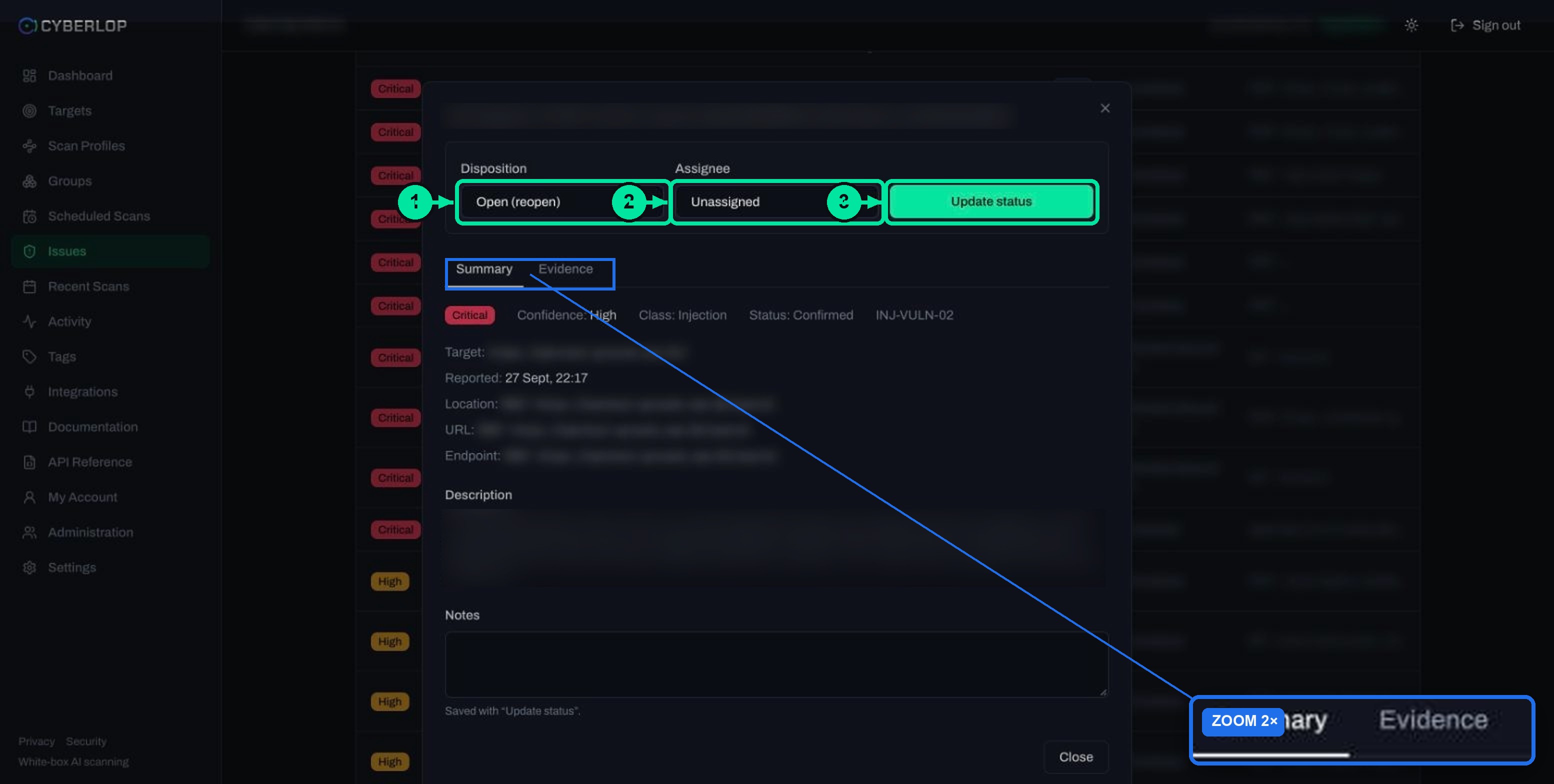
Where do you see severity, confidence and status?
- Click Issues in the sidebar.
- Read the Severity badge and the Confidence column on each row. Low confidence is shown dimmed.
- Click a row to open the issue dialog.
- On the Summary tab, read the severity badge, Confidence, Class, Status and the finding ID, for example INJ-VULN-02.
- Open the Evidence tab to see what backs the status.
The same columns appear on the Findings tab of a scan, described in the scan detail page guide.
How do you prioritise findings using severity and confidence?
Read in this order: high severity with high confidence first, then high severity with low confidence, then the rest. This order puts proven, serious findings in front of an engineer before anything speculative.
A four-bucket reading order
| Bucket | Severity and confidence | Reading order | What to do |
|---|---|---|---|
| 1 | Critical or High, with High confidence | Read first | Open Evidence, reproduce if needed, assign an owner today |
| 2 | Critical or High, with Medium or Low confidence | Read second | Check the Description and Location; confirm by hand or re-run with exploitation on |
| 3 | Medium, with High confidence | Read third | Schedule with normal sprint work |
| 4 | Low, Informational and Best Practice | Batch | Review together after each scan; accept or backlog |
Low-confidence Critical findings are not noise. In a typical list you may see business-logic findings graded Critical with Low confidence, because logic flaws such as a cron job without an idempotency guard are harder to prove from outside than an injection. Check them, but check them with a person who knows the workflow. The business-logic flaw page explains why.
How do you filter the list this way?
- Open Issues.
- Set the Severity filter to Critical, then read every row.
- Change the Confidence filter to High to see the proven set, then to Low to see the set that needs checking.
- Repeat with High severity.
- Use the triage chips to hide statuses you have already decided, such as Fixed and Accepted Risk.
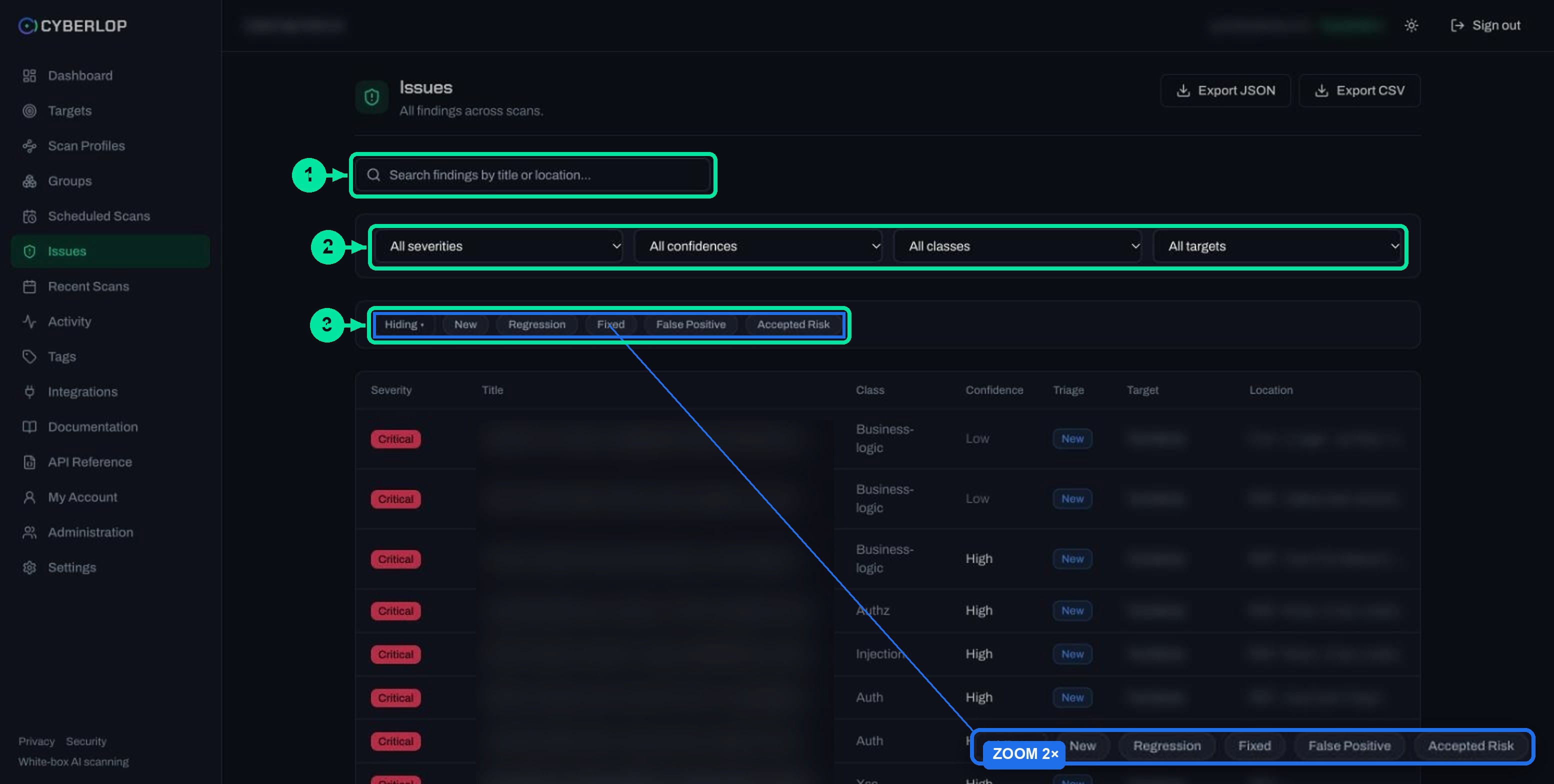
The issues list guide covers search, the four filters and the chips in full. The same filters exist in the API: GET /api/issues accepts severity, confidence, vulnClass and triageStatus, so a pipeline can pull the same views.
Pair the reading order with triage
After each pass, record a decision. Set the Disposition, choose an Assignee, add a note and click Update status, as shown in triage findings. A finding you mark Accepted Risk or False Positive keeps that state across later scans; see risk acceptance and false positive.
How can you set a minimum severity and confidence for reports?
Use the report filters in a scan profile. Under Reporting, Minimum severity offers No minimum, Critical, High, Medium, Low, Informational and Best Practice, and Minimum confidence offers No minimum, High, Medium and Low. The documentation says the final report is filtered by these values and any reporting guidance.
| Setting | What to enter | Effect and notes |
|---|---|---|
| Minimum severity | No minimum, or Critical down to Best Practice | Leaves findings below the chosen level out of the report; the in-app list is a separate view |
| Minimum confidence | No minimum, High, Medium or Low | Leaves less well-proven findings out of the report |
| Report guidance | Free text | Steers how the final report is written and filtered; personal data in it is redacted before analysis |
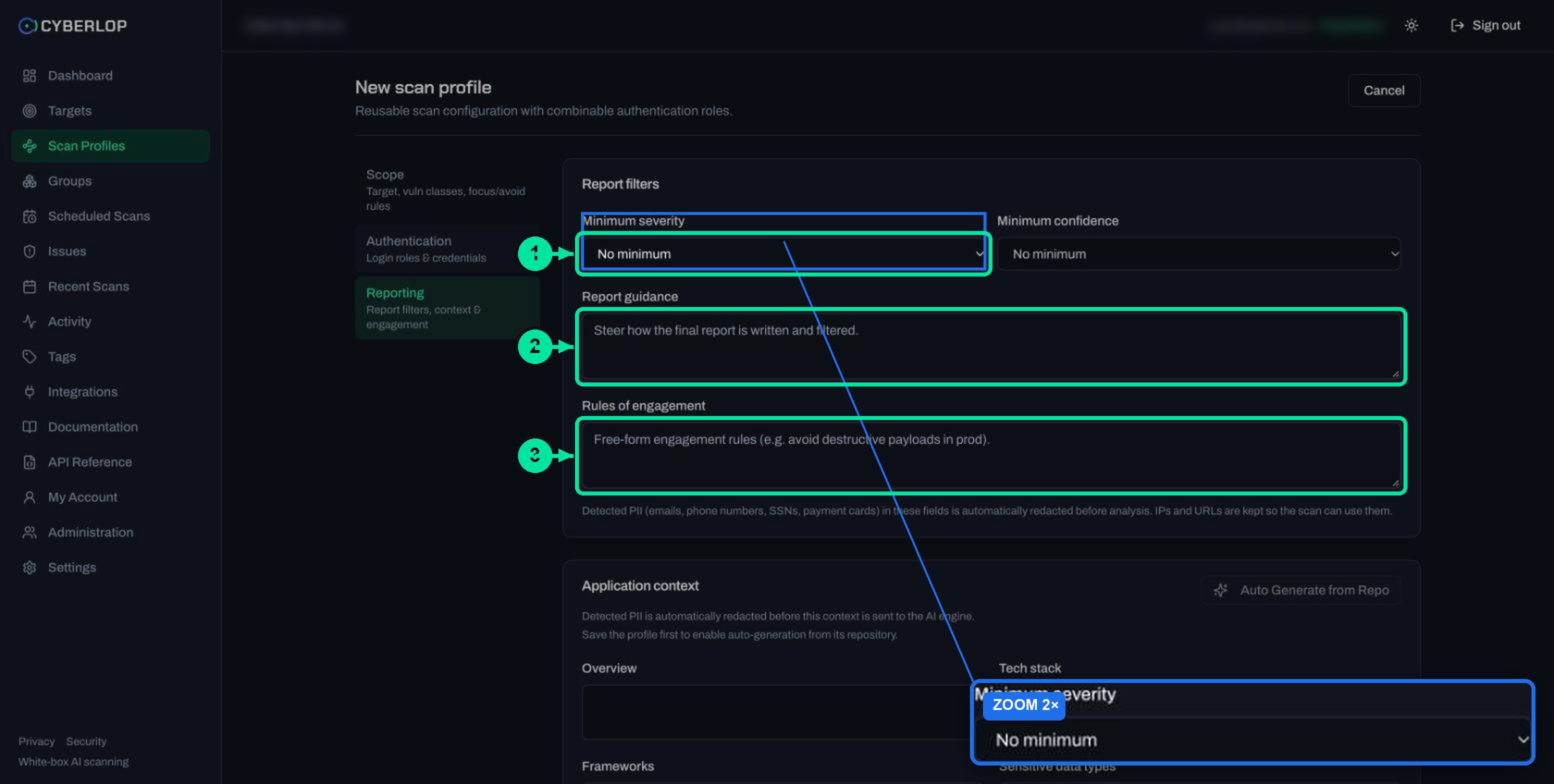
Start with No minimum while a target is new, so you see everything and learn what your app produces. Tighten later for executive reports. Filtering is a reporting choice, not a verdict: a finding below your threshold is simply left out of that report. Read reporting rules for the other fields on that section.
Where else do severity counts appear?
Severity drives four other places in the app, so a consistent reading helps everywhere.
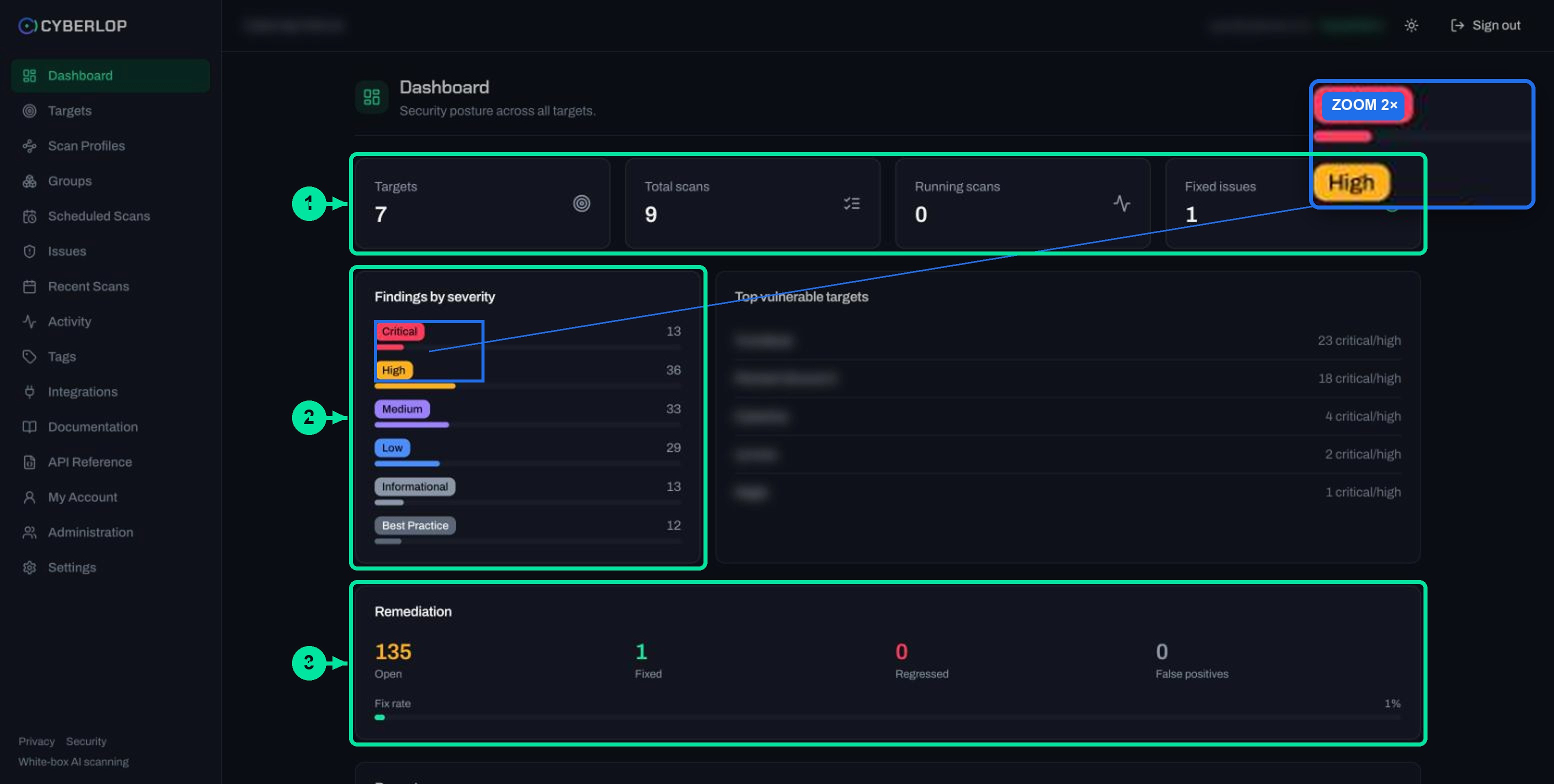
- Dashboard: the Findings by severity card shows bars for all six levels, and Top vulnerable targets shows "N critical/high" per target. See dashboard overview.
- Targets list: severity dots in the Results column.
- Scan Overview: a severity breakdown with the results donut.
- Email: in My Account, a checkbox sends mail when a scan finds critical or high issues.
Why does the number of exploited vulnerabilities matter?
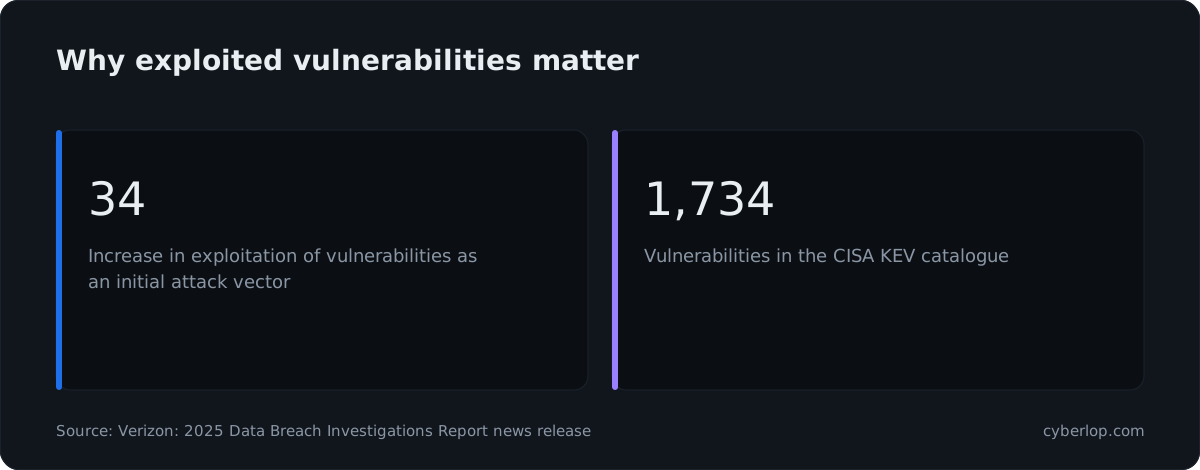
Attackers reuse what already works. In its 2025 report, Verizon says exploitation of vulnerabilities as an initial attack vector saw a 34% increase. CISA's Known Exploited Vulnerabilities catalog lists 1,734 vulnerabilities as exploited in the wild at the time of reading, and the 2026 edition of the DBIR page leads with "31% of breaches now start with software vulnerabilities".
That is why proof counts. A queue where each Critical or High finding is already demonstrated lets a team spend its week fixing, not arguing. The KEV catalog and EPSS, which FIRST describes as a model that estimates the chance a published CVE will be exploited in the wild within 30 days, are useful outside signals for known library flaws; they sit beside Cyberlop's own proof, they do not replace it.
What are the common mistakes when reading severity and confidence?
Troubleshooting a confusing finding
| What you see | Likely reason | What to do |
|---|---|---|
| Critical severity but Low confidence | The issue is serious if real, but the scan could not fully prove it | Check by hand; keep it open until you know |
| Low severity but High confidence | Real and proven, but small impact | Fix in a batch with similar items |
| Severity higher than you expected | Documented behaviour: merged findings take the highest severity of the group | Read the Description and decide; note your reasoning |
| Same issue seems to be listed once, not many times | Duplicates are merged, and the version with the strongest evidence is kept | Open the kept finding and read its Evidence tab |
| Expected finding missing from a report | A minimum severity or confidence filter on the profile | Lower the filter and re-run the report |
| Status shows Likely, not Confirmed | Proven less strongly than a Confirmed finding | Verify it, then triage |
Mistake: ignoring everything below Critical
A High finding with a screenshot and a reproduction step is often cheaper to fix and as risky to your customers as a doubtful Critical. Look at both columns before you drop anything.
Mistake: closing Low confidence findings without reading them
Low confidence means "not proven", not "not real". Read the Description and, for white-box findings, the file and line in Location. If you decide it is wrong, choose False Positive and write why.
Mistake: treating Informational and Best Practice as noise
They are lower in the list, not absent from your risk. A server banner that names an exact version helps anyone choosing an exploit. Batch them; do not delete them.
What should you do next?
Next step: download PDF reports, where the filters above decide what lands in the document. Before that, read a finding end to end and see how fixed and regressed issues change a finding's state when you rescan. Why Cyberlop reports only what it exploited is explained on the evidence page and, with its limits, on honest.
Questions people ask
Severity vs confidence: FAQs
What is the difference between severity and confidence in Cyberlop?
Severity is how serious a finding is if it is real: Critical, High, Medium, Low, Informational or Best Practice. Confidence is how sure Cyberlop is that it is real: High, Medium or Low.
Is a Critical finding always more important than a High one?
Not always. Severity sorts the list, but a High finding with High confidence and full evidence can be a better first fix than a Critical one that is still unproven. Read both columns.
What does Confirmed mean on a finding?
Confirmed means the finding was proven. The Evidence tab then holds the payload, request, response, reproduction steps and, where it applies, a screenshot taken during exploitation.
Does Low confidence mean a finding is a false positive?
No. Low confidence means the scan could not fully prove it. Check the Description and Location, and only then choose False Positive, with a note.
Can I hide low-confidence findings from reports?
Yes. In a scan profile, under Reporting, set Minimum confidence and Minimum severity. The final report is filtered by those values.
Does Cyberlop use CVSS scores for severity?
The captured app shows six severity labels, not CVSS numbers, and does not say how a severity is derived. CVSS is a separate scale; its Base score is meant to measure severity, not total risk.
What happens if two agents grade the same issue differently?
The documentation says the merged issue takes the highest severity of the group. When findings merge, the version with the most evidence and the strongest confirmation status is kept.
Where do I filter findings by severity and confidence?
On the Issues page, use the Severity and Confidence drop-downs. The API's issues endpoint accepts the same two filters.
Keep reading
Related articles
Cyberlop dashboard overview: what each card means and what to act on
Every card on the Cyberlop dashboard explained: stat cards, severity bars, top vulnerable targets, remediation and recent scans, plus a five-minute routine.
How to download PDF reports in Cyberlop: three modes, three places
Download a branded PDF from the scan page, Recent Scans or Targets. Choose Open issues only, Include fixed & accepted, or Fixed issues only.
The exploitation phase: on or off, and safe in production
What Run exploitation phase does, what proof looks like, when to turn it off, and how to run it safely against production.

See proof behind every severity
Cyberlop reports what it actually exploited: each finding carries the request, the response, a screenshot where a person can see it, and the line of code. Severity and confidence are kept apart. Ask us to run it on one of your applications.
Or start with a $199 pilot on one application: thirty days, success criteria agreed before day one, credited against the annual if you convert.