
The Cyberlop dashboard is a read-only home page that summarises your security posture across all targets. It shows four counters, findings by severity, top vulnerable targets, a remediation tally with Fix rate, and recent scans. Read it top to bottom, then open Issues or the scan that needs action.
- Check Running scans Read the Running scans card and open Recent Scans if a scan you expected is missing.
- Read Recent scans Open any Failed or Cancelled row in the Recent scans table and note what happened.
- Check Regressed Look at the Regressed count on the Remediation card and open those issues first if it is above zero.
- Scan Findings by severity Review the six severity bars and click through to Issues for Critical and High.
- Open the top target Click the first target under Top vulnerable targets and filter Issues by it.
- Assign owners Open each finding, set Assignee and Disposition, and click Update status.
- Record the movement Note Fixed issues and Fix rate so you can compare them next time.
- The dashboard summarises; Issues is where you filter, open evidence and triage.
- Regressed should normally be zero, so check it first.
- Top vulnerable targets ranks by critical and high counts, not by a risk score.
- Failed scans in Recent scans can still hold partial findings, so open them.
- Fix rate is a trend indicator; work by severity and evidence.
The Cyberlop dashboard is the first page you see after you sign in. It is a read-only summary of your security posture across all targets: four counters, findings grouped by severity, the most vulnerable targets, a remediation tally and your latest scans. Read it top to bottom, then click through to the page that needs action.
What does the Cyberlop dashboard show?
The dashboard (route /, first item in the sidebar) answers one question: where do we stand right now? Its subtitle reads "Security posture across all targets." It has no buttons of its own. Each number is a summary, and the rows link to the target or scan behind them.
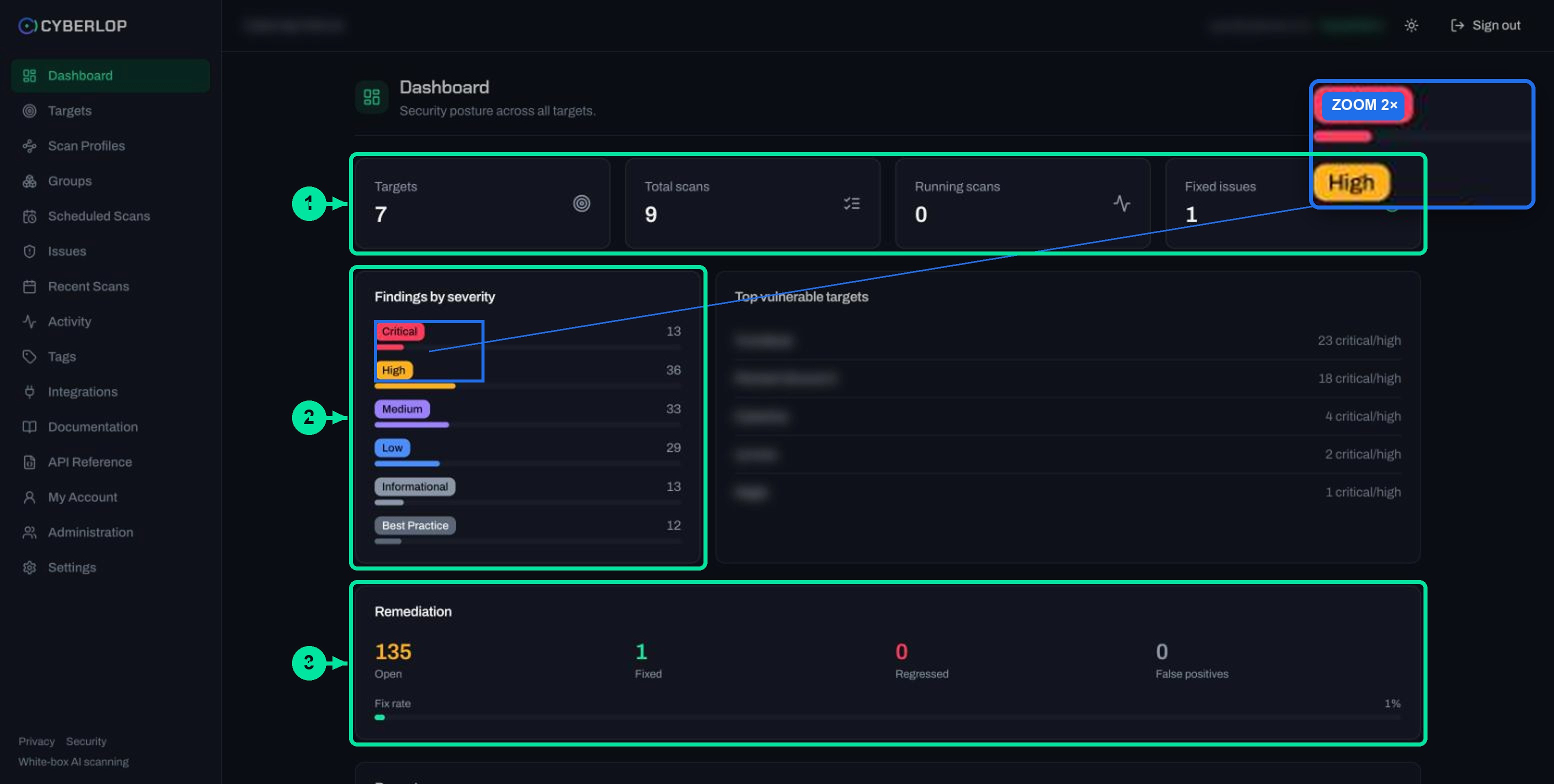
The five areas at a glance
The table maps each area to its one job and the next click.
| Area | What it shows | Where to act next |
|---|---|---|
| Stat cards | Targets, Total scans, Running scans, Fixed issues | Targets, Recent Scans |
| Findings by severity | Counts for Critical, High, Medium, Low, Informational and Best Practice, drawn as bars | Issues, filtered by severity |
| Top vulnerable targets | Targets ranked by their critical and high findings, shown as "N critical/high" | The target page, then its findings |
| Remediation | Open, Fixed, Regressed, False positives and a Fix rate percentage | Issues, using the triage chips |
| Recent scans | Target, Status, Cost and Started for your latest runs | The scan detail page |
Who can see it?
Signed-in accounts land here, but what you can open from it depends on your role. Custom roles carry permission keys such as dashboard:read, scan:read and issue:read. If a card shows data but its link leads nowhere useful, ask an admin to review your role. The capture behind this guide did not show how role scope changes the totals, so confirm with your admin before treating the dashboard as an organisation-wide number.
How do you read the four stat cards?
The four cards at the top are counters. They show whether work is moving. They do not show whether the app is safe.
The four counters
Targets
The number of applications under assessment. If it is lower than you expect, a target was deleted or never created. Targets are immutable, so a change means delete and re-create; see Add a target and Manage targets. Your plan sets how many targets you can hold, shown in Settings → Plan & usage.
Total scans and Running scans
Total scans counts every run, including failed and cancelled ones. Running scans is the live count. Scans are durable, so you can close the page and come back later. If the counter is above zero, open Recent Scans and click the row to follow the scan. The in-app documentation puts a typical scan of a small app at roughly an hour.
Fixed issues
Findings marked Fixed, either by you in triage or automatically when a re-scan no longer detects them. Watch this card week on week. A rising number means findings are turning into fixes.
How do you use the Findings by severity card?
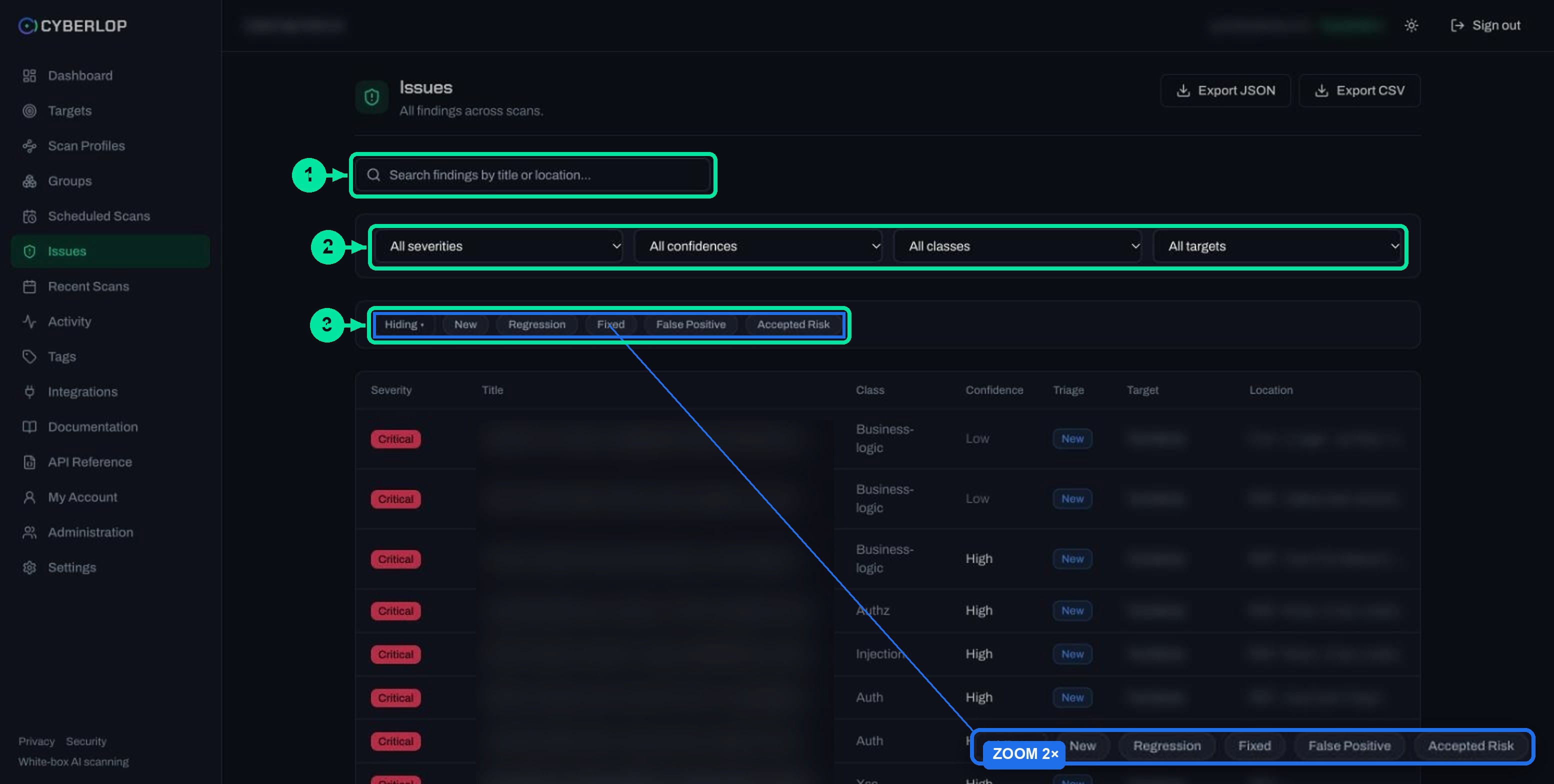
The card lists six severities, each with a bar and a count: Critical, High, Medium, Low, Informational and Best Practice. It works as a small triage queue. The worst severity comes first, the same order the Issues page uses.
What the severities mean for planning
Severity says how much damage a flaw could do. OWASP builds its risk rating from likelihood and impact together (OWASP Risk Rating Methodology). Cyberlop keeps severity apart from confidence. A Critical with Low confidence still needs a person to look at it before you schedule the fix. Read Severity and confidence and the severity versus confidence glossary page.
| If the card shows… | Do this | Why |
|---|---|---|
| Critical or High | Open Issues, filter by severity, read the Evidence tab, assign an owner | These are the findings most likely to hurt customers and audits |
| Only Medium and Low | Plan them into normal sprints | They matter, but they rarely need a drop-everything response |
| Many Informational or Best Practice | Skim for patterns, such as missing security headers | Often one configuration change closes several at once |
| All zeros after a completed scan | Check the scan's Findings tab and the profile's minimum severity and confidence | A reporting filter can hide lower-ranked findings |
From the card to the list
Open Issues and set the All severities filter to match the bar you care about. Then follow The Issues list to narrow by confidence, class and target. The risk-based prioritisation glossary entry explains why you start at the top of this card and not with the longest list.
What does Top vulnerable targets tell you?
The card ranks targets by their count of critical and high findings, shown as "N critical/high". It helps you decide which app to fix first. It shows counts, not a risk score, so a target with many Highs can look worse than one with a single Critical. Read the findings before you decide.
Reading the ranking
Read the ranking with care
- Issues persist per target across scans, so the numbers are cumulative until findings are triaged or fixed.
- Rows link to the target page, where you can see its environment, repository and scan profiles.
- Dev and Staging targets can outrank Prod. Check the Environment before you reorder the sprint.
What to do with the top row
- Click the first target on the list.
- Open Issues and filter by that target.
- Sort your attention by Critical first, High second.
- Assign each finding in the issue dialog; see Triage findings.
How do you read the Remediation card?
Remediation tallies where each finding sits in triage. It shows Open, Fixed, Regressed, False positives and a Fix rate percentage. It is the nearest thing the dashboard has to a progress bar.
What each remediation count means
| Count | Meaning | What to do |
|---|---|---|
| Open | Findings not yet resolved or dismissed | Assign owners; work from the top severity down |
| Fixed | Marked Fixed by you, or by a re-scan that did not detect the issue again | Spot-check a few against the code; see Fixed and regressed issues |
| Regressed | A fixed issue that came back in a later scan | Treat as urgent: a change reintroduced the flaw |
| False positives | Findings a person judged not to be real | Review the pattern; add application context or focus and avoid rules to cut repeats |
| Fix rate | A percentage that summarises how much has been fixed | Use it as a trend across weeks, not a target to chase |
How Fixed and Regressed are decided
Issues persist per target across scans. According to the in-app documentation, a re-scan that no longer finds a reported issue marks it fixed, and a finding is only auto-marked fixed when that scan genuinely did not re-detect it. If the issue reappears, it is flagged as a regression instead of a fresh finding. That is why Regressed is worth a daily glance. It is the one count that should normally be zero.
Fix rate looks low early on because it is measured against everything found so far. A low figure after a first scan is normal. Triage, fix, re-run the scan, and the figure will climb. For wider reading, see the mean time to remediate and vulnerability backlog entries.
A regression is a signal
A regression usually means a later change undid a fix. Look at what was merged between the two scans, then open the scan's Diff tab. Compare scans explains New, Fixed and Regressed columns.
A false positive is data
If the same kind of false positive keeps appearing, tell the scanner more about the app. Application context exists for exactly that.
What does the Recent scans table tell you?
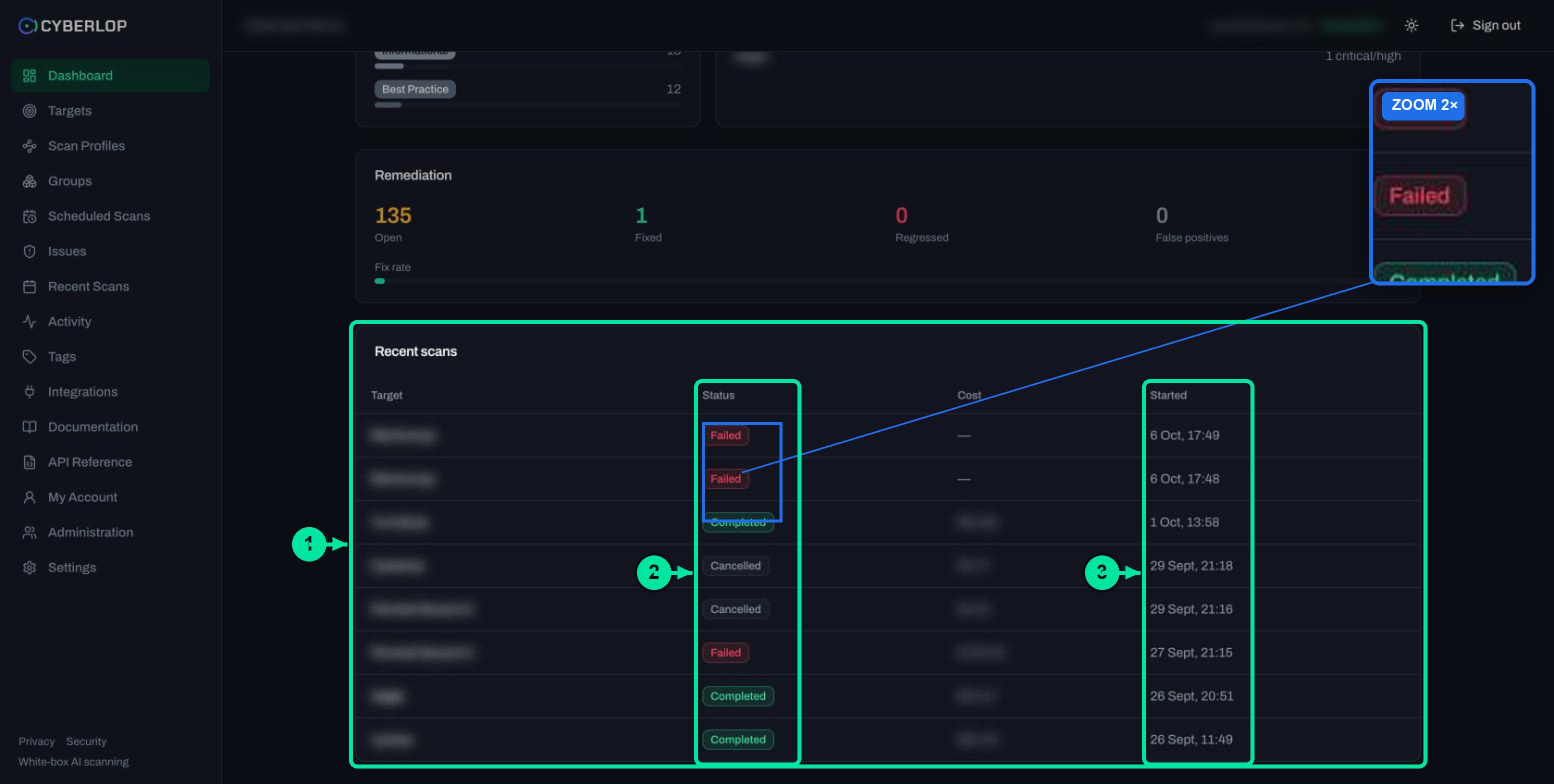
The table lists your latest runs with four columns: Target, Status, Cost and Started. Status is Completed, Failed or Cancelled. Cost shows a dash when a scan has no cost. Click a row to open the scan detail page; the full history lives under Recent Scans in the sidebar.
Reading the Status column
| Status | What it tells you | Next step |
|---|---|---|
| Completed | The scan finished and its findings are in Issues | Open the scan, review the Findings tab, then triage |
| Failed | The scan could not be completed. A failed scan can still hold findings found before it stopped | Open it and read the banner; follow Failed or cancelled scans |
| Cancelled | Someone stopped the scan | Check the Activity feed for who, then re-run if needed |
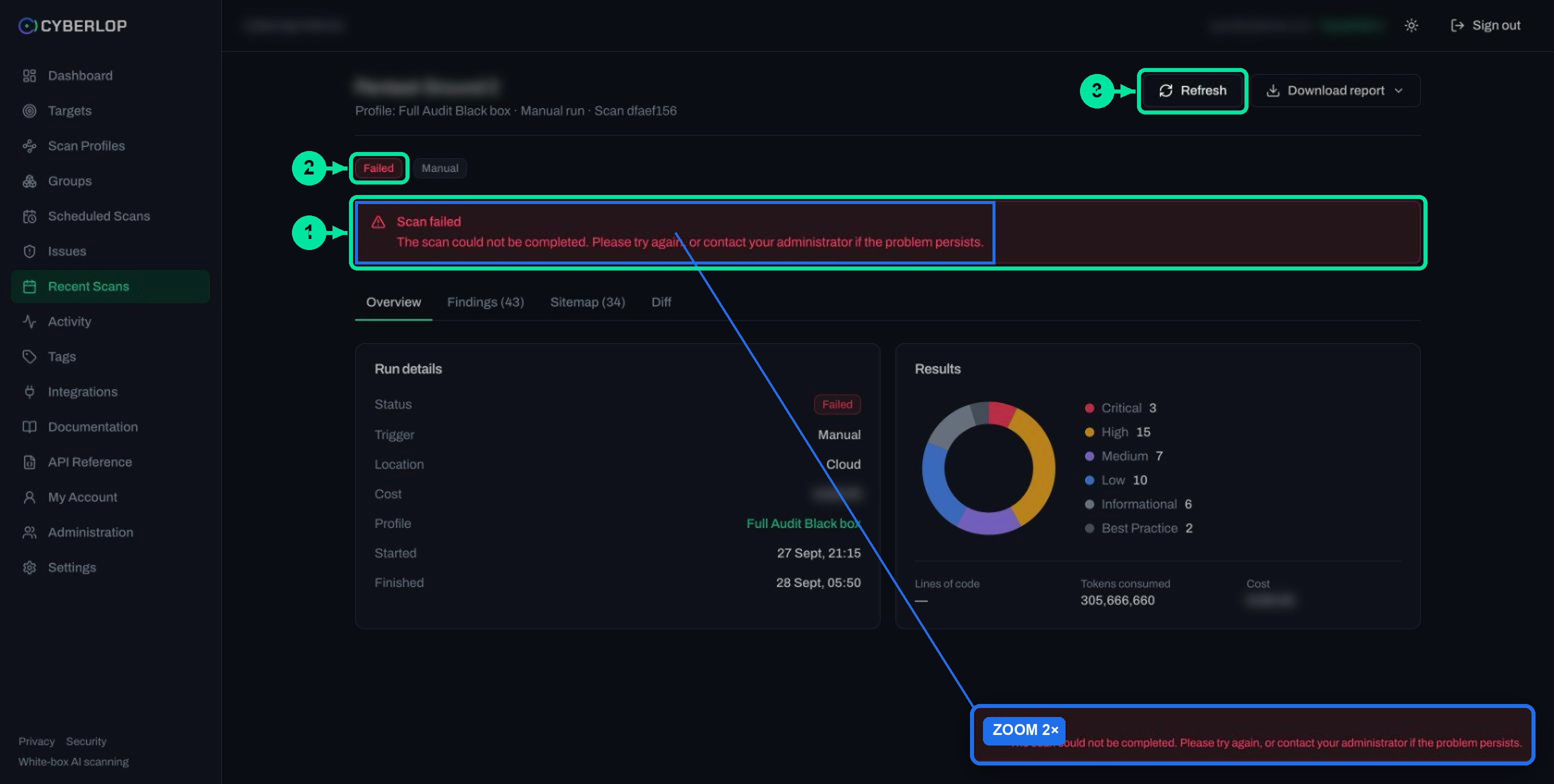
Spotting trouble in the table
Two Failed rows in a row for the same target, a few minutes apart, usually point to a setup problem and not bad luck. In-app documentation says rate limits make a scan slower, never failed, so look elsewhere first: the repository setting, the stored credentials, or access to the target. A scan that has sat as running for much longer than the usual hour deserves a look too. Open the row and read the phase.
What is a good five-minute dashboard routine?
Run through this once a day, or at the start of each sprint. It takes five minutes and ends on the page that needs you.
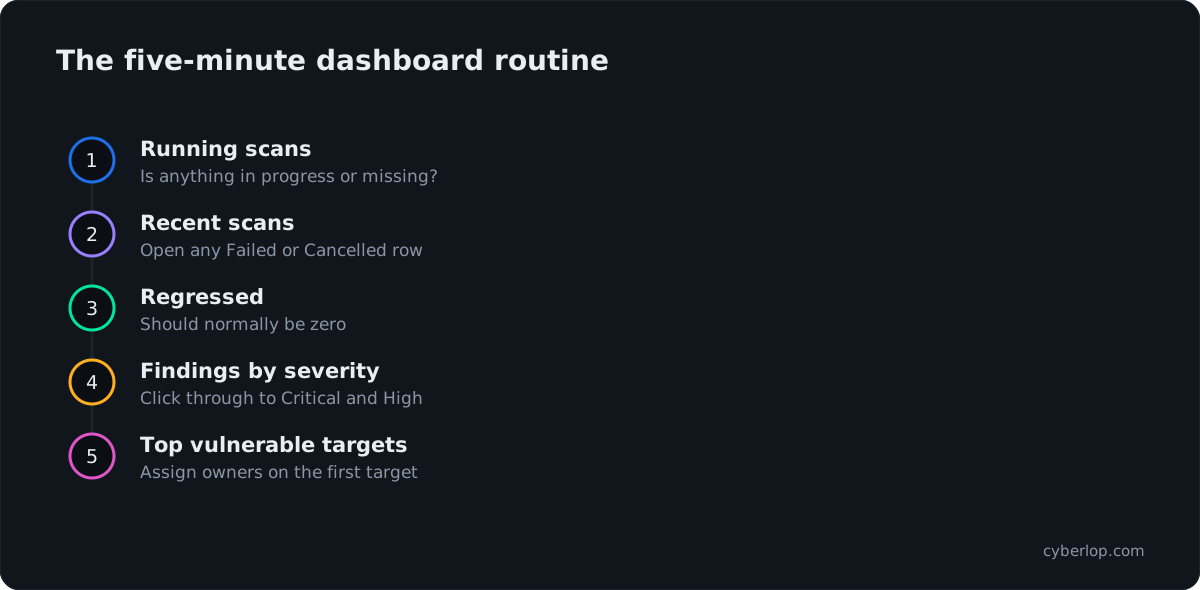
- Check Running scans. If a scan you expected is missing, open Recent Scans.
- Read Recent scans. Open any Failed or Cancelled row and note the reason.
- Look at Regressed on the Remediation card. If it is above zero, open those issues first.
- Scan Findings by severity. Click through to Issues for Critical and High.
- Pick the first target under Top vulnerable targets and assign its worst findings an owner.
- Note Fixed issues and the Fix rate so you can see movement next time.
Why bother with a routine?
Open findings age quietly if nobody looks. The Verizon 2025 Data Breach Investigations Report news release reports a 34% increase in exploited vulnerabilities as the way attackers got in, so waiting costs more than it used to. A short daily check keeps the backlog visible; see vulnerability aging.
What are the common mistakes and how do you fix them?
Most confusion comes from reading the dashboard as a score. It summarises what the scanner found and what your team did about it.
| Mistake | What happens | Fix |
|---|---|---|
| Treating zero findings as "secure" | A low count can come from few scans, a narrow profile or a report filter | Check which classes and filters the profile uses; see Choose vulnerability classes |
| Chasing Fix rate | Teams close easy findings to lift the number | Work by severity and evidence, not by percentage |
| Ignoring Failed rows | Coverage gaps stay hidden | Open the scan; a failed scan may still hold partial findings |
| Never triaging | Open counts only grow and the dashboard loses meaning | Mark each finding Fixed, False Positive or Accepted Risk; see Triage findings |
| Expecting the page to refresh itself | You read old numbers | Reload the page; the dashboard has no buttons of its own |
Where to go next
Pair the dashboard with Getting started if you have not run a scan yet, and read Key terms next. To see what a finding contains, read how to read a finding. For the model behind the findings, see how Cyberlop works. The vulnerability management glossary entry covers the wider practice.
Continue with Key terms
Targets, profiles, scans, issues, severity and triage: one table with every word you will meet in the app. Read Key terms.
Questions people ask
Cyberlop dashboard: FAQs
What is the Cyberlop dashboard?
It is the home page of the Cyberlop web app. It summarises your security posture across all targets with stat cards, findings by severity, top vulnerable targets, a remediation tally and recent scans. It is read-only and has no buttons of its own.
Can I click through from the dashboard?
Yes. Rows in Top vulnerable targets and Recent scans link to the target or scan. For the full list of findings, open Issues from the sidebar and filter by severity or target.
What does Fix rate mean?
It is a percentage shown on the Remediation card next to the Open, Fixed, Regressed and False positives counts. Use it as a trend over time. A low figure early on is normal, because it reflects how much has been found compared with how much has been fixed.
Why is my Regressed count above zero?
A finding you marked or saw as fixed was detected again in a later scan, so it is flagged as a regression and not a new issue. Look at the changes made between the two scans, then open the scan's Diff tab to see the New, Fixed and Regressed columns.
Why does the dashboard show a Failed scan with findings?
A failed scan can still hold the findings found before it stopped. Open the scan, read the banner and the Findings tab, then re-run once the cause is fixed. The failed scans guide has a checklist.
Does the dashboard show live scan progress?
Only as a count. Running scans shows how many scans are in progress. To follow a single scan, open Recent Scans and click its row.
Why can I not see the dashboard or some of its links?
Access follows your role's permissions, such as dashboard:read and scan:read. Ask an organisation admin to check your role.
Does the dashboard replace the Issues page?
No. The dashboard summarises. Issues is where you search, filter, open evidence, assign owners and set dispositions. Use the dashboard to decide where to look, and Issues to do the work.
Sources
Where the facts come from
Keep reading
Related articles
Cyberlop activity feed: what it records and how to use it for audits
Read the Cyberlop activity feed: sign-ins, scans, triage, roles and support sessions, who can see them, how to search and an audit checklist.
How to add a target in Cyberlop: the New target dialog, field by field
Add a target in Cyberlop: the New target dialog field by field, white-box vs black-box, repository URL, environment, and why targets cannot be edited.
Application context in Cyberlop: fill the ten fields and use Auto Generate from Repo
Fill in the ten application context fields of a Cyberlop scan profile, use Auto Generate from Repo, and write context that improves findings.

Want a dashboard worth reading?
Run Cyberlop on one of your applications and watch the cards fill with findings that carry the request, the response and the line of code. Fixes are proven by re-running the exact exploit. Book a pilot on one app.
Or start with a $199 pilot on one application: thirty days, success criteria agreed before day one, credited against the annual if you convert.