
Home / Blog / Tutorials / Scan report rules
Tutorials
Reporting rules in Cyberlop: severity, confidence, guidance and PII redaction
Reporting rules decide which findings reach the report and how it reads. This guide covers every field in the Reporting section of a scan profile.
Cyberlop Labs · Updated · 9 min read
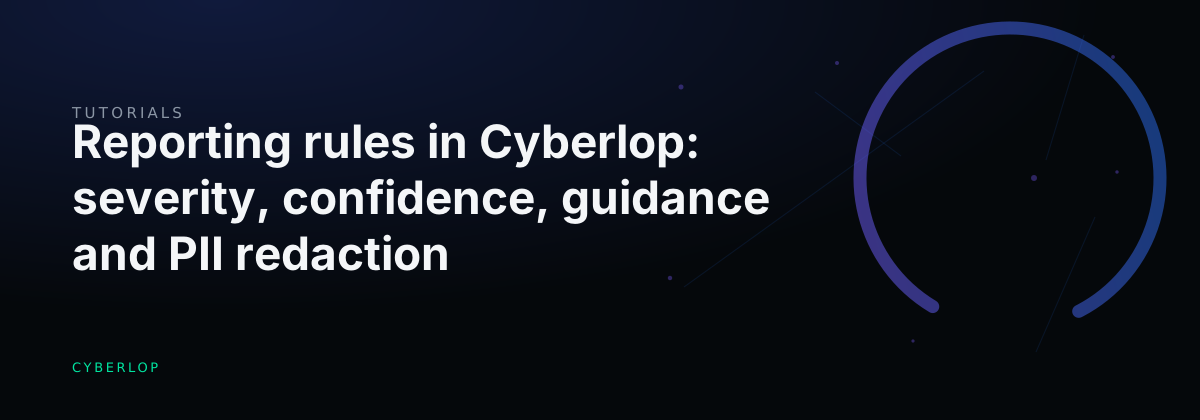
Reporting rules in Cyberlop are set in the Reporting section of a scan profile. Choose a minimum severity and minimum confidence, add report guidance and rules of engagement, then Preview YAML and Save. Emails, phone numbers, SSNs and payment cards typed into the text fields are redacted before analysis.
- Open the profile Go to Scan Profiles and click + New profile, or open an existing profile with the pencil icon.
- Open Reporting Switch to the Reporting section.
- Set Minimum severity Choose No minimum or a level from Critical down to Best Practice.
- Set Minimum confidence Choose No minimum, High, Medium or Low.
- Add report guidance Type who will read the report and what to emphasise.
- Add rules of engagement Type short, checkable limits for the test, with no personal data or secrets.
- Preview YAML Click Preview YAML and fix any red message.
- Save Click Save.
- Scan and download Run a scan, then use Download report to choose a mode.
- Reporting rules filter the final report by minimum severity and minimum confidence.
- Severity and confidence are separate; a finding must clear both minimums to appear.
- Start with No minimum on your first scan, then tighten once you have a baseline.
- Rules of engagement are free text; use Avoid rules and the exploitation setting for hard limits.
- Detected PII in the text fields is redacted, but keep personal data and secrets out anyway.
Reporting rules in Cyberlop are the settings on a scan profile that decide which findings reach the final report and how it is written. To set them, open a profile, switch to the Reporting section, choose a Minimum severity and Minimum confidence, add Report guidance and Rules of engagement, then Preview YAML and Save. Detected PII in the free-text fields is redacted before analysis.
What are reporting rules in a Cyberlop scan profile?
Reporting rules are the first block of the Reporting section of a scan profile. They are called Report filters in the app and hold four inputs: a minimum severity, a minimum confidence, report guidance and rules of engagement. The in-app documentation says the final reporting agent builds an executive-level report from the confirmed findings, filtered by the profile's minimum severity and confidence and any reporting guidance.
The same section also holds the application context fields, covered in Application context. The Reporting section is the third of three: Scope, Authentication, Reporting. Every profile needs a name and target from the Scope section first, so start with Create a scan profile if you have not made one.
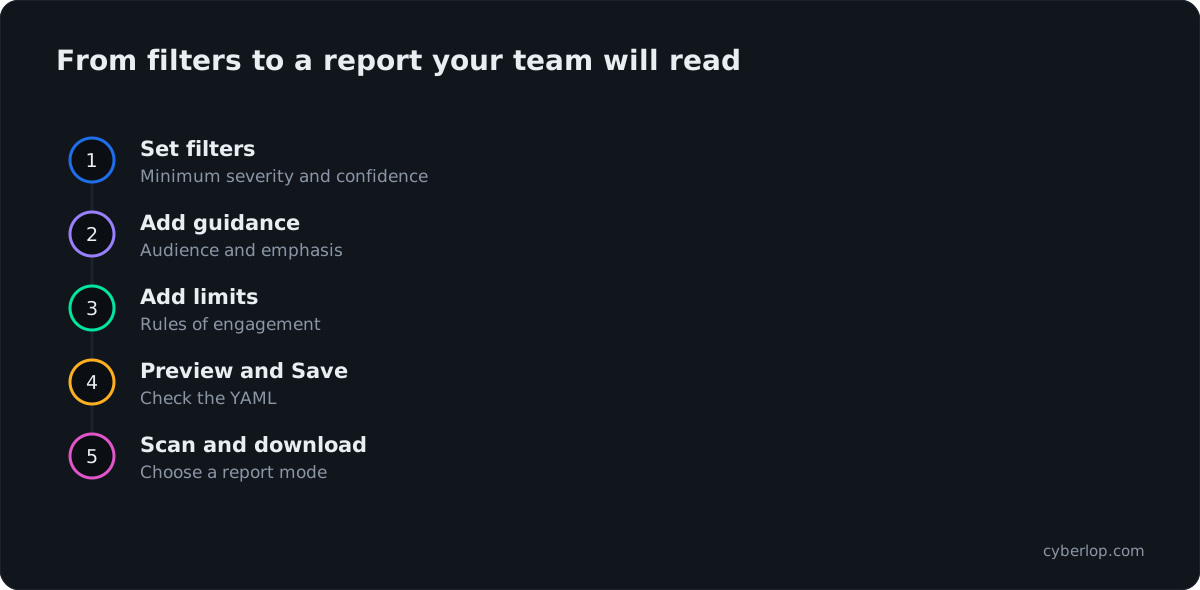
How do you set reporting rules on a scan profile?
You set them in the Reporting section of the profile form, whether the profile is new or being edited. The steps are the same either way.
- Go to Scan Profiles and click + New profile, or open an existing profile with the pencil icon. A profile can also be started from a target page.
- Fill in the target and name on the Scope section if the profile is new.
- Switch to the Reporting section ("Report filters, context & engagement").
- Choose a Minimum severity. The default is No minimum.
- Choose a Minimum confidence. The default is No minimum.
- Optionally type Report guidance to steer how the final report is written and filtered.
- Optionally type Rules of engagement, such as avoiding destructive payloads in production.
- Click Preview YAML. The form validates and shows the generated configuration. A required field left empty shows a red message, for example name: String must contain at least 1 character(s).
- Click Save, then start a scan as described in Run a scan.
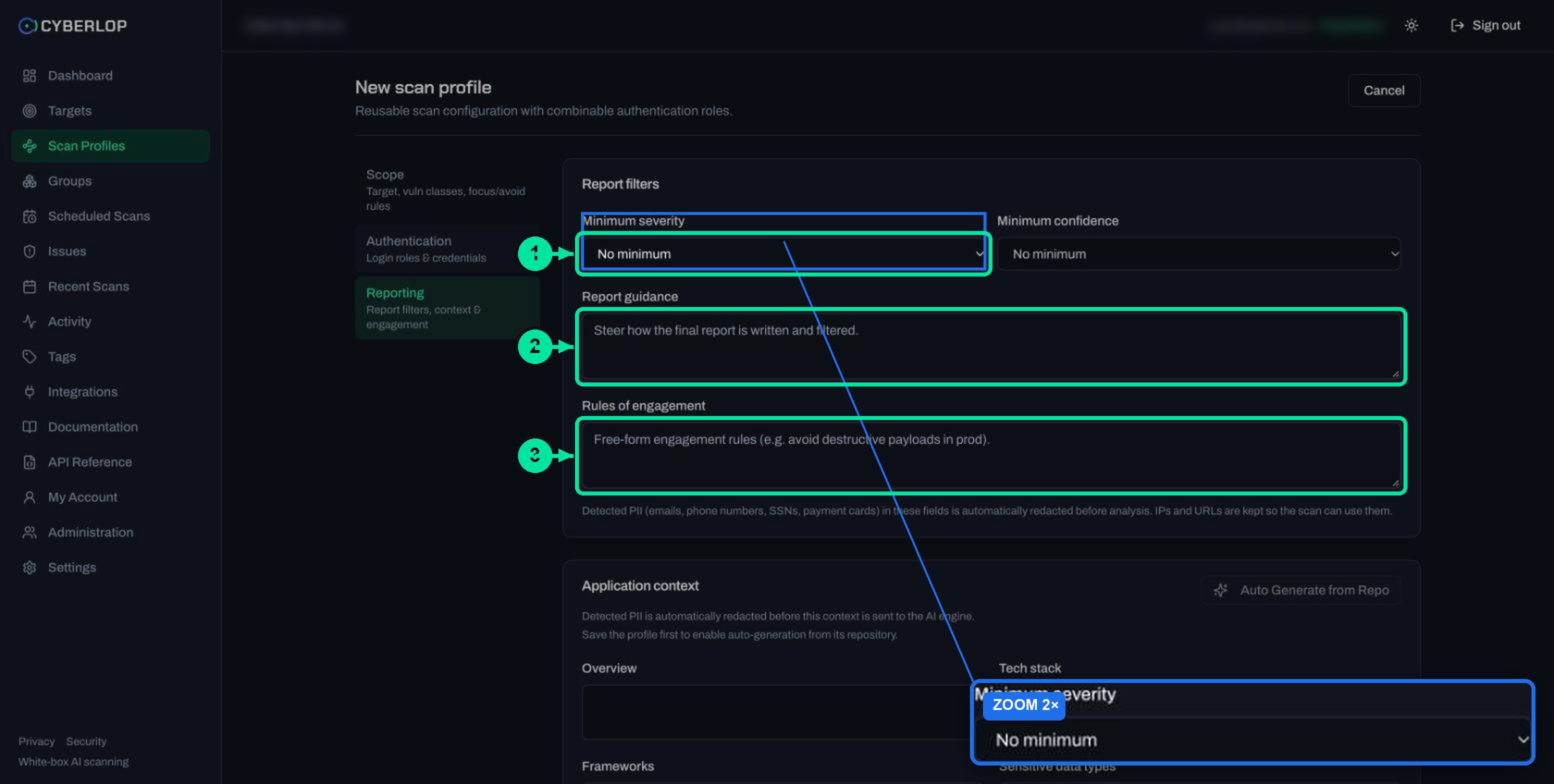
Reporting field reference
| Field | What to enter | Notes |
|---|---|---|
| Minimum severity | No minimum, Critical, High, Medium, Low, Informational or Best Practice | Sets the lowest severity that appears in the report. Leave it at No minimum for your first scan. |
| Minimum confidence | No minimum, High, Medium or Low | Sets the lowest confidence that appears in the report. Confidence is separate from severity. |
| Report guidance | Free text | The form says it steers how the final report is written and filtered. Placeholder: "Steer how the final report is written and filtered." |
| Rules of engagement | Free text | Free-form engagement rules. The placeholder example is "avoid destructive payloads in prod". |
| Application context | Ten text fields | Overview, tech stack, tenancy model and more. See Application context. |
How do minimum severity and minimum confidence work together?
The two filters answer different questions. Severity says how bad a finding would be if it is real. Confidence says how sure Cyberlop is that it is real. A finding has to clear both minimums to appear in the report, so setting both asks for findings that are serious enough and certain enough.
This matters because the two do not move together. A finding can score as critical in theory yet be unproven, while a low-severity finding can be fully demonstrated. The CVSS v4.0 specification draws the same line. A CVSS score describes technical severity, and FIRST expects teams to weigh it alongside things the score leaves out, such as customer impact and regulatory duties. The Severity and confidence guide covers how the app presents each.
The severity scale
The Minimum severity list has six named levels above No minimum. The scale used by the CVSS v4.0 specification, for comparison, rates scores of 0.1 to 3.9 as Low, 4.0 to 6.9 as Medium, 7.0 to 8.9 as High and 9.0 to 10.0 as Critical (FIRST, 2023). Cyberlop adds Informational and Best Practice below Low.
| Minimum severity | What the report keeps | Good for |
|---|---|---|
| No minimum | Everything, down to Best Practice | First scans and audits where you want the full picture |
| Low | Low and above | A routine report that skips informational notes |
| Medium | Medium, High, Critical | Weekly or per-release scans for a busy team |
| High | High and Critical | An executive or board summary |
| Critical | Critical only | A release gate conversation about must-fix items |
Why not set the filter very high on day one?
A high minimum hides findings from the report, so you cannot triage what you cannot see. Start with No minimum, read the first report, then raise the filters once you know the shape of your app. A recurring scan is the right place for a stricter filter, because you will have a baseline to compare it against.
Does a filter change what the scan tests?
The in-app documentation describes the filters as applying when the final report is assembled, not as a limit on testing. This guide does not cover how the rest of the app treats a filtered-out finding, so check the Issues page after your first filtered scan before you rely on the filter.
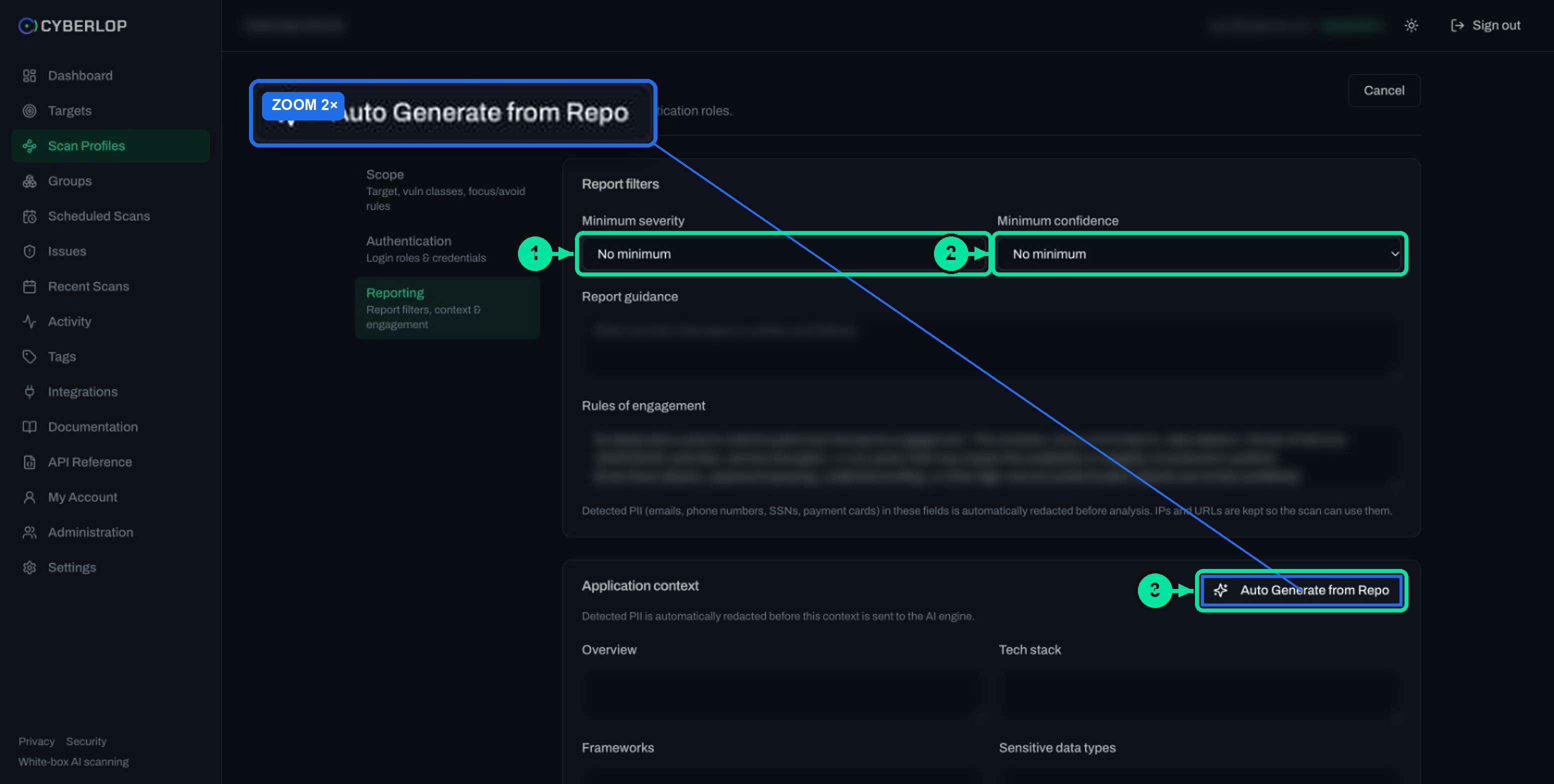
Combinations that work
| Goal | Minimum severity | Minimum confidence |
|---|---|---|
| Full first look | No minimum | No minimum |
| Developer sprint list | Medium | Medium |
| Leadership summary | High | High |
| Lower noise on a mature app | Low | Medium |
These are starting points, not recommendations from the product. Adjust them after you see how many findings land in each band. Aim for a report your team will act on. A report that is too long invites alert fatigue, and one that is too short hides things you need to see.
What should report guidance say?
Report guidance is free text that steers how the final report is written and filtered. Use it for readers and tone, not for secrets or targets. It is a good place to say who will read the report and what they need from it.
Examples of useful report guidance
Say who the audience is
For example: Written for the engineering lead. List the file and fix direction first. The report is described as executive-level by default, so a technical audience should say so.
Say what to emphasise
For example: Group findings by the part of the app they affect. Keep each line short and specific.
Say what to leave out
For example: Do not discuss the marketing site. For a hard exclusion, use an Avoid rule instead (see Focus and avoid rules), because guidance steers wording while scope rules steer testing.
Write guidance as plain instructions. Do not paste customer data, credentials or tokens into it. Put credentials in the Authentication section, where stored secrets are encrypted and never shown again.
What are rules of engagement and what should you put in them?
Rules of engagement are the agreed limits for a test: what may be done, where, when and with what care. In a Cyberlop profile the field is free-form text, and the form's own example is to avoid destructive payloads in production. NIST SP 800-115, its technical guide to security testing, covers how to plan and run a test and what to do with the results (NIST, 2008).
Write them as short lines someone could check. A good rule names what to protect, not only what to avoid.
- Avoid destructive payloads, deletions and bulk writes against this environment.
- Do not send email, SMS or payment requests to real recipients; use the test addresses in the application context.
- Treat the staging database as disposable, but do not exhaust rate limits on the login page.
- Test only the target's own URLs. Only scan applications you own or are authorised to test.
Rules of engagement are not a hard switch
The field is text that guides the AI engine. The app does not state that it enforces each line as a technical block. For limits that must hold, use the controls that are explicit: Avoid rules to keep paths and hosts out of scope, and the Run exploitation phase tick-box. With it off, the profile runs static source analysis only, with no live testing. The Exploitation phase guide explains what proving means and how to think about production.
How does PII redaction work in reporting rules?
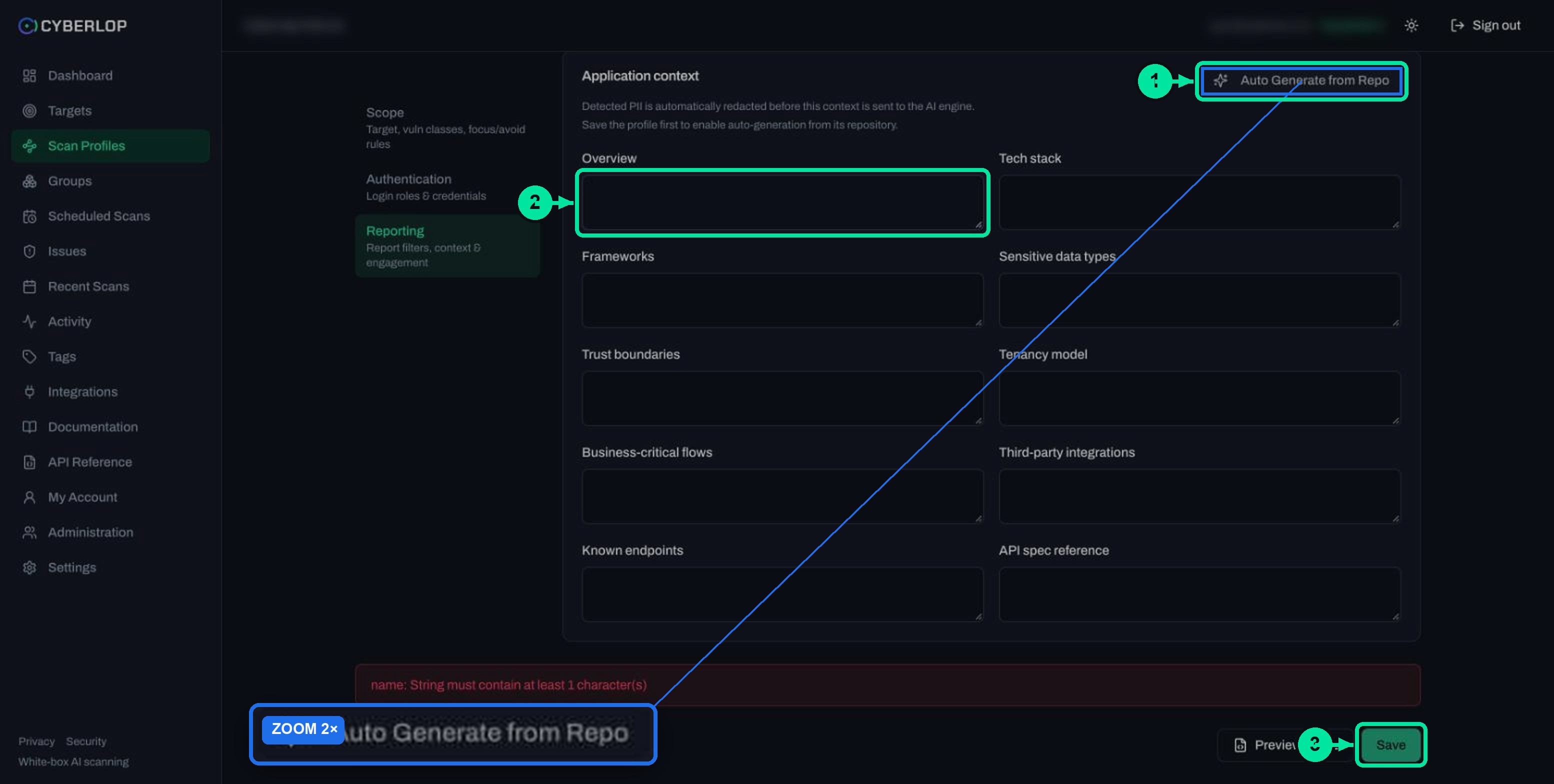
Cyberlop redacts detected personally identifiable information (PII) in the free-text reporting fields before analysis. The form says emails, phone numbers, SSNs and payment cards are redacted automatically, in report guidance, rules of engagement and application context. IP addresses and URLs are kept, so the scan can still use them.
What is and is not redacted
| Content | Handling | What to do |
|---|---|---|
| Emails, phone numbers, SSNs, payment cards | Detected and automatically redacted before analysis | Still avoid typing them. Redaction is a safety net. |
| IP addresses and URLs | Kept as written | Use neutral test hosts, such as https://staging.example.com. |
| Passwords, tokens, API keys | Not listed as redacted | Never put them here. Use Authentication fields. |
| Names and free-text descriptions | Not listed as redacted | Describe roles, not people. |
The sensible habit is data minimisation: give the engine what it needs and nothing more. Redaction covers the types the form lists; it is not a promise about anything else you type. If a note would be embarrassing in a report, leave it out.
Where the report logo comes from
The report carries your logo if an admin sets one in Settings → Organization. It must be a base64 image data URI (PNG, JPEG, GIF or WebP); remote URLs and SVG are not allowed.
How do you download the report once the scan finishes?
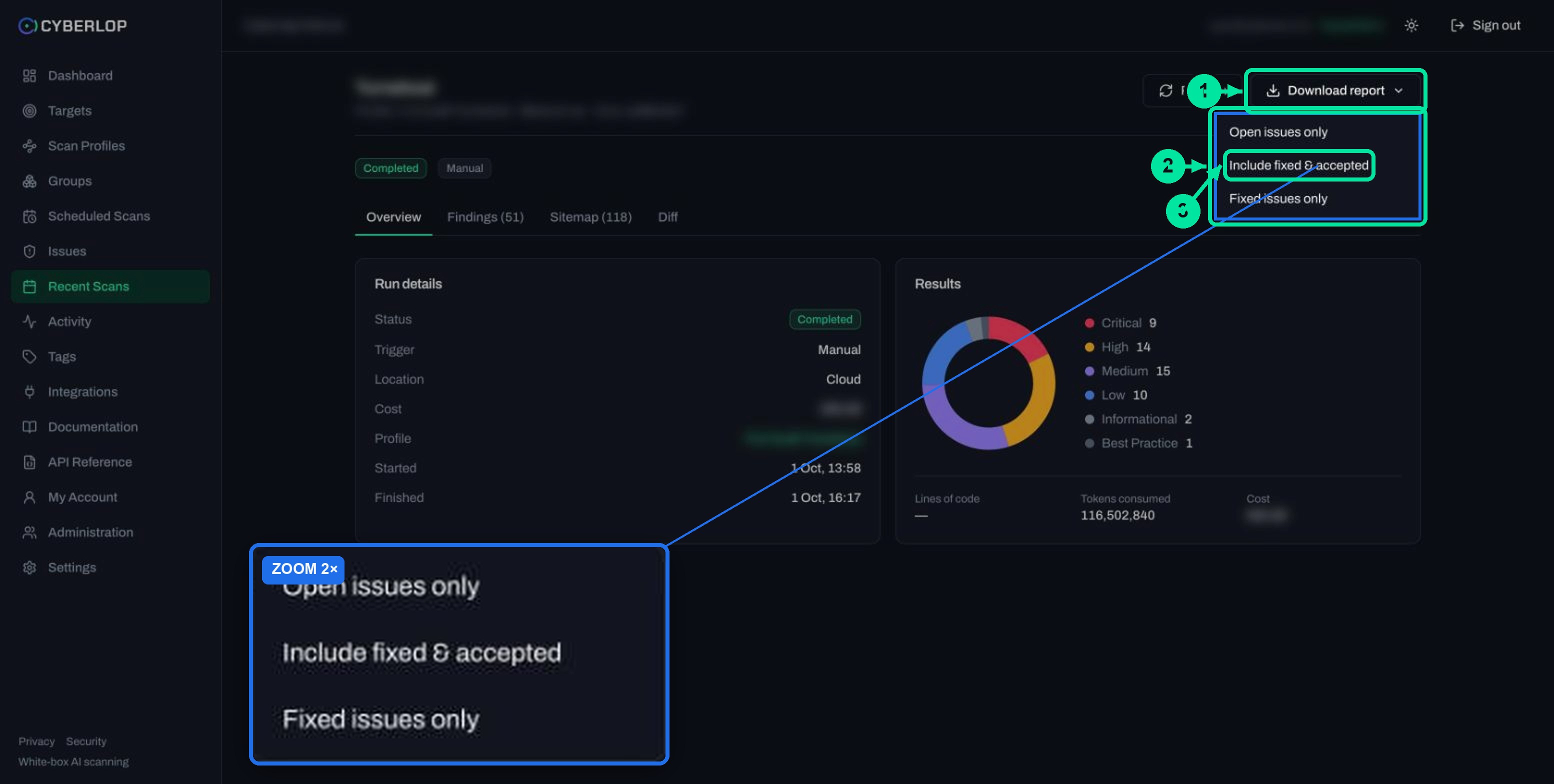
Open the scan and use Download report ▾. It offers a branded PDF in three modes: Open issues only, Include fixed & accepted and Fixed issues only. The Targets list and Recent Scans also have report actions. See Download PDF reports for the full walk-through. This guide does not describe the PDF itself, so open one to check the layout.
Troubleshooting: why is my report empty or too long?
Most problems trace back to filters set too tight or too loose, or to text typed in the wrong box. Find your symptom in the table.
| Symptom | Likely cause | What to do |
|---|---|---|
| Report shows no findings | Minimum severity or confidence set too high | Lower both to No minimum, rescan and compare. |
| Report is long and noisy | Both filters at No minimum | Raise Minimum confidence first, then severity. |
| A known issue is missing | It fell below a filter, or was not proven | Check the filters, then the Issues page and its triage chips. |
| Report tone is wrong for the reader | No audience stated | Add one line of report guidance naming the reader. |
| Preview YAML shows a red message | A required field, usually the name, is empty | Fix the named field and preview again. |
| Redacted text in context | PII detected in the text | Replace with neutral examples. |
| Test was too aggressive for the environment | Rules of engagement were only text | Add Avoid rules or turn off the exploitation phase. |
Common mistakes
- Setting a high filter before reading a full report.
- Treating confidence as a copy of severity.
- Pasting credentials into report guidance or rules of engagement.
- Relying on free text for a limit that needs an Avoid rule.
- Putting client names or real customer data into context.
What is the next step after reporting rules?
Next step: fill in the Application context fields, or use Auto Generate from Repo after the first save. Then check the whole profile with Edit a scan profile and start a scan with Run a scan. When findings arrive, Read a finding explains the evidence, and Triage findings covers finding review as a team.
Questions people ask
Scan report rules: FAQs
Does a minimum severity setting stop Cyberlop testing for lower-severity issues?
The documentation describes the filter as applied when the final report is assembled, not as a testing limit. After your first filtered scan, check the Issues page to see how filtered findings are shown.
What is the difference between minimum severity and minimum confidence?
Severity is how serious a finding would be if it is real. Confidence is how sure Cyberlop is that it is real. They are set separately, and a finding must clear both to appear in the report.
Is it safe to put personal data in rules of engagement?
Avoid it. Cyberlop redacts detected emails, phone numbers, SSNs and payment cards in these fields before analysis, but that is a safety net. Describe roles and test accounts instead of real people.
Do rules of engagement block dangerous requests?
They are free text for the AI engine. The app does not state that each line is enforced as a technical block. Use Avoid rules and the exploitation phase setting for limits that must hold.
What minimum severity should I start with?
Start with No minimum for both filters so you see everything on your first scan. Raise the filters once you know how many findings fall in each band and who reads the report.
Can I change reporting rules after the first scan?
Yes. Open the profile with the pencil icon, change the Reporting section, then Preview YAML and Save. The profile's target stays fixed; other fields can be edited. See the guide to editing a scan profile.
Where do I add the company logo for reports?
An admin adds it in Settings → Organization as a base64 image data URI in PNG, JPEG, GIF or WebP. Remote URLs and SVG are not allowed.
Can I get a report that only lists fixed issues?
Yes. On the scan page, Download report offers Open issues only, Include fixed & accepted and Fixed issues only.
Keep reading
Related articles
Application context in Cyberlop: fill the ten fields and use Auto Generate from Repo
Fill in the ten application context fields of a Cyberlop scan profile, use Auto Generate from Repo, and write context that improves findings.
How to create a scan profile in Cyberlop: Scope, Authentication, Reporting
Create a scan profile in Cyberlop: Scope, Authentication and Reporting fields, exploitation on or off, Preview YAML and Save, with a troubleshooting table.
How to download PDF reports in Cyberlop: three modes, three places
Download a branded PDF from the scan page, Recent Scans or Targets. Choose Open issues only, Include fixed & accepted, or Fixed issues only.

Want reports your team will act on?
Cyberlop finds vulnerabilities in web apps and their APIs with black-box, grey-box and white-box pentesting, and reports only what it exploited. Ask us to run it on one of your applications.
Or start with a $199 pilot on one application: thirty days, success criteria agreed before day one, credited against the annual if you convert.