
Home / Blog / Tutorials / Exploitation phase
Tutorials
The exploitation phase: on or off, and safe in production
The exploitation phase proves each suspected flaw against your running app. This guide shows when to leave it on, what proof looks like and how to limit risk in production.
Cyberlop Labs · Updated · 8 min read
The exploitation phase is the part of a Cyberlop scan that proves suspected flaws against your running app with real requests, a browser and captured evidence. It is on by default (DAST). Untick Run exploitation phase for code-only analysis (SAST). For production, add avoid rules and rules of engagement first.
- Open the profile form Go to Scan Profiles and click + New profile, or edit an existing profile with its pencil icon.
- Pick the target and name In Scope, choose the target and name the profile.
- Choose vulnerability classes Tick the classes to test, or leave all empty to cover every class.
- Set Run exploitation phase Keep it ticked to prove findings live, or untick it for static analysis only.
- Choose the scan location Pick Cyberlop cloud (default) or one of your own scan agents.
- Add avoid rules for production Under Scope rules add Avoid rules for paths, methods or parameters that must not be touched.
- Write rules of engagement In Reporting, add short rules such as avoiding destructive payloads in prod.
- Preview and save Click Preview YAML to validate, then Save.
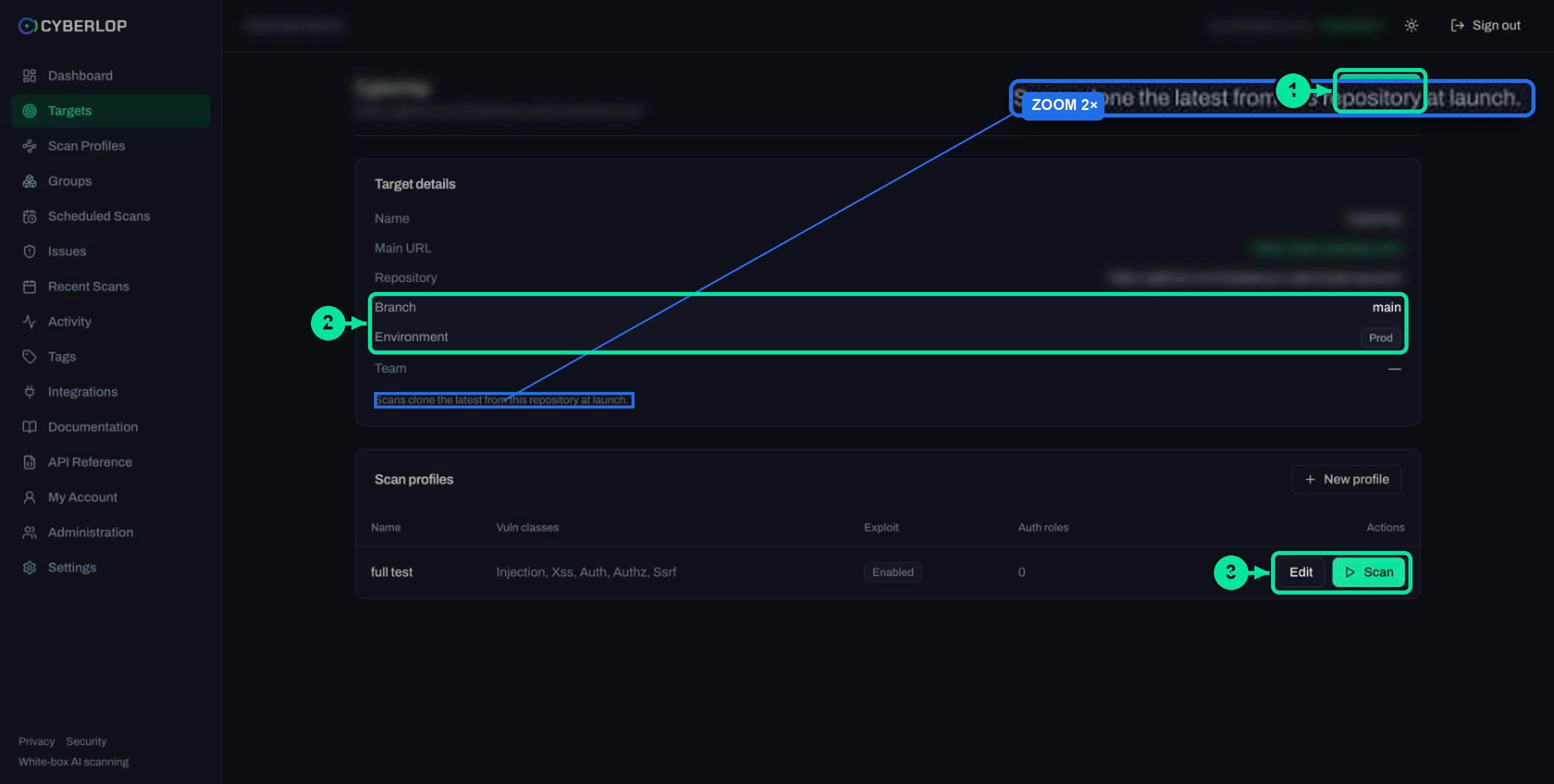
- Check the Exploit column Open the target page and confirm which profiles show Enabled.
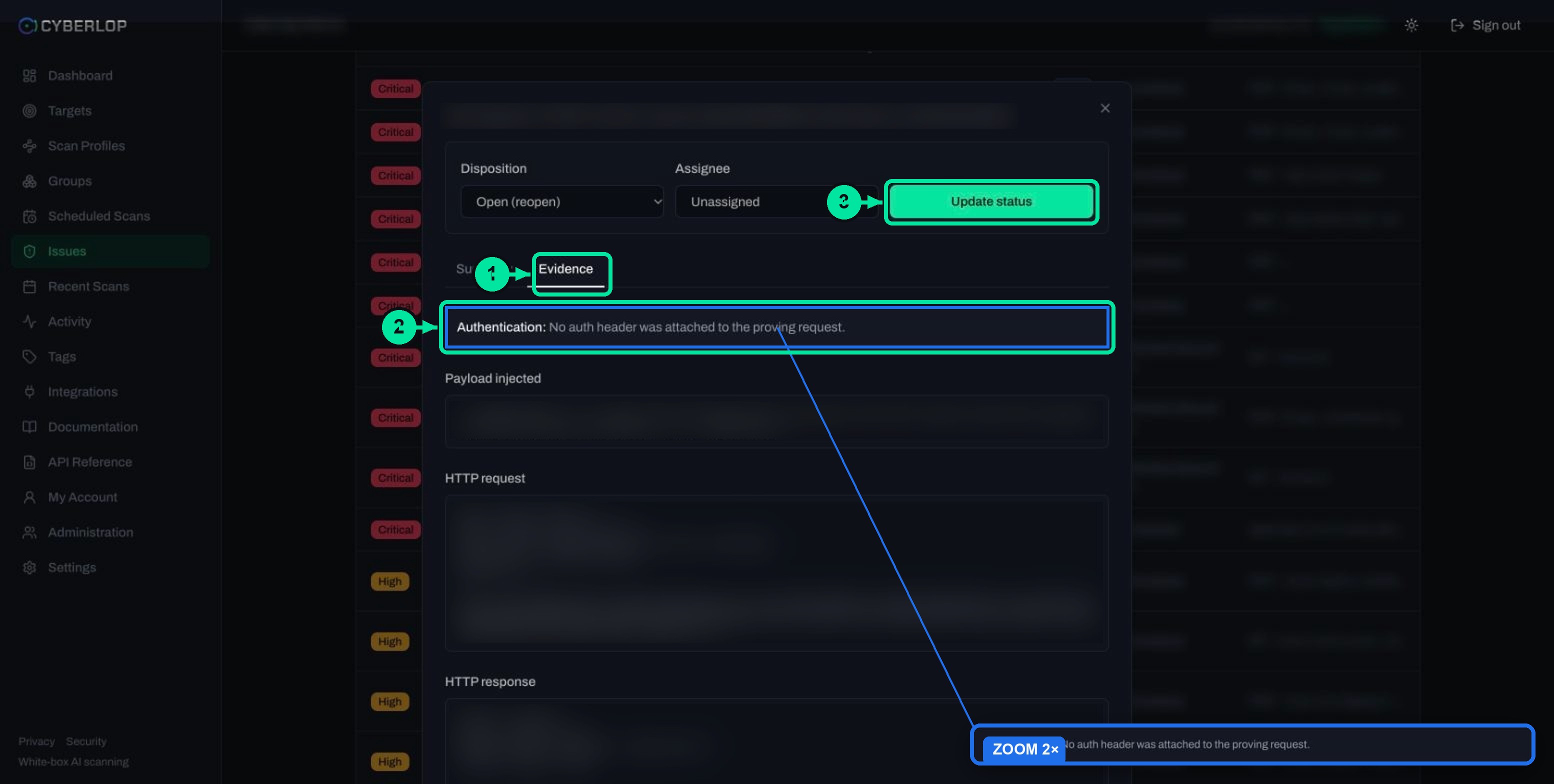
- Run and review Click Scan, follow it in Recent Scans, then read the Evidence tab of each finding.
- Run exploitation phase is ticked by default and proves findings live; unticked, the scan is static code analysis only.
- Proof means a captured payload, request, response, curl steps and a screenshot on the Evidence tab.
- Status (Confirmed, Likely, Unconfirmed) shows how well a finding was proven; it is separate from severity.
- Prove on staging first; for production add avoid rules, written rules of engagement and least-privilege test accounts.
- The Exploit column on the target page shows which profiles will send live traffic.
The exploitation phase is the step where a Cyberlop scan tries each suspected flaw against your running app and keeps the proof: real requests, a real browser and captured evidence. It is the Run exploitation phase checkbox on a scan profile, ticked by default. Leave it on to prove findings live, which is a DAST scan. Untick it for source-code analysis only, which is SAST. This guide explains the choice, what proof looks like and how to run it safely against production.
What is the exploitation phase?
The exploitation phase is phase four of Cyberlop's five-phase scan: pre-recon, recon, vulnerability analysis, exploitation and reporting. Earlier phases read the code and map the app and produce hypotheses. This phase takes each hypothesis and tries to demonstrate it against the live target.
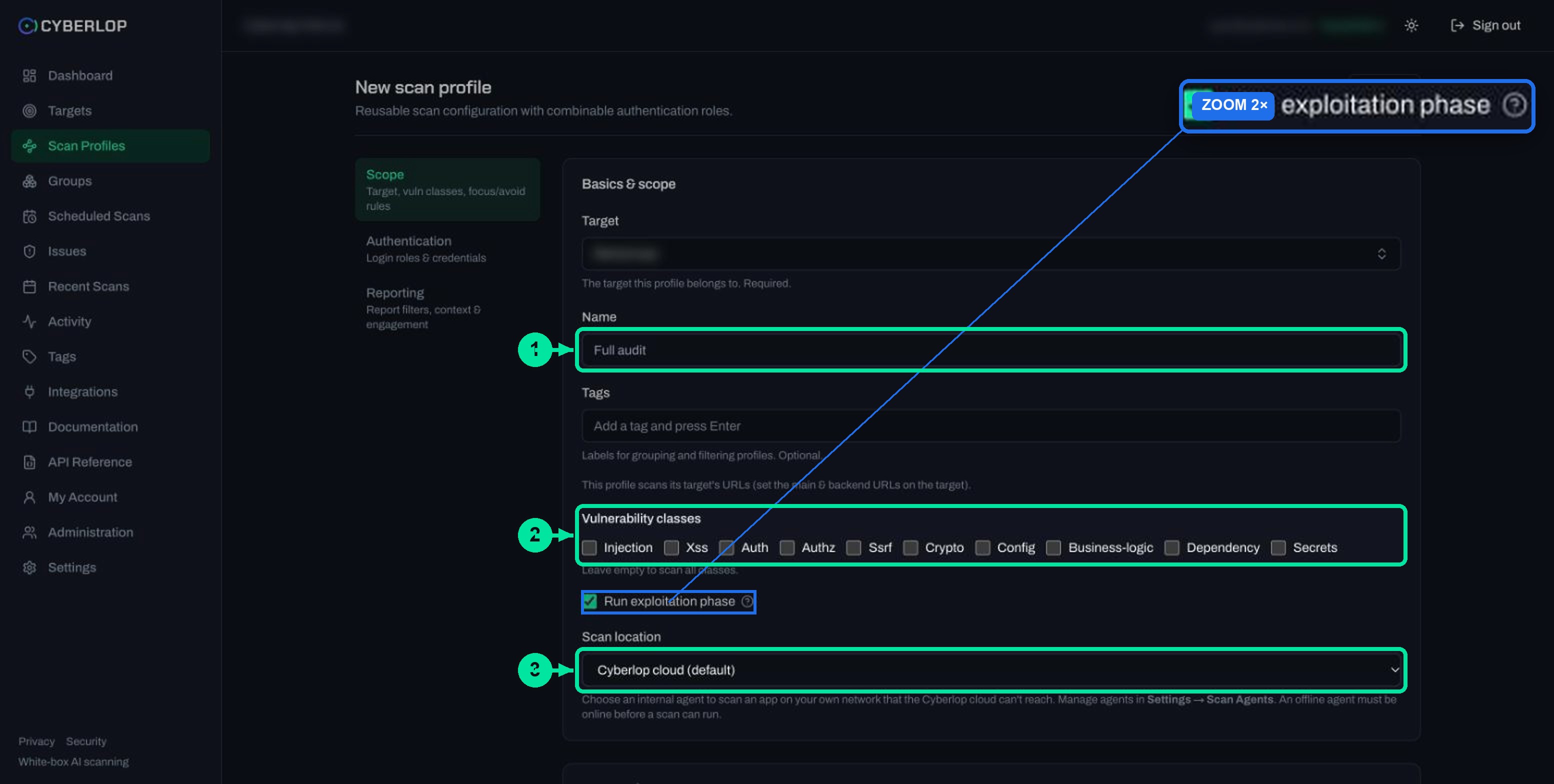
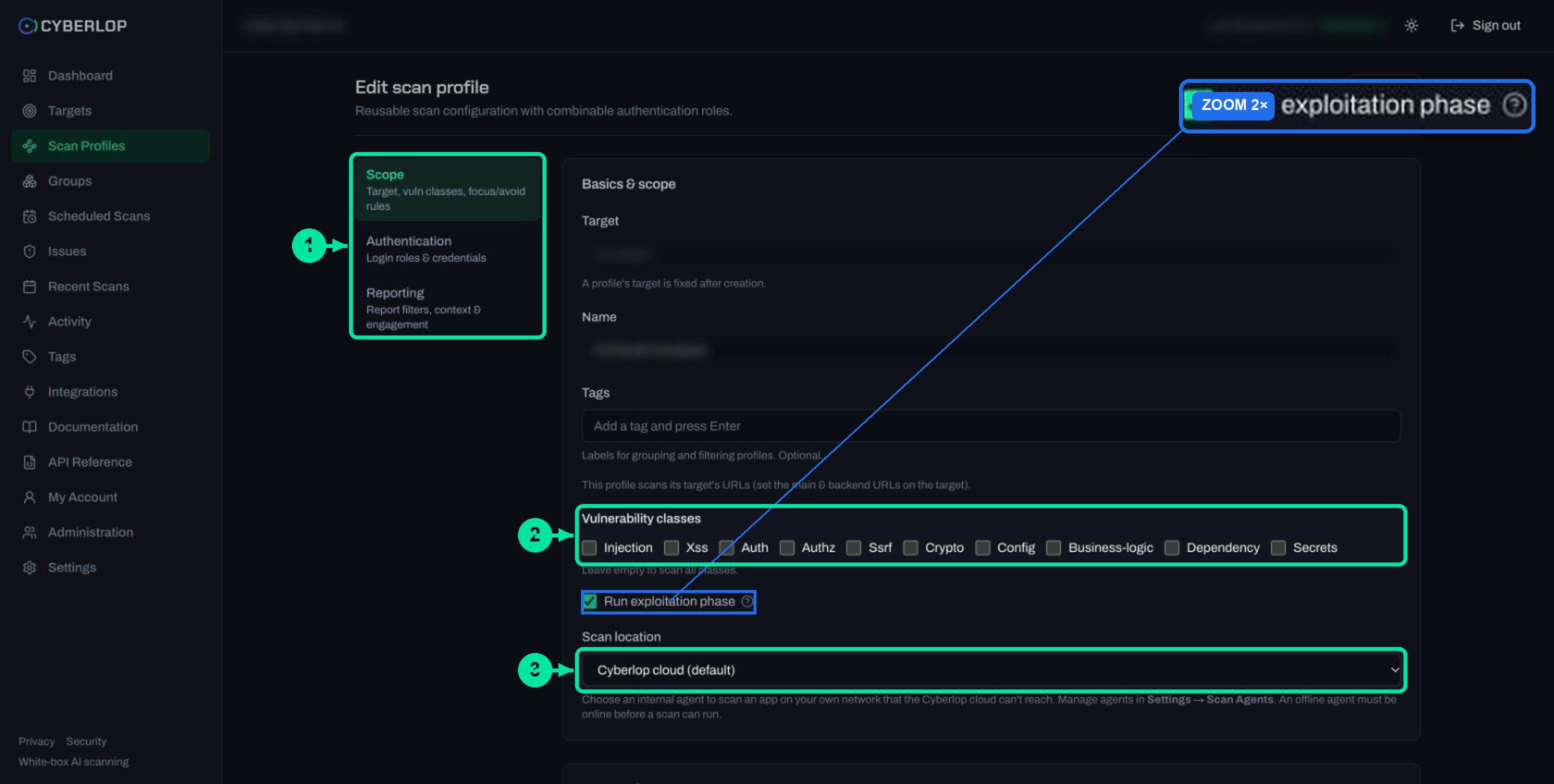
The checkbox sits in the Scope section of the profile form, under the vulnerability classes. A (?) icon next to it explains the setting in the app's own words: with the box ticked, "the agents actively test and prove vulnerabilities against the live target (real HTTP requests, browser, captured evidence)". With it unticked, you get "static source-code analysis with no live testing".
What is the difference between on and off?
On is DAST: the scan sends traffic to your running app. Off is SAST: the scan only reads code. The table sets them side by side.
Table 1. Exploitation phase on and off
| Question | Exploitation on | Exploitation off |
|---|---|---|
| What it is | DAST: live testing of the running app | SAST: static analysis of source code |
| Traffic to your app | Real HTTP requests and a real browser | None from the proving step |
| Evidence | Request, response, payload, curl steps, screenshot | Code location; no live evidence expected |
| Needs | A reachable target URL | A repository to read |
| Good for | Proving a flaw is exploitable | Early feedback where live tests are not allowed |
Where can you see the setting after you save?
Open the target page. The Scan profiles card has an Exploit column that shows Enabled for every profile with the phase on. It is a fast way to check which profiles will send live traffic before anyone presses Scan.
What does "proving" a finding mean?
Proving a finding means the scan actually triggered the weakness and kept the evidence. For each hypothesis, an exploitation agent drives a browser, tries to reproduce the flaw safely and records the request, the response, the payload and, where relevant, a screenshot. A proof of concept like this lets an engineer repeat the result instead of arguing about whether it is real.
Open any proven finding from Issues and choose the Evidence tab. Read it top to bottom.
Table 2. What the Evidence tab holds
| Field | What it shows | Why you care |
|---|---|---|
| Authentication | Which role or header the proving request used, or that none was attached | Tells you whether the flaw needs a login |
| Payload injected | The exact payload in a code block | The input that triggered the flaw |
| HTTP request | The raw request: method, path, headers, body | Replay it in your own tools |
| HTTP response | The raw response: status line, headers, body excerpt | Shows what the app returned |
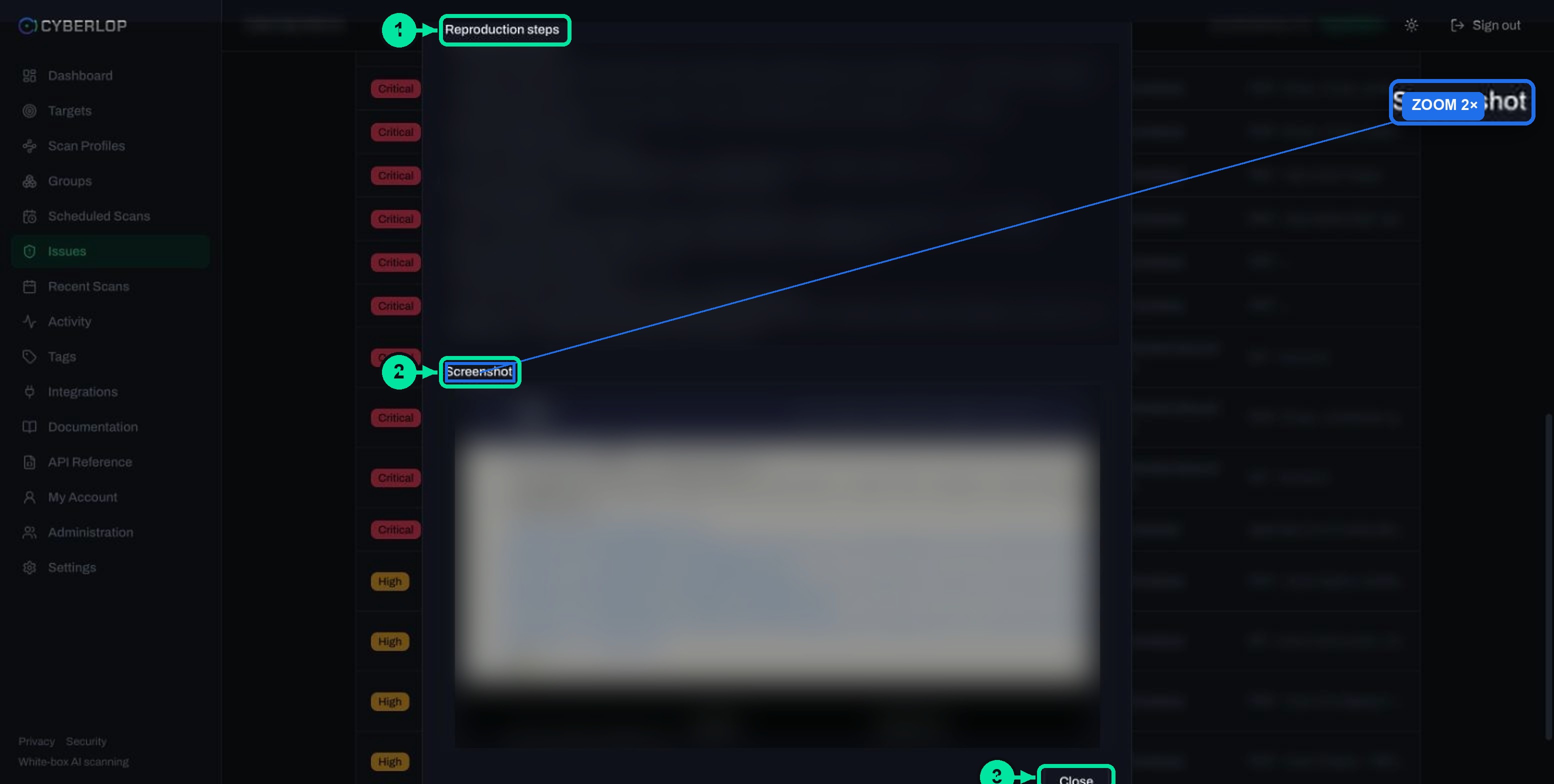
| Reproduction steps | A numbered list of ready-to-run curl commands with the expected result | A developer can repeat it in minutes |
| Screenshot | An image captured by the scan's browser during exploitation | A human-readable picture of the impact |
How are findings graded?
The documentation says findings are graded confirmed, likely or unconfirmed "based on how strongly they were proven". The Summary tab shows this as Status. Status answers "how well was it proven?". It is separate from severity ("how bad is it?") and confidence. Read severity and confidence before you rank work, and how to read a finding for the full dialog.
Why does proof change how you prioritise?
An unproven finding costs time, because someone has to decide whether it is a false positive. A proven one is quicker to fix, because the curl steps show exactly what to repeat. Speed matters. In the 2025 Verizon Data Breach Investigations Report, as summarised by Tenable, 2025, exploiting a vulnerability ranked among the top ways in for 20% of breaches, up 34% on the previous report.
When should you leave it on, and when turn it off?
Leave it on for most profiles, which is why it is the default. Turn it off when live traffic is not acceptable or not possible, or when you want a quick code-only pass. The off setting is described as source-code analysis, so it fits targets that have a repository; a black-box target has none.
Table 3. Choosing a setting
| Situation | Setting | Reason |
|---|---|---|
| Staging or dev app with test data | On | Safe place to prove findings |
| Pull-request or quick code check | Off | No live traffic; fast feedback |
| Production, first run | On, with narrow scope | Only after avoid rules and rules of engagement are written |
| Production, change freeze or fragile system | Off | Use code analysis until a window opens |
| Black-box target (no repository) | On | There is no source to analyse, so live testing is the point |
| You need evidence for a ticket or audit | On | Request, response and screenshot are the proof |
How do you switch the phase on or off?
- Open Scan Profiles and click + New profile, or open a target and use + New profile on its Scan profiles card. To change an existing profile, click its pencil icon or Edit.
- In Scope, pick the target and name the profile.
- Choose the vulnerability classes. Leave them all empty to cover every class.
- Find Run exploitation phase. Keep it ticked to prove findings live, or untick it for static analysis only.
- Choose the Scan location: Cyberlop cloud (default) or one of your own scan agents.
- Click Preview YAML to check the generated configuration, then Save.
The full form is covered in create a scan profile, and changing a saved one in edit a scan profile. A profile's target cannot be changed after creation; the checkbox can.
Is it safe to run the exploitation phase against production?
It can be, if you plan it, but it is never free of risk. Cyberlop's documentation says the agents attempt to demonstrate issues "safely", yet a proving scan sends real requests to a running system. Treat it like any production change and agree it with the people who run the system first. The safest default is to prove findings on Staging and keep production for a narrower, planned run.
Only register and scan applications you own or are authorised to test. For black-box targets, ownership must be verified first.
Which controls do you have?
The profile gives you several levers. Some are hard scope settings and one is plain-language guidance, so use them together.
Table 4. Controls that reduce risk
| Control | Where | What it does |
|---|---|---|
| Environment | Target: Environment | Labels the target Dev, Staging or Prod so profiles are not confused |
| Avoid rules | Profile → Scope → Avoid rules | Names paths, hosts, methods, headers, parameters or code paths to stay away from |
| Rules of engagement | Profile → Reporting | Free-text guidance to the agents, such as avoiding destructive payloads in prod |
| Vulnerability classes | Profile → Scope | Limits the scan to the classes you choose |
| Authentication roles | Profile → Authentication | Decides which accounts and privilege levels the scan uses |
| Scan location | Profile → Scope | Runs the scan from the Cyberlop cloud or your own agent |
| Exploitation phase | Profile → Scope | Turns live testing off altogether |
How do you write useful rules of engagement?
Be specific and short. The field's own placeholder suggests the kind of rule to write: "avoid destructive payloads in prod". Add what matters to your app, for example "do not place real orders" or "do not email real customers". Detected PII such as emails, phone numbers and payment cards is redacted before analysis, so describe behaviour, not people. See reporting rules. Rules of engagement steer the agents, but they do not replace an avoid rule for anything that must never be touched.
How do avoid rules keep a scan away from sensitive areas?
Under Scope rules, click + Add rule beneath Avoid rules and pick a type: Url Path, Subdomain, Domain, Method, Header, Parameter or Code Path. Use them for paths that send money, messages or deletions. Details and pitfalls are in focus and avoid rules.
Which accounts should the scan use?
Give each role the least access a test needs (least privilege), and prefer accounts that hold test data. Authentication roles explains the privilege levels. A scan that proves an IDOR will read a real record, so make sure the account cannot reach real customers' data.
What is a sensible order for a first production run?
- Run the profile on a staging copy with the exploitation phase on, and read the findings.
- Fix or triage what you find, then re-scan so staging is quiet.
- Create a separate production profile with narrow classes, avoid rules and written rules of engagement.
- Tell the people who watch production, and pick a quiet hour. A schedule uses your organisation's timezone from Settings → Organization.
- Start the scan from the profile row, then follow it in Recent Scans.
- Check Activity afterwards: it records scan starts and cancellations. See the activity feed.
If the app cannot be reached from the internet, run the scan from inside your network with a private scan agent, so your code and target stay on your side.
What do you get when the phase is off?
You get findings from reading the code, each tied to a location in the source. The Evidence tab is built from live testing, so do not expect captured requests, responses or screenshots for those findings. The scan still follows the other phases and the report is filtered by your reporting rules.
An off scan therefore gives early feedback, but it is a weak basis for claiming that a flaw is exploitable. Many teams run both: code-only on every change, proving scans on a schedule. Compare white-box and black-box testing in white-box vs black-box scans.
What are the most common mistakes?
Common mistakes and fixes
Table 5. Mistakes with the exploitation phase
| Mistake | What happens | Fix |
|---|---|---|
| Leaving the box ticked on a production profile by default | Live requests reach production without planning | Check the Exploit column on the target page before scanning |
| Relying on rules of engagement alone | Free text is guidance, not a hard stop | Add avoid rules for anything that must not be touched |
| Using a real admin account | Proof may read or change real data | Use a test account with the least access needed |
| Expecting screenshots from an off scan | Findings show a code location but no live evidence | Turn the phase on for a proving run |
| Treating Likely or Unconfirmed as proven | Time spent on weak findings | Read the Status and triage accordingly |
| Scanning something you do not own | Unauthorised testing | Register only authorised targets |
What should you do next?
Next step: narrow the blast radius with focus and avoid rules. Then run a scan and triage the findings. Prove each fix by re-running the exploit, as fixed and regressed issues explains. For the bigger picture, see how it works and what the evidence looks like. Standards for planning tests include NIST SP 800-115 and the OWASP Web Security Testing Guide.
Questions people ask
Exploitation phase: FAQs
What is the exploitation phase in Cyberlop?
It is phase four of the five-phase scan. For each hypothesis, an exploitation agent works against the live target in a browser and records the request, response, payload and, where relevant, a screenshot.
Is the exploitation phase on by default?
Yes. Run exploitation phase is ticked on a new profile. Untick it on the Scope section if you want static source-code analysis only.
What is the difference between DAST and SAST in the profile?
With the phase on, the scan is DAST: agents test the running app. With it off, the scan is SAST: static source-code analysis with no live testing.
Is it safe to run the exploitation phase on production?
It can be, with planning. Cyberlop's documentation says agents try to demonstrate issues safely, but the requests are real. Prove on staging first, add avoid rules, write rules of engagement and use test accounts.
Can I run a scan with exploitation turned off?
Yes. You get findings tied to code locations, but not live evidence such as captured requests, responses or screenshots. It suits early checks and places where live traffic is not allowed.
How do I know which profiles have exploitation enabled?
Open the target page. The Scan profiles card has an Exploit column that shows Enabled for profiles with the phase on.
What do Confirmed, Likely and Unconfirmed mean?
They grade how strongly a finding was proven. Confirmed is the strongest. Status is separate from severity and confidence, so read all three before you prioritise.
Can I change the setting after saving a profile?
Yes. Edit the profile and tick or untick the box, then Save. Only the profile's target is fixed after creation.
Keep reading
Related articles
Cyberlop activity feed: what it records and how to use it for audits
Read the Cyberlop activity feed: sign-ins, scans, triage, roles and support sessions, who can see them, how to search and an audit checklist.
How to scan behind login in Cyberlop with authentication roles
Scan behind login in Cyberlop: add authentication roles, choose privilege levels, combine form, header and OAuth methods, and guide the scan with AI guidance.
Choose vulnerability classes in a Cyberlop scan profile
The ten vulnerability classes in a scan profile, what each covers, when to narrow or leave them all on, and how to filter results by class.

Want proof without production risk?
Cyberlop reads your code while testing the running app and reports what it exploited, with the request, the response and the line of code. Ask us to run it on one of your applications.
Or start with a $199 pilot on one application: thirty days, success criteria agreed before day one, credited against the annual if you convert.