
Home / Blog / Tutorials / Application context
Tutorials
Application context in Cyberlop: fill the ten fields and use Auto Generate from Repo
Application context tells the scan what your app does, what it holds and how its customers are kept apart. This guide covers every field, with examples and fixes.
Cyberlop Labs · Updated · 9 min read
Application context is ten optional text fields in the Reporting section of a Cyberlop scan profile that describe your app: overview, stack, data, trust boundaries, tenancy and key flows. Save the profile, click Auto Generate from Repo for a draft, correct each field by hand, then Preview YAML and Save.
- Open the profile Go to Scan Profiles and click + New profile, or open an existing profile with the pencil icon.
- Save once Pick the target, enter a name and click Save so that Auto Generate from Repo becomes available.
- Open Reporting Switch to the Reporting section and scroll to Application context.
- Generate a draft Click Auto Generate from Repo, or type into the ten fields yourself if the target has no repository.
- Correct each field Edit Overview, Tech stack, Frameworks, Sensitive data types, Trust boundaries, Tenancy model, Business-critical flows, Third-party integrations, Known endpoints and API spec reference.
- Keep it free of real data Describe kinds of data in words; do not paste real records, keys or passwords.
- Preview YAML Click Preview YAML and fix any red message.
- Save and scan Click Save, then run a scan and check the Sitemap for the endpoints you named.
- Application context is ten free-text fields in the Reporting section of a scan profile.
- Auto Generate from Repo drafts them from the repository, but only after the profile has been saved once.
- Write rules and facts a scan can test, such as how tenants are separated, not marketing copy.
- Detected PII is redacted before the context is sent to the AI engine, so describe data types, never real records.
- Context informs a scan; Focus and Avoid rules and the exploitation setting are what limit it.
Application context is a set of ten text fields in the Reporting section of a Cyberlop scan profile where you describe the app being tested: what it does, what it is built with, what data it holds and how its tenants and trust boundaries work. To fill it in, open a saved profile, click ✦ Auto Generate from Repo to draft the fields from the repository, then correct each one by hand and click Save.
What is application context in a Cyberlop scan profile?
Application context is the part of a scan profile that tells the scan what your application is before it starts testing. It sits below the report filters in the Reporting section and holds ten free-text boxes: Overview, Tech stack, Frameworks, Sensitive data types, Trust boundaries, Tenancy model, Business-critical flows, Third-party integrations, Known endpoints, API spec reference.
None of the ten boxes is marked as required, and a profile with all of them empty still validates. The only error you will see when previewing is a missing name. The fields exist so you can hand the scan facts you already know instead of making it work them out. They are optional, and they are the cheapest way to improve a profile.
Why does application context improve scan results?
Context helps because a scan that knows your attack surface and how the app is meant to behave can tell a real flaw from normal behaviour. The in-app documentation says the first phase reads the repository and builds an architectural baseline of frameworks, entry points, data flows, trust boundaries, the authentication model and sensitive operations. Your context fields cover the same ground in your own words, and the app states that this text is sent to the AI engine after PII redaction.
What the scan cannot see for itself
Code shows what an app does. It does not show what your business considers dangerous. Three examples:
- A refund endpoint looks like any other endpoint until someone says refunds are the money flow.
- A
tenant_idcolumn is only a column until someone says each customer must never see another customer's rows (see tenant isolation). - A field called
notescould be harmless or could hold health data.
Your answers turn those guesses into stated facts. That matters most for flaws that depend on meaning, such as business-logic flaws and broken access control. They are common partly because an app's own rules are rarely written down where a tester can read them.
Why this matters for access control
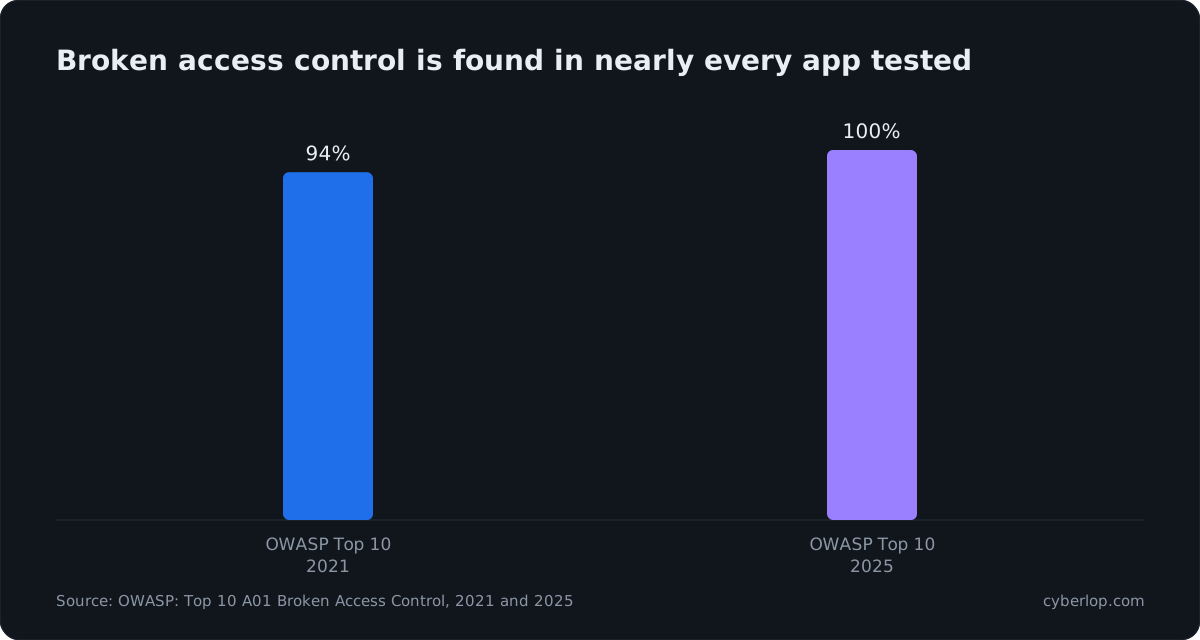
Access control sits at number one in the OWASP Top 10. In the 2021 edition, 94% of the applications OWASP's contributors tested had some form of it, at an average incidence of 3.81%. In the 2025 edition, every application tested had some form of it, with an average incidence of 3.74% across 1,839,701 recorded occurrences. The OWASP API Security Top 10 puts Broken Object Level Authorization first for 2023 and rates its prevalence as widespread. A tester can only find these flaws if it knows who is supposed to own what. That is the job of the Tenancy model and Trust boundaries boxes.
Where context helps most
The gain is largest for authorisation and business-logic testing, and smallest for classes such as missing security headers, which look the same in every app. With only ten minutes, fill in Sensitive data types, Tenancy model and Business-critical flows.
Where context cannot help
Context does not replace logins. For tests behind a login, see Authentication roles. Context also does not change scope; use Focus and avoid rules for that.
How do you fill in application context?
You fill it in from the Reporting section of the profile form, either while creating a profile or while editing one. The ten boxes behave the same way in both cases.
- Go to Scan Profiles and click + New profile, or open an existing profile with the pencil icon.
- On a new profile, choose the target and enter a name in Scope. Save the profile once if you want to use auto-generation.
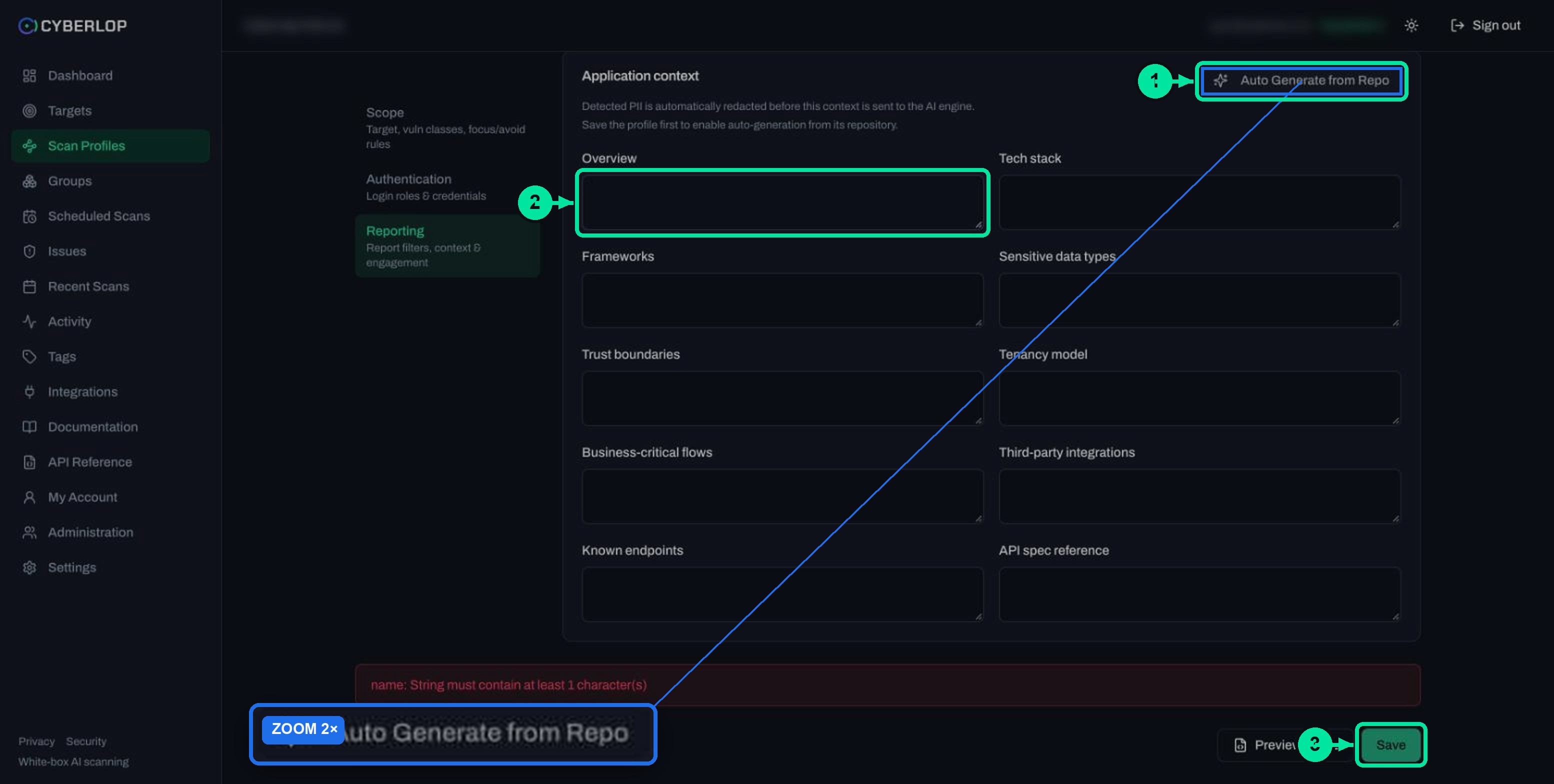
- Switch to the Reporting section ("Report filters, context & engagement") and scroll below the report filters to Application context.
- Click ✦ Auto Generate from Repo to draft the fields from the repository, or type into the boxes yourself.
- Read every box and correct anything wrong or missing, using the field table below.
- Click Preview YAML. The form validates and shows the generated configuration. A red message such as name: String must contain at least 1 character(s) means a required field is empty.
- Click Save, then start a scan as described in Run a scan.
The profile's target is fixed after creation, so context belongs to one target. Put the facts of that application in it, not facts about your company in general. If you have not made a profile yet, start with Create a scan profile.
Application context field reference
| Field | What to enter | Example (neutral) |
|---|---|---|
| Overview | Two or three sentences: what the app does, who uses it, and what a bad day looks like. | A subscription billing portal. Finance staff manage invoices for their own company. Customers pay by card through a hosted payment page. |
| Tech stack | Languages, runtime, database, hosting style. | Python backend, a relational database, a single-page front end. |
| Frameworks | Web and API frameworks and the auth library in use. | A server framework with a built-in session layer; a front-end component library. |
| Sensitive data types | The kinds of data you must not leak, not real values. | Names, email addresses, invoice amounts, part of a card number, support tickets. |
| Trust boundaries | Where trusted code meets untrusted input or another system. | Public web to API gateway; API to internal billing service; admin console only from the office network. |
| Tenancy model | How customers are separated and which column or claim does it. | Shared database; every row carries org_id; the session holds the org. |
| Business-critical flows | The journeys that lose money or trust if bent. | Create invoice, apply credit note, refund, change payout account, invite user. |
| Third-party integrations | Outside services the app calls or that call it, by category. | A payment processor webhook, an email service, an identity provider. |
| Known endpoints | Routes you already know matter, including hidden or legacy ones. | /api/orders/{id}, /internal/export, an old /v1 API still live. |
| API spec reference | Where the API description lives, or a short summary of it. | The OpenAPI file is in the repository under docs/; the public paths start with /api. |
The form shows no length limit or format rule, so write short, plain sentences. Describe the app. Do not paste secrets, real customer records or keys; the PII section below explains why.
What does good application context look like?
Good context is specific, short and true. It names the thing, says why it matters, and leaves out anything the code already makes obvious. Compare the weak and strong versions below.
Weak and strong wording
| Field | Weak | Strong |
|---|---|---|
| Tenancy model | Multi-tenant app. | Shared database. Rows carry org_id. A user of one organisation must never read or change another organisation's invoices, even by guessing an id. |
| Business-critical flows | Payments and users. | Refund: only finance staff, never above the original charge. Payout account change: needs the current password. |
| Trust boundaries | Frontend and backend. | The browser is untrusted. The gateway checks the session, then the billing service trusts the gateway header. |
| Known endpoints | See the code. | /api/orders/{id} returns an order; /internal/export is meant for staff only. |
State the rule, not just the feature
A rule gives the scan something to test against. "Refunds are limited to the original charge" can be checked and found false. "The app handles refunds" cannot.
Describe roles in context, create them in Authentication
Writing "support staff can read tickets but not billing" in the context helps, but it does not create a login. Add a matching role under Authentication so the scan can reach those screens. See Authentication roles for the privilege levels and Form login authentication for the form-login fields. Described rules plus real test accounts are what let the scan check what each signed-in account can reach that it should not.
How does Auto Generate from Repo work?
✦ Auto Generate from Repo drafts the application context fields from the profile's repository, so you start from a filled form instead of ten empty boxes. It is disabled on a new profile with the tooltip "Save the profile first, then generate from its repo", and it is enabled once the profile has been saved.
- Make sure the target has a repository. A target without one shows "No repository configured — add a Git repository URL to run a scan." See Connect a repository and Git access for HTTPS URLs and tokens.
- Fill in the profile name and save it once.
- Open the profile again with the pencil icon, switch to Reporting and click ✦ Auto Generate from Repo.
- Read every generated box. Fix wrong claims and add what only your team knows.
- Click Preview YAML, then Save.
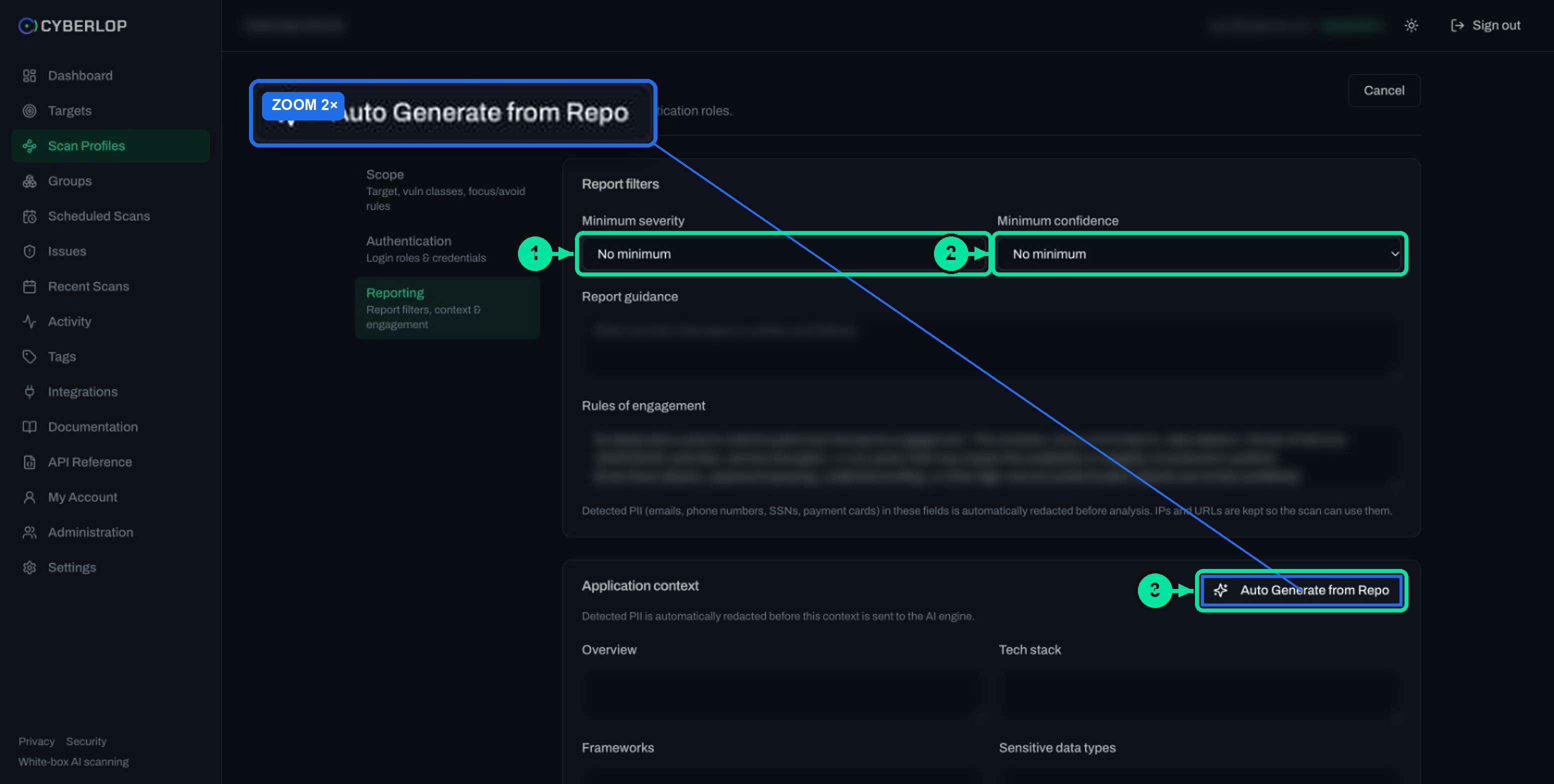
This guide does not show the text the button produces, because it varies with your repository. Treat the output as a first draft that someone on your team signs off, not as an answer.
What the repository can and cannot tell you
| Field | Usually visible in the code | Usually only your team knows |
|---|---|---|
| Tech stack and frameworks | Languages, dependencies, framework names | Which parts are legacy and about to be retired |
| Sensitive data types | Column and model names that hint at personal data | Which fields hold regulated or contractual data |
| Tenancy model | Tenant columns and middleware | The promise you make to customers about separation |
| Business-critical flows | Route names and handlers | Which flows carry money, approvals or legal weight |
| Known endpoints | Routes declared in code | Endpoints created outside the repository, or reachable only through a gateway |
What happens to personal data in application context?
The app redacts detected PII in application context before it is sent to the AI engine. A note under the section says: "Detected PII is automatically redacted before this context is sent to the AI engine." For report guidance and rules of engagement, the app lists emails, phone numbers, SSNs and payment cards as redacted, and keeps IPs and URLs so the scan can use them.
Redaction is a safety net. Write about kinds of data, not real values: "customer email addresses", not an actual address. If text you wrote comes back changed, you probably typed something that looked like personal data. See PII for the general idea and Reporting rules for the fields next to this one.
Does application context matter for black-box scans?
Yes, but you write it yourself. Auto-generation reads a repository, and a black-box target has none, so type the fields by hand. A white-box scan reads your code while it tests the running app, so it already learns a lot, and your context adds the business meaning. Read White-box vs black-box scans to choose between scan types.
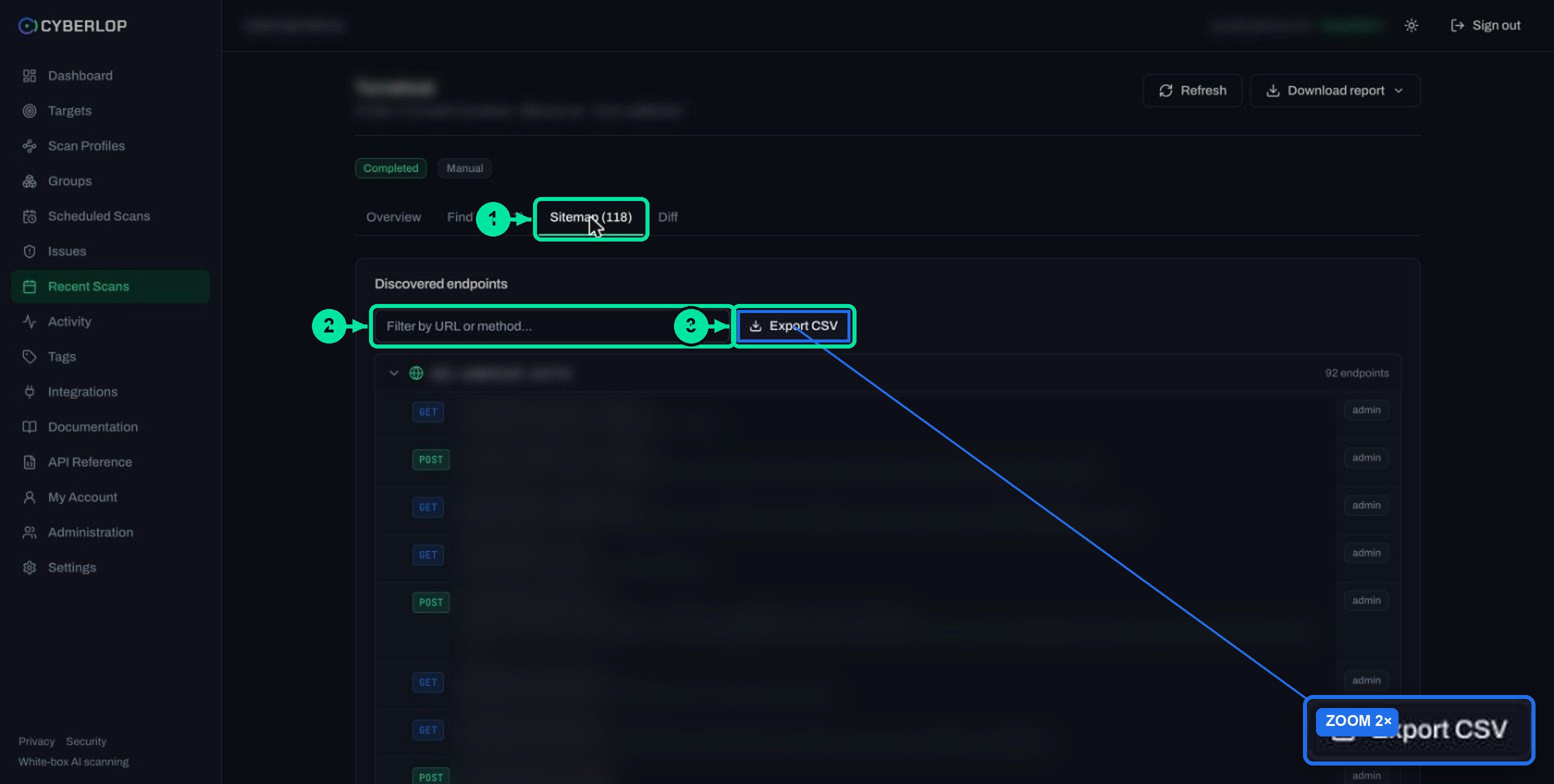
A short context is fine for a first scan. Afterwards, open the Sitemap tab and check whether the endpoints you listed under Known endpoints appear (see Scan sitemap). If they do not, correct the context or the focus rules and scan again.
Troubleshooting: why is my application context not helping?
Most problems come from an empty or vague box, or from text that redaction changed. Match your symptom in the table.
| Symptom | Likely cause | What to do |
|---|---|---|
| Auto Generate from Repo is greyed out | The profile has not been saved yet | Save the profile, reopen it and try again. |
| Nothing to generate from | The target has no repository | Fill the fields by hand, or recreate the target with a repository (targets are immutable). |
| Preview YAML shows a red message | A required field, usually the name, is empty | Fix the named field and preview again. |
| Findings ignore a rule you described | The rule is vague, or only in free text | Rewrite it as a testable sentence and add a role under Authentication. |
| Part of the text looks altered | PII was detected and redacted | Replace real values with descriptions. |
| A listed endpoint is missing from the Sitemap | Scope rules exclude it, or it is not reachable | Check Avoid rules and the scan location. |
Common mistakes
- Pasting real customer data, keys or passwords into the boxes.
- Generating once, never reading it, and never updating it as the app changes.
- Writing marketing copy in Overview instead of what the app does.
- Treating context as a limit on scope. It informs the scan; Avoid rules limit it.
- Describing roles in context but never adding them under Authentication.
What is the next step after application context?
Next step: see how to change a saved profile safely in Edit a scan profile. Then run the scan and read the results in Read a finding. When the app changes, update the context along with the code.
Questions people ask
Application context: FAQs
What is application context in Cyberlop?
It is ten optional text fields in the Reporting section of a scan profile: Overview, Tech stack, Frameworks, Sensitive data types, Trust boundaries, Tenancy model, Business-critical flows, Third-party integrations, Known endpoints and API spec reference.
Is application context required to run a scan?
None of the fields is marked as required, and the only validation error is a missing profile name. Scans can run without context, but filling it in gives the scan facts it would otherwise have to guess.
Why is Auto Generate from Repo greyed out?
It is disabled on a new profile. The tooltip reads "Save the profile first, then generate from its repo". Save the profile, reopen it, and the button is enabled. The target also needs a repository.
Can I use Auto Generate from Repo on a black-box target?
Auto-generation reads the profile's repository, and a black-box target has no repository. Type the fields yourself instead. A short, accurate description of tenancy and money flows is enough to start.
Is my personal data safe in application context?
Detected PII is redacted before the context is sent to the AI engine. Do not rely on it. Describe kinds of data in words and never paste real records, keys or passwords.
Should I edit the generated context?
Yes. Treat it as a draft. A repository shows frameworks and routes, but not which flows carry money, or what promise you make to customers about separating their data.
Does application context limit what gets scanned?
No. It informs the scan. To keep the scan away from something, use Avoid rules in the Scope section, and turn off the exploitation phase where live proof would be unsafe.
How often should I update application context?
Update it when the app changes in a way a tester would care about: a new tenant model, a new payment flow, a new integration or a new public endpoint. Check it each time you edit the profile.
Keep reading
Related articles
How to scan behind login in Cyberlop with authentication roles
Scan behind login in Cyberlop: add authentication roles, choose privilege levels, combine form, header and OAuth methods, and guide the scan with AI guidance.
Connect a repository to Cyberlop for white-box scans
Add the HTTPS repo URL and branch, choose a personal or organisation Git token, set allowed hosts and fix common clone problems.
How to create a scan profile in Cyberlop: Scope, Authentication, Reporting
Create a scan profile in Cyberlop: Scope, Authentication and Reporting fields, exploitation on or off, Preview YAML and Save, with a troubleshooting table.

Want a scan that knows your app?
Cyberlop finds vulnerabilities in web apps and their APIs with black-box, grey-box and white-box pentesting, and reports what it actually exploited. Ask us to run it on one of your applications.
Or start with a $199 pilot on one application: thirty days, success criteria agreed before day one, credited against the annual if you convert.