
Focus and avoid rules narrow what a Cyberlop scan tests. On the Scope section of a scan profile, click + Add rule, add a Description, pick a Type (Url Path, Subdomain, Domain, Method, Header, Parameter or Code Path), enter a Value and Save. Focus points the scan at an area; avoid keeps it out.
- Open the profile Click Scan Profiles, then + New profile, or the pencil icon to edit one.
- Go to Scope rules On the Scope section, scroll to Scope rules.
- Add a rule Click + Add rule under Focus rules or Avoid rules.
- Describe it Type a Description that says why the rule exists.
- Choose the type Pick Url Path, Subdomain, Domain, Method, Header, Parameter or Code Path.
- Enter the value Type the path, host, method, header, parameter or code path.
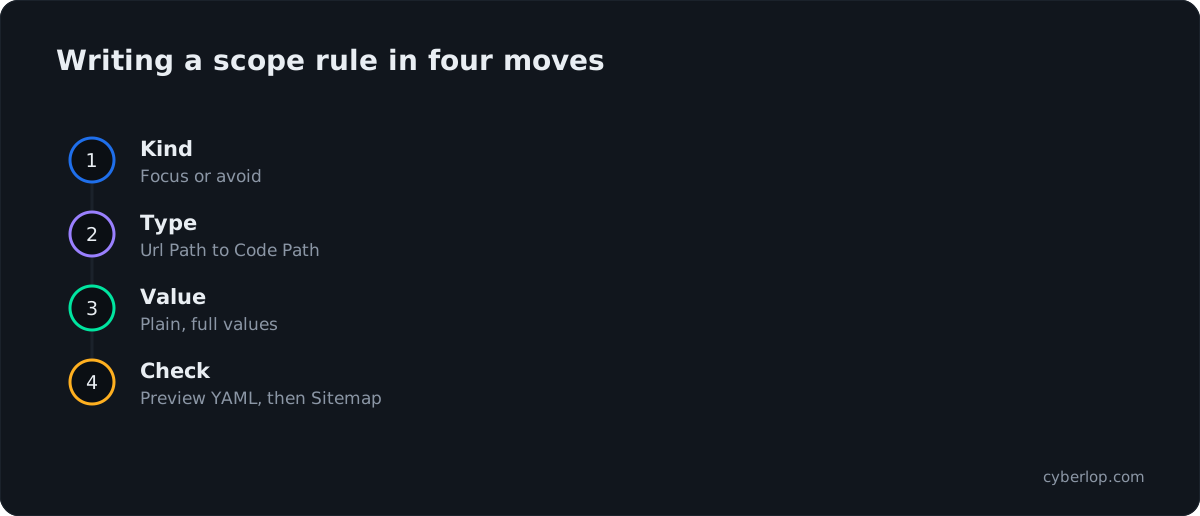
- Preview and save Click Preview YAML to validate and read the rules back, then click Save.
- Check the result Run the scan and compare the Sitemap tab with what you meant to include or skip.
- Focus rules say where to concentrate; avoid rules say where not to go.
- Each rule has a Description, one of seven Types and a Value.
- Rules are optional: with none, the scan covers its target's URLs.
- Treat avoid rules as a second layer; prefer a non-production copy of the app.
- Check the Sitemap tab after a run to confirm coverage matched your intent.
Focus and avoid rules are the scope rules on a Cyberlop scan profile. To add one, open the Scope section, click + Add rule under Focus rules or Avoid rules, write a Description, choose a Type (Url Path, Subdomain, Domain, Method, Header, Parameter or Code Path), enter a Value and click Save. A focus rule points the scan at something; an avoid rule keeps it away.
What are focus and avoid rules?
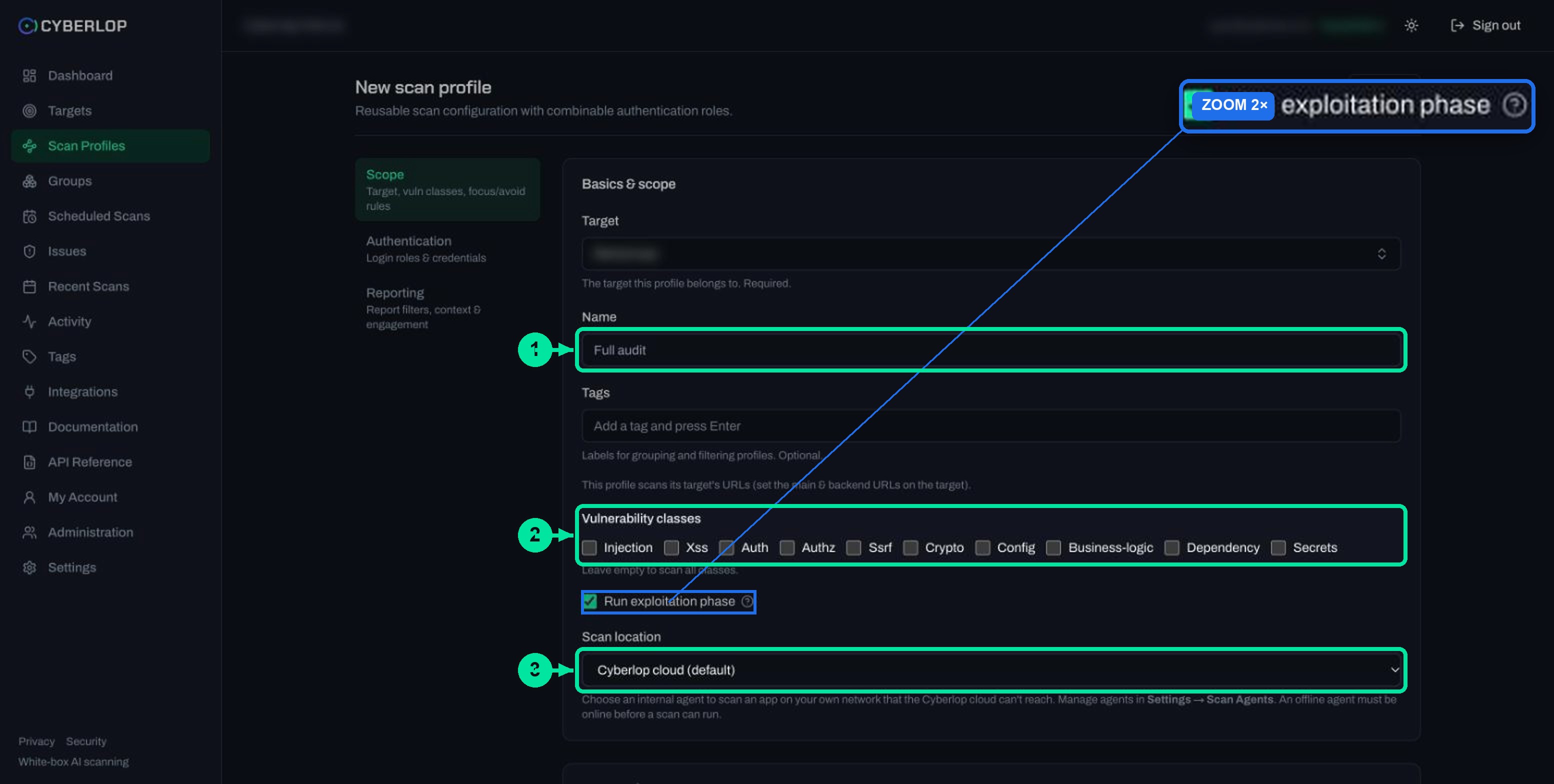
Focus and avoid rules are optional lines on a scan profile that narrow what a scan looks at. A focus rule names an area the scan should concentrate on. An avoid rule names an area it should stay out of. Both live under Scope rules, at the bottom of the Scope section, and both start empty: the form shows "No rules." until you add one.
They answer the same question a human tester asks before starting: what is in scope, and what is off limits? In security testing this is called the pentest scope, and the limits you agree sit alongside your rules of engagement. NIST's SP 800-115 is a guide to planning and conducting technical security tests, and the agreed limits of a test belong in that planning.
Table 1. Focus rules and avoid rules side by side
| Focus rule | Avoid rule | |
|---|---|---|
| Intent | Spend the scan's effort here. | Keep the scan away from here. |
| Typical use | A new checkout flow, an API version, a billing module. | Logout, account deletion, payment callbacks, a third-party host. |
| Without it | The scan covers the target's URLs as a whole. | Nothing is excluded by rule. |
| Where you set it | Scope section, Focus rules. | Scope section, Avoid rules. |
Neither kind is required. A profile with no rules scans its target's URLs, which you set on the target, not on the profile.
How do you add a focus or avoid rule?
Rules are part of the profile form, so they are saved with the profile and you can add as many as you need. You do not need to run anything first.
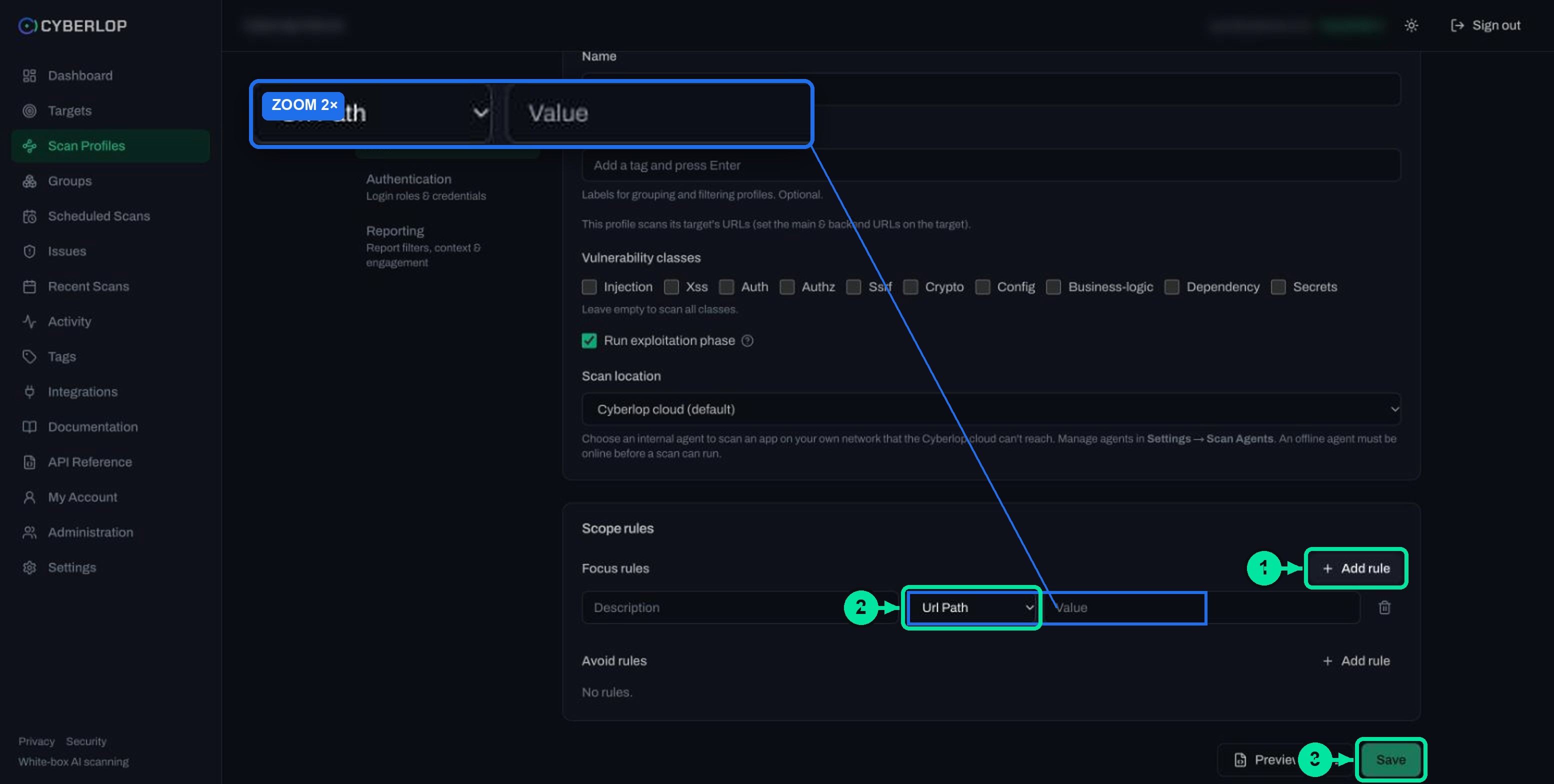
- Open Scan Profiles, then click + New profile. To change an existing profile, click the pencil icon on its row.
- Stay on the Scope section and scroll to Scope rules.
- Under Focus rules or Avoid rules, click + Add rule. A row appears.
- Type a Description in plain words, for example
Checkout is the release risk. - Choose the Type from the select.
- Enter the Value.
- Repeat for each rule. Use the trash icon at the end of a row to remove one.
- Click Preview YAML to validate the form and read the generated configuration.
- Click Save.
What do the three boxes in a rule row mean?
Table 2. Fields in a rule row
| Field | What to enter | Notes |
|---|---|---|
| Description | A short reason a colleague will understand in six months. | Free text. It is for people, so say why, not just what. |
| Type | One of Url Path, Subdomain, Domain, Method, Header, Parameter or Code Path. | Decides what the Value is compared against. See the next section. |
| Value | The path, host, method, header name, parameter name or code path itself. | Keep it as simple as the app writes it. Preview YAML shows exactly what will be saved. |
| Trash icon | Removes the row. | Nothing is stored until you click Save. |
The form does not say whether a value is matched literally or as a pattern. Start with plain values such as /checkout and check the result in Preview YAML before trying anything cleverer.
Which rule type should you use?
The Type select offers seven choices. They fall into three families: where in the web app, what kind of request, and where in the code.
Url Path, Subdomain and Domain: where in the app
Url Path
Use this for a part of one site, such as /checkout or /api/orders. It is the type you will use most, because most scope decisions are about areas of the same application.
Subdomain
Use this when one team owns api or admin and another owns the rest. Focus on the subdomain you are releasing, or avoid one that belongs to a different team.
Domain
Use this to name a whole host. It is the natural way to avoid a payment provider's or an analytics vendor's domain that your pages call. Only test hosts you own or are authorised to test.
Method, Header and Parameter: what kind of request
Method
Use this to steer by HTTP method. RFC 9110, section 9.2.1 calls methods "safe" when their defined semantics are essentially read-only, and lists GET, HEAD, OPTIONS and TRACE among them. An avoid rule on DELETE is a common first rule for a shared environment.
Header
Use this when a request header changes behaviour, for example a debug or tenant header. Name the header, not its value.
Parameter
Use this to concentrate on, or leave alone, a named input such as redirect_url or coupon. Focus rules on parameters suit a release that changed one input.
Code Path: where in the repository
Code Path relates to your source tree, so it matters for white-box targets, where Cyberlop reads a repository. A value such as src/billing/ points the analysis at one module. A black-box target has no repository, so a Code Path rule has nothing to match there.
Table 3. The seven rule types at a glance
| Type | Example value | Good for | Watch out for |
|---|---|---|---|
| Url Path | /checkout | Narrowing to one flow, or skipping one | Too broad a path hides pages beneath it |
| Subdomain | api | Team or service boundaries | Match how your DNS actually names it |
| Domain | payments.example.com | Third-party hosts you must not touch | Only hosts you are authorised to test belong in scope |
| Method | DELETE | Skipping state-changing requests | Some apps change state on GET, so check the app |
| Header | X-Debug | Behaviour switched by a header | Name only, not the secret value |
| Parameter | redirect_url | Concentrating on one input | The same name may appear on many pages |
| Code Path | src/billing/ | White-box focus on one module | No effect without a repository |
What do good focus and avoid rules look like?
Start from the goal, then pick the smallest rule that expresses it. The examples use neutral names; swap in your own paths and hosts.
Table 4. Goals and the rules that express them
| Goal | Kind | Type | Value |
|---|---|---|---|
| Test only the new checkout before release | Focus | Url Path | /checkout |
| Concentrate on the orders API | Focus | Url Path | /api/orders |
| Do not touch the sign-out flow, so a long scan keeps its session | Avoid | Url Path | /logout |
| Do not send deletes to a shared staging app | Avoid | Method | DELETE |
| Leave a payment provider alone | Avoid | Domain | payments.example.com |
| Review the billing module of a repository | Focus | Code Path | src/billing/ |
| Probe one redirect input hard | Focus | Parameter | redirect_url |
Keep a Description on every row. "Avoid: sign-out ends the test session" is more useful in an audit than a bare path.
How do rules fit with the rest of the profile?
Rules are one of four scope controls, and they work best when each does its own job.
- The target sets the URLs. Rules narrow within them; they do not add new hosts.
- Vulnerability classes choose what kinds of problem to look for. Rules choose where. See choosing vulnerability classes.
- Run exploitation phase decides whether findings are proved against the live app. See the exploitation phase guide.
- Rules of engagement on the Reporting section is free text for limits that a rule type cannot express, such as "avoid destructive payloads in prod". See reporting rules.
If the app sits behind a login, remember that rules and roles combine: a focus rule on /admin is only useful if a role can reach it. See authentication roles.
Should you use avoid rules on production?
Prefer a non-production copy of the app, and treat avoid rules as a second layer, not the first. Exploitation sends real requests, and the form does not say how strictly an avoid rule is enforced. A test environment keeps real customers out of the blast radius whatever the rules say.
If production is unavoidable, combine three things: avoid rules for sign-out, deletion and payment paths; the Rules of engagement text; and a profile that you have reviewed in Preview YAML. Always test only what you own or are authorised to test.
Why focus at all?
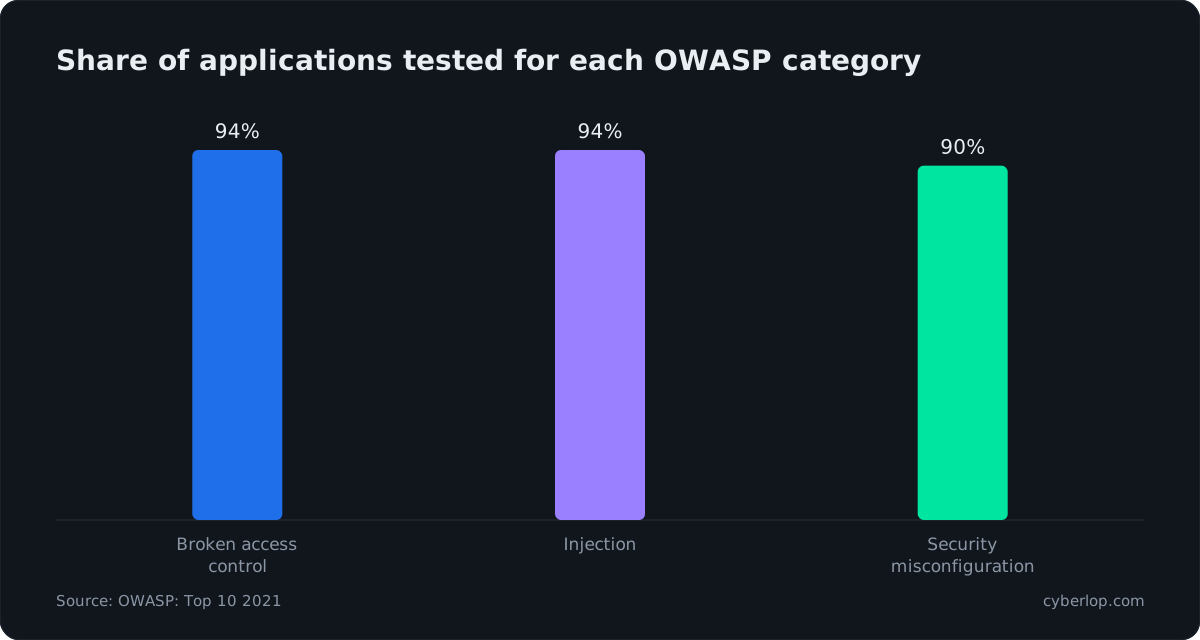
Because the same few weakness classes turn up again and again. OWASP's 2021 Top 10 reports that 94% of applications were tested for some form of broken access control, and the same share for some form of injection, with 274,228 occurrences recorded. For security misconfiguration the figure is 90%. A focus rule on the paths that accept input or hold other people's data points the scan at those classes first. Narrowing also shrinks the attack surface a run has to cover, and it follows least privilege: give the scan only the reach it needs.
OWASP also advises, for server-side request forgery, to allow only approved URL schemes, ports and destinations, using a positive allow list. The same idea applies to scope: a short list of what is in bounds is easier to defend than a long list of exceptions. It is the thinking behind an allowlist and deny by default.
How do you check that your rules worked?
Run the profile, then read the result against your intent. Rules are easy to write and easy to get slightly wrong, so check them once.
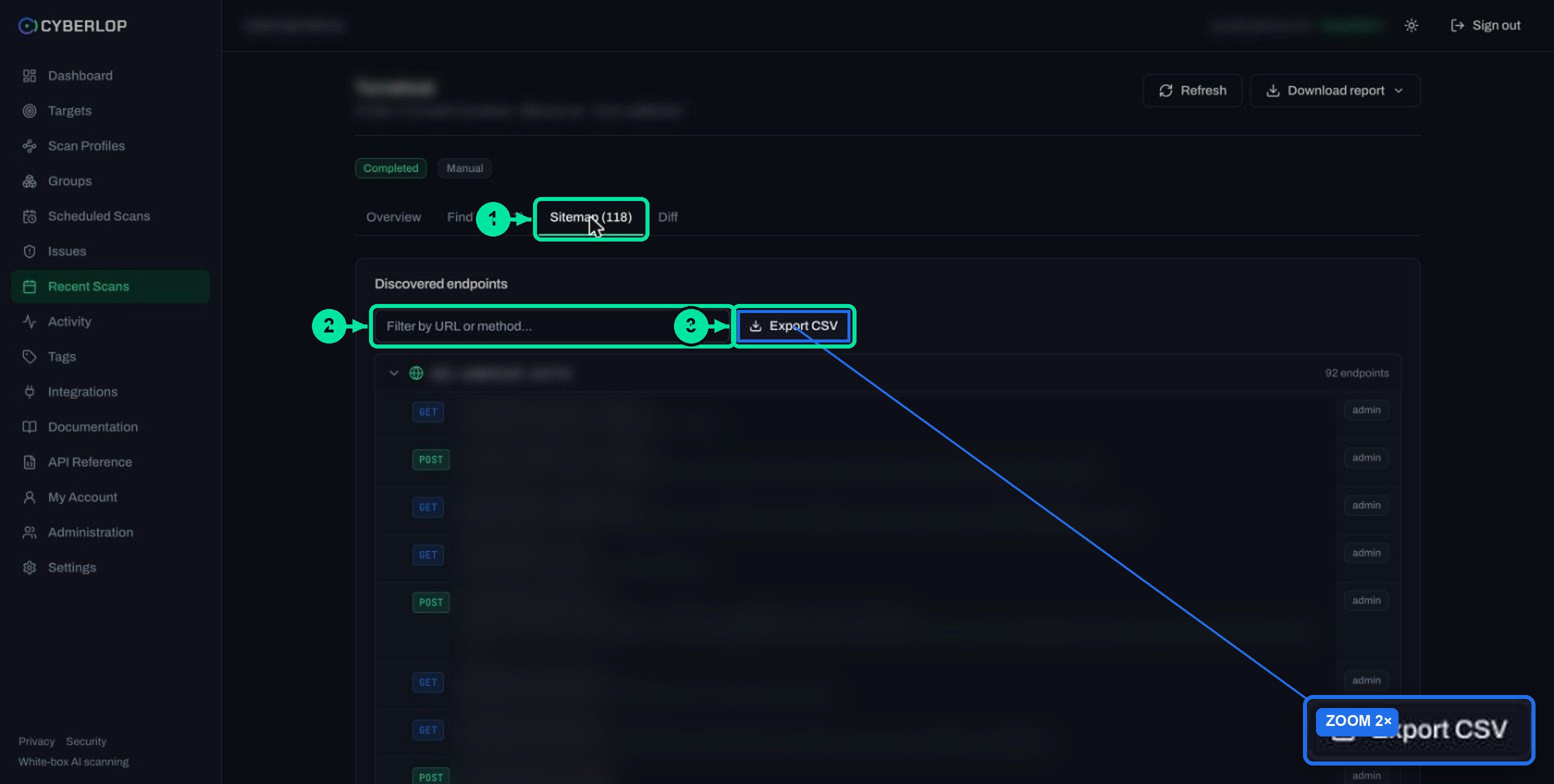
- Click Preview YAML before saving and read the rules back.
- Click ▷ Scan on the profile. See run a scan.
- Open the scan and go to the Sitemap tab. Endpoints are grouped by host, with method badges.
- Check that areas you focused on appear and that areas you avoided do not.
- Open the Diff tab on a later scan to see what changed. See compare scans.
The sitemap guide explains how to read coverage in more detail.
What are the common mistakes with scope rules?
Rules that cut too much
An avoid rule on a very short path
Avoiding /a may hide /api and /account if values match by prefix. The form does not state how values match, so prefer full paths and check the sitemap.
A focus rule that is too narrow
Focus on one path and the scan may find little elsewhere, which can look like a clean result. Treat a focused profile as a release check, and keep a broader profile for regular runs.
Rules that never match
The wrong type
A path typed into a Domain rule, or a host typed into Url Path, matches nothing. If the sitemap ignores a rule, check the type first.
Code Path on a black-box target
With no repository there is no code to match. Use a Url Path rule instead.
Putting secrets in a description
The Description is plain text on the profile. Keep passwords, tokens and keys in Authentication, where stored secrets are never shown again.
Troubleshooting checklist
Table 5. Symptom, likely cause, fix
| Symptom | Likely cause | Fix |
|---|---|---|
| The scan finds far less than expected | An avoid rule is too broad, or a focus rule too narrow | Review each rule, then compare the Sitemap with your expectation |
| An avoided path still shows in the sitemap | Wrong type, or the value does not match how the app writes it | Check the Type and use Preview YAML to read the value back |
| A focus area never appears | No role can reach it | Add a role with enough privilege on Authentication |
| Preview YAML shows an error | A required field is empty, for example the profile name | Fill the field named in the red message and preview again |
| You need to change a rule later | Rules are part of the profile | Edit the profile and click Save. See edit a scan profile |
What should you do next?
Write your limits down in Rules of engagement with the reporting rules guide. Then give the app a context description so the scan understands your business flows: application context. If you are new to the vocabulary, the key terms guide sets out the words used here. The white-box testing entry explains why a code path rule can help when the scan also reads your repository.
Questions people ask
Focus and avoid rules: FAQs
How do I add a focus or avoid rule in Cyberlop?
Open a scan profile, go to Scope, find Scope rules and click + Add rule under Focus rules or Avoid rules. Enter a Description, choose a Type, type the Value and click Save.
What is the difference between a focus rule and an avoid rule?
A focus rule names an area the scan should concentrate on. An avoid rule names an area it should stay away from. Both use the same fields: Description, Type and Value.
What rule types are available?
Url Path, Subdomain, Domain, Method, Header, Parameter and Code Path. Url Path is the most common. Code Path relates to your repository, so it suits white-box targets.
Are rules required on a scan profile?
No. Both lists start empty and show "No rules." Without rules the scan covers its target's URLs. The URLs themselves are set on the target, not on the profile.
Can I rely on an avoid rule to protect production?
Not on its own. The form does not say how strictly an avoid rule is enforced. Prefer a non-production copy, and add limits in Rules of engagement on the Reporting section.
How can I check my rules did what I meant?
Click Preview YAML before saving, then run the profile and open the Sitemap tab of the scan. Areas you focused on should appear, and areas you avoided should not.
Can I change rules after saving a profile?
Yes. Open the profile with the pencil icon, edit the rows under Scope rules and click Save. The profile's target stays fixed, but its rules can change.
Sources
Where the facts come from
- NIST: SP 800-115, Technical Guide to Information Security Testing and Assessment
- IETF: RFC 9110, HTTP Semantics, section 9.2.1 Safe Methods
- OWASP: Top 10 2021, A01 Broken Access Control
- OWASP: Top 10 2021, A03 Injection
- OWASP: Top 10 2021, A05 Security Misconfiguration
- OWASP: Top 10 2021, A10 Server-Side Request Forgery
Keep reading
Related articles
How to add a target in Cyberlop: the New target dialog, field by field
Add a target in Cyberlop: the New target dialog field by field, white-box vs black-box, repository URL, environment, and why targets cannot be edited.
Application context in Cyberlop: fill the ten fields and use Auto Generate from Repo
Fill in the ten application context fields of a Cyberlop scan profile, use Auto Generate from Repo, and write context that improves findings.
How to scan behind login in Cyberlop with authentication roles
Scan behind login in Cyberlop: add authentication roles, choose privilege levels, combine form, header and OAuth methods, and guide the scan with AI guidance.

Want help scoping your first scan?
Cyberlop reads your code while testing the running app and reports only what it exploited, with the request, the response and the line of code. Ask us to run it on one of your applications.
Or start with a $199 pilot on one application: thirty days, success criteria agreed before day one, credited against the annual if you convert.