
To run a scan in Cyberlop, click ▷ Scan on a scan profile, a target or a Recent Scans row. It starts at once and runs as a durable five-phase workflow: pre-recon, recon, vulnerability analysis, exploitation and reporting. You can leave the page, follow progress from Recent Scans, then read the findings.
- Check the target For white-box, confirm the target shows a repository and branch. For black-box, confirm the Ownership verification card says Verified.
- Open Scan Profiles Go to Scan Profiles and find the profile you want to run.
- Check the profile Review Vuln classes, Auth roles, the exploitation setting and Scan location; edit with the pencil icon if needed.
- Click Scan Click the green ▷ Scan button on the profile row. The scan starts immediately.
- Open Recent Scans Open Recent Scans and click the new row to open the scan detail page.
- Follow progress Read the phase, cost, token and lines-of-code counters. Leave if you like; the run is durable.
- Refresh Use ⟳ Refresh to update the page when you return.
- Read the result Check whether the badge reads Completed, Failed or Cancelled.
- Review findings Open the Findings tab, then triage each issue.
- Click ▷ Scan on a profile row when you need one exact configuration.
- A white-box scan needs a repository; a black-box scan needs verified ownership.
- A scan is durable, so you can leave the page and follow it from Recent Scans.
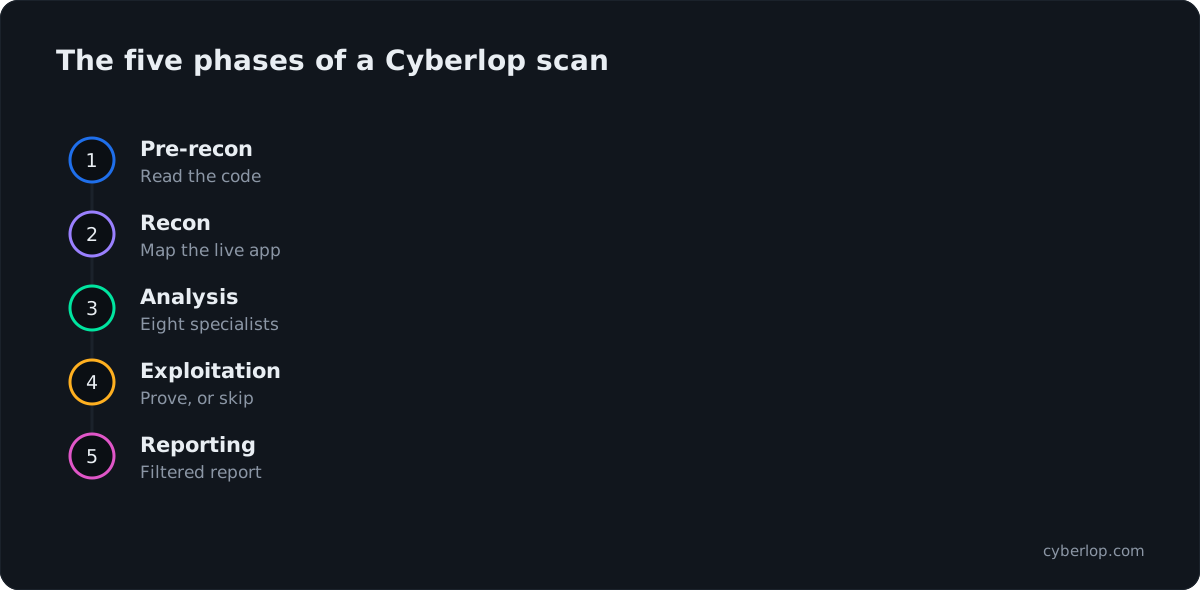
- The five phases are pre-recon, recon, vulnerability analysis, exploitation and reporting.
- A failed scan can still hold findings found before it stopped.
To run a pentest scan in Cyberlop, click ▷ Scan on a scan profile, on a target or on a row in Recent Scans. The scan starts at once and runs as a durable five-phase workflow, so you can close the tab and come back. In white-box mode it reads your code, tests the running app, and tries to prove each finding.
What is a scan in Cyberlop, and what does it need?
A scan is one run of a scan profile against its target. It ends as Completed, Failed or Cancelled, and it records its cost, tokens consumed and, for white-box scans, lines of code. Findings from every scan on a target roll up into the Issues list, so one scan is a step in a history, not a one-off report.
Autonomous AI agents do the work. They read the repository, map the live app, look for weaknesses in parallel and then try to prove each one in a real browser. That proof step is why a Cyberlop finding comes with a request, a response and, where a person can see it, a screenshot. If you want the vocabulary first, read Key terms.
What should be ready before you click Scan?
You need a target, a profile on that target and, for the scan type you chose, the access it depends on. The table shows the difference.
| Requirement | White-box scan | Black-box scan |
|---|---|---|
| Target | A Main URL plus a Repo URL (HTTPS) and a Repo branch (default main). | A Main URL. The repository fields are disabled and read “Not used for black-box scans.” |
| Access | Public repositories are cloned at launch. Private repositories need a Git token, personal or organisation, for an allowed host. SSH addresses are not supported. | Ownership must show Verified on the target page: a DNS TXT record or approval by Cyberlop staff. |
| Scan profile | Required. It holds the classes, exploitation setting, authentication roles and reporting rules. | Required, with the same sections. |
| Where it runs | Cyberlop cloud (default) or a self-hosted scan agent, chosen as the Scan location on the profile. | Same choice. |
| Permission | The scan:run permission. API tokens carry their owner’s permissions. | Same. |
What does white-box add?
The scan clones the latest code from the branch at launch, so merge or push what you want tested first. The scan page then shows the Commit it analysed, and findings point to a file and line. Steps for private repositories are in Connect a repository and Git access.
What does black-box change?
With no repository there is no source to read, so findings show an endpoint instead of a file and line, and Lines of code reads “—”. Confirm the target shows Verified first: Verify target ownership. Scan only applications you own or have permission to test. The white-box vs black-box guide helps you choose.
How do you run a pentest scan, step by step?
Run it from the profile row when you want a specific configuration. The steps are the same on every page that has a ▷ Scan button.
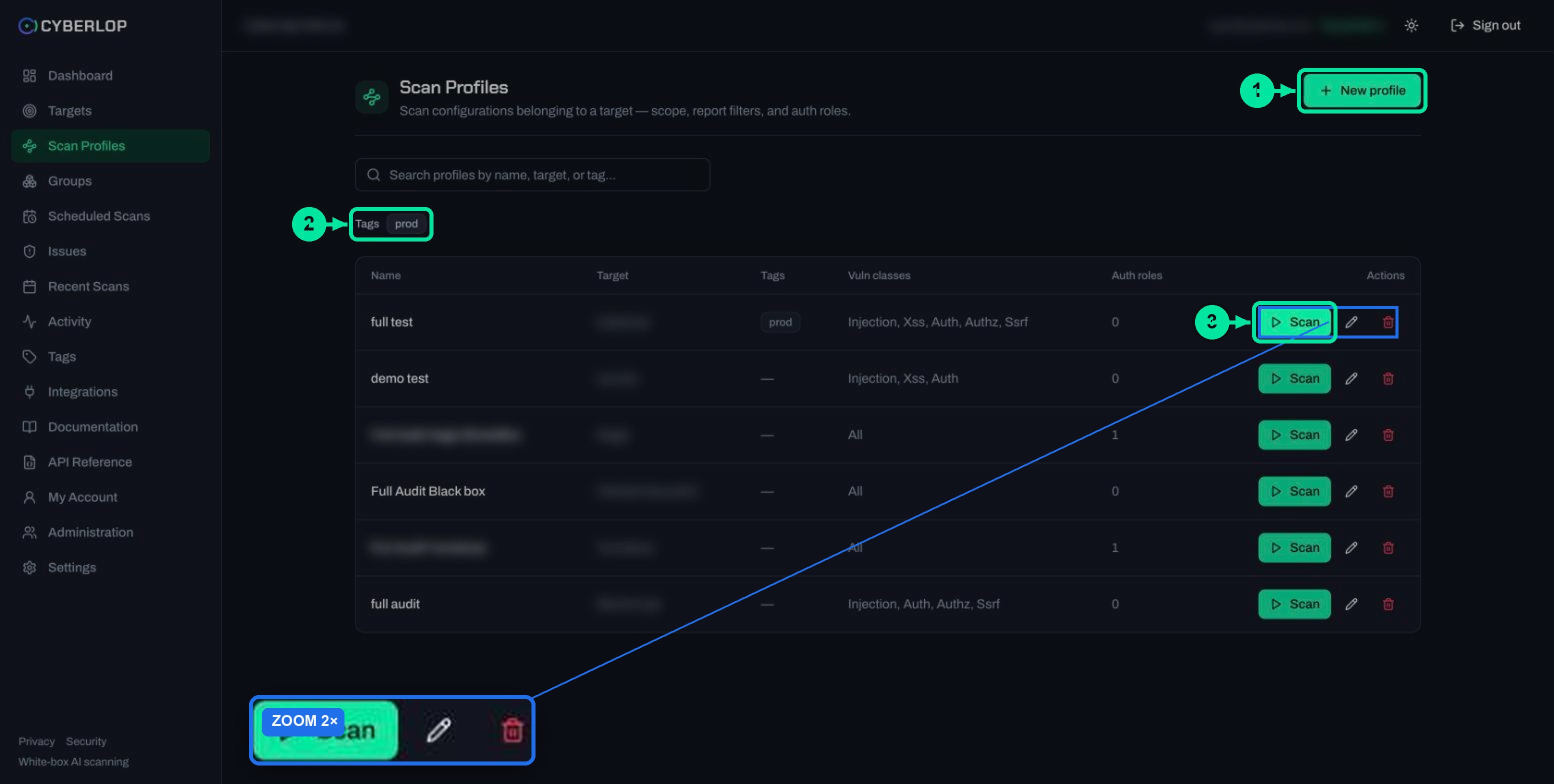
- Open Scan Profiles and find the profile. If you have none, follow Create a scan profile first.
- Check the row: Vuln classes (“All” means none are ticked), Auth roles and the target. Open the pencil icon if anything is wrong.
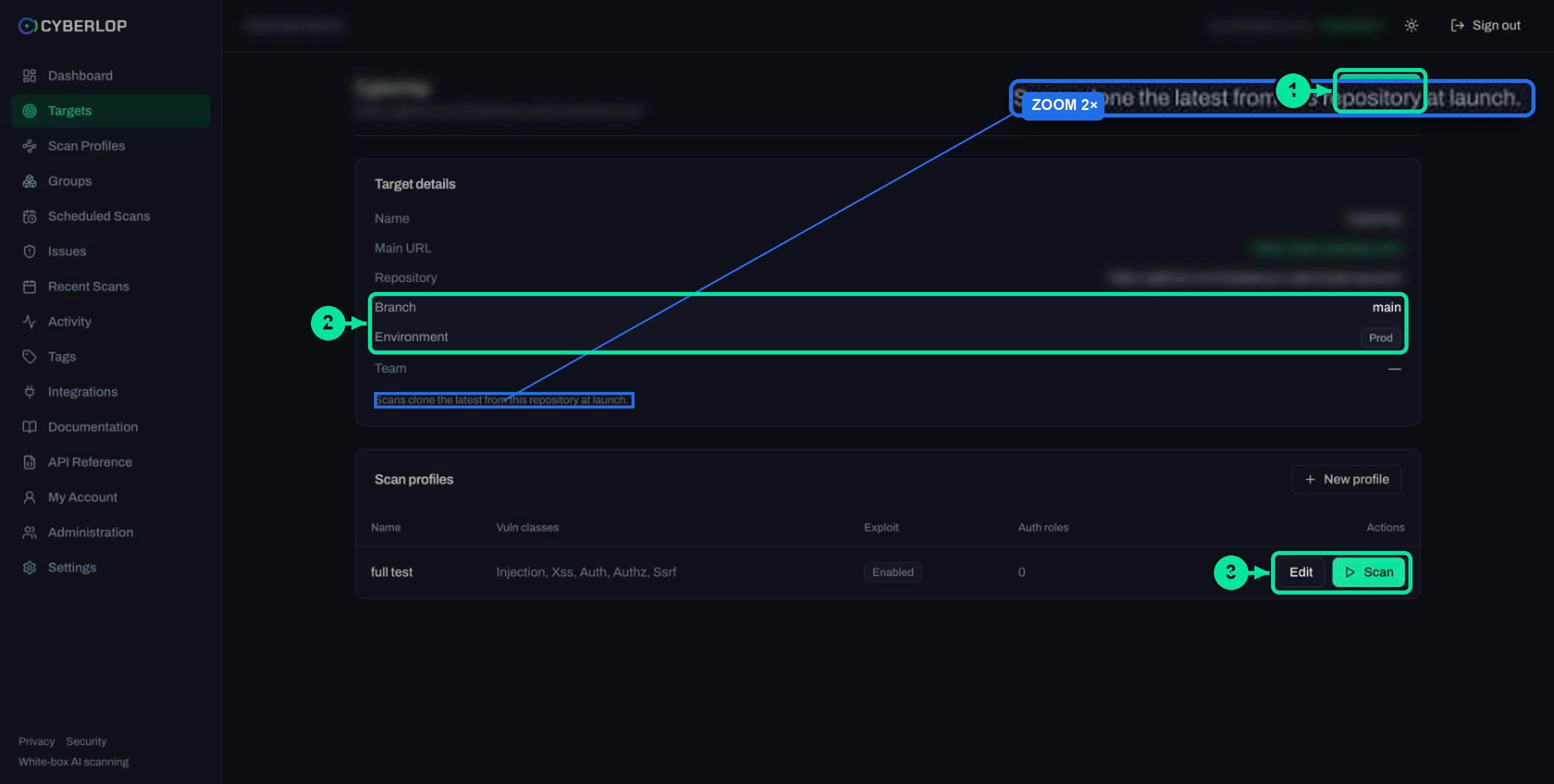
- For a white-box target, check that the target page shows a repository and branch. For a black-box target, check the Ownership verification card says Verified.
- Click the green ▷ Scan button on the row. The scan starts immediately.
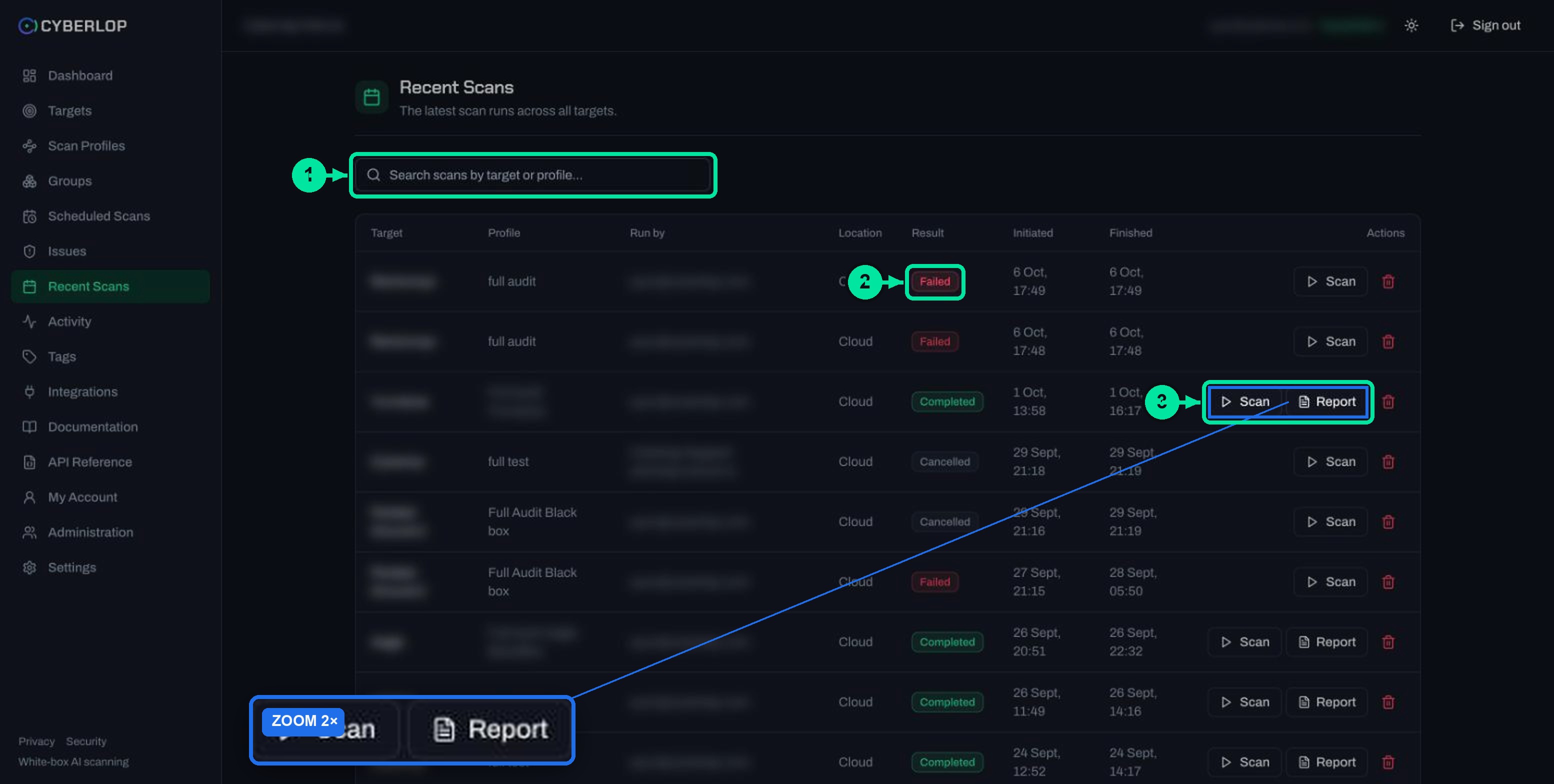
- Open Recent Scans. The new run appears at the top; click its row to open the scan detail page.
- Watch the phase and counters, or leave. The run is durable, and ⟳ Refresh updates the page when you return.
- When the result badge reads Completed, open the Findings tab and start triage.
Where can you start a scan?
There are four starting points. All of them launch a scan on the Cyberlop side; they differ only in how much choice you have.
| Where | Control | Use it when |
|---|---|---|
| Scan Profiles | ▷ Scan on a profile row | You want one exact configuration. This is the clearest route. |
| Target detail page | ▷ Scan beside the target name, or ▷ Scan on a profile in the Scan profiles card | You are already looking at one application and want to see its profiles first. |
| Targets list | ▷ Scan (tooltip “Scan this target”) | You want a quick launch. The captured screens do not show which profile it picks, so use a profile row when the choice matters. |
| Recent Scans | Scan on an earlier run | You want to run the same profile again, for example to check a fix. |
Pipelines and calendars can start scans too: CI/CD integration calls the scan endpoint after a commit, and Schedule scans runs a profile on a cadence.
What happens after you click Scan?
The scan runs as a durable, crash-recoverable workflow in five phases, and each phase builds on the deliverables of the one before. Because the workflow is durable, closing the page does not stop it. The agents retry after rate limits and transient errors. The in-app documentation says that slows a scan down but does not fail it.
What are the five phases of a scan?
The phases are pre-recon, recon, vulnerability analysis, exploitation and reporting. The table says what each one does and what you can see afterwards.
| Phase | What the agents do | What you see |
|---|---|---|
| 1. Pre-recon | One agent reads the cloned repository and builds a baseline: frameworks, entry points, data flows, trust boundaries and the authentication model. | White-box only: the Commit and Lines of code on the scan page. |
| 2. Recon | An agent maps the live app’s attack surface into a sitemap of endpoints, methods, parameters and the authentication each needs. | The Sitemap tab, grouped by host. See Scan sitemap. |
| 3. Vulnerability analysis | Eight specialists analyse the code in parallel, each in its own lane. Each queues hypotheses with an exact file and line and a testable claim. | Candidate issues feeding the next phase. |
| 4. Exploitation | For each confirmed hypothesis, an agent tries to demonstrate the issue safely in a real browser. This phase can be turned off. | Evidence: request, response, payload and screenshot. Findings graded Confirmed, Likely or Unconfirmed. |
| 5. Reporting | A final agent builds an executive-level report from the confirmed findings, filtered by the profile’s reporting rules. | The report in the app and as a branded PDF. |
Phase 3: eight specialists, one lane each
The specialists cover injection, XSS, authentication, access control (authorisation), SSRF, cryptography, configuration and business logic. Separate lanes keep the same weakness from turning up eight times. Which vulnerability classes a profile covers is set on the profile; Choose vulnerability classes explains the ten options.
Phase 4: proof, or analysis only
With Run exploitation phase ticked, agents prove issues against the live target, which is DAST style testing. Unticked, the scan is SAST only and skips this phase. Decide this before you launch, particularly for a production target; Exploitation phase covers the safety side.
Why does the choice of classes matter?
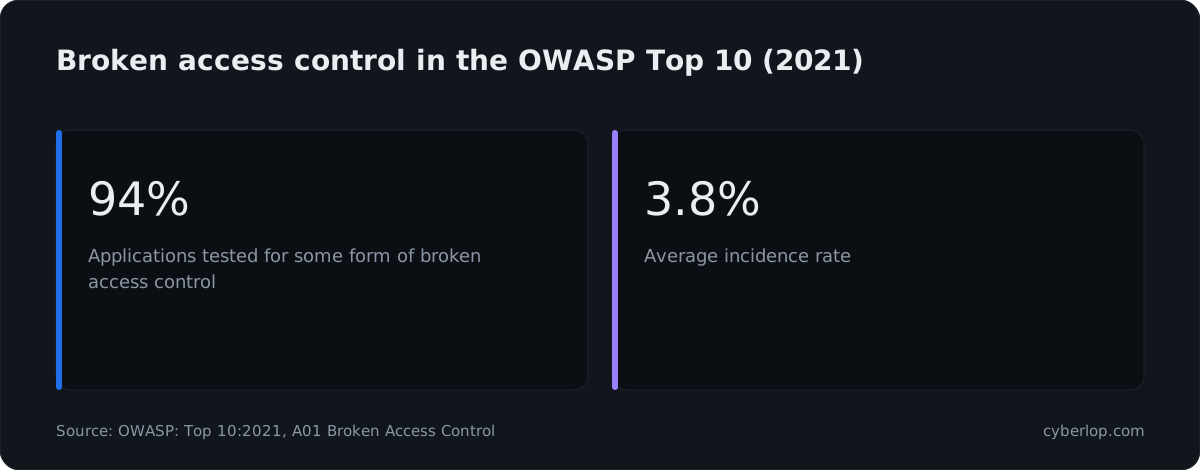
Access control deserves a place in most profiles. In the OWASP Top 10 for 2021, Broken Access Control sits at number one, and 94% of the applications in its data were checked for it. If you ticked classes and left Authz out, the scan will not look for it.
How do you follow a running scan?
Open Recent Scans, then click the row. The scan detail page shows the run status, live cost, token and lines-of-code counters, and tabs that fill with the sitemap and findings as the scan discovers them. The live view was not captured for this guide, so the layout while a scan is running may differ from the finished view.
How long does a scan take?
The in-app documentation says a typical scan of a small app takes roughly an hour. Rate limits can slow a scan down further. Plan for it to run in the background and check back rather than waiting on the page.
Which limits can hold a scan back?
Limits depend on your plan and are shown in Settings → Plan & usage, including how many scans can run at once. An online scan agent raises the concurrent-scan limit. If the included AI allowance runs out, scans on Cyberlop AI pause until next month, unless you connect your own key under Settings → AI Provider (see AI provider settings).
Where does the scan run, and where does your code go?
By default a scan runs in the Cyberlop cloud. Each scan clones the repository into an isolated workspace and wipes it from disk when the scan finishes. Nothing carries over between scans. Each organisation’s data lives in its own private database schema.
If the app sits on a private network, set the profile’s Scan location to a self-hosted agent. The agent connects out over HTTPS only, and your code and target stay on your network. Set one up in Self-hosted scan agents, and read the overview at private scanning.
What happens when the scan ends?
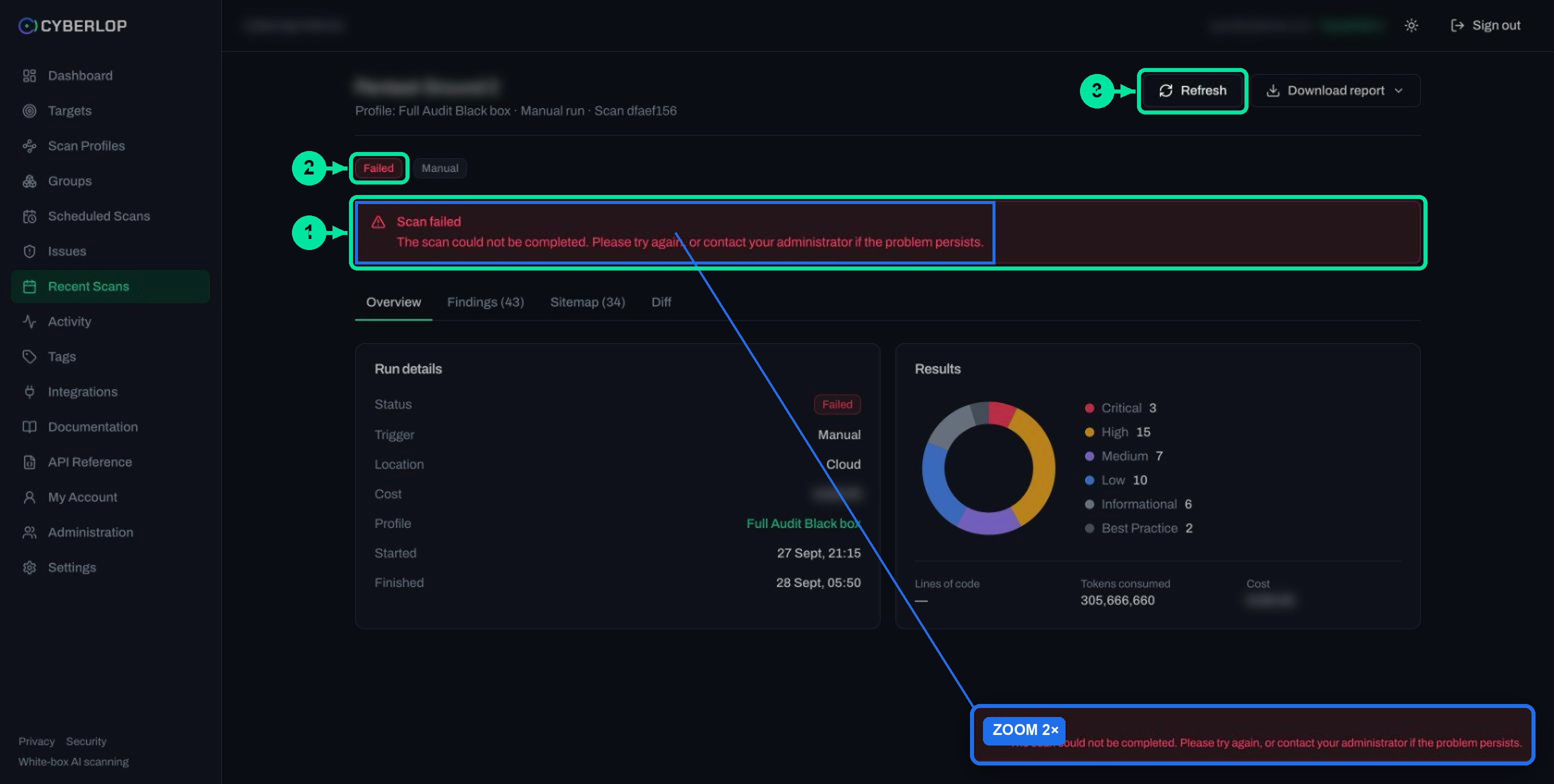
The result badge shows Completed, Failed or Cancelled, and the Overview tab shows the run details and a severity donut. Open Findings for the list, Diff to compare with the previous completed scan, and Download report for the PDF. Scan detail page walks through each tab.
| Result | What it means | What to do next |
|---|---|---|
| Completed | The pipeline finished. The Overview shows severity counts, tokens and cost. | Review Findings, then triage with Triage findings. |
| Failed | A red banner reads “Scan failed” and “The scan could not be completed. Please try again, or contact your administrator if the problem persists.” | Check the Findings tab: a failed scan can still hold findings found before it stopped. Then try again. |
| Cancelled | The run was stopped before it finished. | Re-run it from Recent Scans when ready. |
Cancelling is available through the API (POST /api/scans/{id}/cancel, permission scan:cancel). The captured screens did not show a cancel button, so check the scan page in your own workspace. The Activity feed records every start and cancel.
Troubleshooting: why will a scan not start or not finish?
| Symptom | Likely cause | What to do |
|---|---|---|
| “No repository configured — add a Git repository URL to run a scan.” | The target has no repository, so a white-box scan has nothing to clone. | Targets are immutable. Delete the target and create it again with a Repo URL, or run black-box once ownership shows Verified. |
| White-box scan cannot clone | Private repository with no usable Git token for an allowed host, or an SSH address. | Use an HTTPS URL and add a token in My Account or Settings → Git Access. |
| Black-box scan will not run | Ownership not yet verified. | Complete verification and wait for the Verified badge. |
| Internal app is unreachable | The Cyberlop cloud cannot reach a private network. | Run the scan on a self-hosted agent. |
| Scans pause mid-month | The included AI allowance is used up. | Check Plan & usage, or add your own provider key. |
| Scan is slow | Rate limits or a large codebase. | Wait; the run is durable. Use ⟳ Refresh to check progress. |
| Failed result | See the banner and the failed-scan checklist. | Read Failed or cancelled scans. |
What mistakes do new users make?
- Launching from the Targets list when you meant to use a specific profile.
- Scanning an application you are not authorised to test. Do not do this.
- Leaving exploitation on for a production target without reading the safety guidance.
- Expecting a code change to be tested before you push it to the branch.
- Waiting on the page instead of reading Recent Scans later.
What should you do next?
Read the result page properly: Scan detail page is the next step. Then learn how to read a finding, and re-run the same profile after a fix so the scan comparison shows what closed. Re-running the exact exploit against the new code is what proves a fix. The full path from sign-in is in Getting started.
For the pipeline behind each phase, see how it works. To start scans from a pipeline, read about CI/CD and our integrations. For how security tests are planned and reported, see NIST SP 800-115 and the OWASP Web Security Testing Guide.
Questions people ask
Run a pentest scan: FAQs
How long does a scan take?
The in-app documentation says a typical scan of a small app takes roughly an hour. Larger apps can take longer, and rate limits make a scan slower rather than failed. Because the run is durable, you do not need to keep the page open.
Can I close the browser while a scan runs?
Yes. The scan runs as a durable workflow on the Cyberlop side. Come back later, open Recent Scans, click the row and use Refresh to see the current state.
Does running a scan change my application?
White-box analysis only reads code. The exploitation phase tries to demonstrate issues safely against the live target through a real browser. To skip it, untick Run exploitation phase on the profile. For production targets, read the Exploitation phase guide first, and scan only what you have permission to test.
Who can run a scan?
Launching needs the scan:run permission, and viewing results needs scan:read. A scan started from a pipeline with an API token runs with that token owner’s permissions and group scope.
Can I run the same profile again?
Yes. Use Scan on the profile row, or Scan on an earlier run in Recent Scans. After a completed scan, the Diff tab compares the new run with the previous completed scan and lists New, Fixed and Regressed findings.
What is the difference between running a white-box and a black-box scan?
A white-box scan clones your repository and ties findings to a file and line. A black-box scan tests the live URL only, needs verified ownership of the target, and shows endpoints as locations.
Where does my source code go during a cloud scan?
A cloud scan clones the repository into an isolated workspace and wipes it from disk when the scan finishes. To keep code on your own network, run the scan on a self-hosted scan agent instead.
Can I cancel a scan from the app?
Scans can end as Cancelled, and the API offers a cancel endpoint for users with scan:cancel. The captured screens did not show a cancel button, so look on the scan page in your workspace or ask an administrator.
Keep reading
Related articles
Cyberlop activity feed: what it records and how to use it for audits
Read the Cyberlop activity feed: sign-ins, scans, triage, roles and support sessions, who can see them, how to search and an audit checklist.
AI provider settings: included allowance, your own credential and models
Use the included AI allowance or save your own credential, verify it and choose a model for each tier. Includes the rate-limit note.
Choose vulnerability classes in a Cyberlop scan profile
The ten vulnerability classes in a scan profile, what each covers, when to narrow or leave them all on, and how to filter results by class.

Want a first scan run with you?
Cyberlop finds vulnerabilities in web apps and their APIs with black-box, grey-box and white-box pentesting, and reports only what it exploited. Ask us to run it on one of your applications.
Or start with a $199 pilot on one application: thirty days, success criteria agreed before day one, credited against the annual if you convert.