
Home / Blog / Tutorials / Verify target ownership
Tutorials
Verify target ownership in Cyberlop: DNS TXT record or staff approval
Black-box scans only run on targets you have proved you own. Here are the two ways to prove it and what the page shows when you are done.
Cyberlop Labs · Updated · 7 min read
To verify target ownership in Cyberlop, create a black-box target, open its page and complete the Ownership verification card with either a DNS TXT record on your domain or approval from Cyberlop staff. When the badge reads Verified, black-box scans can run. White-box targets do not need it.
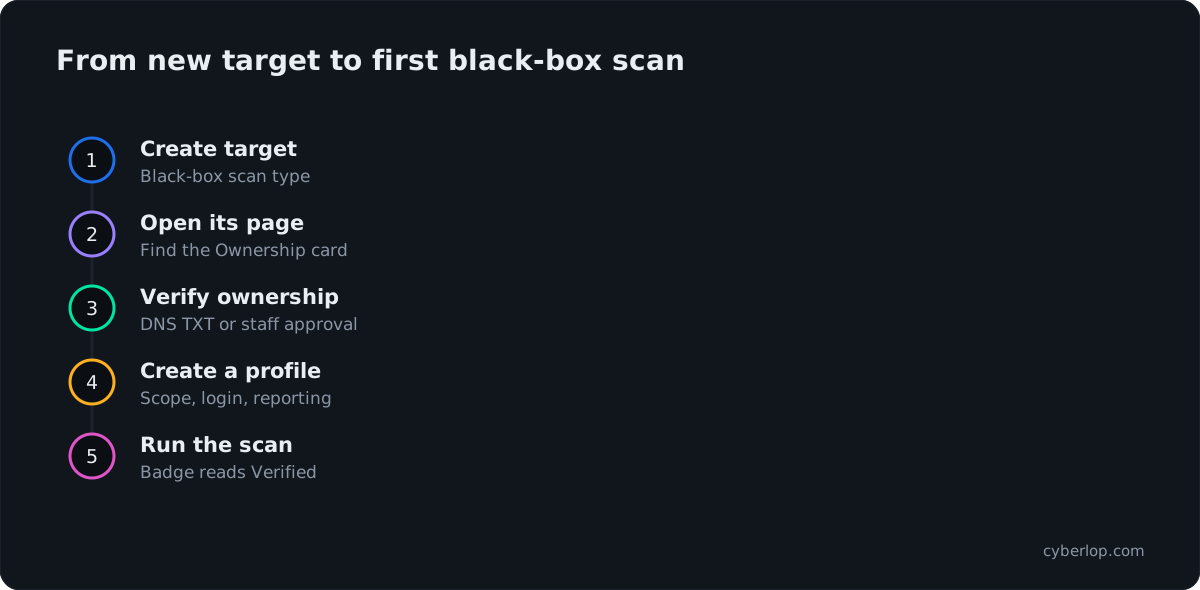
- Create the target Open Targets, click + New target, enter the Name and Main URL, and choose Black-box.
- Set environment and team Choose Dev, Staging or Prod and an optional Team, then click Create target.
- Open the target page Open the new target from the Targets list.
- Find the Ownership verification card It sits between Target details and Scan profiles.
- Choose a route Use a DNS TXT record if you manage DNS, or ask Cyberlop staff for approval.
- Complete the route Follow the instructions shown in the app, or wait for staff to confirm.
- Check the badge Wait until the card shows Verified and says black-box scans can run.
- Create a profile and scan Click + New profile, then Scan, to start the first black-box scan.
- Only black-box targets need ownership verification; white-box targets have no Ownership verification card.
- There are two routes: a DNS TXT record or Cyberlop staff approval. Both end in the Verified badge.
- Black-box scans cannot run until the target is verified.
- Targets are immutable: a wrong URL means delete and re-create, then verify again.
- Only verify and test systems you own or are authorised to test.
Ownership verification is the check Cyberlop makes before it will run a black-box scan: you must prove that you control the target, either with a DNS TXT record on your domain or by staff approval from Cyberlop. Once it passes, the target page shows a Verified badge and black-box scans can run. This guide explains why the check exists, how to choose a route and what the page shows afterwards.
What is ownership verification in Cyberlop?
Ownership verification is a gate on black-box targets. A black-box target is a live URL with no source code attached, so nothing else shows that the URL belongs to you. The platform asks for proof first, and the scan stays blocked until it has it.
It exists because a black-box test sends real requests to whatever address you give it. Without a check, anyone could type in a site they do not control. The rule is the one a responsible tester follows on paper: test only what you own or have permission to test.
The New target dialog describes it in one line on the Black-box card: the scan type "requires proving you own the target (Ownership: DNS TXT record or Cyberlop staff approval)". Repository-backed targets do not carry this card, as the next section shows.
Which targets need it?
Only black-box targets. You create a white-box target with a repository URL, so its page has no Ownership verification card. The table shows what you will see for each kind.
Table 1. What the target page shows for each kind of target
| Black-box target | White-box target | |
|---|---|---|
| Created with | Name, Main URL, environment; repo fields disabled | Name, Main URL, Repo URL (HTTPS), branch |
| Subtitle under the name | No repository configured | The repository URL |
| Ownership verification card | Yes, with a status badge | Not shown |
| Before it can scan | Ownership must be verified | Needs a reachable repository (private ones need a Git token) |
| Findings point to | An HTTP method and path | A source file and line range |
If you are unsure which scan type fits your app, read white-box vs black-box scans. To create the target itself, follow add a target.
Which verification route should you choose?
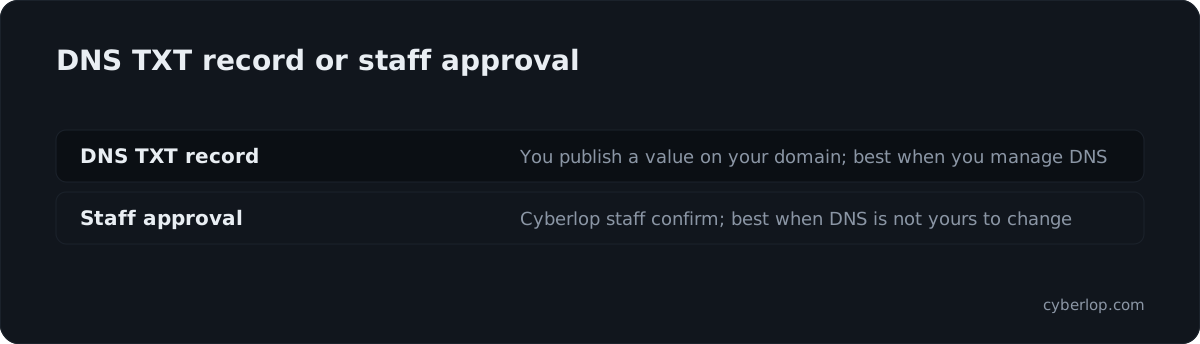
Choose the DNS TXT record if you can edit your domain's DNS and want to finish it yourself. Choose staff approval if you cannot touch DNS, or if the target is not on a domain you manage. Both routes end in the same Verified state.
Table 2. The two routes side by side
| DNS TXT record | Cyberlop staff approval | |
|---|---|---|
| Who does the work | Whoever manages your domain’s DNS | Cyberlop staff, after you ask |
| What it proves | You control DNS for the domain | Cyberlop has confirmed you are entitled to test the target |
| What you need | Access to your DNS provider | Contact with Cyberlop about the target |
| What the page says afterwards | Shown in the app once verified | Ownership confirmed via Cyberlop staff on the date of approval |
| Best for | Domains you run | Setups where DNS is not yours to change |
The app generates the exact text and values for the DNS route for your target, so copy them from there. This guide does not reproduce them.
How does a DNS TXT record prove ownership?
A DNS TXT record proves ownership because only someone who controls a domain's DNS can publish a value under it. The service gives you a value, you publish it, and the service looks it up. If it finds the value, the request came from someone with control.
This is a widely used pattern. The ACME protocol (RFC 8555, section 8.4) checks domain control the same way: the client publishes a TXT record under the domain, and the server looks it up. RFC 1035 defines the TXT record type as one that holds descriptive text, which fits the job: the record carries a value for the service to read.
Allow for DNS caching
Resolvers hold on to a record for its TTL. RFC 1035 defines the TTL as the time a record "may be cached before the source of the information should again be consulted". A new record can therefore take a while to reach all resolvers. If a check fails straight after you publish, wait and try again before you change anything.
Who should add the record?
Whoever owns your DNS. In a company, that is often an infrastructure or IT person, not the developer who made the target. Send them the value from the app and the domain it belongs under. Good DNS security habits mean few people can change records, so allow time for this hand-off.
How do you verify a black-box target?
You verify a black-box target from its own page: create the target, open it, find the Ownership verification card and complete one of the two routes. The steps below follow the order the app shows. The app shows the exact wording on an unverified target, so the steps below point you to the card instead of quoting it.
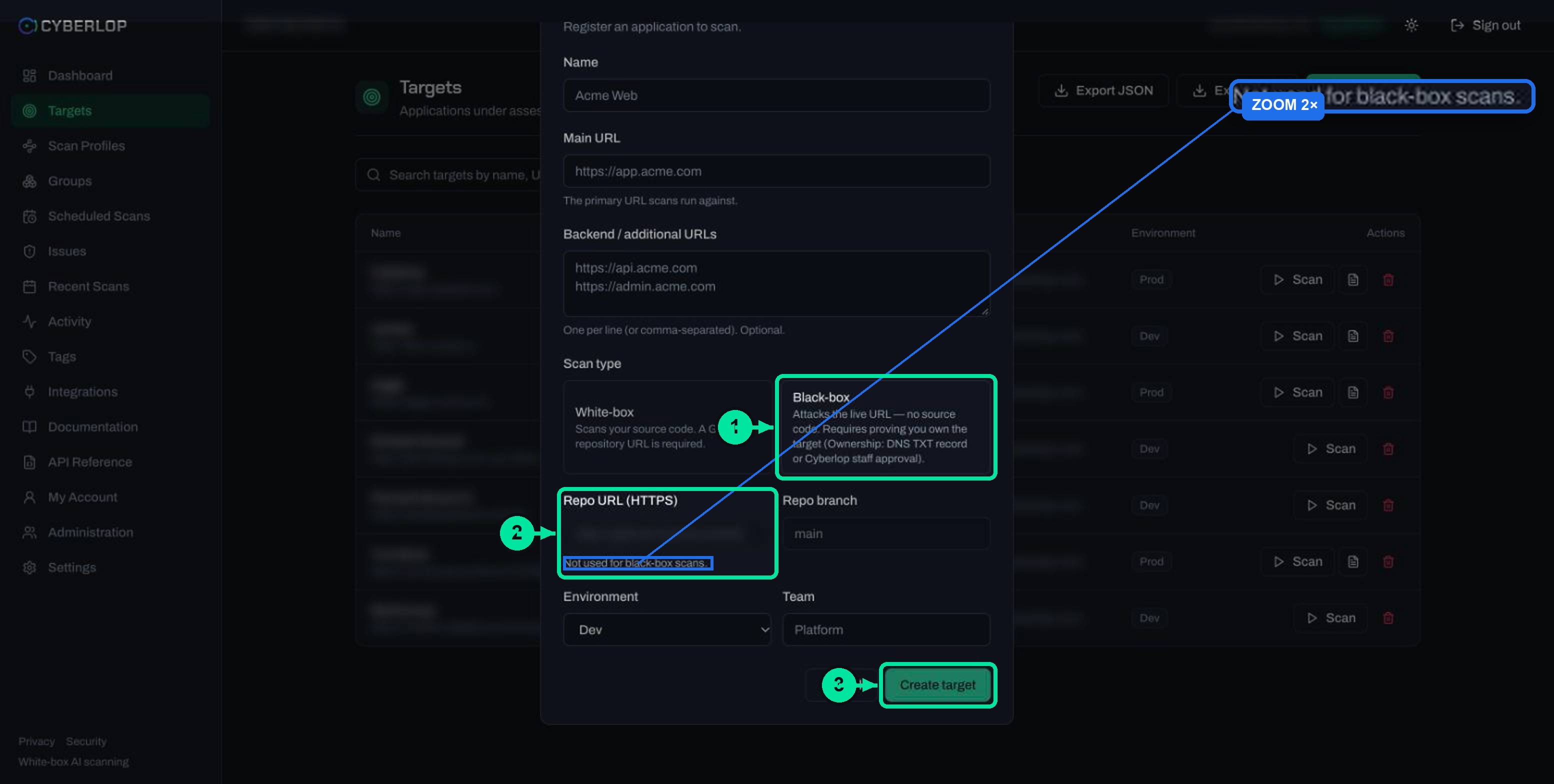
- Open Targets and click + New target.
- Enter the Name and the Main URL. Add any Backend / additional URLs, one per line.
- Choose the Black-box scan type. The repo fields turn grey and read "Not used for black-box scans."
- Pick the Environment (Dev, Staging or Prod; a test environment is the safer first choice) and, if you use one, a Team. Click Create target.
- Open the new target from the list. Its page has the Target details card, the Ownership verification card and the Scan profiles card.
- In the Ownership verification card, follow the instructions the app shows for the DNS TXT route, or ask Cyberlop staff to approve the target, starting from our contact page.
- Wait for the badge to read Verified. For staff approval, the text reads "Ownership confirmed via Cyberlop staff on" followed by the date, then "Black-box scans can run."
- Create a scan profile with + New profile and start the scan. See create a scan profile and run a scan.
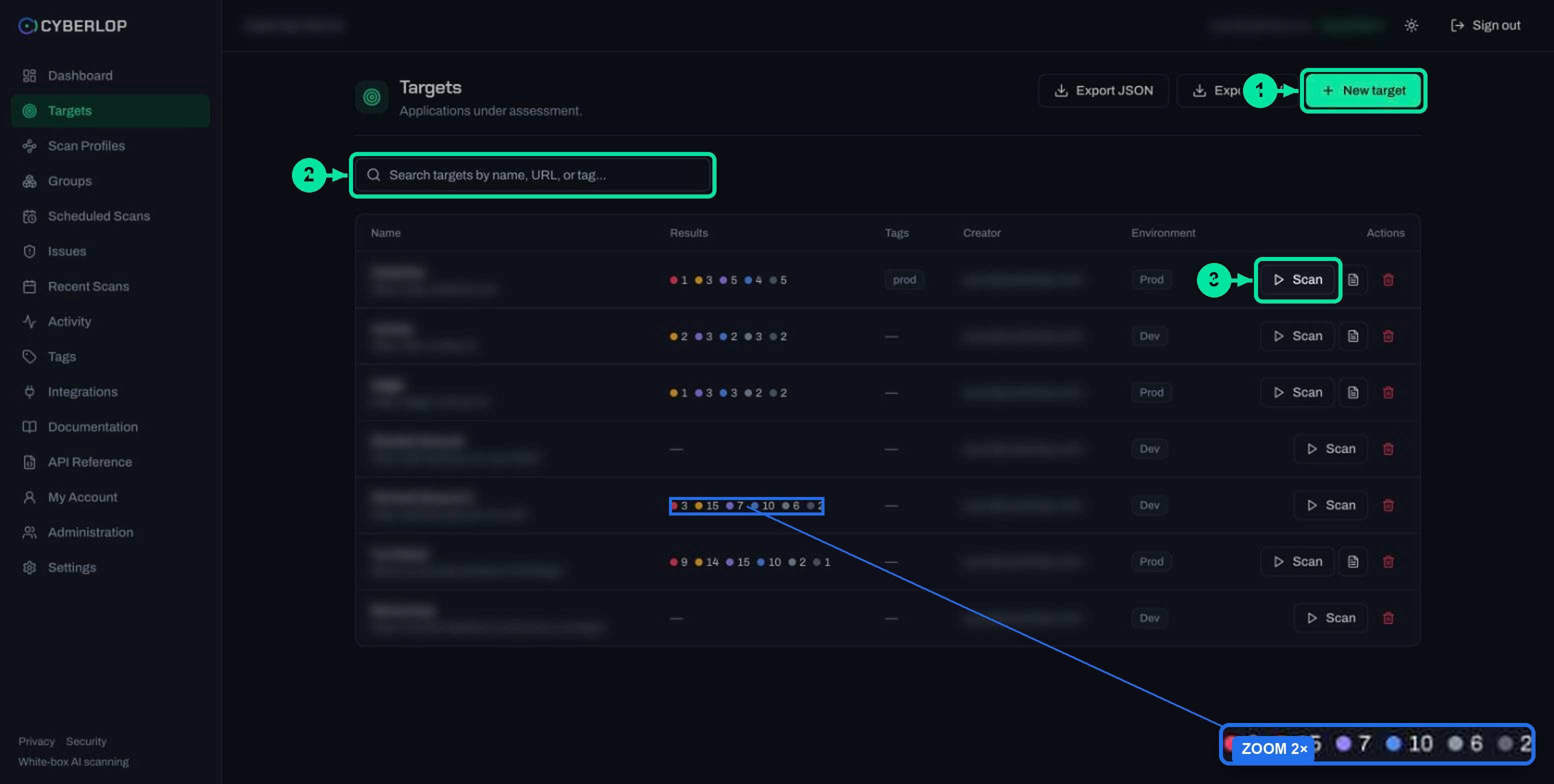
Targets are immutable. If you typed the wrong Main URL, you cannot edit it: delete the target and create it again. Check the new target's page for its own Ownership verification card, because verification belongs to the target you are looking at. Manage targets covers deleting and re-creating.
What does the verified state look like?
A verified target shows a Verified badge in the Ownership verification card, followed by one sentence. For a target approved by staff, the sentence is "Ownership confirmed via Cyberlop staff on" and the date, then "Black-box scans can run."
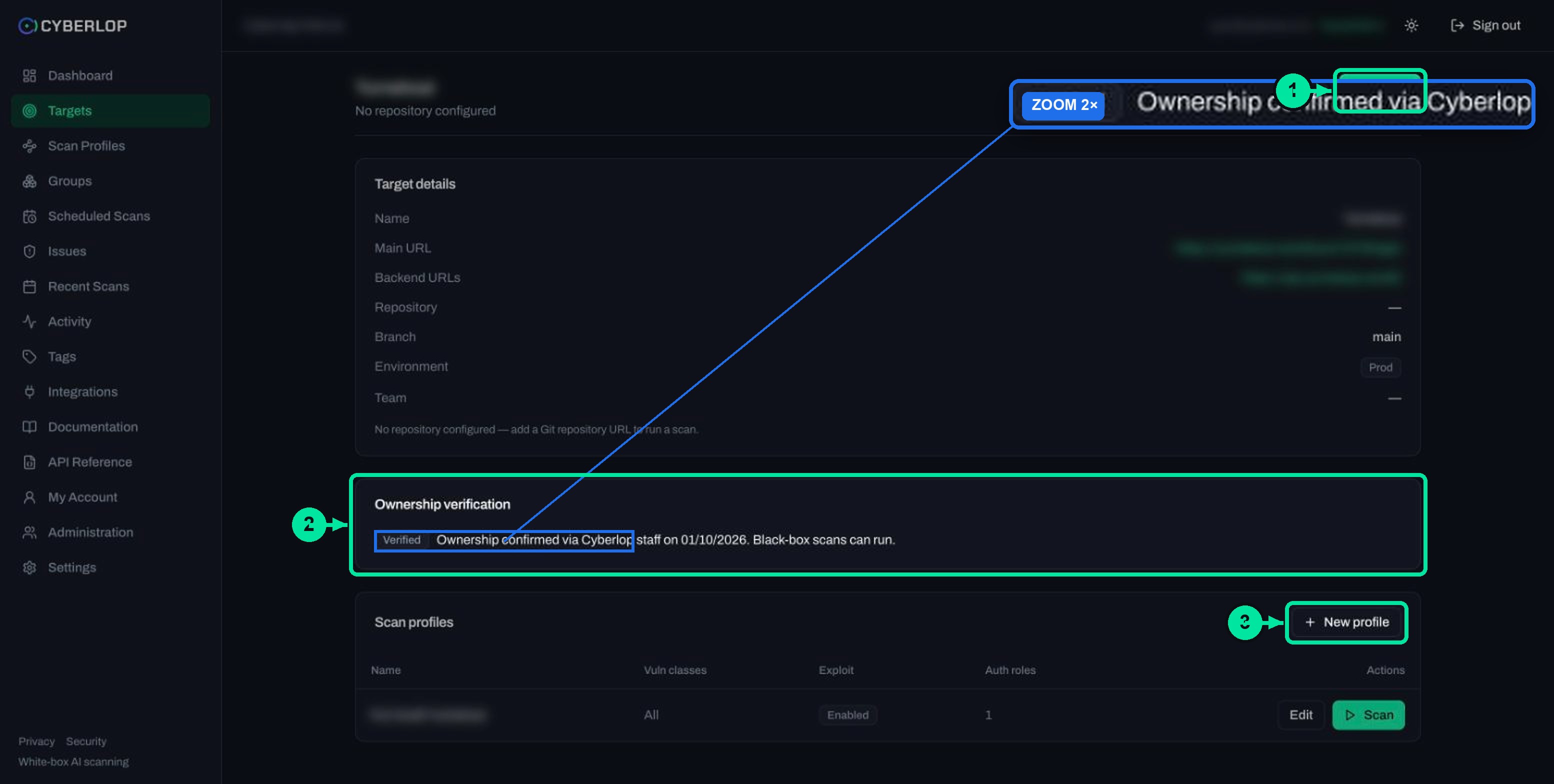
On the same page you will also see:
- Target details: Name, Main URL, Backend URLs, Repository (a dash for black-box), Branch, Environment and Team.
- A note: "No repository configured — add a Git repository URL to run a scan." That is normal on a black-box target, not an error.
- Scan profiles: a table with Name, Vuln classes, Exploit and Auth roles, and Edit and Scan on each row.
The captured example shows the staff-approval wording. For a DNS-verified target, expect the card to say how it was confirmed, and check the app for the exact text.
What can you do after verification?
You can create scan profiles and run scans against the live URL. Verification lets the scan start; it does not set the scope. Scope, logins and rules still come from the profile. Two guides help next:
- Authentication roles lets a black-box scan reach pages behind a login, which gives a grey-box style run and ties to authenticated testing.
- Failed or cancelled scans explains what to do if a run stops early.
Why does verification matter for safety and audits?
Verification is your written-down answer to "who said you could test this?". It stops accidental scans of the wrong address, and it gives auditors a clear record that testing stayed within targets the organisation controls. A pentest scope means little unless it covers only systems you own or have permission to test.
It also pairs with rules of engagement in the scan profile, which say how the test behaves. Verification says where a scan may go; the rules say how it behaves there. For a production target, use both, and see the exploitation phase guide before you switch it on.
Only verify what is yours
Do not publish a record, or ask for approval, for a domain you do not control or are not authorised to test. If a third party hosts part of your app, get their permission first. Verification is a check, not a licence to test others.
Troubleshooting: why is my target not verified?
Most problems come from DNS timing, a record placed on the wrong name, or a target created with the wrong URL. The table lists the usual causes. Where the app shows a specific message, follow the message.
Table 3. Common problems and fixes
| Symptom | Likely cause | What to do |
|---|---|---|
| The badge has not changed after you added the DNS record | The record is still cached, or has not reached every resolver yet | Wait for the record’s TTL to pass, then check again |
| The record exists but is not accepted | It sits under a different name or has a different value from the one the app showed | Copy the name and value again, exactly as the app shows them |
| You cannot edit DNS | Your DNS is managed by another team or provider | Send them the value from the app, or ask for staff approval instead |
| Staff approval is taking a while | Cyberlop staff have not yet confirmed the request | Contact us with the target name and your organisation |
| The Main URL is wrong | Targets are immutable | Delete the target and create it again, then verify the new one |
| You expected a Verified card on a repository target | White-box targets have no Ownership verification card | Nothing to fix; use the scan as normal |
If a verified black-box scan later fails, that is a different problem. Open the scan and read failed or cancelled scans.
Next step
With ownership settled, learn how to manage your targets: the list, environments, exports and what deleting a target removes. New to the platform? Start with getting started or the key terms. Your attack surface is only as complete as the targets you register and verify.
Questions people ask
Verify target ownership: FAQs
Why does Cyberlop need me to verify ownership?
Black-box scans send real requests to a live address. The check confirms the address is yours or that you have permission to test it, so nobody can point a scan at a site they do not control.
Do white-box targets need verification?
No. You create a white-box target with a repository URL, so its page has no Ownership verification card. Only black-box targets need ownership verified before they can scan.
Which is faster, DNS TXT or staff approval?
It depends on who is available. DNS depends on whoever manages your records and on caching. Staff approval depends on Cyberlop staff confirming it. Neither has a fixed time shown in the app.
What does a verified target look like?
Its page shows a Verified badge in the Ownership verification card. For staff approval the text reads "Ownership confirmed via Cyberlop staff on" and a date, then "Black-box scans can run."
Can I change the URL of a verified target?
No. Targets are immutable. Delete the target and create it again with the right URL, then verify the new target from its own page.
Can I scan a site I do not own if I have verified a different one?
No. Verification covers the target you verified. Test only systems you own or have permission to test, and ask any third party that hosts part of your app for permission.
Why does Cyberlop not accept my DNS TXT record?
The usual causes are caching, a record on the wrong name or a value that differs from the one shown in the app. Wait for the record's TTL, then copy the name and value again exactly as the app shows them.
Keep reading
Related articles
How to add a target in Cyberlop: the New target dialog, field by field
Add a target in Cyberlop: the New target dialog field by field, white-box vs black-box, repository URL, environment, and why targets cannot be edited.
How to scan behind login in Cyberlop with authentication roles
Scan behind login in Cyberlop: add authentication roles, choose privilege levels, combine form, header and OAuth methods, and guide the scan with AI guidance.
How to create a scan profile in Cyberlop: Scope, Authentication, Reporting
Create a scan profile in Cyberlop: Scope, Authentication and Reporting fields, exploitation on or off, Preview YAML and Save, with a troubleshooting table.

Need help verifying a target?
Cyberlop only runs black-box scans on targets whose ownership is proved, and reports what it actually exploited, with the request and response. Tell us the target and we will help you verify it.
Or start with a $199 pilot on one application: thirty days, success criteria agreed before day one, credited against the annual if you convert.