
Home / Blog / Tutorials / Getting started with cyberlop
Tutorials
Getting started with Cyberlop: from sign-in to your first finding
Six moves take you from your first sign-in to a finding you can read, triage and prove fixed. Each one is below, with the exact buttons to press.
Cyberlop Labs · Updated · 9 min read
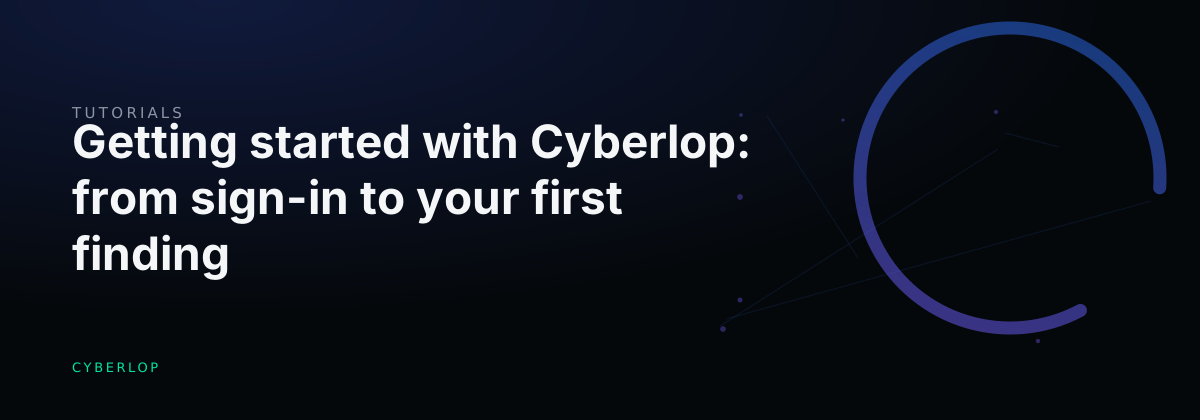
To get from sign-in to your first finding in Cyberlop, add a target with + New target, create a scan profile (Scope, Authentication, Reporting), press Scan, then open the finished scan's Findings tab and click a row to read the evidence. The in-app documentation says a small app takes roughly an hour.
- Add a target Open Targets, click + New target, enter the name, Main URL, scan type, repo URL and branch, environment and team, then click Create target.
- Verify ownership if black-box Finish the DNS TXT record or staff approval until the target page shows Verified.
- Create a scan profile From the target, click + New profile and name it. Leave vulnerability classes empty to scan all ten.
- Set exploitation and location Keep Run exploitation phase on for staging and leave Scan location on Cyberlop cloud unless the app is on a private network.
- Add a login role In Authentication, click + Add role, set a privilege level and a method, so the scan reaches signed-in pages.
- Preview and save Click Preview YAML to check the configuration, fix any validation message, then click Save.
- Run the scan Click Scan on the profile row and follow it from Recent Scans.
- Read and triage findings Open the Findings tab, click a row, read Summary and Evidence, set a disposition and assignee and click Update status.
- Six moves: add a target, create a profile, run, read, triage, re-scan.
- White-box scans need an HTTPS repository URL; black-box scans need verified ownership.
- Targets are immutable, so check details before you click Create target.
- Add a login role so the scan reaches pages behind sign-in.
- Read Summary and Evidence together, and fix Confirmed Critical and High items first.
Getting started with Cyberlop means going from your first sign-in to your first proven finding in six moves: add a target, create a scan profile, run the scan, open the findings, triage them and re-scan after a fix. Each section below names the buttons to press and links to the guide that goes deeper.
What do you need before your first scan?
You need an application you own or are authorised to test, the address of a running copy of it (staging is the safest choice) and, for white-box scanning, an HTTPS link to its Git repository. Cyberlop tests the running app at its URL. If you share the repository, it reads your source code as well, and it reports the vulnerabilities it could prove. Point it only at systems you have permission to test.
Table 1. Checklist before you start
| Item | Why you need it | Where it is set |
|---|---|---|
| A signed-in account | You sign in with the account your administrator created for you, or through single sign-on if your organisation has turned it on. | Ask your admin; see single sign-on |
| Permission to create targets and run scans | Buttons you cannot use usually mean a missing permission, such as target:create or scan:run. | Administration (admins only) |
| A running URL | Scans test the live application at its Main URL. | + New target |
| A repository URL over HTTPS (white-box) | Cyberlop clones the latest code at launch. SSH addresses such as git@ are not supported. | + New target |
| A Git token (private repositories only) | Public repositories clone without one. Private ones need a token for an allowed host. | Settings → Git Access or My Account |
| Test logins (optional) | Roles let the scanner reach pages behind a login. | Scan profile, Authentication section |
Which scan type should you pick?
Pick white-box when you can share the repository, because findings then point to a file and line. Pick black-box when you only have a URL. Adding a login role to either gives you a grey-box style run that reaches signed-in pages.
Table 2. White-box and black-box in the New target dialog
| White-box | Black-box | |
|---|---|---|
| What it uses | Source code from your repository plus the running app | The live URL only |
| What you must provide | Repo URL (HTTPS) and branch | Proof that you own the target |
| Where findings point | A source file and line range | An endpoint such as POST /search |
| Before the first scan | Nothing extra for public repositories; a Git token for private ones | Ownership verification by DNS TXT record or staff approval |
Public repositories
Paste the HTTPS link and leave the branch as main unless you scan another branch. Cyberlop clones the repository when the scan launches.
Private repositories
Add a read-only Git token first. Your organisation can store one under Settings → Git Access, and each person can store a personal one under My Account. The token is only sent to the hosts you allow. The guides on connecting a repository and Git access cover both routes.
How do you add your first target?
A target is the application under test. Go to Targets in the sidebar, click + New target, fill in the dialog and click Create target.
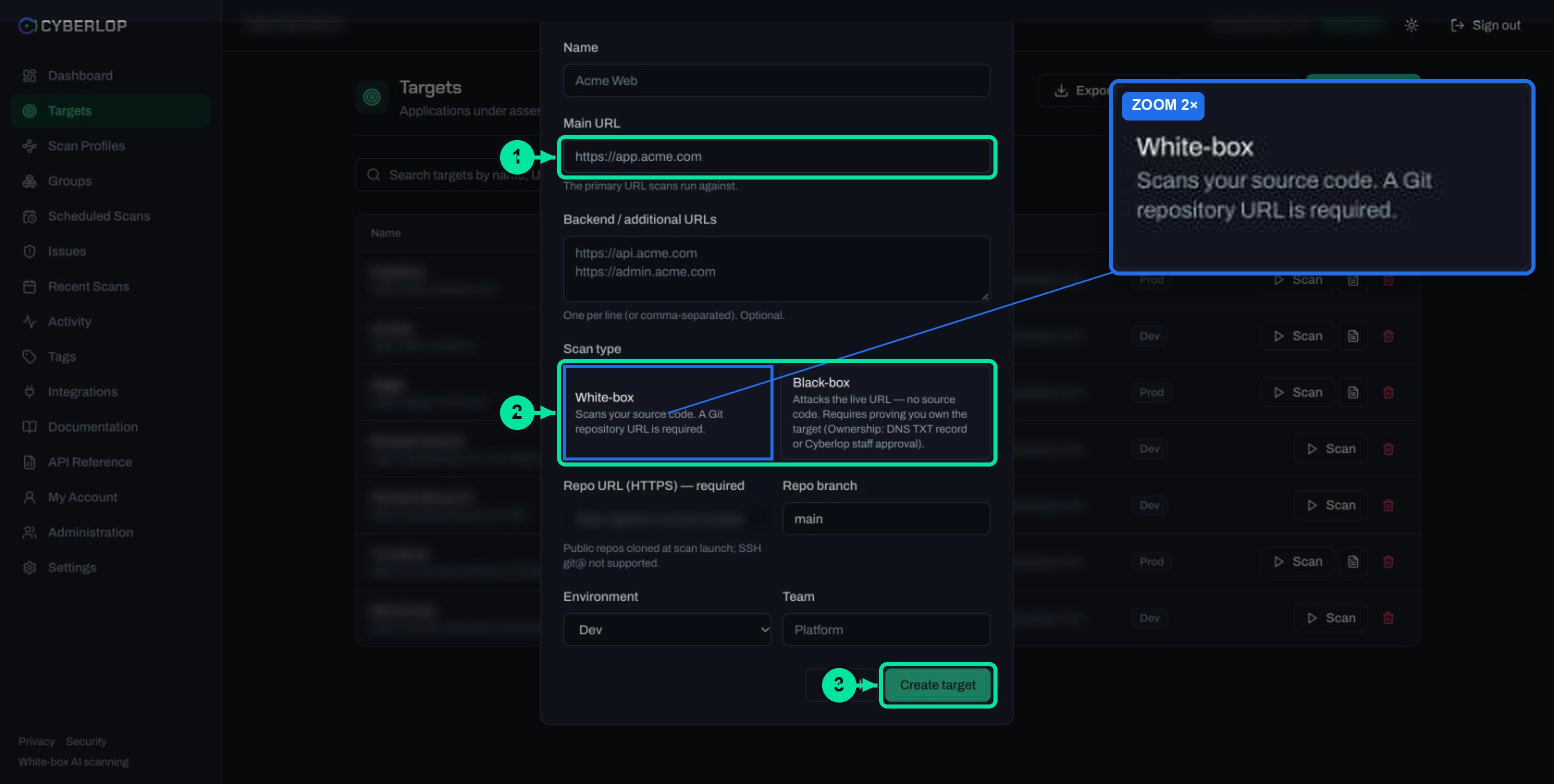
- Open Targets and click + New target.
- Enter a Name and the Main URL.
- Optionally list Backend / additional URLs, one per line.
- Choose the Scan type: White-box or Black-box.
- For white-box, enter the Repo URL (HTTPS) and Repo branch.
- Choose the Environment and, if you wish, a Team.
- Click Create target.
Table 3. New target fields
| Field | What to enter | Notes |
|---|---|---|
| Name | A label you will recognise, such as your staging app | Shown in lists and reports |
| Main URL | The primary address, for example https://staging.example.com | The URL scans run against |
| Backend / additional URLs | API or admin hosts, one per line | Optional |
| Scan type | White-box or Black-box | Black-box disables the repo fields |
| Repo URL (HTTPS) | The repository link over HTTPS | Required for white-box; SSH is not supported |
| Repo branch | Defaults to main | Cloned fresh at every launch |
| Environment | Dev, Staging or Prod (default Dev) | Shows as a badge in the list |
| Team | Free text, for example Platform | Optional |
Two things to know about targets
Targets are immutable. To change a name, URL or repository, delete the target and create it again. Deleting a target also deletes its profiles, schedules, scans and findings, so get the details right the first time. The add a target guide goes field by field.
For a black-box target, the target page shows an Ownership verification card. Once it reads Verified, black-box scans can run. The route is a DNS TXT record or approval by Cyberlop staff; see verify target ownership.
How do you create a scan profile?
A scan profile is a reusable scan configuration that belongs to one target. It holds what to test, how to sign in and what to report. Open the target and click + New profile, which preselects the target, or use Scan Profiles → + New profile.
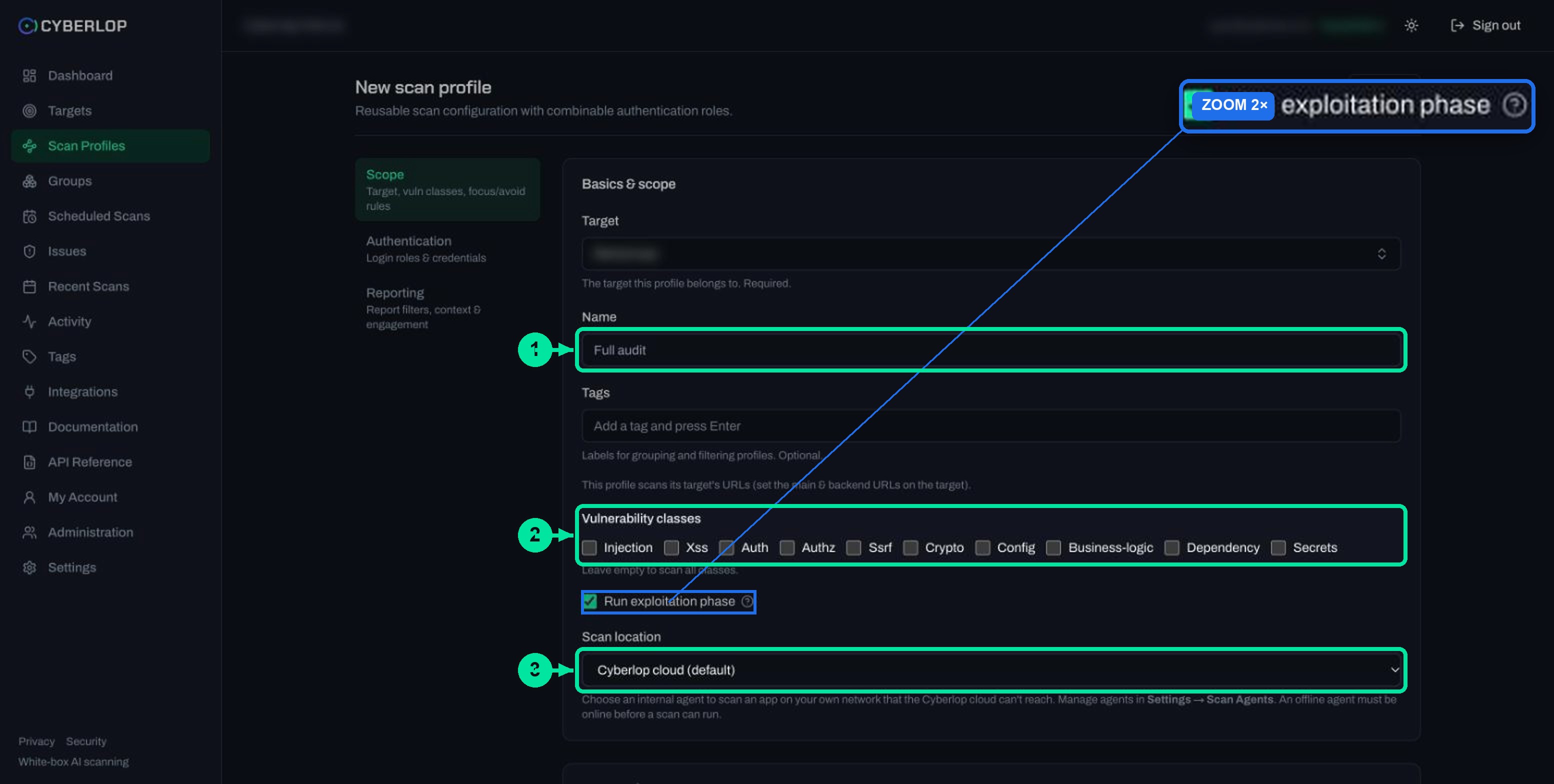
Table 4. The three profile sections
| Section | What you set | A sensible first choice |
|---|---|---|
| Scope | Target, name, tags, vulnerability classes, exploitation phase, scan location, focus and avoid rules | Name it, leave the classes empty to test all ten, keep the exploitation phase on for staging |
| Authentication | Login roles with a privilege level and one or more methods: Form, Header or OAuth 2.0 | One role for a normal user; add a second later to test cross-account access |
| Reporting | Minimum severity and confidence, report guidance, rules of engagement, application context | No minimum, so you see everything on the first run |
The steps
- In Scope, give the profile a name. Leave Vulnerability classes empty to scan all classes: Injection, Xss, Auth, Authz, Ssrf, Crypto, Config, Business-logic, Dependency and Secrets.
- Keep Run exploitation phase ticked if you want agents to prove issues against the live target. Untick it for source analysis only, with no live testing.
- Leave Scan location on Cyberlop cloud (default) unless the app sits on a private network. Then choose a self-hosted scan agent.
- In Authentication, click + Add role to scan behind a login. With no roles, the scan is unauthenticated.
- In Reporting, add rules of engagement in plain words, for example to avoid destructive payloads in production. Detected personal data in these fields is redacted before analysis.
- Click Preview YAML to see the generated configuration and catch validation errors, then click Save.
Use Auto Generate for application context
Application context tells the scanner what your app is, its stack, tenancy model and business-critical flows. After the first save, Auto Generate from Repo can fill the fields from the repository. Read the result and correct anything wrong. See application context.
Why add a login role at all?
Most of a real application sits behind sign-in, and that is where access mistakes live. Broken access control means one account reaches data or functions it should not. It tops the OWASP Top 10, and the 2021 edition found some form of it in 94% of the applications tested. A scan with no roles cannot do authenticated testing of those pages. Start with one role, then see authentication roles.
How do you run your first scan?
Click ▷ Scan on the profile row, on the target page or on the target row in Targets. The scan starts at once. It is durable, so you can close the page and come back.
Table 5. The five phases of a scan
| Phase | What happens |
|---|---|
| 1. Pre-recon | An agent reads the cloned repository and builds a baseline: frameworks, entry points, data flows and trust boundaries |
| 2. Recon | The running app is mapped into a sitemap of endpoints, methods and parameters |
| 3. Vulnerability analysis | Eight specialist agents analyse the code in parallel and queue testable hypotheses |
| 4. Exploitation | Agents try to prove (proof of exploit) each hypothesis against the live target in a real browser. You can switch this phase off |
| 5. Reporting | The confirmed findings are assembled into a report, filtered by your minimum severity and confidence |
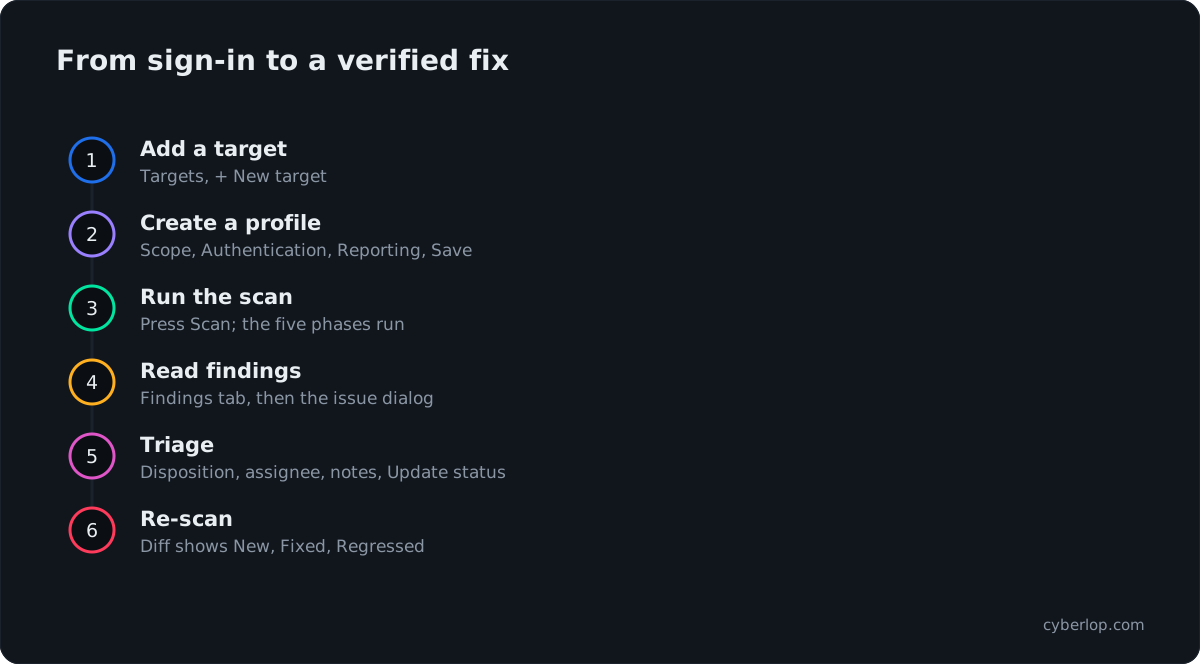
Where do you follow it?
Open Recent Scans and click the row. The scan detail page has four tabs: Overview, Findings, Sitemap and Diff. The in-app documentation says a typical scan of a small app takes roughly an hour. Rate limits make a scan slower rather than failed. Press ⟳ Refresh to update the page.
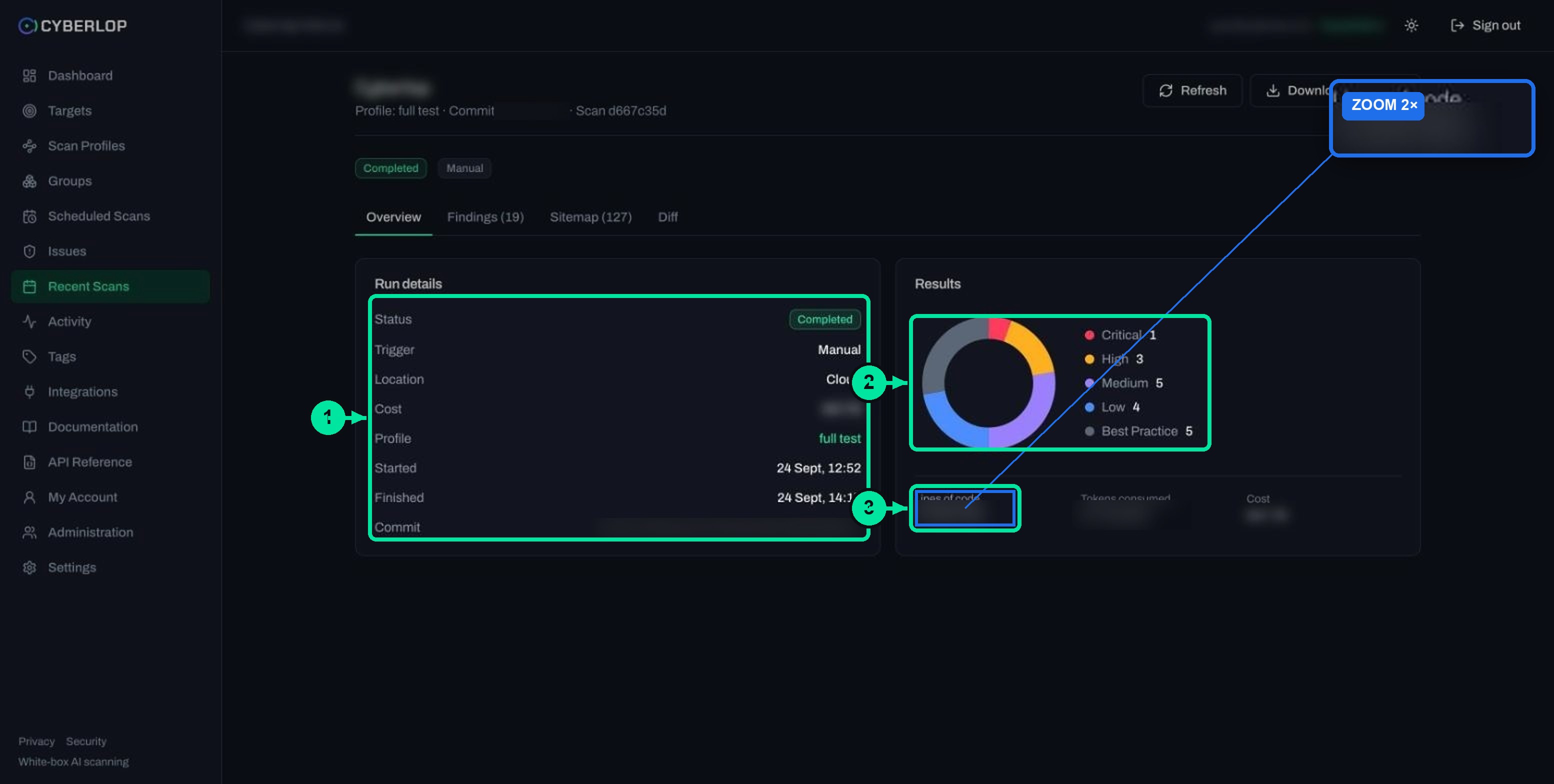
On Overview, a white-box scan shows the commit that was scanned, lines of code, tokens consumed and a donut chart of findings by severity. See the run a scan and scan detail page guides.
How do you read your first findings?
Open the Findings tab of the scan, or Issues in the sidebar for findings across all scans. Each row shows severity, title, class, confidence, triage state and location. Click a row to open the issue dialog.
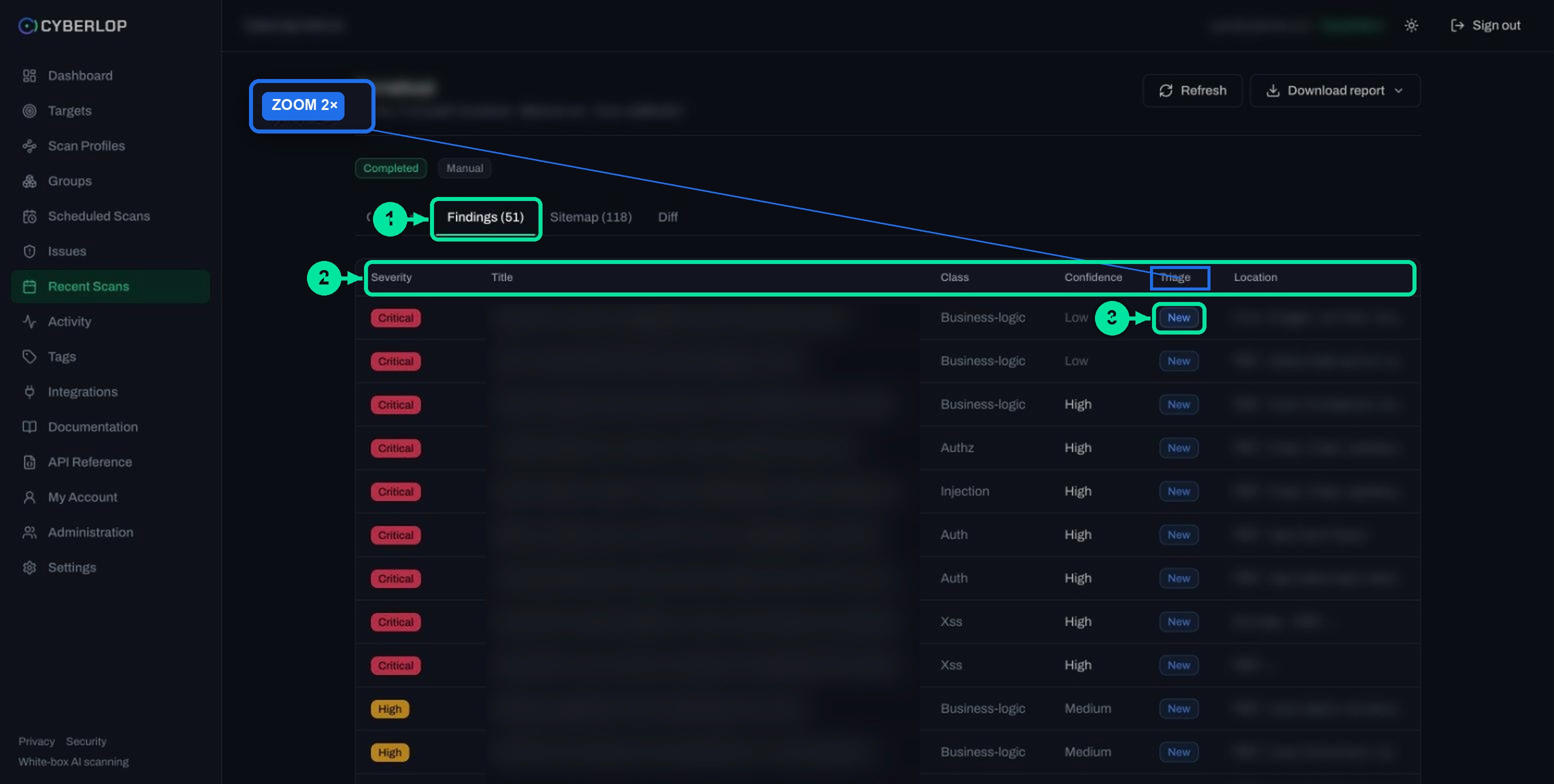
Table 6. The issue dialog
| Tab | What it shows |
|---|---|
| Summary | Severity, confidence, class, status (Confirmed, Likely or Unconfirmed), finding ID such as INJ-VULN-02, target, location, description and a Notes box |
| Evidence | The authentication used, the payload, the HTTP request, the HTTP response, reproduction steps as curl commands and a screenshot |
Severity, confidence and status are three different things
Severity is how bad the issue is: Critical, High, Medium, Low, Informational or Best Practice. Confidence is High, Medium or Low. Status says how well it was proven. Start with Critical and High findings marked Confirmed, then work down. Treat Likely and Unconfirmed items as leads to check, not as facts. See severity and confidence.
Where to start reading
Read Description first, then the reproduction steps on Evidence. Run the curl commands against your staging app to see the behaviour yourself. A white-box finding gives a source file and line range, which is where your engineer starts the fix. A black-box finding gives an endpoint. The read a finding guide goes through every field.
What do you do after the first finding?
Triage it, fix it and scan again. In the issue dialog, set Disposition, pick an Assignee, add Notes and click Update status.
Table 7. Dispositions
| Disposition | Use it when |
|---|---|
| Open (reopen) | The issue is real and still needs work |
| Fixed | You have shipped a fix; a later scan that does not find the issue confirms it |
| False Positive | The finding is wrong (a false positive); add a note saying why |
| Accepted Risk | You know the risk and choose to live with it; record who decided |
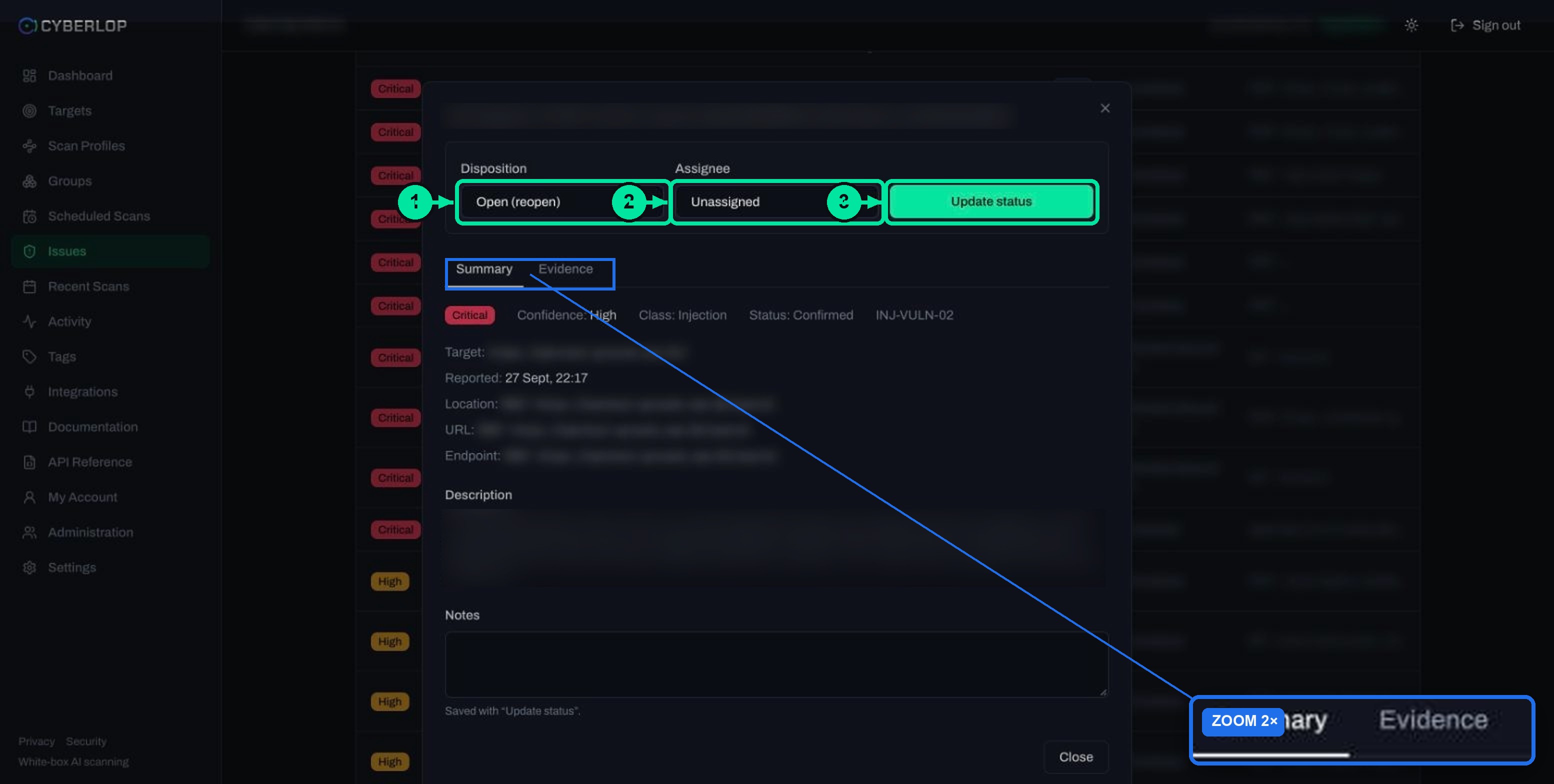
Issues persist per target. If a re-scan no longer finds an issue, it is marked Fixed. If it comes back, it becomes a regression rather than a new finding. The Diff tab lists New, Fixed and Regressed issues against the previous completed scan. For an executive copy, use ⤓ Download report on the scan, which offers Open issues only, Include fixed & accepted or Fixed issues only. Raw data leaves through Export JSON and Export CSV on Issues.
Where should you go next?
Table 8. Next guides
| If you want to | Read |
|---|---|
| Understand the dashboard | Dashboard overview |
| Learn the vocabulary | Key terms |
| Choose classes and exploitation settings | Choose vulnerability classes, Exploitation phase |
| Scan behind login | Authentication roles |
| Run scans on a timetable | Schedule scans, CI/CD integration |
| Work through findings as a team | Triage findings, Issues list |
| Share results | Download PDF reports, Export JSON and CSV |
| Scan an internal app | Self-hosted scan agents |
Next step: read Dashboard overview to see what to act on first. For the thinking behind proof-backed reporting, see how Cyberlop shows evidence and how it works.
What are the most common first-scan mistakes?
Table 9. Troubleshooting
| What you see | Likely cause | What to do |
|---|---|---|
| "No repository configured — add a Git repository URL to run a scan." | The target was created without a repo URL | Targets are immutable: delete and recreate it with the repo, or use black-box with ownership verified |
| Black-box scan will not start | Ownership is not verified | Check the Ownership verification card and finish DNS or staff approval |
| Private repository will not clone | No Git token, or the host is not allowed | Add a read-only token under Settings → Git Access or My Account, then verify it |
| Red banner "Scan failed" | The run stopped before finishing | Try again; check Findings, because partial results may exist. See failed or cancelled scans |
| Few findings behind login | No authentication role on the profile | Add a role and re-run |
| "name: String must contain at least 1 character(s)" | The profile has no name | Enter a name, then Preview YAML again |
| Scans pause on the AI allowance | The included allowance is used up | Limits are shown in Settings → Plan & usage; connect your own key in AI Provider |
Whatever went wrong, the safety rule stands: scan only applications you own or have written permission to test, and use staging for a first run.
Questions people ask
Getting started with cyberlop: FAQs
How do I run my first scan in Cyberlop?
Add a target under Targets, create a scan profile for it, then click Scan on the profile row. The scan starts at once and runs in the background, so you can leave the page. Follow it from Recent Scans.
How long does a first scan take?
The in-app documentation says a typical scan of a small app takes roughly an hour. Larger apps take longer. Rate limits slow a scan down rather than make it fail.
Do I need a code repository?
No. A white-box target needs a repository URL over HTTPS. A black-box target needs only a URL, but you must prove ownership by DNS TXT record or staff approval before it can run.
Can I change a target after creating it?
No. Targets are immutable. Delete the target and create it again with the new details. Deleting a target also deletes its profiles, schedules, scans and findings.
Why does my scan show a failed banner but still have findings?
A failed scan can still hold findings found before it stopped. Open its Findings tab. Then try the scan again, or ask your administrator if the problem persists.
What is the difference between severity, confidence and status?
Severity says how serious the issue is. Confidence says how sure the scan is. Status (Confirmed, Likely or Unconfirmed) says how well the issue was proven. Fix Confirmed Critical and High items first.
How do I know a fix worked?
Run the scan again. If the scan no longer finds the issue, Cyberlop marks it Fixed. If it returns, it is flagged as a regression. The Diff tab shows New, Fixed and Regressed issues against the previous completed scan.
Sources
Where the facts come from
Keep reading
Related articles
How to add a target in Cyberlop: the New target dialog, field by field
Add a target in Cyberlop: the New target dialog field by field, white-box vs black-box, repository URL, environment, and why targets cannot be edited.
Application context in Cyberlop: fill the ten fields and use Auto Generate from Repo
Fill in the ten application context fields of a Cyberlop scan profile, use Auto Generate from Repo, and write context that improves findings.
How to scan behind login in Cyberlop with authentication roles
Scan behind login in Cyberlop: add authentication roles, choose privilege levels, combine form, header and OAuth methods, and guide the scan with AI guidance.

Want a hand with your first scan?
Cyberlop reads your code while testing the running app and reports only what it exploited, with the request, the response and the line of code. Ask us to run it on one of your applications.
Or start with a $199 pilot on one application: thirty days, success criteria agreed before day one, credited against the annual if you convert.