
Cyberlop key terms follow one chain. A target is your application, a scan profile is its saved settings, a scan is one run, and an issue is a finding. Severity, confidence and status rank each issue, and triage records what you decided: New, Regression, Fixed, False Positive or Accepted Risk.
- Open the target Go to Targets and open a target to see its details and its scan profiles.
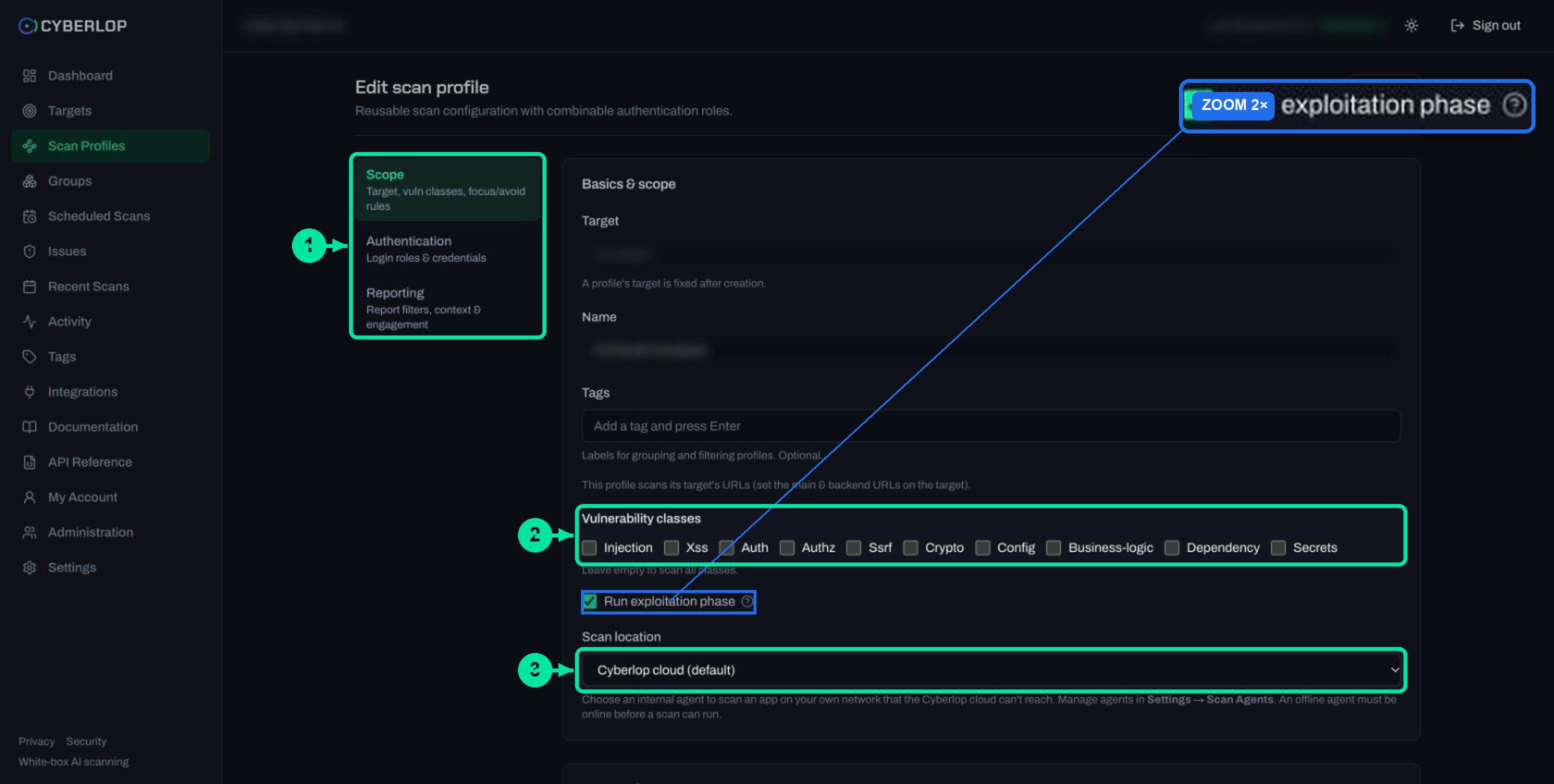
- Open a scan profile Use Edit on a profile and look at Scope: classes, exploitation phase and scan location.
- Open a completed scan Go to Recent Scans and click a completed row to see Overview, Findings, Sitemap and Diff.
- Open an issue Click a row in the Findings tab or on Issues to open the dialog.
- Read the three labels On the Summary tab, note severity, confidence and status, then the class and ID.
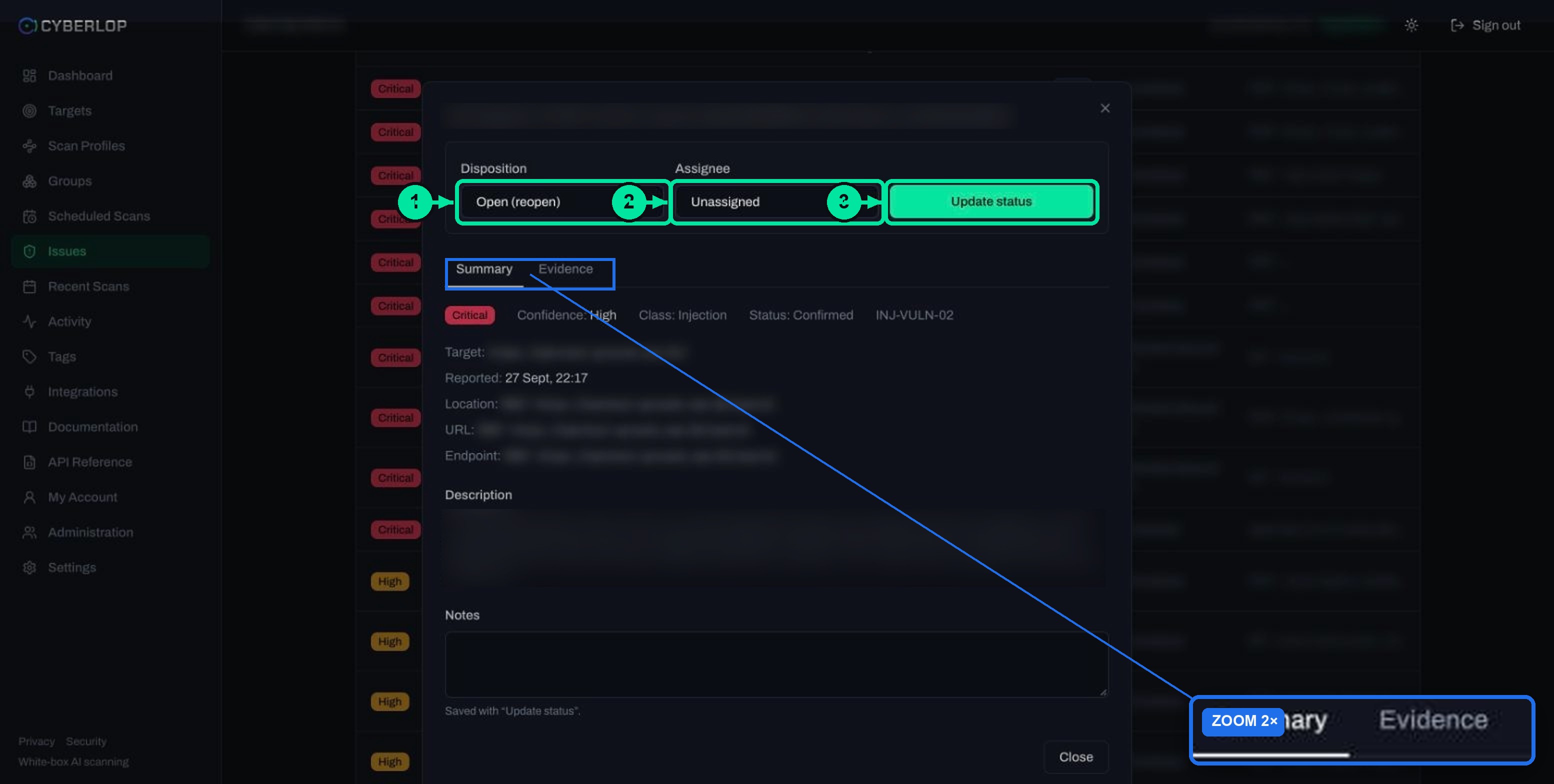
- Set the disposition Choose Fixed, False Positive or Accepted Risk, add an assignee and notes, then click Update status.
- Target, scan profile, scan and issue always depend on each other in that order.
- Targets cannot be edited; delete and recreate, which also removes their scans and findings.
- Severity, confidence and status are three separate labels; use all three to prioritise.
- Triage records your decision, and a re-scan moves issues to Fixed or Regression.
- The word role means two things: scanner identities in a profile and people's permissions in Cyberlop.
The key terms in Cyberlop form one chain: a target is the application you test, a scan profile holds the saved settings, a scan is one run of that profile, and an issue (also called a finding) is a vulnerability the scan reports. Severity, confidence and triage then tell you what to fix first. This page defines each term in the words the app uses.
What are the core terms in Cyberlop?
Cyberlop is a penetration-testing platform that supports white-box, grey-box and black-box testing. Almost every screen is built from four objects, and they depend on each other in a fixed order. Learn that order and the sidebar makes sense.
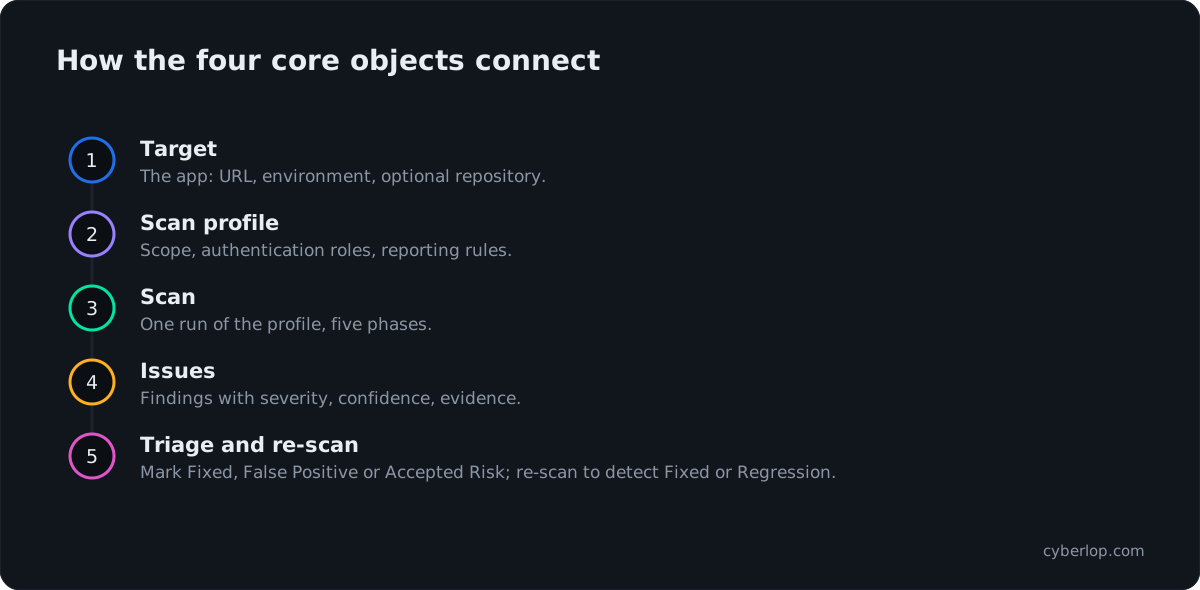
The four objects at a glance
| Term | What it is | Where you see it | Can you edit it? |
|---|---|---|---|
| Target | The application under assessment: a name, a Main URL, optional backend URLs, an environment and, for white-box, a repository URL and branch. | Targets in the sidebar; the target detail page. | No. Targets are immutable: delete and recreate to change one. |
| Scan profile | A reusable scan configuration that belongs to one target: scope, authentication roles and reporting rules. | Scan Profiles; the Scan profiles card on a target. | Yes, but its target is fixed after creation. |
| Scan | One run of a profile, ending as Completed, Failed or Cancelled. | Recent Scans; the scan detail page. | No. A scan is a record; you can re-run it or delete it. |
| Issue (finding) | A vulnerability with a severity, a confidence, a class, a location, evidence and an ID. | Issues; the Findings tab of a scan. | You triage it: disposition, assignee and notes. |
Target
A target is what you point Cyberlop at. In the New target dialog you enter a Name and a Main URL, pick an Environment (Dev, Staging or Prod) and optionally a Team. Because targets are immutable, a typo in the URL means deleting the target and creating it again. Deleting a target also removes its profiles, schedules, scans and findings, so check before you delete.
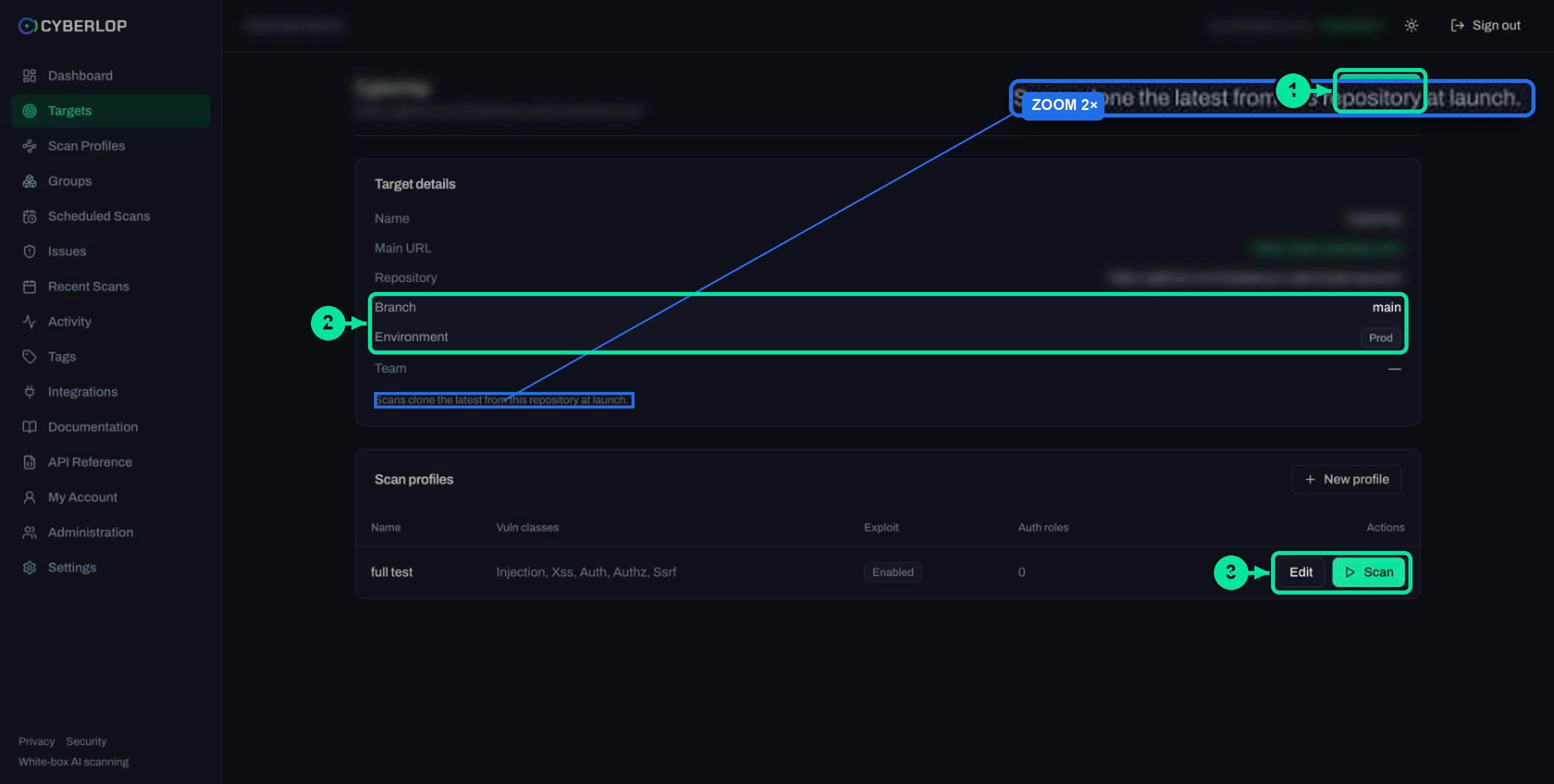
Setup is covered step by step in Add a target. Repository details are in Connect a repository.
Scan profile
A scan profile answers three questions: what to test (Scope), how to get past the login screen (Authentication) and what to report (Reporting). You can keep several profiles on one target, for example a quick one and a full one, and run any of them whenever you like. The full build is in Create a scan profile.
Vulnerability classes
A class is a family of weakness. The profile offers ten checkboxes: Injection, Xss, Auth, Authz, Ssrf, Crypto, Config, Business-logic, Dependency and Secrets. Tick none and the profile scans all of them; the profile list then shows All. Narrow the list only when you have a reason, such as re-checking one area after a fix. See Choose vulnerability classes.
Exploitation phase
The Run exploitation phase checkbox is on by default. When it is on, agents try to prove each suspected issue against the live target with a real browser. When it is off, the scan is analysis only. Proof is what lets a finding carry a request, a response and often a screenshot. Read Exploitation phase before pointing it at production.
Scan location
The scan location is either Cyberlop cloud (default) or a self-hosted scan agent running inside your own network. The agent connects outwards over HTTPS only. Details are in Self-hosted scan agents and on the private scanning page.
Scan
A scan is one run of a profile. A typical scan of a small app takes roughly an hour, according to the in-app documentation. It moves through five phases: pre-recon (source analysis), recon (building the sitemap), vulnerability analysis (eight parallel specialists), exploitation and reporting. The trigger shows how it started, for example Manual. A scan page also shows cost, tokens consumed and, for white-box, lines of code. More in Run a scan.
Issue
Cyberlop uses “issue” and “finding” for the same thing. Each issue has an ID built from its class and a number, such as INJ-VULN-02 or AUTHZ-VULN-04. Issues persist per target across scans, so the list on the Issues page is your running backlog, not just the latest run. See how to read a finding.
What is the difference between white-box and black-box scan types?
The scan type is chosen once, when you create the target. White-box testing reads your source code as well as testing the running app. Black-box testing uses only the live URL. Cyberlop also supports a grey-box style: add login details as an authentication role and the scan can test what a signed-in account reaches.
Compare the two scan types
| White-box | Black-box | |
|---|---|---|
| What it needs | A Git repository URL over HTTPS. Public repositories clone at launch; private ones need a Git token. SSH is not supported. | Only the Main URL. Ownership must be verified first. |
| What it reads | Your source code and the running app. | The running app only. |
| Where a finding points | A source file and line range, plus the endpoint. | An HTTP method and path, such as POST /search. |
| Ownership check | Not shown on the target page. | DNS TXT record or approval by Cyberlop staff. The target then shows Verified. |
Choosing between them is the subject of White-box vs black-box scans. Verification is explained in Verify target ownership. Only scan applications you own or are authorised to test.
What do severity, confidence and status mean?
These are three separate labels on every issue, and they answer different questions. Severity is how much damage the issue could do. Confidence is how sure the scan is. Status says how well the issue was proven. Keeping them apart stops a doubtful guess from looking like a confirmed break, as explained in severity vs confidence.
The three labels
| Label | Values in the app | What it tells you |
|---|---|---|
| Severity | Critical, High, Medium, Low, Informational, Best Practice | How serious the issue is. Issues are sorted Critical first. |
| Confidence | High, Medium, Low | How strongly the scan stands behind the finding. Low is shown dimmed in lists. |
| Status | Confirmed, Likely, Unconfirmed | How far exploitation went. Confirmed means the issue was proven against the live target. |
A Critical issue with Low confidence is possible. Treat it as a question to answer quickly, not as a proven break. A High-confidence Low-severity issue, such as a missing header, is real but rarely urgent. Prioritising with both labels is covered in Severity and confidence.
How this differs from CVSS
Scoring standards use their own scales. The FIRST CVSS v4.0 specification maps scores to five qualitative bands: None (0.0), Low (0.1 to 3.9), Medium (4.0 to 6.9), High (7.0 to 8.9) and Critical (9.0 to 10.0). Cyberlop shows six severity labels, adds Informational and Best Practice, and reports confidence separately. Do not expect the two scales to line up one to one. Background: CVSS.
Classes, CWE and OWASP
The class of an issue is its family. Findings also carry CWE and OWASP references so they map to the lists auditors know. MITRE describes CWE as “a community-developed list of common software and hardware weaknesses” (MITRE CWE).
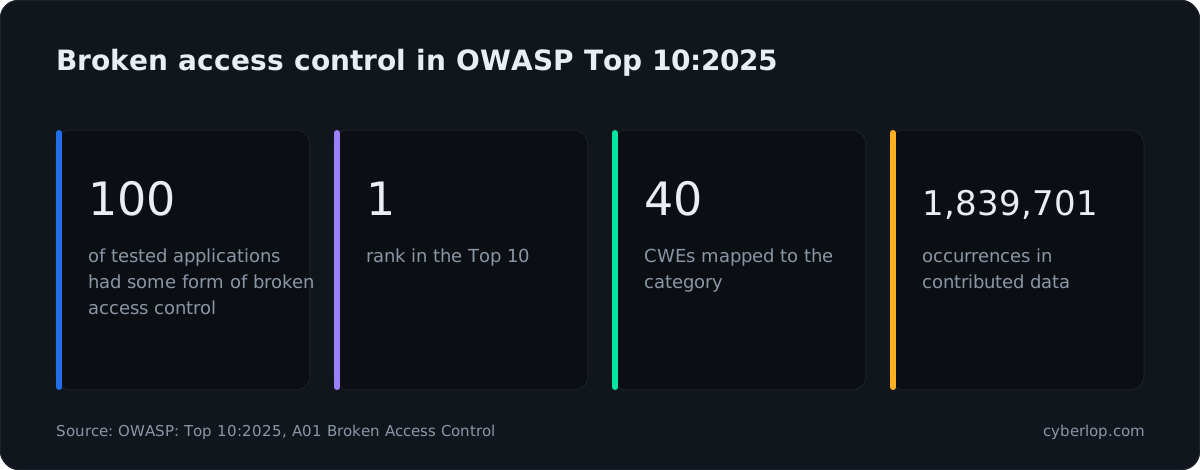
Access-control mistakes sit at number one in the OWASP Top 10:2025. All of the applications in its data had some form of broken access control. The category maps to 40 CWEs and has 1,839,701 recorded occurrences (OWASP Top 10:2025, A01). The Authz class, and checks on cross-account access, get their own place in a profile for that reason.
What each class covers
| Class | What it covers |
|---|---|
| Injection | SQL, NoSQL, command and template injection, including XXE and deserialisation. |
| Xss | Reflected, stored and DOM cross-site scripting. |
| Auth | Identity and session: login and logout flows, MFA, OAuth and SSO, token lifetime, rate limiting. |
| Authz | Access control: IDOR, missing ownership or tenant checks, privilege escalation. |
| Ssrf | Server-side request forgery. |
| Crypto | Weak secrets or keys, the wrong algorithm, token signing, unsafe comparisons. |
| Config | Security headers, CORS, cookie attributes, TLS, verbose errors, risky defaults. |
| Business-logic | Payment, pricing or quota bypass, replay, race conditions, workflow flaws. |
| Dependency, Secrets | Selectable classes for weaknesses in the libraries you depend on and for exposed secrets. |
How do triage, fixed and regression work?
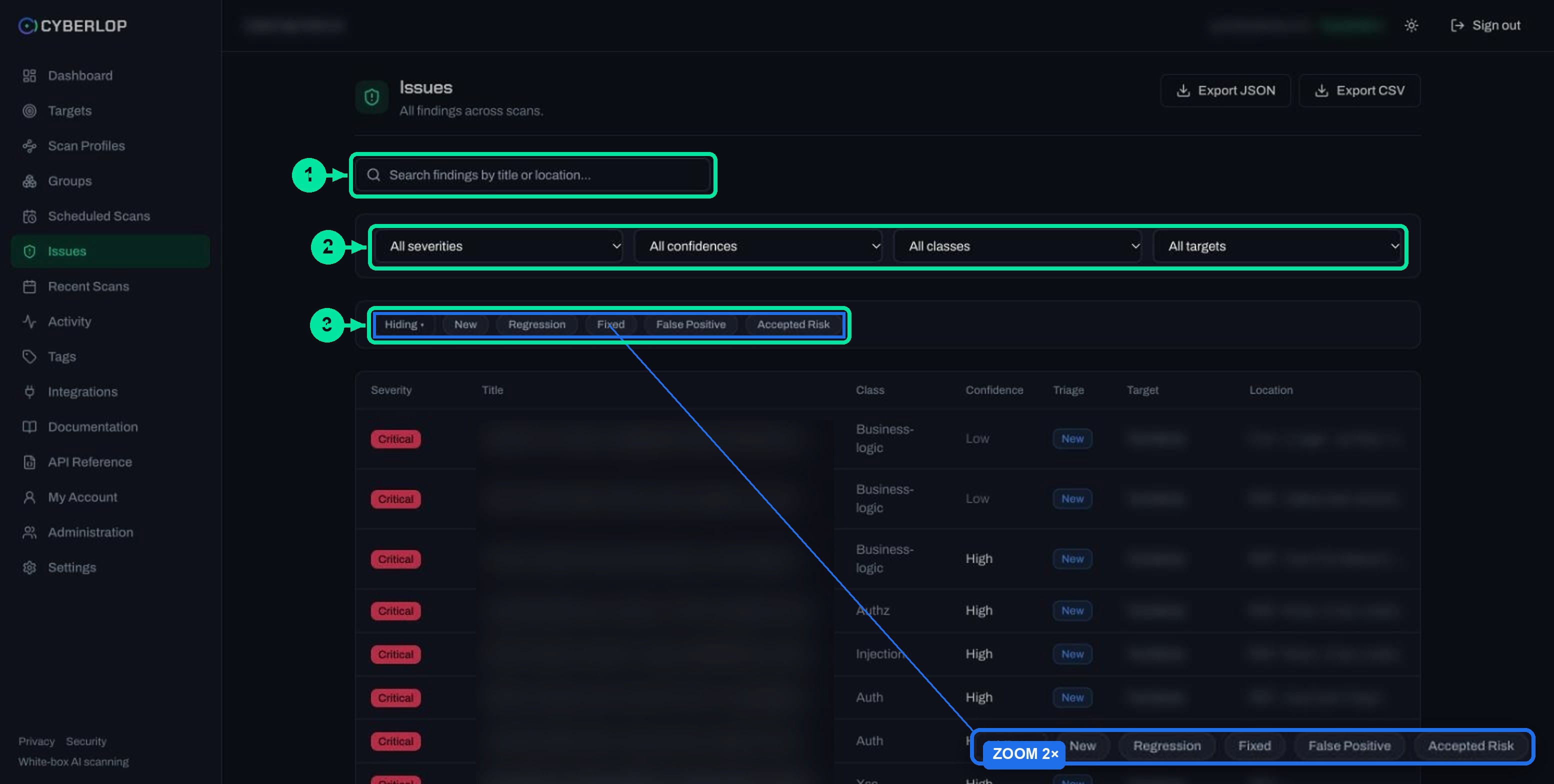
Triage is the state of an issue in your workflow: New, Regression, Fixed, False Positive or Accepted Risk. Finding triage means deciding what each issue is and who owns it. In Cyberlop you do it in the issue dialog, and the scan itself also moves issues between states.
The five triage states
| State | Meaning | Who sets it |
|---|---|---|
| New | Reported and not yet handled. | Cyberlop, when a scan first reports it. |
| Regression | Was fixed, then came back in a later scan. | Cyberlop, on a re-scan. |
| Fixed | A re-scan no longer finds it. | Cyberlop on a re-scan, or you in the dialog. |
| False Positive | The finding is wrong. | You, in the dialog. |
| Accepted Risk | You know about it and choose to live with it. | You, in the dialog. |
The dialog’s Disposition list reads Open (reopen), Fixed, False Positive and Accepted Risk. Pick one, choose an Assignee, add Notes and click Update status. The false positive and risk acceptance states keep a decision on record instead of deleting the issue.
How an issue becomes Fixed or a Regression
Issues persist per target. A re-scan that no longer finds a reported issue marks it Fixed, but only when that scan genuinely did not re-detect it. If the issue reappears it is flagged as a regression. The Diff tab on a scan shows New, Fixed and Regressed counts against the previous completed scan. See Fixed and regressed issues and Compare scans.
Deduplication
Several specialists read the same code, so Cyberlop merges findings that describe one weakness into one issue. The merged issue keeps the richest evidence and the highest severity of the group. Distinct problems in one file, such as four missing headers, stay separate.
What does “role” mean in Cyberlop?
“Role” means two different things, and new users often mix them up. An authentication role is an identity the scanner uses inside your target. A user role is what a person in your workspace is allowed to do in Cyberlop.
Authentication role vs user role
| Authentication role | User role | |
|---|---|---|
| Purpose | Lets a scan test the app behind a login. | Controls what a team member can do in Cyberlop. |
| Where you set it | Scan Profiles, in the Authentication section, via + Add role. | Administration (admins only). |
| Values | Privilege level: Unauthenticated, User, Elevated or Admin. Methods: Form, Header (token / API key) or OAuth 2.0. | Built-in roles include SuperAdmin and Developer. Custom roles are allowed. |
| Detail | Optional free-text AI guidance for each method. | Permission keys in the form area:action, such as scan:run or issue:triage. |
Both should follow least privilege: a scan identity gets only the access it needs, and a person gets only the permissions the job needs. Guides: Authentication roles and API tokens and permissions. Secrets you enter are encrypted and never shown again; leaving a field blank keeps the stored value.
Which other terms will you meet?
These show up in the sidebar and settings once you move past the first scan.
Quick reference
| Term | Meaning | Guide |
|---|---|---|
| Sitemap | The endpoints a scan discovered, grouped by host, with method, parameters, a note and a role chip. | Scan sitemap |
| Diff | New, Fixed and Regressed issues compared with the previous completed scan. | Compare scans |
| Tag | A label for filtering and grouping profiles. | Groups and tags |
| Group | A set of profiles picked by hand or by tag, used for access scoping. | Groups and tags |
| Schedule | Runs a profile Once, Daily, Weekly, Monthly, Quarterly or Yearly, in the organisation timezone. | Schedule scans |
| Scan agent | A self-hosted container for internal apps. Status is pending, online or offline. | Self-hosted scan agents |
| Cyberlop AI | The included AI allowance. You can instead connect your own AI provider credential. | AI provider settings |
| Activity | An audit-style feed of logins, scans, triage and settings changes. | Activity feed |
What are the common mistakes with these terms?
- Editing a target. You cannot. Delete and recreate it, remembering that deletion cascades to profiles, schedules, scans and findings.
- Moving a profile to another target. A profile’s target is fixed after creation. Create a new profile instead.
- Reading “All” as “none”. All in the Vuln classes column means no class was ticked, so every class is scanned.
- Ranking by severity alone. Check confidence and status before you assign work.
- Expecting a file and line from a black-box issue. Those point to an endpoint. File and line come from white-box scans.
- Assuming a failed scan is empty. A failed scan can still hold the findings found before it stopped.
What should you read next?
Next step: Add a target. If you want the whole path from first sign-in to first finding, start with Getting started, and see what the home screen shows in Dashboard overview. For how the product works in plain language, visit how it works and the evidence page.
Questions people ask
Cyberlop key terms: FAQs
What is a target in Cyberlop?
A target is the application you want tested: a name, a Main URL, optional backend URLs, an environment and, for white-box, a repository URL and branch. Targets cannot be edited; delete and recreate to change one.
What is the difference between an issue and a finding?
Nothing. The app uses both words for one vulnerability reported by a scan. The page is called Issues and the scan tab is called Findings.
What is the difference between a scan and a scan profile?
A profile is the saved configuration: scope, authentication and reporting. A scan is one run of that profile. You can run the same profile many times and compare the results with the Diff tab.
What does Confirmed mean on a finding?
Confirmed is a status that says the issue was proven against the live target during the exploitation phase. Likely and Unconfirmed mean the proof was weaker. It is separate from severity and confidence.
What does Regression mean?
A regression is an issue that was marked Fixed after a re-scan and later reappeared. Cyberlop flags it automatically when a new scan detects it again.
What does it mean when the vulnerability classes show All?
No class was ticked in the profile, so the scan covers all ten: Injection, Xss, Auth, Authz, Ssrf, Crypto, Config, Business-logic, Dependency and Secrets.
Are authentication roles the same as user roles?
No. An authentication role is a login identity the scanner uses inside your app. A user role, such as SuperAdmin or Developer, controls what a person can do in Cyberlop through permission keys like area:action.
Do I need a repository to run a scan?
Not for a black-box target, which needs only the URL and verified ownership. A white-box target needs an HTTPS repository URL so the scan can read your code.
Sources
Where the facts come from
Keep reading
Related articles
Cyberlop activity feed: what it records and how to use it for audits
Read the Cyberlop activity feed: sign-ins, scans, triage, roles and support sessions, who can see them, how to search and an audit checklist.
How to add a target in Cyberlop: the New target dialog, field by field
Add a target in Cyberlop: the New target dialog field by field, white-box vs black-box, repository URL, environment, and why targets cannot be edited.
AI provider settings: included allowance, your own credential and models
Use the included AI allowance or save your own credential, verify it and choose a model for each tier. Includes the rate-limit note.

Ready to run your first scan?
Now that the words are clear, add one target and run one scan. If you want help choosing a scan type or a first profile, ask us to run it on one of your applications.
Or start with a $199 pilot on one application: thirty days, success criteria agreed before day one, credited against the annual if you convert.