

To compare scans in Cyberlop, re-run the same scan profile, open the new scan and click the Diff tab. It compares the scan with the previous completed scan and lists New, Fixed and Regressed findings. Read Regressed first, then New, then Fixed, and triage each one.
- Confirm the baseline Open Recent Scans and check the earlier scan shows Completed.
- Fix and push Fix the issues and push the change to the branch the target uses.
- Re-run the profile Click Scan on the same scan profile.
- Wait for completion Wait until the result badge reads Completed; use Refresh if needed.
- Open the Diff tab Open the new scan and click Diff.
- Read Regressed first Review the Regressed column first, then New, then Fixed.
- Triage the findings Open each finding, set its disposition and click Update status.
- Open a scan and click Diff to see New, Fixed and Regressed findings.
- The baseline is always the previous completed scan, so failed and cancelled runs do not count.
- Re-run the same profile after a fix so the comparison is like for like.
- Regressed means a fixed finding came back; read it first.
- The first scan shows “No previous scan to compare against.”
To compare scans in Cyberlop, open a finished scan from Recent Scans and click the Diff tab. It lists the findings that are New, Fixed or Regressed against the previous completed scan of the target. A scan comparison is a diff: it shows what changed between two runs, not the whole list again.
What is a scan comparison in Cyberlop?
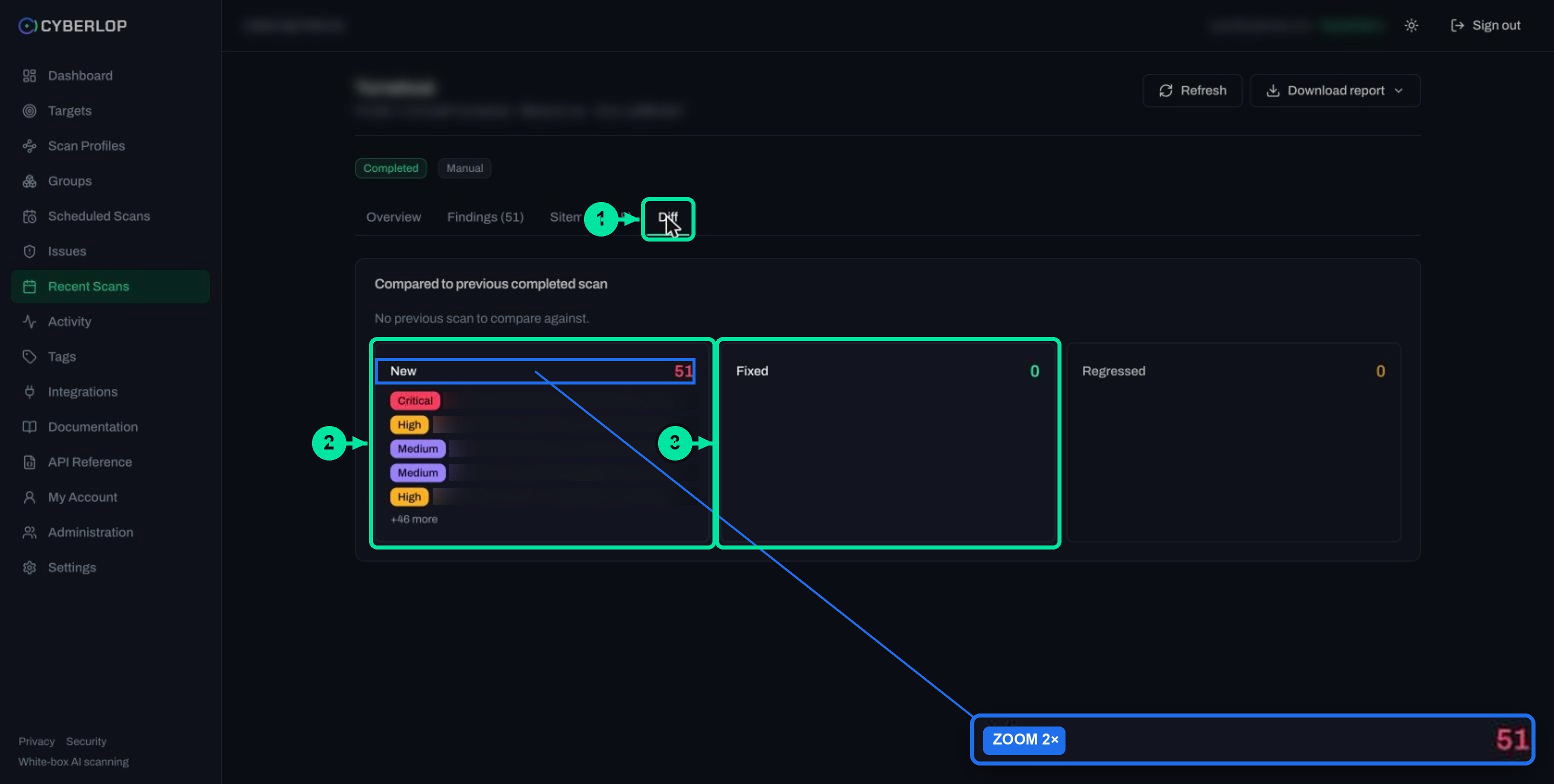
A scan comparison is the Diff tab on the scan detail page. It sets one scan against the previous completed scan and sorts the difference into three columns. Cyberlop keeps issues per target across scans, so each re-scan can answer one question: did the last round of fixes work, and did anything new or old turn up?
The Diff tab sits beside Overview, Findings and Sitemap. The header reads “Compared to previous completed scan”. If you want the other tabs explained first, read Scan detail page.
What do New, Fixed and Regressed mean?
Each column holds findings shown as a severity badge and a title. Long columns are cut short with a note such as “+46 more”, so open the Findings tab or the Issues list when you need the full set.
| Column | Colour | What it tells you | What to do |
|---|---|---|---|
| New | Red | The finding was not in the previous completed scan. | Read it, then triage it. See Triage findings. |
| Fixed | Green | A previous finding was not found again in this scan. | Check the code change that closed it, then leave it as Fixed. |
| Regressed | Amber | A finding that had been fixed has come back. | Treat it as urgent. Find the change that undid the fix. |
What does a New finding mean?
It is a weakness this scan found that the previous completed scan did not. It may come from fresh code, a new endpoint, or a path the earlier scan never reached. A new finding is not proof that your last release broke something, so check the Sitemap and the commit before you decide.
What does a Fixed finding mean?
It was reported before and was not found again. The in-app documentation says a finding is only marked fixed automatically when the scan genuinely did not re-detect it. That is a good sign, but read the finding once to confirm the fix is the reason, not a gap in coverage.
What does a Regressed finding mean?
It was fixed, and a later scan found it again. Cyberlop flags it as a regression instead of a fresh finding, so the history stays honest. Typical causes are a revert, a merge that restored old code, or a second code path that was never patched.
How do you compare two scans, step by step?
You do not pick two scans by hand. Run the same profile again after your fix, then open the new scan; Cyberlop does the comparison for you.
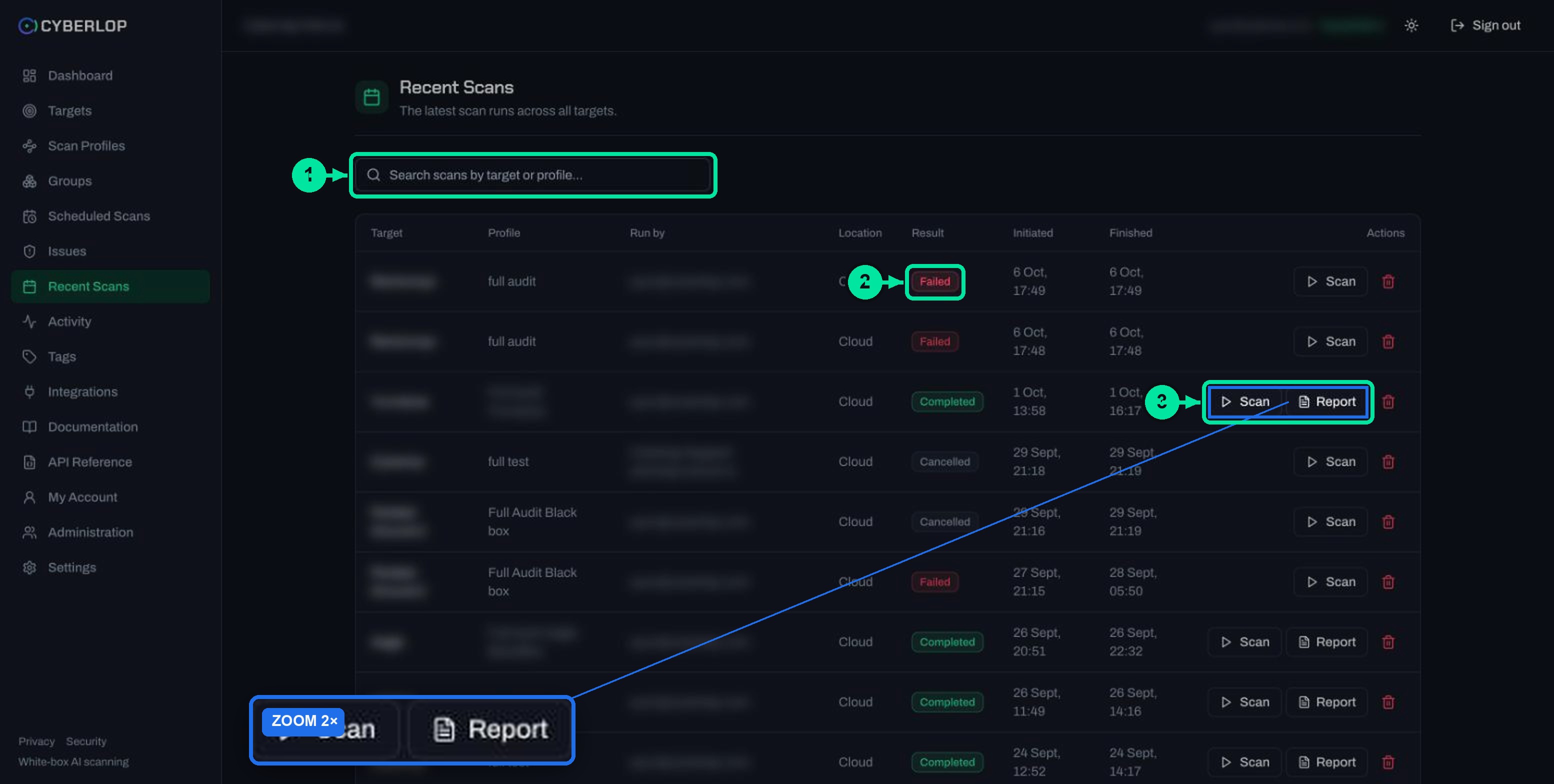
- Open Recent Scans and confirm the earlier scan shows Completed. Failed and cancelled scans are not a baseline.
- Fix the issues in your code and push the change to the branch that the target uses. White-box scans clone the latest code at launch.
- Click ▷ Scan on the same profile. Our Run a scan guide has the details.
- Wait for the result badge to read Completed. Use ⟳ Refresh if you left the page.
- Open the new scan and click the Diff tab.
- Read the three columns in this order: Regressed, New, then Fixed.
- Open each finding from the Findings tab, set its disposition and click Update status.
What do you need before the Diff is useful?
You need at least two completed scans of the same target. The first scan has nothing to compare with, so the tab says “No previous scan to compare against.” That is expected, not an error. Keep the profile the same between runs: if you change vulnerability classes, rules or roles, a finding can vanish because you stopped looking for it.
| Check | Why it matters |
|---|---|
| Both scans show Completed | The Diff compares with the previous completed scan. A failed run can hold partial findings, but it is not a clean baseline. See Failed or cancelled scans. |
| Same profile and scan type | The same classes, rules and roles keep the comparison like for like. Not sure which type you used? Read White-box vs black-box scans. |
| Code was pushed before the re-scan | A white-box scan reads the branch as it stands at launch. Unpushed fixes cannot show as Fixed. |
| Exploitation phase unchanged | With Run exploitation phase switched off, the scan only reads code. Findings that need proof can drop out. See Exploitation phase. |
Why does a finding show as Fixed or Regressed?
Because Cyberlop keeps one issue per real weakness per target and tracks it across scans. The in-app documentation describes the lifecycle in four rules: issues persist per target; a re-scan that no longer finds an issue marks it fixed; if it reappears it is flagged a regression; and your own dispositions are respected on later scans.
How does a finding move between states?
| Situation | What the next scan does | What you see |
|---|---|---|
| Finding reported, still present | Detects it again. | It stays open; it is not in New, because it is not new. |
| Finding reported, code fixed | Does not detect it. | It moves to Fixed in the Diff and in the Triage column. |
| Finding fixed, change later reverted | Detects it again. | It appears under Regressed and gets the Regression triage state. |
| Finding marked False Positive or Accepted Risk | Respects your disposition. | A fixed issue that reappears becomes a regression, not a fresh finding. |
Why do counts differ from what you expected?
Several specialists analyse the same code, so Cyberlop merges findings that describe the same vulnerability and keeps the version with the most evidence. If agents grade one issue differently, the merged issue takes the highest severity. This is finding deduplication, and it is why one weakness is one row. Genuinely different issues that share a file stay separate.
Can a severity change show up in the Diff?
The captured screens list findings by severity badge and title only. If a finding changes severity between scans, read the finding itself for the current rating, and see Severity and confidence for how severity and confidence are kept apart.
How do you use the Diff to prove remediation?
Use it as a gate between “we fixed it” and “it is closed”. A fix is a claim until a later scan agrees with it. Cyberlop is built around a closed loop. A fix is proven by re-running the exploit against the new code, and the Diff then shows whether the re-scan still found each issue. The idea is covered in closed-loop retest and fix verification.
What routine works after each release?
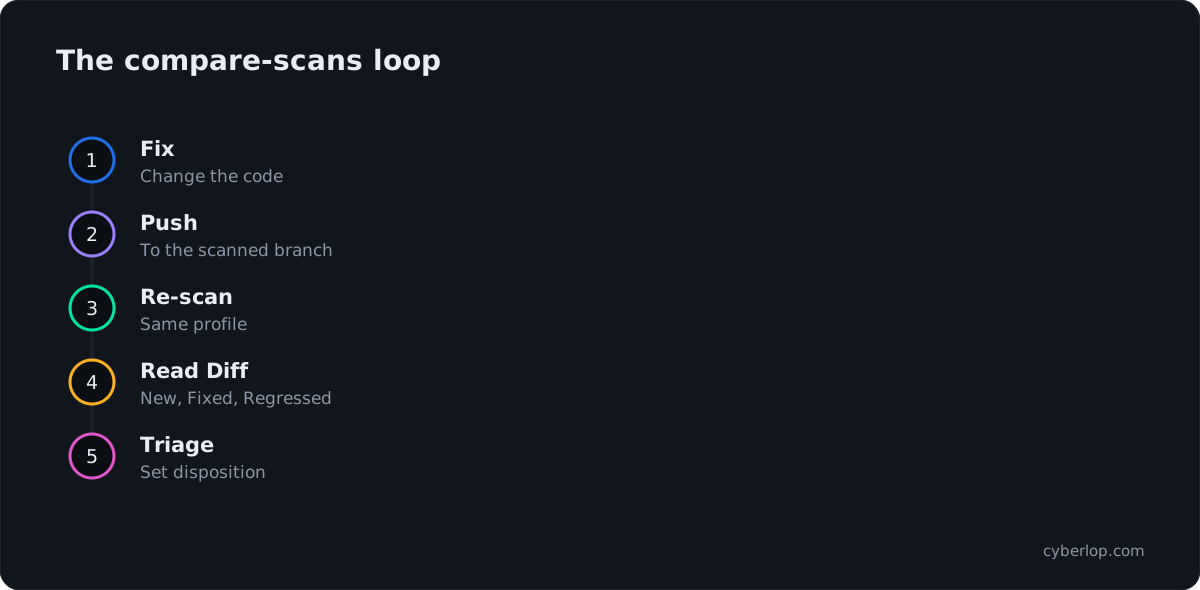
- Re-run the same profile on the branch you released.
- Open Diff and clear Regressed first. A reopened fix usually means a revert or a second code path.
- Triage everything in New and assign an owner. The disposition dialog also takes notes.
- For each item in Fixed, open the finding and check the cause is your change.
- Download a report with Fixed issues only as evidence for the work you closed. Steps are in Download PDF reports.
Where else does the comparison show up?
The Diff is one view of the same lifecycle. These pages show the result from other angles.
| Where | What it shows | Use it for |
|---|---|---|
| Dashboard → Remediation | Open, Fixed, Regressed, False positives and Fix rate across all targets. | A weekly pulse. See Dashboard overview. |
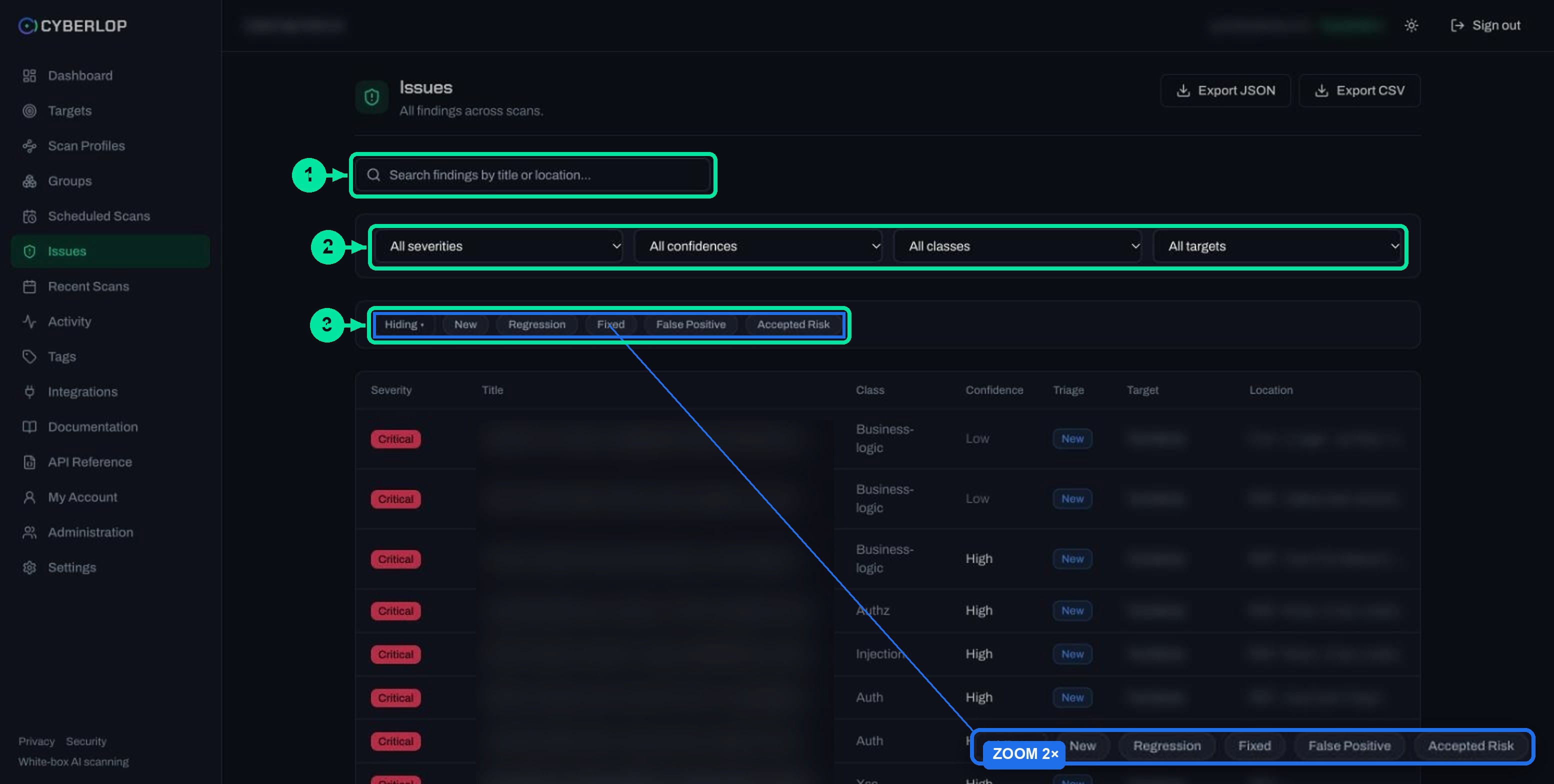
| Issues → triage chips | Hiding or Showing only New, Regression, Fixed, False Positive, Accepted Risk. | Working the whole backlog. See Issues list. |
| Activity feed | “Triage · Issue” entries with the status change, for example new → fixed. | Audit trail of who closed what. See Activity feed. |
API: GET /api/scans/:id/diff | The same new, fixed and regressed split, needing the scan:read permission. | Pulling the result into your own tooling. See API reference. |
The API reference describes this endpoint as a diff against the target’s history, while the app labels the tab as a comparison with the previous completed scan. For a first look, trust the tab; if you build on the endpoint, test it on a staging app first.
Why do fixed findings coming back matter?
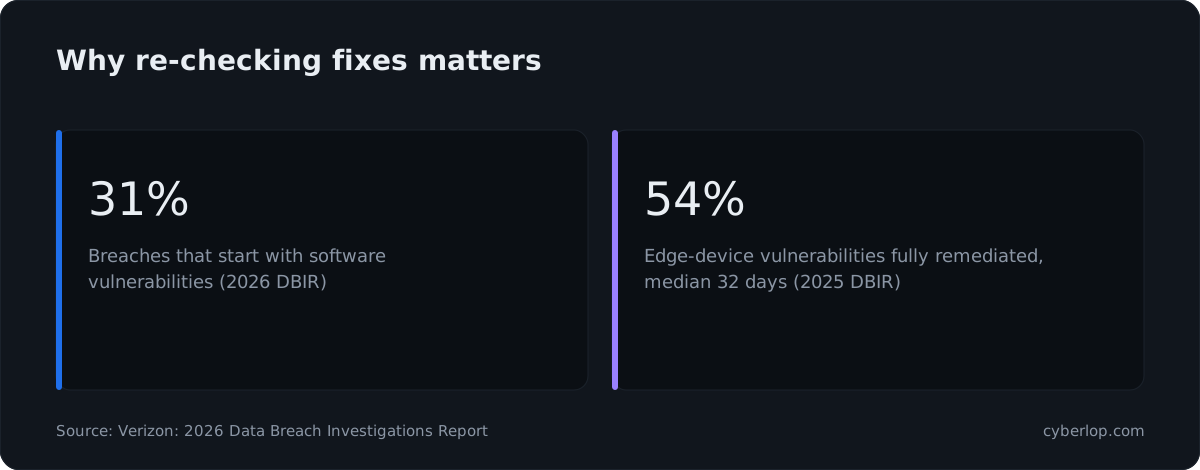
Because unpatched software flaws are now a leading way in, and remediation is slow. Verizon’s 2026 Data Breach Investigations Report says 31% of breaches now start with software vulnerabilities, beating stolen passwords as the top way attackers get in. A fix that quietly reverts puts you back in that group.
Speed matters too. In Verizon’s 2025 report, as reported by Infosecurity Magazine, only 54% of edge-device vulnerabilities were fully remediated, within a median of 32 days. That figure covers edge devices, not web apps. The lesson still carries over: you need a fast, repeatable way to see what is still open, and a comparison after each release is one.
How do you get a comparison on every release?
Run the profile on a schedule or from your pipeline, so every release has a fresh scan to compare. In Scheduled Scans you can run a profile Once, Daily, Weekly, Monthly, Quarterly or Yearly; see Schedule scans. From your CI/CD pipeline, the generated job starts a scan and prints the findings without failing the build. Setup is in CI/CD integration.
The scan then appears in Recent Scans with its trigger shown, and its Diff tab works like any other. Only scan applications you own or are authorised to test.
What if the Diff looks wrong?
Most surprises come from what changed between the two runs, not from the tab itself. Start with this table.
| What you see | Likely reason | What to do |
|---|---|---|
| “No previous scan to compare against.” | This is the first completed scan. | Run the profile again after your next change. |
| A finding you fixed is not under Fixed | The code was not pushed, the scan used another branch, or it is still detected. | Check the Commit on Overview. Re-run after pushing. |
| Many findings under New and Fixed at once | The profile, classes or roles changed between runs. | Compare like for like. Review the profile in Edit a scan profile. |
| A finding is Fixed but you think it is not | Coverage may have changed, not the code. | Open the Sitemap tab and check the endpoint was reached. See Scan sitemap. |
| Column list is cut off with “+N more” | The Diff shows a short list per column. | Use Findings or Issues for the full list and filters. |
| Diff is empty after a failed scan | Failed runs are not completed scans. | Read the banner and the checklist in Failed or cancelled scans. |
What mistakes should you avoid?
- Calling a finding closed because it left New. Look under Fixed and read the evidence.
- Changing the profile and the code in the same round, which makes the Diff hard to trust.
- Ignoring Regressed because the count is small. One reopened critical issue outweighs ten new low ones.
- Marking issues Fixed by hand before a scan agrees. Let the re-scan show it.
What should you do next?
Set up regular runs so there is always something to compare: Schedule scans is the next step. To see how Fixed and Regression states work in the triage list, read Fixed and regressed issues, and to read a single finding, Read a finding. The full path from first sign-in is in Getting started, and how it works explains the five phases behind each scan. For how we evidence findings, see evidence. Related terms: retest, finding triage and remediation.
Questions people ask
Compare scans: FAQs
How do I compare two scans in Cyberlop?
Run the same scan profile again, open the new scan from Recent Scans and click the Diff tab. It compares that scan with the previous completed scan of the target and lists New, Fixed and Regressed findings.
Can I choose which two scans to compare?
The captured screens show no picker. The Diff tab always reads “Compared to previous completed scan”, so the baseline is chosen for you. To compare a specific change, run the profile before and after it.
What does Regressed mean?
A regressed finding was fixed in an earlier scan and has been found again. Cyberlop flags it as a regression instead of a new finding, and it carries the Regression triage state on the Issues list.
Why does the Diff say there is no previous scan?
The scan is the first completed scan to compare against. The tab shows “No previous scan to compare against.” Run the profile again later and the comparison will fill in.
Does a failed or cancelled scan count as the baseline?
The Diff compares with the previous completed scan, so failed and cancelled runs are not the comparison point. A failed scan can still hold findings found before it stopped.
Is a Fixed finding proven fixed?
It means the latest scan did not find it again. The documentation says a finding is auto-marked fixed only when the scan genuinely did not re-detect it. Open the finding and confirm the fix is the reason.
Can I get the comparison through the API?
Yes. The API reference lists GET /api/scans/:id/diff, which returns the new, fixed and regressed split and needs the scan:read permission. Authenticate with a session or a Bearer API token.
Can I export the Diff?
The Diff tab has no export button in the captured screens. Use Export JSON or Export CSV on the Issues page, or download a PDF report from the scan, including the Fixed issues only mode.
Keep reading
Related articles
Cyberlop activity feed: what it records and how to use it for audits
Read the Cyberlop activity feed: sign-ins, scans, triage, roles and support sessions, who can see them, how to search and an audit checklist.
Cyberlop API reference: authentication, permissions and the OpenAPI spec
Use the Cyberlop API: 78 endpoints in 15 groups, session or Bearer token auth, permissions per route, worked calls and the OpenAPI download.
How to add security scanning to your CI/CD pipeline
Copy the generated pipeline YAML, set CYBERLOP_URL and CYBERLOP_API_TOKEN, and get findings in your build log on every merge without blocking builds.

Want to see a fix prove itself?
Cyberlop finds vulnerabilities in web apps and their APIs with black-box, grey-box and white-box pentesting, and a fix is proven by re-running the exact exploit against the new code. Ask us to run it on one of your applications.
Or start with a $199 pilot on one application: thirty days, success criteria agreed before day one, credited against the annual if you convert.