
Home / Blog / Tutorials / How to use the Cyberlop scan sitemap
Tutorials
How to use the Cyberlop scan sitemap
The scan sitemap lists every endpoint a scan discovered in your running app. Here is how to read it, export it and use it to check that the scan reached what matters.
Cyberlop Labs · Updated · 9 min read

The scan sitemap is the list of endpoints a Cyberlop scan discovered in your running app. Open Recent Scans, click a scan, choose the Sitemap tab, filter by URL or method and click Export CSV. Compare the list with your own routes to see whether the scan reached the parts of your app that matter.
- Open the scan Click Recent Scans in the sidebar and click the scan row, anywhere except the Scan, Report and delete buttons.
- Open the Sitemap tab Click the Sitemap (n) tab. Expand a host group to see its endpoints.
- Read the rows Check each method badge, path, params line, note and role chip.
- Filter the list Type a path fragment or a method into Filter by URL or method... to narrow the rows.
- Export the sitemap Click Export CSV to download the list.
- Compare with your routes Put the export beside your own route list and mark each route found or missing.
- Fix the cause Add a login role, adjust Focus or Avoid rules, or add a backend URL, then run the scan again.
- The Sitemap tab lists discovered endpoints grouped by host, each with a method, path, params, a note and a role chip.
- Use Filter by URL or method... to narrow the list and Export CSV to take it into a spreadsheet.
- The sitemap is a coverage check: a route that is missing from it has no evidence of being tested.
- Missing endpoints usually trace to a missing login role, a Focus or Avoid rule, or a backend host not added to the target.
- A failed or cancelled scan can still hold a partial sitemap.
The Cyberlop scan sitemap is the list of endpoints a scan discovered in your running application, grouped by host. To read it, open Recent Scans, click a scan, choose the Sitemap tab, filter by URL or method, and use ⤓ Export CSV to take the list away. Its best use is a coverage check: did the scan reach the parts of your app that matter?
What is the scan sitemap?
The scan sitemap is the map of endpoints that the recon phase builds while a scan runs. Each entry is a method and a path, with the parameters the scan saw and a note about how the endpoint behaved. It is a map of your attack surface as the scan found it, not a list of vulnerabilities.
It comes from the second of the five scan phases. After source analysis, an agent maps the live application: every endpoint, method, parameter and the authentication each one requires. That map is what later ties a finding to a specific frontend or backend URL. The page itself is part of the scan detail page, next to Overview, Findings and Diff.
The sitemap describes one run only. A second scan of the same profile produces its own list, and the comparison between runs happens on the Diff tab.
Why does the sitemap matter?
A scan can only test what it can reach. If a route never appears in the sitemap, you have no evidence that it was tested, and a clean Findings tab says nothing about it. The OWASP testing guide makes the same point in its section on identifying application entry points: list every route and input first, and you will know where to look hardest.
The same idea shows up in API security. OWASP ranks API9:2023 Improper Inventory Management among its API risks. Old versions and forgotten endpoints that nobody patches are an easy way in, and the fix starts with a list of your API hosts. When a sitemap shows a host or version you had forgotten, it has just done that job for you.
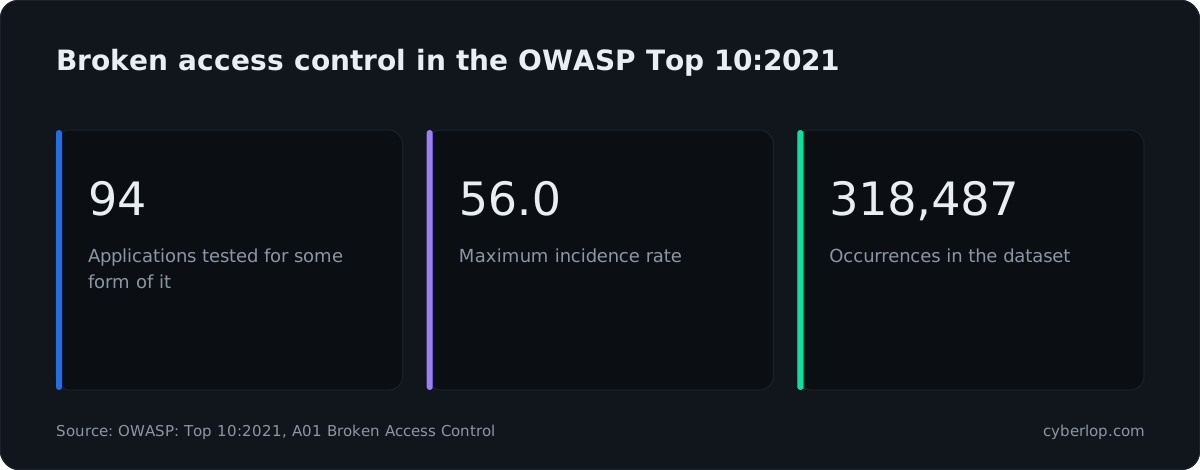
Access control is where coverage gaps hurt most. In the OWASP Top 10:2021, A01 Broken Access Control moved up from fifth place, with 94% of the applications in the data checked for it and over 318,000 occurrences, the most of any category. An admin-only route that the scan never reached is a broken access control check that never happened.
How do you open the Sitemap tab?
You open it from the scan detail page. The tab label carries a count, such as Sitemap (34), so you can see the size of the map before you click.
- Click Recent Scans in the sidebar.
- Click a scan row, anywhere except the Scan, Report and delete buttons.
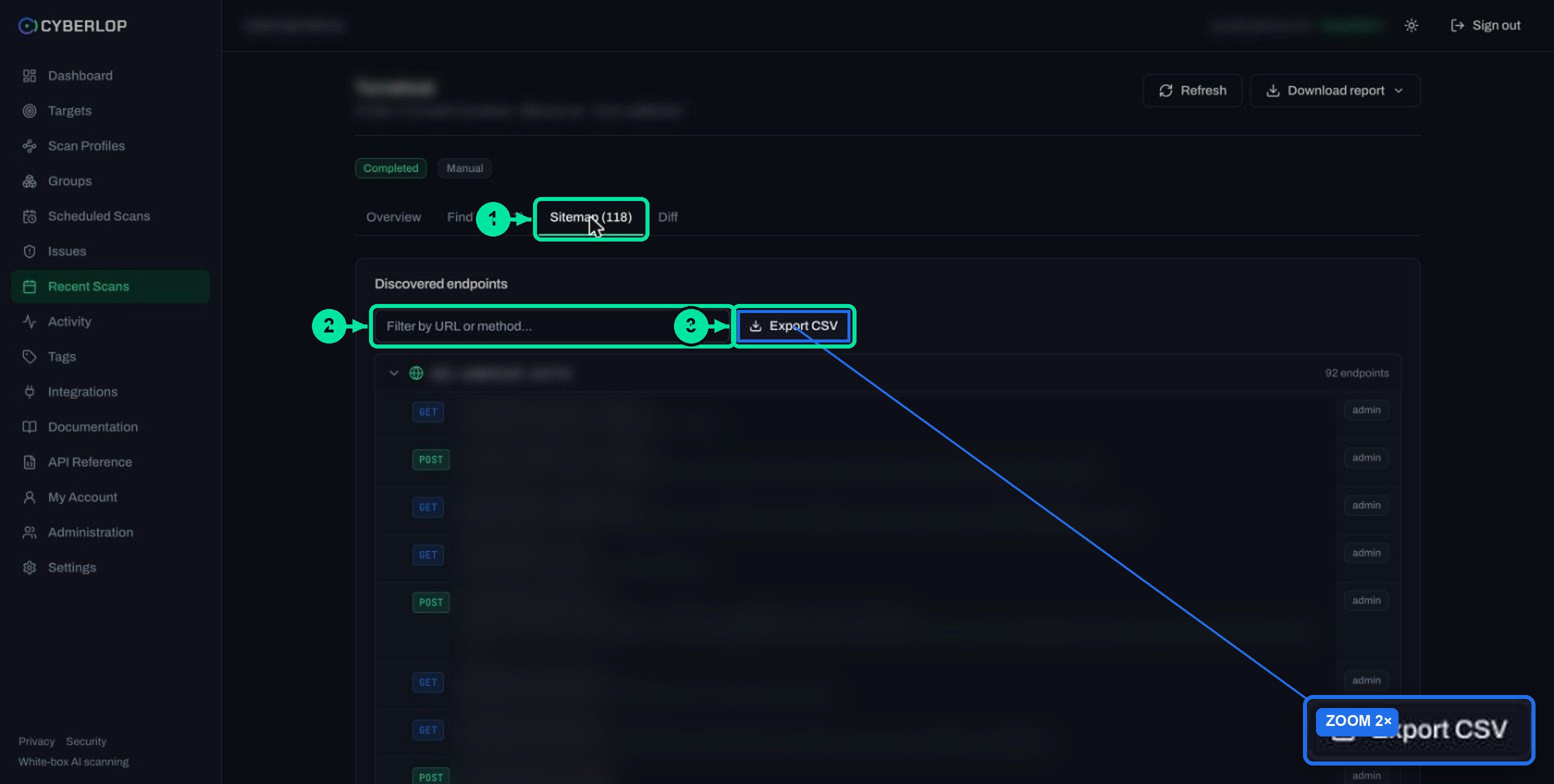
- Click the Sitemap (n) tab, next to Overview and Findings (n).
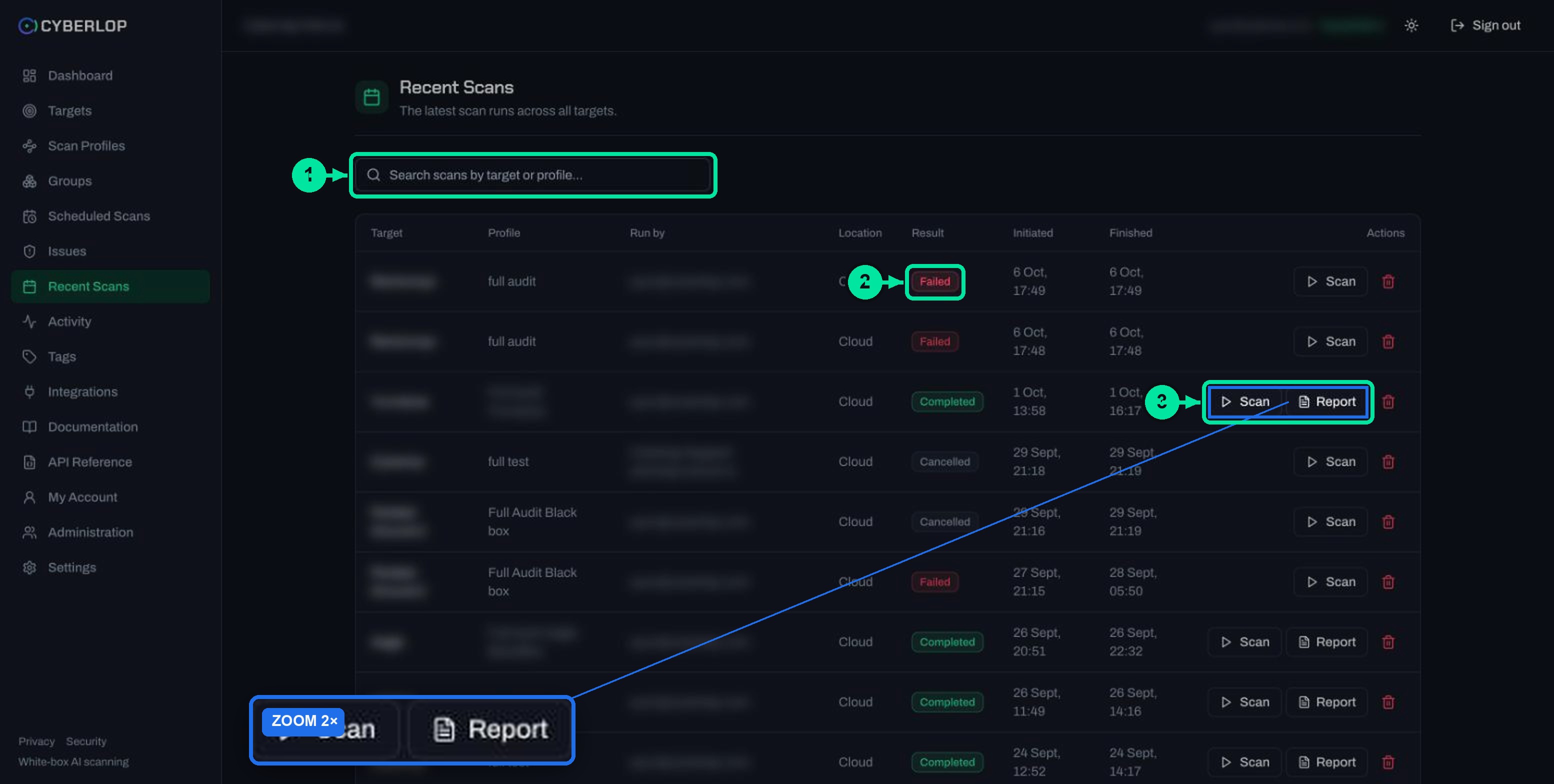
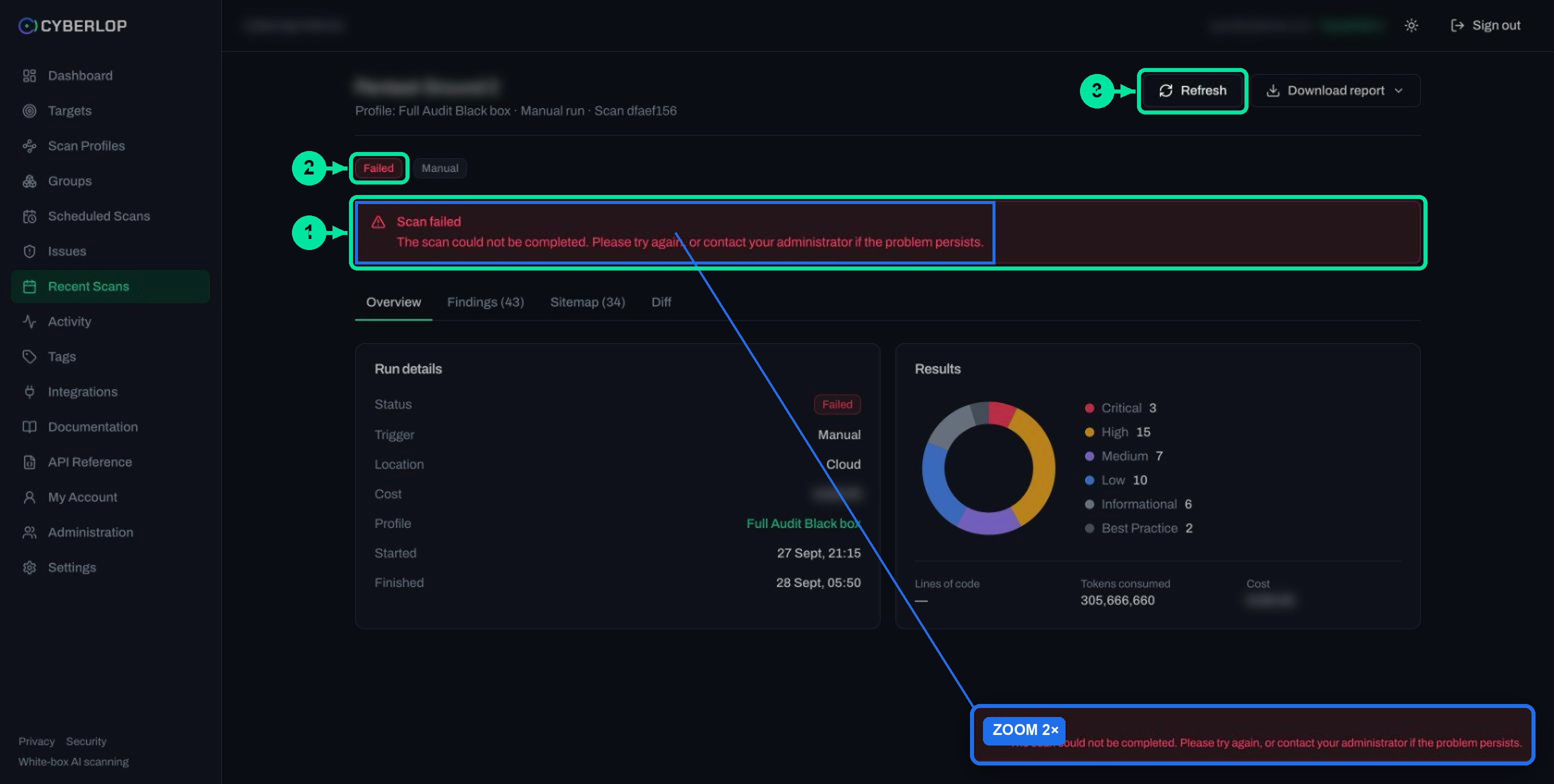
While a scan is still running, the recon map appears as it is discovered, and findings arrive alongside it. Use ⟳ Refresh in the header to reload the page. A scan that failed or was cancelled can still hold a sitemap, so open the tab on those too; see failed or cancelled scans for what partial results mean.
What does each sitemap row show?
Each row is one endpoint, and every row has the same parts. The screen is headed Discovered endpoints, with a filter box and an export button above the host groups.
| Element | What it shows | How to use it |
|---|---|---|
| Host group | A collapsible group with a globe icon and a count such as 26 endpoints. | Groups split the list by host. A host you did not expect is worth a look. |
| Method badge | The HTTP method, coloured by type (GET blue, POST green and so on). | Spot write methods quickly: POST, PUT, PATCH and DELETE change data. |
| Path | The endpoint path, for example /api/orders/{id}. | Compare against the routes you know exist. |
params: line | Optional. The parameters the scan saw, for example params: a, b, c. | Parameters are the inputs that injection and access checks work on. |
| Note | One line written by the scan about the endpoint. | Notes such as "Correctly gated — HTTP 401" show that access was refused. A note that starts with "BROKEN ACCESS CONTROL" and an HTTP 200 without authentication points to a finding to read. |
| Role chip | A chip on the right, for example admin. | Shows the role the endpoint is tied to. Use it to see which parts of the app sit behind which privilege level. |
| Filter by URL or method... | A search box above the list. | Type a path fragment or a method such as DELETE to narrow the list. |
| ⤓ Export CSV | A button above the list. | Downloads the sitemap so you can work on it in a spreadsheet. |
How do you read the notes?
The notes are the quickest way to scan a long list. They are written by the scan from what it observed, so treat them as leads and not as final verdicts. An endpoint noted as correctly gated tells you the check behaved as intended on that run. An endpoint noted as reachable without authentication is a lead to follow on the Findings tab, where the evidence lives. How to read that evidence is covered in read a finding.
What does a role chip tell you?
The role chip links an endpoint to a role name you set up in the profile. If you created roles with different privilege levels, the chips show where those levels meet the app. If a profile has no roles, there is only unauthenticated scanning, and the sitemap will mostly show what a visitor can reach. See authentication roles for how roles are defined.
What does the endpoint count mean?
The number on the tab and on each host group counts discovered endpoints. It is a measure of reach, not of risk. A large count with few findings can mean a well-built app or a shallow test; the coverage check below tells you which.
How do you filter and export the sitemap?
You filter with the box labelled Filter by URL or method... and export with ⤓ Export CSV. Both sit above the host groups.
How do you filter the list?
- Click the filter box.
- Type part of a path, such as
/admin, or a method, such asDELETE. - Read the matching rows. Clear the box to see the full list again.
Useful filters: DELETE lists the endpoints that remove data; /admin lists management routes; /api/ narrows to API paths.
How do you export the sitemap to CSV?
- Open the Sitemap tab of the scan.
- Click ⤓ Export CSV.
- Open the downloaded file in your spreadsheet or tracker.
Check the columns when you first open the file, before you build formulas on it. For findings, the findings exports from the Issues list work the same way and are covered in their own guide.
How do you use the sitemap to check coverage?
You compare the exported sitemap with the routes you know your app has, then find out why anything is missing. This is the main reason to use the tab.
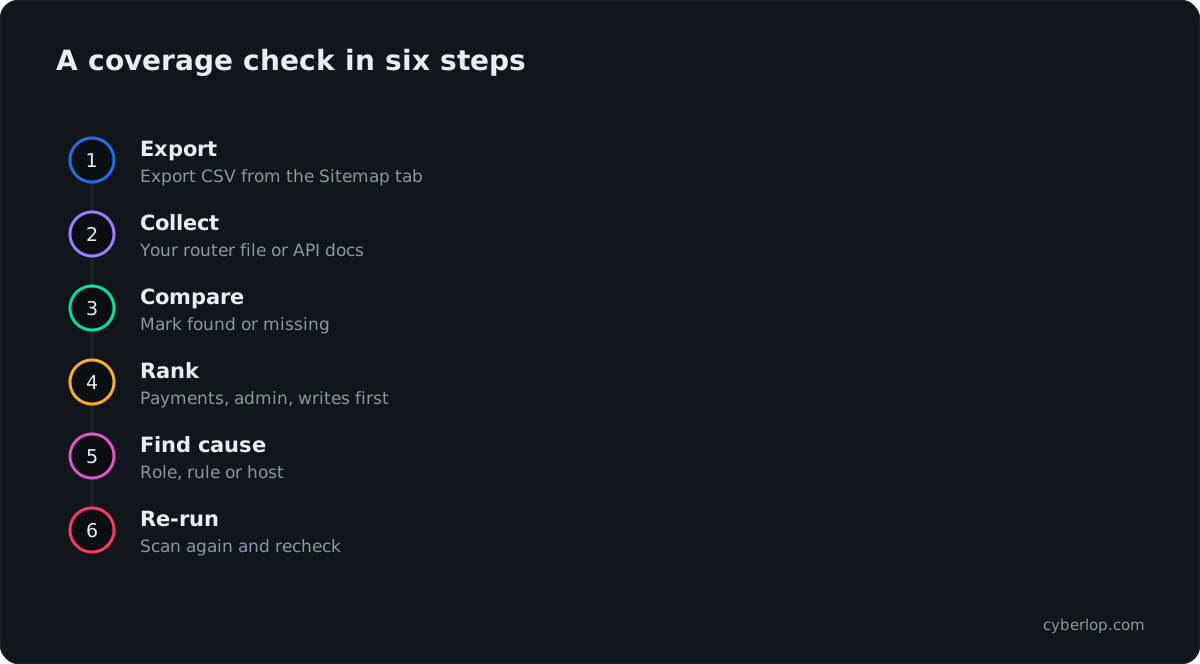
- Export the sitemap. Click ⤓ Export CSV on the scan you want to judge.
- Collect your own list. Use your router file, your API documentation or your gateway configuration. For a white-box target the repository holds the routes, so the code is the best list.
- Put the two side by side. Mark each of your routes as found or missing. Add any endpoint in the sitemap that is not on your list.
- Rank the missing ones. Payments, account changes, admin tools, file uploads and anything that writes data come first.
- Find the cause. Use the table below.
- Fix the profile and run again. Then repeat the comparison on the new scan.
Why would an endpoint be missing?
Each cause below maps to a setting you control. Check them in this order.
| Likely cause | How to check | What to change |
|---|---|---|
| The route sits behind a login and the profile has no role | The Authentication section shows "No auth roles. Add a role to scan behind login, or leave empty for unauthenticated scanning." | Add a role with the right privilege level. See authentication roles. |
| The role is too low-privileged | Admin routes are missing but user routes are present, and no admin chip appears. | Add a role at the higher privilege level, using a test account made for the scan. |
| A Focus or Avoid rule excludes the path | Open the Scope section and read the rules. | Narrow or remove the rule. See focus and avoid rules. |
| The backend lives on another host | No host group appears for your API host. | Add it under Backend / additional URLs on the target. Targets are fixed once created, so you may need to create the target again; see add a target. |
| The scan stopped early | Status is Failed or Cancelled. | Run it again; see failed or cancelled scans. |
| The profile has little context | The scan found only the obvious pages. | Fill in the application context fields. See application context. |
What should you do about an endpoint that is in the sitemap but not on your list?
Treat it as a question for your own team. Someone may have shipped a route nobody documented, or an old version may still be running. In API terms these are a shadow API or a zombie API. Add it to your inventory, then decide whether to document, protect or remove it.
How do you turn the sitemap into a follow-up plan?
You group the rows by what they can do, then match each group to the findings and the next scan. The sitemap carries the method, the parameters and the role, which is enough to prioritise.
| Sitemap signal | What it suggests | Where to look next |
|---|---|---|
| Write methods (POST, PUT, PATCH, DELETE) | Endpoints that change data. | Open Findings and filter by the same path; check for missing function-level access. |
Paths with {id} or an id-like parameter | Records reached by an identifier. | Look for IDOR and BOLA findings on those paths. |
An admin chip | Privileged functions. | Confirm each one is refused for lower roles. See cross-account access. |
| Many parameters on one endpoint | More input to test. | Check the Class column for injection findings. |
| Unexpected host group | An asset outside your list. | Add it to your asset inventory. |
After you fix an issue and scan again, open the new sitemap and the Diff tab. New endpoints in the sitemap are changes in your app; New findings in Diff are what those changes cost. The lifecycle of those states is in fixed and regressed issues.
What does the sitemap not tell you?
It does not prove coverage, and it does not rank risk. The sitemap has four limits:
- It lists what the scan discovered. A route that exists but was never linked or called can be missing.
- Notes are observations from one run, not guarantees. Confirm important ones on the Findings tab.
- A long list does not mean a safe app, and a short one does not mean a broken scan. Compare with your own routes.
- It shows what was reached, not what was exploited. Findings carry the proof; see the exploitation phase.
Scan only applications you own or have permission to test, and use test accounts and staging environments where you can.
Common mistakes
What goes wrong when people read the sitemap?
Reading the count as a score
The number on the tab is reach, not quality. Judge it against your own route list.
Ignoring a failed scan's sitemap
A failed run can still list endpoints found before it stopped. Use them to see how far it got.
Comparing sitemaps from different profiles
Different roles and rules give different maps. Compare scans of the same profile, or expect the differences.
Fixing the app when the profile is the problem
Missing admin routes usually mean a missing role, not a missing route.
Questions people ask
Scan sitemap: FAQs
What is the scan sitemap in Cyberlop?
It is the list of endpoints a scan discovered in your running app, grouped by host. Each row shows the method, path, parameters, a note and a role chip.
Where do I find the sitemap?
Open Recent Scans, click a scan, then choose the Sitemap tab. The tab label shows the number of endpoints, for example Sitemap (34).
Can I export the sitemap?
Yes. Click ⤓ Export CSV above the list. The file downloads so you can compare it with your own route list in a spreadsheet.
Can a failed scan have a sitemap?
Yes. A failed scan can still hold endpoints and findings found before it stopped. Open the tab to see how far the scan got.
Why is an endpoint I know about missing?
Common causes are a missing login role, a Focus or Avoid rule that excludes the path, a backend host that was not added to the target, or a scan that stopped early. Check each in the profile, then run again.
Does a long sitemap mean my app is secure?
No. The count measures how many endpoints were discovered, not how safe they are. Read the Findings tab for results and compare the sitemap with your own routes for coverage.
What do the notes on each endpoint mean?
They are one-line observations written by the scan, such as that access was refused with HTTP 401. Treat them as leads and confirm important ones on the Findings tab.
Is the sitemap the same as an XML sitemap for search engines?
No. An XML sitemap lists pages you want search engines to index. The scan sitemap lists endpoints a security scan found, including API routes, with methods and notes.
Keep reading
Related articles
How to add a target in Cyberlop: the New target dialog, field by field
Add a target in Cyberlop: the New target dialog field by field, white-box vs black-box, repository URL, environment, and why targets cannot be edited.
Application context in Cyberlop: fill the ten fields and use Auto Generate from Repo
Fill in the ten application context fields of a Cyberlop scan profile, use Auto Generate from Repo, and write context that improves findings.
How to scan behind login in Cyberlop with authentication roles
Scan behind login in Cyberlop: add authentication roles, choose privilege levels, combine form, header and OAuth methods, and guide the scan with AI guidance.

Want a scan that maps your app?
Cyberlop finds vulnerabilities in web apps and their APIs with black-box, grey-box and white-box pentesting, and reports what it actually exploited. Ask us to run it on one of your applications.
Or start with a $199 pilot on one application: thirty days, success criteria agreed before day one, credited against the annual if you convert.