
Home / Blog / Tutorials / Form login authentication
Tutorials
How to set up form login authentication in Cyberlop
Form login lets Cyberlop reach the part of your app behind a login page. This guide covers every field, the TOTP secret, the success condition and the login flow.
Cyberlop Labs · Updated · 9 min read
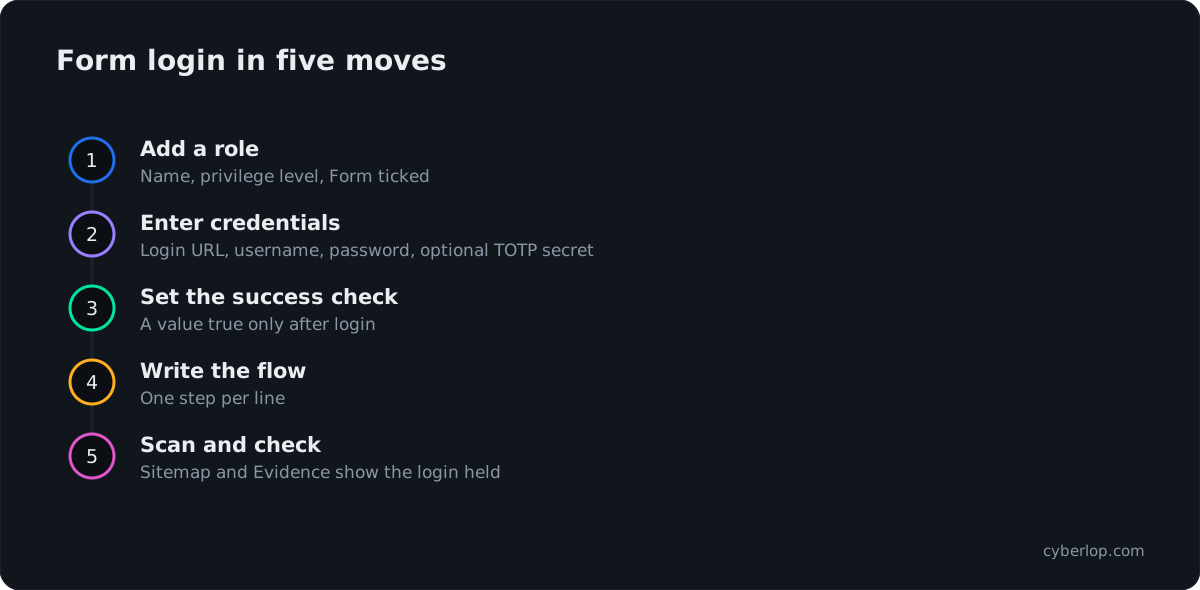
To set up form login in Cyberlop, open a scan profile, go to Authentication, click + Add role, keep Form ticked and enter the login URL, test username and password, an optional TOTP secret, a success condition that is true only after login, and the login flow steps, one per line.
- Open the Authentication section Open a scan profile and click Authentication in the section switcher.
- Add a role Click + Add role, enter a Name and choose a Privilege level.
- Keep Form ticked Leave Form ticked under Authentication methods. Untick it if the role uses another method.
- Enter the login details Choose the Login type, enter the Login URL, then the test Username and Password.
- Add a TOTP secret if needed If the test account uses an authenticator app, paste its shared secret into TOTP secret.
- Set the success condition Choose a Success condition type and a value that is true only after login, such as /dashboard.
- Write the login flow Enter one step per line, such as clicking Sign in and filling the email and password fields.
- Validate and save Click Preview YAML to validate, then Save.
- Scan and check Run a scan, then check that the Sitemap lists pages behind the login.
- Form login is one of three role methods, next to Header (token / API key) and OAuth 2.0.
- Use a dedicated test account with the lowest privilege that still reaches what you want covered.
- The TOTP secret is the authenticator's shared secret, not the six-digit code, and it is optional.
- A success condition must be true only after login, or a failed login can look like a success.
- Stored secrets are never shown again: blank fields keep them, and Clear removes them.
To set up form login in Cyberlop, open your scan profile, go to Authentication, click + Add role, tick Form, then enter the login URL, a test username and password, an optional TOTP secret, a success condition and the login flow steps. Form login authentication is how the scanner signs in to your app through its normal login page, so it can test what sits behind it.
You need an existing scan profile.
What is form login authentication?
Form login is one of three authentication methods a role can use in Cyberlop, next to Header (token / API key) and OAuth 2.0. It suits apps where a person types a username and password into a page. The scanner follows the steps you give it, checks your success condition, and then tests the signed-in part of the app. This is authenticated testing, and without it a scan sees only the public pages.
Each form login belongs to a role: a name, a privilege level (Unauthenticated, User, Elevated or Admin) and one or more methods. The authentication roles guide explains how to plan several roles. If your app uses tokens or API keys instead, read the header and token guide or the OAuth client credentials guide.
What you need ready
- A scan profile on a target you own or are authorised to test.
- A dedicated test account, never a real person's account. Give it the lowest privilege that still shows the area you want covered.
- If the account has two-step sign-in, the TOTP secret that was shown when you enrolled its authenticator app.
- A non-production copy of the app, where you can.
How do you add a form login to a scan profile?
Open the profile, choose Authentication in the left-hand section switcher, add a role, keep Form ticked and fill in the form login block. Then save the profile.
- Go to Scan Profiles and open a profile with the pencil icon, or click + New profile.
- Click Authentication in the section switcher.
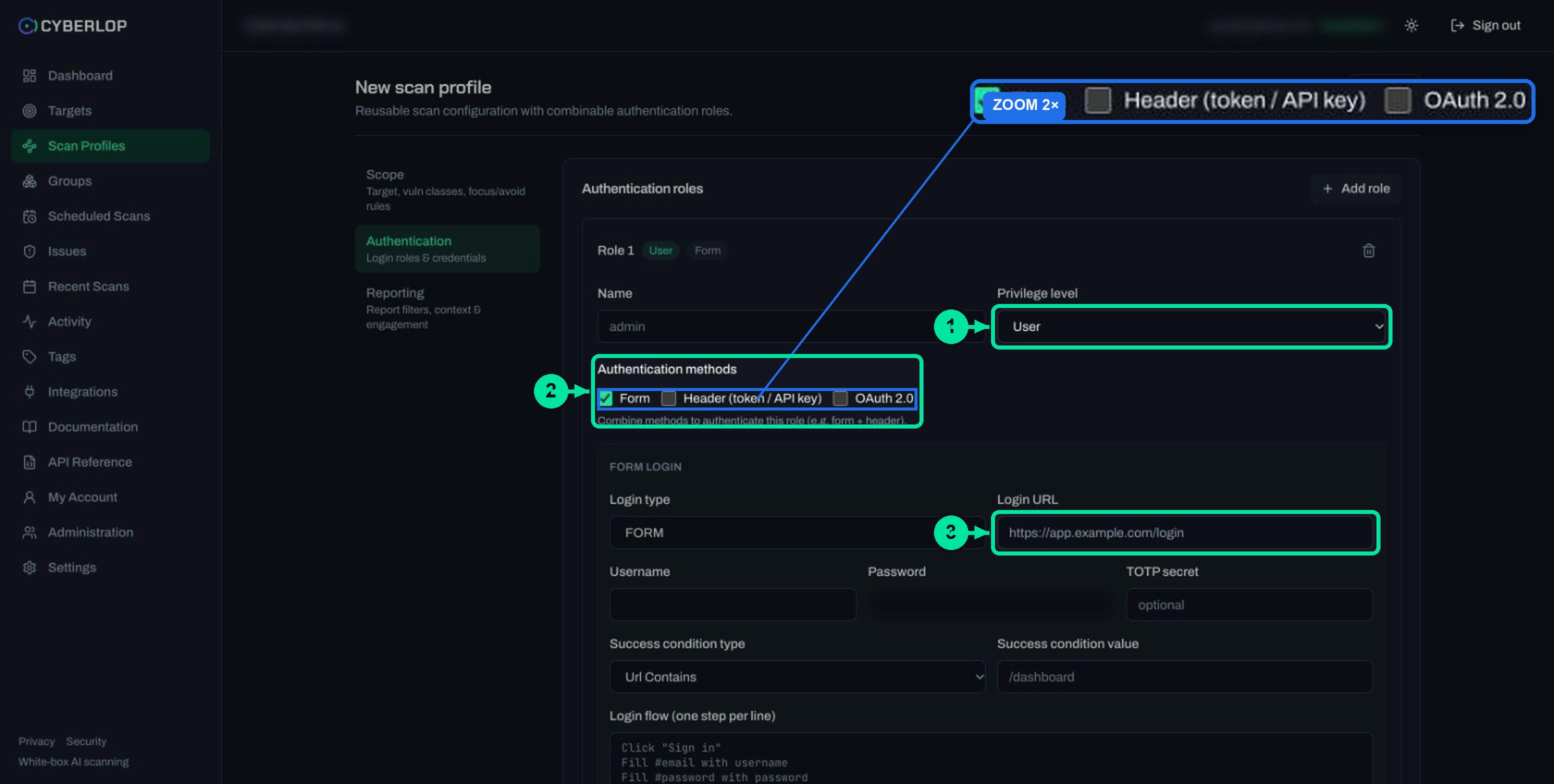
- Click + Add role. Enter a Name (the placeholder is
admin) and choose a Privilege level. The default is User. - Under Authentication methods, leave Form ticked. It is on by default. Untick it if this role should use a header or OAuth instead.
- Fill in the Form login block, using the reference table below.
- Optionally click Preview YAML to validate the form, then click Save.
What does each form login field mean?
The table lists every field in the block, in the order the form shows them.
| Field | What to enter | Notes |
|---|---|---|
| Login type | One of FORM, SSO, API or BASIC | Pick the one that matches how your app signs people in. A normal login page is FORM. |
| Login URL | The full address of the login page, for example https://staging.example.com/login | Use the page the form lives on, not the page you land on afterwards. |
| Username | The test account's username or email | Stored encrypted. Never shown again after saving. |
| Password | The test account's password | Stored encrypted. Never shown again after saving. |
| TOTP secret | Optional. The shared secret behind the account's authenticator code | Leave empty if the account has no second step. |
| Success condition type | Url Contains, Url Equals Exactly, Element Present or Text Contains | How Cyberlop decides the login worked. |
| Success condition value | The text, URL part or element to look for. The placeholder is /dashboard | Must appear only after a successful login. |
| Login flow (one step per line) | Plain steps such as Click "Sign in" | The scanner follows these in order. |
How do you write the login flow?
Write one plain-language step per line, in the order a person would do them. The form's own placeholder shows the pattern, and it is a good starting point for a simple page.
Click "Sign in"
Fill #email with username
Fill #password with password
Click submit
In the placeholder, username and password stand for the values you entered in the fields above, so the steps do not need to contain the secrets themselves.
What breaks a login flow most often?
Use the real field selectors
The placeholder uses #email and #password. Open your login page, inspect each input, and use the identifier your page really has. A wrong selector will stop a login step dead.
Cover every screen between start and signed in
If your app shows a cookie banner, a "continue with email" button or a separate password screen, add a step for each. Walk through the login once in a private window and write down every click.
How do you choose a success condition?
Choose something that is true only when the login worked. A success condition is the check Cyberlop makes after the flow to confirm the account is signed in. If it can also be true on a failed login, a failed login can look like a success.
Which success condition type fits?
| Type | Example value | Use it when |
|---|---|---|
| Url Contains | /dashboard | A successful login moves the browser to a recognisable path. This is the placeholder's choice. |
| Url Equals Exactly | https://staging.example.com/home | The landing address is fixed and no other page can look similar. |
| Element Present | A logout button or account menu | The address does not change, but a signed-in-only element appears. |
| Text Contains | A greeting or "Sign out" | A visible phrase appears only after login. |
What makes a weak condition?
Avoid a value that is also on the login page, such as / or the site name. A path like /login?error=1 can match Url Contains with /login. Test your choice by failing a login on purpose and checking that your value does not appear.
How do you use a TOTP secret with form login?
Paste the account's shared secret into TOTP secret so the login can pass a time-based one-time password step. TOTP is the standard used by authenticator apps, defined in RFC 6238. Codes are derived from a shared secret and the current time, and the RFC sets a default time step of 30 seconds.
The secret is not the six-digit code. It is the seed that your app displays once, often under a "can't scan the QR code?" link, when you enrol the test account's authenticator. If you did not keep it, reset two-step sign-in on the test account and enrol again. The RFC says keys should be protected against unauthorised access, so treat the secret like a password. Cyberlop stores target login credentials encrypted and never shows them again.
If your app asks for the code on a second screen, add a step for it in the login flow, and check the result with the success condition. For background, see the glossary entries on TOTP and multi-factor authentication. If your own organisation requires MFA for staff sign-in to Cyberlop, that is a separate setting, covered in the two-factor authentication guide.
Why does a working login matter?
A login that holds is the difference between scanning a marketing site and scanning the product. Most of the data and actions in a typical app sit behind sign-in, and many serious flaws only show up there.
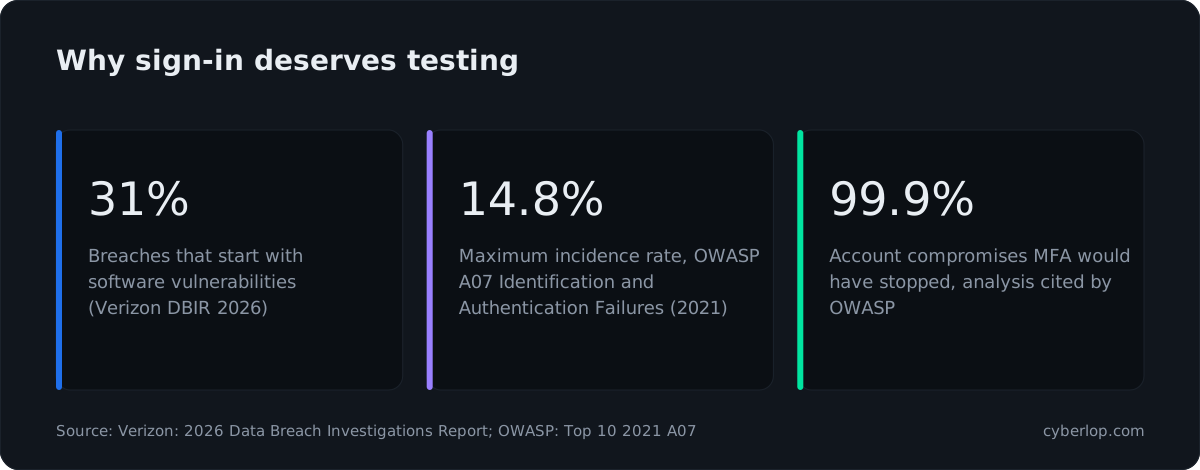
Credentials are also a favourite route for outsiders. The Verizon 2026 Data Breach Investigations Report says 31% of breaches now start with software vulnerabilities, beating stolen passwords as the top way attackers get in. Both matter, and your scan profile can cover the first while your test account setup respects the second. OWASP puts identification and authentication failures at number seven in its 2021 Top 10, with a maximum incidence rate of 14.84% across the data it analysed, and lists missing or ineffective multi-factor authentication among the signs. The OWASP cheat sheet on multifactor authentication cites an analysis that MFA would have stopped 99.9% of account compromises. That is why testing a login that uses a second step is worth the setup.
How do you set up a safe test account?
Create an account that exists only for scanning, with a known password you can rotate. Cyberlop signs in with it and tests from there, so anything that account can change, the scan can change.
- Use staging. Where you can, point the target at a non-production copy with fake data. If you must use production, add avoid rules for sensitive paths and write limits into Rules of engagement.
- Use least privilege. Match the role's Privilege level to what the account really is. See least privilege.
- Do not reuse a person's account. A shared test account is easy to rotate and easy to audit.
- Rotate afterwards. Change the password when a testing round ends. Use a long, unique password, because a stored secret is still a secret.
- Test only what you own or are authorised to test.
For context on keeping secrets out of code and chat, see secrets management. Do not paste the test credentials into free-text fields like Rules of engagement or application context.
How do you check that the login worked?
Save the profile, run a scan, and then look at the evidence. A good login shows up in two places: the sitemap and a finding's Evidence tab.
- Click ▷ Scan on the profile. The run a scan guide explains what happens next.
- Open the scan and check the Sitemap tab. Pages and endpoints that need a login should be listed, and each endpoint row carries a role chip. See the scan sitemap guide.
- Open a finding and read the Evidence tab. It has an Authentication line that shows which login the test used.
If the sitemap shows only public pages, the login probably did not hold. Go to the troubleshooting section below.
How do you change or clear stored credentials?
Open the profile again and the form login block shows a notice: "Form credentials stored — leave fields blank to keep it." Stored secrets are never shown again.
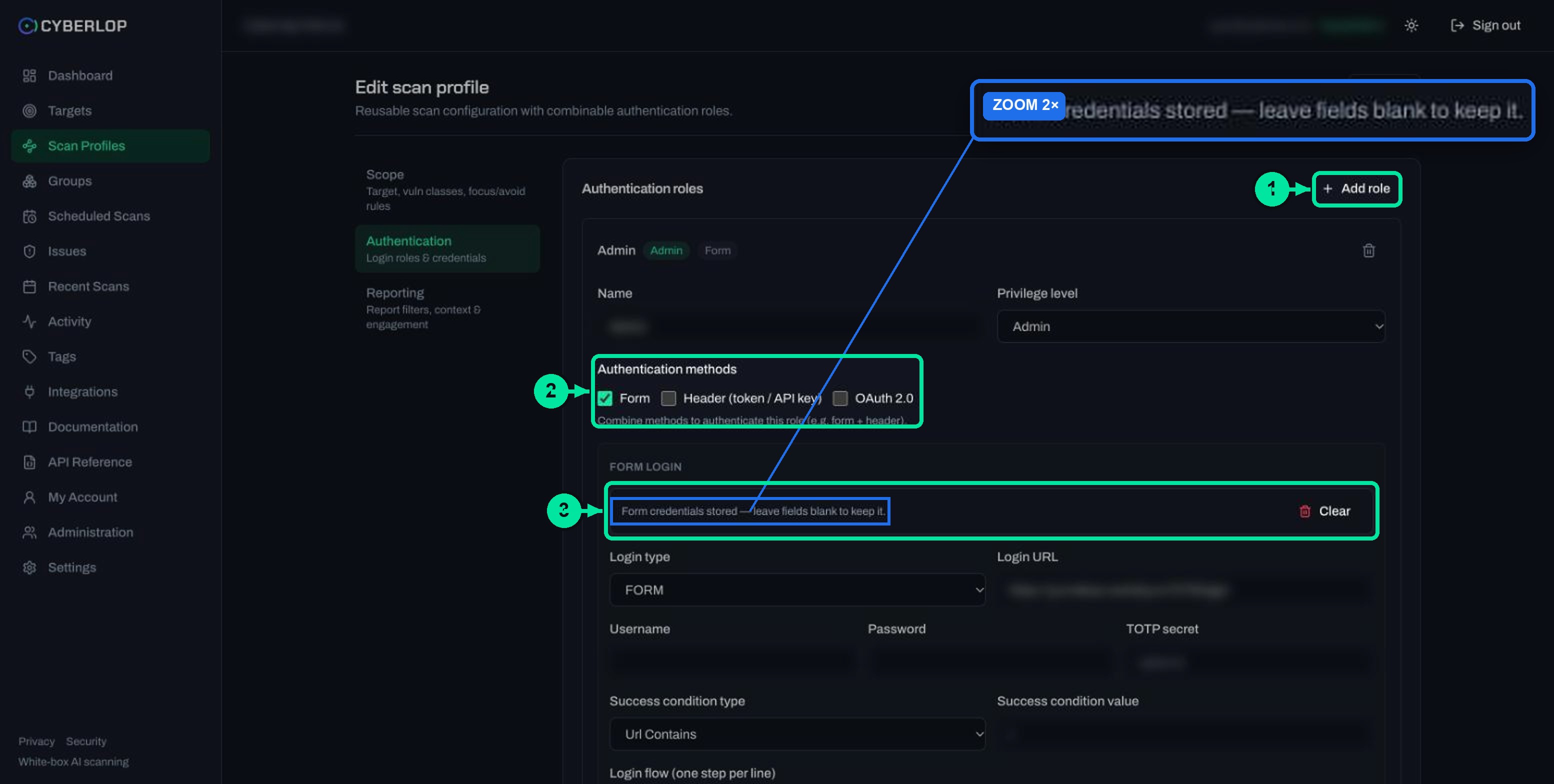
- To keep the stored login, leave the username, password and TOTP secret blank and save.
- To replace it, type the new values and save.
- To remove it, click Clear next to the notice.
The edit a scan profile guide covers this in more detail, including Preview YAML. The preview shows the generated scanner config without secrets.
How do you fix a login that does not work?
Work from the simplest cause: the selector, then the success condition, then the account itself.
| Symptom | Likely cause | What to do |
|---|---|---|
| Sitemap lists only public pages | The login did not succeed | Sign in by hand with the same details, then re-check the login URL and every flow step. |
| A step never completes | Wrong selector or missing step | Inspect the field and button, update the identifier, and add steps for any banner or extra screen. |
| Login seems to work but findings show the wrong access | Success condition matches a page you also see when signed out | Pick a value that exists only after login. |
| Fails only on the second screen | TOTP secret wrong or the code step is missing | Re-enrol the test account's authenticator, copy the secret again and add the code step. |
| Account locked after scans | Your app's lockout or rate limit was triggered by failed attempts | Fix the flow first, then unlock the account in your app. |
| Settings were blank after editing | Secrets are never shown again | This is expected. Blank fields keep the stored value. |
What are the most common mistakes?
Using a real person's account
Use a dedicated account. Real accounts hold real data and may trigger alerts or lockouts.
Using a success condition that is true when signed out
Check that the value is absent from the login page and error pages.
Expecting form login to cover an identity provider redirect
The form lists SSO as a Login type, but it does not say what that changes, so follow the help text in the app. Where a test token or API key exists, a header or OAuth role may be simpler. See the single sign-on guide for signing in to Cyberlop itself, which is a separate matter.
What should you do next?
Next step: add a second role of a different privilege with the authentication roles guide, or use a token instead of a form in the header and token guide. If a scan stops early, see failed or cancelled scans. Giving the scan background on your app helps it too: see application context.
Questions people ask
Form login authentication: FAQs
How do I add a form login in Cyberlop?
Open the scan profile, choose Authentication, click + Add role, keep Form ticked and fill in the login URL, username, password, success condition and login flow. Then click Save.
Is the TOTP secret required?
No. The field is marked optional. Fill it in only when the test account has two-step sign-in using an authenticator app, and leave it empty otherwise.
What is the TOTP secret, and where do I find it?
It is the shared secret behind the authenticator codes, defined by RFC 6238, not the six-digit code itself. Your app usually shows it once when you enrol the account's authenticator. If it was not kept, reset two-step sign-in on the test account and enrol again.
What should I put in the success condition?
Something that is true only after login, such as a /dashboard path with Url Contains, or a logout button with Element Present. Avoid values that also appear on the login page.
Can I use more than one authentication method on a role?
Yes. The form says methods can be combined, for example form plus header. Tick each method the role needs and fill in each block. For several people at different privilege levels, add separate roles.
Are my test credentials safe after I save them?
Stored secrets are encrypted and never shown again. When you edit the profile, blank fields keep the stored value, and Clear removes the stored login. Use a dedicated test account and rotate its password after testing.
Does Cyberlop store the password in the login flow?
The flow is plain steps, and the form's own example refers to username and password by name rather than containing them. Put the real values only in the Username and Password fields.
What if my app signs in through an identity provider?
The Login type list includes SSO, but the form does not say what it changes. Follow the help in the app, or use a header or OAuth 2.0 role if you can get a test token.
Keep reading
Related articles
Application context in Cyberlop: fill the ten fields and use Auto Generate from Repo
Fill in the ten application context fields of a Cyberlop scan profile, use Auto Generate from Repo, and write context that improves findings.
How to scan behind login in Cyberlop with authentication roles
Scan behind login in Cyberlop: add authentication roles, choose privilege levels, combine form, header and OAuth methods, and guide the scan with AI guidance.
How to create a scan profile in Cyberlop: Scope, Authentication, Reporting
Create a scan profile in Cyberlop: Scope, Authentication and Reporting fields, exploitation on or off, Preview YAML and Save, with a troubleshooting table.

Need help setting up a scan login?
Cyberlop reads your code while testing the running app and reports only what it exploited, with the request, the response and the line of code. Ask us to run it on one of your applications.
Or start with a $199 pilot on one application: thirty days, success criteria agreed before day one, credited against the annual if you convert.